> ## Documentation Index
> Fetch the complete documentation index at: https://moengage-user-guide.mintlify.site/llms.txt
> Use this file to discover all available pages before exploring further.
# Test Connectors
To test whether your Connector has been configured properly, you can use [Beeceptor](https://beeceptor.com/) or similar tools. Beeceptor gives you a URL that accepts events and allows you to see the events and payloads that MoEngage sends. To test your connector configuration, do the following:
1. Go to [Beeceptor.com](https://beeceptor.com/), add your subdomain, and click **Create Endpoint.** 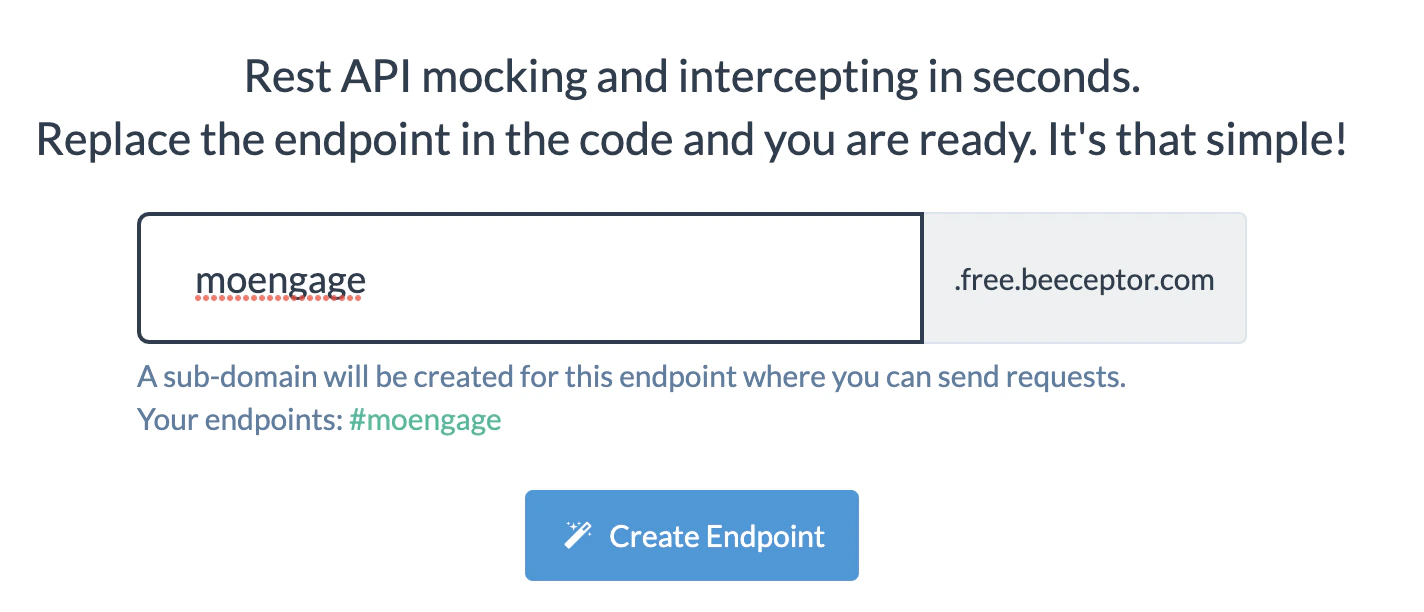 2. Copy the Endpoint/URL
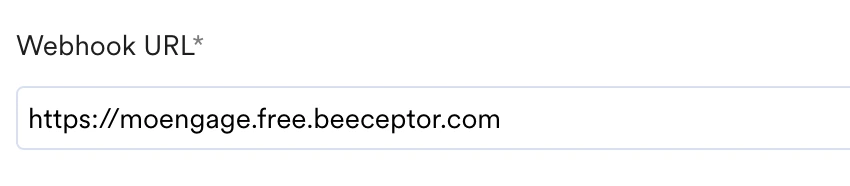
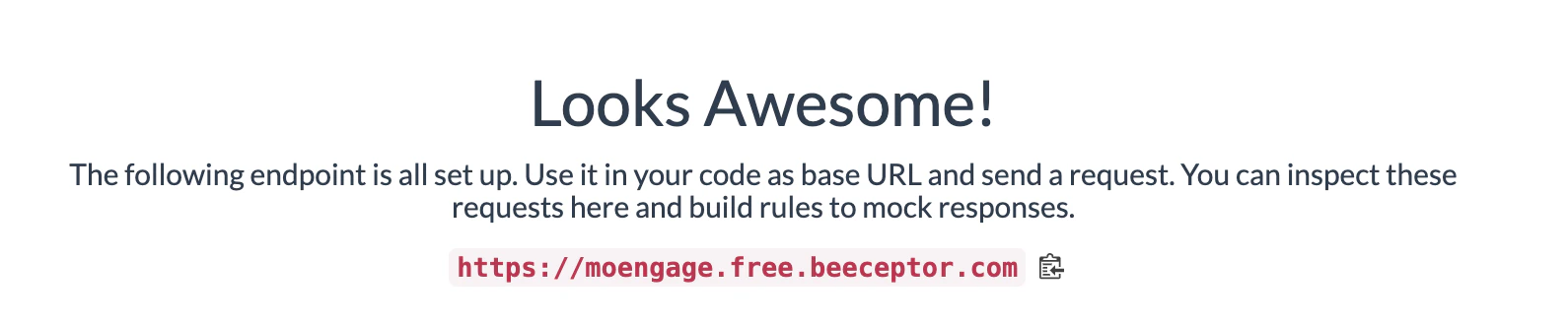 3. [Create the connector campaign](/user-guide/campaigns-and-channels/connectors/create/create-a-connector-campaign) and paste this URL in place of the Webhook URL.
  4. Create the request with the parameters you want to test. MoEngage will show if the request was successful.
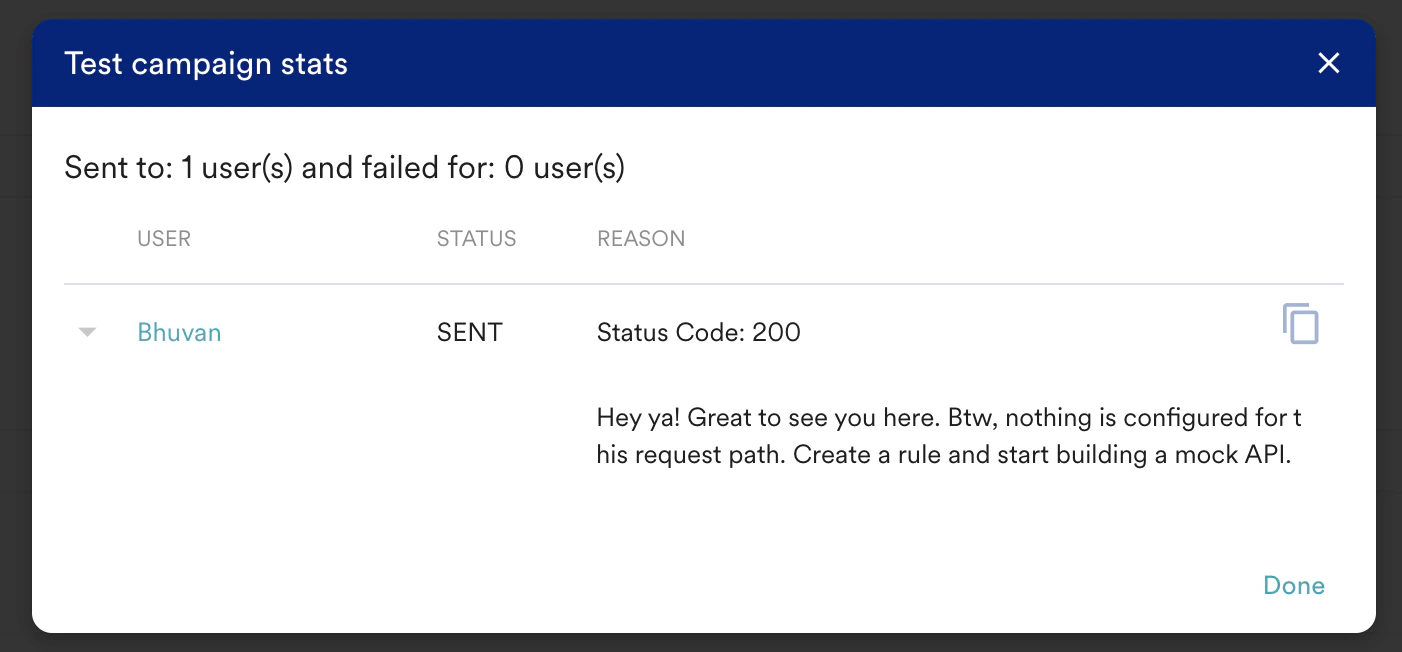 5. As soon as the request is triggered, you should be able to see the complete report in Beeceptor against your end-point.
 6. Click to expand and view the complete request.
