> ## Documentation Index
> Fetch the complete documentation index at: https://moengage-user-guide.mintlify.site/llms.txt
> Use this file to discover all available pages before exploring further.
# Inbox Previews
MoEngage has native integration with Email on Acid to preview your email campaign content. This will help you visualize your email across devices and email clients. For example, a mobile device that runs Gmail on Android 8 or a desktop that runs Apple Mail on OS X.
* There is no additional setup required.
* You do not need an Email on Acid account. You can directly use it from your MoEngage dashboard.
1. Only Marketers, Managers, and Admins can run Inbox Preview tests.
2. If the Inbox Previews option is not available for you, please contact your MoEngage Customer Success Manager (CSM) or the Support team to get it enabled.
## Run Inbox Previews
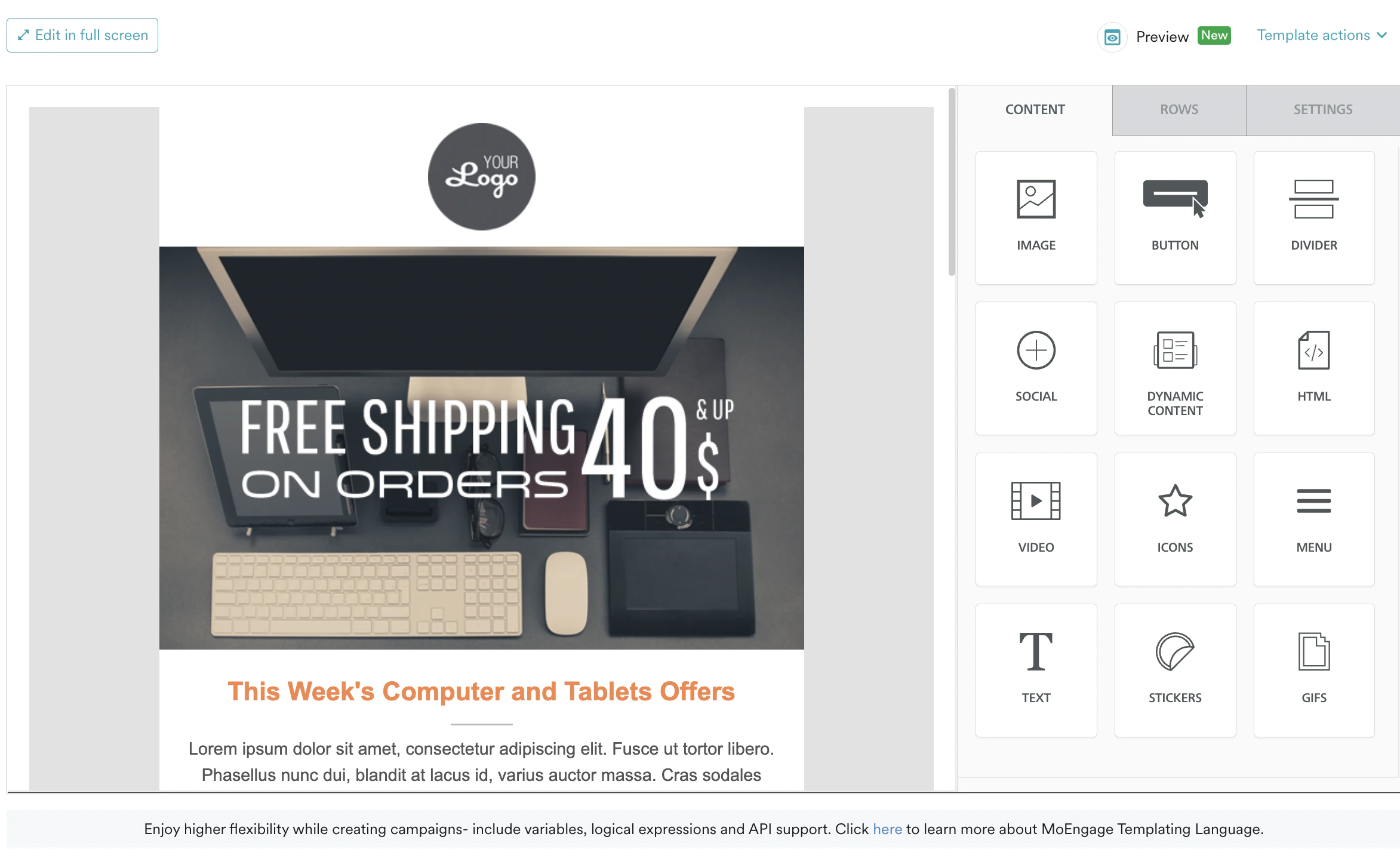
1. Navigate to step 2 of email campaign creation, and click on previews.
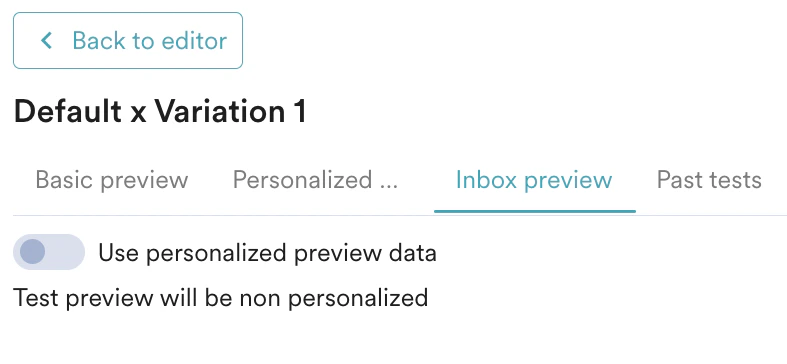
 2. The pop-up will show you a tab for "Inbox previews".
 3. If a user has run the inbox preview test already, the following screen is displayed with the option to view the past test(s) run for the campaign.
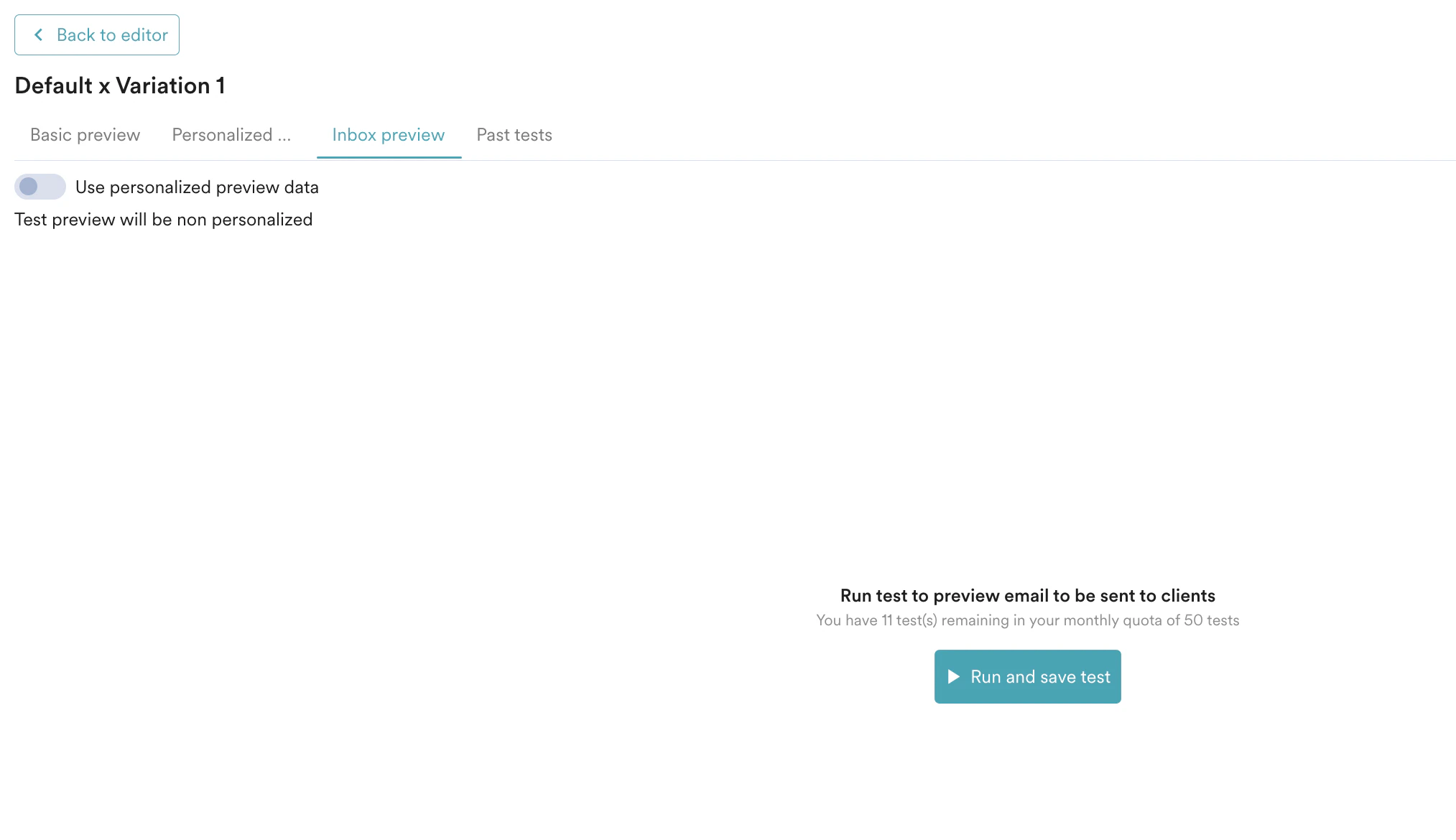 4. Click run and save the test. By default, MoEngage provides 10 free tests. You can increase your monthly limit by contacting your MoEngage Customer Success Manager (CSM) or the Support team.
5. The archival policies are customizable on a use-case basis. Please reach out to your MoEngage Account Manager.
6. Upon running the test, the test results are displayed. You can filter your tests by device or ratings. The preview shows the results for mobile clients, desktop clients, and web clients, as shown below.
4. Click run and save the test. By default, MoEngage provides 10 free tests. You can increase your monthly limit by contacting your MoEngage Customer Success Manager (CSM) or the Support team.
5. The archival policies are customizable on a use-case basis. Please reach out to your MoEngage Account Manager.
6. Upon running the test, the test results are displayed. You can filter your tests by device or ratings. The preview shows the results for mobile clients, desktop clients, and web clients, as shown below.
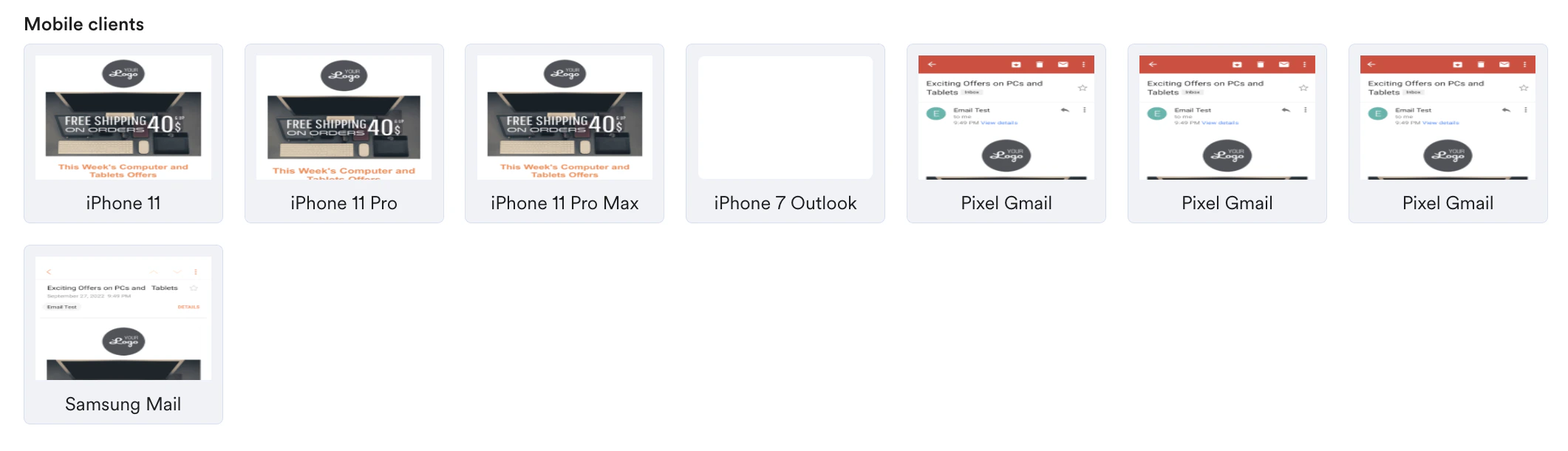
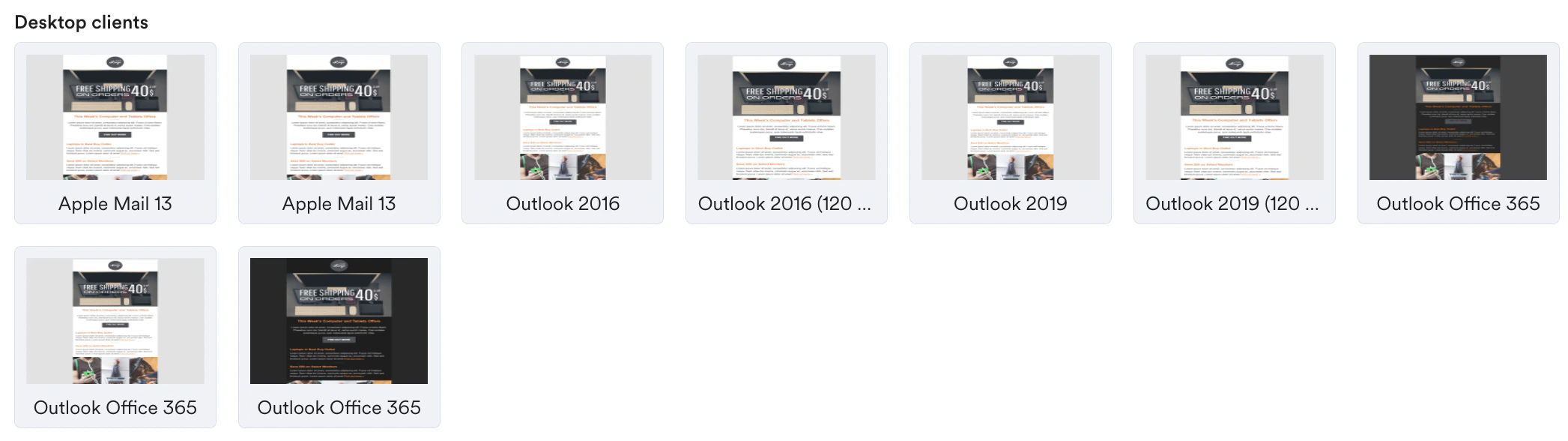 7. Each of these preview thumbnails can be clicked and viewed on a full scale.
 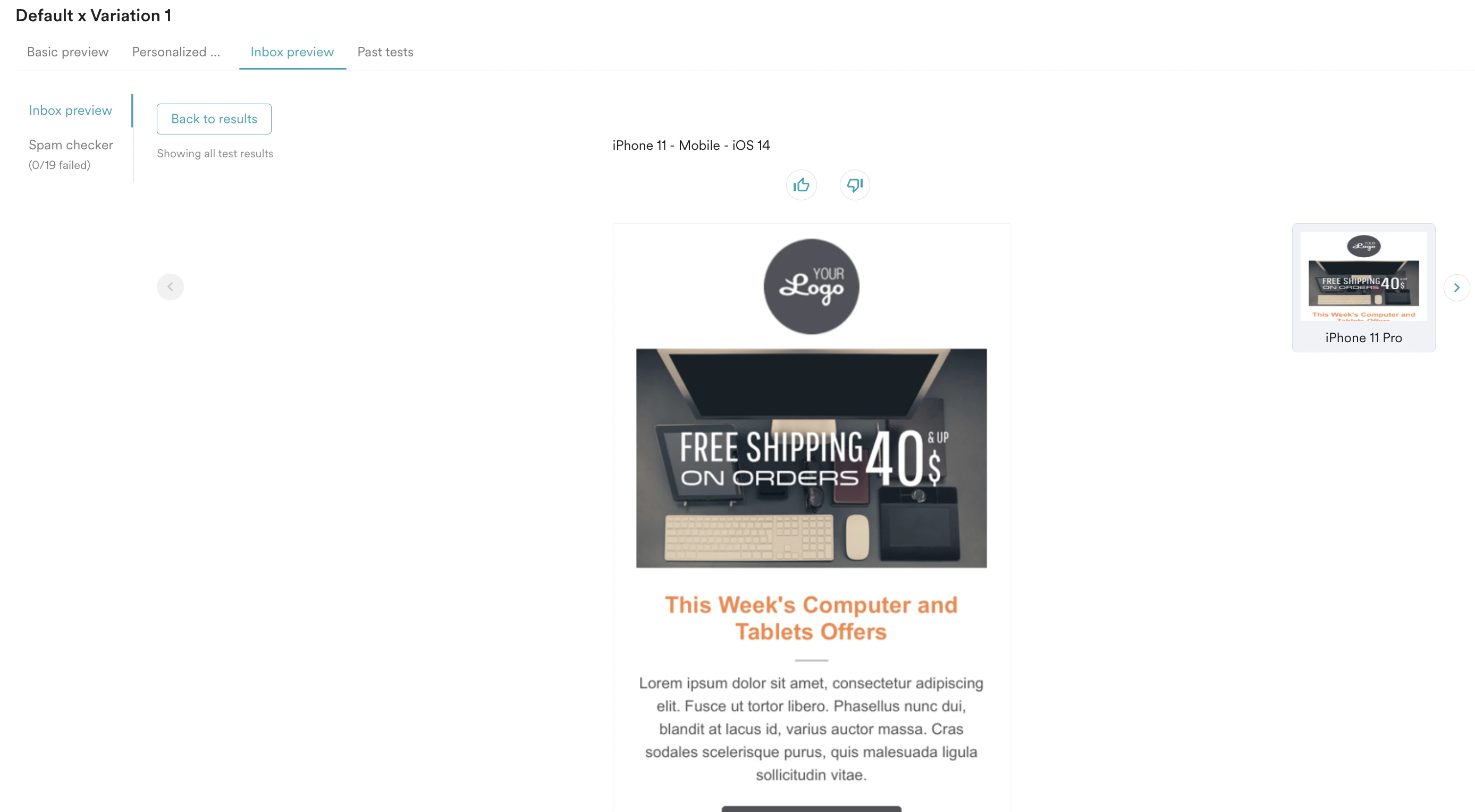 8. You can also reload the preview images in case of issues. **Note**: Reloading a test will not decrease your monthly tests.
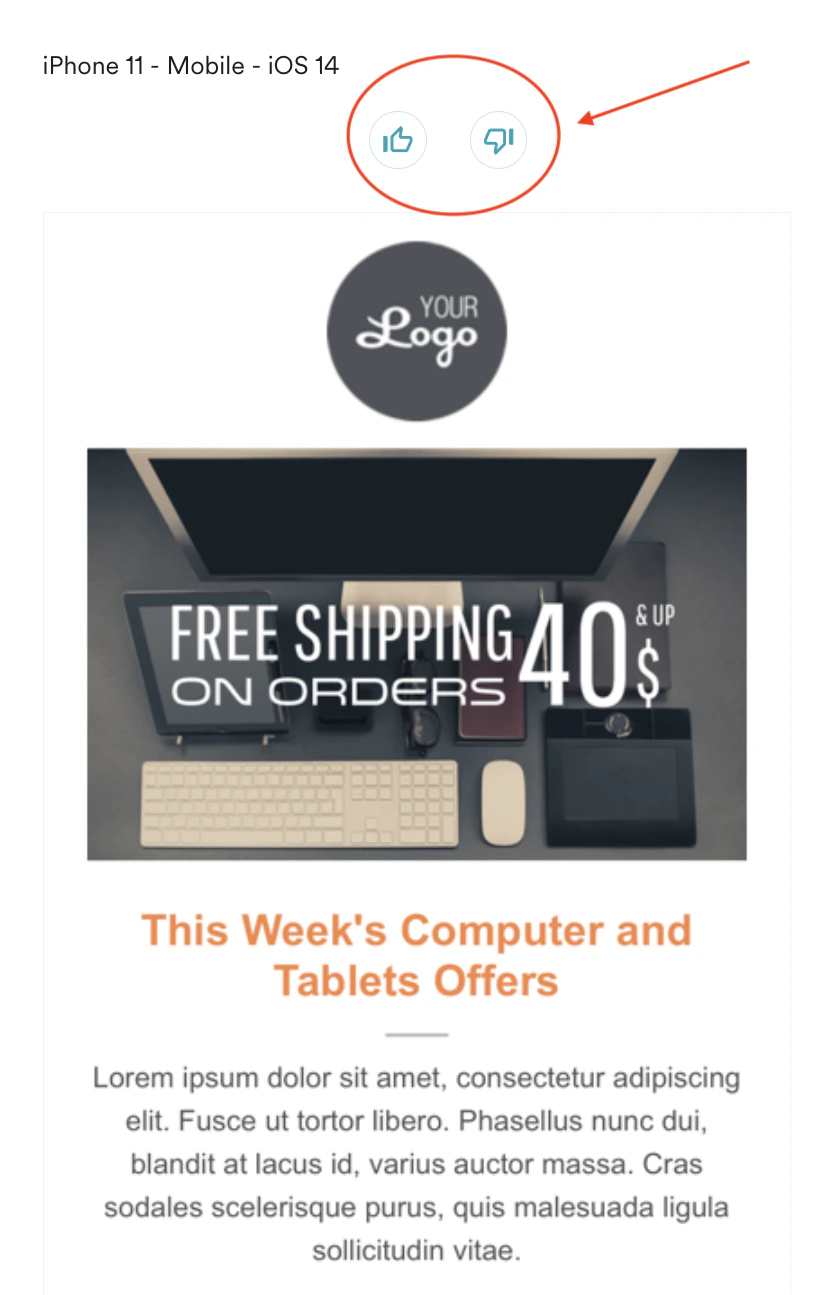
9. You can also rate your tests with a thumbs up/down. This allows you to collaborate better with your teammates.
8. You can also reload the preview images in case of issues. **Note**: Reloading a test will not decrease your monthly tests.
9. You can also rate your tests with a thumbs up/down. This allows you to collaborate better with your teammates.
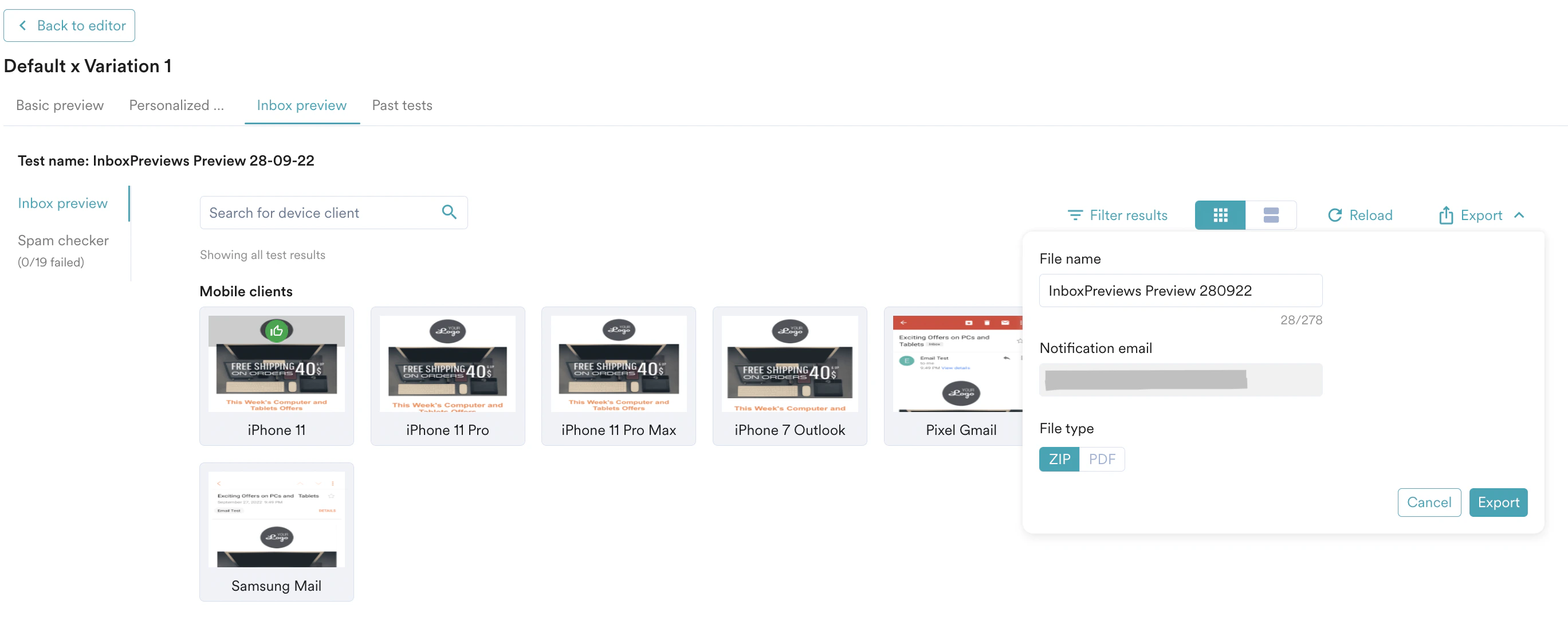
 10. You can also export your tests by clicking on the export button. Enter a file name and select file type (pdf/zip) to export your results. The file will provide you with detailed images with respect to every device and client. The export will be sent to the logged-in user of the dashboard.
 ## Spam Checker
Click on "Spam checker" in the sidebar to see the spam score of your content. The spam checker predicts the likelihood of your campaign hitting the spam folder instead of the inbox. The test looks at the content of your email that may cause spam delivery, such as:
* Blacklisted URLs in the email or its content.
* Misleading subject lines. Very image-heavy email content.
* Spelling and grammar issues.
* Missing unsubscribe link in the footer.
* Spam trigger words, subject line (too long or too short), or a sender email address that has been blacklisted
## Spam Checker
Click on "Spam checker" in the sidebar to see the spam score of your content. The spam checker predicts the likelihood of your campaign hitting the spam folder instead of the inbox. The test looks at the content of your email that may cause spam delivery, such as:
* Blacklisted URLs in the email or its content.
* Misleading subject lines. Very image-heavy email content.
* Spelling and grammar issues.
* Missing unsubscribe link in the footer.
* Spam trigger words, subject line (too long or too short), or a sender email address that has been blacklisted
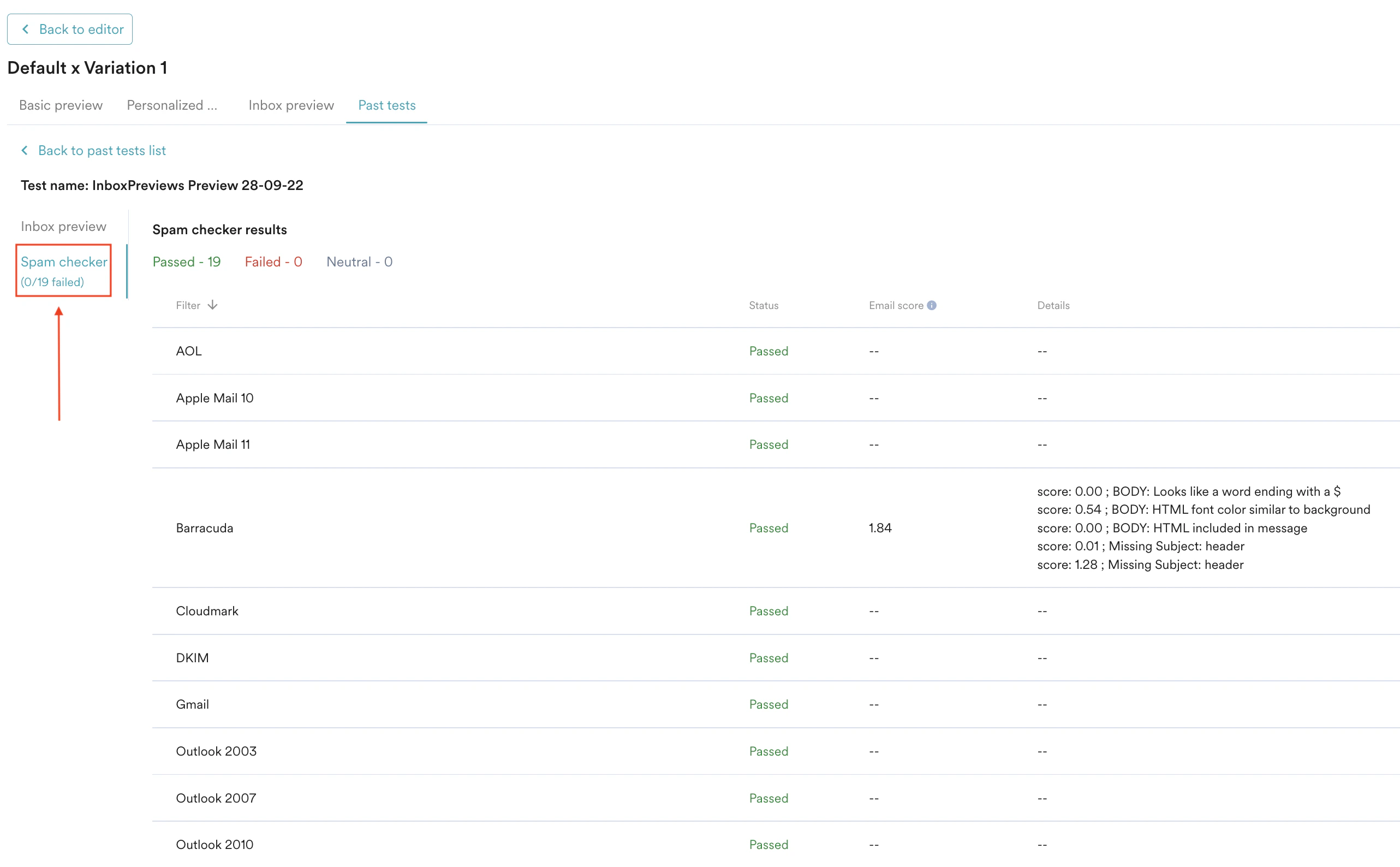 Click [here](https://www.emailonacid.com/help-article/campaign-precheck-spam-check/) to read more about calculating spam scores in Email on Acid.
## Past tests
You can access your past tests by clicking the *Past Tests* option in the pop-up. This will list all the tests that you have run on your account.
Click [here](https://www.emailonacid.com/help-article/campaign-precheck-spam-check/) to read more about calculating spam scores in Email on Acid.
## Past tests
You can access your past tests by clicking the *Past Tests* option in the pop-up. This will list all the tests that you have run on your account.
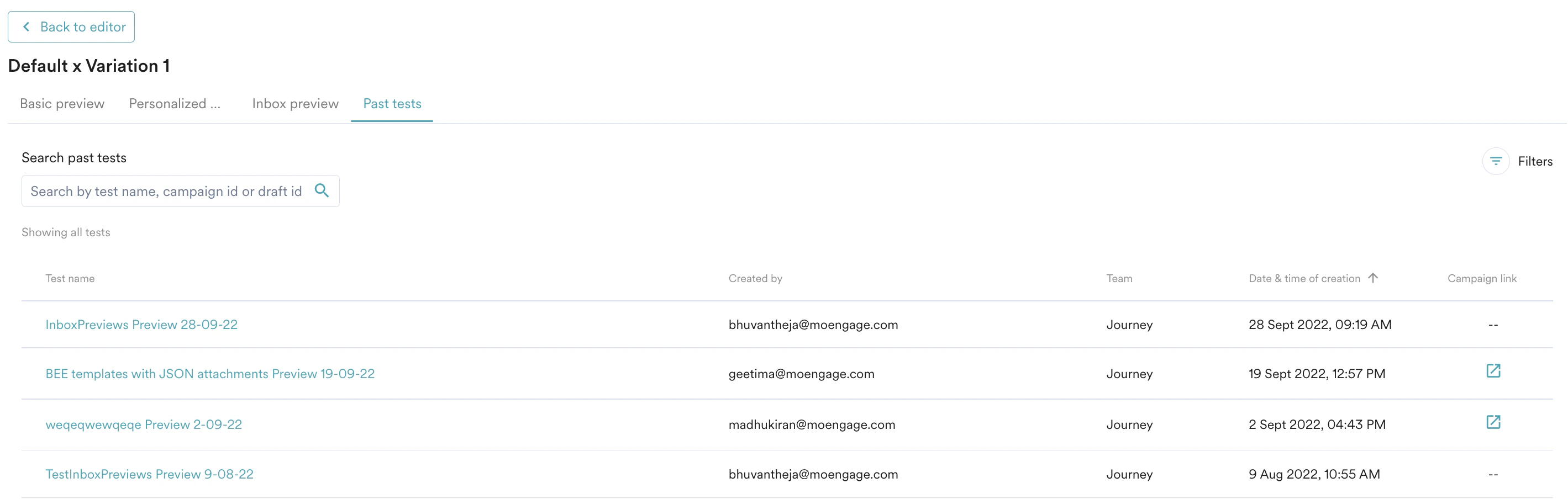 Click on the Campaign link to go to the Campaign Info page of the campaign for which the test was run.
## Supported devices
The following devices and email clients are supported in inbox previews:
iPad Air 3 iOS 13\
iPad Pro (11-inch) iOS 13\
iPad Pro (12.9-inch) iOS 13\
iPad Pro (9.7-inch) iOS 13\
iPhone X iOS 12\
iPhone XR iOS 13\
iPhone XS iOS 13\
iPhone XS Max iOS 13\
iPhone XR Dark Mode iOS 13\
iPhone 7 iOS 12\
iPhone 7 Outlook iOS 11\
iPhone 7+ iOS 12\
iPhone 8 iOS 12\
iPhone 8 iOS 13\
iPhone 8+ iOS 12\
iPhone 8+ iOS 13\
iPhone 11 iOS 13\
iPhone 11 Pro iOS 13\
iPhone 11 Pro Max iOS 13\
iPhone SE iOS 12\
Pixel Gmail Android 6\
Pixel Gmail Android 7\
Pixel Gmail Android 8\
Samsung Mail Android 7
Apple Mail 13 macOS Catalina\
Apple Mail 13 Dark Mode macOS Catalina\
Outlook 2016 Windows 10\
Outlook 2016 (120 dpi) Windows 10\
Outlook 2019 Windows 10\
Outlook 2019 (120 dpi) Windows 10\
Outlook Office365, Windows 10\
Outlook Office365 Dark Mode, Windows 10\
Outlook Office365 Dark Mode, macOS Catalina
AOL\
Comcast\
Free.fr\
Freenet.de\
Gmail\
GMX\
Google Apps\
Libero\
Mail.ru\
Office 365\
Outlook\
Telstra/BigPond\
Web.de\
Yahoo!
Click on the Campaign link to go to the Campaign Info page of the campaign for which the test was run.
## Supported devices
The following devices and email clients are supported in inbox previews:
iPad Air 3 iOS 13\
iPad Pro (11-inch) iOS 13\
iPad Pro (12.9-inch) iOS 13\
iPad Pro (9.7-inch) iOS 13\
iPhone X iOS 12\
iPhone XR iOS 13\
iPhone XS iOS 13\
iPhone XS Max iOS 13\
iPhone XR Dark Mode iOS 13\
iPhone 7 iOS 12\
iPhone 7 Outlook iOS 11\
iPhone 7+ iOS 12\
iPhone 8 iOS 12\
iPhone 8 iOS 13\
iPhone 8+ iOS 12\
iPhone 8+ iOS 13\
iPhone 11 iOS 13\
iPhone 11 Pro iOS 13\
iPhone 11 Pro Max iOS 13\
iPhone SE iOS 12\
Pixel Gmail Android 6\
Pixel Gmail Android 7\
Pixel Gmail Android 8\
Samsung Mail Android 7
Apple Mail 13 macOS Catalina\
Apple Mail 13 Dark Mode macOS Catalina\
Outlook 2016 Windows 10\
Outlook 2016 (120 dpi) Windows 10\
Outlook 2019 Windows 10\
Outlook 2019 (120 dpi) Windows 10\
Outlook Office365, Windows 10\
Outlook Office365 Dark Mode, Windows 10\
Outlook Office365 Dark Mode, macOS Catalina
AOL\
Comcast\
Free.fr\
Freenet.de\
Gmail\
GMX\
Google Apps\
Libero\
Mail.ru\
Office 365\
Outlook\
Telstra/BigPond\
Web.de\
Yahoo!