> ## Documentation Index
> Fetch the complete documentation index at: https://moengage-user-guide.mintlify.site/llms.txt
> Use this file to discover all available pages before exploring further.
# Dynamic Content Personalization
# Overview
*Dynamic Content Personalization* transforms the way you create personalized messages, enabling you to deliver many unique experiences from a single, master campaign. Through an intuitive, code-free interface, you can construct complex `if-else` logic in moments.
The *Dynamic Content Personalization* feature allows you to:
* Swap promotional banners
* Change calls to action
* Display different product recommendations for each audience segment.
With *Dynamic Content Personalization*, you can also define clear fallback content for users who do not meet your specified criteria. This entire logic block is then encapsulated into a manageable "[chip](/user-guide/campaigns-and-channels/getting-started/message-personalization/dynamic-content-personalization#chip-actions)" that you can save and reuse across your campaigns and templates, ensuring consistency and saving valuable time.
The feature is available across multiple modules, including campaigns (Push, SMS, Email, In-App, WhatsApp), Flows, and Content Blocks.
Any existing personalization in active or paused campaigns remains unaffected. When you edit these existing campaigns, the editor transitions to the new UI-based experience.
# Use Cases
The *Dynamic Content Personalization* feature unlocks a variety of sophisticated, data-driven marketing scenarios without the need for complex code by integrating three core modules to address common marketing challenges: the Conditional UI for visual logic, Chip Actions for reusability, and the Custom Jinja Editor for advanced control.
* **Retail and E-commerce**: You can display unique promotional offers based on a user's loyalty tier, personalize abandoned cart reminders with the specific items left behind, or create conditional welcome messages that greet users by name.
* **Travel and Hospitality**: You can send dynamic flight reminders that show a "Check-in" message or an "Upgrade" offer based on the user's status, or display a departure gate number with "TBA" as a fallback if the information is unavailable.
* **Financial Services**: You can tailor credit card reward information based on a user's interest (like travel vs. merchandise), or recommend specific investment products when a user's account balance reaches a certain threshold.
* **Media and Entertainment:** You can promote different TV shows or movies within a single campaign based on a user's age and viewing preferences, ensuring content is always appropriate and relevant.
# Use the Dynamic Content Builder
This section provides workflows for adding and managing personalization via the Dynamic Content builder. The editor has three core modules:
* [Conditional](/user-guide/campaigns-and-channels/getting-started/message-personalization/dynamic-content-personalization#conditional)
* [Chip Actions](/user-guide/campaigns-and-channels/getting-started/message-personalization/dynamic-content-personalization#chip-actions)
* [Custom Jinja Editor](/user-guide/campaigns-and-channels/getting-started/message-personalization/dynamic-content-personalization#custom-jinja-editor)
## Conditional
The Conditional is the primary visual tool for building personalization logic without writing code. It allows you to create complex `if-else` logic blocks by selecting options from drop-down menus rather than writing syntax manually.
1. Navigate to a personalizable field and type the **@** symbol to open the **Personalization Editor**.
2. Select the **Conditional** tab.
3. For easier identification, we recommend entering a **Display name** for your logic block, such as "Welcome Greeting Block."
4. **`Define the primary IF Condition Block.`** This block is where you build the main criteria using a specific hierarchy of operators.
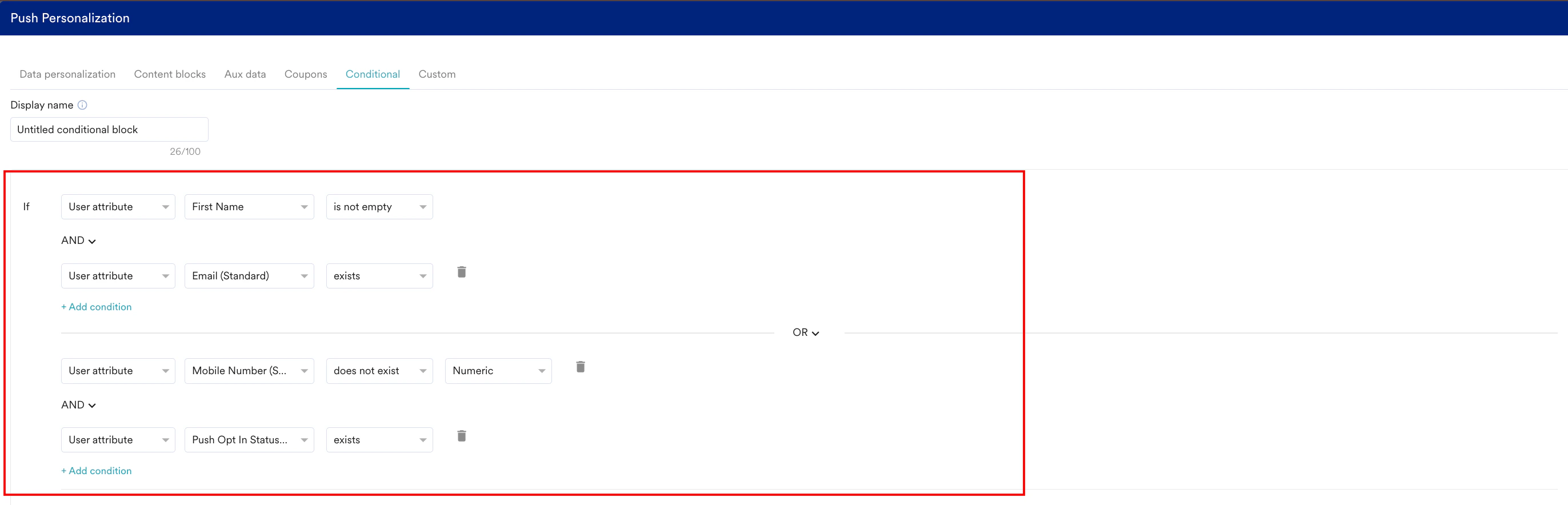
1. **Build your first condition:** Use the drop-down menus to select an attribute source like *User Attribute*, a specific attribute like `First Name`, an operator like `is not empty`, and a value to compare against.
2. **Add more conditions within a group:** Click **+ Add condition** to add another rule inside the same group. A drop-down appears, allowing you to connect these rules with either an **AND** or an **OR** operator.
3. **Connect multiple condition groups:** Click **+ Add Group condition** to create a separate rule group. The operator that connects these groups is dependent on the operator used within them.
* If you connect conditions within a group using **OR**, the operator connecting the separate groups must be **AND**. This creates logic like: `(A OR B) AND (C OR D)`.
* Conversely, if you connect conditions within a group using **AND**, the operator connecting the separate groups must be **OR**. This creates logic like: `(A AND B) OR (C AND D)`.
 5. **`Configure the Then Block.`** In the `Then` text box, enter the content that users who meet your `IF` criteria will see. This field also supports further personalization; you can type `@` to insert another dynamic value or a nested conditional block.
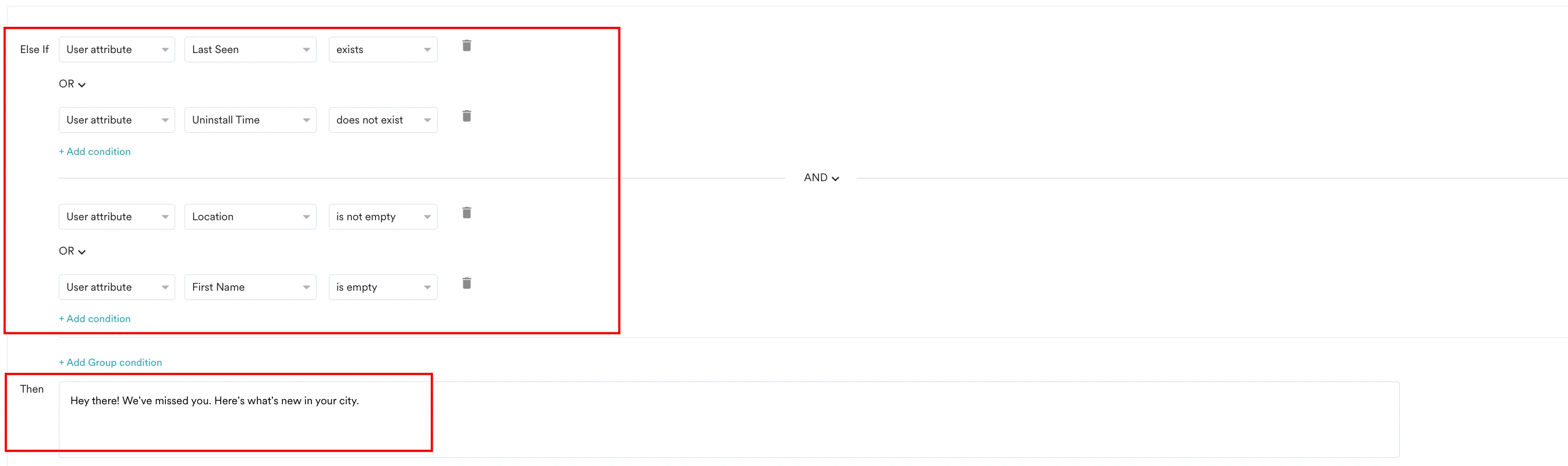
 6. (Optional) **`Add Else If Conditions.`** Click **+ Add condition** below the main `IF` block to add an `Else If` block. This action allows you to check for a different set of criteria if the first one is not met.
1. You can add multiple conditions and group conditions of `Else If` blocks to create a chain of logic.
2. You can configure the **Then**block for the **Else If** block.
6. (Optional) **`Add Else If Conditions.`** Click **+ Add condition** below the main `IF` block to add an `Else If` block. This action allows you to check for a different set of criteria if the first one is not met.
1. You can add multiple conditions and group conditions of `Else If` blocks to create a chain of logic.
2. You can configure the **Then**block for the **Else If** block.
 7. **Configure the Final Fallback.** At the bottom, use the **Else use fallback option as** drop-down list to define the default behavior for any user who does not meet any of the preceding conditions. The options are:
* **No Fallback:** This option does not send a value to users who do not meet the criteria.
* **Do not send:** This option aborts the entire message for users who do not meet the criteria.
* **Fallback:** This option displays a text box where you can enter default content. This field can also be personalized.
7. **Configure the Final Fallback.** At the bottom, use the **Else use fallback option as** drop-down list to define the default behavior for any user who does not meet any of the preceding conditions. The options are:
* **No Fallback:** This option does not send a value to users who do not meet the criteria.
* **Do not send:** This option aborts the entire message for users who do not meet the criteria.
* **Fallback:** This option displays a text box where you can enter default content. This field can also be personalized.
 8. Click **Done** to save the logic and insert it as a chip into your message.
The *Conditional* module supports all data types for creating conditions except for Location and Object data types.
### Scenario: Advanced Onboarding with a Personalized First-Purchase Offer
**The Goal:** You want to send a single, powerful welcome message that not only greets new users but also drives their first purchase with a highly targeted offer. The offer should vary based on the user's profile data and their predicted value.
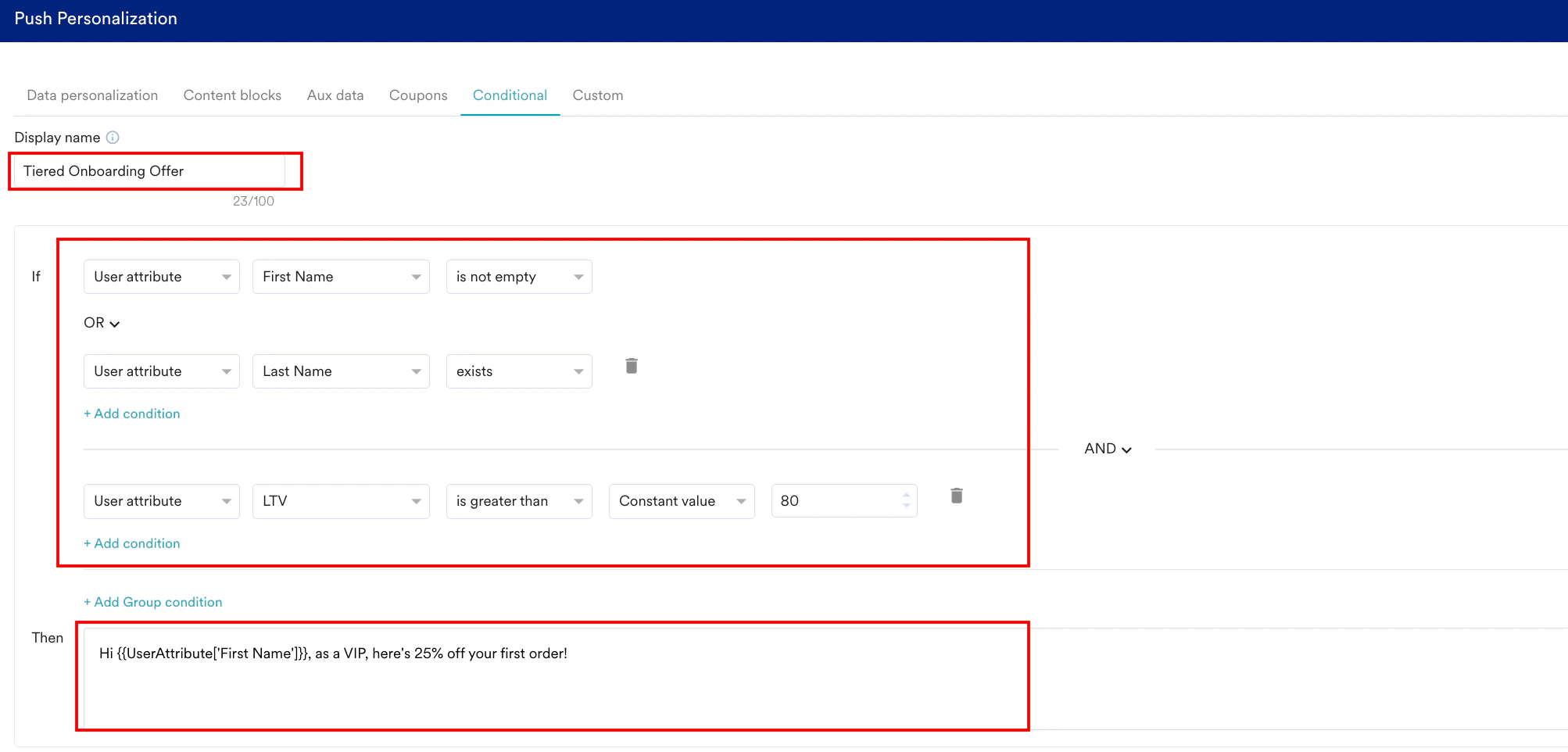
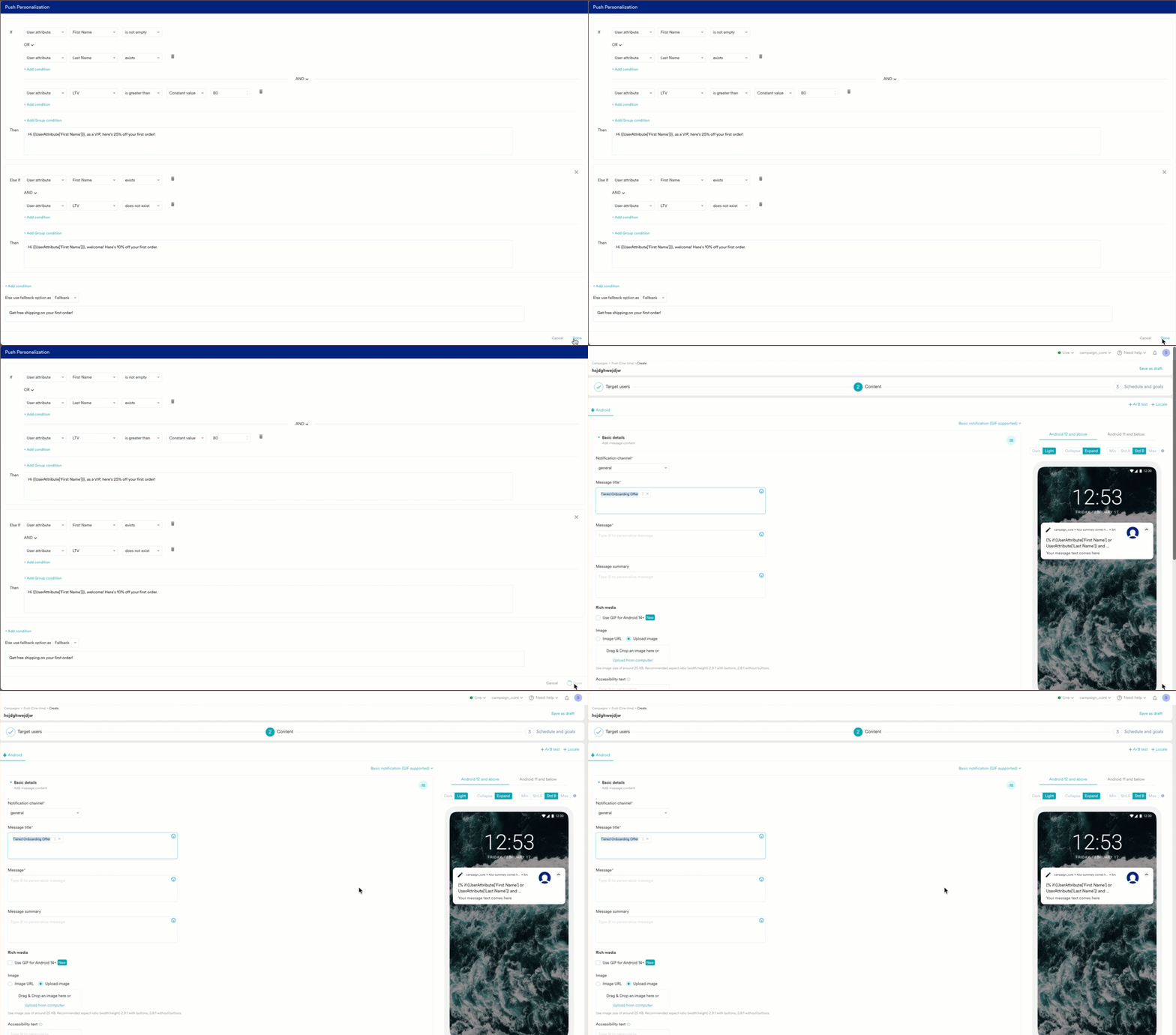
* * Instead of creating multiple campaigns for different segments, you open the **Conditional UI** and enter your block a **Display name** like "Tiered Onboarding Offer".
* You build your first group of conditions using **OR** to identify users you can personally address:\
`IF` (`User Attribute` `First Name` `is not empty`) `OR` (`User Attribute` `Last Name` `exists`)
* Next, you click **+ Add Group condition** and connect it with an **AND** operator to target a high-value sub-segment. You build the second group of conditions:\
`AND` (`User Attribute` `Predicted LTV` `is greater than` `80`)
* In the **Then** block for this high-value segment, you add a premium offer: "Hi `{{user.properties.first\_name}}`, as a VIP, here's 25% off your first order!".
8. Click **Done** to save the logic and insert it as a chip into your message.
The *Conditional* module supports all data types for creating conditions except for Location and Object data types.
### Scenario: Advanced Onboarding with a Personalized First-Purchase Offer
**The Goal:** You want to send a single, powerful welcome message that not only greets new users but also drives their first purchase with a highly targeted offer. The offer should vary based on the user's profile data and their predicted value.
* * Instead of creating multiple campaigns for different segments, you open the **Conditional UI** and enter your block a **Display name** like "Tiered Onboarding Offer".
* You build your first group of conditions using **OR** to identify users you can personally address:\
`IF` (`User Attribute` `First Name` `is not empty`) `OR` (`User Attribute` `Last Name` `exists`)
* Next, you click **+ Add Group condition** and connect it with an **AND** operator to target a high-value sub-segment. You build the second group of conditions:\
`AND` (`User Attribute` `Predicted LTV` `is greater than` `80`)
* In the **Then** block for this high-value segment, you add a premium offer: "Hi `{{user.properties.first\_name}}`, as a VIP, here's 25% off your first order!".
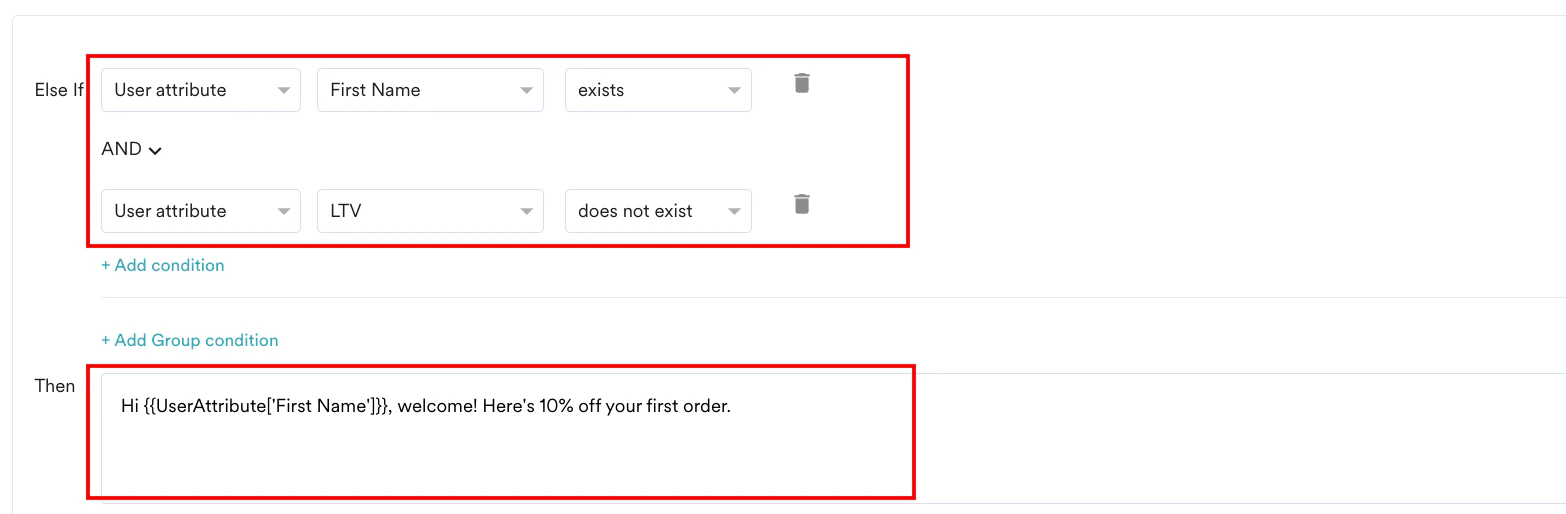
 * You then click **+ Add condition** to create an **Else If** block that targets users who have a first name but are not in the high-value segment, offering them a standard discount: "Hi `{{user.properties.first\_name}}`, welcome! Here's 10% off your first order."
 * Finally, you set the main **Else use fallback option as** to **Fallback** and enter a generic offer for all other anonymous users: "Get free shipping on your first order!".
* **The Result:** You create a single, sophisticated onboarding message that functions like three different campaigns, dynamically personalizing both the greeting and the offer based on multiple user attributes.
* Finally, you set the main **Else use fallback option as** to **Fallback** and enter a generic offer for all other anonymous users: "Get free shipping on your first order!".
* **The Result:** You create a single, sophisticated onboarding message that functions like three different campaigns, dynamically personalizing both the greeting and the offer based on multiple user attributes.
 ## Chip Actions
Every personalization you create with the *Dynamic Content builder* is converted into a manageable "chip". Clicking the ellipse button on a chip reveals the **Actions for chip** menu, which is available for **Email** (in the custom HTML editor) and **Push**.
## Chip Actions
Every personalization you create with the *Dynamic Content builder* is converted into a manageable "chip". Clicking the ellipse button on a chip reveals the **Actions for chip** menu, which is available for **Email** (in the custom HTML editor) and **Push**.
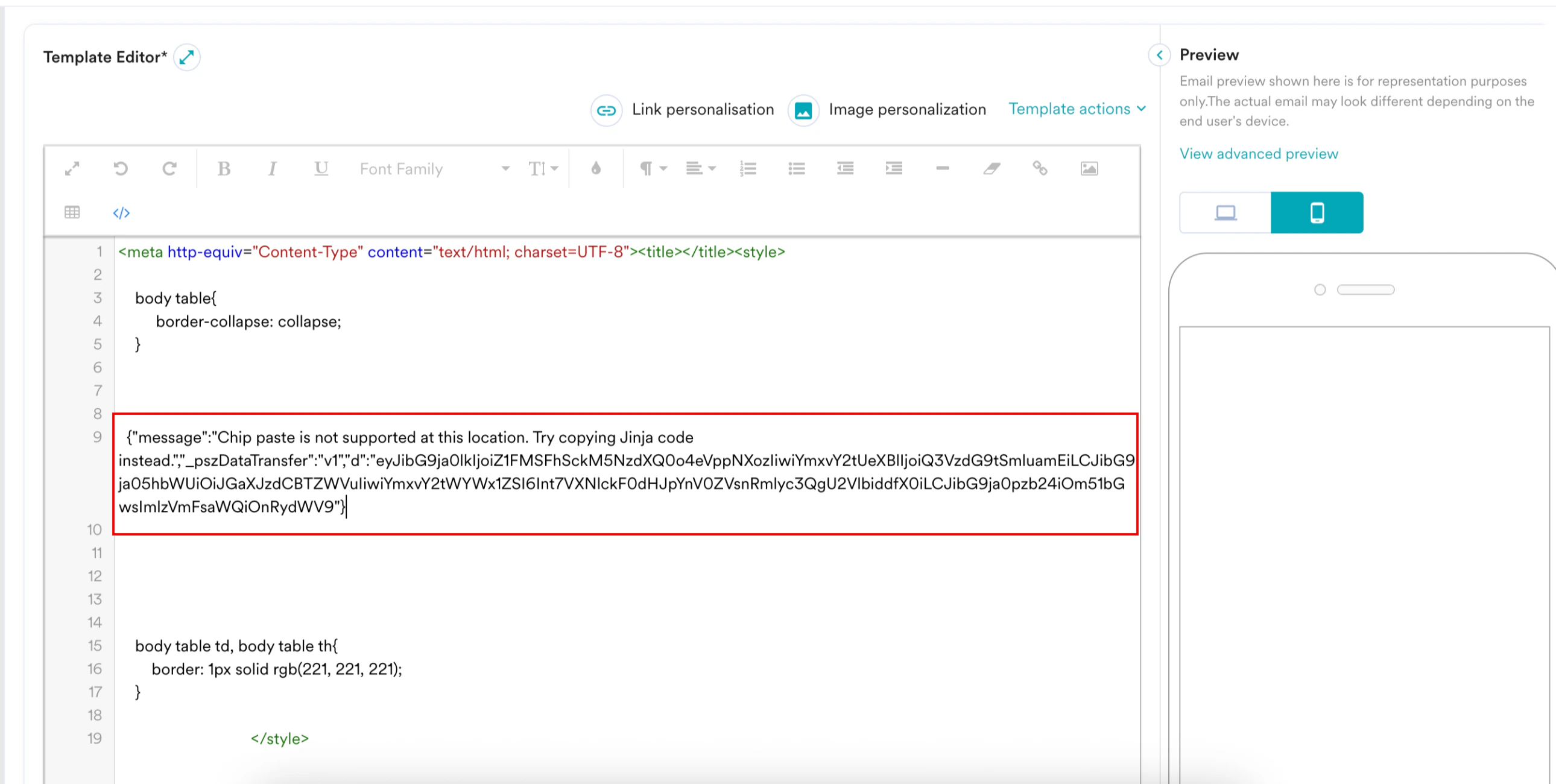
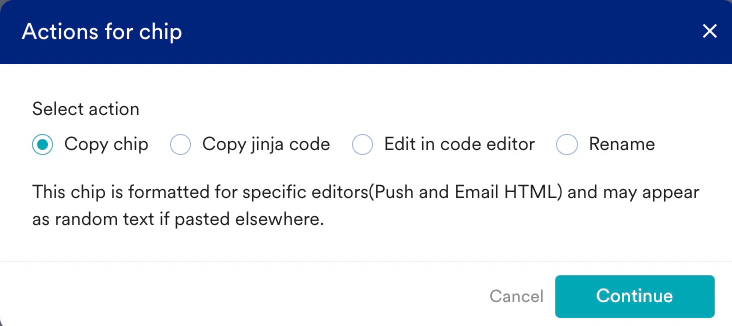 * **Copy chip**: Creates an exact, reusable copy of the chip's logic. Edits made to the new, copied chip do not affect the original. You can paste the copied chip into supported locations, including:
* Content blocks
* Push campaigns
* Custom HTML editor for Email campaigns\
Attempting to paste the chip into an unsupported editor or channel results in an error.
* **Copy chip**: Creates an exact, reusable copy of the chip's logic. Edits made to the new, copied chip do not affect the original. You can paste the copied chip into supported locations, including:
* Content blocks
* Push campaigns
* Custom HTML editor for Email campaigns\
Attempting to paste the chip into an unsupported editor or channel results in an error.
 * **Copy Jinja code:** This function copies the chip's underlying Jinja code, which you can then paste or modify in the Custom Jinja Editor.
* **Edit in code editor**: Opens the chip's logic directly in the Custom Jinja Editor for advanced modifications. Editing a chip in the code editor permanently converts it to a custom Jinja block. After this action, you can no longer edit the chip using the *Conditional* module.
* **Rename**: Allows you to assign a unique name to the personalization chip for better identification within your campaign.
## Custom Jinja Editor
For advanced use cases or specific formatting needs, you can write or edit personalization code directly. This editor provides full control for users who are proficient with Jinja syntax.
* **Accessing the Editor:** You can access the Custom Jinja Editor in two ways:
* Select the **Custom Jinja** tab within the Personalization Editor.
* Click an existing chip and choose **Edit in code editor** from the **Actions for chip** menu.
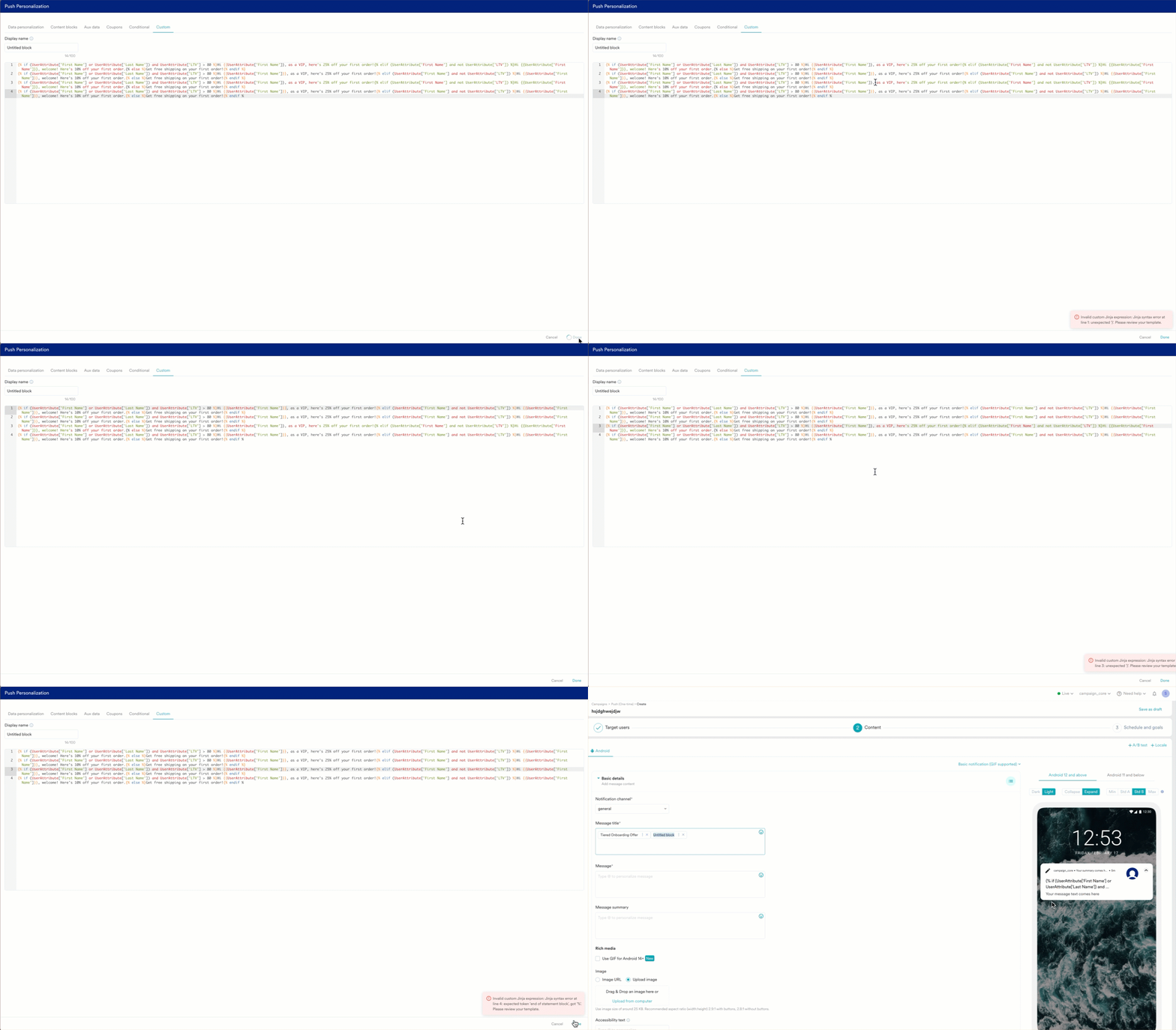
* **Syntax Validation:** An automatic syntax validation check is performed when you click **Done**. This process is essential because direct code editing can introduce syntax errors.
* If a syntax error is detected, MoEngage prevents the chip from saving and displays an error message. The message specifies the line number of the first error encountered to facilitate debugging.
* **Copy Jinja code:** This function copies the chip's underlying Jinja code, which you can then paste or modify in the Custom Jinja Editor.
* **Edit in code editor**: Opens the chip's logic directly in the Custom Jinja Editor for advanced modifications. Editing a chip in the code editor permanently converts it to a custom Jinja block. After this action, you can no longer edit the chip using the *Conditional* module.
* **Rename**: Allows you to assign a unique name to the personalization chip for better identification within your campaign.
## Custom Jinja Editor
For advanced use cases or specific formatting needs, you can write or edit personalization code directly. This editor provides full control for users who are proficient with Jinja syntax.
* **Accessing the Editor:** You can access the Custom Jinja Editor in two ways:
* Select the **Custom Jinja** tab within the Personalization Editor.
* Click an existing chip and choose **Edit in code editor** from the **Actions for chip** menu.
* **Syntax Validation:** An automatic syntax validation check is performed when you click **Done**. This process is essential because direct code editing can introduce syntax errors.
* If a syntax error is detected, MoEngage prevents the chip from saving and displays an error message. The message specifies the line number of the first error encountered to facilitate debugging.
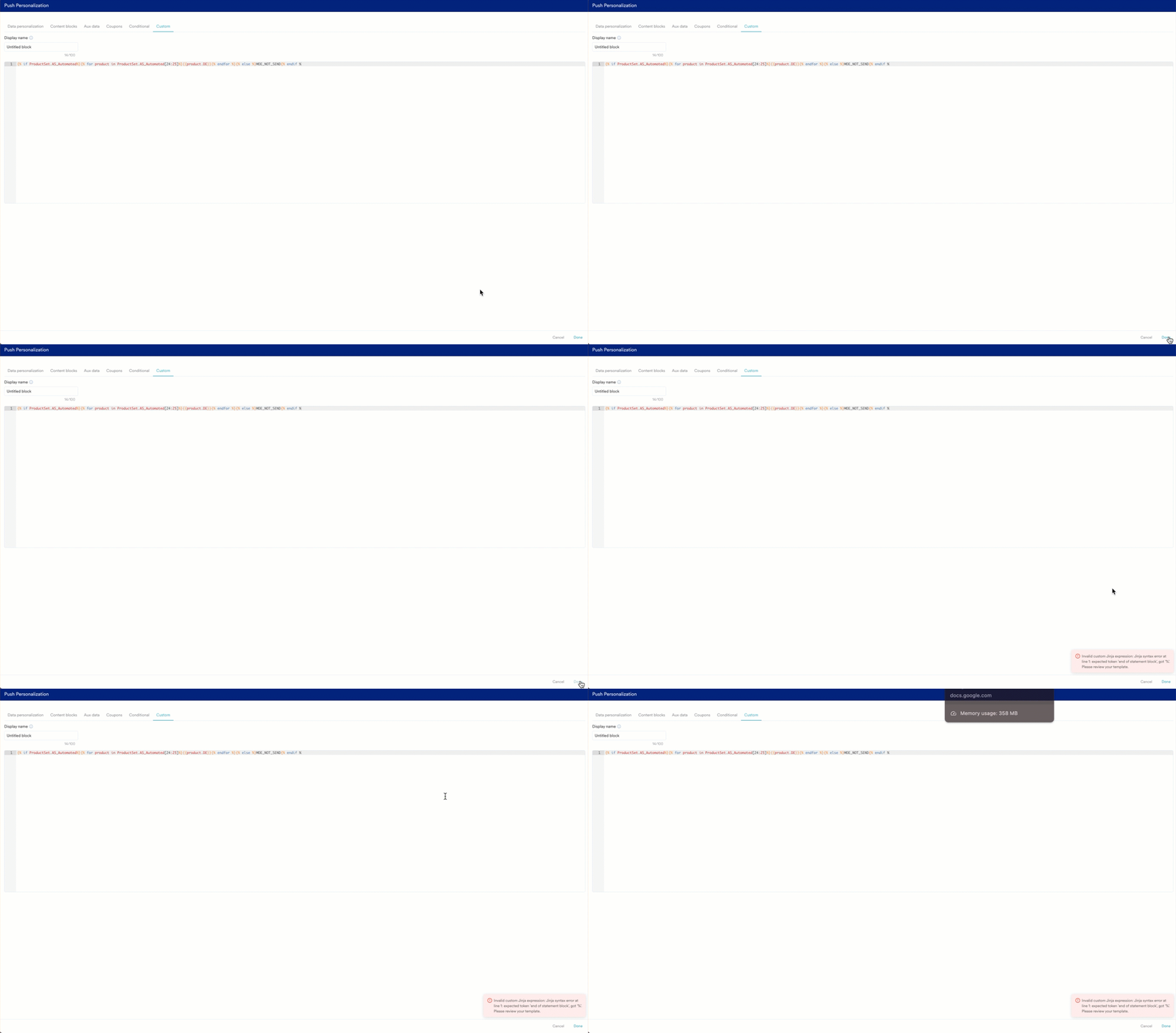 * If the code contains multiple errors, they must be resolved sequentially. The validator reports the next error only after the previously identified error has been corrected, and you attempt to save again.
 # Feature Support Matrix
The following table outlines where the core modules of the *Dynamic Content builder* are supported across different channels and features within MoEngage.
| Channel / Module | Conditional | Chip Actions | Custom Jinja Editor |
| ----------------------- | ------------------------------------------------------------------------------------ | ------------ | ------------------- |
| **Email** | ✅ | ✅\* | ✅ |
| **Push** | ✅ | ✅ | ✅ |
| **SMS** | ✅ | ❌ | ✅ |
| **WhatsApp** | ✅ | ❌ | ✅ |
| **In-App** | ✅ | ❌ | ✅ |
| **OSM** | ✅ | ❌ | ✅ |
| **Inform** | ✅ | ❌ | ❌ |
| **Flows** | Supported within the channel-specific nodes (e.g., an Email or Push node in a Flow). | | |
| **Content Blocks** | ✅ | ✅\* | ✅ |
| **Template Management** | Supported for Email and OSM Templates. | | |
*\* Chip Actions are available in the following specific editors:*
* *For Email: In the Custom HTML editor only.*
* *For Content Blocks: In the plain text editor only.*
# Frequently Asked Questions (FAQs)
The rules are evaluated sequentially from top to bottom. The user is shown the content for the **first** rule they match, and the evaluation for that ruleset stops.
Yes. You can combine different attribute sources within a single conditional block by using the **+ Add Group condition** button with the **AND** operator. This allows you to create sophisticated logic, such as checking for a specific user attribute AND a product set attribute simultaneously.
The Dynamic Content builder is designed for speed and accuracy. While you can still write Jinja manually, the UI builder prevents common syntax errors, makes complex logic easy to read, and allows marketers to create personalization without needing to be coding experts. It is the recommended path for most conditional logic.
No, there's no limit to the number of `if-else` conditions you can add within a single conditional builder.
Yes. The Dynamic Content builder can be used for any text field that supports personalization, including URL and image source fields. This allows you to dynamically change deep links or display different images based on user attributes.
# Feature Support Matrix
The following table outlines where the core modules of the *Dynamic Content builder* are supported across different channels and features within MoEngage.
| Channel / Module | Conditional | Chip Actions | Custom Jinja Editor |
| ----------------------- | ------------------------------------------------------------------------------------ | ------------ | ------------------- |
| **Email** | ✅ | ✅\* | ✅ |
| **Push** | ✅ | ✅ | ✅ |
| **SMS** | ✅ | ❌ | ✅ |
| **WhatsApp** | ✅ | ❌ | ✅ |
| **In-App** | ✅ | ❌ | ✅ |
| **OSM** | ✅ | ❌ | ✅ |
| **Inform** | ✅ | ❌ | ❌ |
| **Flows** | Supported within the channel-specific nodes (e.g., an Email or Push node in a Flow). | | |
| **Content Blocks** | ✅ | ✅\* | ✅ |
| **Template Management** | Supported for Email and OSM Templates. | | |
*\* Chip Actions are available in the following specific editors:*
* *For Email: In the Custom HTML editor only.*
* *For Content Blocks: In the plain text editor only.*
# Frequently Asked Questions (FAQs)
The rules are evaluated sequentially from top to bottom. The user is shown the content for the **first** rule they match, and the evaluation for that ruleset stops.
Yes. You can combine different attribute sources within a single conditional block by using the **+ Add Group condition** button with the **AND** operator. This allows you to create sophisticated logic, such as checking for a specific user attribute AND a product set attribute simultaneously.
The Dynamic Content builder is designed for speed and accuracy. While you can still write Jinja manually, the UI builder prevents common syntax errors, makes complex logic easy to read, and allows marketers to create personalization without needing to be coding experts. It is the recommended path for most conditional logic.
No, there's no limit to the number of `if-else` conditions you can add within a single conditional builder.
Yes. The Dynamic Content builder can be used for any text field that supports personalization, including URL and image source fields. This allows you to dynamically change deep links or display different images based on user attributes.