> ## Documentation Index
> Fetch the complete documentation index at: https://moengage-user-guide.mintlify.site/llms.txt
> Use this file to discover all available pages before exploring further.
# Using Custom Fonts in In-apps
This article explains how to add custom fonts to your MoEngage In-app messages. Using custom fonts helps you maintain consistent branding and provide a seamless experience for your app users.
Custom Fonts are supported only from Android SDK Versions -> 10.0.0 and iOS SDK Versions -> 6.0.0.
# Add Custom Fonts to In-App Messages
Follow these steps to add custom fonts to your In-app messaging campaigns:
1. Go to **Step 2** of campaign creation.
2. Select the **Custom font** check box.
3. Enter the custom font name in the text box below the **Custom font** check box.
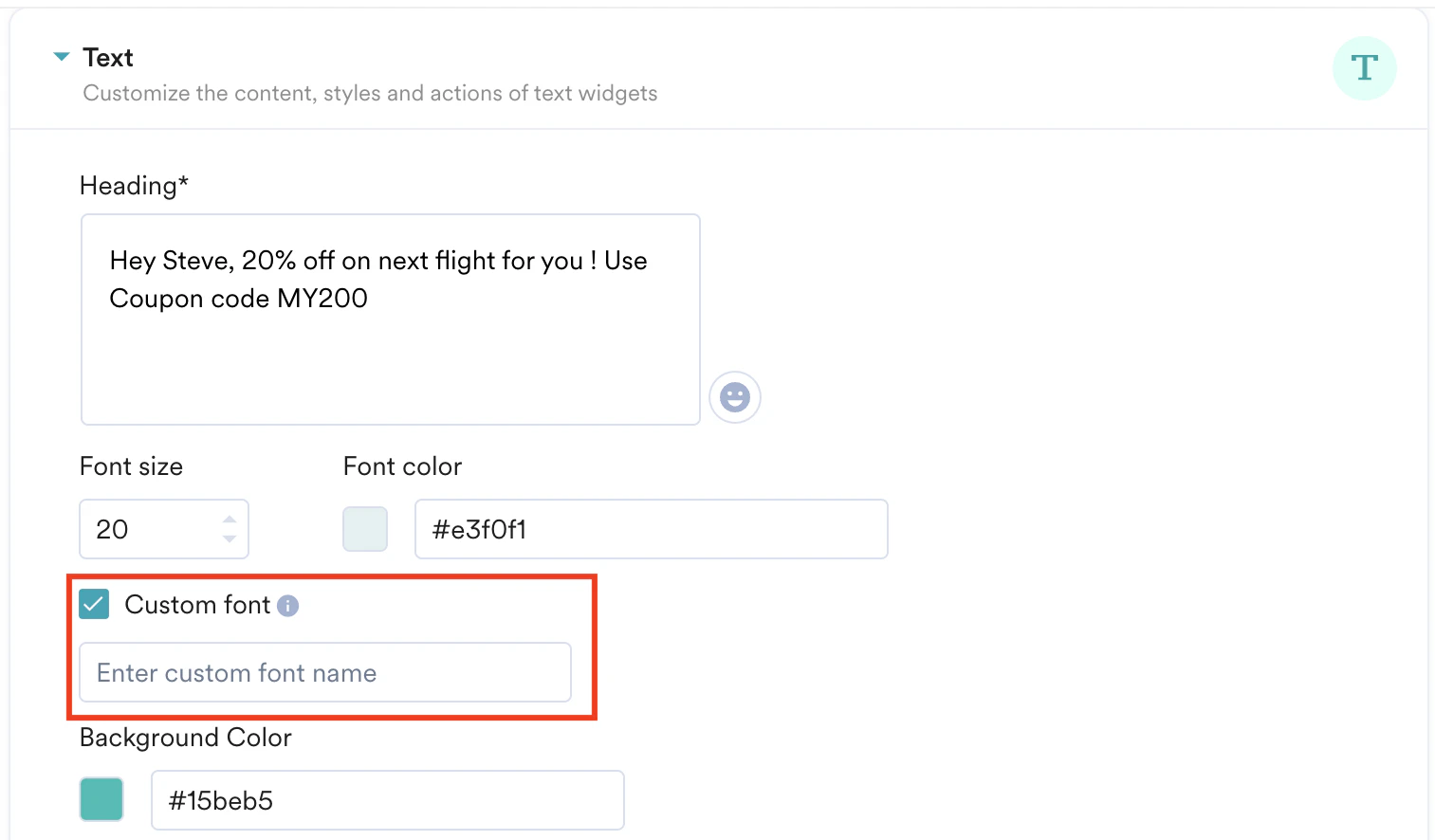 4. Ensure the font name you specify is available in your app bundle:
* For **Android**: Place the font file in your app bundle, inside the `res/font/` folder. For more information, refer to the [Android Developer documentation about adding fonts in XML](https://developer.android.com/develop/ui/views/text-and-emoji/fonts-in-xml).
* For **iOS**: Bundle the font file in your app. For more information, see the [Apple documentation about adding fonts for iPhone](https://support.apple.com/en-in/guide/iphone/iphb2517689c/ios) and [iPad](https://support.apple.com/en-in/guide/ipad/ipad952422ba/ipados).
5. If you do not want to apply custom fonts to your In-app messages, leave the text box empty.
6. To verify how your in-app messages appear with the custom fonts, use the **Test Campaign** feature. For more information, refer to [Test In-App Campaign](/user-guide/campaigns-and-channels/in-app-message/create/test-your-in-app-campaign).
Custom fonts do not appear in the message preview on the dashboard. Use the Test Campaign feature to see the fonts in your messages.
4. Ensure the font name you specify is available in your app bundle:
* For **Android**: Place the font file in your app bundle, inside the `res/font/` folder. For more information, refer to the [Android Developer documentation about adding fonts in XML](https://developer.android.com/develop/ui/views/text-and-emoji/fonts-in-xml).
* For **iOS**: Bundle the font file in your app. For more information, see the [Apple documentation about adding fonts for iPhone](https://support.apple.com/en-in/guide/iphone/iphb2517689c/ios) and [iPad](https://support.apple.com/en-in/guide/ipad/ipad952422ba/ipados).
5. If you do not want to apply custom fonts to your In-app messages, leave the text box empty.
6. To verify how your in-app messages appear with the custom fonts, use the **Test Campaign** feature. For more information, refer to [Test In-App Campaign](/user-guide/campaigns-and-channels/in-app-message/create/test-your-in-app-campaign).
Custom fonts do not appear in the message preview on the dashboard. Use the Test Campaign feature to see the fonts in your messages.