> ## Documentation Index
> Fetch the complete documentation index at: https://moengage-user-guide.mintlify.site/llms.txt
> Use this file to discover all available pages before exploring further.
# Exit Intent Technology
MoEngage's Exit Intent technology detects what users do on your website and triggers a message when they are about to leave. You can use this for your desktop web and mobile web traffic in On-Site Messaging (OSM) campaigns.
## How Exit Intent Works
MoEngage detects user exit intent on desktop and mobile web, as follows:
* **Desktop web:** MoEngage detects cursor movement. When the cursor moves off the browser tab, the MoEngage SDK triggers an Exit Intent campaign.
* **Mobile web:** MoEngage detects exit intent based on these actions:
* When the user taps the **Back** button or gestures back in the browser.
* When the user double-taps the browser to switch tabs or taps the tab button.
* When the user scrolls down 50% and then scrolls up 5%. This action displays the browser's top bar, which allows opening a new tab.
## Use Cases for Exit Intent Campaigns
* Capture users' email addresses as they prepare to leave your site.
* Show users your best offers to keep them interested. Personalize these offers by creating segments and content for specific geographic regions.
* Ask for user feedback as they prepare to leave your site to understand how you can improve.
Your platform must be integrated with the MoEngage Web SDK. For more information, refer to [Web SDK](/developer-guide/web-sdk/web-sdk-overview/web-sdk-overview).
## Create OSM Campaigns with Exit Intent
To create an On-Site Messaging (OSM) campaign that uses exit intent, follow these steps:
1. On the sidebar menu in MoEngage, hover over the **Engage** menu item  . The **Engage** menu appears.
2. Click **+ New Campaign**.
. The **Engage** menu appears.
2. Click **+ New Campaign**.
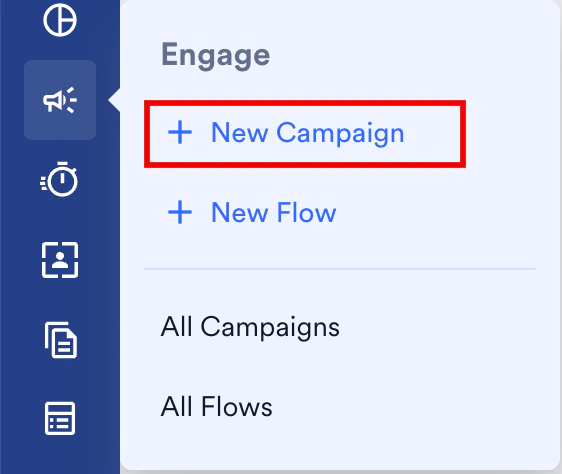 You can also click **All Campaigns** on the **Engage** menu, and then click **+ Create campaign** on the All Campaigns page.
3. In the **New Campaign** dialog box, under **INBOUND**, click **On-site**.
You can also click **All Campaigns** on the **Engage** menu, and then click **+ Create campaign** on the All Campaigns page.
3. In the **New Campaign** dialog box, under **INBOUND**, click **On-site**.
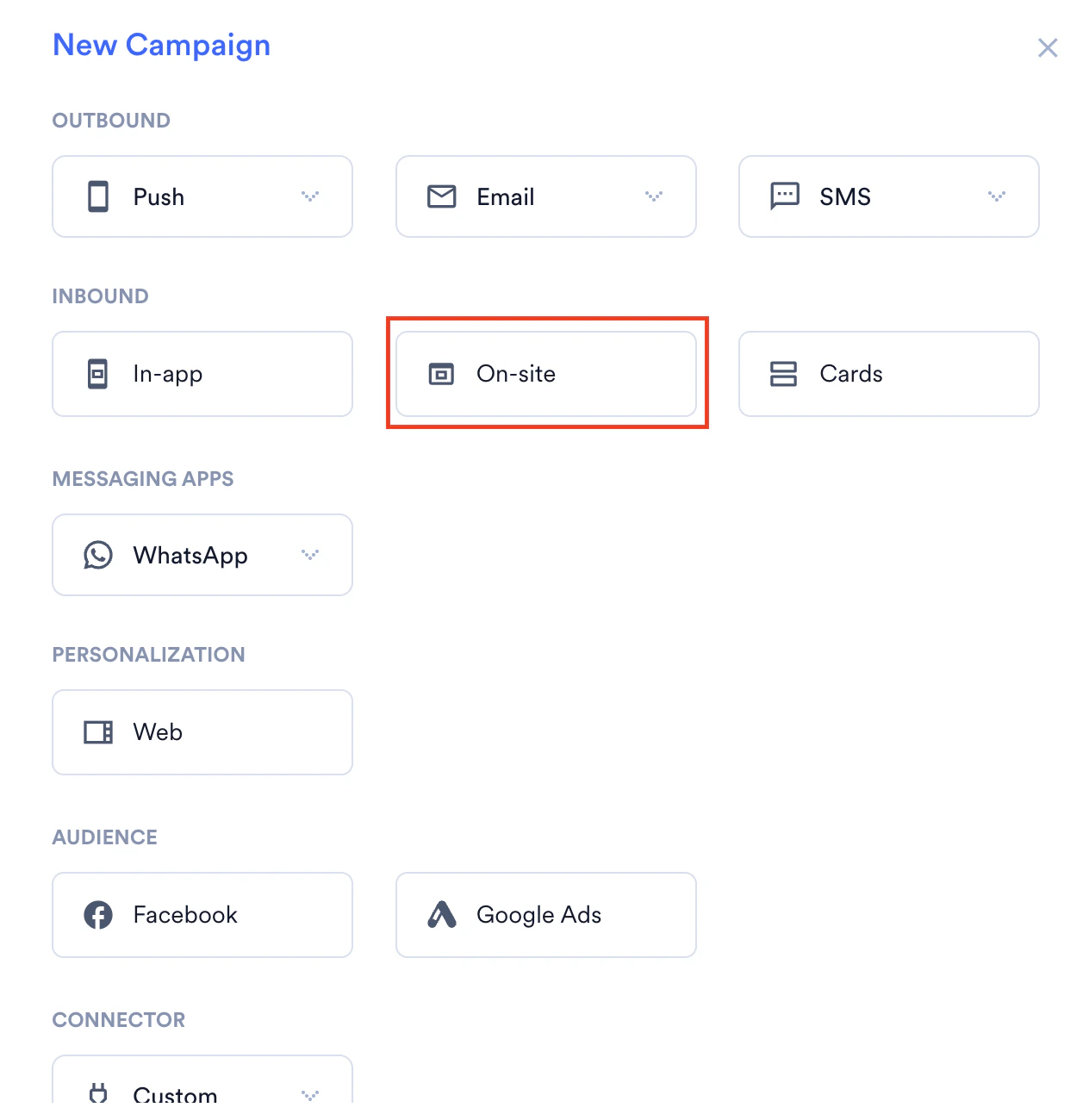 The On-Site Messaging campaign creation page appears.
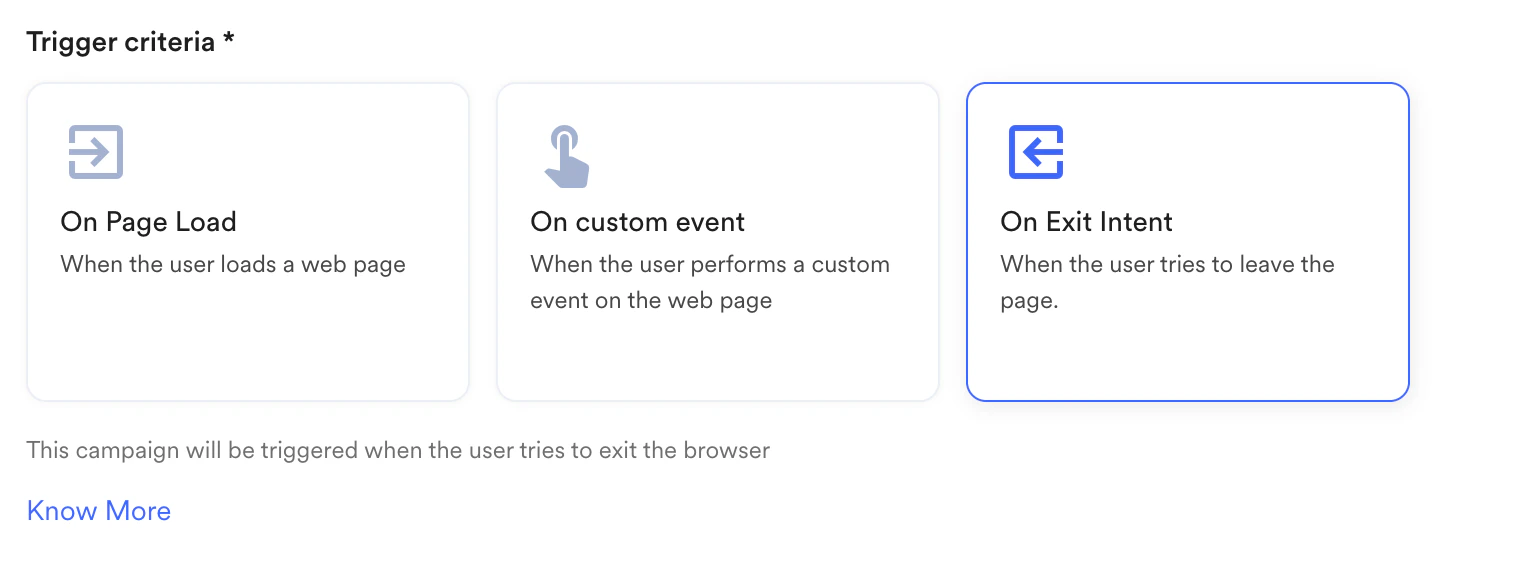
4. In the **Trigger criteria** section, select **On Exit Intent**.
The On-Site Messaging campaign creation page appears.
4. In the **Trigger criteria** section, select **On Exit Intent**.
 5. Add the necessary campaign details, and then publish the campaign. For more information, refer to [Create On-Site Messaging Campaigns](/user-guide/campaigns-and-channels/on-site-message/create/create-osm-campaign).
## Frequently Asked Questions
Typically, messages appear in the browser within 1-2 seconds after exit intent is detected, depending on network latency. For the first page visit, the campaign might take about 5 seconds to appear after the page loads.
5. Add the necessary campaign details, and then publish the campaign. For more information, refer to [Create On-Site Messaging Campaigns](/user-guide/campaigns-and-channels/on-site-message/create/create-osm-campaign).
## Frequently Asked Questions
Typically, messages appear in the browser within 1-2 seconds after exit intent is detected, depending on network latency. For the first page visit, the campaign might take about 5 seconds to appear after the page loads.