> ## Documentation Index
> Fetch the complete documentation index at: https://moengage-user-guide.mintlify.site/llms.txt
> Use this file to discover all available pages before exploring further.
# Create Web Push Campaign
To create a Web Push campaign, perform the following steps:
If your system requires IP whitelisting, refer [here](/user-guide/settings/account/security/ip-whitelisting-in-moengage) before setting up the Push Campaign.
1. On the sidebar menu in MoEngage, hover over the **Engage** icon  .
The **Engage** menu appears.
2. Click **+ New Campaign**.
.
The **Engage** menu appears.
2. Click **+ New Campaign**.
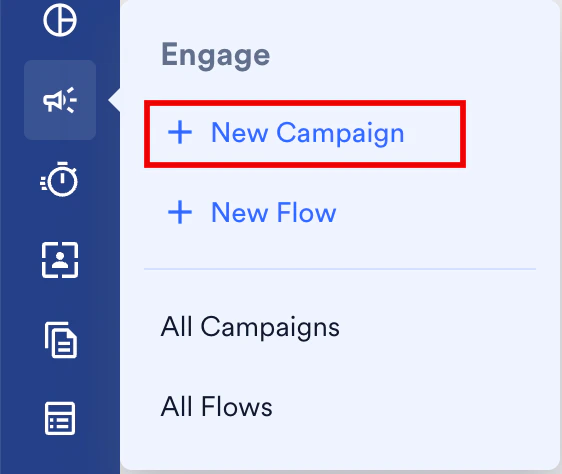 You can also click **All Campaigns** on the **Engage** menu and then click **+ Create campaign** on the **All campaigns** page.
3. On the **New Campaign** dialog box, under **Outbound**, click **Push**.
You can also click **All Campaigns** on the **Engage** menu and then click **+ Create campaign** on the **All campaigns** page.
3. On the **New Campaign** dialog box, under **Outbound**, click **Push**.
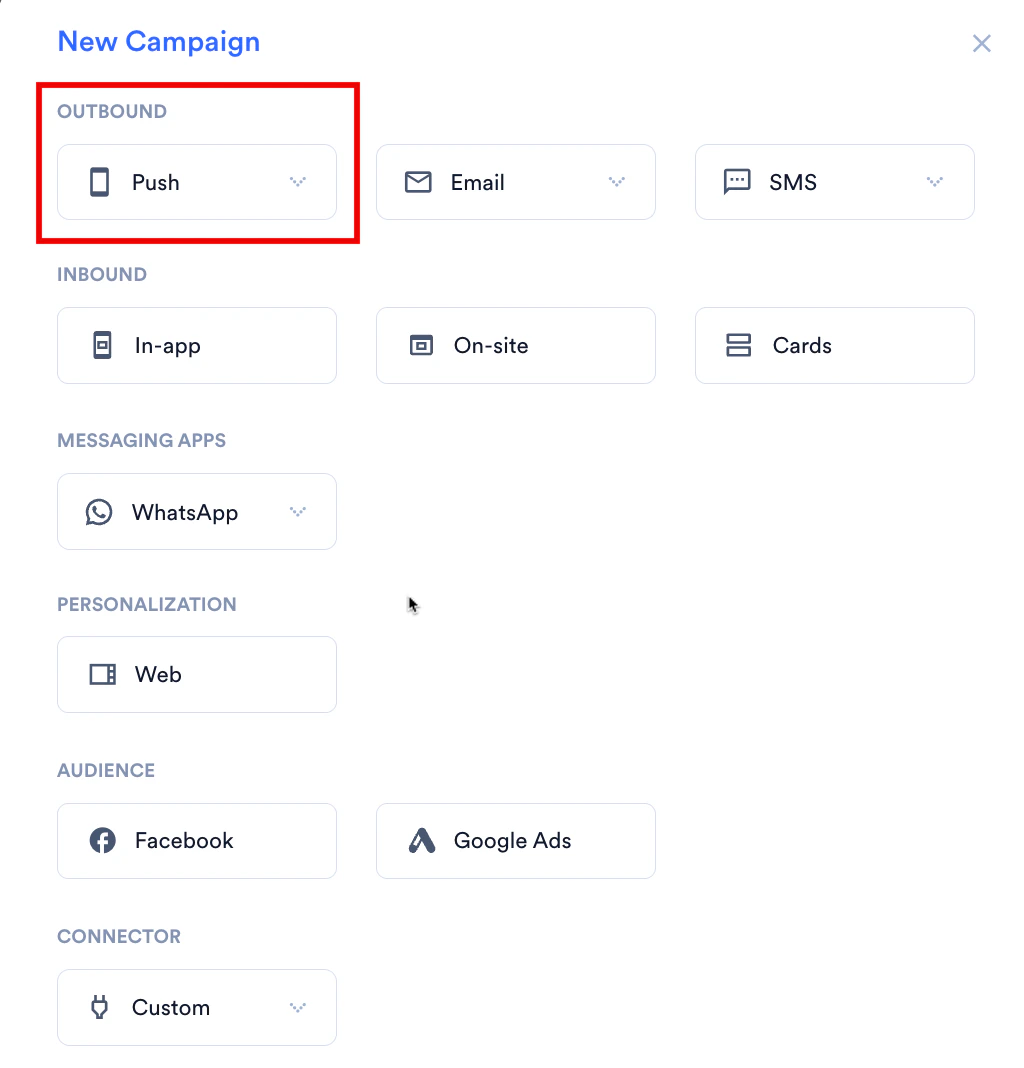 4. Click one of the following campaign delivery types:
* One Time
* Periodic
* Event Triggered
* Business Event Triggered For more information about delivery types, refer to [Delivery Types](/user-guide/campaigns-and-channels/getting-started/introduction/delivery-types-moengage-channels).
# Steps to Create a Web Push Campaign
There are three steps to creating a Web Push campaign, and they are:
1. [Target users](#step-1-target-users): Define the target audience for the campaign
2. [Content](#step-2-define-content): Define the content of the push notification to be sent
3. [Schedule and Goals](#step-3-scheduling-and-goals): Define the campaign's delivery schedule and goals
## Step 1: Target Users
This section contains the following:
### Campaign details
The campaign details section contains the following fields:
| | |
| ------------------------------------------------------------------------------------------------------------------------------------------------------------------------------------------------------------------------------ | --------------------------------------------------------------------------------------------------------------------------------------------------------------------------------------------------------------------------------------------------------------------------------------------------------------------------------------------------------------------------------------------------------------------------------------------------------------------------------------------------------------------------------------------------------------------------------------------------------------------------------------------------------------------------------------------------------------------------------------------------------------------------------------------------------------------------------------------------------------------------------------------------------------------------------------------------------------------------------------------------------------------------------------------------------------------------------------------------------------------------------------------------------------------------------------------------------------------------------------------------------------------------------------------------------------------------------------------------------------------------------------------------------------------------------------------------------------------------------------------------------- |
| **Team**- If your organization has teams enabled, select the Team in the dropdown.For more information, refer to [Teams in MoEngage](/user-guide/settings/account/team-management/teams-in-moengage). | |
| **Campaign name** - Type the name of the campaign to manage and identify the campaign. The campaign name must have at least five characters, and the limit is 256. |
4. Click one of the following campaign delivery types:
* One Time
* Periodic
* Event Triggered
* Business Event Triggered For more information about delivery types, refer to [Delivery Types](/user-guide/campaigns-and-channels/getting-started/introduction/delivery-types-moengage-channels).
# Steps to Create a Web Push Campaign
There are three steps to creating a Web Push campaign, and they are:
1. [Target users](#step-1-target-users): Define the target audience for the campaign
2. [Content](#step-2-define-content): Define the content of the push notification to be sent
3. [Schedule and Goals](#step-3-scheduling-and-goals): Define the campaign's delivery schedule and goals
## Step 1: Target Users
This section contains the following:
### Campaign details
The campaign details section contains the following fields:
| | |
| ------------------------------------------------------------------------------------------------------------------------------------------------------------------------------------------------------------------------------ | --------------------------------------------------------------------------------------------------------------------------------------------------------------------------------------------------------------------------------------------------------------------------------------------------------------------------------------------------------------------------------------------------------------------------------------------------------------------------------------------------------------------------------------------------------------------------------------------------------------------------------------------------------------------------------------------------------------------------------------------------------------------------------------------------------------------------------------------------------------------------------------------------------------------------------------------------------------------------------------------------------------------------------------------------------------------------------------------------------------------------------------------------------------------------------------------------------------------------------------------------------------------------------------------------------------------------------------------------------------------------------------------------------------------------------------------------------------------------------------------------------- |
| **Team**- If your organization has teams enabled, select the Team in the dropdown.For more information, refer to [Teams in MoEngage](/user-guide/settings/account/team-management/teams-in-moengage). | |
| **Campaign name** - Type the name of the campaign to manage and identify the campaign. The campaign name must have at least five characters, and the limit is 256. | 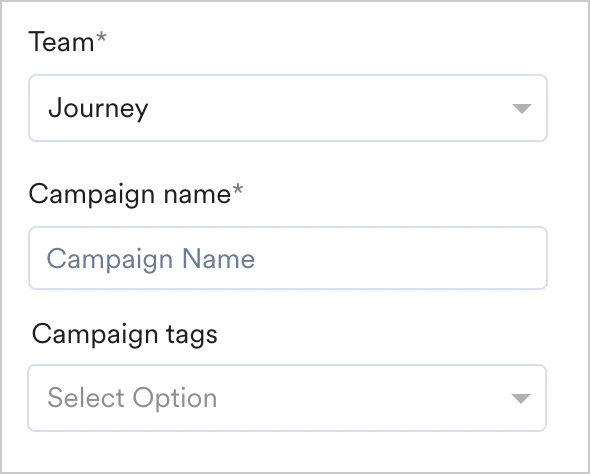 |
| **Campaign tags** - Select campaign tags from the drop-down list. You can select up to 5 tags. For more information, refer to [Campaign Tags](/user-guide/campaigns-and-channels/getting-started/introduction/campaign-tags). | |
Event-triggered campaigns allow you to send personalized notifications triggered by different user action events. For example, you can remind users about the item they added to the cart but have not purchased.
For more information on creating such campaigns, refer to [Create an Event-Triggered Campaign](/user-guide/campaigns-and-channels/triggers/event/create-an-event-triggered-campaign).
| | |
| ---------------------------------------------------------------------------------------------------------------------------------------------------------------------------------------------------------------------------------- | ----------------------------------------------------------------------------------------------------------------------------------------------------------------------------------------------------------------------------------------------------------------------------------------------------------------------------------------------------------------------------------------------------------------------------------------------------------------------------------------------------------------------------------------------------------------------------------------------------------------------------------------------------------------------------------------------------------------------------------------------------------------------------------------------------------------------------------------------------------------------------------------------------------------------------------------------------------------------------------------------------------------------------------------------------------------------------------------------------------------------------------------------------------------------------------------------------------------------------------------------------------------------------------------------------------------------------------------------------------------------------------------------------------------------------------------------------------- |
| For business event-triggered campaigns, you can select the business event to be mapped to the campaign using the *Select business event* dropdown. The dropdown contains all the business events created in your MoEngage account. |
|
| **Campaign tags** - Select campaign tags from the drop-down list. You can select up to 5 tags. For more information, refer to [Campaign Tags](/user-guide/campaigns-and-channels/getting-started/introduction/campaign-tags). | |
Event-triggered campaigns allow you to send personalized notifications triggered by different user action events. For example, you can remind users about the item they added to the cart but have not purchased.
For more information on creating such campaigns, refer to [Create an Event-Triggered Campaign](/user-guide/campaigns-and-channels/triggers/event/create-an-event-triggered-campaign).
| | |
| ---------------------------------------------------------------------------------------------------------------------------------------------------------------------------------------------------------------------------------- | ----------------------------------------------------------------------------------------------------------------------------------------------------------------------------------------------------------------------------------------------------------------------------------------------------------------------------------------------------------------------------------------------------------------------------------------------------------------------------------------------------------------------------------------------------------------------------------------------------------------------------------------------------------------------------------------------------------------------------------------------------------------------------------------------------------------------------------------------------------------------------------------------------------------------------------------------------------------------------------------------------------------------------------------------------------------------------------------------------------------------------------------------------------------------------------------------------------------------------------------------------------------------------------------------------------------------------------------------------------------------------------------------------------------------------------------------------------- |
| For business event-triggered campaigns, you can select the business event to be mapped to the campaign using the *Select business event* dropdown. The dropdown contains all the business events created in your MoEngage account. | 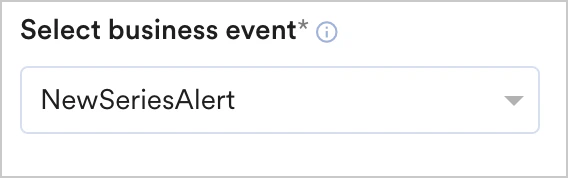 |
Once the business event is selected, the event attributes associated with the business event are available in the segmentation filters. Business event attributes are available in the following segmentation filters:
* segment by user property - you can map the user property to the business event attribute
* segment by user behavior - you can map the attribute of an event executed by the user to that of the business event attribute
* segment by user affinity- you can map the attribute of an event executed by the user to that of the business event attribute
- The data types of the user attribute or event attribute chosen should match with that of the business event attribute for segmentation to work.
- Show count is disabled for business event-triggered campaigns as business events are modeled to run on dynamic segmentation (based on the values with which the business event is triggered).
### Target audience
This section contains segmentation filters that help you choose the target audience for your campaign. The following options are available:
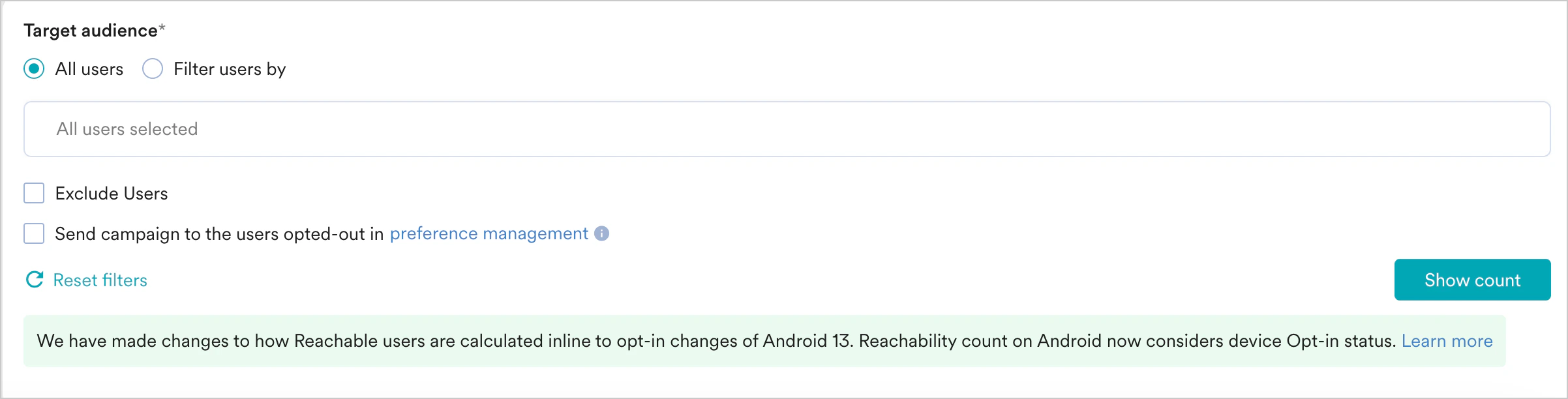
This filter option allows you to send the campaign to all the app users. When you use this option, you cannot add multiple filters.
|
Once the business event is selected, the event attributes associated with the business event are available in the segmentation filters. Business event attributes are available in the following segmentation filters:
* segment by user property - you can map the user property to the business event attribute
* segment by user behavior - you can map the attribute of an event executed by the user to that of the business event attribute
* segment by user affinity- you can map the attribute of an event executed by the user to that of the business event attribute
- The data types of the user attribute or event attribute chosen should match with that of the business event attribute for segmentation to work.
- Show count is disabled for business event-triggered campaigns as business events are modeled to run on dynamic segmentation (based on the values with which the business event is triggered).
### Target audience
This section contains segmentation filters that help you choose the target audience for your campaign. The following options are available:
This filter option allows you to send the campaign to all the app users. When you use this option, you cannot add multiple filters.
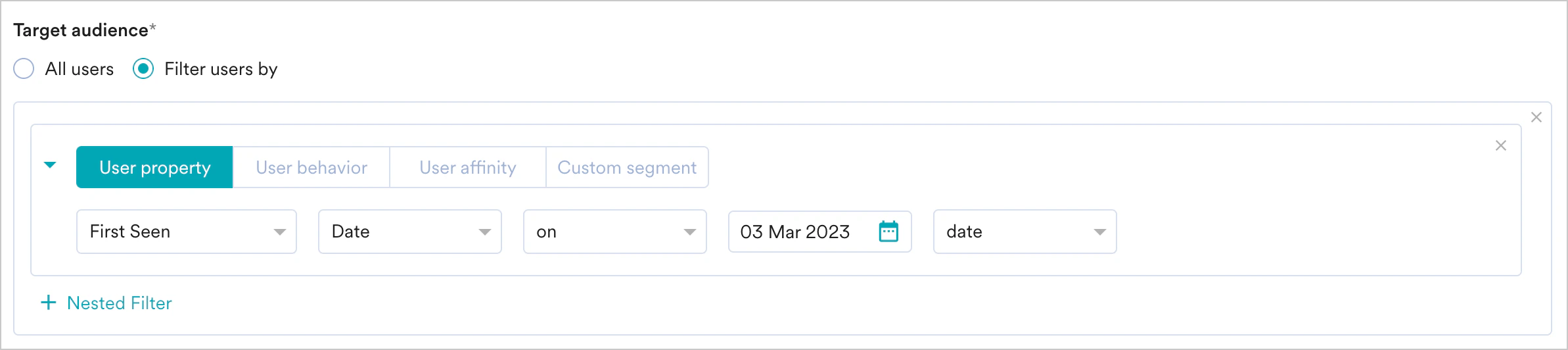
 This filter option allows you to target the users based on user properties such as first seen, last seen, city, and so on. Select the User property tab and do the following:
1. Select the desired attribute in the dropdown. This will enable the filters based on the attributes chosen. For example, attributes that are numbers can have filter conditions such as 'is equal to', 'is not equal to', 'is between', and so on, while String attributes will have different filters.
2. Provide the filter value(s) to create the desired user segment.
For more information, refer to [Create Segments](/user-guide/segment/segment-operations/create-segments).
This filter option allows you to target the users based on user properties such as first seen, last seen, city, and so on. Select the User property tab and do the following:
1. Select the desired attribute in the dropdown. This will enable the filters based on the attributes chosen. For example, attributes that are numbers can have filter conditions such as 'is equal to', 'is not equal to', 'is between', and so on, while String attributes will have different filters.
2. Provide the filter value(s) to create the desired user segment.
For more information, refer to [Create Segments](/user-guide/segment/segment-operations/create-segments).
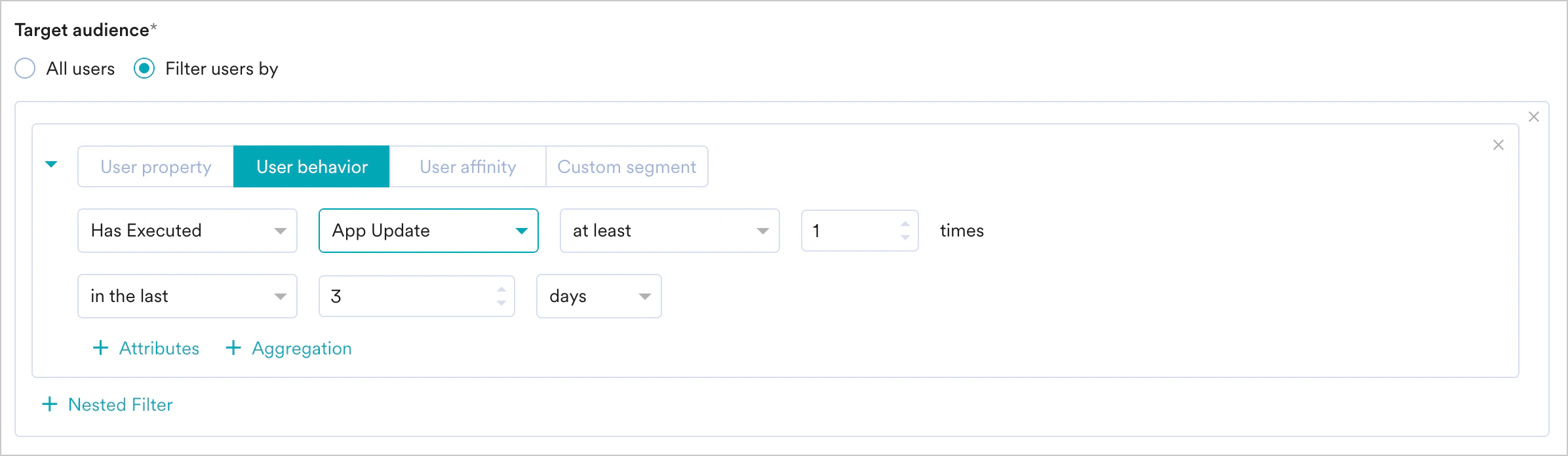
 This filter option allows you to target the users based on the behavior of the user or event, such as app/site opened, viewed product, and so on. Select the User Behavior and do the following:
1. Select the execution condition and the desired user activity (event).
2. Provide event frequency and time duration for the event execution.
3. Click +Attributes and add an Event attribute with a filter condition.
4. Provide the filter value/s to create a rule.
For more information, refer to [Create Segments](/user-guide/segment/segment-operations/create-segments).
This filter option allows you to target the users based on the behavior of the user or event, such as app/site opened, viewed product, and so on. Select the User Behavior and do the following:
1. Select the execution condition and the desired user activity (event).
2. Provide event frequency and time duration for the event execution.
3. Click +Attributes and add an Event attribute with a filter condition.
4. Provide the filter value/s to create a rule.
For more information, refer to [Create Segments](/user-guide/segment/segment-operations/create-segments).
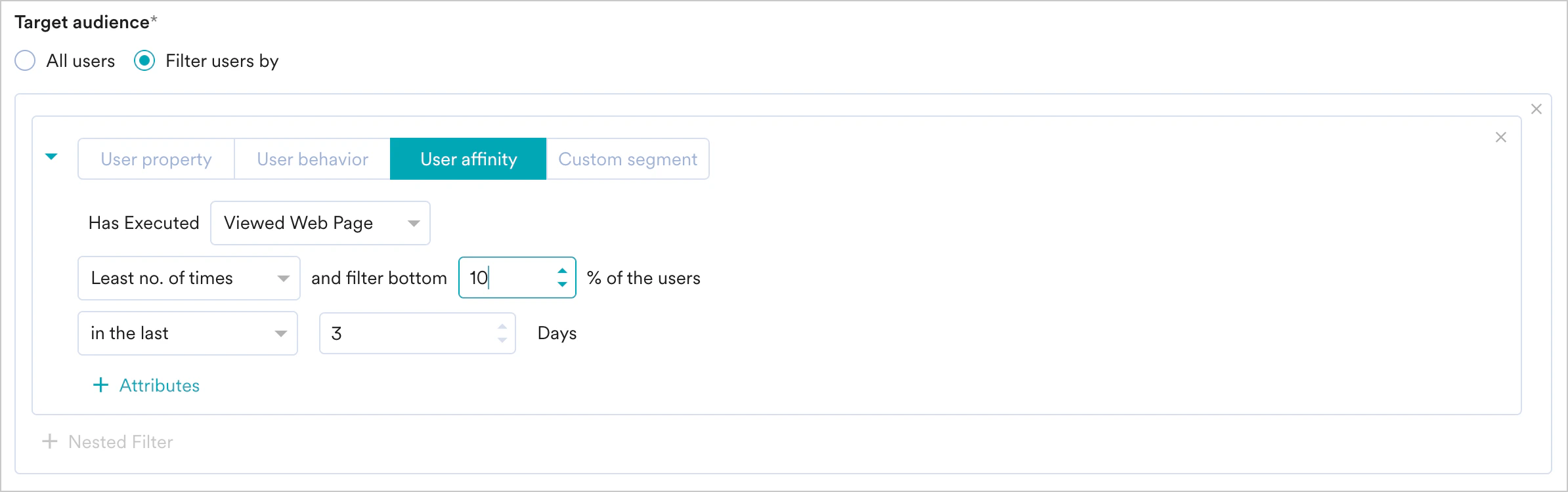
 This filter option allows you to target groups of users created based on the user performing an action with a specific attribute value. For more information, refer to User Affinity. Select User Affinity and do the following:
1. Select the desired user event or attribute.
2. Select the user affinity parameter from the following:
* Predominantly
Select affinity attribute with a filter condition and provide the affinity values
* Minimum of
Select affinity attribute with a filter condition and provide the affinity values
* Most no. of times
Type or use the arrows to provide the top or bottom percentage of users
* Least no. of times
3. Type or use the arrows to provide the top or bottom percentage of users Type or use the arrows to provide the time duration for the event execution.
4. Click the Attribute button to add more attributes to the filter.
This filter option allows you to target groups of users created based on the user performing an action with a specific attribute value. For more information, refer to User Affinity. Select User Affinity and do the following:
1. Select the desired user event or attribute.
2. Select the user affinity parameter from the following:
* Predominantly
Select affinity attribute with a filter condition and provide the affinity values
* Minimum of
Select affinity attribute with a filter condition and provide the affinity values
* Most no. of times
Type or use the arrows to provide the top or bottom percentage of users
* Least no. of times
3. Type or use the arrows to provide the top or bottom percentage of users Type or use the arrows to provide the time duration for the event execution.
4. Click the Attribute button to add more attributes to the filter.
 This filter option allows you to select a Custom Segment as the target audience from the list of custom segments available. For more information, refer to [Custom Segments](/user-guide/segment/segment-operations/custom-segments).
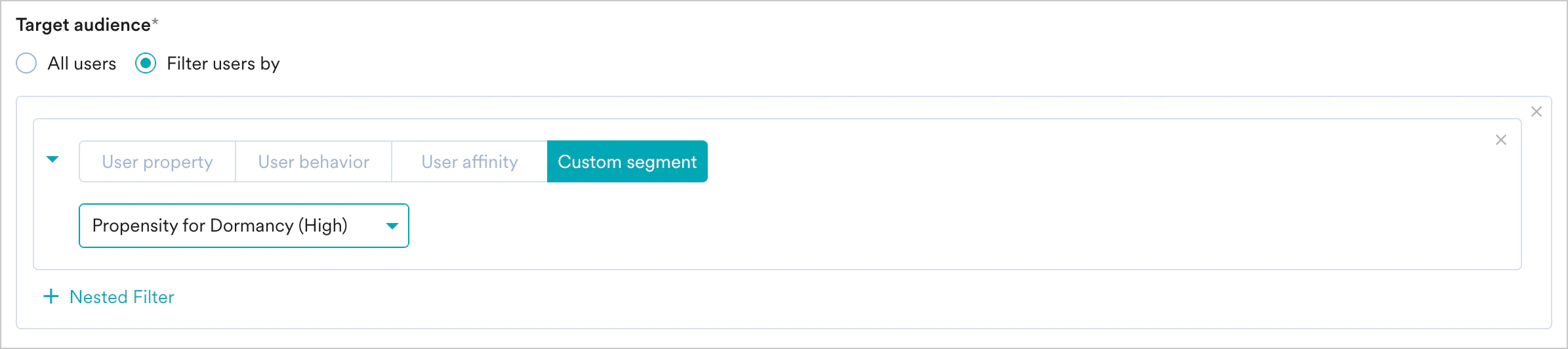 If you have the [*Portfolio*](/user-guide/settings/account/portfolio/portfolio) feature enabled, you can create user segments by combining user data and behavior from different apps and websites (Projects) within your workspace. For more information, refer to [Segmentation in a Multi-Project Portfolio](/user-guide/segment/advanced-concepts/segmentation-in-a-multi-project-portfolio).
If teams are enabled for your account, the segmentation criteria specified for the team for which you are creating will get appended to the campaign with an AND condition. For more information, refer to [Teams in MoEngage](/user-guide/settings/account/team-management/teams-in-moengage).
After choosing the filter criteria, you can do the following as well:
* Create and combine multiple user property rules, user activity rules, and custom Segment rules to create a complex user segment using this option.
* Click *+ Filter*.
* Click *AND or OR*.
* Select the attribute or event and define the filter conditions.
* **Exclude Users**- Check the *Exclude Users* checkbox to define the filter criteria for users to be excluded from the campaign.
* **Send campaign to the users opted out in preference management** -Check this option to include users opted out in preference management for the campaign. For more information, refer to [Preference Management](/user-guide/campaigns-and-channels/mobile-push/getting-started-with-mobile-push/preference-management-for-push-notifications).
* **Reset Filters** - Click this option to reset the segmentation filters.
* **Show Count**- Click *Show Count* to display the total number of users who are currently in the configured segment.
If you have the [*Portfolio*](/user-guide/settings/account/portfolio/portfolio) feature enabled, you can create user segments by combining user data and behavior from different apps and websites (Projects) within your workspace. For more information, refer to [Segmentation in a Multi-Project Portfolio](/user-guide/segment/advanced-concepts/segmentation-in-a-multi-project-portfolio).
If teams are enabled for your account, the segmentation criteria specified for the team for which you are creating will get appended to the campaign with an AND condition. For more information, refer to [Teams in MoEngage](/user-guide/settings/account/team-management/teams-in-moengage).
After choosing the filter criteria, you can do the following as well:
* Create and combine multiple user property rules, user activity rules, and custom Segment rules to create a complex user segment using this option.
* Click *+ Filter*.
* Click *AND or OR*.
* Select the attribute or event and define the filter conditions.
* **Exclude Users**- Check the *Exclude Users* checkbox to define the filter criteria for users to be excluded from the campaign.
* **Send campaign to the users opted out in preference management** -Check this option to include users opted out in preference management for the campaign. For more information, refer to [Preference Management](/user-guide/campaigns-and-channels/mobile-push/getting-started-with-mobile-push/preference-management-for-push-notifications).
* **Reset Filters** - Click this option to reset the segmentation filters.
* **Show Count**- Click *Show Count* to display the total number of users who are currently in the configured segment.
 ### Target Platforms
This section lets you choose the target platforms for your campaign. The following options are available:
1. **Android**
2. **iOS**
3. **Web**
Select the **Web** option to run a Web Push campaign.
**Note**: You can not run Web Push campaigns when you select Device Triggered or Location Triggered campaigns from the **Create New Campaign** page.
### **Control Groups**
This section contains information about control groups for the campaign. To exclude users in the control groups, do the following:
| | |
| ---------------------------------------------------------------------------------------------------------------------------------------------------------------------------------------------------------------------------------------------------------------------------------------------------------------------------------------------------------------------------------------------------------------------------------------------------------------------------------------------------------------------------------------- | --------------------------------------------------------------------------------------------------------------------------------------------------------------------------------------------------------------------------------------------------------------------------------------------------------------------------------------------------------------------------------------------------------------------------------------------------------------------------------------------------------------------------------------------------------------------------------------------------------------------------------------------------------------------------------------------------------------------------------------------------------------------------------------------------------------------------------------------------------------------------------------------------------------------------------------------------------------------------------------------------------------------------------------------------------------------------------------------------------------------------------------------------------------------------------------------------------------------------------------------------------------------------------------------------------------------------------------------------------------------------------------------------------------------------------------------------------------------------------------------- |
|
### Target Platforms
This section lets you choose the target platforms for your campaign. The following options are available:
1. **Android**
2. **iOS**
3. **Web**
Select the **Web** option to run a Web Push campaign.
**Note**: You can not run Web Push campaigns when you select Device Triggered or Location Triggered campaigns from the **Create New Campaign** page.
### **Control Groups**
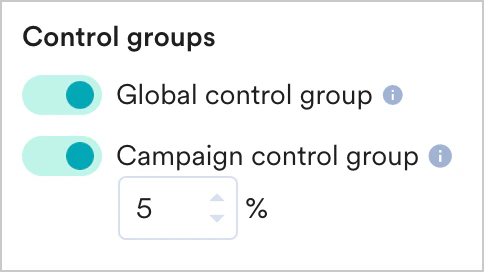
This section contains information about control groups for the campaign. To exclude users in the control groups, do the following:
| | |
| ---------------------------------------------------------------------------------------------------------------------------------------------------------------------------------------------------------------------------------------------------------------------------------------------------------------------------------------------------------------------------------------------------------------------------------------------------------------------------------------------------------------------------------------- | --------------------------------------------------------------------------------------------------------------------------------------------------------------------------------------------------------------------------------------------------------------------------------------------------------------------------------------------------------------------------------------------------------------------------------------------------------------------------------------------------------------------------------------------------------------------------------------------------------------------------------------------------------------------------------------------------------------------------------------------------------------------------------------------------------------------------------------------------------------------------------------------------------------------------------------------------------------------------------------------------------------------------------------------------------------------------------------------------------------------------------------------------------------------------------------------------------------------------------------------------------------------------------------------------------------------------------------------------------------------------------------------------------------------------------------------------------------------------------------------- |
| - Enable the Global control group toggle to exclude the users in the control group from the campaign's target segment.
- Enable the Campaign control group to exclude a fixed percentage of users in the campaign from the campaign's target segment. Specify the percentage of users to be excluded from the campaign in the box below the toggle.
- For more information about control groups, refer to [Control Groups](/user-guide/campaigns-and-channels/getting-started/introduction/control-groups).
|  |
Click **Next** or use the tabs on the top of the **Create Campaign** navigation to move to Step 2.
## Step 2: Define Content
This section contains various fields where you can define the content of your campaign. You can create the message you wish to show in the web push notification. A preview of the message is shown on the right half of the screen.
The various parts of a web push campaign are:
|
Click **Next** or use the tabs on the top of the **Create Campaign** navigation to move to Step 2.
## Step 2: Define Content
This section contains various fields where you can define the content of your campaign. You can create the message you wish to show in the web push notification. A preview of the message is shown on the right half of the screen.
The various parts of a web push campaign are:
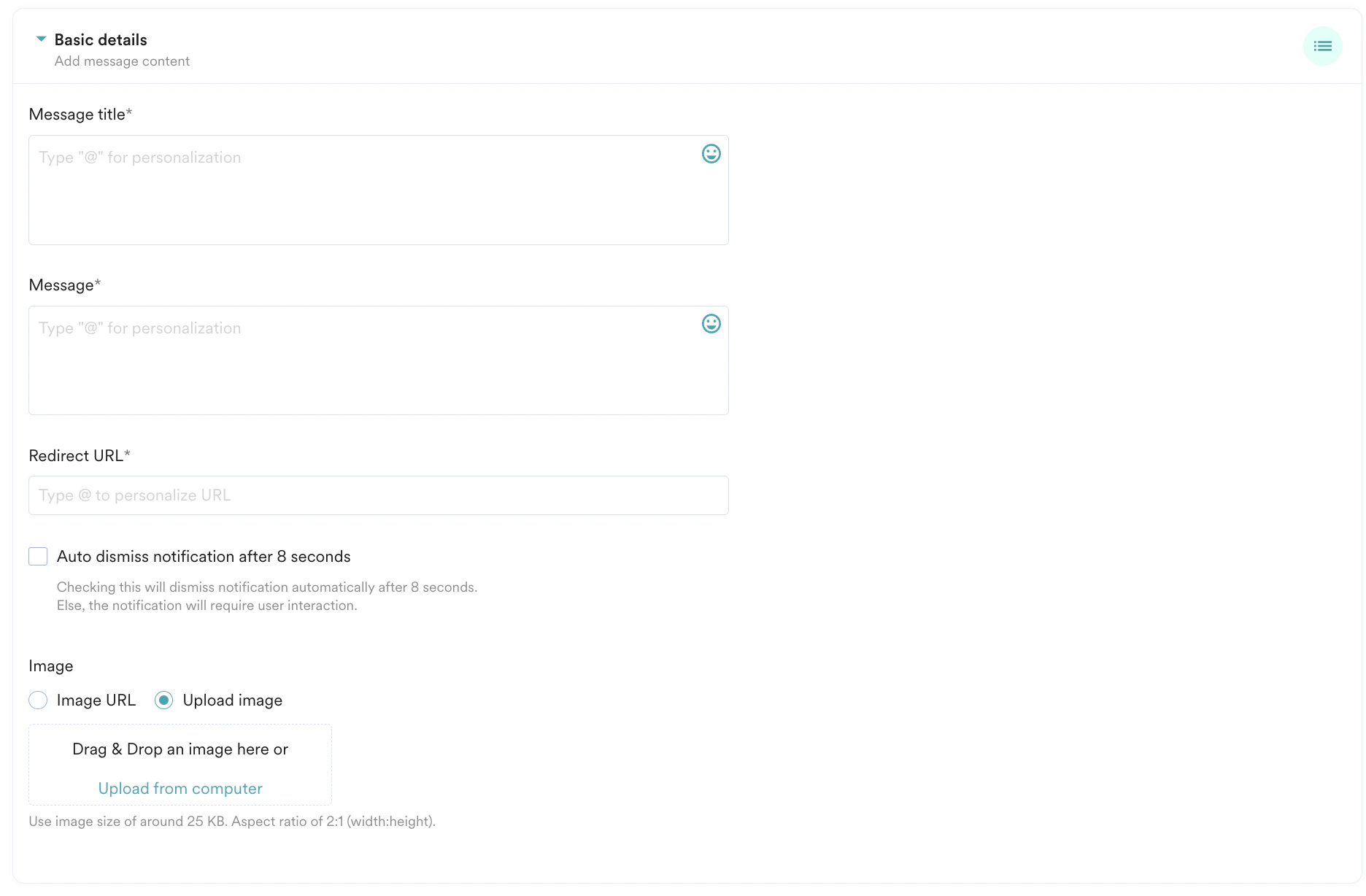
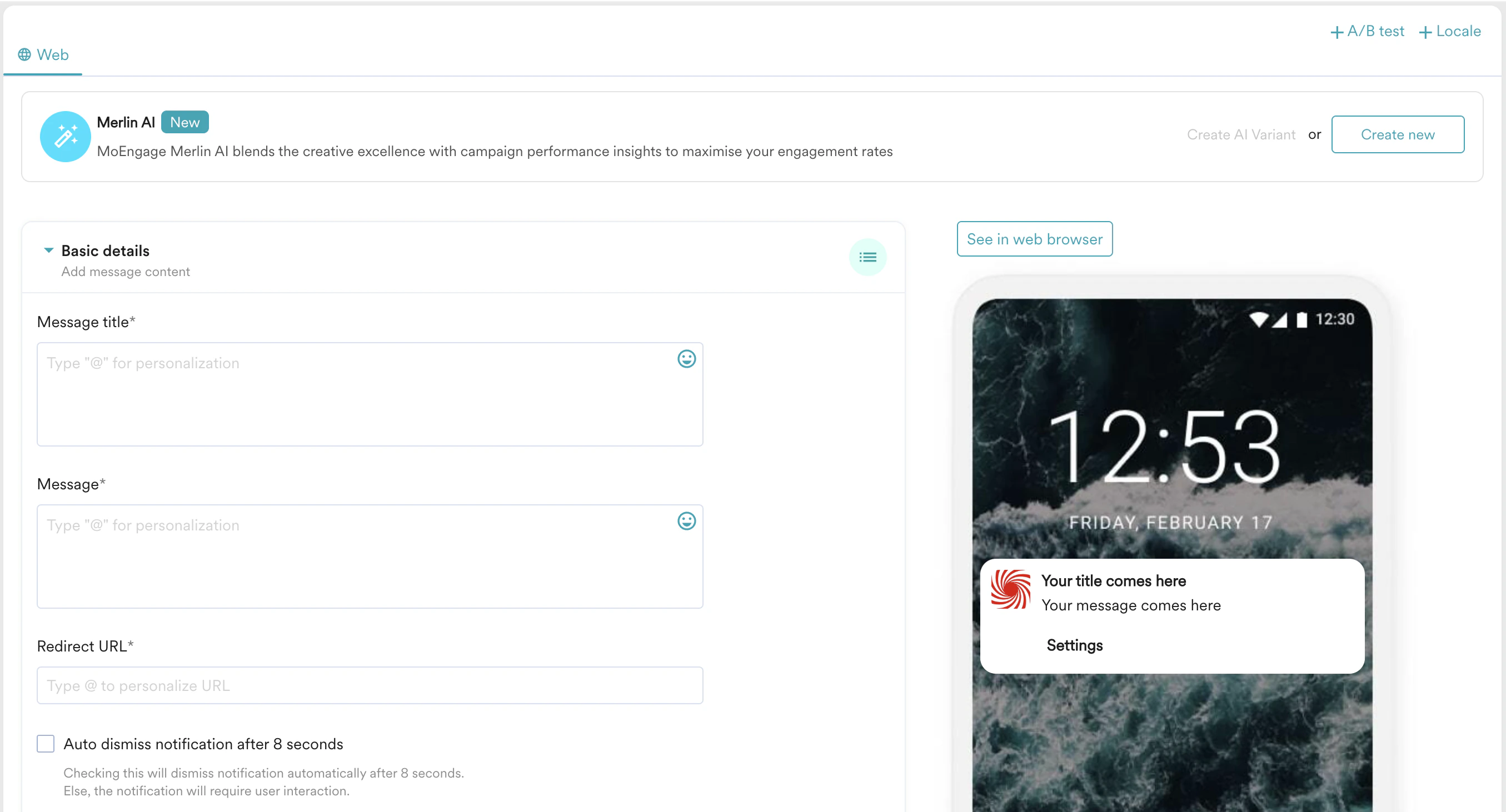 1. **Message Title**: Enter the title of the campaign.
2. **Message**: Enter the content you wish to display in the campaign.
3. **Redirect URL**: Enter the URL where the user will get redirected after clicking on the Web Push notification.
4. **Auto Dismiss Notification**: You have the option to dismiss the notification automatically after 8 seconds. If you do not enable this option, the user will see the notification until they have interacted with it (either removed or opened it).
5. **Image**: This is the image that is attached below the message of the notification. You can either upload an image from your computer or enter a URL for your image.
1. **Message Title**: Enter the title of the campaign.
2. **Message**: Enter the content you wish to display in the campaign.
3. **Redirect URL**: Enter the URL where the user will get redirected after clicking on the Web Push notification.
4. **Auto Dismiss Notification**: You have the option to dismiss the notification automatically after 8 seconds. If you do not enable this option, the user will see the notification until they have interacted with it (either removed or opened it).
5. **Image**: This is the image that is attached below the message of the notification. You can either upload an image from your computer or enter a URL for your image.
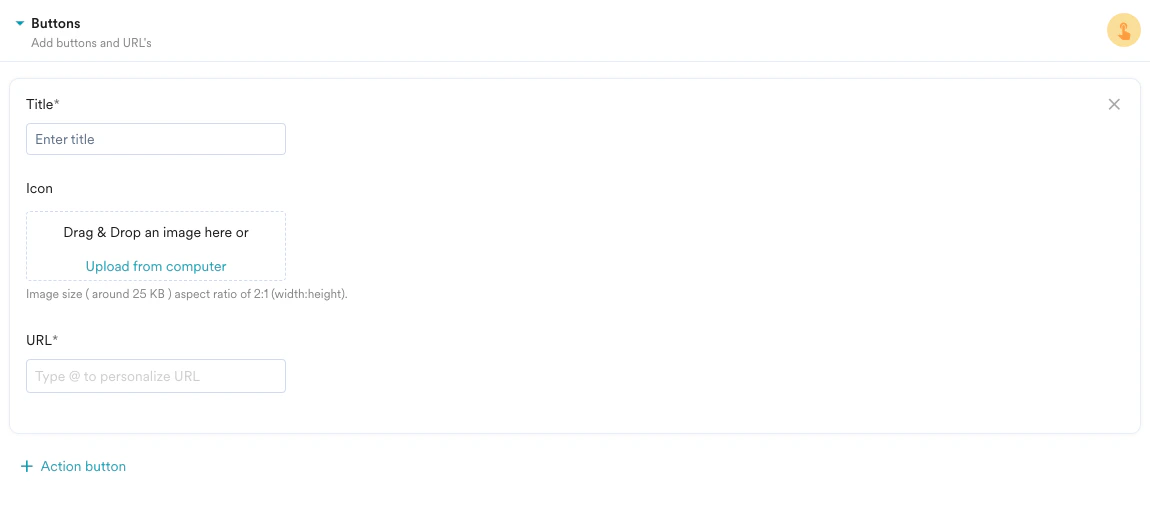
 Buttons enable you to add a maximum of 3 calls to action to your messaging. You can add a button by following the steps below:
1. Click **+ Action button**.
2. **Title**: Give a title to your button. If you want to use the button to let the user go to their cart, you can call the button "Check Out".
3. **Icon** (Optional): Add an icon to your button. MoEngage allows you to upload an image from your computer.
4. **URL**: Enter the URL where your user will be redirected to after they click the button.
You can add up to a maximum of 2 action buttons in a push message. The Web Push notification is treated as an action button by default by the browser.
Buttons enable you to add a maximum of 3 calls to action to your messaging. You can add a button by following the steps below:
1. Click **+ Action button**.
2. **Title**: Give a title to your button. If you want to use the button to let the user go to their cart, you can call the button "Check Out".
3. **Icon** (Optional): Add an icon to your button. MoEngage allows you to upload an image from your computer.
4. **URL**: Enter the URL where your user will be redirected to after they click the button.
You can add up to a maximum of 2 action buttons in a push message. The Web Push notification is treated as an action button by default by the browser.
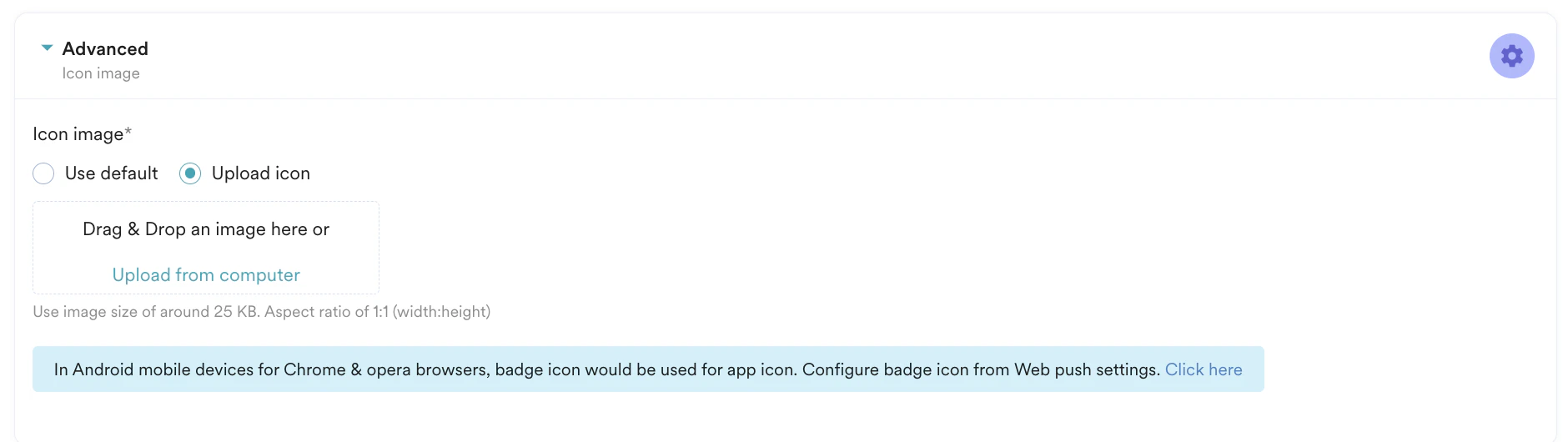
 **Icon Image**: This is the icon displayed in the push message. You can either select the default icon (present in Web Push settings) or upload a new image.
 MoEngage recommends that you verify your web push message displayed in the preview and then click next to set the schedule and goals of the campaign.
You can view your Web Push notification by clicking on the **See in web browser**button. This will open a preview of the Web Push notification in your own browser and device. If you want to know how the notification might look in other browsers and devices, go to [this page.](/user-guide/campaigns-and-channels/web-push/getting-started-with-web-push/configure-web-push-settings)
Test campaigns enable previewing the campaign on a test device to ensure that your notification is conveyed in the manner that you desire.
You can test the campaign you created by selecting any of the following options and providing the value for the attribute chosen for your test user.
* Unique ID
* Email ID
* Mobile Number
* Google Advertising identifier
* iOS Identifier for advertising
* Device Push Token
* Custom Segment
MoEngage recommends that you verify your web push message displayed in the preview and then click next to set the schedule and goals of the campaign.
You can view your Web Push notification by clicking on the **See in web browser**button. This will open a preview of the Web Push notification in your own browser and device. If you want to know how the notification might look in other browsers and devices, go to [this page.](/user-guide/campaigns-and-channels/web-push/getting-started-with-web-push/configure-web-push-settings)
Test campaigns enable previewing the campaign on a test device to ensure that your notification is conveyed in the manner that you desire.
You can test the campaign you created by selecting any of the following options and providing the value for the attribute chosen for your test user.
* Unique ID
* Email ID
* Mobile Number
* Google Advertising identifier
* iOS Identifier for advertising
* Device Push Token
* Custom Segment
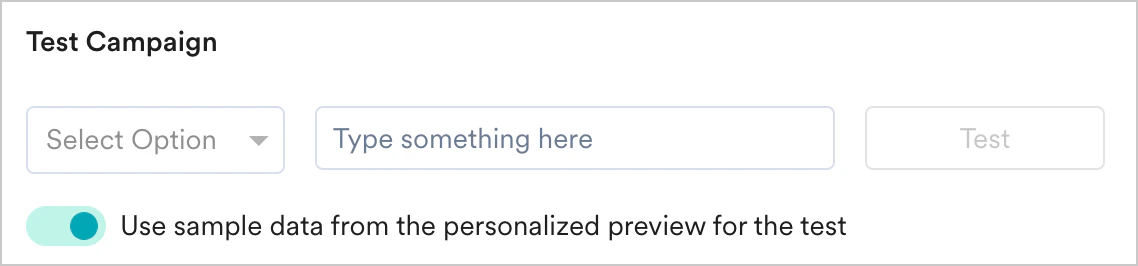 For business event-triggered campaigns, you will be asked to enter the attributes with which the event should be triggered, as shown below. If you have mapped any business event attribute(s) to user attribute(s) or event attribute(s) in segmentation, these values have to be passed while testing the campaign. If they are not passed, the test campaign will fail.
## Step 3: Scheduling and Goals
This section contains the following:
* [Delivery Schedule](#delivery-schedule) - Choose when the campaign should be delivered to your users and the periodicity of delivery.
* [Conversion Goals](#conversion-goals) - Choose the conversion goals and revenue metrics to be tracked for the campaign.
* [Delivery Controls](#delivery-controls) - Choose the advanced delivery control options such as throttling, frequency capping, and expiration settings for the notification.
### Delivery Schedule
Send the campaign immediately to the target users.
For business event-triggered campaigns, you will be asked to enter the attributes with which the event should be triggered, as shown below. If you have mapped any business event attribute(s) to user attribute(s) or event attribute(s) in segmentation, these values have to be passed while testing the campaign. If they are not passed, the test campaign will fail.
## Step 3: Scheduling and Goals
This section contains the following:
* [Delivery Schedule](#delivery-schedule) - Choose when the campaign should be delivered to your users and the periodicity of delivery.
* [Conversion Goals](#conversion-goals) - Choose the conversion goals and revenue metrics to be tracked for the campaign.
* [Delivery Controls](#delivery-controls) - Choose the advanced delivery control options such as throttling, frequency capping, and expiration settings for the notification.
### Delivery Schedule
Send the campaign immediately to the target users.
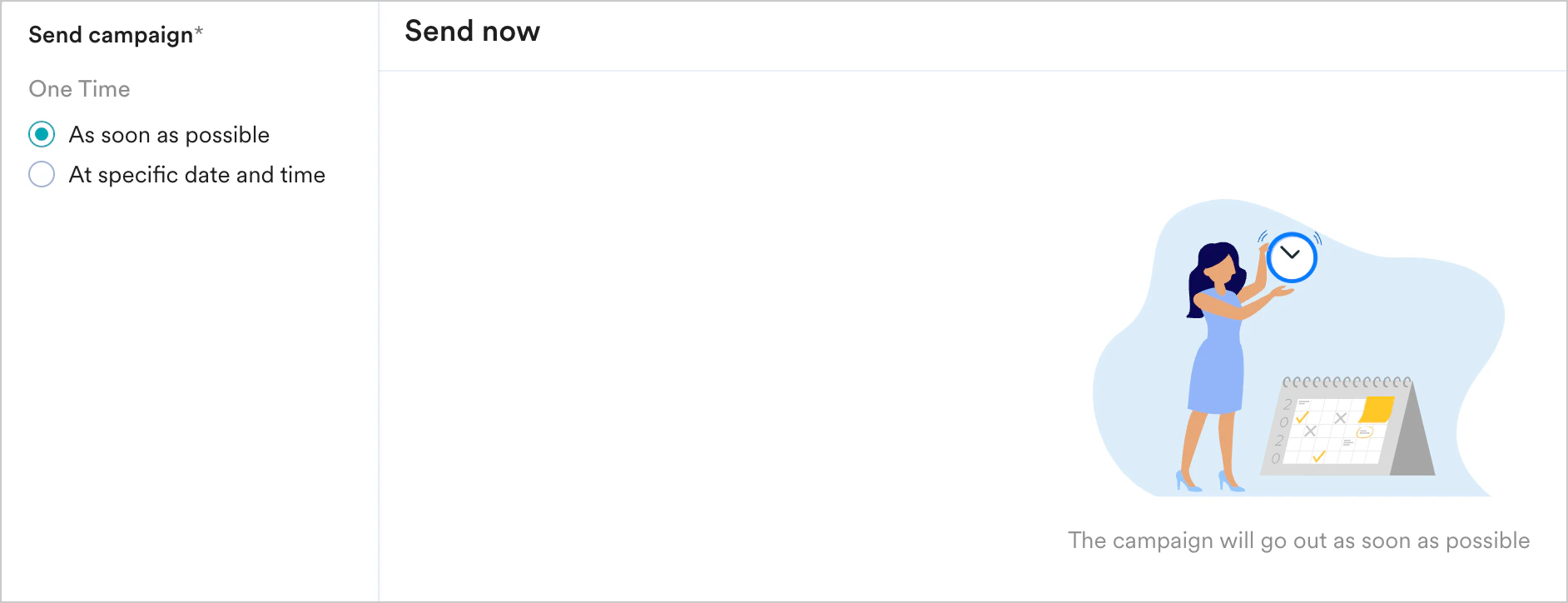 Send the campaign at the specified time, time zone, or predicted time.
Select one of the following:
| Field | Description |
| ----------------------------- | ------------------------------------------------------------------------------------------------------------------------------------------------------------------------------------------------------------------------------------------------------------------------------------------------------------------------------------------------------------------------------------------------------------------------------------------------------------------------------------------------------------------------------------------------------------------------------------------------------------------------------------------------------------------------------------------------------------------------------------------------------------------------------------------------------------------------------------------------------------------------------------------------------------------------------------------------------------------------------------------------------------------------------------------------------------------------------------------------------------------------------------------------------------------------------------------------------------------------------------------------------------------------------------------------------------------------------------------------------------------------------------------------------------------------------------------------------------------------------------------------------------------------------------------------------------------------------------------------------------------------------------------------------------------------------------------------------------------------------------------------------------------------------------------------------------------------------------------------------------------- |
| At fixed time | This section helps you send the campaign on a specific date and time and contains the following fields:
Send the campaign at the specified time, time zone, or predicted time.
Select one of the following:
| Field | Description |
| ----------------------------- | ------------------------------------------------------------------------------------------------------------------------------------------------------------------------------------------------------------------------------------------------------------------------------------------------------------------------------------------------------------------------------------------------------------------------------------------------------------------------------------------------------------------------------------------------------------------------------------------------------------------------------------------------------------------------------------------------------------------------------------------------------------------------------------------------------------------------------------------------------------------------------------------------------------------------------------------------------------------------------------------------------------------------------------------------------------------------------------------------------------------------------------------------------------------------------------------------------------------------------------------------------------------------------------------------------------------------------------------------------------------------------------------------------------------------------------------------------------------------------------------------------------------------------------------------------------------------------------------------------------------------------------------------------------------------------------------------------------------------------------------------------------------------------------------------------------------------------------------------------------------- |
| At fixed time | This section helps you send the campaign on a specific date and time and contains the following fields: - **Campaign timezone** - the timezone in which the campaign should be sent.
- **Start Date** - the date on which the campaign should be sent.
- **Send Time** - the time at which the campaign should be sent. Select am or pm depending on when the time of day at which the campaign should be sent.
|
| Send in user time zone | This section helps you send the campaign on a specific date and time within the time zone of the user and contains the following fields: - **Campaign timezone** - the timezone in which the campaign should be sent.
- **Start Date** - the date on which the campaign should be sent.
- **Send Time** - the time at which the campaign should be sent. Select am or pm depending on when the time of day at which the campaign should be sent.
- **Send if the user time zone has passed** - if the campaign's start time has passed in the user's timezone, you have the option to do the following:
- **Yes, send it** - send the campaign to the user even if the specified start time has passed in their timezone.
- **No, don't send it** - do not send the campaign to the user as the specified start time has passed in their timezone.
|
| Best time to send (Merlin AI) | This section helps you send the campaign based on the MoEngage intelligence-determined date and time and contains the following fields: - **Campaign timezone** - the timezone in which the campaign should be sent.
- **Start Date** - the date on which the campaign should be sent.
- **Send Time** - the time at which the campaign should be sent. Select am or pm depending on when the time of day at which the campaign should be sent.
- **Send messages based on best time only till** - the time until which the campaign should be sent based on the best time to send (BTS). Select am or pm depending on when the time of day at which the campaign should be sent. Click \_View best time distribution\_to see the best time for sending push notifications represented in a graphical manner.
- **If user's best time is outside this time window** - lets you choose when the campaign is to be sent when the user's BTS is outside the time window selected. You can do the following:
- Send the campaign to the user either at the start or end time by selecting *Send message at start time or end time*.
- Avoid sending the campaign to the user by selecting *Do not send message*.
- **If user's best time is not available** - lets you choose when the campaign is to be sent when the user does not have BTS. You can do the following:
- Send the campaign to the user at the start time by selecting *Yes, send at start time.*
- Send the campaign to the user at the app's best time by selecting *Yes, send at the app's best time.*
- Avoid sending the campaign to the user by selecting *Do not send message*.
For more information, refer to the [Best time to send(BTS)](/user-guide/intelligence/timing/best-time-to-send). |
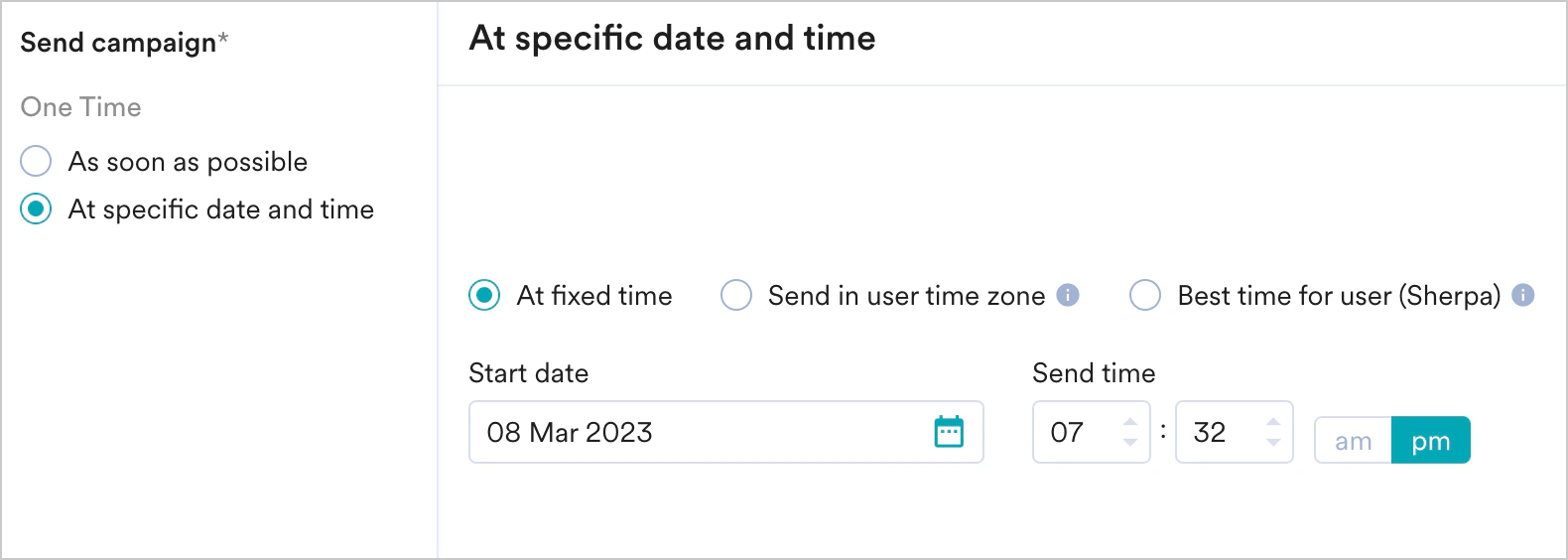 Choose this option to send the campaign on a specified date and time. The following fields are available in this section:
* **Campaign timezone** - the timezone in which the campaign should be sent.
* **Start Date** - the date on which the campaign should be sent.
* **Send Time** - the time at which the campaign should be sent. Select am or pm depending on when the time of day at which the campaign should be sent.
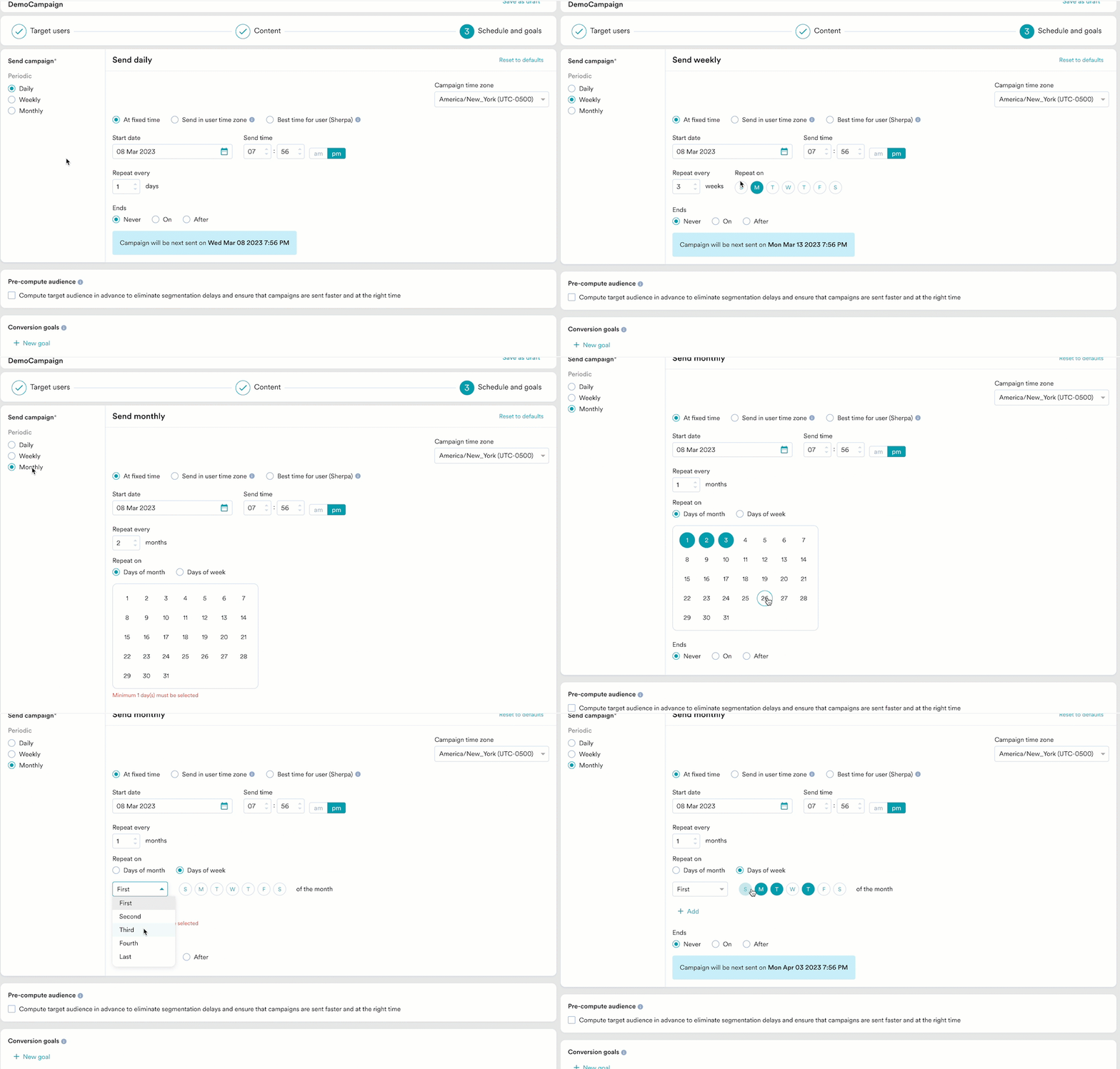
* **Periodic** - the periodicity of the campaign. You can choose from three options: Daily, Weekly, and Monthly, from the radio buttons available to the left of the screen.
| Periodicity | Description |
| ----------- | ------------------------------------------------------------------------------------------------------------------------------------------------------------------------------------------------------------------------------------------------------------------------------------------------------------------------------------------------------------------------------------------------------------------------------------------------------------------------------------------------------------------------------------------------------------------------------------------------------------------------------------------------------------------------------------------------------------------------------------------------------------------------------------------------------------------------------------------------------------------------------------------------------------------------------------------------------------------------------------------------------- |
| Daily | **Repeat every** - This option lets you specify the number of days after which the campaign should be repeated. |
| Weekly |
Choose this option to send the campaign on a specified date and time. The following fields are available in this section:
* **Campaign timezone** - the timezone in which the campaign should be sent.
* **Start Date** - the date on which the campaign should be sent.
* **Send Time** - the time at which the campaign should be sent. Select am or pm depending on when the time of day at which the campaign should be sent.
* **Periodic** - the periodicity of the campaign. You can choose from three options: Daily, Weekly, and Monthly, from the radio buttons available to the left of the screen.
| Periodicity | Description |
| ----------- | ------------------------------------------------------------------------------------------------------------------------------------------------------------------------------------------------------------------------------------------------------------------------------------------------------------------------------------------------------------------------------------------------------------------------------------------------------------------------------------------------------------------------------------------------------------------------------------------------------------------------------------------------------------------------------------------------------------------------------------------------------------------------------------------------------------------------------------------------------------------------------------------------------------------------------------------------------------------------------------------------------- |
| Daily | **Repeat every** - This option lets you specify the number of days after which the campaign should be repeated. |
| Weekly | - **Repeat every** - This option lets you specify the number of weeks for which the campaign should be repeated.
- **Repeat on** - This option lets you specify the day(s) of the week on which the campaign is to be sent (For example, if you wish to send the campaign every Monday, Wednesday, and Friday, select these days in this option).
|
| Monthly | - **Repeat every** - This option lets you specify the number of months for which the campaign should be repeated.
- **Repeat on** - This option lets you do the following:
- Days of month - Choose this option for repeating campaigns that are date specific. Select the date(s) of the month the campaign is to be sent(For example, to send the campaign on the 5th and the 25th of a month, select the 5th and 25th in the calendar widget.).
**Note**: If the selected date(s) doesn't exist in the month specified (as it is a shorter month), a campaign will be sent on the last date. (For example, if the 30th and 31st are selected and the month is February, one campaign would be sent on the 28th). - Days of week - Choose this option to specify the day(s) of the week on which the campaign is to be sent (For example, if you wish to send the campaign every Monday, Wednesday, and Friday, select these days in this option).
|
 * **Ends** - the date on which the campaign will end. The following options are available:
* **Never** - the campaign will be scheduled to run daily.
* **On** - the campaign will end on the end date specified in the *End Date* field.
* **After** - the campaign will end after the number of occurrences specified in the *occurrences* field.
Choose this option to send the campaign on a specified date and time. The following fields are available in this section:
* **Campaign timezone** - the timezone in which the campaign should be sent.
* **Start Date** - the date on which the campaign should be sent.
* **Send Time** - the time at which the campaign should be sent. Select am or pm depending on when the time of day at which the campaign should be sent.
* **Periodic** - the periodicity of the campaign. You can choose from three options: Daily, Weekly, and Monthly, from the radio buttons available to the left of the screen.
| Periodicity | Description |
| ----------- | ------------------------------------------------------------------------------------------------------------------------------------------------------------------------------------------------------------------------------------------------------------------------------------------------------------------------------------------------------------------------------------------------------------------------------------------------------------------------------------------------------------------------------------------------------------------------------------------------------------------------------------------------------------------------------------------------------------------------------------------------------------------------------------------------------------------------------------------------------------------------------------------------------------------------------------------------------------------------------------------------- |
| Daily | **Repeat every** - This option lets you specify the number of days after which the campaign should be repeated. |
| Weekly |
* **Ends** - the date on which the campaign will end. The following options are available:
* **Never** - the campaign will be scheduled to run daily.
* **On** - the campaign will end on the end date specified in the *End Date* field.
* **After** - the campaign will end after the number of occurrences specified in the *occurrences* field.
Choose this option to send the campaign on a specified date and time. The following fields are available in this section:
* **Campaign timezone** - the timezone in which the campaign should be sent.
* **Start Date** - the date on which the campaign should be sent.
* **Send Time** - the time at which the campaign should be sent. Select am or pm depending on when the time of day at which the campaign should be sent.
* **Periodic** - the periodicity of the campaign. You can choose from three options: Daily, Weekly, and Monthly, from the radio buttons available to the left of the screen.
| Periodicity | Description |
| ----------- | ------------------------------------------------------------------------------------------------------------------------------------------------------------------------------------------------------------------------------------------------------------------------------------------------------------------------------------------------------------------------------------------------------------------------------------------------------------------------------------------------------------------------------------------------------------------------------------------------------------------------------------------------------------------------------------------------------------------------------------------------------------------------------------------------------------------------------------------------------------------------------------------------------------------------------------------------------------------------------------------------- |
| Daily | **Repeat every** - This option lets you specify the number of days after which the campaign should be repeated. |
| Weekly | - **Repeat every** - This option lets you specify the number of weeks for which the campaign should be repeated.
- **Repeat on** - This option lets you specify the day(s) of the week on which the campaign is to be sent (For example, if you wish to send the campaign every Monday, Wednesday, and Friday, select these days in this option).
|
| Monthly | - **Repeat every** - This option lets you specify the number of months for which the campaign should be repeated.
- **Repeat on** - This option lets you do the following:
- Days of month - Choose this option for repeating campaigns that are date-specific. Select the date(s) of the month the campaign is to be sent(For example, to send the campaign on the 5th and the 25th of a month, select the 5th and 25th in the calendar widget.). **Note**: If the selected date(s) doesn't exist in the month specified (as it is a shorter month), a campaign will be sent on the last date. (For example, if the 30th and 31st are selected and the month is February, one campaign would be sent on the 28th).
- Days of week - Choose this option to specify the day(s) of the week on which the campaign is to be sent (For example, if you wish to send the campaign every Monday, Wednesday, and Friday, select these days in this option).
|
 * **Ends** - the date on which the campaign will end. The following options are available:
* **Never** - the campaign will be scheduled to run daily.
* **On** - the campaign will end on the end date specified in the *End Date* field.
* **After** - the campaign will end after the number of occurrences specified in the *occurrences* field.
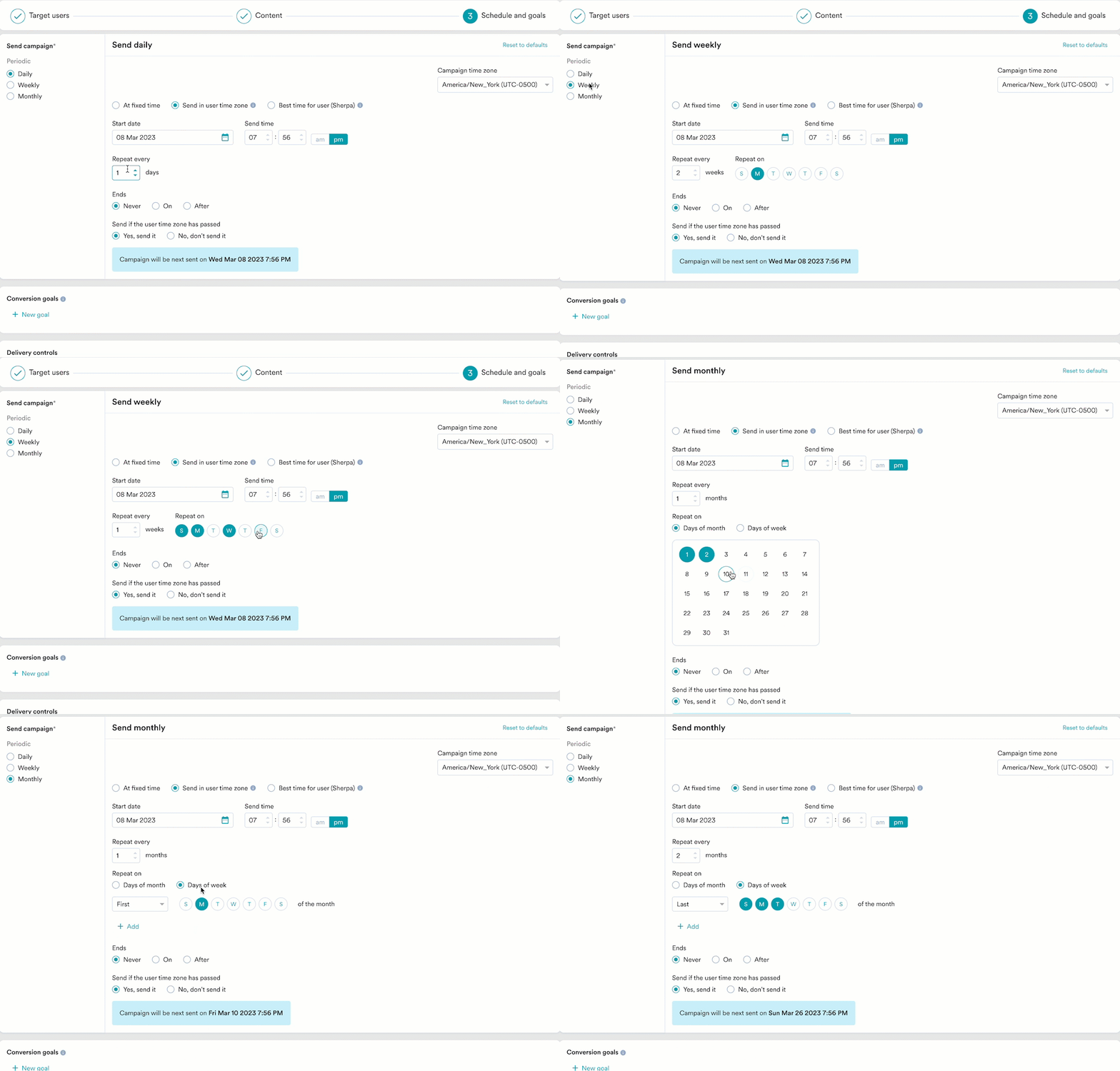
* **Send if the user time zone has passed** - if the campaign's start time has passed in the user's timezone, you have the option to do the following:
* **Yes, send it** - send the campaign to the user even if the specified start time has passed in their timezone.
* **No, don't send it** - do not send the campaign to the user as the specified start time has passed in their timezone.
Choose this option to send the campaign on a specified date and time. The following fields are available in this section:
* **Campaign timezone** - the timezone in which the campaign should be sent.
* **Start Date** - the date on which the campaign should be sent.
* **Send Time** - the time at which the campaign should be sent. Select am or pm depending on when the time of day at which the campaign should be sent.
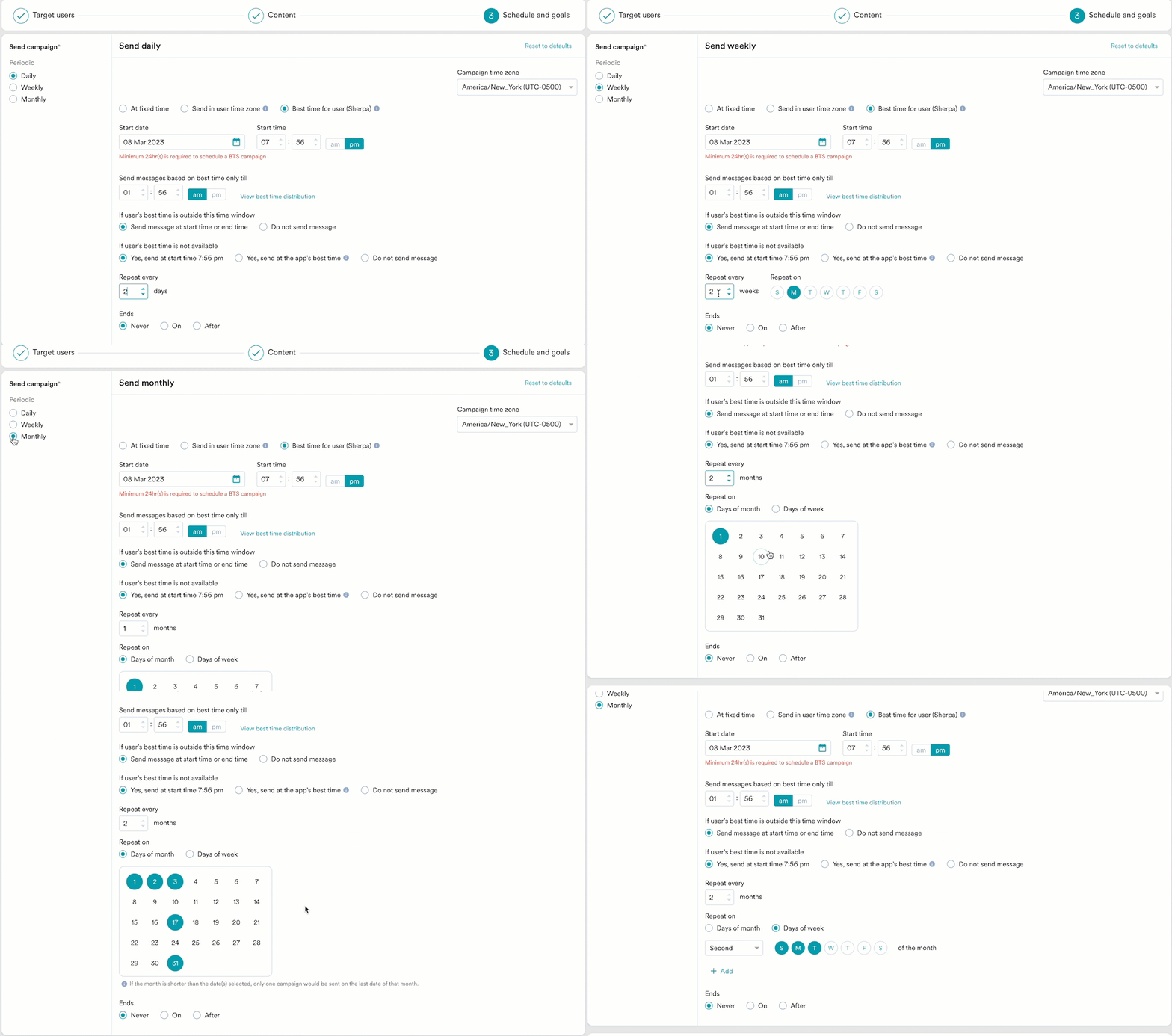
* **Send messages based on best time only till** - the time until which the campaign should be sent based on the best time to send (BTS). Select am or pm depending on when the time of day at which the campaign should be sent. Click *View best time distribution* to see the best time for sending push notifications represented in a graphical manner.
* **If user's best time is outside this time window** - lets you choose when the campaign is to be sent when the user's BTS is outside the time window selected. You can do the following:
* Send the campaign to the user either at the start or end time by selecting *Send message at start time or end time*.
* Avoid sending the campaign to the user by selecting *Do not send message*.
* **If user's best time is not available** - lets you choose when the campaign is to be sent when the user does not have BTS. You can do the following:
* Send the campaign to the user at the start time by selecting *Yes, send at start time.*
* Send the campaign to the user at the app's best time by selecting *Yes, send at the app's best time.*
* Avoid sending the campaign to the user by selecting *Do not send message*.
* **Periodic** - the periodicity of the campaign. You can choose from three options: Daily, Weekly, and Monthly, from the radio buttons available to the left of the screen.
| Periodicity | Description |
| ----------- | ------------------------------------------------------------------------------------------------------------------------------------------------------------------------------------------------------------------------------------------------------------------------------------------------------------------------------------------------------------------------------------------------------------------------------------------------------------------------------------------------------------------------------------------------------------------------------------------------------------------------------------------------------------------------------------------------------------------------------------------------------------------------------------------------------------------------------------------------------------------------------------------------------------------------------------------------------------------------------------------------------- |
| Daily | **Repeat every** - This option lets you specify the number of days after which the campaign should be repeated. |
| Weekly |
* **Ends** - the date on which the campaign will end. The following options are available:
* **Never** - the campaign will be scheduled to run daily.
* **On** - the campaign will end on the end date specified in the *End Date* field.
* **After** - the campaign will end after the number of occurrences specified in the *occurrences* field.
* **Send if the user time zone has passed** - if the campaign's start time has passed in the user's timezone, you have the option to do the following:
* **Yes, send it** - send the campaign to the user even if the specified start time has passed in their timezone.
* **No, don't send it** - do not send the campaign to the user as the specified start time has passed in their timezone.
Choose this option to send the campaign on a specified date and time. The following fields are available in this section:
* **Campaign timezone** - the timezone in which the campaign should be sent.
* **Start Date** - the date on which the campaign should be sent.
* **Send Time** - the time at which the campaign should be sent. Select am or pm depending on when the time of day at which the campaign should be sent.
* **Send messages based on best time only till** - the time until which the campaign should be sent based on the best time to send (BTS). Select am or pm depending on when the time of day at which the campaign should be sent. Click *View best time distribution* to see the best time for sending push notifications represented in a graphical manner.
* **If user's best time is outside this time window** - lets you choose when the campaign is to be sent when the user's BTS is outside the time window selected. You can do the following:
* Send the campaign to the user either at the start or end time by selecting *Send message at start time or end time*.
* Avoid sending the campaign to the user by selecting *Do not send message*.
* **If user's best time is not available** - lets you choose when the campaign is to be sent when the user does not have BTS. You can do the following:
* Send the campaign to the user at the start time by selecting *Yes, send at start time.*
* Send the campaign to the user at the app's best time by selecting *Yes, send at the app's best time.*
* Avoid sending the campaign to the user by selecting *Do not send message*.
* **Periodic** - the periodicity of the campaign. You can choose from three options: Daily, Weekly, and Monthly, from the radio buttons available to the left of the screen.
| Periodicity | Description |
| ----------- | ------------------------------------------------------------------------------------------------------------------------------------------------------------------------------------------------------------------------------------------------------------------------------------------------------------------------------------------------------------------------------------------------------------------------------------------------------------------------------------------------------------------------------------------------------------------------------------------------------------------------------------------------------------------------------------------------------------------------------------------------------------------------------------------------------------------------------------------------------------------------------------------------------------------------------------------------------------------------------------------------------- |
| Daily | **Repeat every** - This option lets you specify the number of days after which the campaign should be repeated. |
| Weekly | - **Repeat every** - This option lets you specify the number of weeks for which the campaign should be repeated.
- **Repeat on** - This option lets you specify the day(s) of the week on which the campaign is to be sent (For example, if you wish to send the campaign every Monday, Wednesday, and Friday, select these days in this option).
|
| Monthly | - **Repeat every** - This option lets you specify the number of months for which the campaign should be repeated.
- **Repeat on** - This option lets you do the following:
- Days of month - Choose this option for repeating campaigns that are date specific. Select the date(s) of the month the campaign is to be sent(For example, to send the campaign on the 5th and the 25th of a month, select the 5th and 25th in the calendar widget.).
**Note**: If the selected date(s) doesn't exist in the month specified (as it is a shorter month), a campaign will be sent on the last date. (For example, if the 30th and 31st are selected and the month is February, one campaign would be sent on the 28th). - Days of week - Choose this option to specify the day(s) of the week on which the campaign is to be sent (For example, if you wish to send the campaign every Monday, Wednesday, and Friday, select these days in this option).
|
 * **Ends** - the date on which the campaign will end. The following options are available:
* **Never** - the campaign will be scheduled to run daily.
* **On** - the campaign will end on the end date specified in the *End Date* field.
* **After** - the campaign will end after the number of occurrences specified in the *occurrences* field.
Click Active continuously under Send campaign and do the following:
| Field | Description |
| ------------------ | -------------------------------------------------------------------------------------------- |
| Campaign Time Zone | Select the campaign time zone in which the campaign is sent |
| Start Date | Set the start date at which the campaign is sent. |
| Send Time |
* **Ends** - the date on which the campaign will end. The following options are available:
* **Never** - the campaign will be scheduled to run daily.
* **On** - the campaign will end on the end date specified in the *End Date* field.
* **After** - the campaign will end after the number of occurrences specified in the *occurrences* field.
Click Active continuously under Send campaign and do the following:
| Field | Description |
| ------------------ | -------------------------------------------------------------------------------------------- |
| Campaign Time Zone | Select the campaign time zone in which the campaign is sent |
| Start Date | Set the start date at which the campaign is sent. |
| Send Time | - Set the send time at which the campaign is sent.
- Select AM or PM
|
| End Date | Set the end date at which the campaign is stopped. |
| End Time | - Set the end time at which the campaign is stopped.
- Select AM or PM
|
**When will event triggered campaigns be sent?**
The campaign will be sent only when:
* The event property/attribute which is being used to create these types of triggers (like the flight\_time example), is in a valid date-time format. If it is not in date-time format, the string should have data in one of the [supported formats](/user-guide/campaigns-and-channels/mobile-push/create/create-push-campaigns). If the selected attributes do not contain data in any of these formats, the campaign won't be sent to your users.
* The date/time value from the attribute is greater than the time at which the trigger condition is fulfilled
* The date/time value from the attribute is less than 30 Days + the time at which the trigger condition is fulfilled e.g. If your trigger condition is fulfilled at date D, your notification will be sent only when the attribute value is less than D+30
* The **Intelligent Delay Optimization does not work** for campaigns sent on the relative timing.
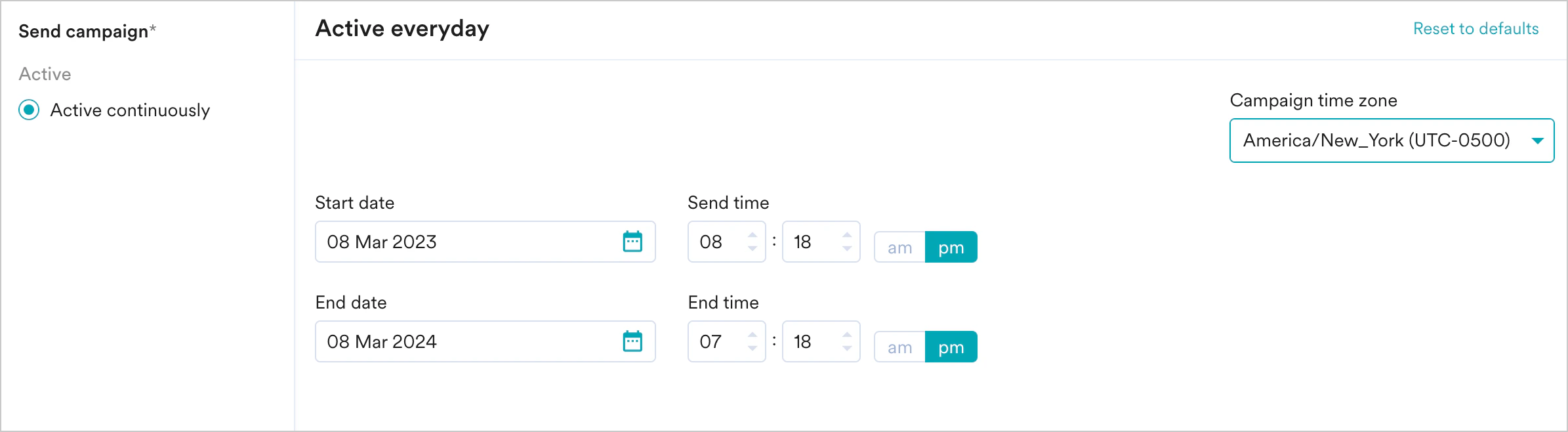 Click Active continuously under Send campaign and do the following:
| Field | Description |
| ------------------ | ------------------------------------------------------------------------- |
| Campaign Time Zone | Select the campaign time zone in which the campaign should be sent. |
| Start Date | Set the start date at which the campaign should be sent. |
| Send Time | Set the send time at which the campaign should be sent. Select AM or PM |
| End Date | Set the end date at which the campaign should be stopped. |
| End Time | Set the end time at which the campaign should be stopped. Select AM or PM |
**When will business event-triggered campaigns be sent?**
The campaign will be sent only when:
* The data type(s) of the user attribute(s) or event attribute(s) mapped to data type(s)the business event's attribute(s) match.
* The attribute(s) used in segmentation is passed in the trigger request for the business event.
* The **Intelligent Delay Optimization does not work** for campaigns sent on the relative timing.
### Conversion Goals
You can add conversion goals to track the business metrics for your campaigns. You can track up to five conversion goals. You can choose any app event as a conversion goal activity and set more than one conversion goal. The first goal will be treated as a primary goal.
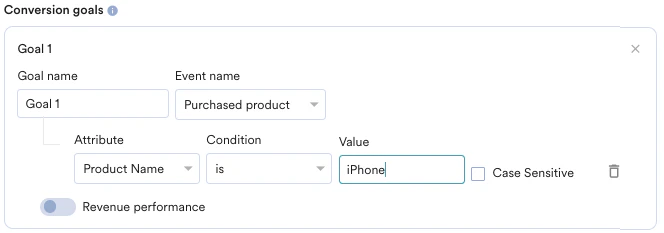
For example, if you want to track the number of customers who've purchased an iPhone after your campaign was sent. (Event - purchase event, Product - iPhone). Your conversion goal set-up might look similar to the image shown below with the following details:
* **Goal Name** - *iPhonePurchase*
* **App Event you wish to track**-*Made Purchase*
* **Event Attribute/Property**\*- product\* is *event attribute/property*
* **Value of Event Attribute/Property** - *iPhone*
Click Active continuously under Send campaign and do the following:
| Field | Description |
| ------------------ | ------------------------------------------------------------------------- |
| Campaign Time Zone | Select the campaign time zone in which the campaign should be sent. |
| Start Date | Set the start date at which the campaign should be sent. |
| Send Time | Set the send time at which the campaign should be sent. Select AM or PM |
| End Date | Set the end date at which the campaign should be stopped. |
| End Time | Set the end time at which the campaign should be stopped. Select AM or PM |
**When will business event-triggered campaigns be sent?**
The campaign will be sent only when:
* The data type(s) of the user attribute(s) or event attribute(s) mapped to data type(s)the business event's attribute(s) match.
* The attribute(s) used in segmentation is passed in the trigger request for the business event.
* The **Intelligent Delay Optimization does not work** for campaigns sent on the relative timing.
### Conversion Goals
You can add conversion goals to track the business metrics for your campaigns. You can track up to five conversion goals. You can choose any app event as a conversion goal activity and set more than one conversion goal. The first goal will be treated as a primary goal.
For example, if you want to track the number of customers who've purchased an iPhone after your campaign was sent. (Event - purchase event, Product - iPhone). Your conversion goal set-up might look similar to the image shown below with the following details:
* **Goal Name** - *iPhonePurchase*
* **App Event you wish to track**-*Made Purchase*
* **Event Attribute/Property**\*- product\* is *event attribute/property*
* **Value of Event Attribute/Property** - *iPhone*
 With multiple conversion goals, you can track more than one business metric or visualize a funnel for your user actions. For example, if you want to check the following, you can do so with multiple conversion goals.
* How many users have viewed the product page?
* How many of them added that product to the cart?
* How many of them made a successful order?
With MoEngage, you can track the revenue generated by your campaigns. For example, you can track the revenue generated by your product after sending a communication. To track revenue performance, enable the *Revenue Performance* toggle for the conversion goal for which you want to track the revenue.
| | |
| ------------------------------------------------------------------------------------------------------------------------------------------------------------------------------------------------------------------------------------------------------------------------------------------------------------------------------------------------------------------------------------------------- | ----------------------------------------------------------------------------------------------------------------------------------------------------------------------------------------------------------------------------------------------------------------------------------------------------------------------------------------------------------------------------------------------------------------------------------------------------------------------------------------------------------------------------------------------------------------------------------------------------------------------------------------------------------------------------------------------------------------------------------------------------------------------------------------------------------------------------------------------------------------------------------------------------------------------------------------------------------------------------------------------------------------------------------------------------------------------------------------------------------------------------------------------------------------------------------------------------------------------------------------------------------------------------------------------------------------------------------------------------------------------------------------------------------------------------------------------------------------------------------------------------------- |
| In the example here, to track revenue for ***orderSuccessful***events, the *Revenue performance* toggle needs to be enabled. After choosing the goal, you can select the numeric attribute that captures the order's total monetary value. In the example below, ***cartValue*** contains the total order value. You can also choose the currency in which your monetary value is being reported. |
With multiple conversion goals, you can track more than one business metric or visualize a funnel for your user actions. For example, if you want to check the following, you can do so with multiple conversion goals.
* How many users have viewed the product page?
* How many of them added that product to the cart?
* How many of them made a successful order?
With MoEngage, you can track the revenue generated by your campaigns. For example, you can track the revenue generated by your product after sending a communication. To track revenue performance, enable the *Revenue Performance* toggle for the conversion goal for which you want to track the revenue.
| | |
| ------------------------------------------------------------------------------------------------------------------------------------------------------------------------------------------------------------------------------------------------------------------------------------------------------------------------------------------------------------------------------------------------- | ----------------------------------------------------------------------------------------------------------------------------------------------------------------------------------------------------------------------------------------------------------------------------------------------------------------------------------------------------------------------------------------------------------------------------------------------------------------------------------------------------------------------------------------------------------------------------------------------------------------------------------------------------------------------------------------------------------------------------------------------------------------------------------------------------------------------------------------------------------------------------------------------------------------------------------------------------------------------------------------------------------------------------------------------------------------------------------------------------------------------------------------------------------------------------------------------------------------------------------------------------------------------------------------------------------------------------------------------------------------------------------------------------------------------------------------------------------------------------------------------------------- |
| In the example here, to track revenue for ***orderSuccessful***events, the *Revenue performance* toggle needs to be enabled. After choosing the goal, you can select the numeric attribute that captures the order's total monetary value. In the example below, ***cartValue*** contains the total order value. You can also choose the currency in which your monetary value is being reported. | 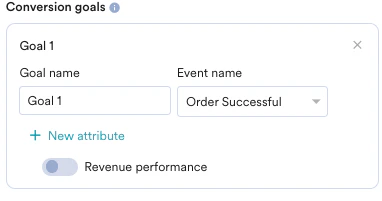 |
| After you choose the goal, you can choose the numeric attribute which captures the total monetary value of the order. In the example, ***cartValue*** contains the total order value. You can also choose the currency in which your monetary value is being reported. |
|
| After you choose the goal, you can choose the numeric attribute which captures the total monetary value of the order. In the example, ***cartValue*** contains the total order value. You can also choose the currency in which your monetary value is being reported. | 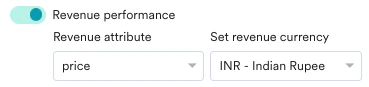 |
| **Set Attribution window** - You can set an attribution window ( a time period or window that is calculated from the time at which the user has received the campaign, for which you want to attribute the conversion goals to a specific campaign.) As a default, it is set for 36 hours. Say, for the example above, we set it to 5 hrs. |
|
| **Set Attribution window** - You can set an attribution window ( a time period or window that is calculated from the time at which the user has received the campaign, for which you want to attribute the conversion goals to a specific campaign.) As a default, it is set for 36 hours. Say, for the example above, we set it to 5 hrs. | 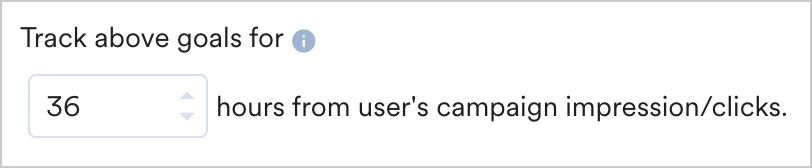 |
### Delivery Controls
This section contains the following options:
| | |
| ----------------------------------------------------------------------------------------------------------------------------------------------------------------------------------------------------------------------------------------------------------------------------------------------------------------------------------------------------------------------------------------------------------------------------------------------------------------------------------------------------------------------------------------------------------------------------------------------------------------------- | ------------------------------------------------------------------------------------------------------------------------------------------------------------------------------------------------------------------------------------------------------------------------------------------------------------------------------------------------------------------------------------------------------------------------------------------------------------------------------------------------------------------------------------------------------------------------------------------------------------------------------------------------------------------------------------------------------------------------------------------------------------------------------------------------------------------------------------------------------------------------------------------------------------------------------------------------------------------------------------------------------------------------------------------------------------------------------------------------------------------------------------------------------------------------------------------------------------------------------------------------------------------------------------------------------------------------------------------------------------------------------------------------------------------------------------------------------------------------ |
|
|
### Delivery Controls
This section contains the following options:
| | |
| ----------------------------------------------------------------------------------------------------------------------------------------------------------------------------------------------------------------------------------------------------------------------------------------------------------------------------------------------------------------------------------------------------------------------------------------------------------------------------------------------------------------------------------------------------------------------------------------------------------------------- | ------------------------------------------------------------------------------------------------------------------------------------------------------------------------------------------------------------------------------------------------------------------------------------------------------------------------------------------------------------------------------------------------------------------------------------------------------------------------------------------------------------------------------------------------------------------------------------------------------------------------------------------------------------------------------------------------------------------------------------------------------------------------------------------------------------------------------------------------------------------------------------------------------------------------------------------------------------------------------------------------------------------------------------------------------------------------------------------------------------------------------------------------------------------------------------------------------------------------------------------------------------------------------------------------------------------------------------------------------------------------------------------------------------------------------------------------------------------------ |
| - **Ignore frequency capping** - Enable this toggle to ignore the frequency capping settings. For more information, refer to [Frequency Capping](/user-guide/settings/channels/delivery-controls/frequency-capping).
- **Ignore global minimum delay** - Enable this toggle to ignore the settings for the minimum delay set for Push notifications.
- **Request Limit** - We support a maximum throughput of 250K requests per minute. If multiple campaigns are running in parallel, then we might not be able to support throughput for all the campaigns and campaigns might be delayed
| 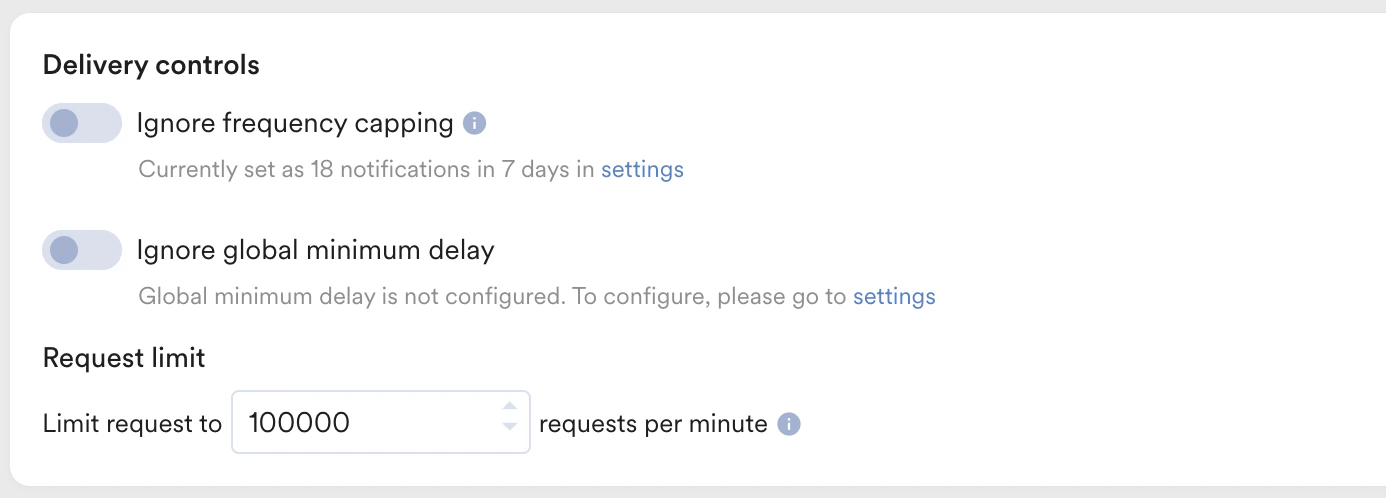 |
This section contains the following options:
| | |
| ------------------------------------------------------------------------------------------------------------------------------------------------------------------------------------------------------------------------------------------------------------------------------------------------------------------------------------------------------------------------------------------------------------------------------------------------------------------------------------------------------------------------------------------------------------------------------------------------------------------------ | ------------------------------------------------------------------------------------------------------------------------------------------------------------------------------------------------------------------------------------------------------------------------------------------------------------------------------------------------------------------------------------------------------------------------------------------------------------------------------------------------------------------------------------------------------------------------------------------------------------------------------------------------------------------------------------------------------------------------------------------------------------------------------------------------------------------------------------------------------------------------------------------------------------------------------------------------------------------------------------------------------------------------------------------------------------------------------------------------------------------------------------------------------------------------------------------------------------------------------------------------------------------------------------------------------------------------------------------------------------------------------------------------------------------------------------------------------------------------ |
|
|
This section contains the following options:
| | |
| ------------------------------------------------------------------------------------------------------------------------------------------------------------------------------------------------------------------------------------------------------------------------------------------------------------------------------------------------------------------------------------------------------------------------------------------------------------------------------------------------------------------------------------------------------------------------------------------------------------------------ | ------------------------------------------------------------------------------------------------------------------------------------------------------------------------------------------------------------------------------------------------------------------------------------------------------------------------------------------------------------------------------------------------------------------------------------------------------------------------------------------------------------------------------------------------------------------------------------------------------------------------------------------------------------------------------------------------------------------------------------------------------------------------------------------------------------------------------------------------------------------------------------------------------------------------------------------------------------------------------------------------------------------------------------------------------------------------------------------------------------------------------------------------------------------------------------------------------------------------------------------------------------------------------------------------------------------------------------------------------------------------------------------------------------------------------------------------------------------------ |
| - **Ignore frequency capping** - Enable this toggle to ignore the frequency capping settings. For more information, refer to [Frequency Capping](/user-guide/settings/channels/delivery-controls/frequency-capping).
- **Ignore global minimum delay** - Enable this toggle to ignore the settings for the minimum delay set for Push notifications.
- **Request Limit** - We support a maximum throughput of 250K requests per minute. If multiple campaigns are running in parallel, then we might not be able to support throughput for all the campaigns and campaigns might be delayed.
| |
### Advanced Settings
The following options are available in this section:
| | |
| ----------------------------------------------------------------------------------------------------------------------------------------------------------------------------------- | ---------------------------------------------------------------------------------------------------------------------------------------------------------------------------------------------------------------------------------------------------------------------------------------------------------------------------------------------------------------------------------------------------------------------------------------------------------------------------------------------------------------------------------------------------------------------------------------------------------------------------------------------------------------------------------------------------------------------------------------------------------------------------------------------------------------------------------------------------------------------------------------------------------------------------------------------------------------------------------------------------------------------------------------------------------------------------------------------------------------------------------------------------------------------------------------------------------------------------------------------------------------------------------------------------------------------------------------------------------------------------------------------------------------------------------------------------------------------- |
| **Expiration Settings** - let you specify an expiry value for the push notification.
To set the push expiry value, enter a value in the **Expire notifications after** field. | 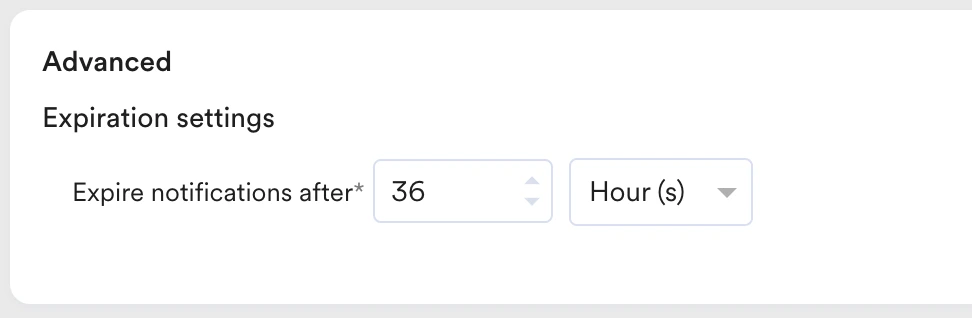 |
Your campaign is now ready to be sent. Click **Publish** and confirm in the dialog box that opens up to create the campaign.
Once the campaign has been created successfully, the Campaign Info page will be displayed.
If you want to learn more about how to analyze the data for your Web Push campaign, go through this page: [Push Analytics and Info](/user-guide/campaigns-and-channels/mobile-push/analyze/push-analytics-and-info)
# Next Steps
* [Website Push For AMP](/user-guide/campaigns-and-channels/web-push/create/website-push-for-amp)
All MoEngage AI products, which were previously referred to as *Sherpa AI*, are now known as *Merlin AI*.
|
Your campaign is now ready to be sent. Click **Publish** and confirm in the dialog box that opens up to create the campaign.
Once the campaign has been created successfully, the Campaign Info page will be displayed.
If you want to learn more about how to analyze the data for your Web Push campaign, go through this page: [Push Analytics and Info](/user-guide/campaigns-and-channels/mobile-push/analyze/push-analytics-and-info)
# Next Steps
* [Website Push For AMP](/user-guide/campaigns-and-channels/web-push/create/website-push-for-amp)
All MoEngage AI products, which were previously referred to as *Sherpa AI*, are now known as *Merlin AI*.