> ## Documentation Index
> Fetch the complete documentation index at: https://moengage-user-guide.mintlify.site/llms.txt
> Use this file to discover all available pages before exploring further.
# AIRA Overview
This section provides step-by-step instructions for using the Artificial Intelligence Resolution Agent (AIRA) from the MoEngage dashboard.
## What is AIRA?
AIRA is MoEngage's generative AI-enabled support bot. It addresses your queries by referencing an extensive knowledge base and utilizing custom workflows. It ensures prompt and accurate responses and can escalate complex issues by creating support tickets. AIRA is available 24/7.
## AIRA Capabilities
This is an Early Access feature. To enable it for your account, contact your CSM or [raise a support ticket](/user-guide/contact-support/contact-support/raise-a-support-ticket-through-moengage-dashboard).
The following are the current capabilities of AIRA:
* Respond to troubleshooting queries regarding Push notifications.
* Address 'how-to' queries from the knowledge base.
The file upload feature is currently being developed. To share files, use the email thread associated with the ticket logged through AIRA.
## Access AIRA on the Dashboard
To access AIRA:
1. In the upper-right corner of the MoEngage dashboard, click **Need help**.
2. From the drop-down list, click **Support**.
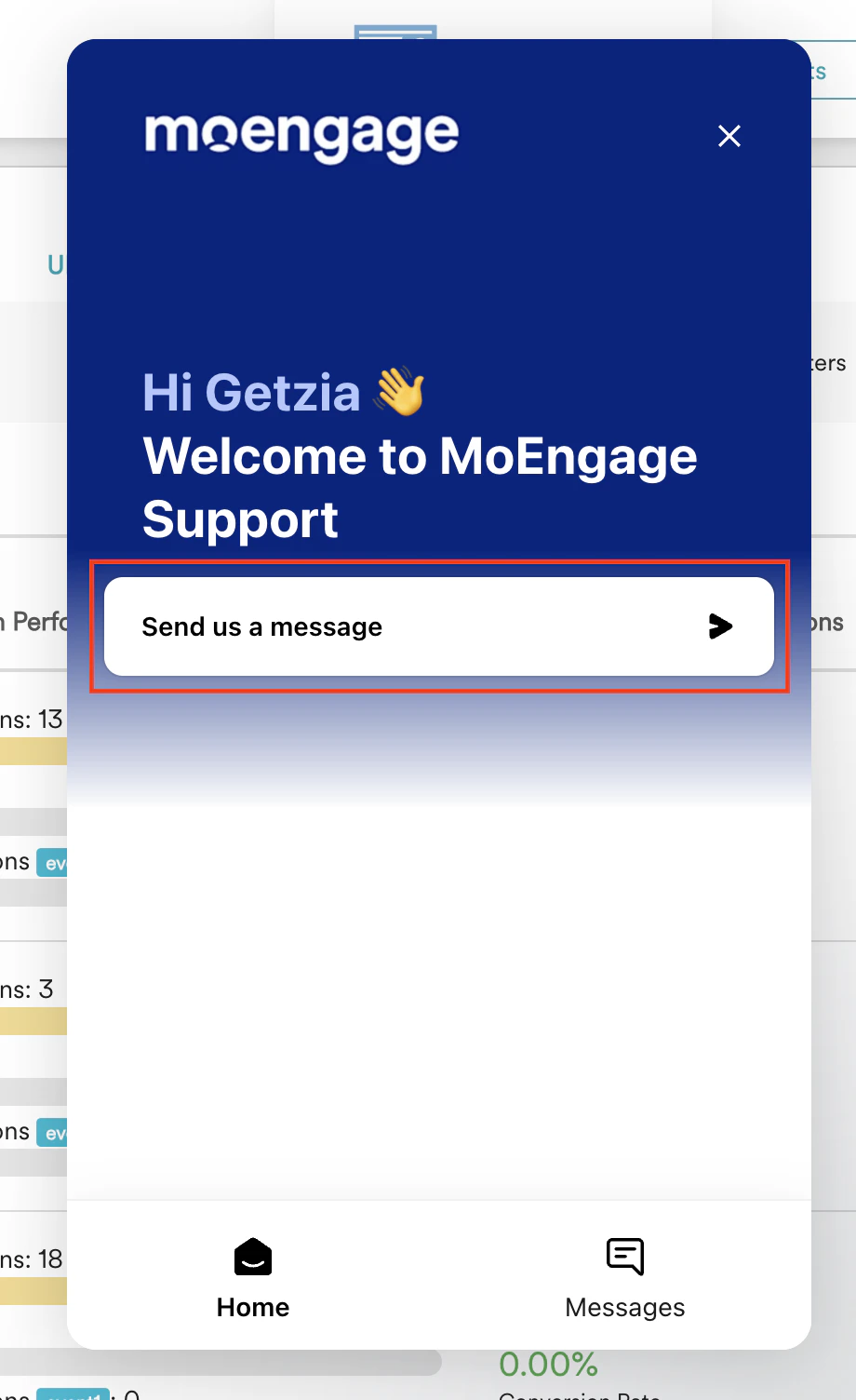
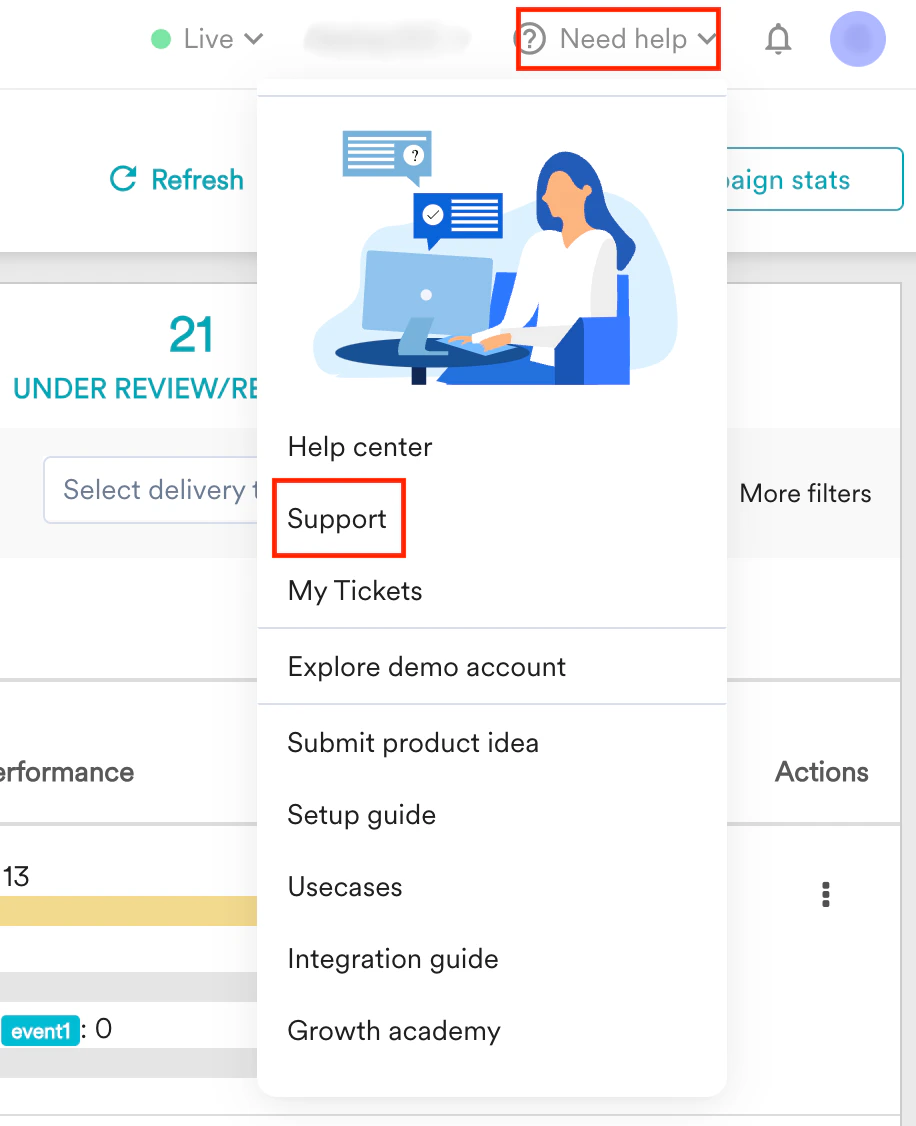 The AIRA message window will appear.
 ## Log a Ticket Using AIRA
To log a ticket:
1. In the AIRA message window, type your query or describe the issue.
2. Follow the on-screen instructions. AIRA will attempt to resolve your query and may request additional details.
3. If the response is insufficient or your issue remains unresolved, select **Get more help** or **No, log a ticket** depending on the option displayed in AIRA's dialogue to create a support ticket.
When you create a ticket, you will receive:
* A confirmation in the chat window with a ticket number
* An email containing all follow-up communications regarding the ticket
The ticket includes all conversation history, allowing Support Engineers to access the context. Follow-up communications regarding the support ticket created through AIRA will be sent through email and available in your inbox.
## View Tickets Created by AIRA
To view your tickets:
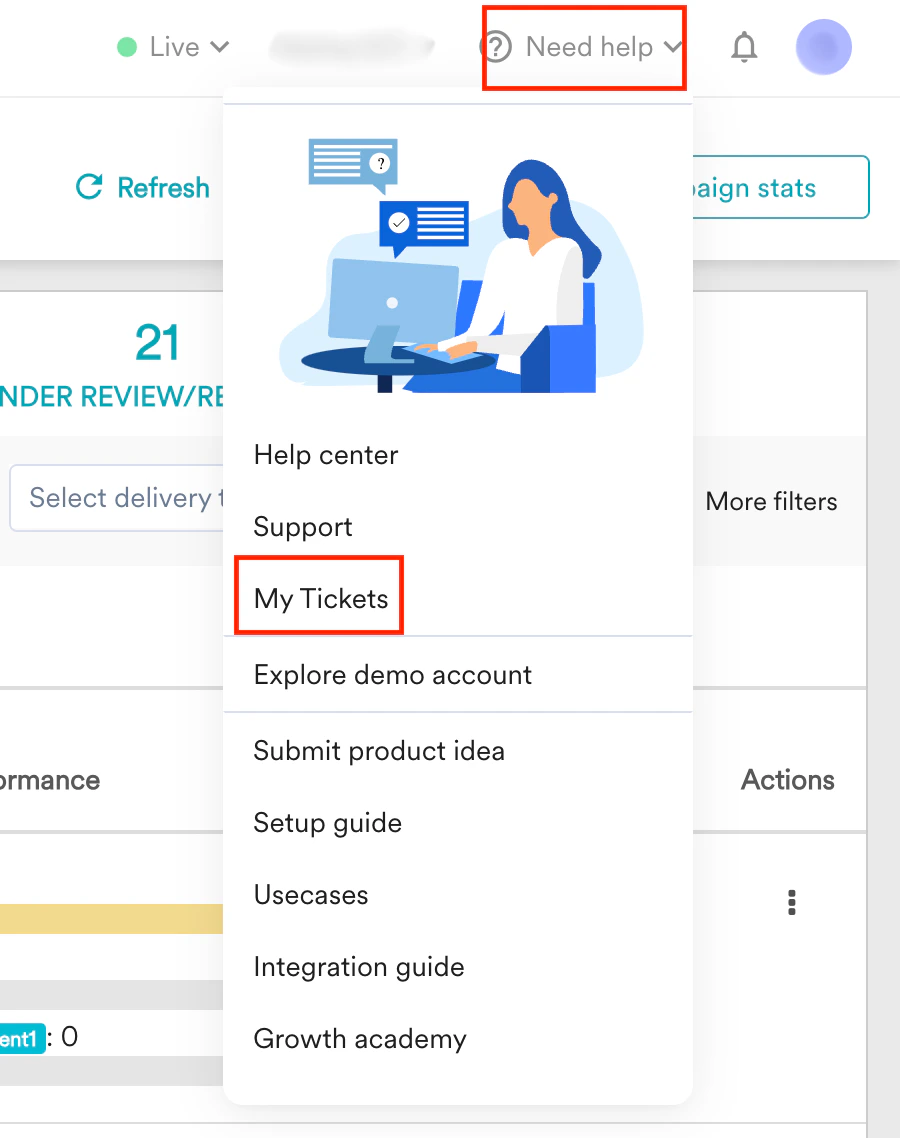
1. In the upper-right corner of the MoEngage dashboard, click **Need help**.
2. From the drop-down list, click **My tickets**.
## Log a Ticket Using AIRA
To log a ticket:
1. In the AIRA message window, type your query or describe the issue.
2. Follow the on-screen instructions. AIRA will attempt to resolve your query and may request additional details.
3. If the response is insufficient or your issue remains unresolved, select **Get more help** or **No, log a ticket** depending on the option displayed in AIRA's dialogue to create a support ticket.
When you create a ticket, you will receive:
* A confirmation in the chat window with a ticket number
* An email containing all follow-up communications regarding the ticket
The ticket includes all conversation history, allowing Support Engineers to access the context. Follow-up communications regarding the support ticket created through AIRA will be sent through email and available in your inbox.
## View Tickets Created by AIRA
To view your tickets:
1. In the upper-right corner of the MoEngage dashboard, click **Need help**.
2. From the drop-down list, click **My tickets**.
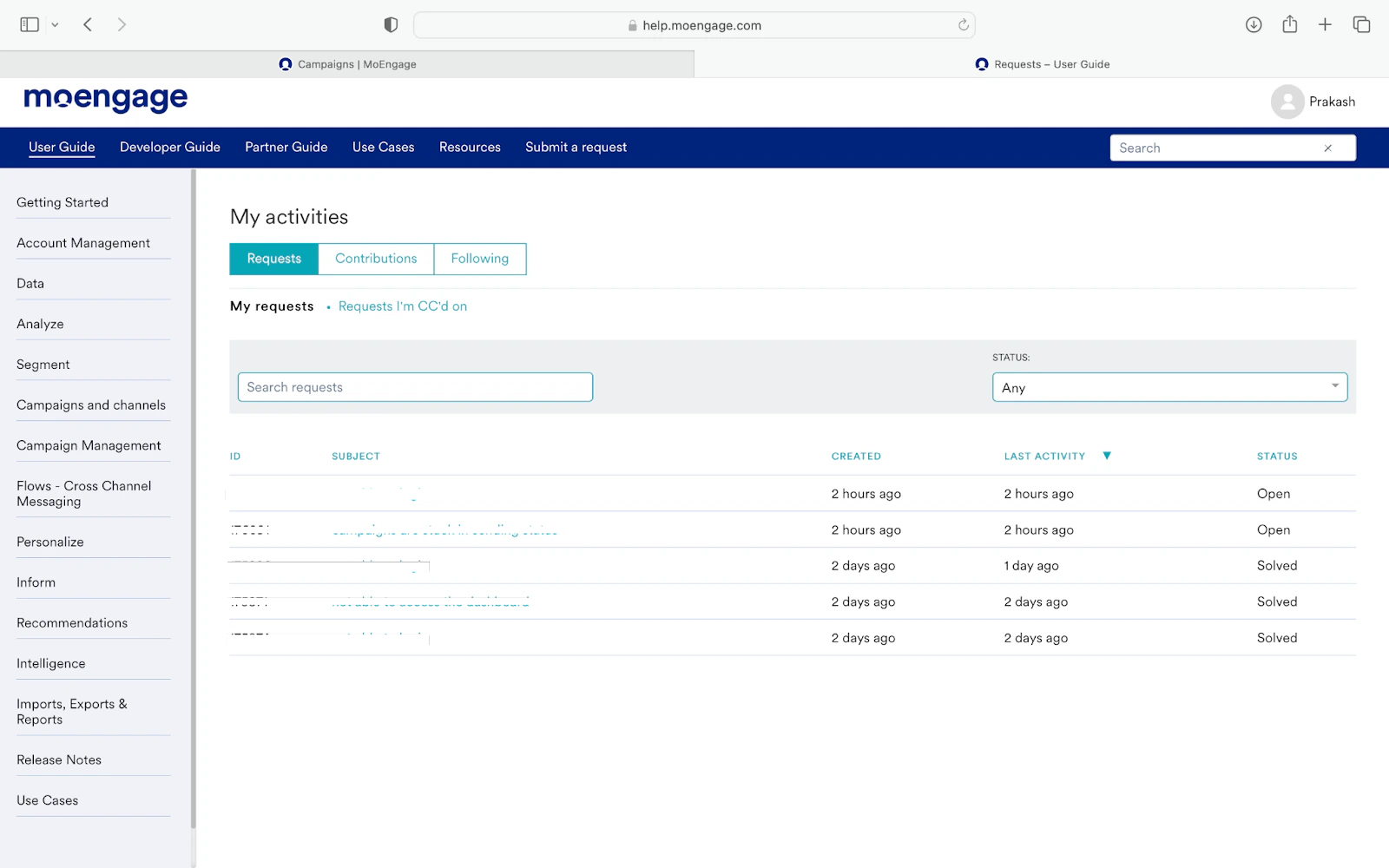
 The **My activities** page appears, displaying your previously logged tickets.
 MoEngage is updating its support process and transitioning from a web form to our new AIRA support bot. This advanced tool allows you to submit queries and create tickets, offering a smooth and expedited experience. AIRA is under progressive development and is accessed by a limited number of users. However, MoEngage is excited to announce that it will soon be fully available, replacing the current web form.