> ## Documentation Index
> Fetch the complete documentation index at: https://moengage-user-guide.mintlify.site/llms.txt
> Use this file to discover all available pages before exploring further.
# Analyze a Flow
# Overview
MoEngage Flows provides an intuitive way to analyze user interactions and understand the performance of the flow built. We represent the performance using Trips and a Trip basically represents a unique user journey, beginning with their entry into a flow after fulfilling certain conditions and including their interactions with campaigns and possible conversions along the way.
The analytics of user trip data is crucial for effective user engagement and flow performance optimization. The explained metrics, including Active Trips, Engaged Trips, Converted Trips, Drop-offs, and Revenue among others, offer granular insights into user behaviour and interactions. You can also visualize and filter trip data using the Canvas and Detailed Stats views. Additionally, it sheds light on the performance analysis of individual channels and campaigns, helping you to fine-tune your customer engagement strategies.
 * This is an Early Access feature. To enable it for your account, please contact your MoEngage Customer Success Manager (CSM) or the Support team.
* All metrics are calculated and displayed in the App Timezone. To find your current app timezone value, refer to the [Workspace Settings](/user-guide/settings/account/general-settings/workspace-settings).
* This feature applies only to flows created after it is enabled; flows created prior to enablement will continue to show stats in GMT.
# Why Trips?
While tracking the total user entries is an alternative, we identify that auxiliary metrics such as unique user entries and unique conversions are to be tracked and reported every time to remove the ambiguity among the metrics.
As a Trip uniquely identifies each instance a user might enter a flow over the lifetime of a user, it provides an unambiguous concept that can be extended to every metric you would want to track to analyze the performance of your flow.
## Definition of Metrics
In every flow, you can see the following top-level metrics:
| Metric | Description |
| --------------------- | ------------------------------------------------------------------------------------------------------------------------------------------------------------------------------------------------------------------------------------------------------------------------------------------------------------------------------------------------------------------------------------------------------------------------------------------------------------------------------------------------------------------------------------------------------------------------------------------------------------------------------------------------------------------------------------------------------------------------------------------------------------------------------------------------------------------------------------------------------------------------------------------------------------------------------------------------------------------------------------------------------------------------------------------------------------------------------------- |
| **Trip Started** | The number of trips that have started within a time period. This is the number of times users have entered the flow. |
| **Active trips** | The number of trips out of the total trips that have not yet ended, that is, the number of users that are currently in the flow. |
| **Ended Trips** | Trips that ended already. Trips Ended = Total Trips - Active Trips |
| **Engaged trips** | The number of trips in which the user received at least one of the action campaigns during their trip. Potentially only engaged trips can lead to a conversion that will be attributed to the flow. During a trip, if a user receives multiple campaigns before they exit the flow, they would still be counted as part of one engaged trip.
* This is an Early Access feature. To enable it for your account, please contact your MoEngage Customer Success Manager (CSM) or the Support team.
* All metrics are calculated and displayed in the App Timezone. To find your current app timezone value, refer to the [Workspace Settings](/user-guide/settings/account/general-settings/workspace-settings).
* This feature applies only to flows created after it is enabled; flows created prior to enablement will continue to show stats in GMT.
# Why Trips?
While tracking the total user entries is an alternative, we identify that auxiliary metrics such as unique user entries and unique conversions are to be tracked and reported every time to remove the ambiguity among the metrics.
As a Trip uniquely identifies each instance a user might enter a flow over the lifetime of a user, it provides an unambiguous concept that can be extended to every metric you would want to track to analyze the performance of your flow.
## Definition of Metrics
In every flow, you can see the following top-level metrics:
| Metric | Description |
| --------------------- | ------------------------------------------------------------------------------------------------------------------------------------------------------------------------------------------------------------------------------------------------------------------------------------------------------------------------------------------------------------------------------------------------------------------------------------------------------------------------------------------------------------------------------------------------------------------------------------------------------------------------------------------------------------------------------------------------------------------------------------------------------------------------------------------------------------------------------------------------------------------------------------------------------------------------------------------------------------------------------------------------------------------------------------------------------------------------------------- |
| **Trip Started** | The number of trips that have started within a time period. This is the number of times users have entered the flow. |
| **Active trips** | The number of trips out of the total trips that have not yet ended, that is, the number of users that are currently in the flow. |
| **Ended Trips** | Trips that ended already. Trips Ended = Total Trips - Active Trips |
| **Engaged trips** | The number of trips in which the user received at least one of the action campaigns during their trip. Potentially only engaged trips can lead to a conversion that will be attributed to the flow. During a trip, if a user receives multiple campaigns before they exit the flow, they would still be counted as part of one engaged trip.
A trip becomes an engaged trip with respect to a channel type when one of the following events is received from the user in the flow trip for the concerned channel. - Push: Notification Received Android or Notification Received iOS (if iOS delivery tracking is not available, then notification sent iOS event is used to track engagement)
- Email: Email Opened
- SMS: SMS Delivered (if delivery is not tracked, then SMS sent)
- Connector: Connector Sent
- In-App Messaging: Mobile In-App Shown
- On-site Messaging: On-site Message Shown
- Facebook: Facebook Audience Synced
- WhatsApp: WhatApp Message Delivered
- Cards: Card Campaign Viewed
|
| **Converted trips** | The number of engaged trips that resulted in at least one conversion during the time of the trip.
If the control group is configured to measure the effectiveness of the flow, then percentage uplift with respect to the control group trip's conversions.
The formula for CVR is ((Converted Trips)/(Engaged Trips))\*100 |
| **Total Conversions** | The total number of conversions that are received from all the converted trips.
For more information about how conversions are tracked and attributed to flows, refer to [Conversion Tracking and Attribution in Flows](/user-guide/flows-cross-channel-messaging/analyze-flows/conversion-attribution-in-flows). |
| **Drop-offs** | The total number of trips ended due to the following reasons: - If the Frequency Capping (FC) limit has been reached and the Flow's setting is to remove the user from the flow in case the message has not been sent.
- If the message has not been delivered due to Do Not Disturb (DND) and the Flow's setting is to remove the user from the Flow in case the message has not been delivered.
- Resuming a paused flow or user entering a Wait For/till stage when the waiting period is already over in the same.
- After User Merge, if the known user is already part of the same flow.
- Internal errors.
**Note**: It will be shown only when non-primary goals are viewed or when revenue performance is not tracked with the primary goal.
|
| **Revenue** | The cumulative sum of the defined revenue attribute whenever an engaged user performs the goal event.
**Revenue Boost**
The percentage boost of the engaged test flow users who brought in revenue as compared to the control group users.
The formula for calculating revenue boost is:
((Average revenue of a test flow trip - Average revenue of a control group Trip)/Average revenue of a control group Trip ) x 100
If the flow has global control group, then the formula for calculating revenue boost is:
((Average revenue of a test flow trip - Average revenue of a control group Trip & Global control group trip)/Average revenue of a control group Trip & Global control group trip ) x 100 |
## Example
For a flow with action campaigns C1 and C2, User U1 enters the flow and receives both campaigns and converts with the configured conversion goal 2 times. Now, after the user exits the flow, the stats will be:
* Total Trips: 1
* Active Trips: 0
* Engaged Trips: 1 (although the user received both campaigns, it will be treated as one trip)
* Converted Trips: 1
* Total Conversions:2
Now if User U2 enters the flow but because of some reason (such as personalization failure or not having an active device token) does not receive any of the campaigns but does perform the conversion event once. Now after the user exits the flow, the stats will be:
* Total Trips: 2
* Active Trips: 0
* Engaged Trips: 1
* Converted Trips: 1
* Total Conversions:2
The engaged trip, converted trip, and total conversion do not change because the User U2 was not engaged from either of the flow action campaigns.
# Canvas View
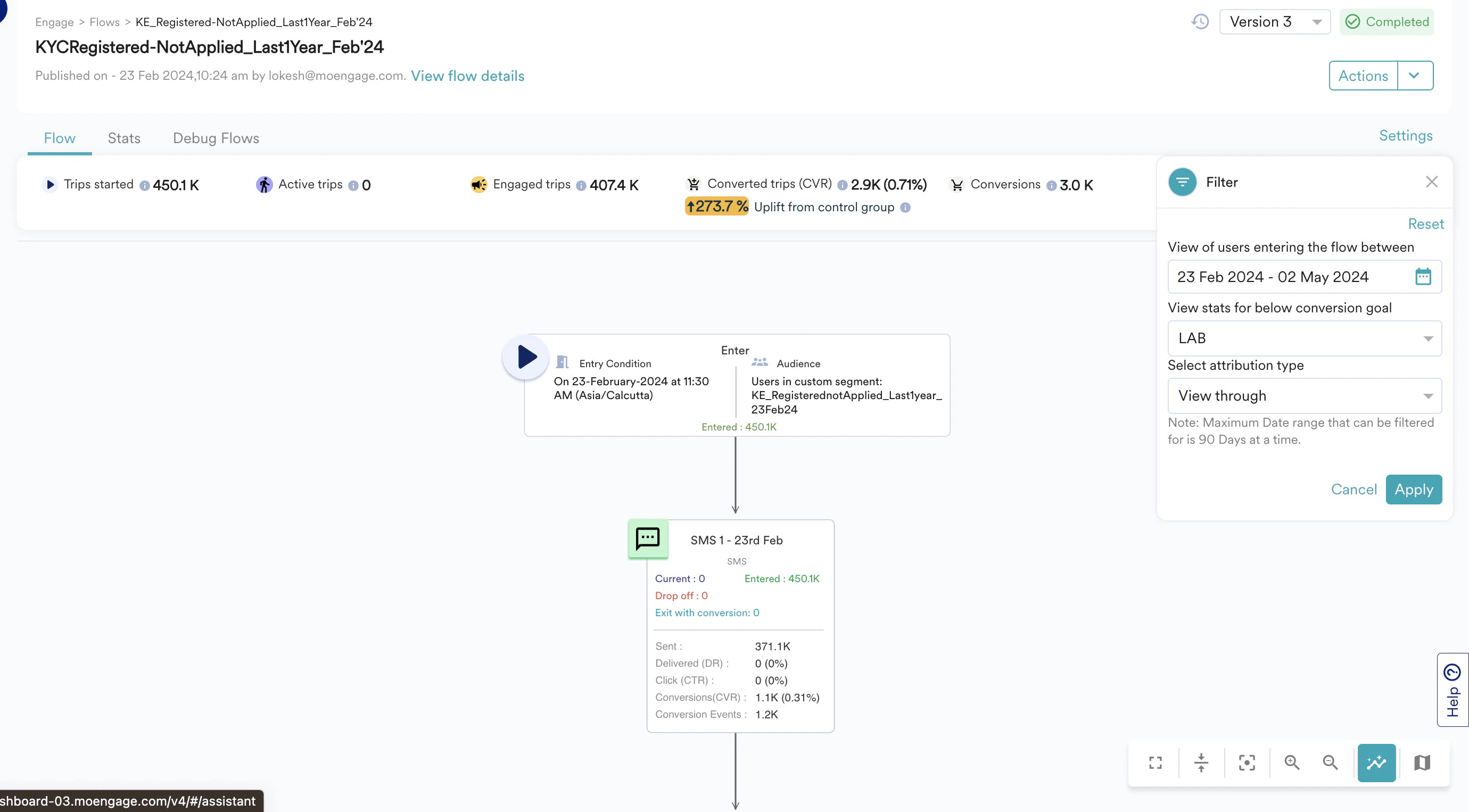
In addition to the overall stats at the top, you can also see the performance of each stage configured in the flow. By filtering for a defined time period, you can understand the behavior or stats of users who have entered the flow within that time.
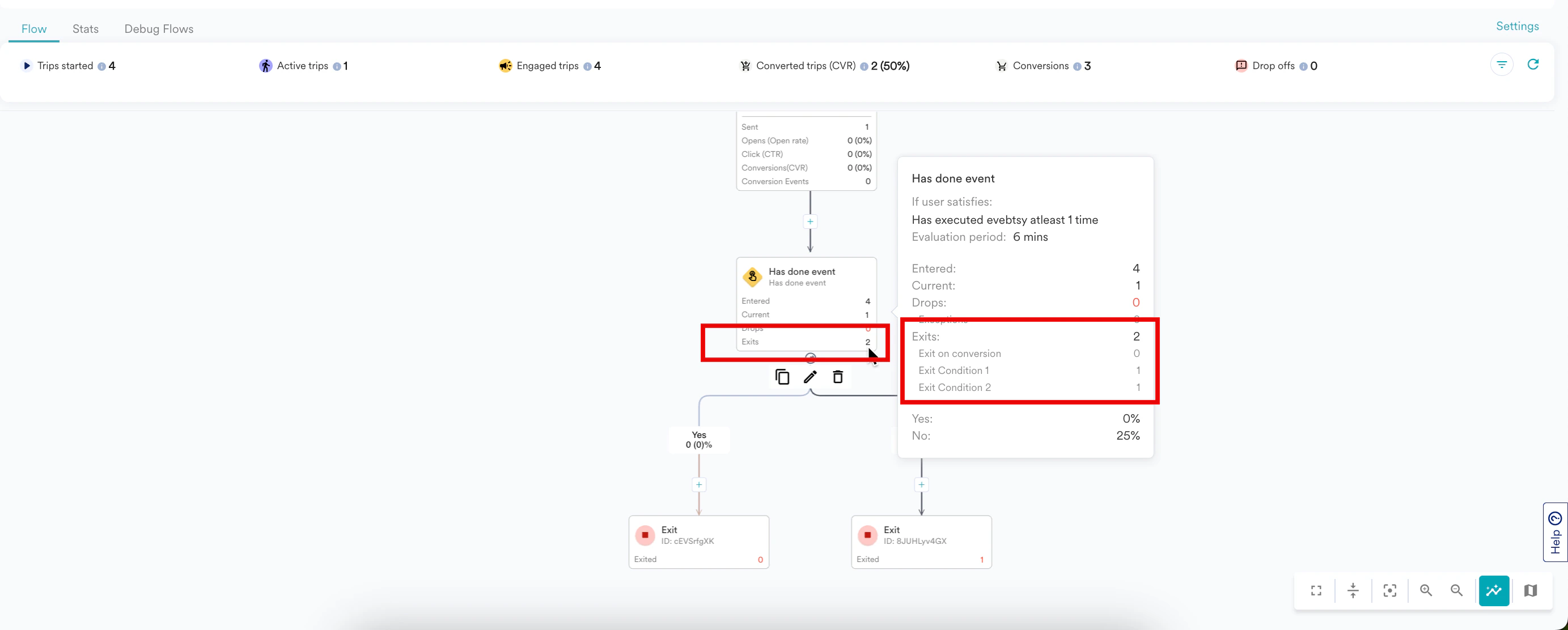
You can also view the stage level stats to know the number of users that have passed through, or are currently at, or have exited the flow from that stage.
Entered = Current + Drop off + Exits for any given stage.
The following image shows that 2 users have exited the flow from the **Has done event** stage. When you hover the mouse over the stage, you will see a pop-up that shows the reason for each exit.
 Users can exit from any stage in the flow due to reasons such as:
* Passing through an exit stage in the flow path
* Fulfilling the conditions in the exit criteria (for more information on adding exit criteria, refer to [Global Exit Criteria](/user-guide/flows-cross-channel-messaging/create/create-flows/create-a-flow))
* Achieving the conversion goal defined in the flow
* Dropping off due to reasons mentioned in the [Definition of Metrics](#Definition-of-Metrics) section.
In addition to analyzing the canvas view for all the user trips, you can analyze and compare the stats/behavior of users who have entered the flow within a defined time period. As shown in the previous image, You can filter the canvas view for the user trips that started within the selected date range.
In canvas view, when you filter for a time period, it shows data for all users who have entered the flow in the specified time period. The detailed stats show data of what has happened during that time period regardless of when the user entered the flow. For more information, refer [here](/user-guide/flows-cross-channel-messaging/faqs/analyzing-flows:~:text=Why%20are%20the%20stats%20shown%20in%20Canvas%20view%20and%20Detailed%20Stats%20view%20different%20when%20filtered%20for%20a%20specific%20date%3F).
If you want to see the updated stats for the active trips, click the Refresh icon next to the date range filter to update both the overall and stage-level stats.
## Conversion Uplift
Uplift is only shown in overall stats if the control group was enabled for at least a day during the filtered period. To know more about how uplift is calculated, click [here](/user-guide/flows-cross-channel-messaging/create/experimentation/control-group-in-flows).
## Legends
The colors in the canvas represent the flow path and the decisions made to send campaigns to your customers.
The following table describes the legends on the canvas:
| Legend | Description |
| ----------------------------------------------------------------------------------------------------------------------------------------------------------------------------------------------------------------------------------------------------------------------------------------------------------------------------------------------------------------------------------------------------------------------------------------------------------------------------------------------------------------------------------------------------------------------------------------------------------------------------------------------------------------------------------------------------------------------------------------------------------------------------------------------------------------------------------------------------------------------------------------------------------------------------------------------------------------------------------------------------------------------------------------------------------------------------------------------------------------------------------------------------------------------------------------------------------------------------------------------------------------------------------------------------------------------------------------------------------------------------------------------------------------------------------------------------------------------------- | ---------------------------------------------------------------------------------------------------------------------------------------------------------------------------------------------------- |
| Black Line | Displays the next step when the **Yes** condition is fulfilled for an event or campaign. |
| Grey Line | Displays the next step when the **No** condition is fulfilled for an event or campaign. |
|
Users can exit from any stage in the flow due to reasons such as:
* Passing through an exit stage in the flow path
* Fulfilling the conditions in the exit criteria (for more information on adding exit criteria, refer to [Global Exit Criteria](/user-guide/flows-cross-channel-messaging/create/create-flows/create-a-flow))
* Achieving the conversion goal defined in the flow
* Dropping off due to reasons mentioned in the [Definition of Metrics](#Definition-of-Metrics) section.
In addition to analyzing the canvas view for all the user trips, you can analyze and compare the stats/behavior of users who have entered the flow within a defined time period. As shown in the previous image, You can filter the canvas view for the user trips that started within the selected date range.
In canvas view, when you filter for a time period, it shows data for all users who have entered the flow in the specified time period. The detailed stats show data of what has happened during that time period regardless of when the user entered the flow. For more information, refer [here](/user-guide/flows-cross-channel-messaging/faqs/analyzing-flows:~:text=Why%20are%20the%20stats%20shown%20in%20Canvas%20view%20and%20Detailed%20Stats%20view%20different%20when%20filtered%20for%20a%20specific%20date%3F).
If you want to see the updated stats for the active trips, click the Refresh icon next to the date range filter to update both the overall and stage-level stats.
## Conversion Uplift
Uplift is only shown in overall stats if the control group was enabled for at least a day during the filtered period. To know more about how uplift is calculated, click [here](/user-guide/flows-cross-channel-messaging/create/experimentation/control-group-in-flows).
## Legends
The colors in the canvas represent the flow path and the decisions made to send campaigns to your customers.
The following table describes the legends on the canvas:
| Legend | Description |
| ----------------------------------------------------------------------------------------------------------------------------------------------------------------------------------------------------------------------------------------------------------------------------------------------------------------------------------------------------------------------------------------------------------------------------------------------------------------------------------------------------------------------------------------------------------------------------------------------------------------------------------------------------------------------------------------------------------------------------------------------------------------------------------------------------------------------------------------------------------------------------------------------------------------------------------------------------------------------------------------------------------------------------------------------------------------------------------------------------------------------------------------------------------------------------------------------------------------------------------------------------------------------------------------------------------------------------------------------------------------------------------------------------------------------------------------------------------------------------- | ---------------------------------------------------------------------------------------------------------------------------------------------------------------------------------------------------- |
| Black Line | Displays the next step when the **Yes** condition is fulfilled for an event or campaign. |
| Grey Line | Displays the next step when the **No** condition is fulfilled for an event or campaign. |
|  | Displays the start or entry of the flow. |
|
| Displays the start or entry of the flow. |
|  | Displays the stop or exit points of the flow. |
|
| Displays the stop or exit points of the flow. |
|  | Displays the Has Done Event in the flow. |
|
| Displays the Has Done Event in the flow. |
|  | Displays the Check User Attributes in the flow. |
|
| Displays the Check User Attributes in the flow. |
|  | Displays the conditional split. For more information, refer to [Conditions in flows](/user-guide/flows-cross-channel-messaging/create/conditions-and-controls-in-flows/branching-of-users-in-flows). |
|
| Displays the conditional split. For more information, refer to [Conditions in flows](/user-guide/flows-cross-channel-messaging/create/conditions-and-controls-in-flows/branching-of-users-in-flows). |
|  | Displays the Email campaigns of the flow. |
|
| Displays the Email campaigns of the flow. |
|  | Displays the Push campaigns of the flow. |
|
| Displays the Push campaigns of the flow. |
|  | Displays the SMS campaigns of the flow. |
|
| Displays the SMS campaigns of the flow. |
|  | Displays the Connector campaigns of the flow. |
|
| Displays the Connector campaigns of the flow. |
|  | Displays the Facebook campaigns of the flow. |
|
| Displays the Facebook campaigns of the flow. |
|  | Displays the In-App campaigns of the flow. |
|
| Displays the In-App campaigns of the flow. |
|  | Displays the On-site campaigns of the flow. |
|
| Displays the On-site campaigns of the flow. |
|  | Displays the WhatsApp campaigns of the flow. |
|
| Displays the WhatsApp campaigns of the flow. |
|  | Displays the Cards campaigns of the flow. |
|
| Displays the Cards campaigns of the flow. |
|  | Displays the Google Ads Audience campaigns of the flow. |
|
| Displays the Google Ads Audience campaigns of the flow. |
|  | Displays the Next Best Action campaigns of the flow. |
|
| Displays the Next Best Action campaigns of the flow. |
|  | Displays the intelligence path optimizer used in the flow. |
|
| Displays the intelligence path optimizer used in the flow. |
|  | Displays the A/B split used in the flow. |
|
| Displays the A/B split used in the flow. |
|  | Displays the Wait Till used in the flow. |
|
| Displays the Wait Till used in the flow. |
|  | Displays the GoTo used in the flow. |
# Detailed Stats
You can open the detailed stats page for your flow by clicking the "Stats" tab adjacent to the "Flows" tab.
The detailed stats are shown for the last 90 days by default or since the current version's published time, whichever is shorter. You can see the stats from the time the flow was published using the date range filter.
## Flow Performance
The stats of the currently active version of the Flow are loaded in this section. You can see the stats of any specific version by selecting the version from the version selector as shown in the following image. You can choose the following in the version selector:
* **Specific Version**: This section shows you the trends of User trips, Engaged Trips, and Converted trips over time for the selected Version. If the control group is enabled during the filtered time, the conversion uplift is also shown.
| Displays the GoTo used in the flow. |
# Detailed Stats
You can open the detailed stats page for your flow by clicking the "Stats" tab adjacent to the "Flows" tab.
The detailed stats are shown for the last 90 days by default or since the current version's published time, whichever is shorter. You can see the stats from the time the flow was published using the date range filter.
## Flow Performance
The stats of the currently active version of the Flow are loaded in this section. You can see the stats of any specific version by selecting the version from the version selector as shown in the following image. You can choose the following in the version selector:
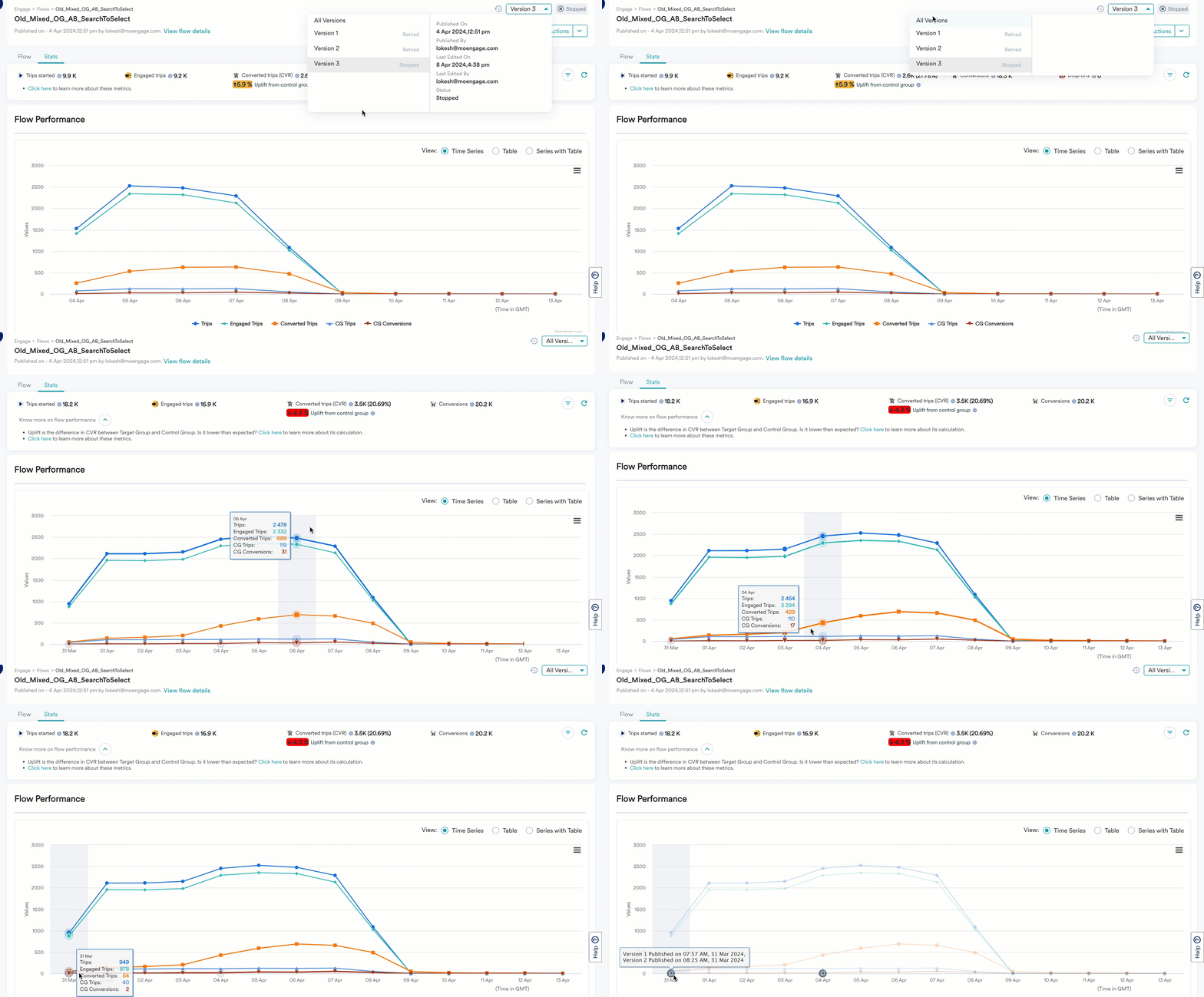
* **Specific Version**: This section shows you the trends of User trips, Engaged Trips, and Converted trips over time for the selected Version. If the control group is enabled during the filtered time, the conversion uplift is also shown. 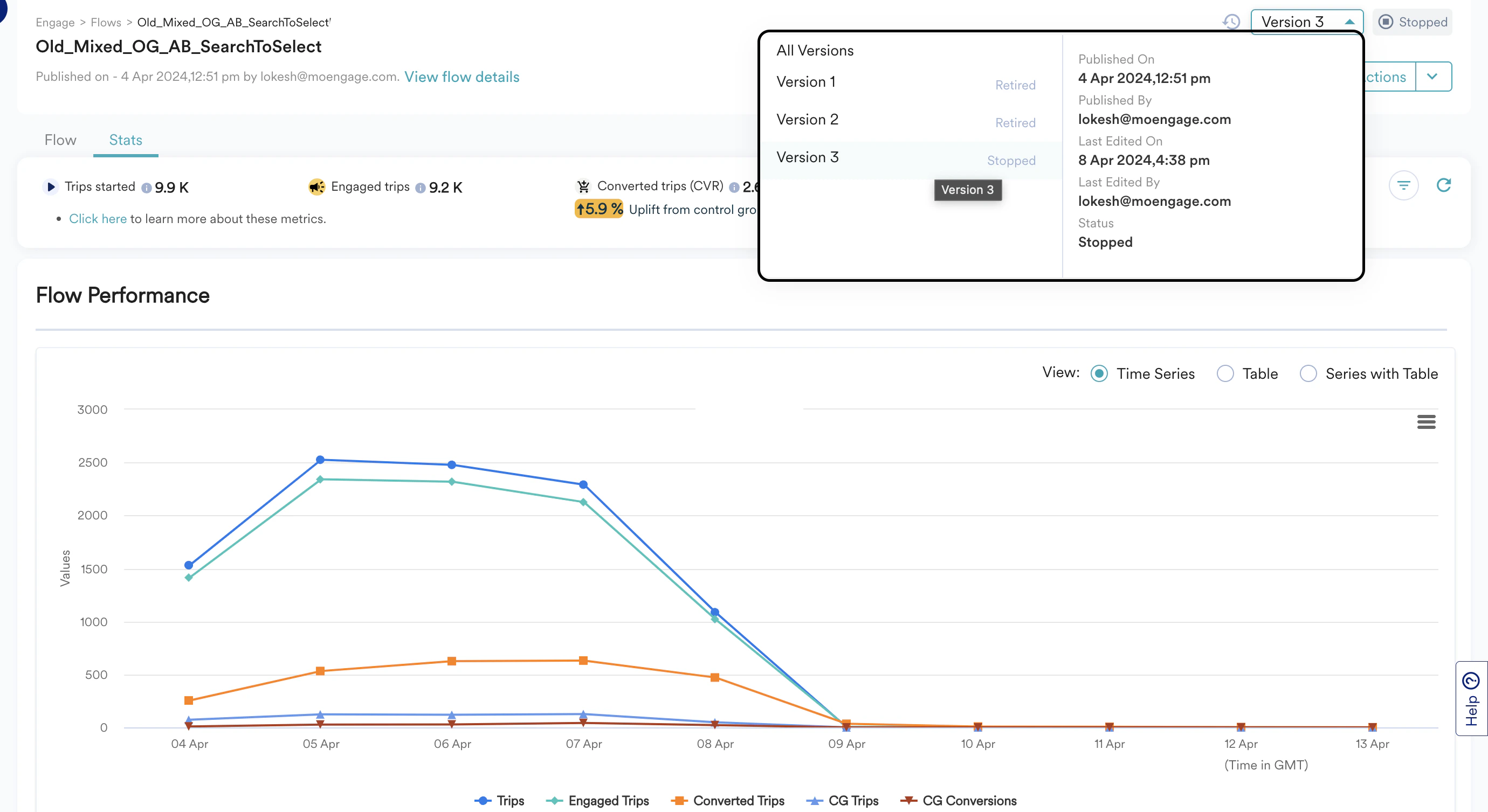 * **All Versions**: The \_All Versions\_option loads the cumulative stats for all versions put together. The Flow Performance for All Versions has information about User Trips, Engaged Trips, and Converted Trips and Conversions over time. If the control group is enabled during the filtered time, the conversion uplift is also shown. Revenue performance is not available in the All Versions option, because each version might have a different revenue attribute or currency. The chart also shows when each version was published.
  While the default view is the overall period of the flow and the defined primary goal at the time when the flow is published, you can filter out the stats:
* For a particular time period based on the dates.
* Based on the conversion goals.
Are your control group trips more than the defined percentage, or is there a negative uplift? Refer to [the uplift calculation and CG Allotment](/user-guide/flows-cross-channel-messaging/create/experimentation/control-group-in-flows) for more information.
### Drop-Offs and Exits
This section has the following tabs:
* **Drops** - This tab lists reasons for all drop-offs, an explanation for each drop-off reason, the total drop-offs due to this reason, and the percentage of all drop-offs. When you expand a drop-off reason, you will see the stage type and stage name from which users were dropped off.
While the default view is the overall period of the flow and the defined primary goal at the time when the flow is published, you can filter out the stats:
* For a particular time period based on the dates.
* Based on the conversion goals.
Are your control group trips more than the defined percentage, or is there a negative uplift? Refer to [the uplift calculation and CG Allotment](/user-guide/flows-cross-channel-messaging/create/experimentation/control-group-in-flows) for more information.
### Drop-Offs and Exits
This section has the following tabs:
* **Drops** - This tab lists reasons for all drop-offs, an explanation for each drop-off reason, the total drop-offs due to this reason, and the percentage of all drop-offs. When you expand a drop-off reason, you will see the stage type and stage name from which users were dropped off.  * **Exits** - This tab lists reasons for all exits, an explanation for each exit reason, the total exits due to this reason, and the percentage of all exits. When you expand an exit reason, you will see the stage type and stage name from which users exited.\
This tab also shows Exit on conversion. You can see stats of users who exited the flow on achieving the conversion goal defined in the flow.
* **Exits** - This tab lists reasons for all exits, an explanation for each exit reason, the total exits due to this reason, and the percentage of all exits. When you expand an exit reason, you will see the stage type and stage name from which users exited.\
This tab also shows Exit on conversion. You can see stats of users who exited the flow on achieving the conversion goal defined in the flow. 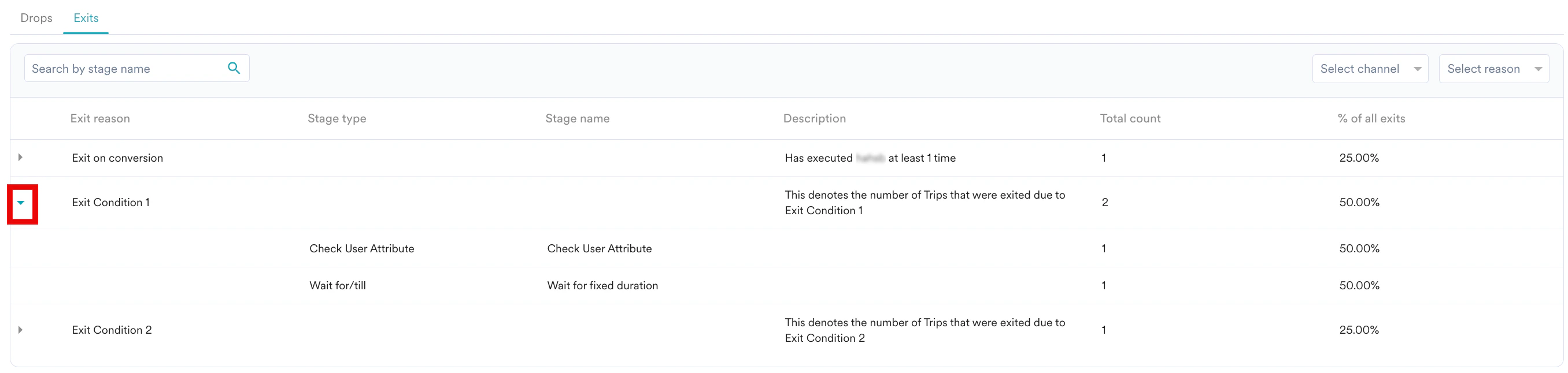 ## Business Events
This section helps you analyze the flow performance for each Business Event instance. When you expand the **Business Event**, you can see the impact of each instance separately on a day level. For more information, refer to the [Definition of Metrics](#Definition-of-Metrics).
## Business Events
This section helps you analyze the flow performance for each Business Event instance. When you expand the **Business Event**, you can see the impact of each instance separately on a day level. For more information, refer to the [Definition of Metrics](#Definition-of-Metrics).
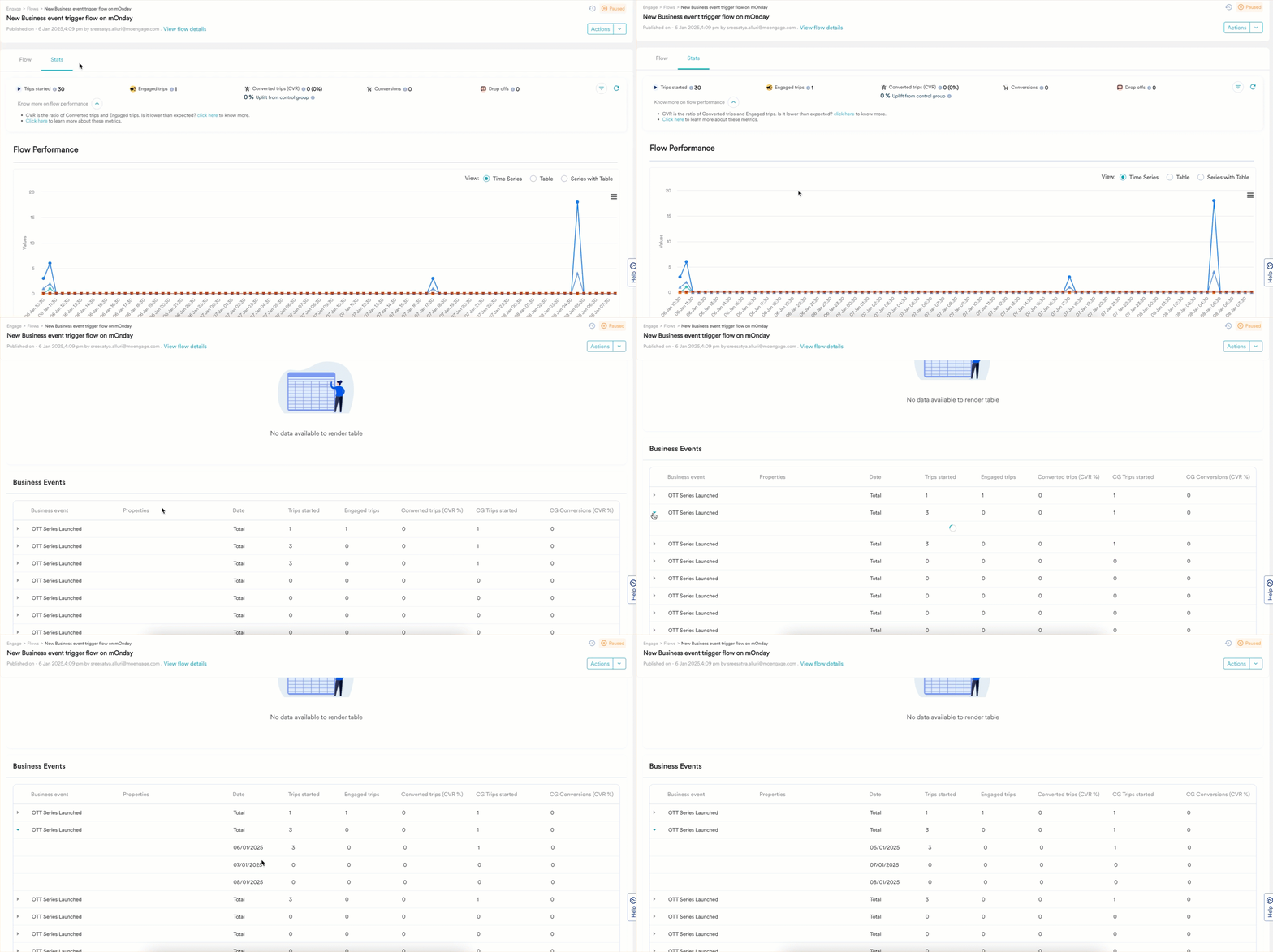 ## Engagement Trends
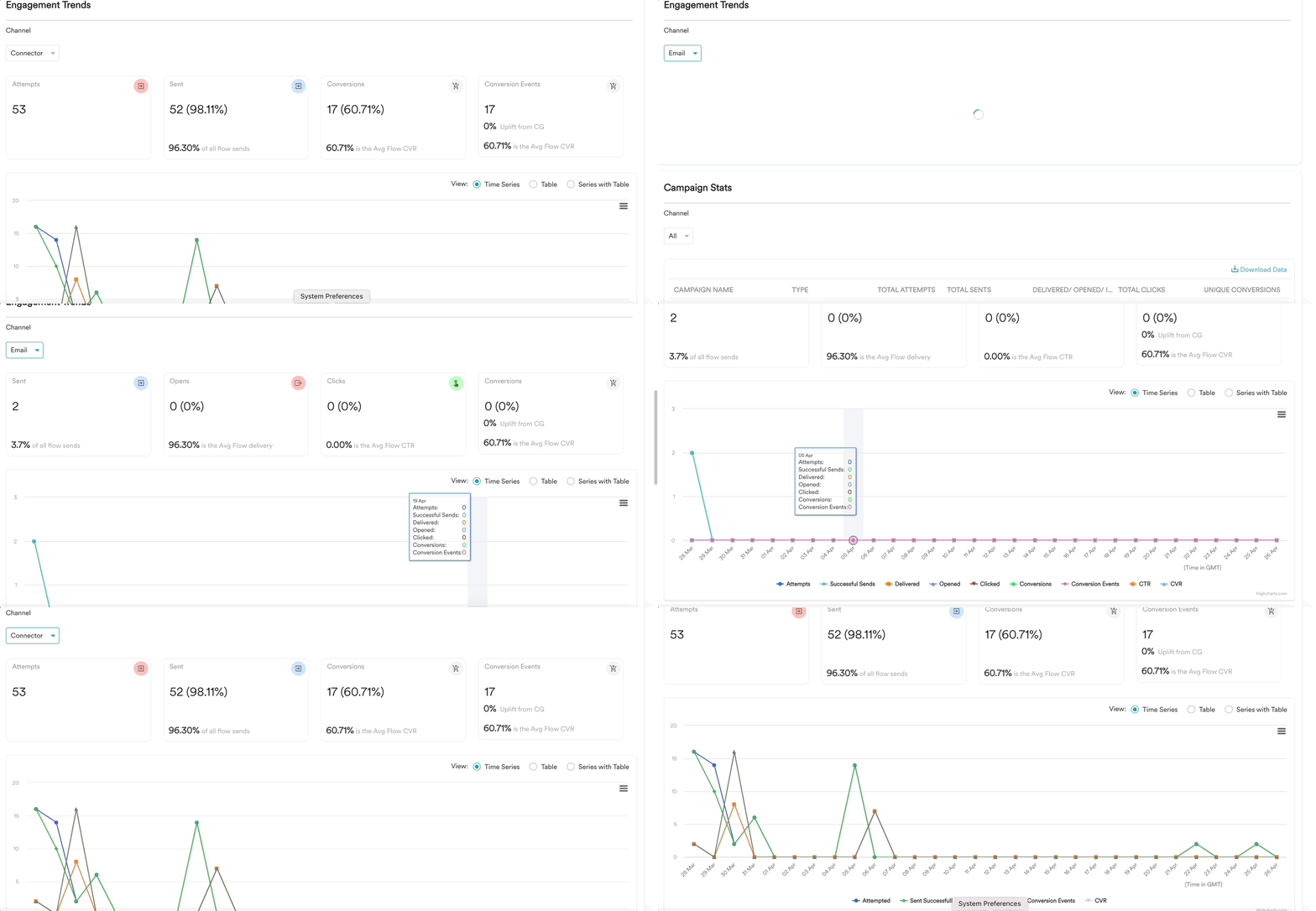
This section helps you to analyze the aggregate channel performances of all channels that are used in the flow.
You can select the channel you want to analyze from the list of channels from the drop-down list. The four major aggregated metrics of the overall channel performance can be directly compared with the overall flow stats, as in the following image:
## Engagement Trends
This section helps you to analyze the aggregate channel performances of all channels that are used in the flow.
You can select the channel you want to analyze from the list of channels from the drop-down list. The four major aggregated metrics of the overall channel performance can be directly compared with the overall flow stats, as in the following image:
 | Metric | Description |
| ---------------- | ------------------------------------------------------------------------------------------------------------------------------------------------------------------------------------------------------------------------------------- |
| Sent | Sent is the total number of users for whom the request was successfully accepted to be sent by the FCM/APNS services. |
| Impression | Impressions represent the total number of user devices that have received the notification sent by the marketer. |
| Clicks (CTR) | Clicks represent the total number of notifications clicked by the users after the notification delivery. CTR is the percentage ratio between Total Clicks and Total Impressions.
| Metric | Description |
| ---------------- | ------------------------------------------------------------------------------------------------------------------------------------------------------------------------------------------------------------------------------------- |
| Sent | Sent is the total number of users for whom the request was successfully accepted to be sent by the FCM/APNS services. |
| Impression | Impressions represent the total number of user devices that have received the notification sent by the marketer. |
| Clicks (CTR) | Clicks represent the total number of notifications clicked by the users after the notification delivery. CTR is the percentage ratio between Total Clicks and Total Impressions.
*CTR = (Total Clicks/Total Impression )\*100* |
| Conversion (CVR) | Conversions represent the number of unique users who have completed the conversion event. CVR is the percentage ratio between Conversions and Unique Impressions.
*CVR = (Unique Conversions/Unique Impressions)\*100* |
| Revenue | Revenue represents the sum of the total order value of conversion events. |
| Metric | Description |
| ---------------- | ------------------------------------------------------------------------------------------------------------------------------------------------------------------------------------------------------------------------------------------------------------------------------------------------------------------------------------------------------------------------------------------------------------------------------------------------------------------------------------------------------------------------------------------------------------------------------------------------------------------------------------------------------------------------------------------------------------------------------------------------------------------------------------------------------------------------------------------------------------------------------------------------------------------------------------------------------------------------------------------------------------------------------------------------------------------------------------------ |
| Sent | Sent represents the total number of emails sent to the users. |
| Opens | Opens represent the total number of times users have opened the email. Open Rate is the percentage ratio between Total opens and Total sents. |
| Adjusted Opens | *Adjusted Opens* represent the total number of times the authentic users have opened the email after filtering out the machine opens.
*Adjusted Open Rate* is the percentage ratio between Total authentic user opens and Total sents. **Note**: This metric is visible only when the **High sensitivity (recommended)** option under **Bot interaction sensitivity** in **General settings** is enabled.
To view the adjusted metrics in your engagement analytics, configure the **Bot interaction sensitivity** section in **General Settings** as mentioned [here](/user-guide/campaigns-and-channels/email/getting-started-with-email/configure-email-channel).
For more information, refer to [Mail Privacy Protection (MPP) and Email Analytics.](/user-guide/campaigns-and-channels/email/getting-started-with-email/mail-privacy-protection-mpp-and-email-analytics)
**Note**: To find opens received from users that are segregated as authentic users by MoEngage, you can segment using the event email opened and its attribute machine open=false. |
| Clicks (CTR) | Clicks represent the total number of times the users clicked the URL in the email. CTR is the percentage ratio between Total Clicks and Total Delivery.
*CTR = (Total Clicks/Total Delivery)\*100* |
| Conversion (CVR) | Conversions represent the number of unique users who have completed the conversion event. CVR is the percentage ratio between Conversions and Unique Impressions.
\*CVR = (Unique Conversions/\Unique Opens)\* \*100\_ |
| Revenue | Revenue represents the sum of the total order value of conversion events. |
| Metric | Description |
| ---------------- | ---------------------------------------------------------------------------------------------------------------------------------------------------------------------------------------------------------------------------- |
| Sent | Sent represents the total number of users for whom the request was successfully accepted to be sent by the SMS provider. |
| Delivered | Delivered represents the total count of users to whom the message is successfully delivered.
*Delivered = (Total Delivered/Total Sent)* |
| Clicks (CTR) | Clicks represent the total number of times the users clicked the URL in the SMS. CTR is the percentage ratio between Total Clicks and Total Delivery/Sent.
*CTR = (Total Clicks/Total delivery (or) Total Sent)\*100* |
| Conversion (CVR) | Conversions represent the number of unique users who have completed the conversion event. CVR is the percentage ratio between Conversions and Unique Impressions
*CVR = (Unique Conversions/Unique Sents)\*100* |
| Revenue | Revenue represents the sum of the total order value of conversion events. |
| Metric | Description |
| ----------------- | ----------------------------------------------------------------------------------------------------------------------------------------------------------------------------------------------------------------------------------- |
| Attempt | Attempt represents the total number of users who qualified for the Connector campaigns post removing users due to FC. |
| Sent | Sent represents the total number of users for whom the request to the URL returned a 200 OK status. Sent Rate represents the percentage ratio of Total Sent and Total Attempts.
*Sent Rate= (Total Sent/Total Attempt)\*100* |
| Conversion (CVR) | Conversions represent the number of unique users who have completed the conversion event. CVR is the percentage ratio between Conversions and Unique Impressions.
*CVR = (Unique Conversions/Unique Sents)\*100* |
| Conversion Events | Conversion events represent the number of conversion events executed by users within 36 hours of successfully sending the connectors. |
| Revenue | Revenue represents the sum of the total order value of conversion events. |
| Metric | Description |
| ----------------- | ---------------------------------------------------------------------------------------------------------------------------------------------------------------------------------------------------------------------- |
| User Entry | User Entry Represents the total number of users who have entered this campaign stage. |
| Sent | Impression represents the total number of times a message from this campaign was shown. |
| Conversion (CVR) | Clicks represent the total number of times a message from this campaign was clicked. CTR is the percentage ratio between Total Clicks and Total Impressions.
CVR = (Unique Conversions/Unique Impressions)\*100 |
| Conversion Events | Conversions represent the number of unique users who have completed the conversion event. CVR is the percentage ratio between Conversions and Unique Impressions. |
| Revenue | Revenue represents the sum of the total order value of conversion events. |
| Metric | Description |
| ---------------- | --------------------------------------------------------------------------------------------------------------------------------------------------------------------------------------------------------------------------- |
| Sent | Sent represents the total number of users for whom we could successfully send the request to the Service provider to send the WhatsApp campaign message. |
| Delivered | Delivered represents the total number of users for whom the Service provider was able to successfully send out the WhatsApp Message. |
| Read | Read represents the total number of users who read the WhatsApp campaign message. Read Rate is the percentage ratio between Total read and Total Delivered.
*Read Rate = (Total Read / Total Delivered)\*100* |
| Conversion (CVR) | Conversions represent the number of unique users who have completed the conversion event. CVR is the percentage ratio between Conversions and Unique Impressions.
*CVR = (Unique Conversions/Unique Delivered)\*100* |
| Revenue | Revenue represents the sum of the total order value of conversion events. |
| Metric | Description |
| ------------------- | ---------------------------------------------------------------------------------------------------------------------------------------------------------------------------------------------------------------------------- |
| Eligible users | Eligible users represent the total number of users who have entered this campaign stage and have any of the chosen identifiers (Device Identifier (Device ID) or Customer Match Identifiers - Mobile Number, Email) present. |
| Attempted | Attempted users represent the total number of users for whom at least one identifier was found, and MoEngage could trigger the Facebook Ads API for that user using that identifier. |
| Successfully Synced | Successfully Synced represents the total number of users from the list of attempted users added/removed to/from Facebook Ads audiences. |
| Conversion (CVR) | Conversions represent the number of unique users who have completed the conversion event. CVR is the percentage ratio between Conversions and Unique Impressions.
*CVR = (Unique conversions/Unique Sents)\*100* |
| Revenue | Revenue represents the sum of the total order value of conversion events. |
| Metric | Description |
| ---------------- | ---------------------------------------------------------------------------------------------------------------------------------------------------------------------------------------------------------------------- |
| Delivered | Delivered represents the count of unique users who have opened the App Inbox, and the Card is delivered to their device inside the App Inbox. |
| Impression | Impression represents the count of unique users who have viewed the cards. Impression rate is the Percentage ratio of Unique impressions and Unique Delivery. |
| Conversion (CVR) | Conversions represent the number of unique users who have completed the conversion event. CVR is the percentage ratio between Conversions and Unique Impressions.
*CVR = (Unique Conversions/Unique Sent)\*100* |
| Revenue | Revenue represents the sum of the total order value of conversion events. |
| Metric | Description |
| ------------------- | ------------------------------------------------------------------------------------------------------------------------------------------------------------------------------------------------------------------------------- |
| Eligible | Eligible users represent the total number of users who have entered this campaign stage and have either of the chosen identifiers (Device Identifier (Device ID) or Customer Match Identifiers - Mobile Number, Email) present. |
| Attempted | Attempted users represent the total number of users for whom at least one identifier was found, and MoEngage could trigger the Google Ads API for that user using that identifier. |
| Successfully Synced | Successfully Synced represents the total number of users from the list of attempted users added to Google Ads audiences. |
| Conversion (CVR) | Conversions represent the number of unique users who have completed the conversion event. CVR is the percentage ratio between Conversions and Unique Impressions.
CVR = (Unique conversions/unique Sync)\*100 |
| Revenue | Revenue represents the sum of the total order value of conversion events. |
## Campaign Stats
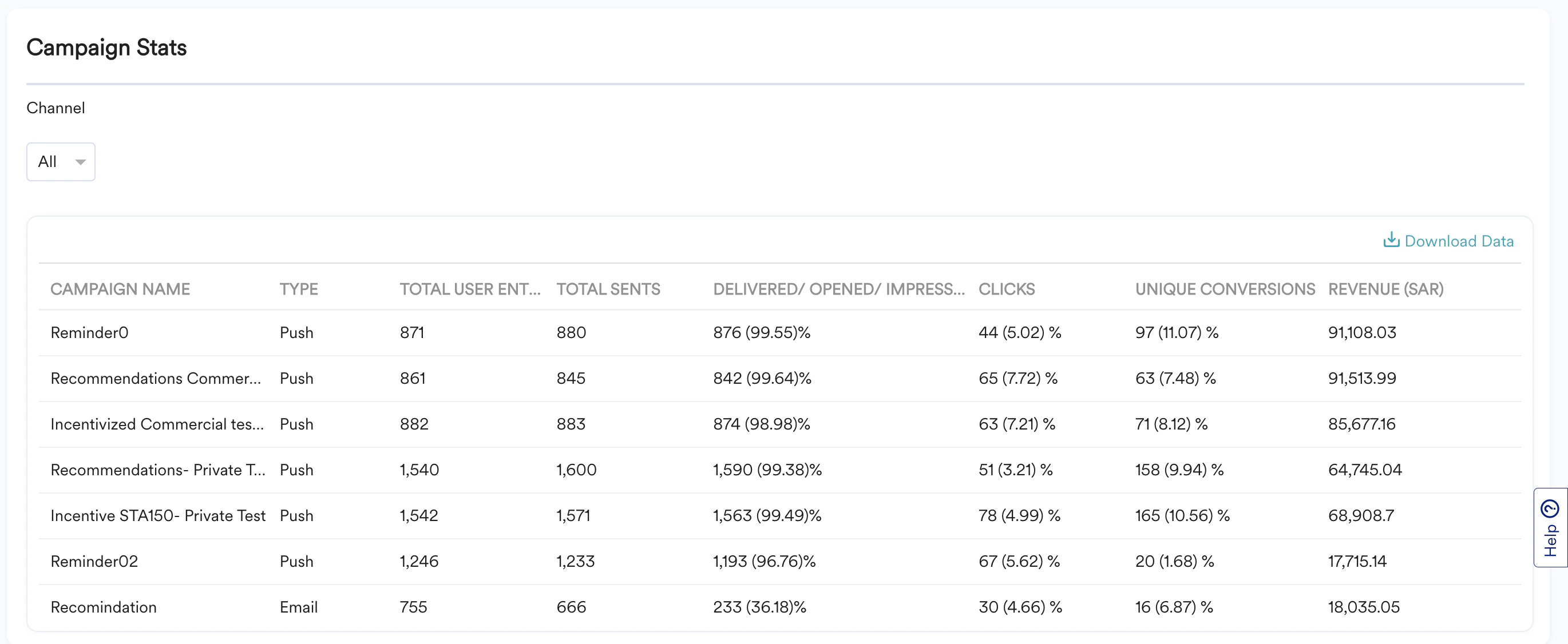
This section lists the performance of all action campaigns configured in the flow. This can help you compare the individual campaigns across channels. If required, you can choose to filter the action campaigns of one particular channel to understand and compare the performance of similar campaigns.
You cannot add the metrics in each row of the **Campaign Stats** table and compare it with flow-level metrics because this table shows each campaign's performance and thus will have overlapped attribution across campaigns. For example, the sum of unique conversions can be different from converted trips and conversions at the overall flow level. For more information, refer [here](/user-guide/flows-cross-channel-messaging/faqs/analyzing-flows).
 | Metrics | Description |
| ---------------------- | ------------------------------------------------------------------------------------------------------------------------------------------------------------------------------------------------------------------------------------------------------------- |
| **Total User Entries** | The count of users the campaign tried to deliver the message. It includes the control group users that might have passed through the campaign during their trip and all the users that the campaigns failed to deliver because of any of the failure reasons. |
| **Sent** | The count of messages that were successfully sent eventually. |
| **Delivered** | Tracked for SMS. The Total Delivered for a campaign is shown here. Also the Delivered rate is shown. |
| **Opened** | Tracked for email. The Unique opens is shown here. Also the Open rate is shown in case of emails.
| Metrics | Description |
| ---------------------- | ------------------------------------------------------------------------------------------------------------------------------------------------------------------------------------------------------------------------------------------------------------- |
| **Total User Entries** | The count of users the campaign tried to deliver the message. It includes the control group users that might have passed through the campaign during their trip and all the users that the campaigns failed to deliver because of any of the failure reasons. |
| **Sent** | The count of messages that were successfully sent eventually. |
| **Delivered** | Tracked for SMS. The Total Delivered for a campaign is shown here. Also the Delivered rate is shown. |
| **Opened** | Tracked for email. The Unique opens is shown here. Also the Open rate is shown in case of emails.
You can also view the Adjusted opens here. To know more, refer to Adjusted Opens under [Engagement trends](#Engagement-trends). |
| **Impression** | Tracked for Push, OSM, and InApp. The Total impressions for a campaign is shown here. Also the percentage ratio between the Total Impression & Total Sents is shown. |
| **Sync** | Tracked for Facebook and Google Audience. The Total Synced for a campaign is shown here. |
| **Read** | Tracked for WhatsApp. The Total Read for the campaign is shown here. |
| **Clicks** | The total clicks and the CTR are shown for the campaigns here. |
| **Conversions** | The unique conversions and the CVR are shown for the campaigns here. |
The current flow version's Engagement Trends and Campaign Stats are shown by default. Use the version selector to view the trends and stats for other versions of the flow.