> ## Documentation Index
> Fetch the complete documentation index at: https://moengage-user-guide.mintlify.site/llms.txt
> Use this file to discover all available pages before exploring further.
# Log in to MoEngage
This article provides information on logging in to your MoEngage account (workspace).
**Prerequisites**
* **First login (as an invited user)**: You must complete a one-time account setup before logging in to your MoEngage account for the first time. For more information, refer to [Finish Your Account Setup as an Invited User](/user-guide/getting-started/initial-setup/finish-your-account-setup-as-an-invited-user). After your account setup, you will be directed to the Login to your accounts page.
* **Subsequent logins (as an invited user)**: If you have already finished your account setup and logged in to MoEngage, you must remember the login page URL.\
If you don't remember the URL of your MoEngage account, you can find it using your email address on the MoEngage [single login page](https://dashboard.moengage.com/). For more information, refer to [Navigate to Your Data Centre's Login Page](/user-guide/getting-started/initial-setup/navigate-to-your-accounts-login-page).
* **2-step verification**: If 2-step verification is enabled for your account, you must set it up on your device. After you complete this one-time setup, you can log in to your MoEngage account using the latest authentication code generated by your authenticator app. For more information, refer to [Set Up 2-Step Verification on Your Device](/user-guide/getting-started/initial-setup/set-up-2-step-verification-on-your-device).
# Login Methods
You can log in to your MoEngage account using the following methods:
* [Using a password](#h_01JN2XNBY5EH4DCWM3KVWHWH5V)
* [Using the **Sign in with Google** option](#01JN2XNC05MD0CZ4E76125YX9E)
* [Using your company's SSO provider](#01JN0XEC0XMAVTCGBX880GT9RB)
## Using a Password
Perform the following steps to log in to your account using a password:
If your MoEngage Admin set up the login method as **Password or Google sign in**, you can log in to your MoEngage account using:
* The email address and password combination or
* The **Sign in with Google** button.
For more information, refer to [Set Up the Login Method](/user-guide/settings/account/security/set-up-the-login-method).
1. In a web browser, go to the URL of your MoEngage account. The Login to your accounts page appears.
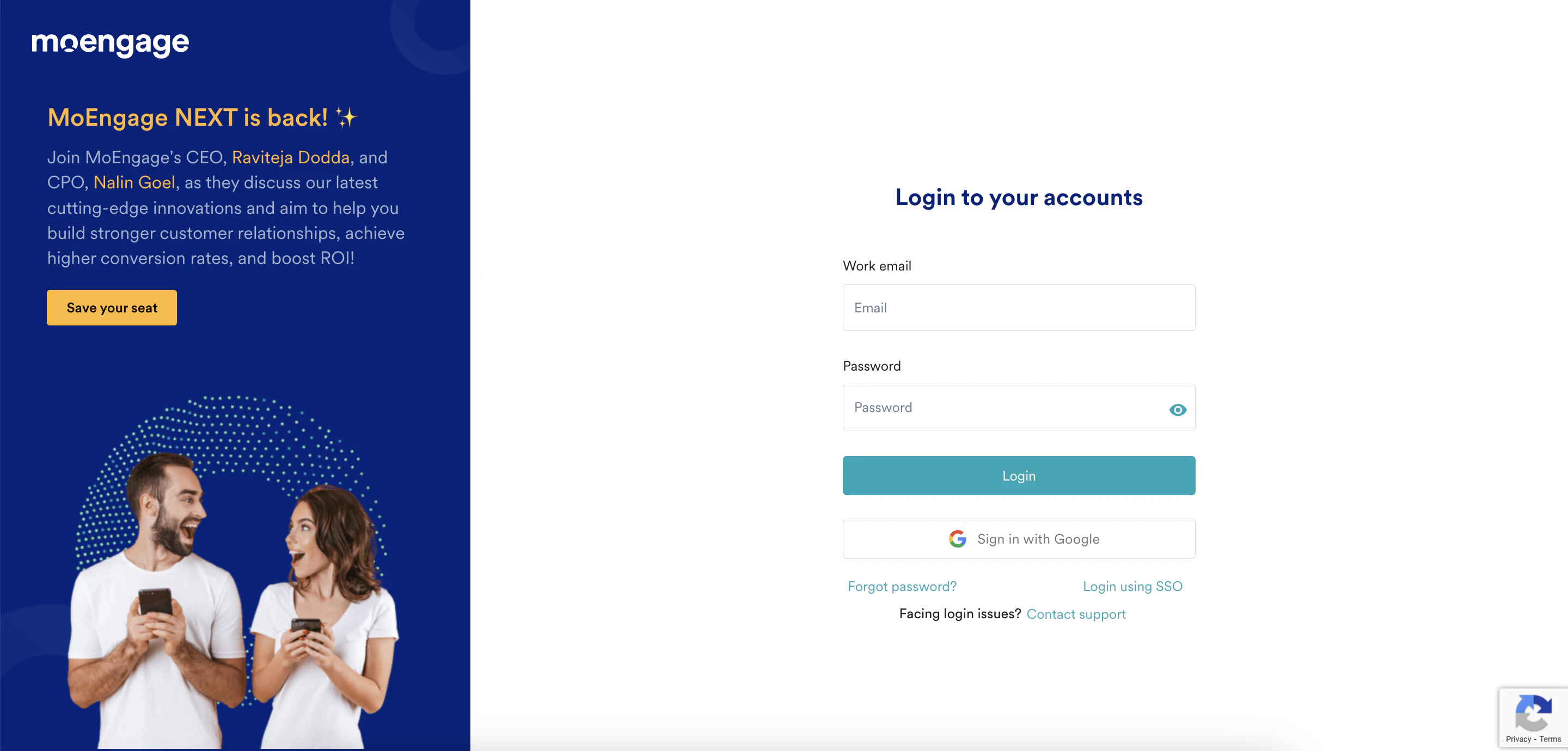 2. In the **Work email** box, type your email address.
3. In the **Password** box, type your password.
4. Click **Login**. If 2-step verification is not enabled for your account, you are directly logged in to the MoEngage dashboard.
5. If 2-step verification is enabled for your account, perform the following steps:
* If you have not configured a one-time verification setup on your device, the 2-Step Verification page will appear, prompting you to configure it. For more information, refer to [Set Up 2-Step Verification on Your Device](/user-guide/getting-started/initial-setup/set-up-2-step-verification-on-your-device).
2. In the **Work email** box, type your email address.
3. In the **Password** box, type your password.
4. Click **Login**. If 2-step verification is not enabled for your account, you are directly logged in to the MoEngage dashboard.
5. If 2-step verification is enabled for your account, perform the following steps:
* If you have not configured a one-time verification setup on your device, the 2-Step Verification page will appear, prompting you to configure it. For more information, refer to [Set Up 2-Step Verification on Your Device](/user-guide/getting-started/initial-setup/set-up-2-step-verification-on-your-device).
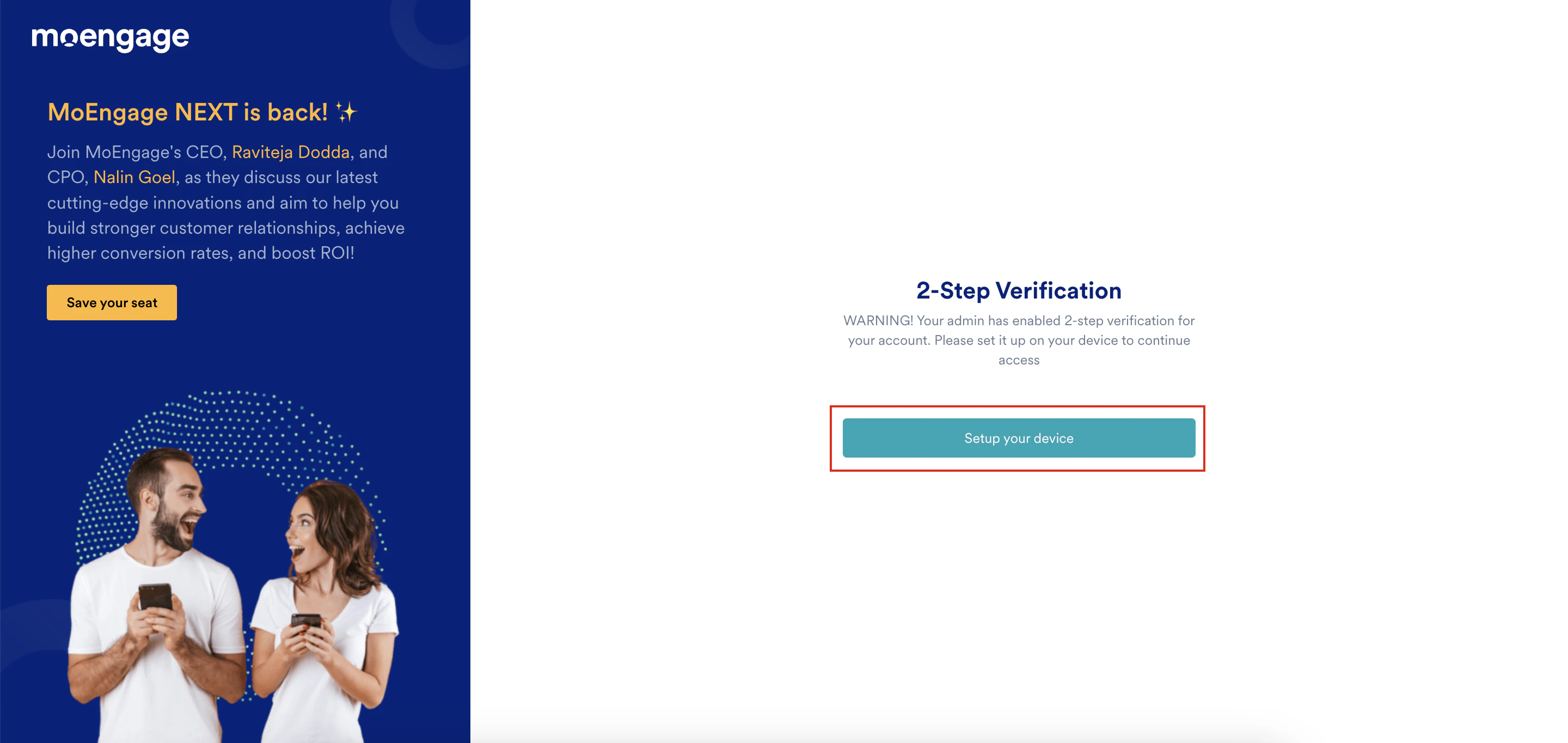 * If you have configured a one-time verification setup on your device, the 2-Step Verification page will appear.
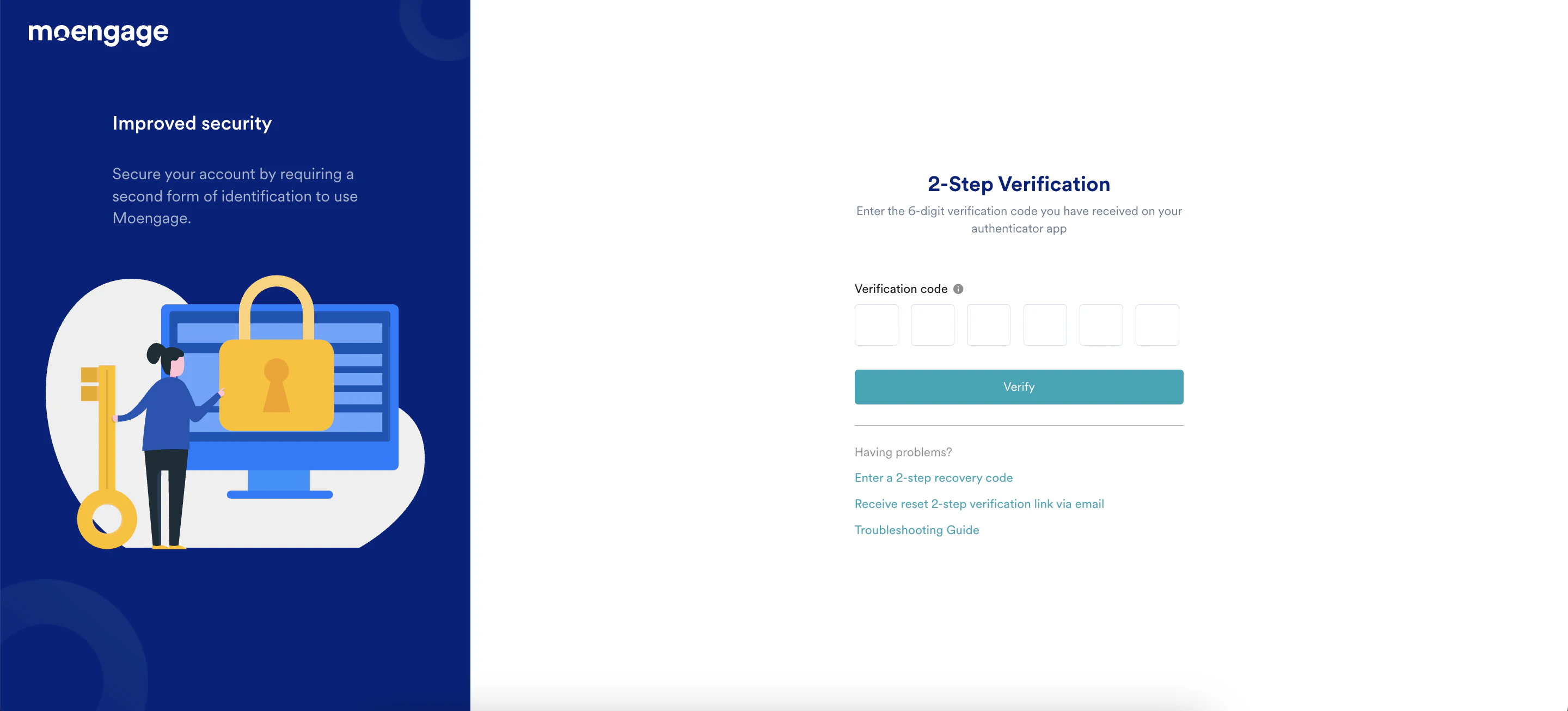 To complete the verification:
1. Open the authenticator app on your device. Find the 6-digit verification code for your account.
2. On the 2-Step Verification page, type the code in the **Verification code** boxes.
3. Click **Verify**. You are logged in to the MoEngage dashboard.
## Using the Sign in with Google Option
If your MoEngage Admin set up the login method as **Google Sign In only**, you must log in to your MoEngage account using the **Sign in with Google** option only. You cannot log in to your MoEngage account using your password. For more information, refer to [Set Up the Login Method](/user-guide/settings/account/security/set-up-the-login-method).
Perform the following steps to log in to your account using the **Sign in with Google** option:
1. In a web browser, go to the URL of your MoEngage account. The Login to your accounts page appears.
2. Click **Sign in with Google**.
3. On the **Choose an account** page, choose your Google account.
To complete the verification:
1. Open the authenticator app on your device. Find the 6-digit verification code for your account.
2. On the 2-Step Verification page, type the code in the **Verification code** boxes.
3. Click **Verify**. You are logged in to the MoEngage dashboard.
## Using the Sign in with Google Option
If your MoEngage Admin set up the login method as **Google Sign In only**, you must log in to your MoEngage account using the **Sign in with Google** option only. You cannot log in to your MoEngage account using your password. For more information, refer to [Set Up the Login Method](/user-guide/settings/account/security/set-up-the-login-method).
Perform the following steps to log in to your account using the **Sign in with Google** option:
1. In a web browser, go to the URL of your MoEngage account. The Login to your accounts page appears.
2. Click **Sign in with Google**.
3. On the **Choose an account** page, choose your Google account.
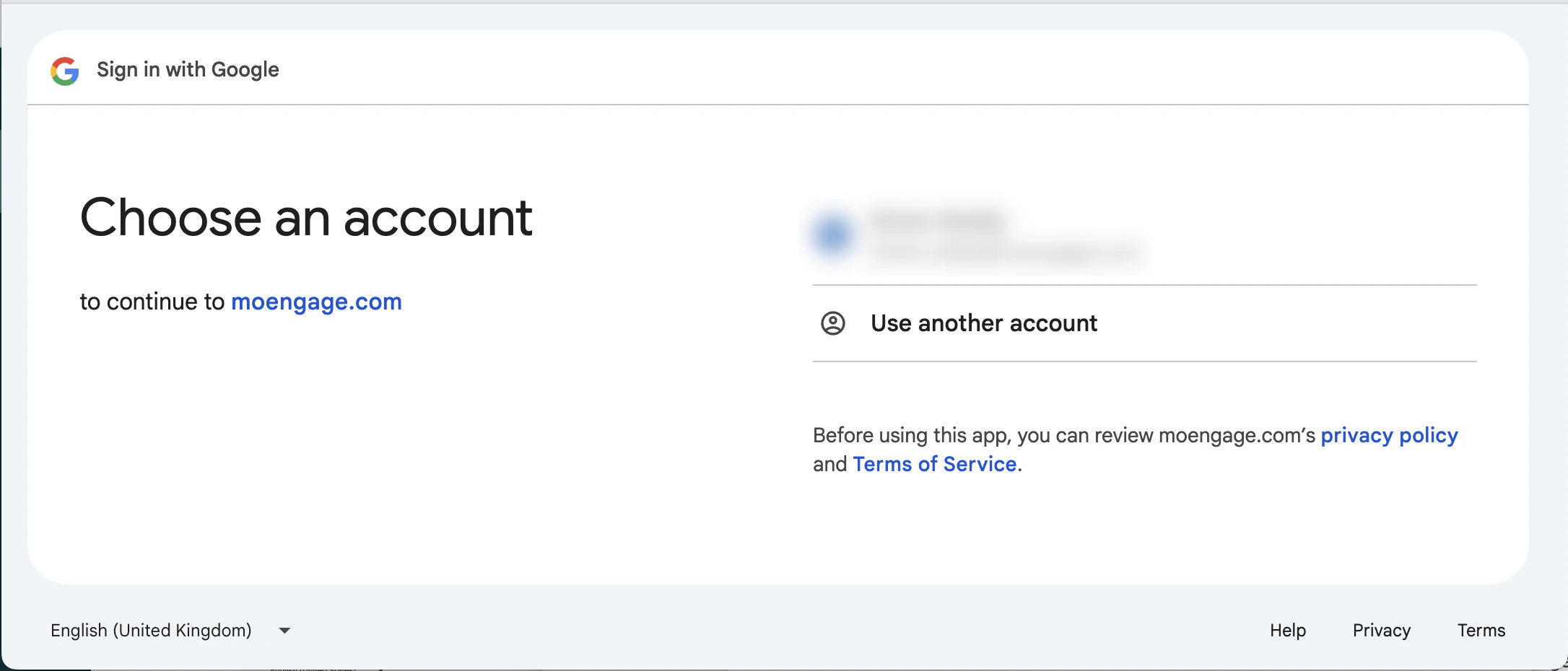 4. On the **Sign in to moengage.com** page, click **Continue**.
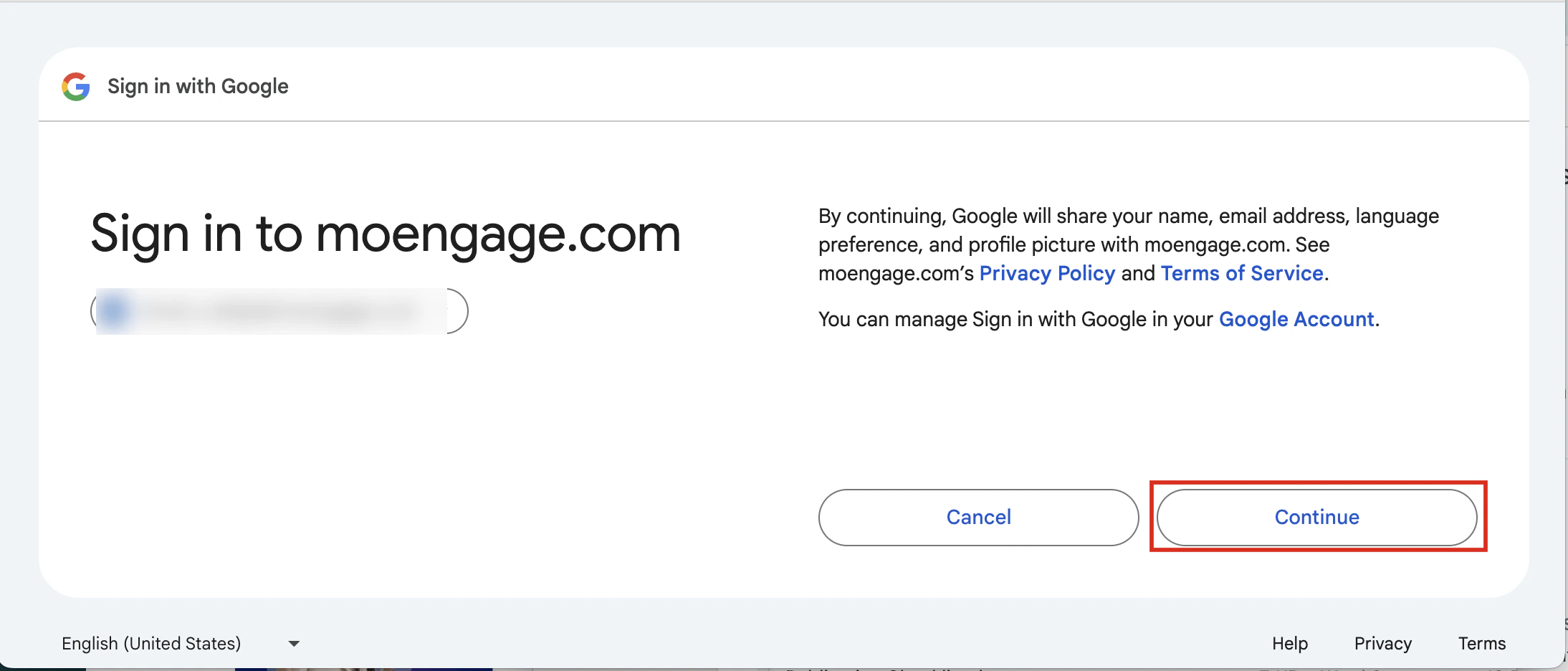 If 2-step verification is not enabled for your account, you are directly logged in to the MoEngage dashboard.
5. If 2-step verification is enabled for your account, perform the following steps:
* If you have not configured a one-time verification setup on your device, the 2-Step Verification page will appear, prompting you to configure it. For more information, refer to [Set Up 2-Step Verification on Your Device](/user-guide/getting-started/initial-setup/set-up-2-step-verification-on-your-device).
* If you have configured a one-time verification setup on your device, the 2-Step Verification page will appear.
To complete the verification:
1. Open the authenticator app on your device. Find the 6-digit verification code for your account.
2. On the 2-Step Verification page, type the code in the **Verification code** boxes.
3. Click **Verify**. You are logged in to the MoEngage dashboard.
## Using SSO
If your MoEngage Admin set up the login method as **Single Sign On (SSO) only**, you must log in to your MoEngage account using SSO. You cannot log in to your MoEngage account using your password or the **Sign in with Google** option. For more information, refer to [Set Up the Login Method](/user-guide/settings/account/security/set-up-the-login-method).
To sign in using SSO, perform the following steps:
1. In a web browser, go to the URL of your MoEngage account. The Login to your accounts page appears.
2. Click **Login using SSO**.
If 2-step verification is not enabled for your account, you are directly logged in to the MoEngage dashboard.
5. If 2-step verification is enabled for your account, perform the following steps:
* If you have not configured a one-time verification setup on your device, the 2-Step Verification page will appear, prompting you to configure it. For more information, refer to [Set Up 2-Step Verification on Your Device](/user-guide/getting-started/initial-setup/set-up-2-step-verification-on-your-device).
* If you have configured a one-time verification setup on your device, the 2-Step Verification page will appear.
To complete the verification:
1. Open the authenticator app on your device. Find the 6-digit verification code for your account.
2. On the 2-Step Verification page, type the code in the **Verification code** boxes.
3. Click **Verify**. You are logged in to the MoEngage dashboard.
## Using SSO
If your MoEngage Admin set up the login method as **Single Sign On (SSO) only**, you must log in to your MoEngage account using SSO. You cannot log in to your MoEngage account using your password or the **Sign in with Google** option. For more information, refer to [Set Up the Login Method](/user-guide/settings/account/security/set-up-the-login-method).
To sign in using SSO, perform the following steps:
1. In a web browser, go to the URL of your MoEngage account. The Login to your accounts page appears.
2. Click **Login using SSO**.
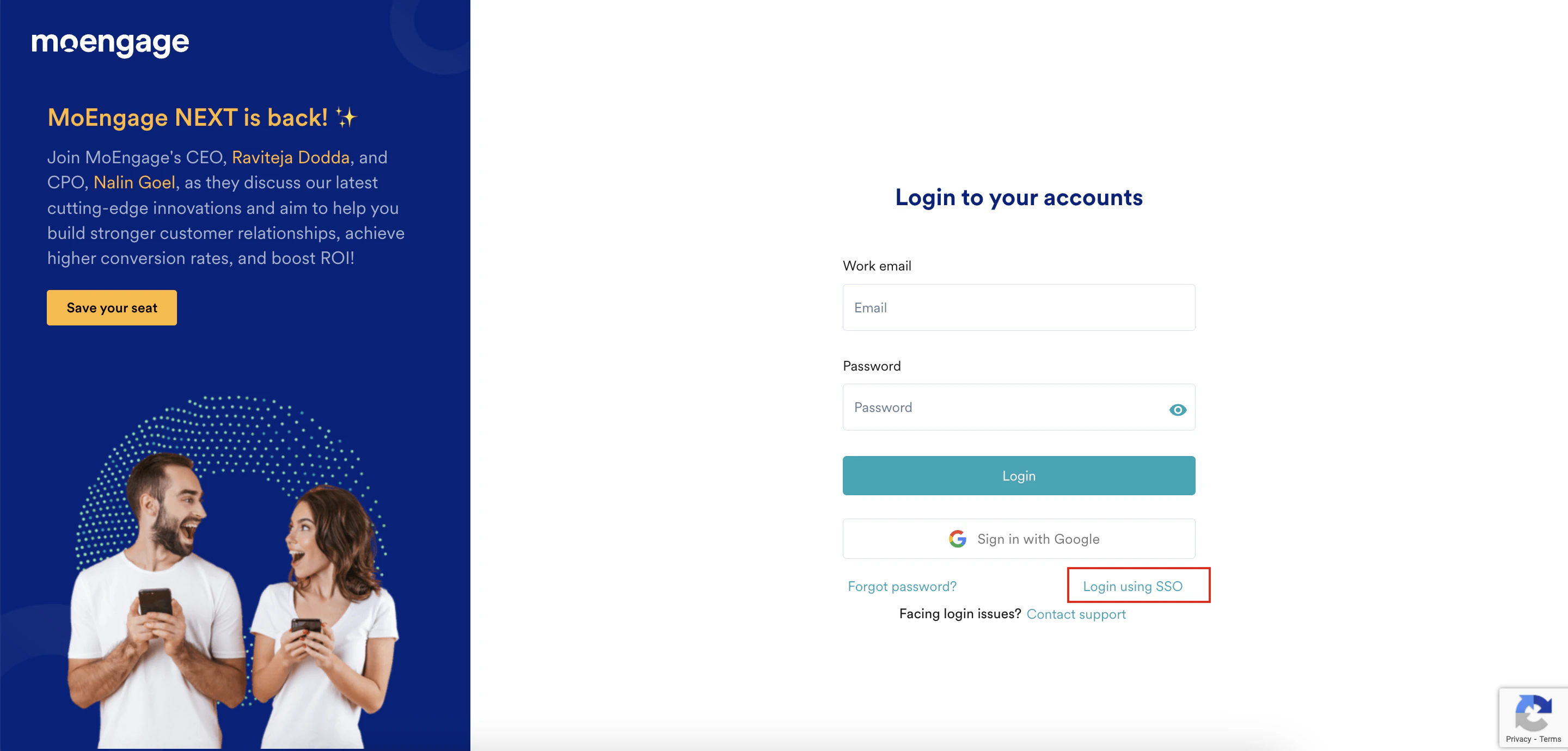 The Login with Single Sign On page appears.
3. In the **Work Email** box, type your email address.
4. Click **Login**.
The Login with Single Sign On page appears.
3. In the **Work Email** box, type your email address.
4. Click **Login**.
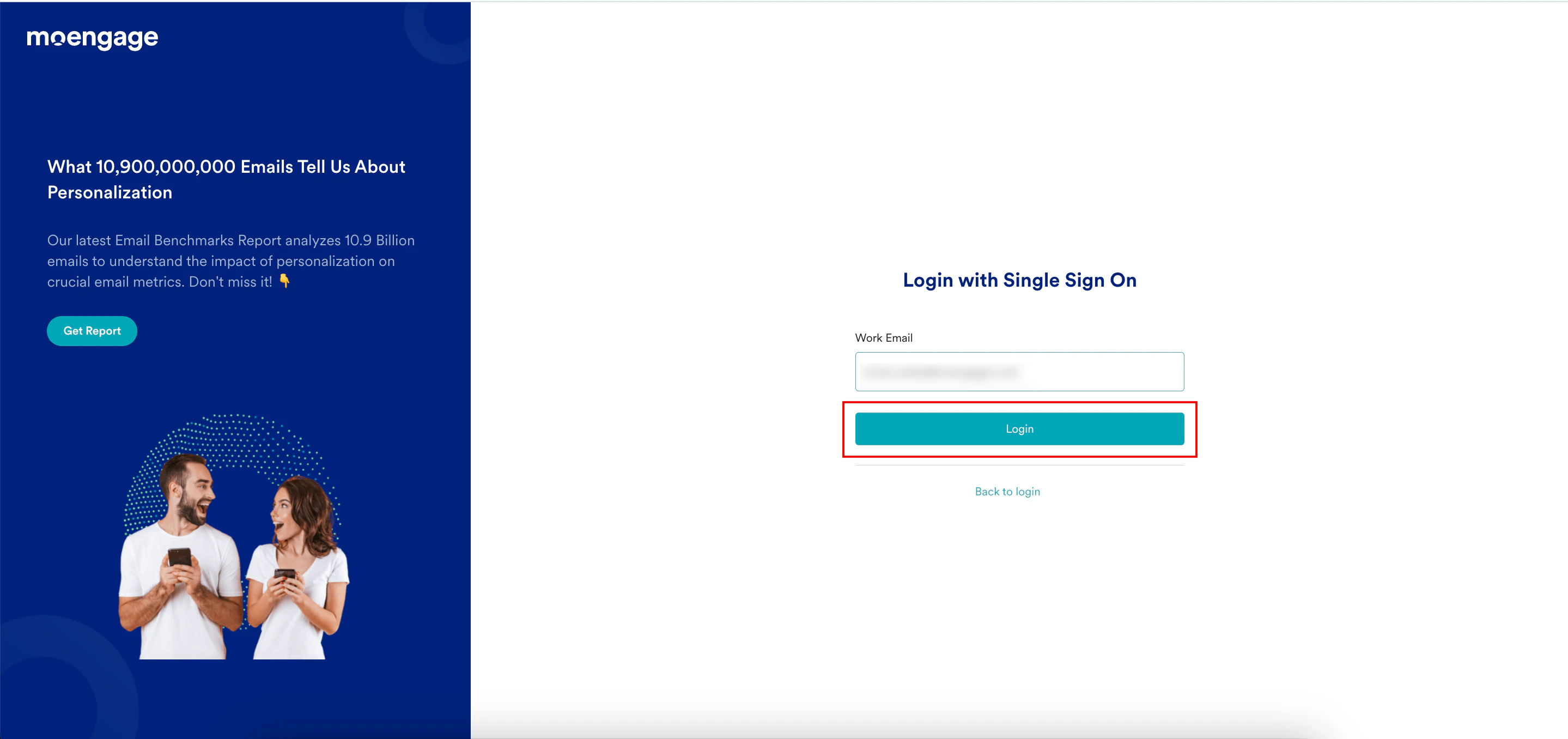 You are redirected to your organization's Identity Provider (IdP) for authentication.
5. Log in to the SSO IdP using your login credentials.
6. In the SSO IdP dashboard, click the MoEngage app. If 2-step verification is not enabled for your account, you are directly logged in to the MoEngage dashboard.
7. If 2-step verification is enabled for your account, perform the following steps:
* If you have not configured a one-time verification setup on your device, the 2-Step Verification page will appear, prompting you to configure it. For more information, refer to [Set Up 2-Step Verification on Your Device](/user-guide/getting-started/initial-setup/set-up-2-step-verification-on-your-device).
* If you have configured a one-time verification setup on your device, the 2-Step Verification page will appear.
To complete the verification:
1. Open the authenticator app on your device. Find the 6-digit verification code for your account.
2. On the 2-Step Verification page, type the code in the **Verification code** boxes.
3. Click **Verify**. You are logged in to the MoEngage dashboard.
You are redirected to your organization's Identity Provider (IdP) for authentication.
5. Log in to the SSO IdP using your login credentials.
6. In the SSO IdP dashboard, click the MoEngage app. If 2-step verification is not enabled for your account, you are directly logged in to the MoEngage dashboard.
7. If 2-step verification is enabled for your account, perform the following steps:
* If you have not configured a one-time verification setup on your device, the 2-Step Verification page will appear, prompting you to configure it. For more information, refer to [Set Up 2-Step Verification on Your Device](/user-guide/getting-started/initial-setup/set-up-2-step-verification-on-your-device).
* If you have configured a one-time verification setup on your device, the 2-Step Verification page will appear.
To complete the verification:
1. Open the authenticator app on your device. Find the 6-digit verification code for your account.
2. On the 2-Step Verification page, type the code in the **Verification code** boxes.
3. Click **Verify**. You are logged in to the MoEngage dashboard.