> ## Documentation Index
> Fetch the complete documentation index at: https://moengage-user-guide.mintlify.site/llms.txt
> Use this file to discover all available pages before exploring further.
# Manage Your Profile
MoEngage allows you to manage your profile for each workspace in the MoEngage dashboard. The **My Profile** section has the following tabs:
* [General](#h_01JSCD8A91HAMWQB7XG1D1PQ60)
* [Security](#h_01JSCEAE3GRA3JF09KH82F637V)
* [Preferences](#h_01JSCEAE3G3D6096T5BWZR2GMX)
dfghjk,bxbsbbs
# General
Under the **General** tab, you can edit your personal information for the current workspace.
1. In the upper-right corner, click your profile icon and then click **My Profile**. 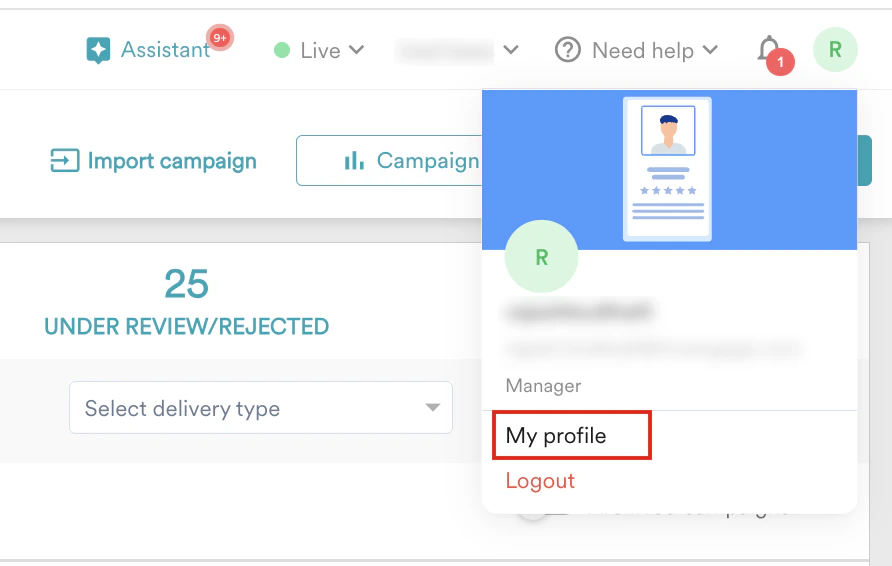 2. On the **My profile** page, the **General** tab is selected by default.
3. Click **Edit** in the upper-right corner.
2. On the **My profile** page, the **General** tab is selected by default.
3. Click **Edit** in the upper-right corner. 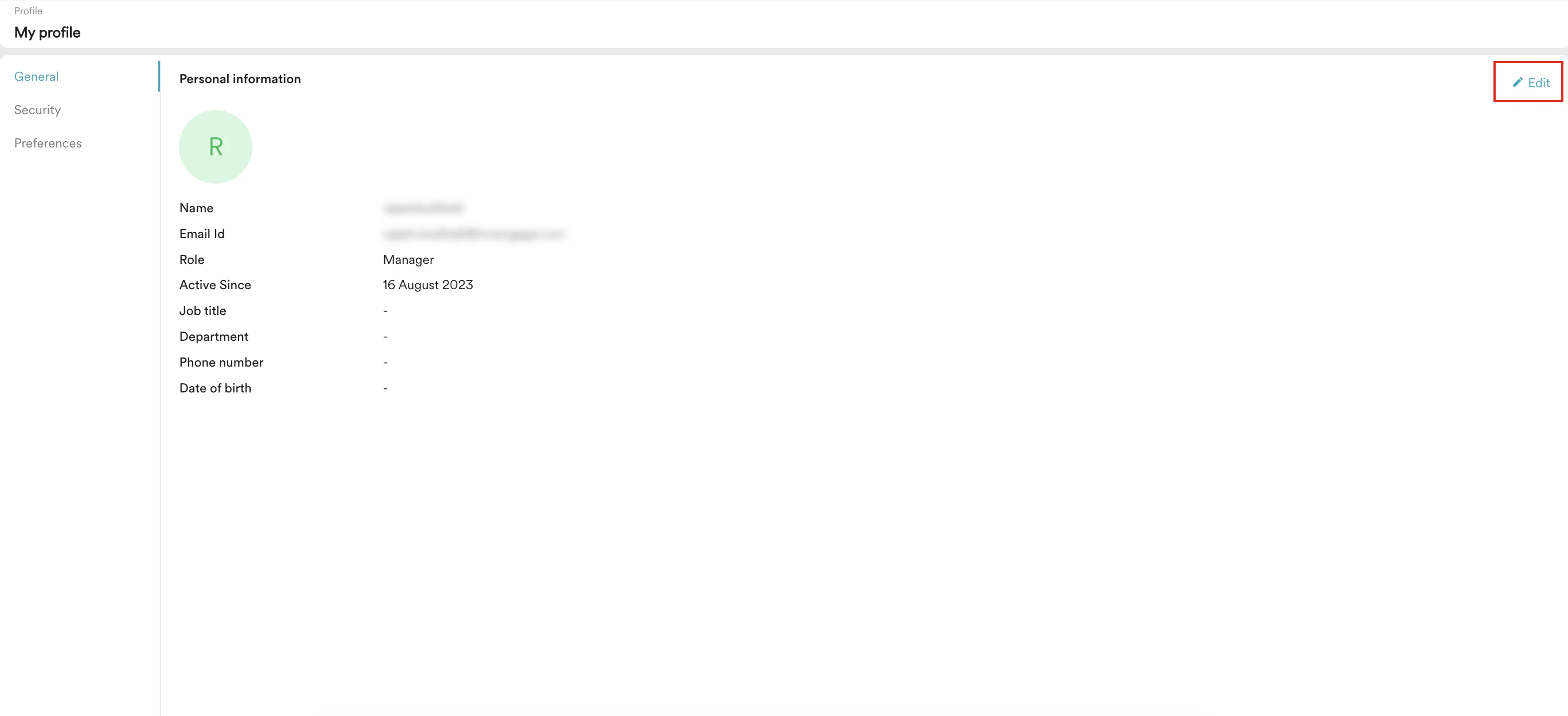 4. Add your profile picture:
1. Hover over your profile icon and click the edit icon.
4. Add your profile picture:
1. Hover over your profile icon and click the edit icon. 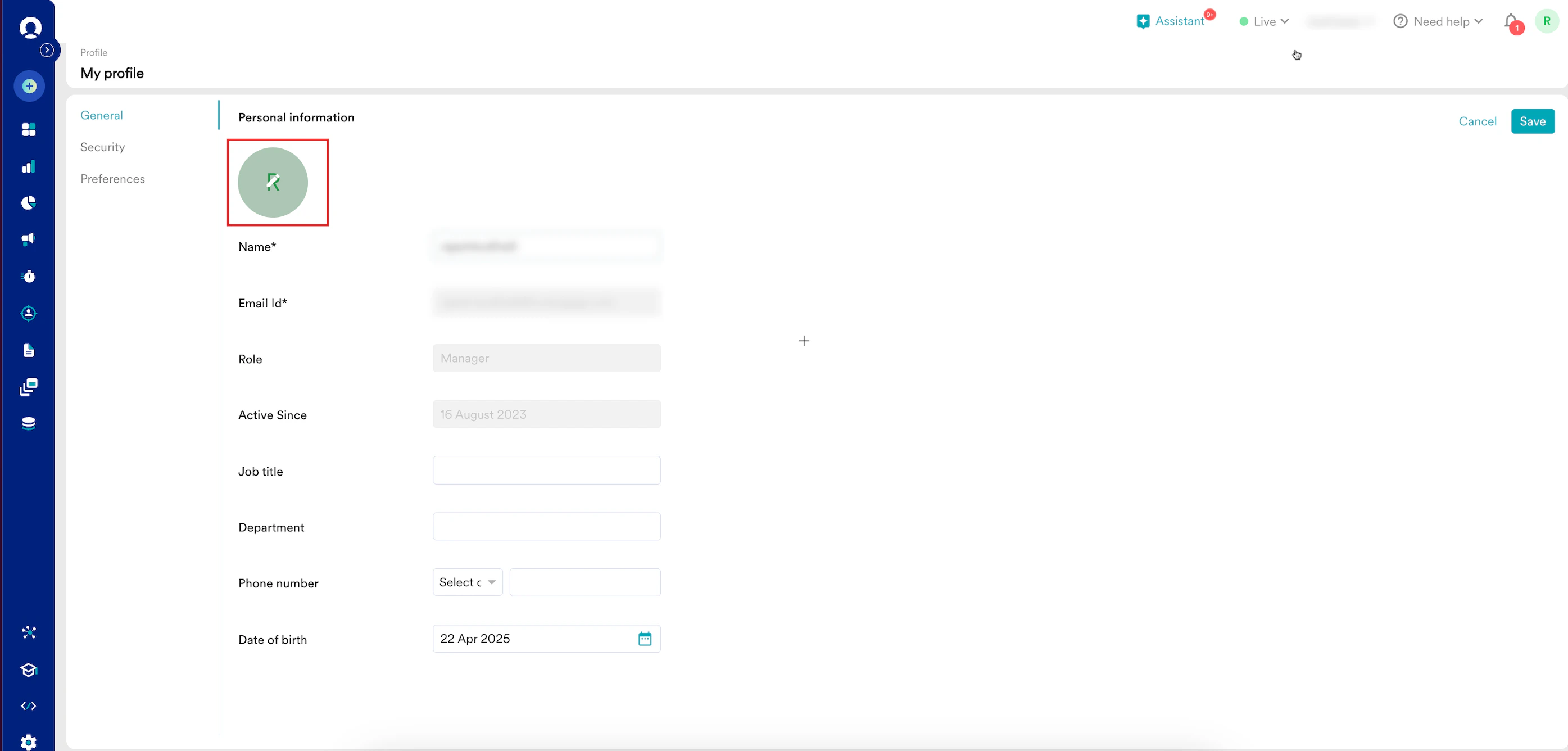 2. Click **Update**.
3. Select your profile picture and click **Open**.
MoEngage supports only the .jpeg, .jpg, and .png files.
5. Edit the following details:
| Field | Description |
| ------------- | ----------------------------------------------------- |
| Name | Enter your name. |
| Email Id | This field is read-only. |
| Role | This field is read-only. |
| Active Since | This field is read-only. |
| Job title | Enter your job title. |
| Department | Enter your department name. |
| Phone number | Select your country code and enter your phone number. |
| Date of birth | Select your date of birth using the date picker. |
6. Click **Save**. Your personal information is updated.
# Security
The **Security** tab provides tools for enhancing security for the current workspace.
1. In the upper-right corner, click your profile icon and then click **My Profile**.
2. On the **My profile** page, click **Security**.
2. Click **Update**.
3. Select your profile picture and click **Open**.
MoEngage supports only the .jpeg, .jpg, and .png files.
5. Edit the following details:
| Field | Description |
| ------------- | ----------------------------------------------------- |
| Name | Enter your name. |
| Email Id | This field is read-only. |
| Role | This field is read-only. |
| Active Since | This field is read-only. |
| Job title | Enter your job title. |
| Department | Enter your department name. |
| Phone number | Select your country code and enter your phone number. |
| Date of birth | Select your date of birth using the date picker. |
6. Click **Save**. Your personal information is updated.
# Security
The **Security** tab provides tools for enhancing security for the current workspace.
1. In the upper-right corner, click your profile icon and then click **My Profile**.
2. On the **My profile** page, click **Security**. 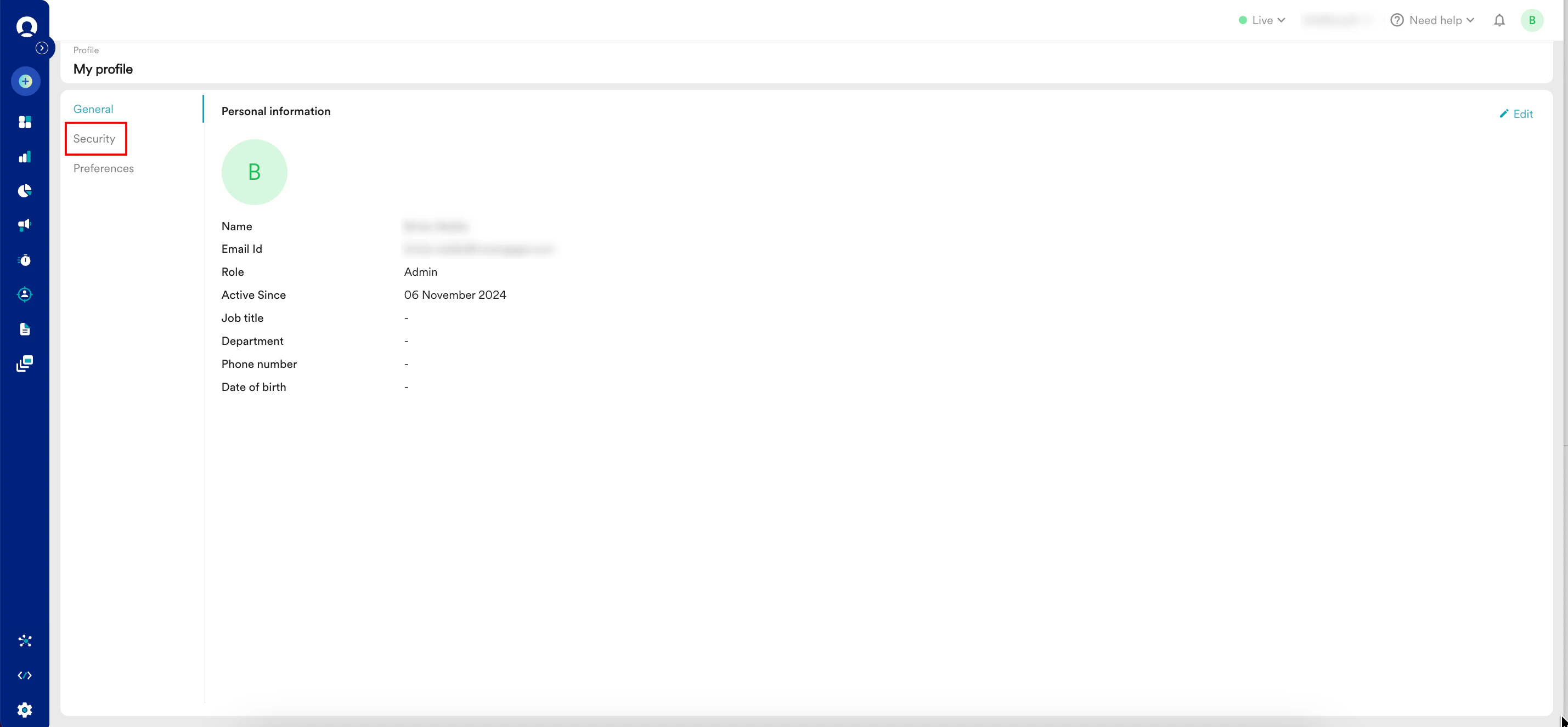 3. You can perform the following tasks:
* [Change your password](#h_01JSCEAE3GF7CZTV8N46JNAAF2)
* [Manage 2-step verification](#h_01JSGHTMCAD3RX7TX4XZJ63X63)
* [Log out of your active devices](#h_01JSCEAE3G595W5Y3681A2XGSB)
## Change Your Password
To change your password, perform the following steps:
1. On the **Security** tab, click **Change password** in the upper-right corner of the **Password** section.
3. You can perform the following tasks:
* [Change your password](#h_01JSCEAE3GF7CZTV8N46JNAAF2)
* [Manage 2-step verification](#h_01JSGHTMCAD3RX7TX4XZJ63X63)
* [Log out of your active devices](#h_01JSCEAE3G595W5Y3681A2XGSB)
## Change Your Password
To change your password, perform the following steps:
1. On the **Security** tab, click **Change password** in the upper-right corner of the **Password** section. 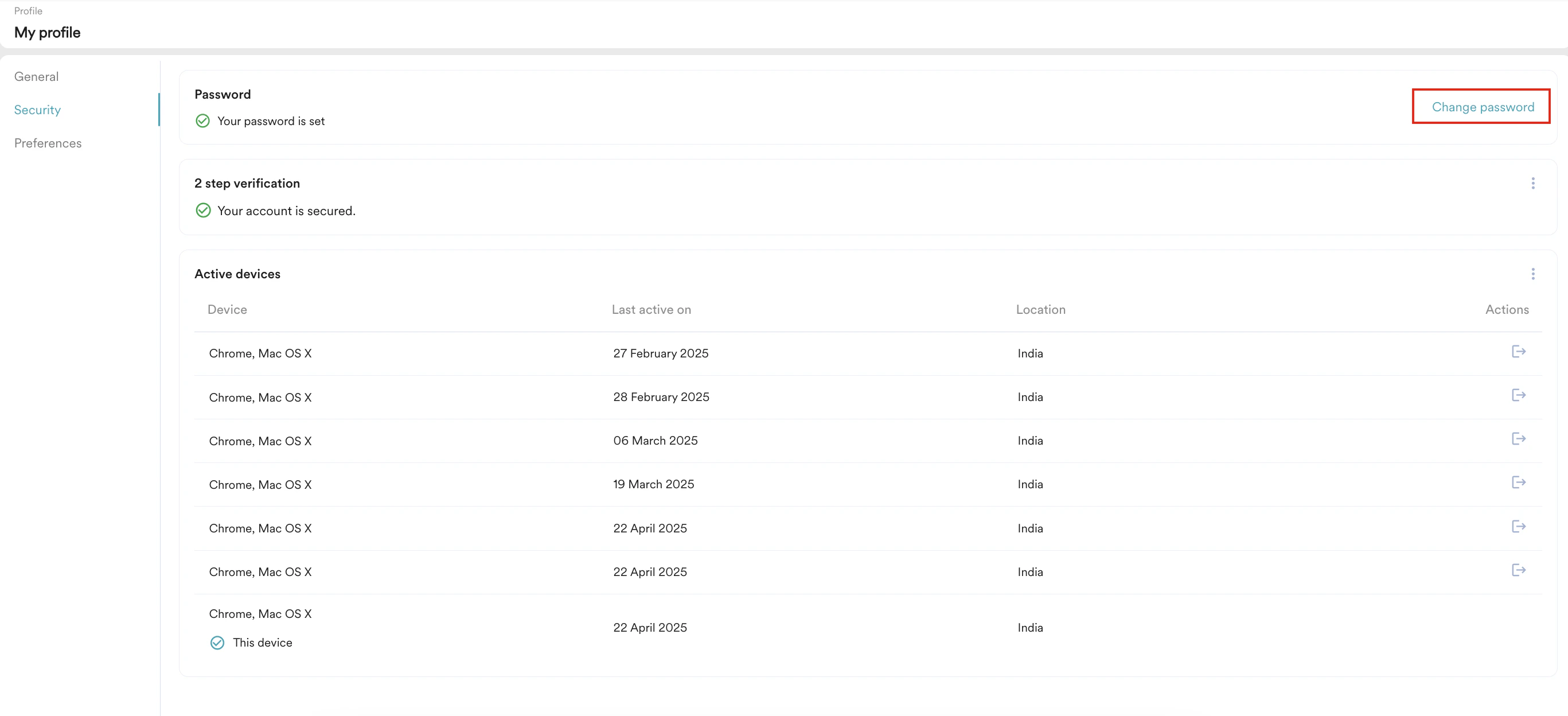 2. Enter the following details:
| Field | Description |
| ------------------- | ----------------------------------------------------------------------------------------------------------------------------------------------------------------------------------------------------------------------------------------------------------------------------------- |
| Old password | Enter the old or existing password. |
| New password | Enter the new password. Ensure the password meets the following criteria:
2. Enter the following details:
| Field | Description |
| ------------------- | ----------------------------------------------------------------------------------------------------------------------------------------------------------------------------------------------------------------------------------------------------------------------------------- |
| Old password | Enter the old or existing password. |
| New password | Enter the new password. Ensure the password meets the following criteria: - Contains 8 to 20 characters.
- Contains one capital letter.
- Contains one number.
- Contains one special character among !@#\$%^&\*()\_?/,`<>`;:`{}` \~ and no space
|
| Retype new password | Retype the new password. |
3. Click **Save**. Your password is updated.
## Manage 2-Step Verification
MoEngage allows you to secure your MoEngage account (workspace) with 2-step verification. This helps you reduce the risk of unauthorized access due to compromised passwords. Your Admin can enable it for all users at the account (workspace) level. For more information, refer to [2-Step Verification or Two-Factor Authentication (2FA)](/user-guide/settings/account/security/2-step-verification-or-two-factor-authentication-2fa). However, you can manage it at the user level.
### Set up 2-Step Verification for Your Workspace
The **Setup device** option appears when both of the following criteria are met:
* If your Admin has disabled 2-step verification at the account (workspace) level.
* You log in to your account for the first time.
1. On the My profile page, click **Security**. 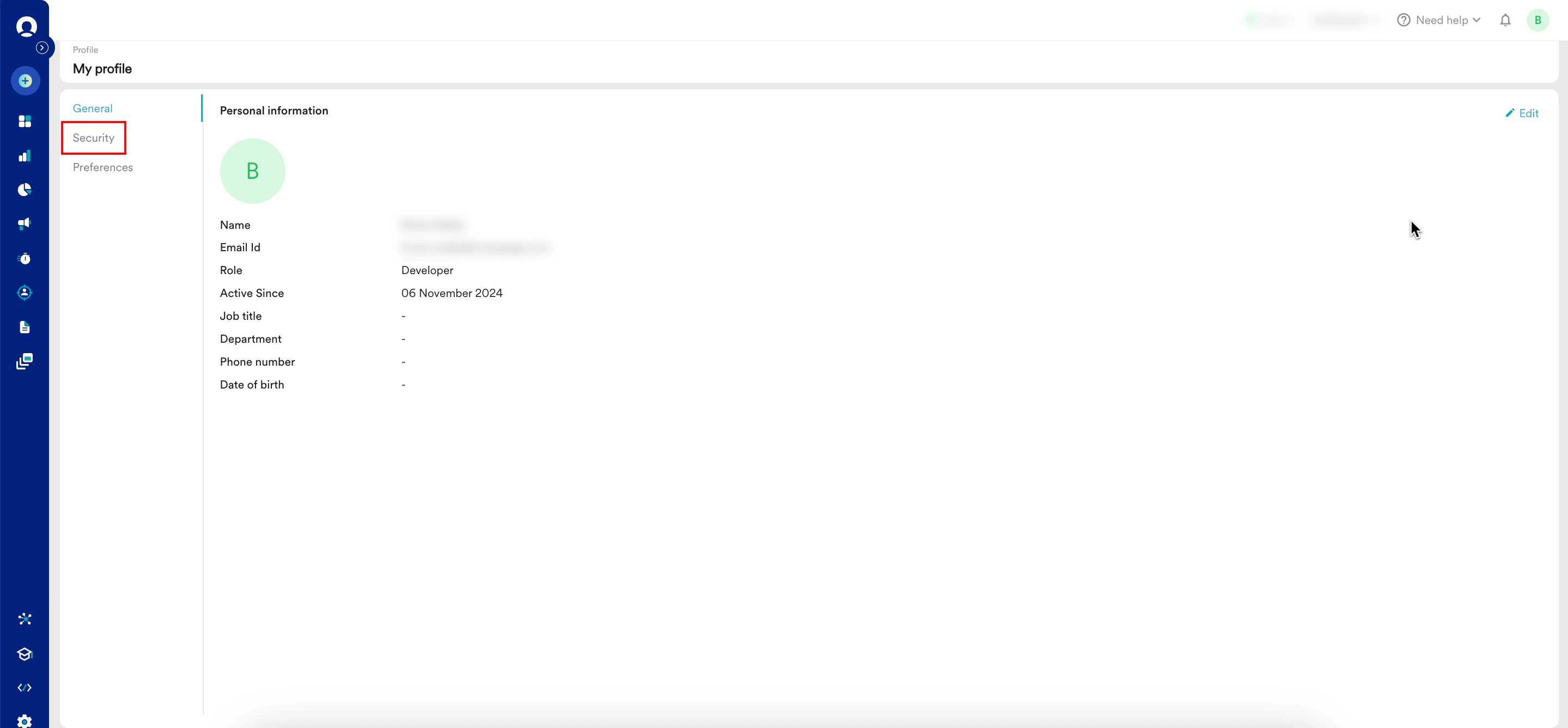 2. Click **Setup device** adjacent to **2-step verification**.
  The Set up your device authentication pop-up window appears.
 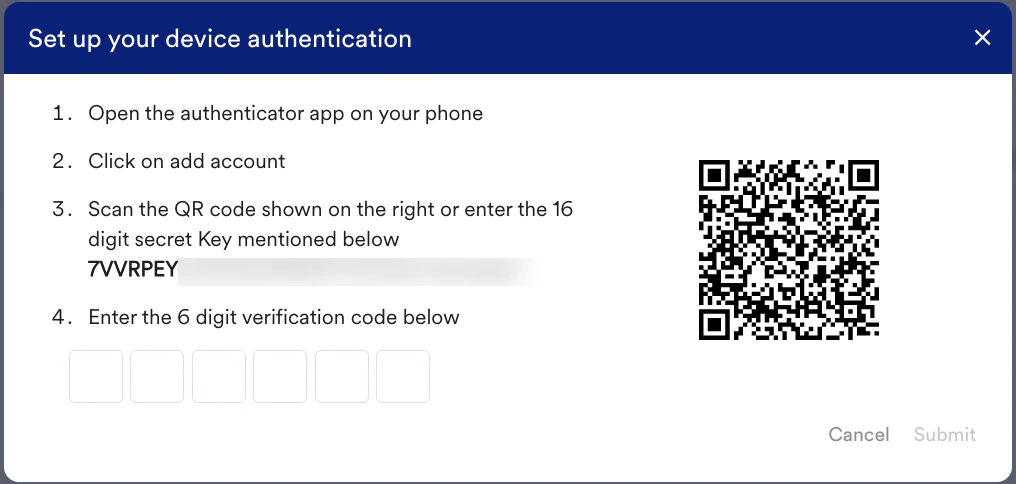 3. Open the authenticator app now (for example, Google Authenticator) and tap the **+** icon.
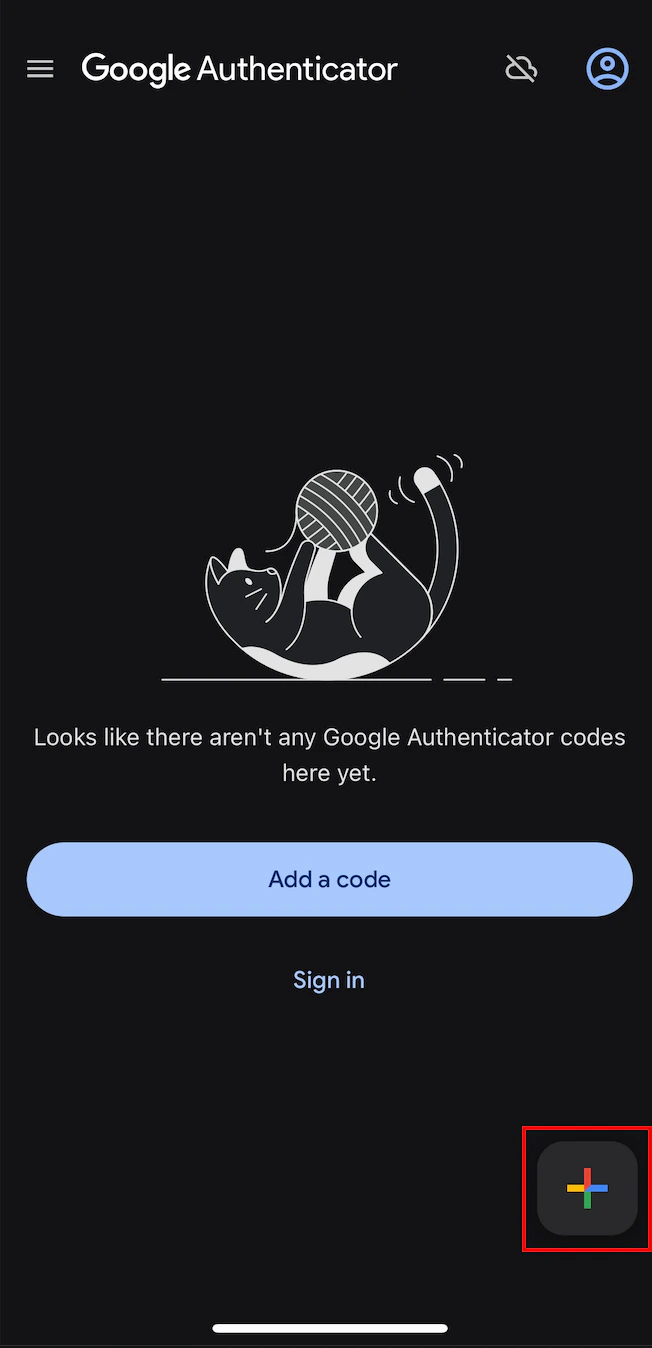 The Add an authentication code screen appears.
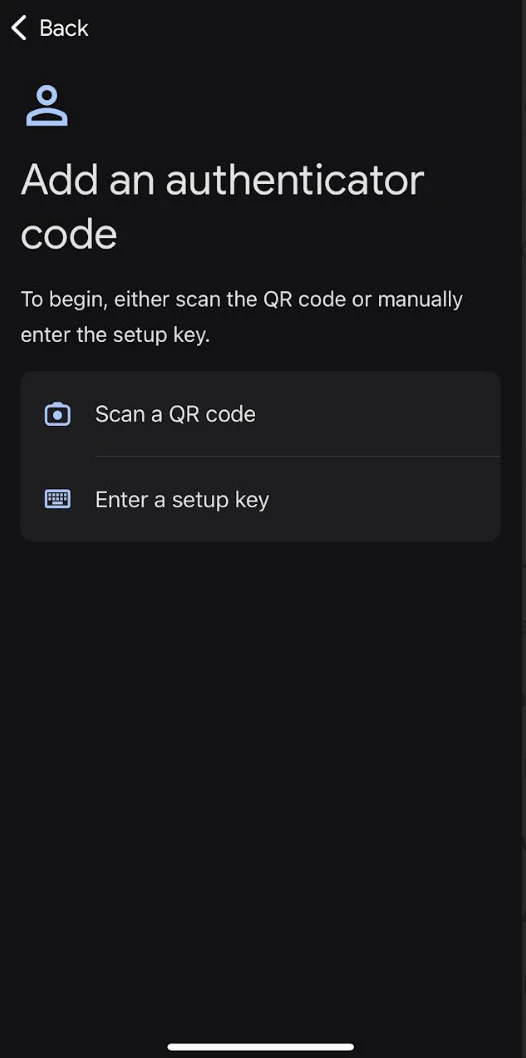 4. Use one of the following authentication options:
* **Using a QR code**
1. Tap **Scan a QR code**. The Scan code screen appears.
4. Use one of the following authentication options:
* **Using a QR code**
1. Tap **Scan a QR code**. The Scan code screen appears.
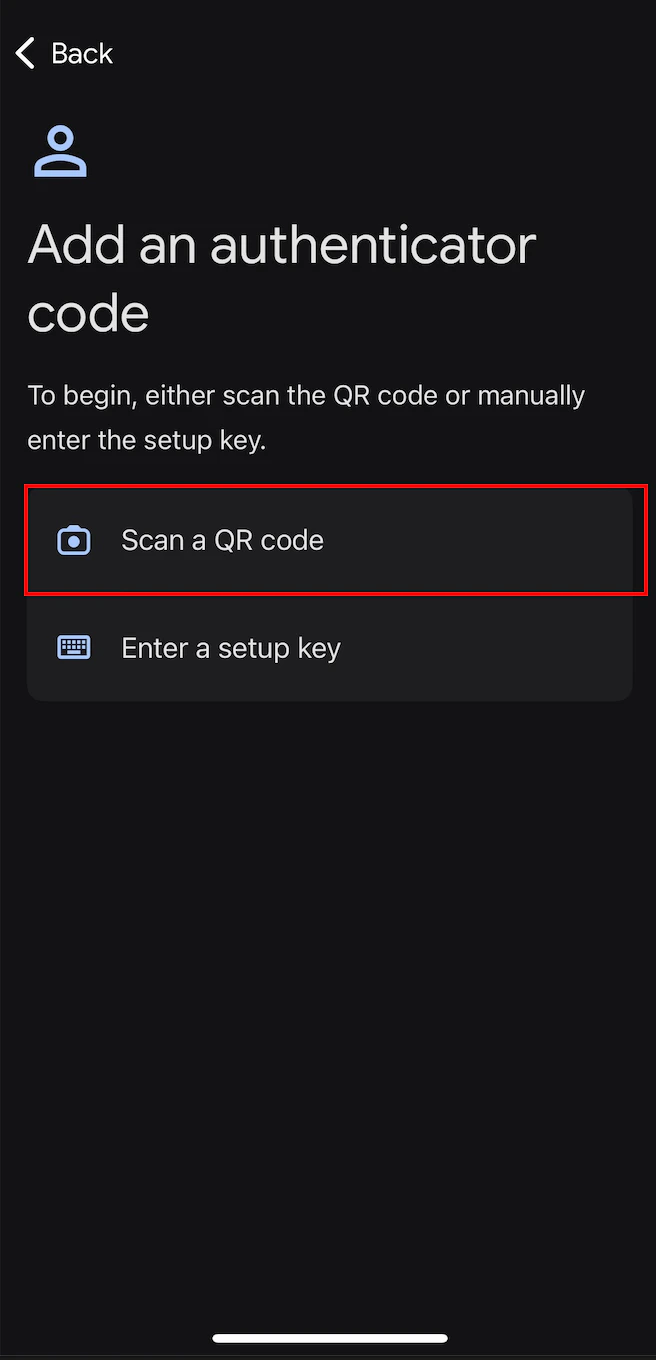 2. Scan the QR code on the Set up your device authentication pop-up window in the MoEngage dashboard. An authentication is added to your device. Your authentication app generates a 6-digit code.
* **Using a setup key**
1. Tap **Enter a setup key**.
2. Scan the QR code on the Set up your device authentication pop-up window in the MoEngage dashboard. An authentication is added to your device. Your authentication app generates a 6-digit code.
* **Using a setup key**
1. Tap **Enter a setup key**.
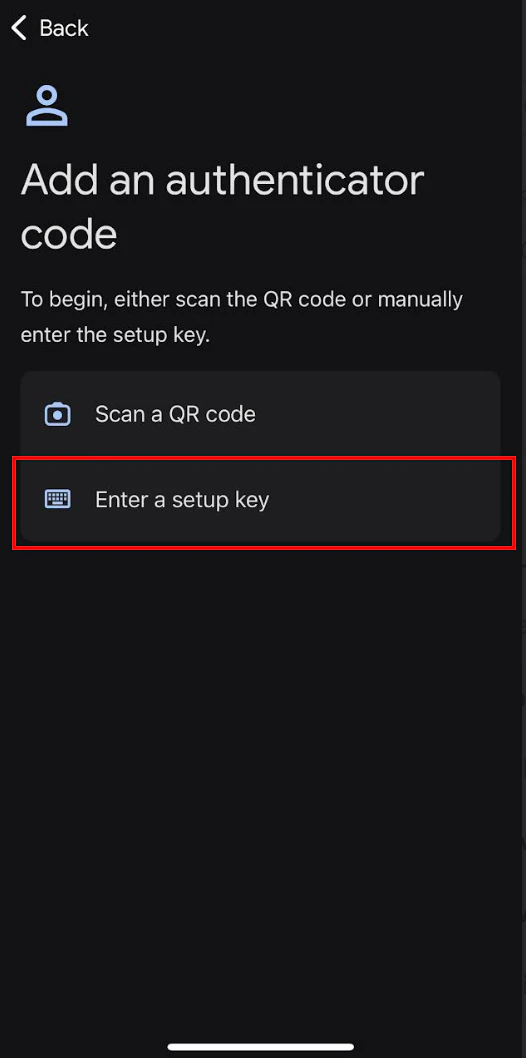 2. On the **Enter account details** screen, enter the following details :
| Fields | Required | Description |
| ------------ | -------- | ------------------------------------------------------------------------------------------------------------------------------------------------------------------------------------------------------------------------------------------------------------------------------------------------------------------------------------------------------------------------------------------------------------------------------------------------------------------------------------------------------------------------------------------------------------------------------------------------------------------------------------------------------------------------------------------------------------------------------------------------------------------------------------------------------------------------------------------------------------------------------------------------------------------------------------------------------------------------------------------------------------------------------------------------------------------------------------------------------------------------------------------------------------------------------------------------------------------------------------------------------------------------------------------------------------------------------------------------------------------------------------------------------------------------------------------------------------------------------------------------------------------------------------------------------------------------------- |
| Account name | Optional | Type your account name. |
| Your key | Yes | Type the 32-digit secret key displayed on the Set up your device authentication pop-up window in the MoEngage dashboard. |
| Type of key | Optional | This is the type of your key. Supported values are:
2. On the **Enter account details** screen, enter the following details :
| Fields | Required | Description |
| ------------ | -------- | ------------------------------------------------------------------------------------------------------------------------------------------------------------------------------------------------------------------------------------------------------------------------------------------------------------------------------------------------------------------------------------------------------------------------------------------------------------------------------------------------------------------------------------------------------------------------------------------------------------------------------------------------------------------------------------------------------------------------------------------------------------------------------------------------------------------------------------------------------------------------------------------------------------------------------------------------------------------------------------------------------------------------------------------------------------------------------------------------------------------------------------------------------------------------------------------------------------------------------------------------------------------------------------------------------------------------------------------------------------------------------------------------------------------------------------------------------------------------------------------------------------------------------------------------------------------------------- |
| Account name | Optional | Type your account name. |
| Your key | Yes | Type the 32-digit secret key displayed on the Set up your device authentication pop-up window in the MoEngage dashboard. |
| Type of key | Optional | This is the type of your key. Supported values are: - **Time based**: The OTP is generated based on the current time.
- **Counter based**: The OTP is generated based on an incrementing counter.
Select an option. In the following example, *Time based* is selected. |
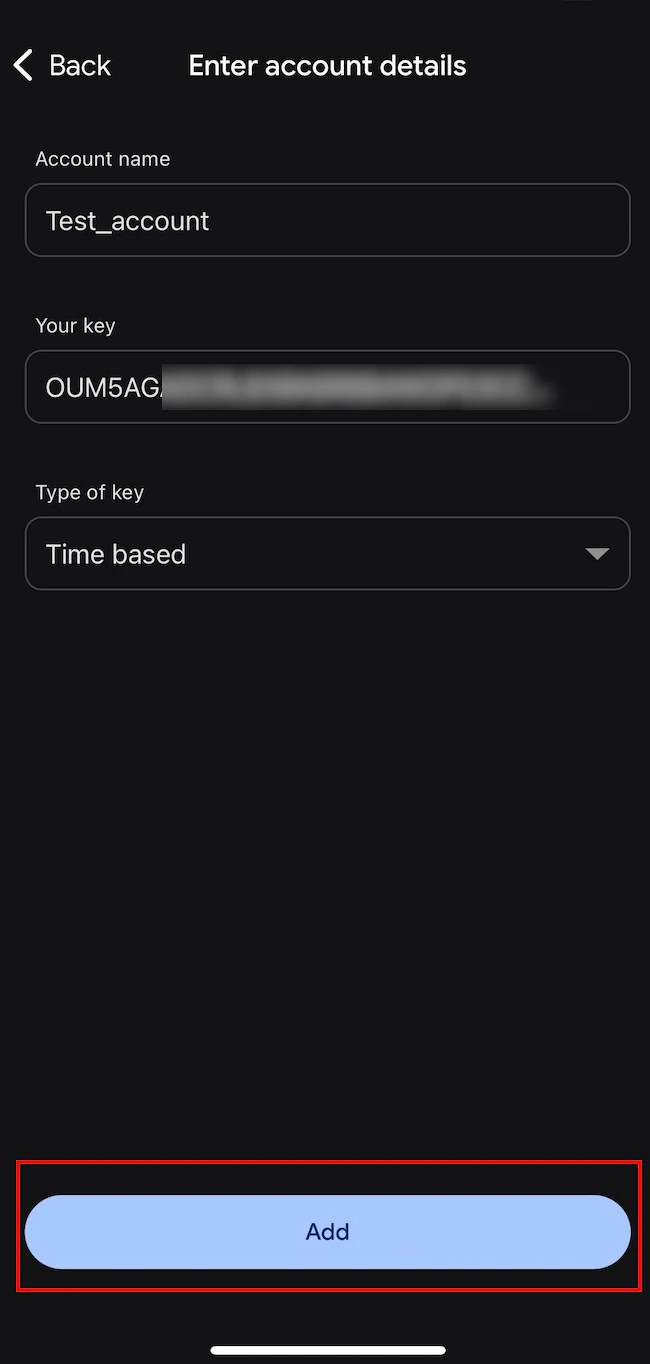 3. Tap **Add**.
4. An authentication is added to your device with the name you entered in the **Account name** box. Your authentication app generates a 6-digit code.
3. Tap **Add**.
4. An authentication is added to your device with the name you entered in the **Account name** box. Your authentication app generates a 6-digit code.
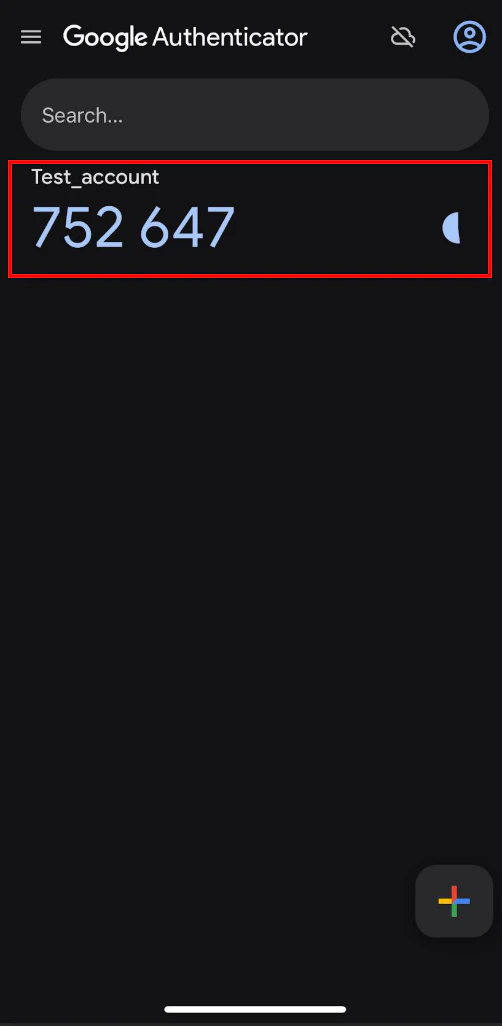 5. In the **Enter the 6-digit verification code below** box, type the 6-digit authentication code generated by your authentication app.
Each authentication code your authentication app generates is valid only for 30 seconds. After that, your authentication app generates a new code.
5. In the **Enter the 6-digit verification code below** box, type the 6-digit authentication code generated by your authentication app.
Each authentication code your authentication app generates is valid only for 30 seconds. After that, your authentication app generates a new code.
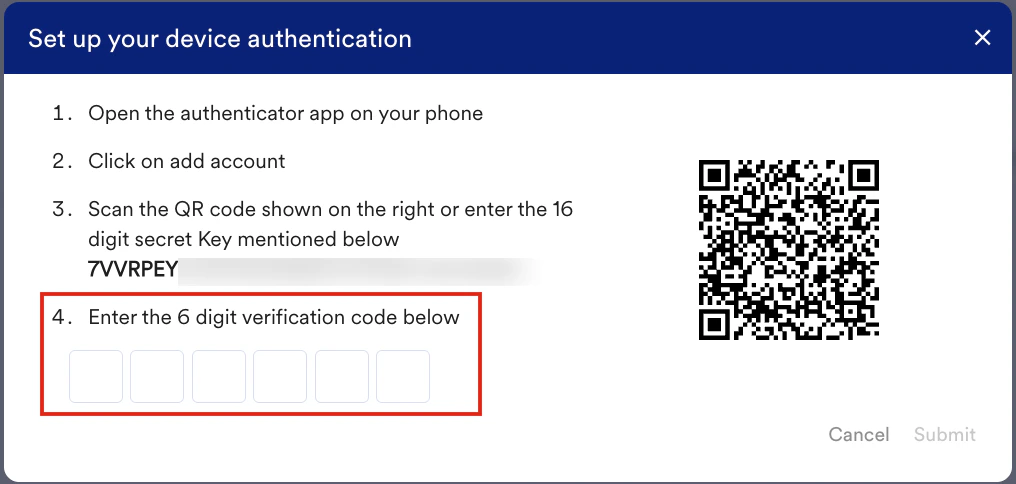 6. Click **Submit**.\
You have successfully configured 2-step verification on your device for your MoEngage account.
### Enable 2-Step Verification for Your Workspace
The **Enable device** option appears only if your admin has disabled 2FA at the account (workspace) level and you have not enabled it for your workspace.
To enable 2FA for the current workspace, perform the following steps:
1. On the **My profile** page, click **Security**.
2. Click the ellipse icon adjacent to **2 step verification** and then click **Enable device**.
6. Click **Submit**.\
You have successfully configured 2-step verification on your device for your MoEngage account.
### Enable 2-Step Verification for Your Workspace
The **Enable device** option appears only if your admin has disabled 2FA at the account (workspace) level and you have not enabled it for your workspace.
To enable 2FA for the current workspace, perform the following steps:
1. On the **My profile** page, click **Security**.
2. Click the ellipse icon adjacent to **2 step verification** and then click **Enable device**.  The Enable device pop-up window appears, prompting you for confirmation to enable 2FA for your workspace.
3. Click **Enable**.
The Enable device pop-up window appears, prompting you for confirmation to enable 2FA for your workspace.
3. Click **Enable**. 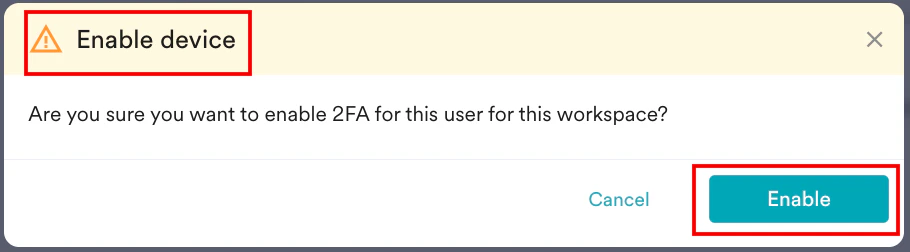 \
The 2FA is now successfully enabled for your workspace.
After you enable 2FA for your workspace, you will be automatically logged out of the MoEngage dashboard. When you log in to the MoEngage dashboard again, you must set up 2-step verification on your device. For more information, refer to [Set Up 2-Step Verification on Your Device](/user-guide/getting-started/initial-setup/set-up-2-step-verification-on-your-device).
### Remove 2-Step Verification for the Workspace
The **Remove device** option is visible only when both of the following criteria are met:
* You have enabled 2FA for your workspace.
* Your admin disables it at the account (workspace) level.
To remove 2FA for the current workspace, perform the following steps:
1. On the **My profile** page, click **Security**.
2. Click the ellipse icon adjacent to **2 step verification** and then click **Remove** **device**.
\
The 2FA is now successfully enabled for your workspace.
After you enable 2FA for your workspace, you will be automatically logged out of the MoEngage dashboard. When you log in to the MoEngage dashboard again, you must set up 2-step verification on your device. For more information, refer to [Set Up 2-Step Verification on Your Device](/user-guide/getting-started/initial-setup/set-up-2-step-verification-on-your-device).
### Remove 2-Step Verification for the Workspace
The **Remove device** option is visible only when both of the following criteria are met:
* You have enabled 2FA for your workspace.
* Your admin disables it at the account (workspace) level.
To remove 2FA for the current workspace, perform the following steps:
1. On the **My profile** page, click **Security**.
2. Click the ellipse icon adjacent to **2 step verification** and then click **Remove** **device**.  The Remove device pop-up window appears, prompting you for confirmation to remove 2FA for your workspace.
3. Click **Remove**.
The Remove device pop-up window appears, prompting you for confirmation to remove 2FA for your workspace.
3. Click **Remove**. 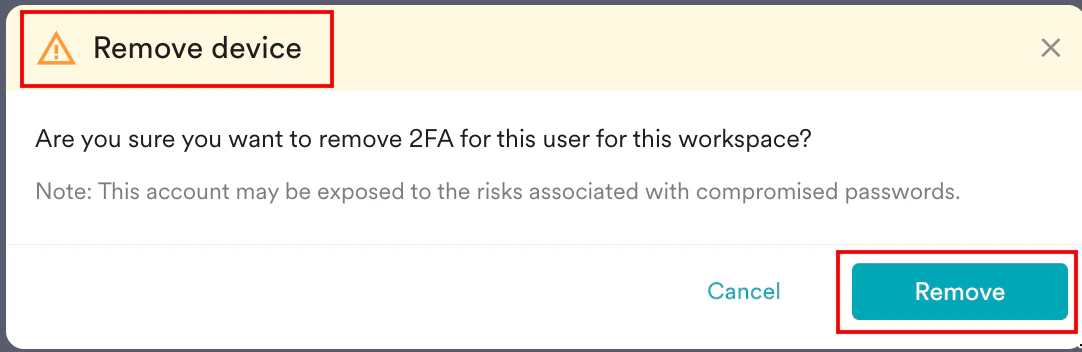 \
The 2FA is now successfully removed from your workspace.
### Change the 2-Step Verification for the Workspace
You may want to set up 2FA for the current workspace on a new device, for example, when you purchase a new phone.
The **Change device** option is visible when you have enabled or disabled 2FA for your workspace.
To change the 2-step verification for your workspace, perform the following steps:
1. On the **My profile** page, click **Security**.
2. Click the ellipse icon adjacent to **2 step verification** and then click **Change device**.
\
The 2FA is now successfully removed from your workspace.
### Change the 2-Step Verification for the Workspace
You may want to set up 2FA for the current workspace on a new device, for example, when you purchase a new phone.
The **Change device** option is visible when you have enabled or disabled 2FA for your workspace.
To change the 2-step verification for your workspace, perform the following steps:
1. On the **My profile** page, click **Security**.
2. Click the ellipse icon adjacent to **2 step verification** and then click **Change device**. 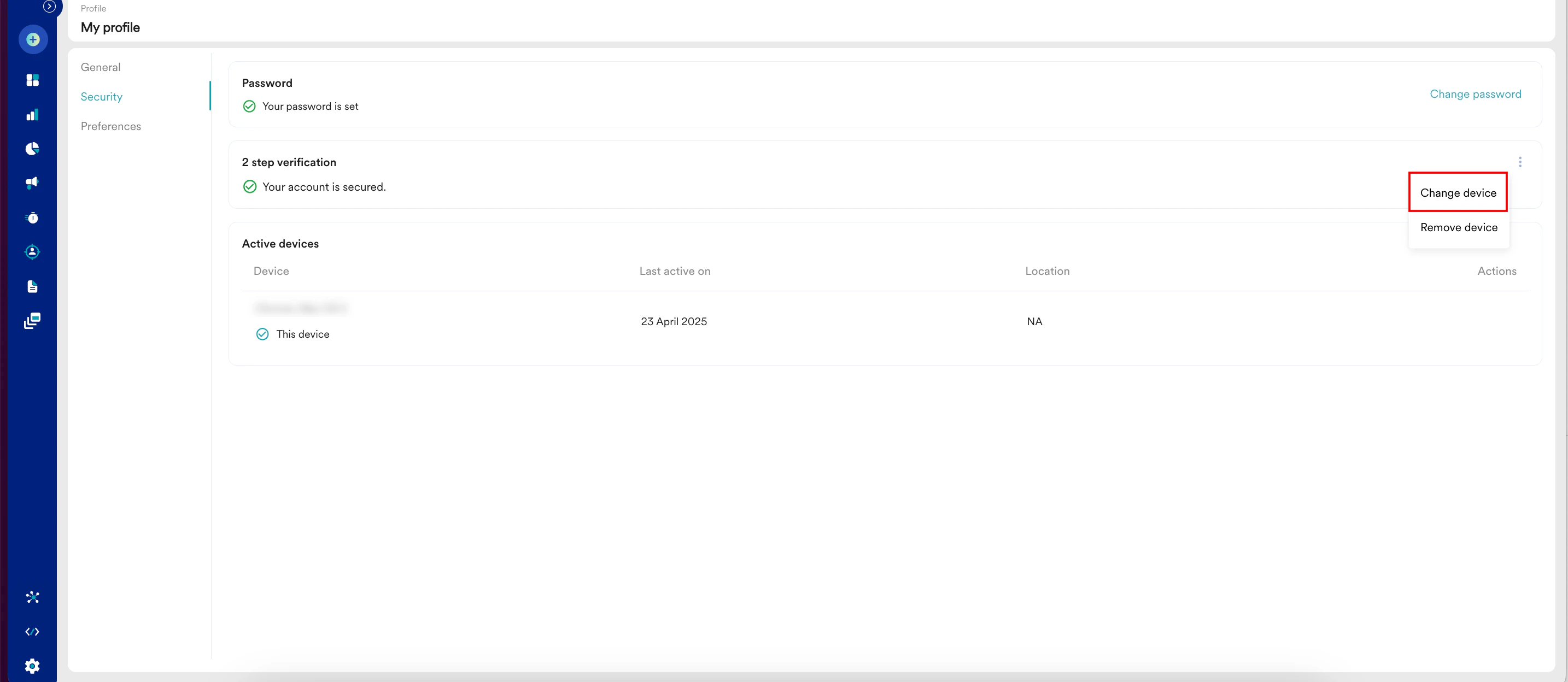 3. The Change device pop-up window appears.
 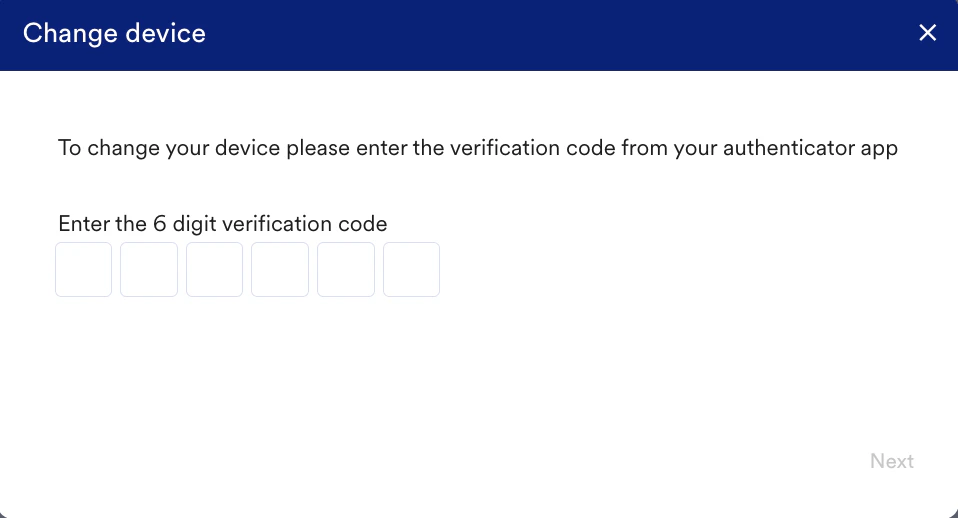 4. Enter the 6-digit code generated by your current device's authenticator app.
5. Click **Next**.
6. The **Set up your device authentication** pop-up window appears.
7. From your device's authenticator app (for example, Google Authenticator):
1. Tap the **+** icon.
4. Enter the 6-digit code generated by your current device's authenticator app.
5. Click **Next**.
6. The **Set up your device authentication** pop-up window appears.
7. From your device's authenticator app (for example, Google Authenticator):
1. Tap the **+** icon.
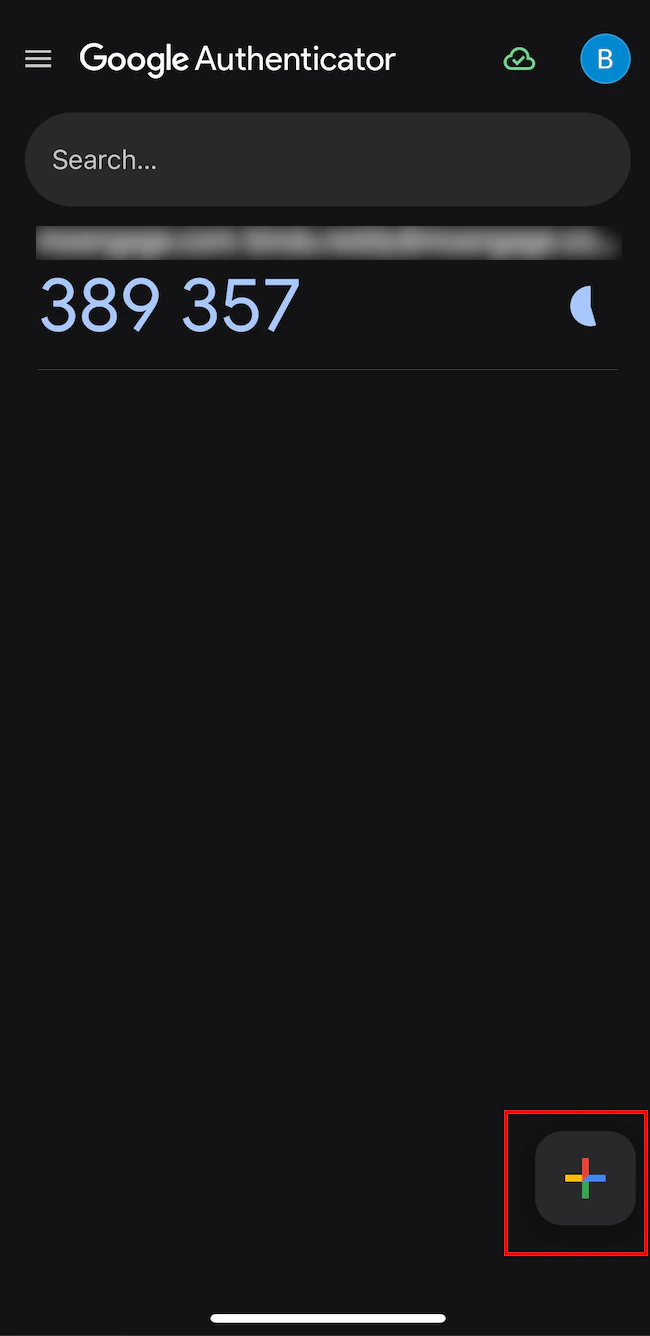 The Add an authentication code screen appears.
2. Use one of the following authentication options:
* **Using a QR code**
1. Tap **Scan a QR code**. The Scan code screen appears.
2. Scan the QR code on the **Set your device authentication** page. An authentication is added to your device. Your authentication app generates a 6-digit code.
* **Using a setup key**
1. Tap **Enter a setup key**.
2. On the **Enter account details** screen, enter the following details:
| Fields | Required | Description |
| ------------ | -------- | ----------------------------------------------------------------------------------------------------------------------------------------------------------------------------------------------------------------------------------------------------------------------------------------------------------------------------------------------------------------------------------------------------------------------------------------------------------------------------------------------------------------------------------------------------------------------------------------------------------------------------------------------------------------------------------------------------------------------------------------------------------------------------------------------------------------------------------------------------------------------------------------------------------------------------------------------------------------------------------------------------------------------------------------------------------------------------------------------------------------------------------------------------------------------------------------------------------------------------------------------------------------------------------------------------------------------------------------------------------------------------------------------------------------------------------------------------------------------------------------------------------------------------------------------- |
| Account name | Optional | Type your account name. |
| Your key | Yes | Type the 32-digit secret key displayed on the **Set up your device authentication** page. |
| Type of key | Optional | This is the type of your key. Supported values are:
The Add an authentication code screen appears.
2. Use one of the following authentication options:
* **Using a QR code**
1. Tap **Scan a QR code**. The Scan code screen appears.
2. Scan the QR code on the **Set your device authentication** page. An authentication is added to your device. Your authentication app generates a 6-digit code.
* **Using a setup key**
1. Tap **Enter a setup key**.
2. On the **Enter account details** screen, enter the following details:
| Fields | Required | Description |
| ------------ | -------- | ----------------------------------------------------------------------------------------------------------------------------------------------------------------------------------------------------------------------------------------------------------------------------------------------------------------------------------------------------------------------------------------------------------------------------------------------------------------------------------------------------------------------------------------------------------------------------------------------------------------------------------------------------------------------------------------------------------------------------------------------------------------------------------------------------------------------------------------------------------------------------------------------------------------------------------------------------------------------------------------------------------------------------------------------------------------------------------------------------------------------------------------------------------------------------------------------------------------------------------------------------------------------------------------------------------------------------------------------------------------------------------------------------------------------------------------------------------------------------------------------------------------------------------------------- |
| Account name | Optional | Type your account name. |
| Your key | Yes | Type the 32-digit secret key displayed on the **Set up your device authentication** page. |
| Type of key | Optional | This is the type of your key. Supported values are: - **Time based**: The OTP is generated based on the current time.
- **Counter based**: The OTP is generated based on an incrementing counter.
Select an option. In the following example, *Time based* is selected. |
3. Tap **Add**.
4. An authentication is added to your device with the name you entered in the **Account name** box.\
Your device receives a new authentication, which appears below the previous authentication.
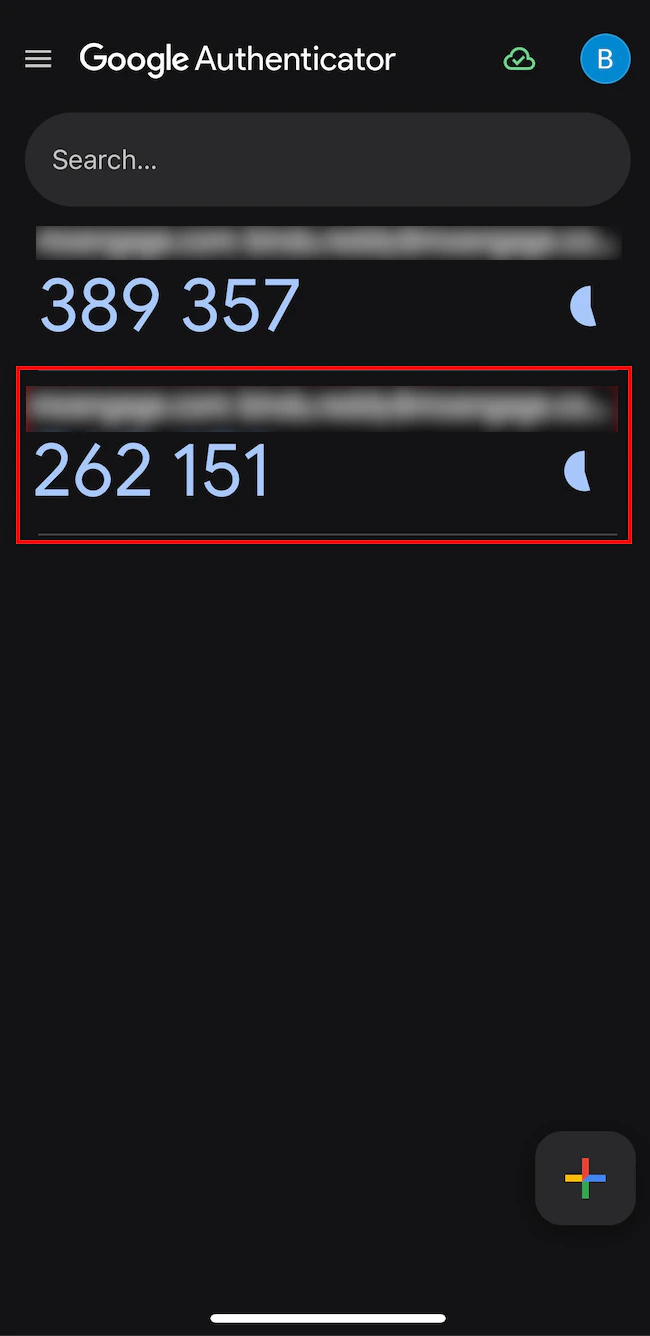 In the future, you must use the verification code from the new instance only.
8. Enter the 6-digit code generated by your authenticator app.
9. Click **Submit**.
## Log Out of Your Active Devices
Under **Active devices**, you can see all the devices you have used to access this workspace. Perform the following steps to log out of a device:
1. Click the logout icon adjacent to the active device from which you want to log out. Your device is successfully logged out.
In the future, you must use the verification code from the new instance only.
8. Enter the 6-digit code generated by your authenticator app.
9. Click **Submit**.
## Log Out of Your Active Devices
Under **Active devices**, you can see all the devices you have used to access this workspace. Perform the following steps to log out of a device:
1. Click the logout icon adjacent to the active device from which you want to log out. Your device is successfully logged out. 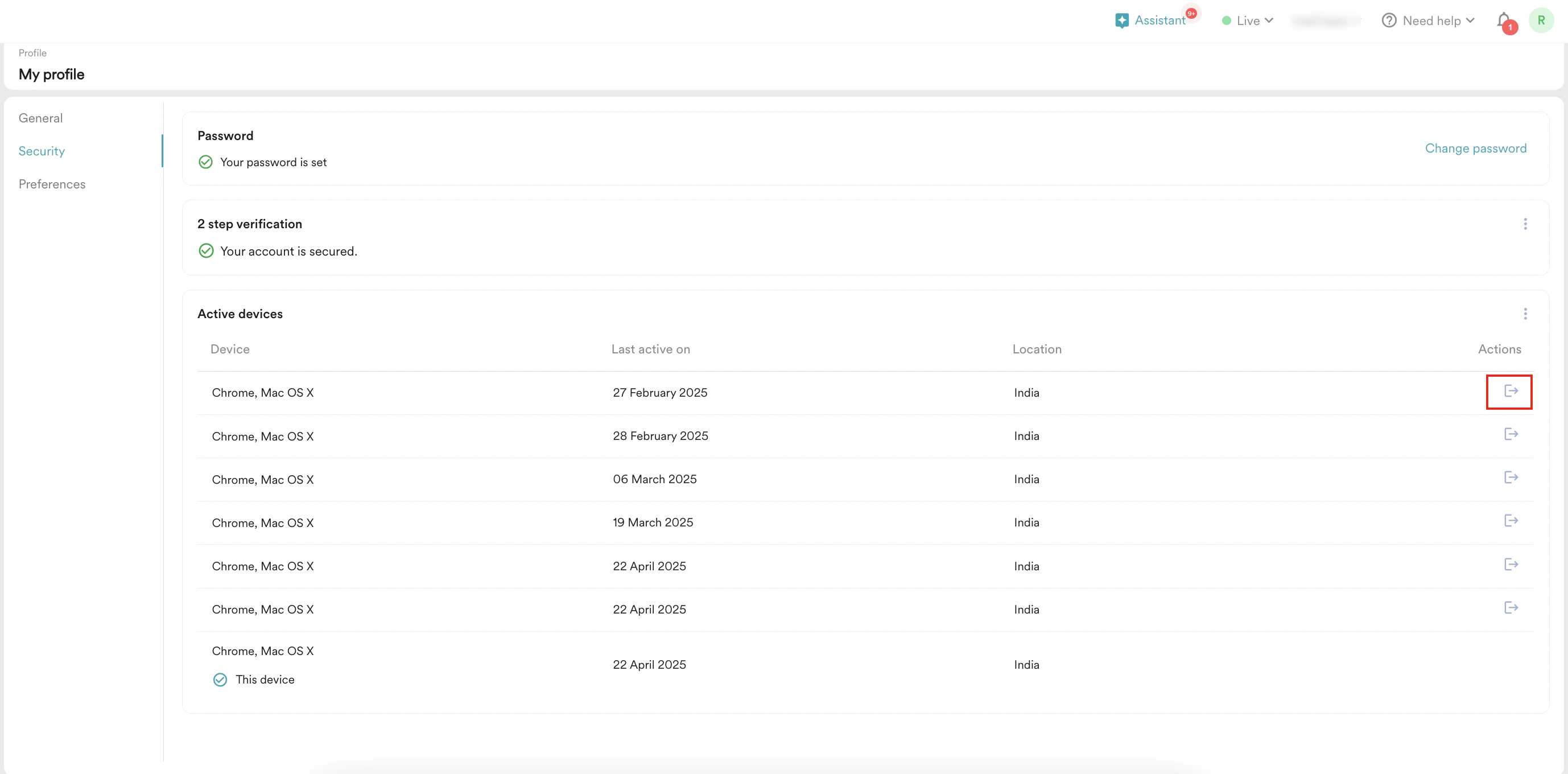 2. Click the ellipsis icon and then click **Logout of all devices** to log out of all your active devices.
  The Logout pop-up window will appear, prompting you to confirm.
3. Click **Logout**.
The Logout pop-up window will appear, prompting you to confirm.
3. Click **Logout**. 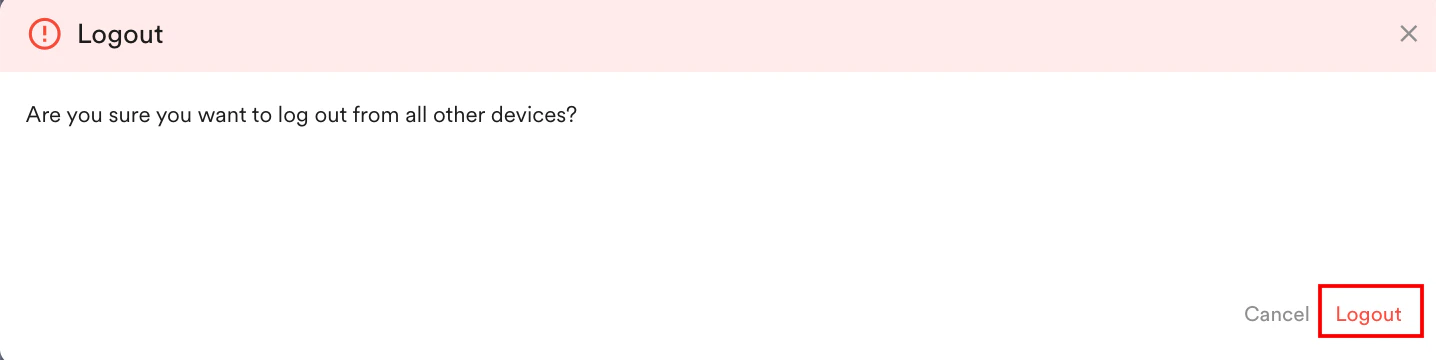 # Preferences
Under the **Preferences** tab, you can select your preferred language for the MoEngage workspace and suggest new languages for future support.
## Select Your Workspace Language
Your MoEngage workspace language is set to English by default, but you can change it to any language supported by MoEngage.
MoEngage currently supports Japanese.
This is an Early Access feature. To enable it for your account, contact your CSM or [raise a support ticket](/user-guide/contact-support/contact-support/raise-a-support-ticket-through-moengage-dashboard).
Perform the following steps to select the workspace language:
1. On the **My profile** page, click the **Preferences** tab. The Language preferences page appears.
2. In the **Workspace language** list, select your preferred language.
# Preferences
Under the **Preferences** tab, you can select your preferred language for the MoEngage workspace and suggest new languages for future support.
## Select Your Workspace Language
Your MoEngage workspace language is set to English by default, but you can change it to any language supported by MoEngage.
MoEngage currently supports Japanese.
This is an Early Access feature. To enable it for your account, contact your CSM or [raise a support ticket](/user-guide/contact-support/contact-support/raise-a-support-ticket-through-moengage-dashboard).
Perform the following steps to select the workspace language:
1. On the **My profile** page, click the **Preferences** tab. The Language preferences page appears.
2. In the **Workspace language** list, select your preferred language. 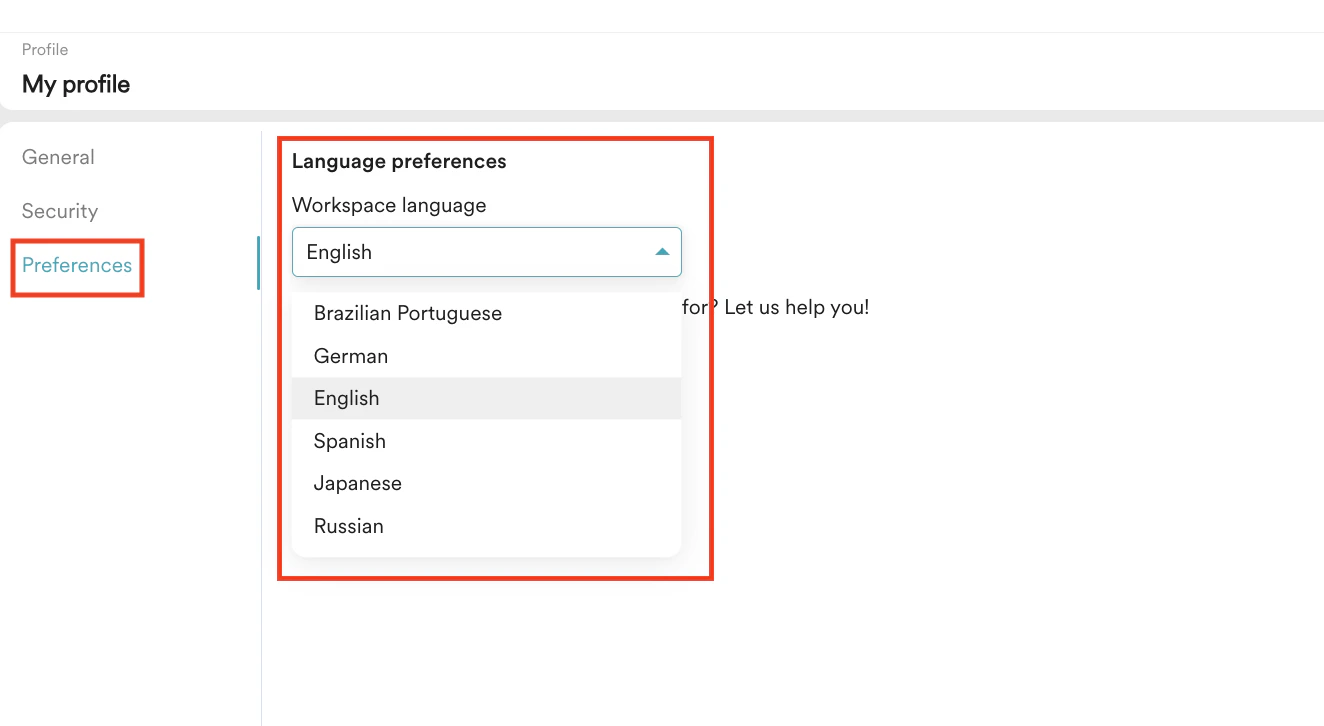 Your workspace switches to the language you selected.
## Suggest a Language
You can suggest a language if you do not find your preferred language in the **Workspace language** list. Perform the following steps to suggest a language:
1. Click **Suggest a language**. The Suggest a language dialog box appears.
Your workspace switches to the language you selected.
## Suggest a Language
You can suggest a language if you do not find your preferred language in the **Workspace language** list. Perform the following steps to suggest a language:
1. Click **Suggest a language**. The Suggest a language dialog box appears. 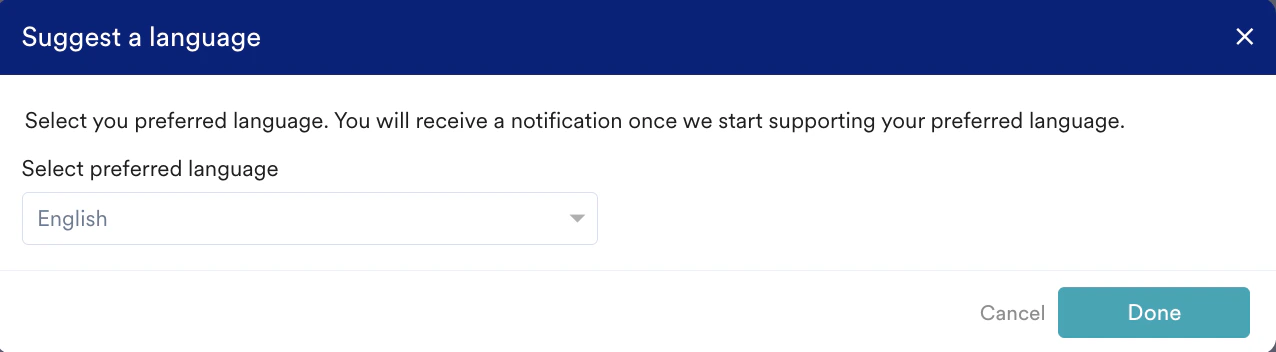 2. In the **Select preferred language** list, select the language you want MoEngage to support.
3. Click **Done**.
You will receive a notification after MoEngage starts supporting your preferred language.
2. In the **Select preferred language** list, select the language you want MoEngage to support.
3. Click **Done**.
You will receive a notification after MoEngage starts supporting your preferred language.