> ## Documentation Index
> Fetch the complete documentation index at: https://moengage-user-guide.mintlify.site/llms.txt
> Use this file to discover all available pages before exploring further.
# Reset 2-Step Verification on Your Device
MoEngage allows you to reset 2-step verification in the following scenarios:
* You are unable to authenticate yourself using the verification code generated by the current authenticator app.
* You have used all recovery codes and want to generate a new set of codes.
**Prerequisites**
You must have set up 2-step verification on your device. For more information, refer to [Set Up 2-Step Verification on Your Device](/user-guide/getting-started/initial-setup/set-up-2-step-verification-on-your-device).
To reset 2-step verification on your device, perform the following steps:
1. Try to [log in to your account](/user-guide/getting-started/initial-setup/log-in-to-moengage) using your credentials, based on the login method configured for the account.
2. On the 2-Step Verification page, click **Receive reset 2-step verification link via email**. 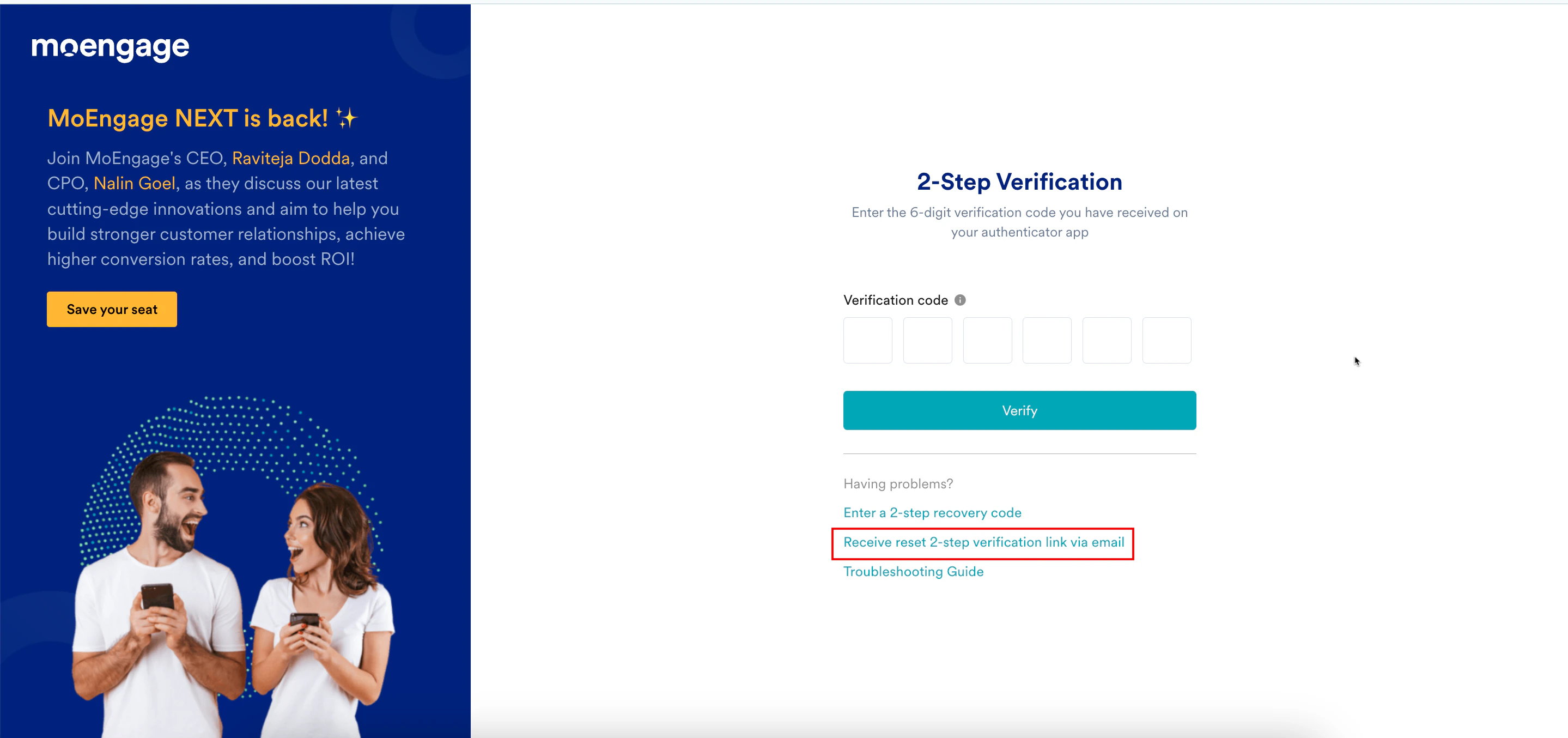 3. On the 2-Step Verification page, click **Send link**.
  A login link to reset your 2FA is now sent to your email.
4. Open the email sent by MoEngage and click **here** **to reset your 2FA credentials**.
A login link to reset your 2FA is now sent to your email.
4. Open the email sent by MoEngage and click **here** **to reset your 2FA credentials**.  After clicking, you are taken to the Login to your accounts page in a new tab on your browser.
 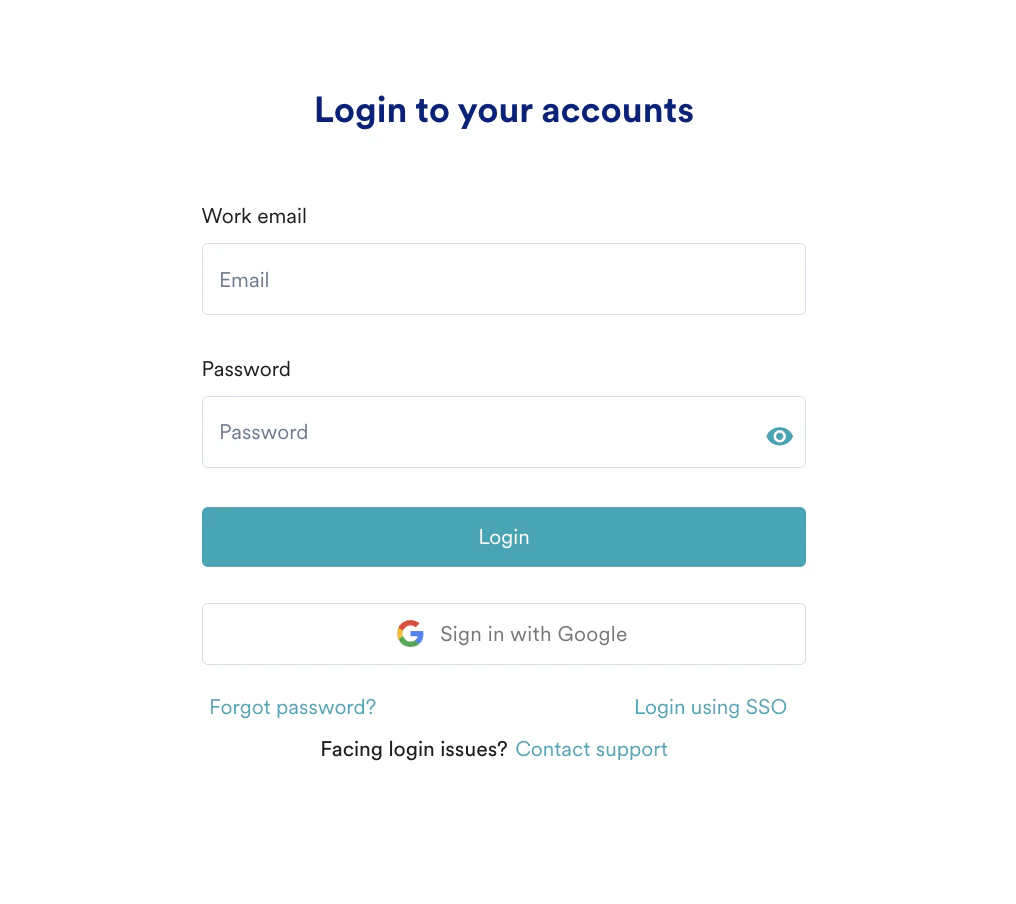 5. Log in to your account using your credentials, based on the login method configured for the account. You are taken to the 2-Step Verification page.
6. Click **Setup your device**.
5. Log in to your account using your credentials, based on the login method configured for the account. You are taken to the 2-Step Verification page.
6. Click **Setup your device**.  The Set up your device authentication page appears. You must reset 2FA on your device.
 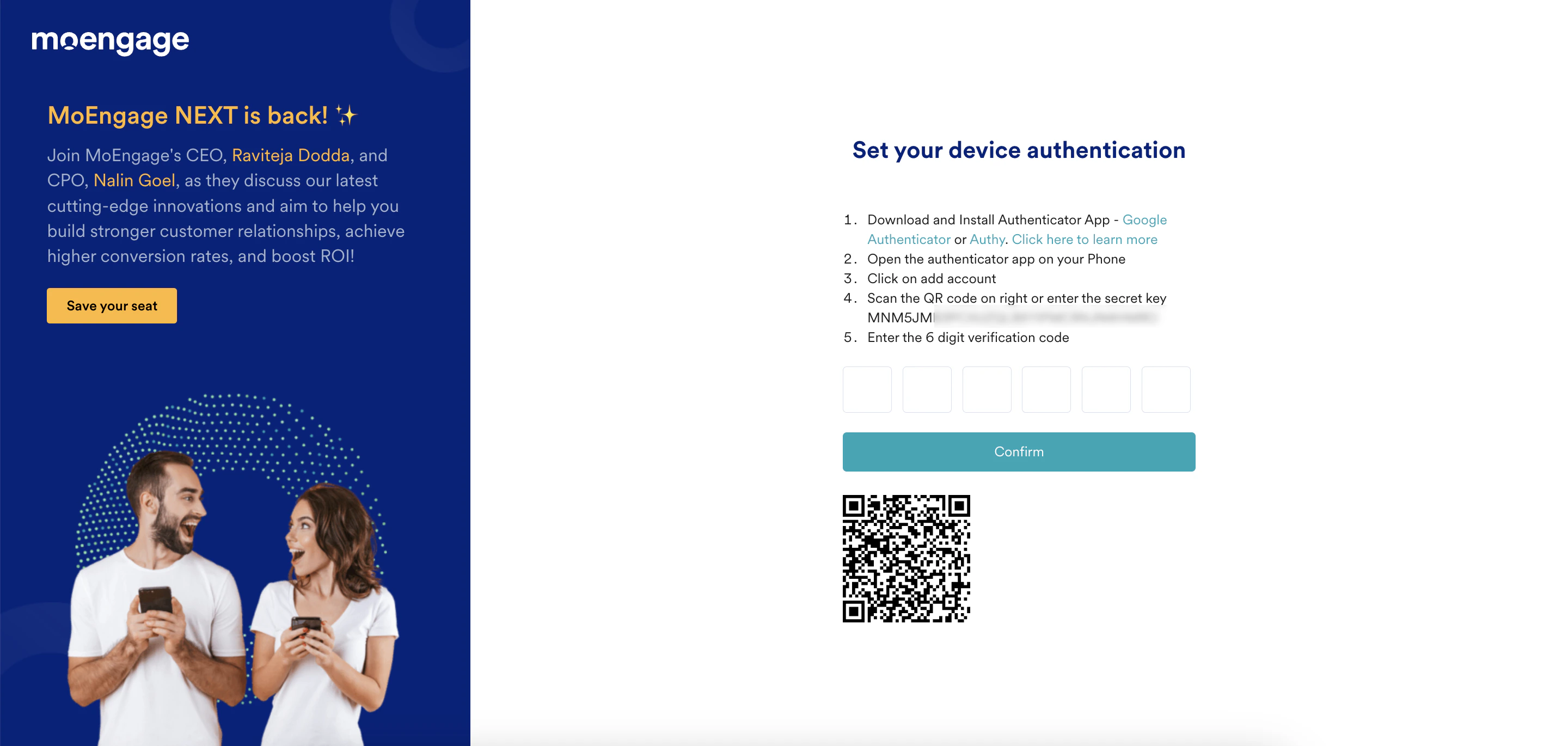 7. Open the authenticator app on your device now (for example, Google Authenticator) and tap the **+** icon.
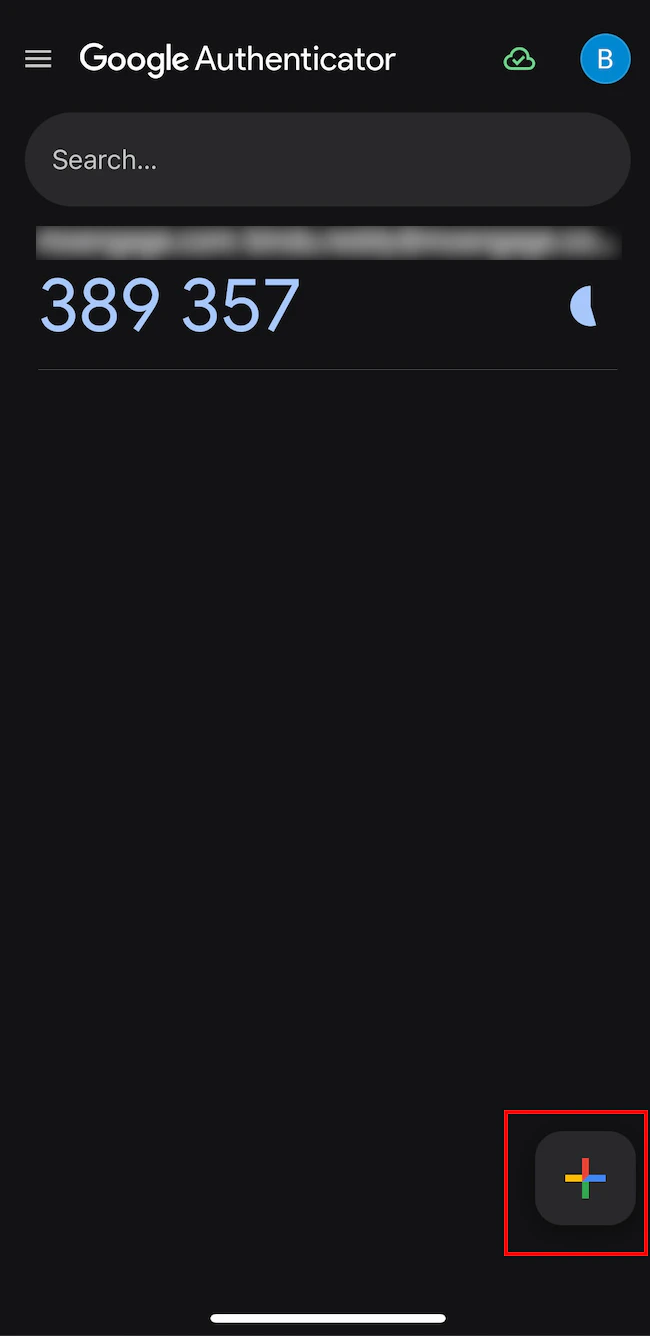 The Add an authentication code screen appears.
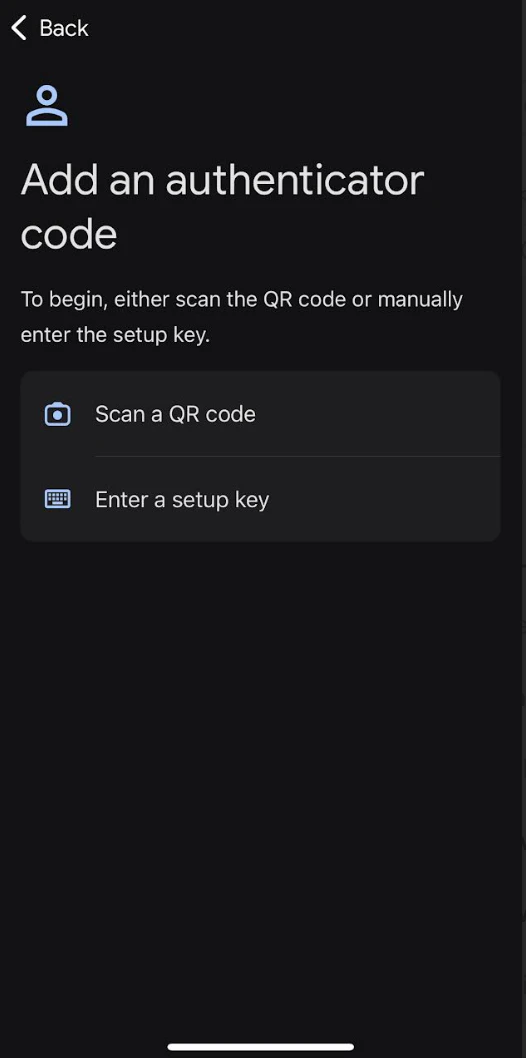 8. Use one of the following authentication options:
* **Using a QR code**
1. Tap **Scan a QR code**. The Scan code screen appears.
8. Use one of the following authentication options:
* **Using a QR code**
1. Tap **Scan a QR code**. The Scan code screen appears.
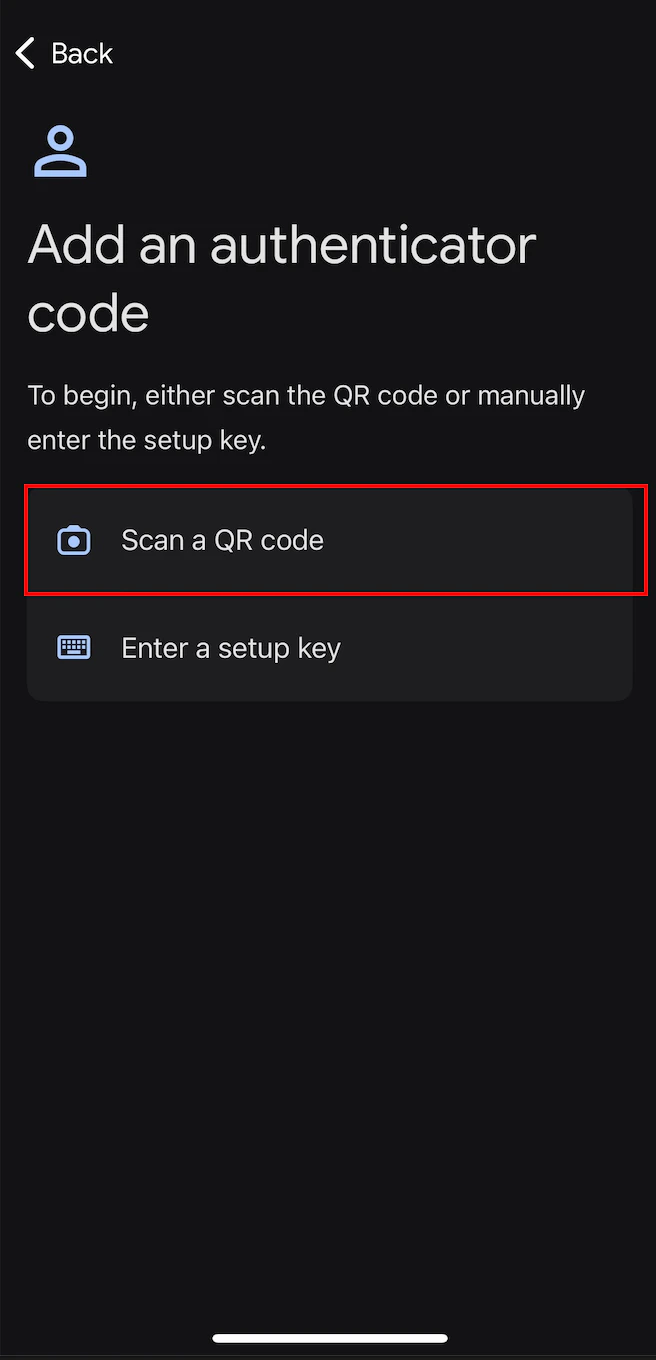 2. Scan the QR code on the **Set your device authentication** page. An authentication is added to your device. Your authentication app generates a 6-digit code
* **Using a setup key**
1. Tap **Enter a setup key.**\\
2. Scan the QR code on the **Set your device authentication** page. An authentication is added to your device. Your authentication app generates a 6-digit code
* **Using a setup key**
1. Tap **Enter a setup key.**\\
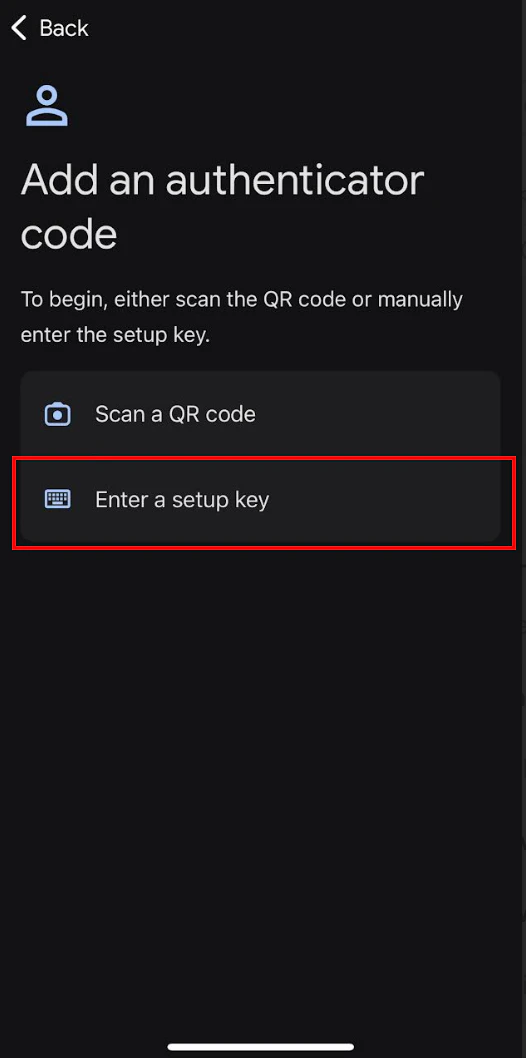 2. On the **Enter account details** screen, enter the following details:
| Fields | Required | Description |
| ------------ | -------- | ------------------------------------------------------------------------------------------------------------------------------------------------------------------------------------------------------------------------------------------------------------------------------------------------------------------------------------------------------------------------------------------------------------------------------------------------------------------------------------------------------------------------------------------------------------------------------------------------------------------------------------------------------------------------------------------------------------------------------------------------------------------------------------------------------------------------------------------------------------------------------------------------------------------------------------------------------------------------------------------------------------------------------------------------------------------------------------------------------------------------------------------------------------------------------------------------------------------------------------------------------------------------------------------------------------------------------------------------------------------------------------------------------------------------------------------------------------------------------------------------------------------------------------------------ |
| Account name | Optional | Type your account name. |
| Your key | Yes | Type the 32-digit secret key displayed on the **Set your device authentication** page.
2. On the **Enter account details** screen, enter the following details:
| Fields | Required | Description |
| ------------ | -------- | ------------------------------------------------------------------------------------------------------------------------------------------------------------------------------------------------------------------------------------------------------------------------------------------------------------------------------------------------------------------------------------------------------------------------------------------------------------------------------------------------------------------------------------------------------------------------------------------------------------------------------------------------------------------------------------------------------------------------------------------------------------------------------------------------------------------------------------------------------------------------------------------------------------------------------------------------------------------------------------------------------------------------------------------------------------------------------------------------------------------------------------------------------------------------------------------------------------------------------------------------------------------------------------------------------------------------------------------------------------------------------------------------------------------------------------------------------------------------------------------------------------------------------------------------ |
| Account name | Optional | Type your account name. |
| Your key | Yes | Type the 32-digit secret key displayed on the **Set your device authentication** page. 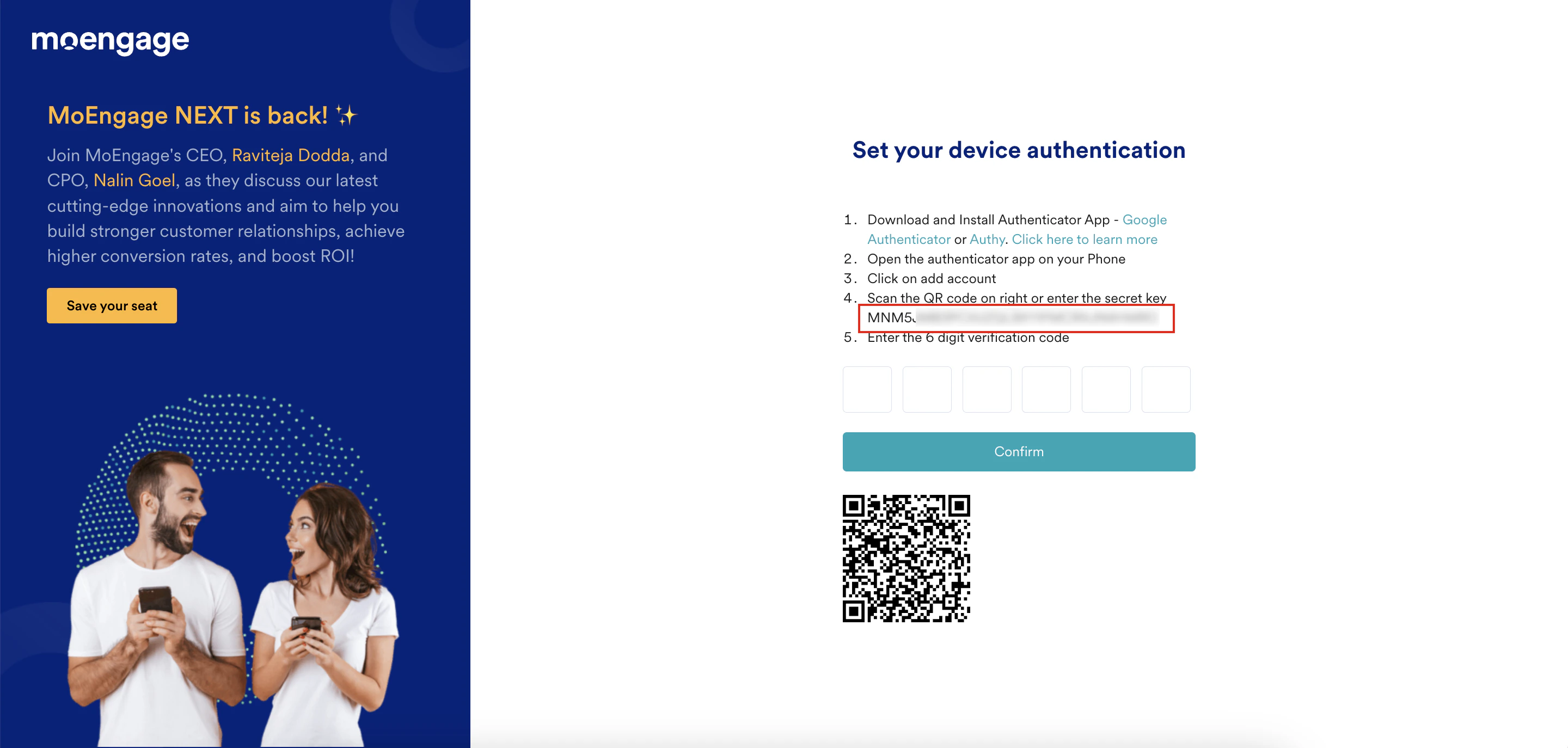 |
| Type of key | Optional | This is the type of your key. Supported values are:
|
| Type of key | Optional | This is the type of your key. Supported values are: - **Time based**: The OTP is generated based on the current time.
- **Counter based**: The OTP is generated based on an incrementing counter. Select an option. In the following example, *Time based* is selected.
|
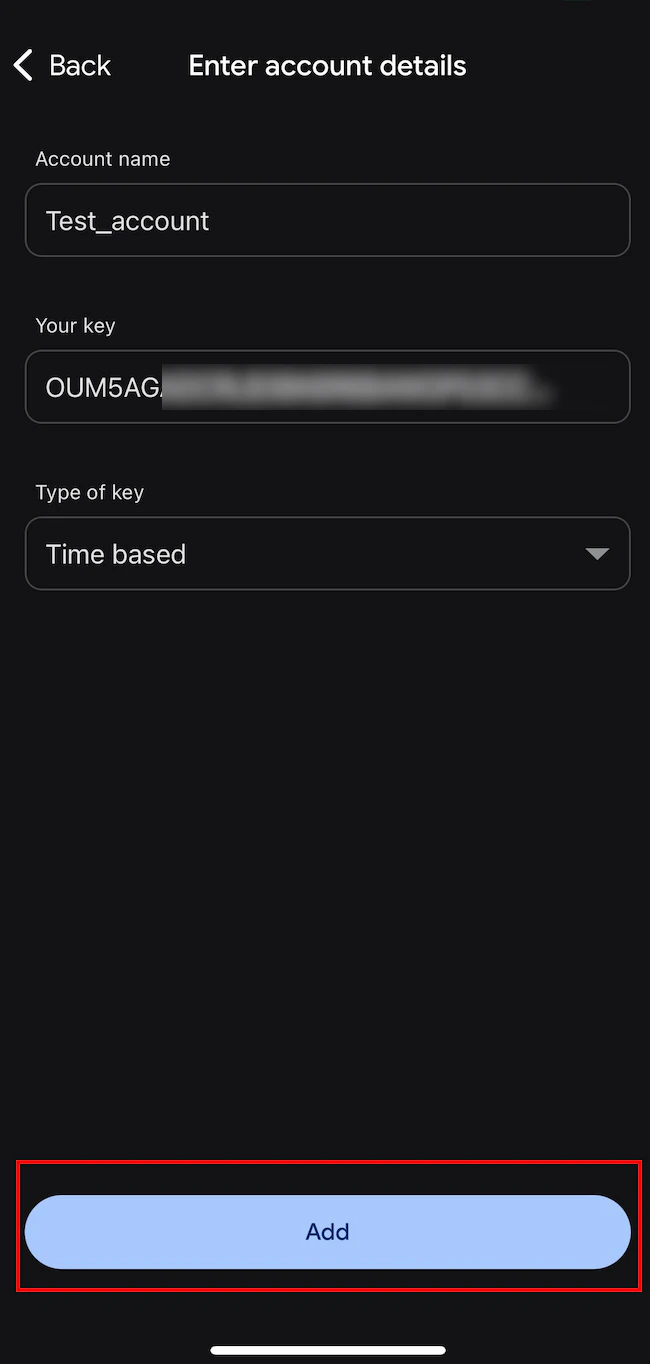 3. Tap **Add**.\
An authentication is added to your device with the name you entered in the **Account name** box. Your device receives a new authentication, which appears below the previous authentication.
3. Tap **Add**.\
An authentication is added to your device with the name you entered in the **Account name** box. Your device receives a new authentication, which appears below the previous authentication.  In the future, you must use the verification code from the new instance only.
9. In the **Enter the 6 digit verification code** box, type the 6-digit authentication code generated by your authentication app.
Each authentication code your authentication app generates is valid only for 30 seconds. After that, your authentication app generates a new code.
In the future, you must use the verification code from the new instance only.
9. In the **Enter the 6 digit verification code** box, type the 6-digit authentication code generated by your authentication app.
Each authentication code your authentication app generates is valid only for 30 seconds. After that, your authentication app generates a new code.
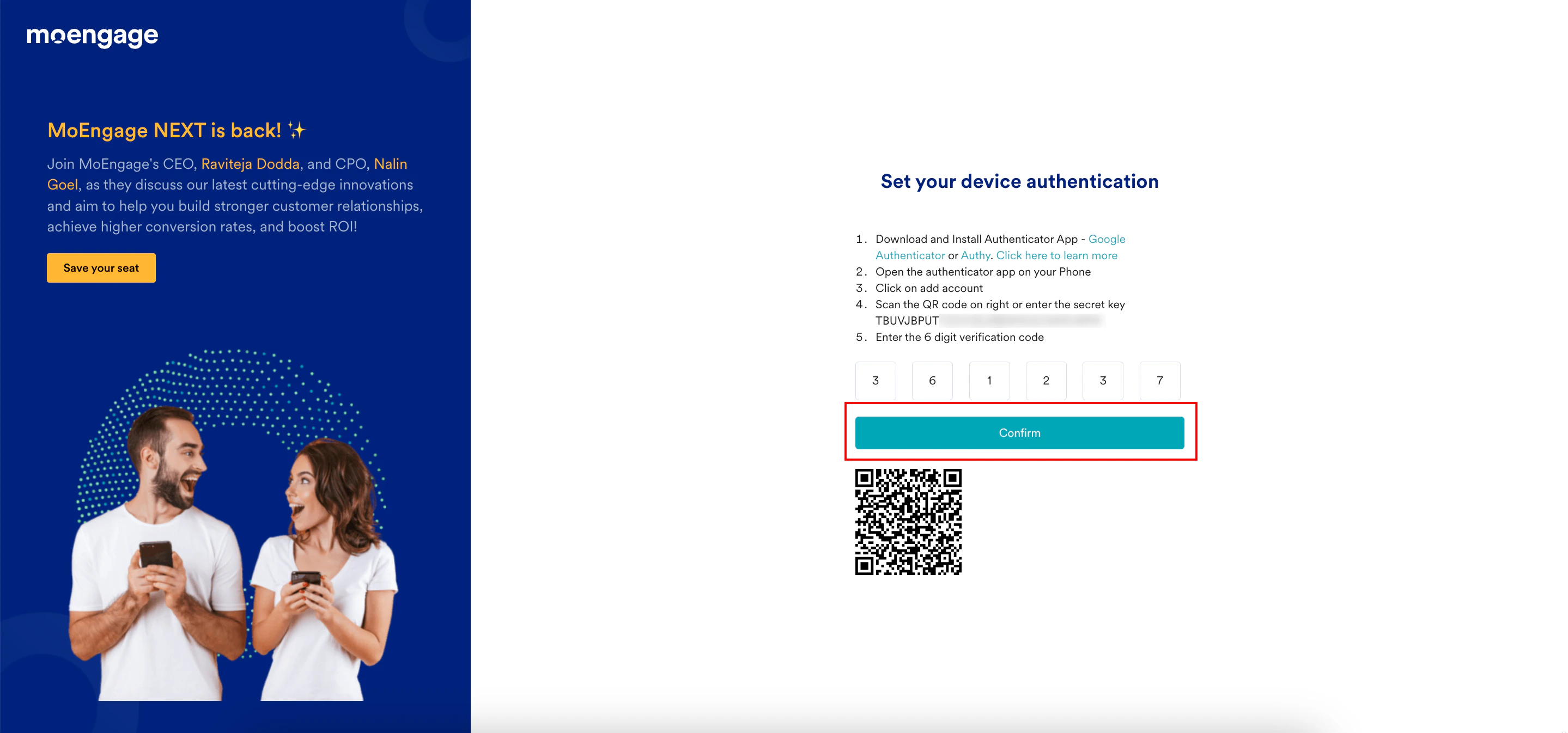 10. Click **Confirm**. You have successfully reset the 2-step verification on your device.
11. Click **Download recovery codes** to access your account without your device. The recovery codes will be downloaded in the CSV file.
You should store these codes securely and not share them with others. They serve as a backup or alternative method to verify your identity if you lose access to your primary 2-step verification device. For more information, refer to [Recovery Codes](/user-guide/getting-started/initial-setup/recovery-codes).
10. Click **Confirm**. You have successfully reset the 2-step verification on your device.
11. Click **Download recovery codes** to access your account without your device. The recovery codes will be downloaded in the CSV file.
You should store these codes securely and not share them with others. They serve as a backup or alternative method to verify your identity if you lose access to your primary 2-step verification device. For more information, refer to [Recovery Codes](/user-guide/getting-started/initial-setup/recovery-codes).
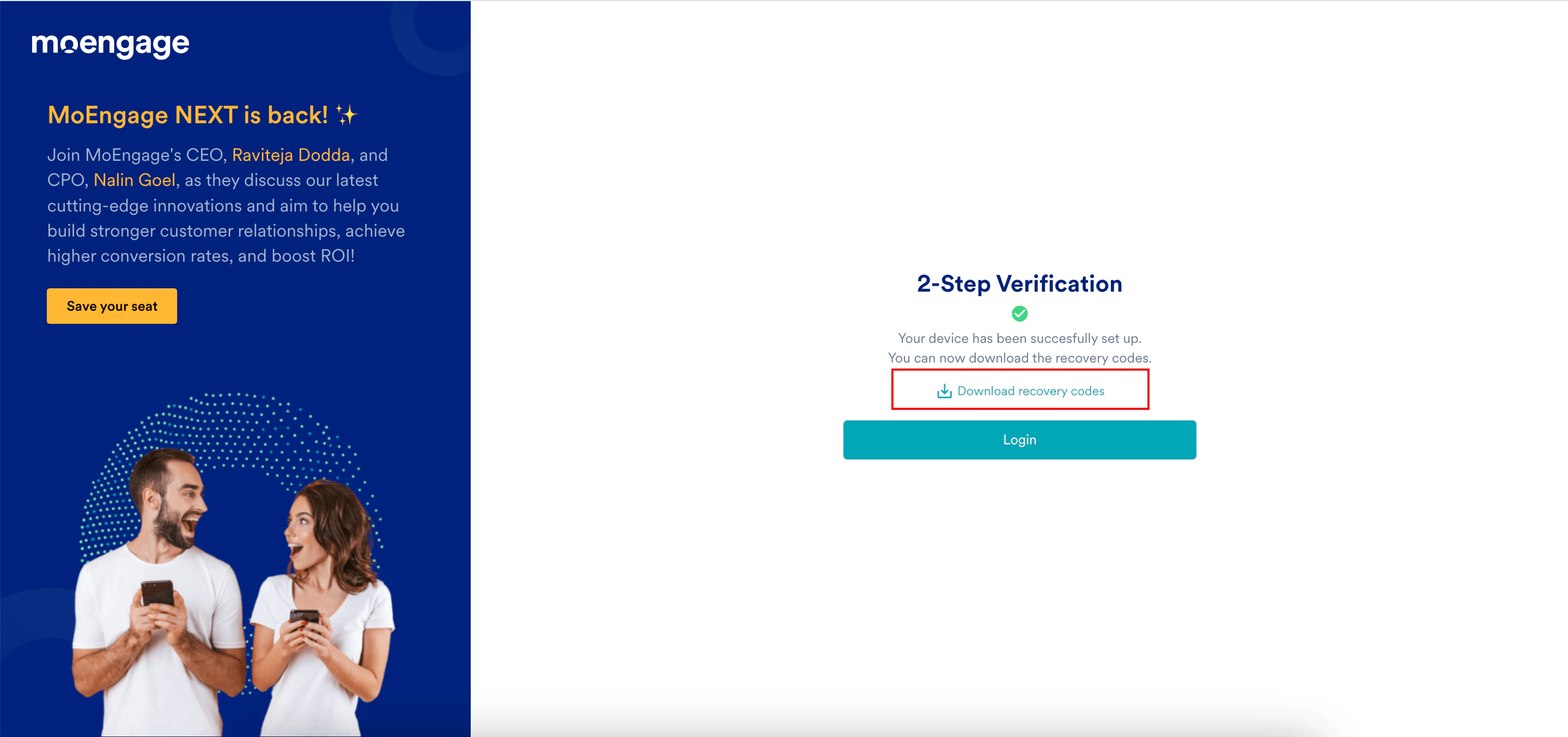 12. Click **Login**. The Login to your accounts page appears.
 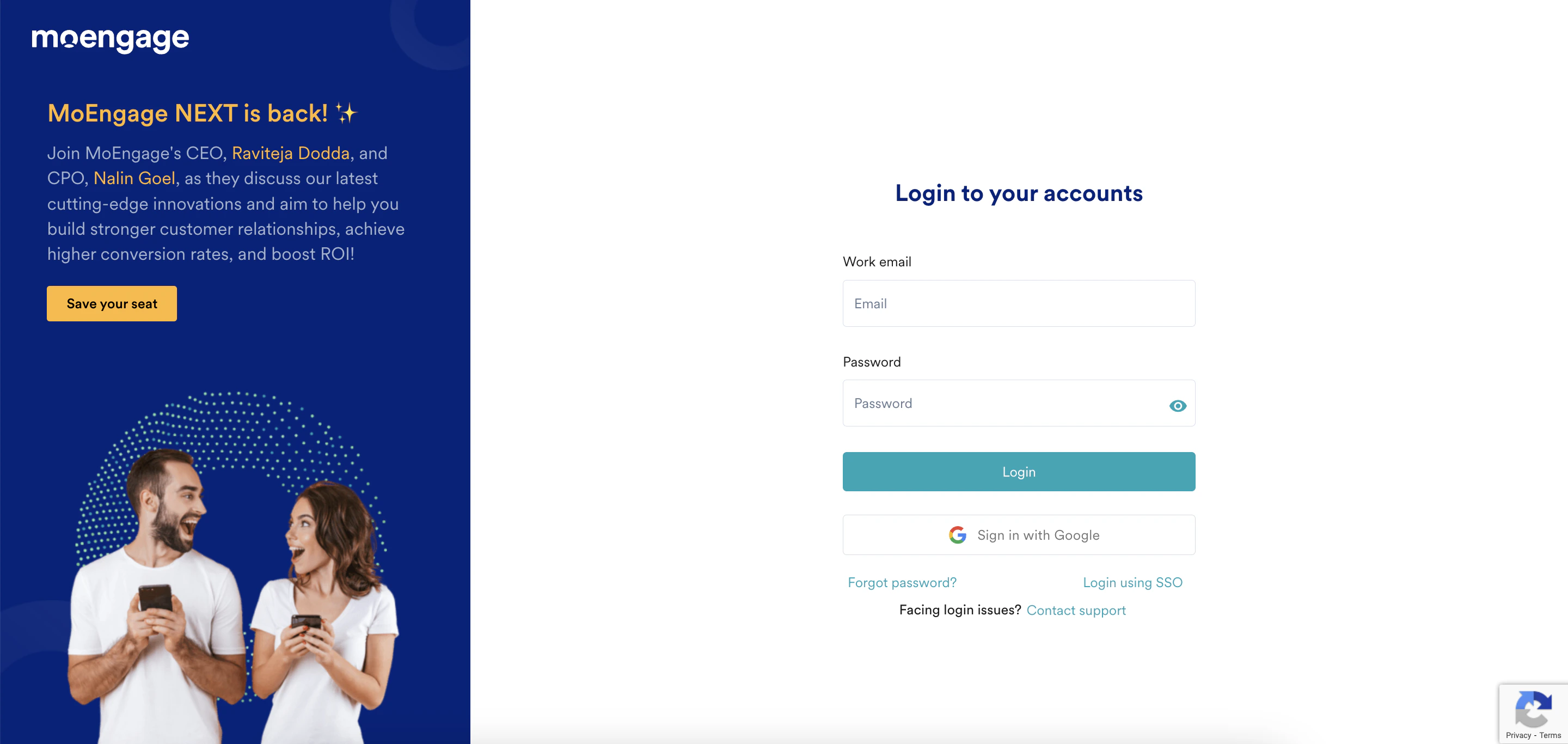 13. You can log in to your account now. For more information, refer to [Log in to MoEngage](/user-guide/getting-started/initial-setup/log-in-to-moengage).