> ## Documentation Index
> Fetch the complete documentation index at: https://moengage-user-guide.mintlify.site/llms.txt
> Use this file to discover all available pages before exploring further.
# Dynamic Sender Routing
# Overview
*Dynamic Sender Routing* is a customised routing system that automatically selects the most appropriate sender for each API request. By defining custom routing rules based on user attributes or API attributes, you can optimize your messaging for better deliverability, manage sending costs, and ensure compliance with local regulations. Configuring dynamic sender routing eliminates manual sender selection, providing a powerful and flexible solution for managing your communications at scale.
This feature is supported only for [SMS](/user-guide/campaigns-and-channels/sms-mms-and-rcs/sms/getting-started-with-sms/configure-an-sms-sender) and [Email](/user-guide/campaigns-and-channels/email/getting-started-with-email/configure-email-channel) channels.
# Use Cases
* **Geo-based routing**: Automatically route messages through a local sender based on the user's country code (e.g., use a US sender for +1 numbers and an Indian sender for +91 numbers). This improves local deliverability and can optimize costs.
* **Cost optimization**: Configure routing to prioritize the most cost-effective sender for a given region. This enables the dynamic selection of senders to optimize messaging costs based on volume or other pricing criteria. For example, A routing rule can be configured to use Sender A for all messages to the US, where the per-message cost is \$0.01. If the monthly message volume to the US exceeds 10,000, a rule is triggered to use Sender B, which offers a bulk rate of \$0.008 per message, thereby minimizing total sending costs.
* **A/B testing of senders**: Create a routing rule to send a small percentage of a campaign's traffic to a new sender. This allows you to test the new sender's performance before rolling it out to your entire audience.
# Configure Dynamic Sender Routing
To configure dynamic sender routing rules, perform the following steps:
1. Log in to the MoEngage dashboard and navigate to **Settings** on the left-side panel.
2. Under **Channels**, select the required channel. As this feature is supported only for SMS and Email channels, select the channel as per requirement.
3. On the following page, click the **Dynamic Sender Routing** tab.
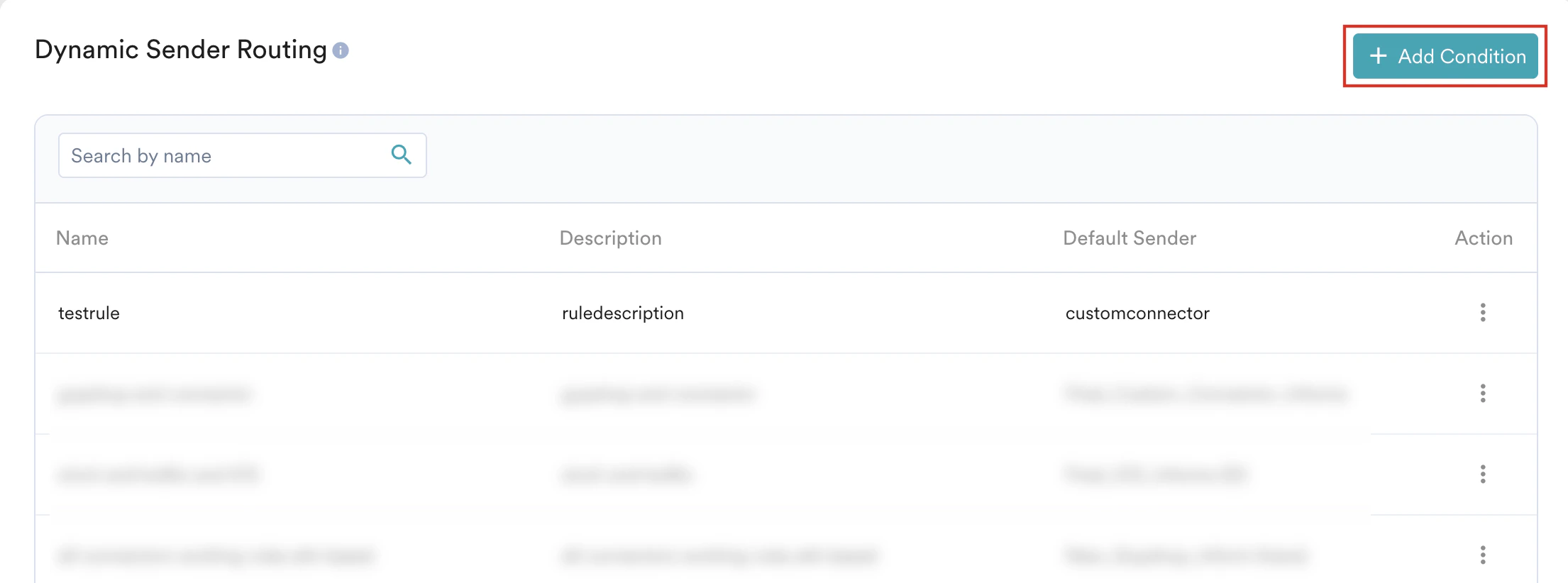
4. On the **Dynamic Sender Routing** page, click **+ Add Condition**.
 5. On the **Add condition** page, enter the following details:
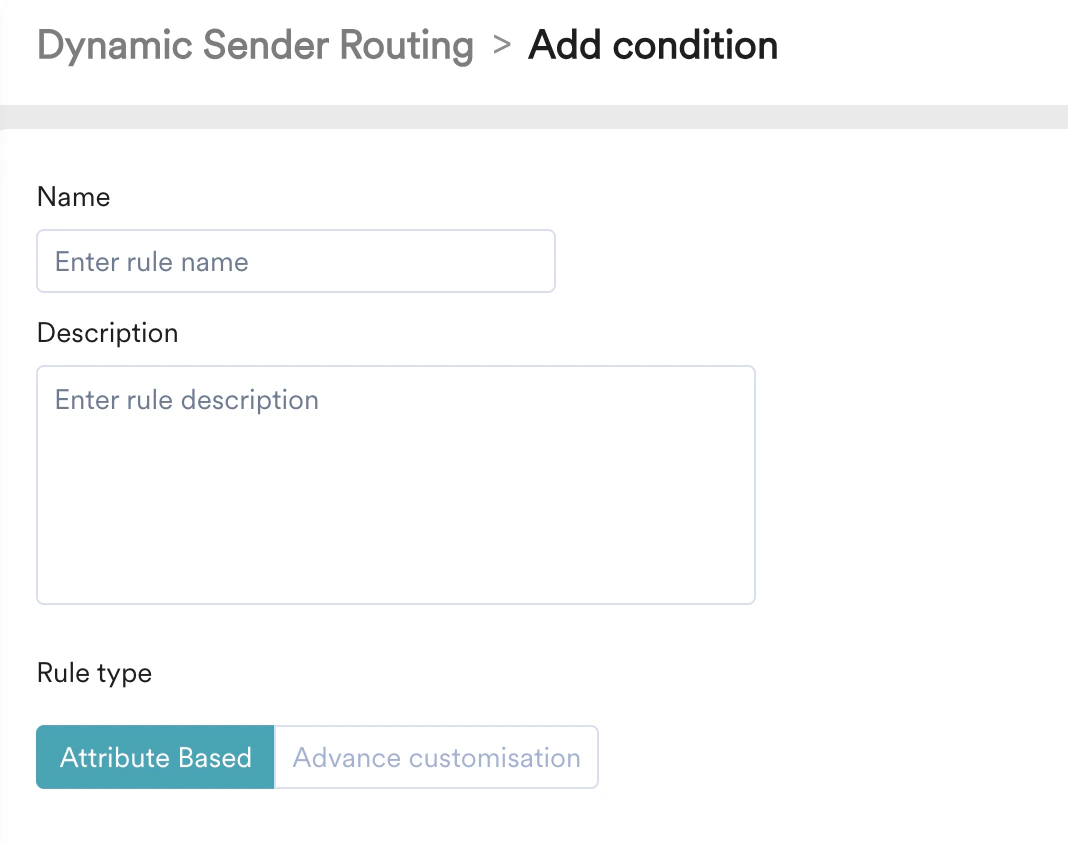
* **Name**: Enter the condition name. This name helps you identify and manage the condition, and you can use it when creating alerts.
* **Description**: Add a description for the condition that indicates where and how you use the rule.
* **Rule type**: This field allows you to select the rule required for sender selection. The following rule types are available:
5. On the **Add condition** page, enter the following details:
* **Name**: Enter the condition name. This name helps you identify and manage the condition, and you can use it when creating alerts.
* **Description**: Add a description for the condition that indicates where and how you use the rule.
* **Rule type**: This field allows you to select the rule required for sender selection. The following rule types are available:
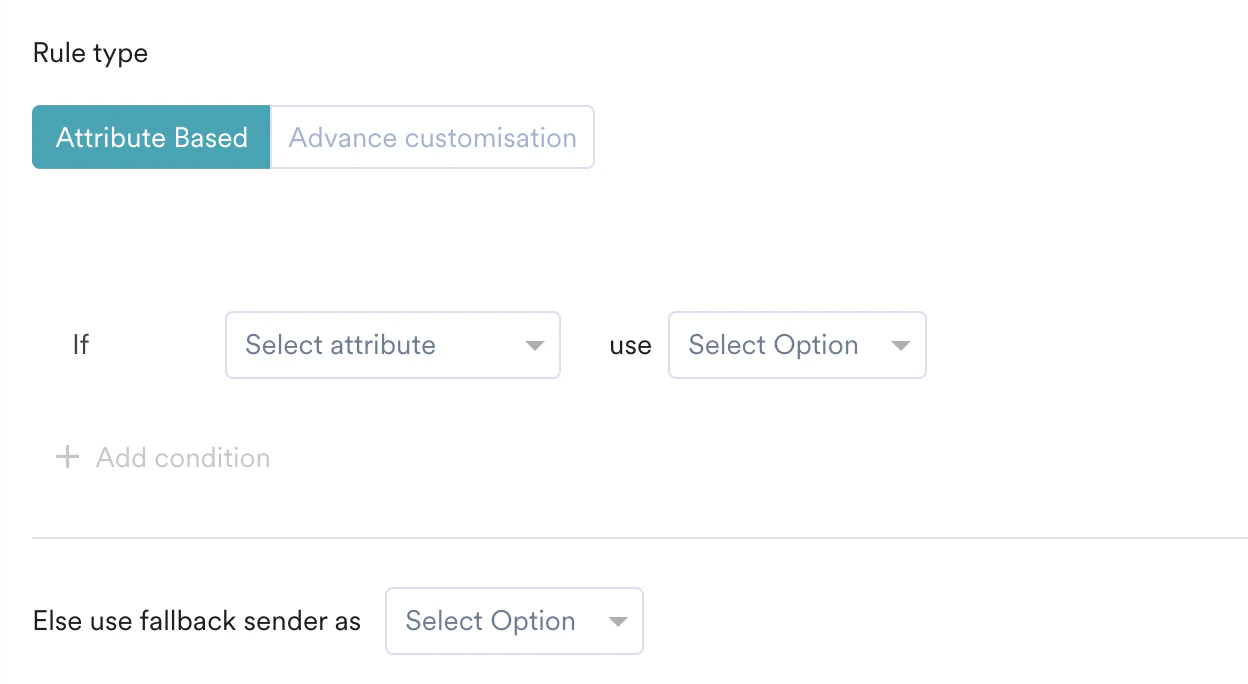
 * **Attribute Based**: This rule type allows you to select a sender based on attributes stored in the user profile. For example, if *moe\_mobile* (an attribute) starts with *+1*, use *Sender\_A* ( a sender); else if *moe\_mobile* (an attribute) starts with *+91*, use *Sender\_B* (another sender). Conditions for this rule are explained below:
* **If** condition: Defines the initial condition. For example, if a user's *moe\_mobile* attribute starts with *+1*, use *Sender\_A*.
* **+ Add condition**: Click **+ Add condition** to add more *Else if* conditions. If the initial **If** condition is not met, MoEngage checks this condition. For example, if the *moe\_mobile* attribute starts with *+91*, use *Sender\_B*.
* **Else use fallback sender as**: If neither the *If* nor any *Else If* conditions are met, the system uses the specified fallback sender as a default.
* **Attribute Based**: This rule type allows you to select a sender based on attributes stored in the user profile. For example, if *moe\_mobile* (an attribute) starts with *+1*, use *Sender\_A* ( a sender); else if *moe\_mobile* (an attribute) starts with *+91*, use *Sender\_B* (another sender). Conditions for this rule are explained below:
* **If** condition: Defines the initial condition. For example, if a user's *moe\_mobile* attribute starts with *+1*, use *Sender\_A*.
* **+ Add condition**: Click **+ Add condition** to add more *Else if* conditions. If the initial **If** condition is not met, MoEngage checks this condition. For example, if the *moe\_mobile* attribute starts with *+91*, use *Sender\_B*.
* **Else use fallback sender as**: If neither the *If* nor any *Else If* conditions are met, the system uses the specified fallback sender as a default.
 * **Advance Customisation**:\
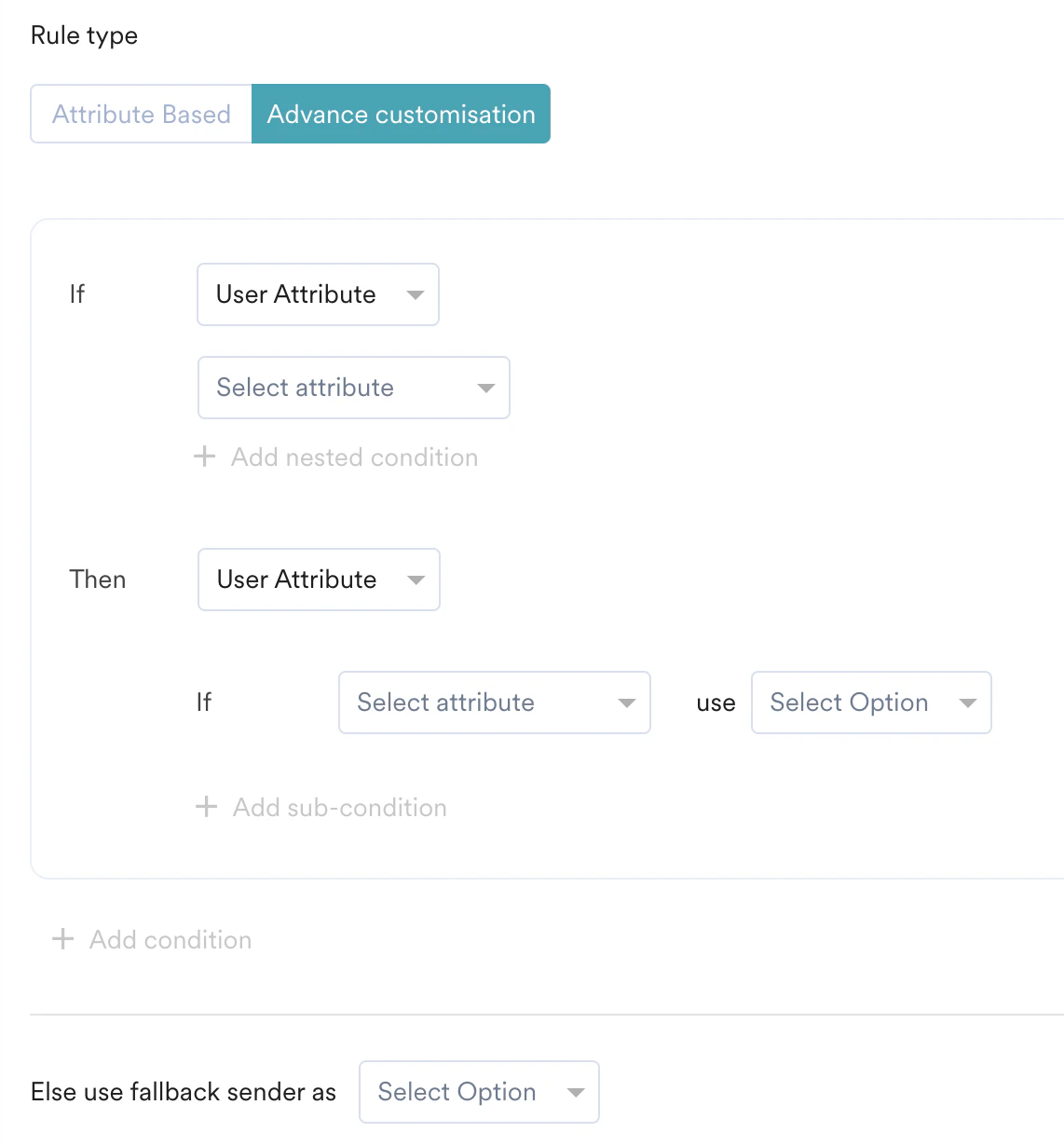
This option allows you to use a combination of API attributes (a piece of data passed to MoEngage as part of an API call, but is not stored as a permanent part of a user's profile) and user attributes to create a rule to select senders. Conditions for this rule are explained below:
* **If** condition: Defines the primary conditions that must be met for the rule to apply.
* **Select Attribute**: Choose the user or API attribute for the condition.
* Select attribute value: Enter or select the specific value for the chosen attribute.
* Operator: Select a logical operator.
* **Case Sensitive**: Select this checkbox if the value comparison should be case-sensitive.
* **+ Add nested condition**: Add more criteria that combine with the existing ones using AND or OR logic.
* **Then** condition: Defines the sender that you want to select when the *If* conditions are met.
* **Select User Attribute/Sender:** Choose the user attribute or sender for the condition.
* **+ Add sub-condition**: Define specific sub-conditions to select the sender. Add multiple criteria for sender selection within the *Then* block.
* **Else if**: Click **+ Add sub-condition** to add alternative sub-conditions using *Else if* within the same *Then* block. MoEngage evaluates these sub-conditions sequentially. It executes the action for the first one that is true and ignores the rest.
* **+ Add condition**: Click **+ Add condition** to add multiple *Else If-Then* rule blocks to create complex routing logic. The system evaluates these blocks in the order they appear, and the first rule whose conditions are met dictates the sender.
* **Else use fallback sender as**: If none of the defined conditions are met, the system uses the specified fallback sender.
* **Advance Customisation**:\
This option allows you to use a combination of API attributes (a piece of data passed to MoEngage as part of an API call, but is not stored as a permanent part of a user's profile) and user attributes to create a rule to select senders. Conditions for this rule are explained below:
* **If** condition: Defines the primary conditions that must be met for the rule to apply.
* **Select Attribute**: Choose the user or API attribute for the condition.
* Select attribute value: Enter or select the specific value for the chosen attribute.
* Operator: Select a logical operator.
* **Case Sensitive**: Select this checkbox if the value comparison should be case-sensitive.
* **+ Add nested condition**: Add more criteria that combine with the existing ones using AND or OR logic.
* **Then** condition: Defines the sender that you want to select when the *If* conditions are met.
* **Select User Attribute/Sender:** Choose the user attribute or sender for the condition.
* **+ Add sub-condition**: Define specific sub-conditions to select the sender. Add multiple criteria for sender selection within the *Then* block.
* **Else if**: Click **+ Add sub-condition** to add alternative sub-conditions using *Else if* within the same *Then* block. MoEngage evaluates these sub-conditions sequentially. It executes the action for the first one that is true and ignores the rest.
* **+ Add condition**: Click **+ Add condition** to add multiple *Else If-Then* rule blocks to create complex routing logic. The system evaluates these blocks in the order they appear, and the first rule whose conditions are met dictates the sender.
* **Else use fallback sender as**: If none of the defined conditions are met, the system uses the specified fallback sender.
 ### Sample Rules
The following are some of the sample rules created using the combinations of different user attributes, different API attributes, and the combination of user and API attributes.
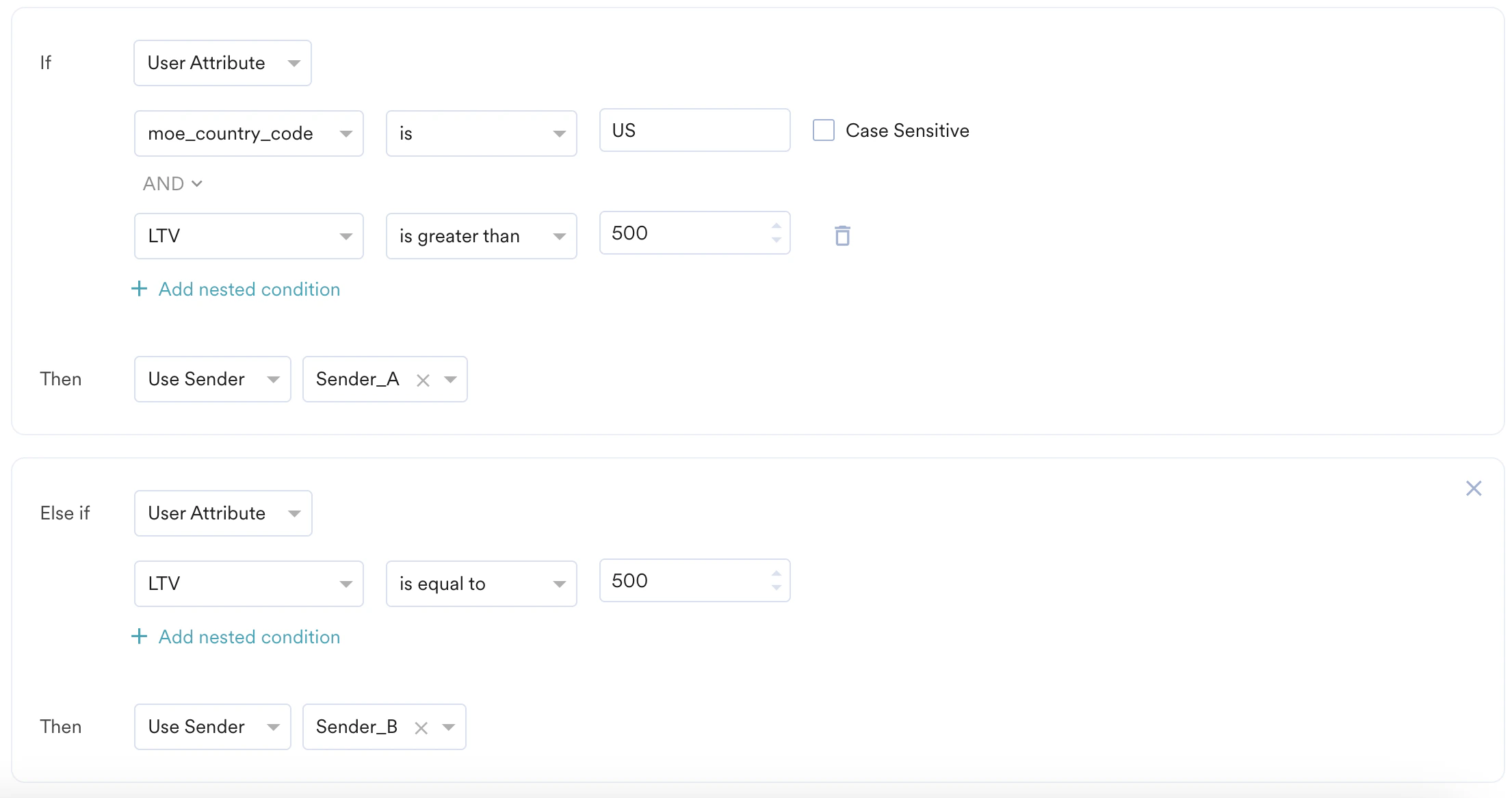
If a user's *moe\_country\_code* is *US* AND their *LTV* (Lifetime Value) is greater than *500*, then use *Sender\_A*. If the *moe\_country\_code* is *US* but their *LTV* is less than or equal to 500, use *Sender\_B*.
Conditions for this rule:\
**If** moe\_country\_code (user attribute) is *US* **AND** *LTV* (user attribute) is greater than 500, **then** use *Sender\_A*.
**Else if** *LTV* (user attribute) is equal to 500, **then** use *Sender\_B.*
### Sample Rules
The following are some of the sample rules created using the combinations of different user attributes, different API attributes, and the combination of user and API attributes.
If a user's *moe\_country\_code* is *US* AND their *LTV* (Lifetime Value) is greater than *500*, then use *Sender\_A*. If the *moe\_country\_code* is *US* but their *LTV* is less than or equal to 500, use *Sender\_B*.
Conditions for this rule:\
**If** moe\_country\_code (user attribute) is *US* **AND** *LTV* (user attribute) is greater than 500, **then** use *Sender\_A*.
**Else if** *LTV* (user attribute) is equal to 500, **then** use *Sender\_B.*
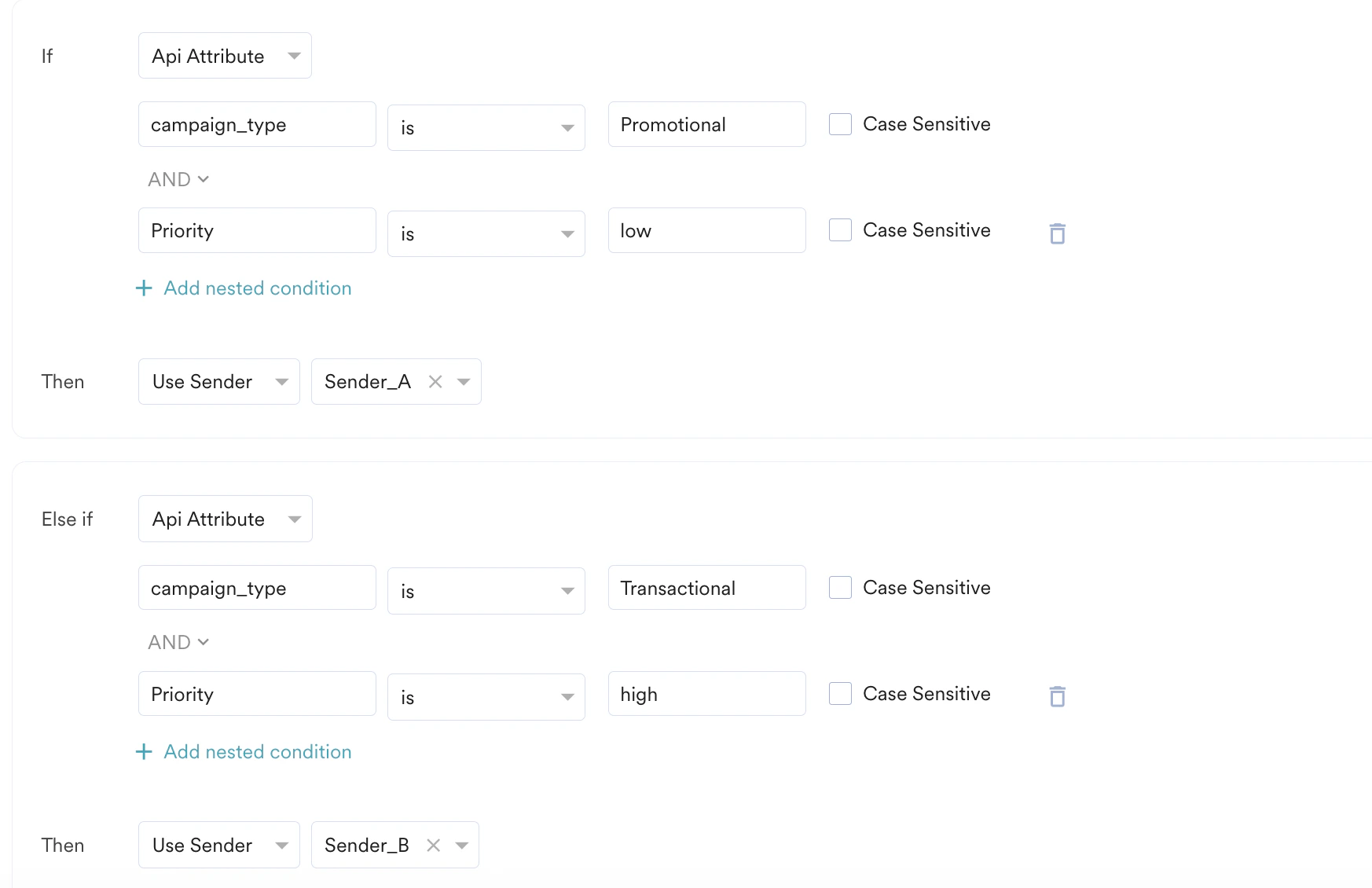
 If *campaign\_type* (API Attribute) is *Promotional* AND *priority* (API Attribute) is *low*, then use *Sender\_A*. If the *campaign\_type* (API Attribute) is *Transactional* AND *priority* (API Attribute) is *high*, then use *Sender\_B*.
Conditions for this rule:
**If** *campaign\_type* (API Attribute) is *Promotional* **AND** *priority* (API Attribute) is *low*, **then** use *Sender A*.
**Else if** campaign\_type (API Attribute) is *Transactional* **AND** *priority* (API Attribute) is *high,* **then** use *Sender B*.
If *campaign\_type* (API Attribute) is *Promotional* AND *priority* (API Attribute) is *low*, then use *Sender\_A*. If the *campaign\_type* (API Attribute) is *Transactional* AND *priority* (API Attribute) is *high*, then use *Sender\_B*.
Conditions for this rule:
**If** *campaign\_type* (API Attribute) is *Promotional* **AND** *priority* (API Attribute) is *low*, **then** use *Sender A*.
**Else if** campaign\_type (API Attribute) is *Transactional* **AND** *priority* (API Attribute) is *high,* **then** use *Sender B*.
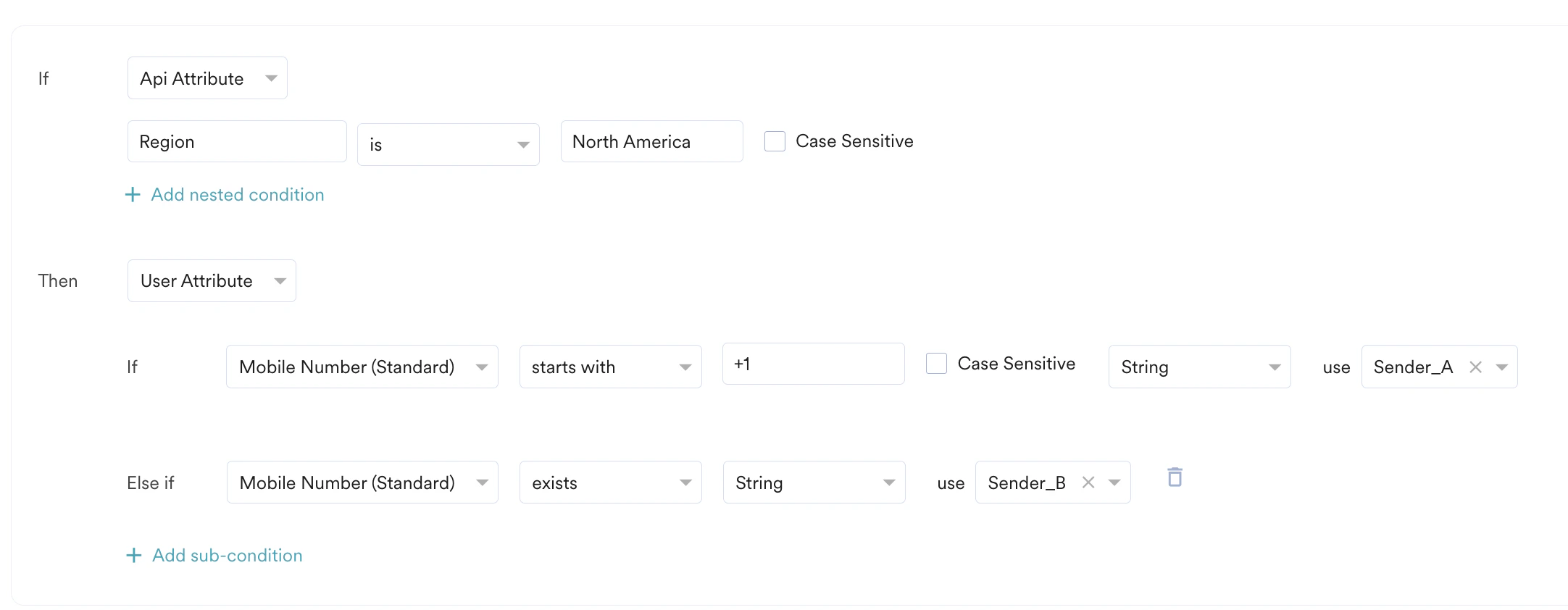
 If the *Region* (API attribute) is *North America*, then use *Sender A* for users whose mobile number starts with +1, and use *Sender B* for all other users whose mobile number exists.
Conditions for this rule:
**If** the main condition is met (the region is North America), the nested condition is as follows:
**If** the Mobile Number (user attribute) starts with +1, **then** use Sender A.\
**Else if** Mobile Number (user attribute) exists, **then** use Sender B.
If the *Region* (API attribute) is *North America*, then use *Sender A* for users whose mobile number starts with +1, and use *Sender B* for all other users whose mobile number exists.
Conditions for this rule:
**If** the main condition is met (the region is North America), the nested condition is as follows:
**If** the Mobile Number (user attribute) starts with +1, **then** use Sender A.\
**Else if** Mobile Number (user attribute) exists, **then** use Sender B.
 6. Click **Save**. After saving, all the routing conditions you created are listed under the **Dynamic Sender Routing** tab
7. Click the ellipsis icon against each condition to edit that condition.
# FAQs
A fallback sender is a default sender that is automatically used if a message does not meet the conditions of any of the rules you have defined. This ensures that messages are always sent, even if they don't match specific routing logic.
Yes, you can. The "Advance Customisation" rule type is designed for this purpose, allowing you to combine API attributes (sent with the message request) with user attributes(from the user profile) to create highly specific routing logic.
The system processes your routing rules in a top-down order. It executes the action for the very first rule that is fully matched and then stops. Because of this, the order of your rules is critical. You should arrange them from most specific to most general to ensure your intended logic is followed.
# Next Steps
1. [Create Alerts](/user-guide/inform/create/create-alert)
2. [Alert Analytics](/user-guide/inform/analyze/alert-analytics)
6. Click **Save**. After saving, all the routing conditions you created are listed under the **Dynamic Sender Routing** tab
7. Click the ellipsis icon against each condition to edit that condition.
# FAQs
A fallback sender is a default sender that is automatically used if a message does not meet the conditions of any of the rules you have defined. This ensures that messages are always sent, even if they don't match specific routing logic.
Yes, you can. The "Advance Customisation" rule type is designed for this purpose, allowing you to combine API attributes (sent with the message request) with user attributes(from the user profile) to create highly specific routing logic.
The system processes your routing rules in a top-down order. It executes the action for the very first rule that is fully matched and then stops. Because of this, the order of your rules is critical. You should arrange them from most specific to most general to ensure your intended logic is followed.
# Next Steps
1. [Create Alerts](/user-guide/inform/create/create-alert)
2. [Alert Analytics](/user-guide/inform/analyze/alert-analytics)