> ## Documentation Index
> Fetch the complete documentation index at: https://moengage-user-guide.mintlify.site/llms.txt
> Use this file to discover all available pages before exploring further.
# Tracking clicks
The **Track click** feature allows you to monitor the number of clicks on a certain element in your application.\
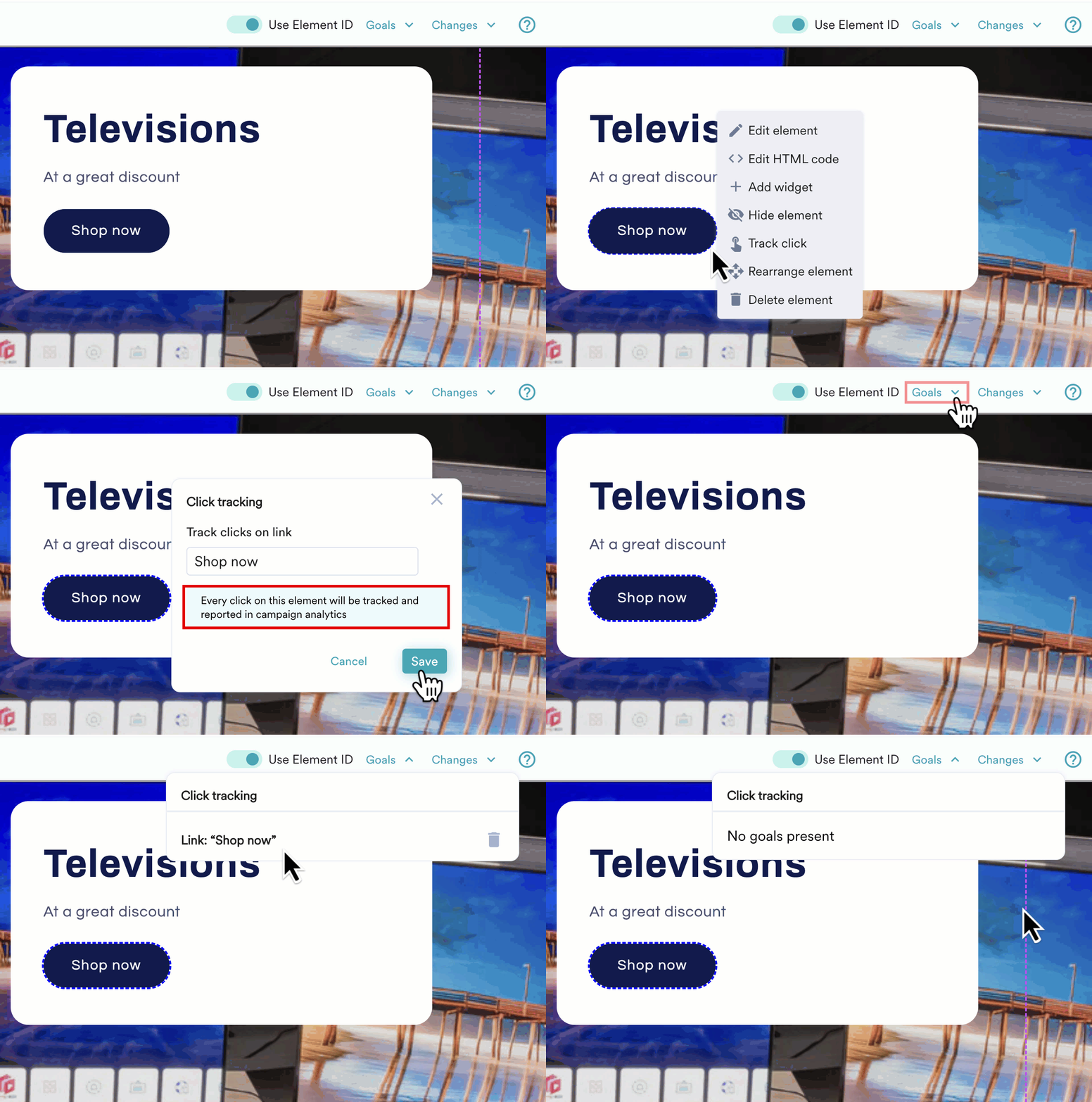
Let's say your conversion goal is to get customers to buy a television using your app. So, you enable **Track click** on the selected product's **Shop Now** button to keep track of how many users clicked it. Every click on the selected element will be tracked and reported in the Campaign Analytics of your MoEngage dashboard.
## Steps to enable **track click:**
1. Click on the element you want to edit on your web page and > select **Track click.** This will pop up a window displaying,
* **Track click on link** and the element you selected, e.g., Shop now
* And the message "Every click on this element will be tracked and reported in campaign analytics". Now, Click S**ave**.
2. You can view the list of elements that have Track click enabled in the **Goals** dropdown and delete them if not required.
 You can track clicks on upto 10 elements in each variation.