> ## Documentation Index
> Fetch the complete documentation index at: https://moengage-user-guide.mintlify.site/llms.txt
> Use this file to discover all available pages before exploring further.
# 2-Step Verification or Two-Factor Authentication (2FA)
# Overview
2-step verification or two-factor authentication (2FA) is a security measure that requires two different verification steps to access an account or system, rather than just a password. This adds an extra layer of protection against unauthorized access. 2FA requires the user to prove their identity in two separate ways, often combining "something they know" (like a password) with "something they have" (like a phone).
## Advantages of 2-Step Verification
2-step verification provides you with the following advantages:
* **Enhanced security**: 2-step verification significantly strengthens account security, making it significantly harder for hackers to gain unauthorized access, even if they somehow obtain a password.
* **Reduced risk of fraud and data breaches**: By requiring a second factor, 2-step verification helps prevent unauthorized access to sensitive information, reducing the risk of fraud and data breaches.
* **Compliance with regulations**: Many industries and regulations now mandate 2-step verification to protect sensitive data, ensuring businesses meet compliance requirements like those for cybersecurity insurance and financial institutions.
* **Increased customer trust**: Implementing 2-step verification demonstrates a commitment to security, building customer trust and confidence in the organization's ability to protect their information.
* **Reduced password fatigue**: 2-step verification can help alleviate password fatigue by allowing users to use simpler, easier-to-remember passwords without compromising security.
# 2-Step Verification Implementation in MoEngage
MoEngage allows you to secure your MoEngage account (workspace) with 2-step verification. You can control users' access to your workspace with the following two factors:
* Email ID and password.
* Verification code (generated by the authentication app on the device). MoEngage supports 2-step verification through apps such as Google Authenticator, Twilio Authy, etc.
You can implement 2-step verification at:
* **Workspace level**: Administrators can manage 2-step verification for all users within a workspace.
When an Admin [creates a new workspace](/user-guide/getting-started/initial-setup/sign-up-with-moengage-or-create-a-new-account-in-moengage), MoEngage enables 2-step verification by default. They can enable and disable it for all team members' accounts in that workspace.
* **User level**: If the Admin has not enabled 2-step verification for all users at the workspace level, all users can manage 2-step verification for their respective accounts in **My profile**. For more information, refer to [Manage Your Profile](/user-guide/getting-started/initial-setup/manage-your-profile).
# Disable 2-Step Verification at Workspace Level
MoEngage enables 2-step verification for a new workspace by default. To disable 2-step verification at the workspace level, perform the following steps:
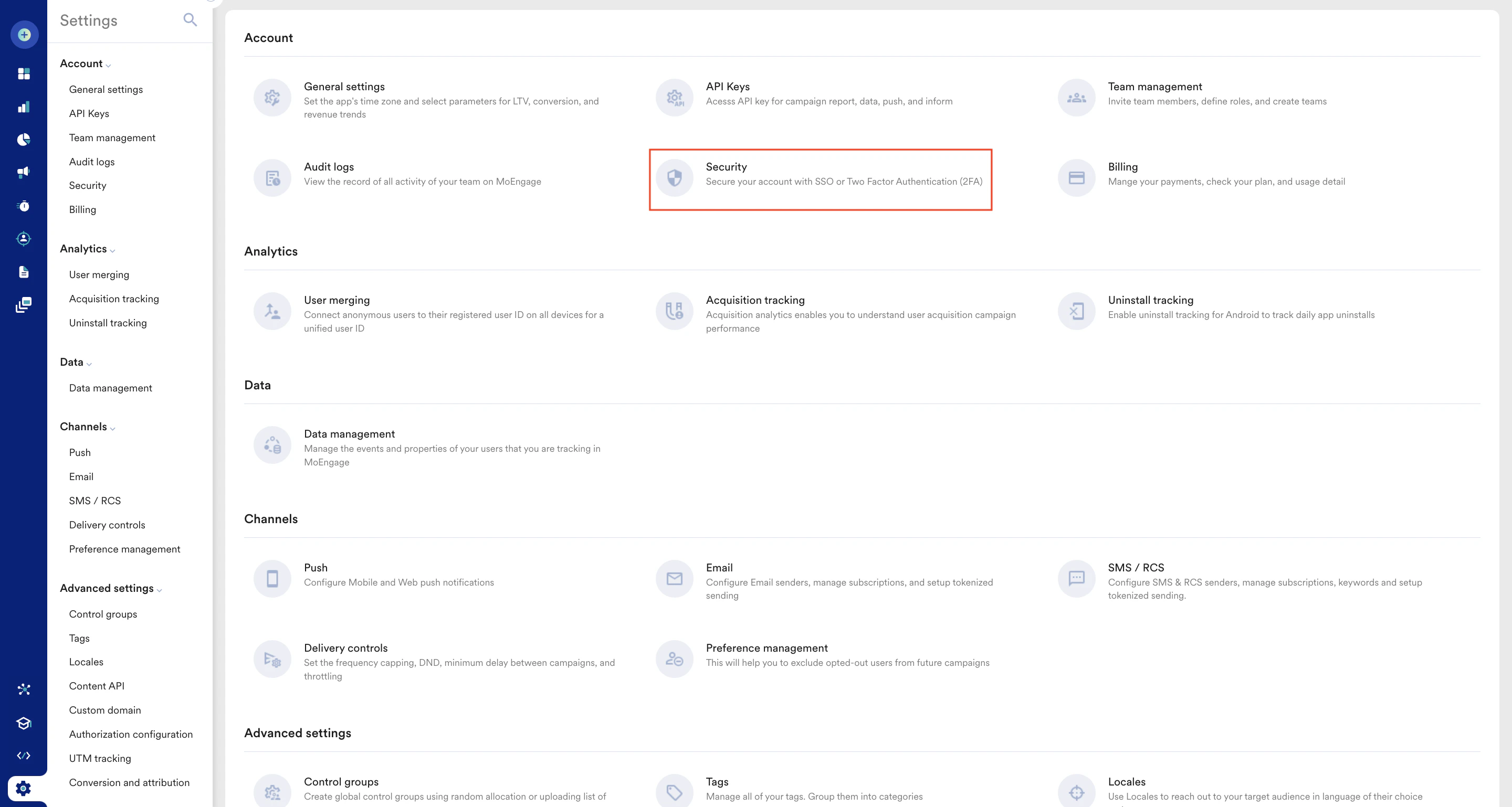
1. On the left navigation menu in the MoEngage dashboard, click **Settings** > **Account** > **Security**.
 2. On the Security page, click the **2-Step verification** tab.
The **2-Step Verification** tab is available only to Admins.
3. In the **2-Step verification** section, under **Enable 2- Step Verification for your team-mates** **on this workspace**, turn the **Disable** toggle on.
2. On the Security page, click the **2-Step verification** tab.
The **2-Step Verification** tab is available only to Admins.
3. In the **2-Step verification** section, under **Enable 2- Step Verification for your team-mates** **on this workspace**, turn the **Disable** toggle on. 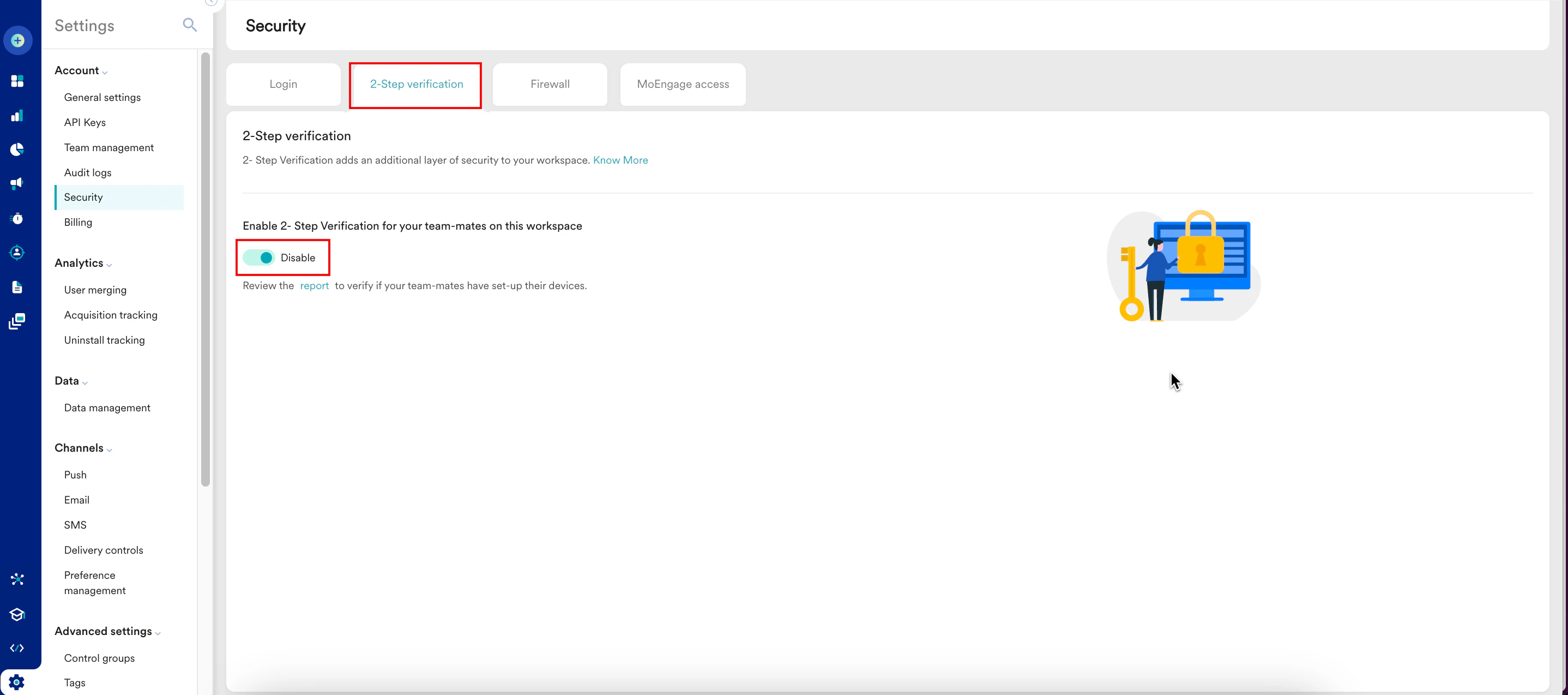 \
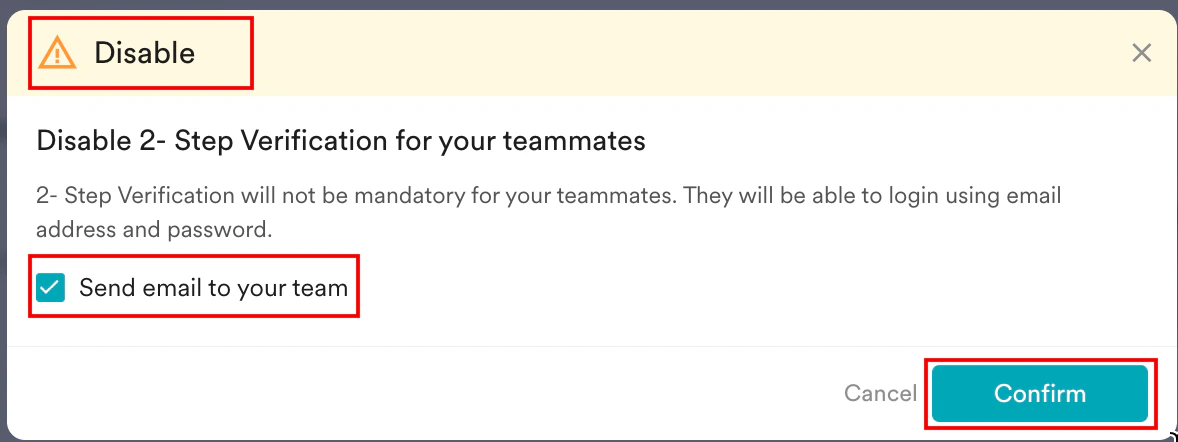
The Disable pop-up window appears, prompting you to review the instructions carefully.
4. Select the **Send email to your team** check box.
5. Click **Confirm**.
\
The Disable pop-up window appears, prompting you to review the instructions carefully.
4. Select the **Send email to your team** check box.
5. Click **Confirm**.
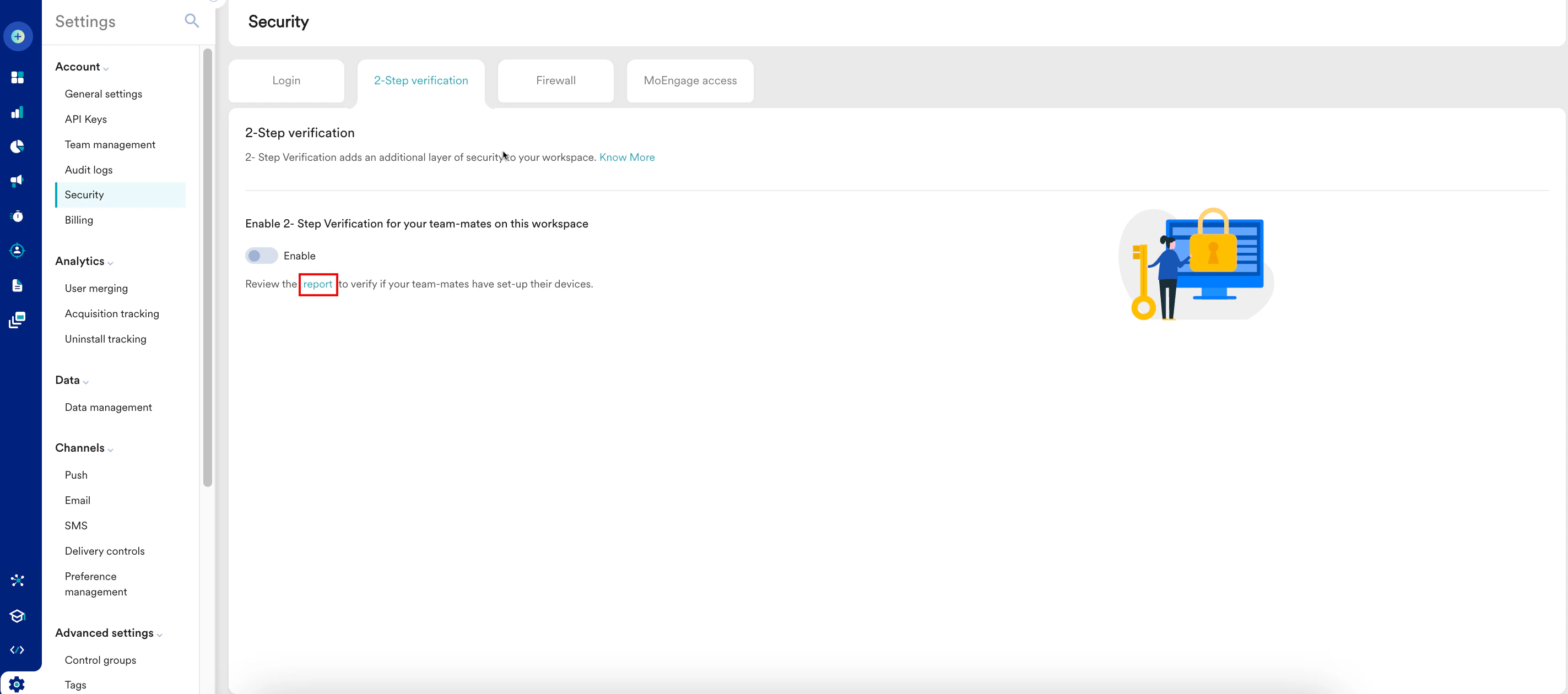
 The 2-step verification is now successfully disabled for all users within that workspace. You can also click the link below the **Enable** toggle to verify if your teammates have set up their devices. You can also download a CSV file that lists the status of 2-step verification for all team members' accounts.
 # Enable 2-Step Verification at Workspace Level
When you create a new workspace, MoEngage enables 2-step verification for that workspace by default. If you disabled it at the workspace level and want to enable it again, perform the following steps:
1. On the left navigation menu in the MoEngage dashboard, click **Settings** > **Account** > **Security**.
2. On the Security page, click the **2-Step verification** tab.
The **2-Step Verification** tab is available only to Admins.
3. In the **2-Step verification** section, under **Enable 2-Step Verification for your teammates on this workspace**, turn the **Enable** toggle on.
# Enable 2-Step Verification at Workspace Level
When you create a new workspace, MoEngage enables 2-step verification for that workspace by default. If you disabled it at the workspace level and want to enable it again, perform the following steps:
1. On the left navigation menu in the MoEngage dashboard, click **Settings** > **Account** > **Security**.
2. On the Security page, click the **2-Step verification** tab.
The **2-Step Verification** tab is available only to Admins.
3. In the **2-Step verification** section, under **Enable 2-Step Verification for your teammates on this workspace**, turn the **Enable** toggle on. 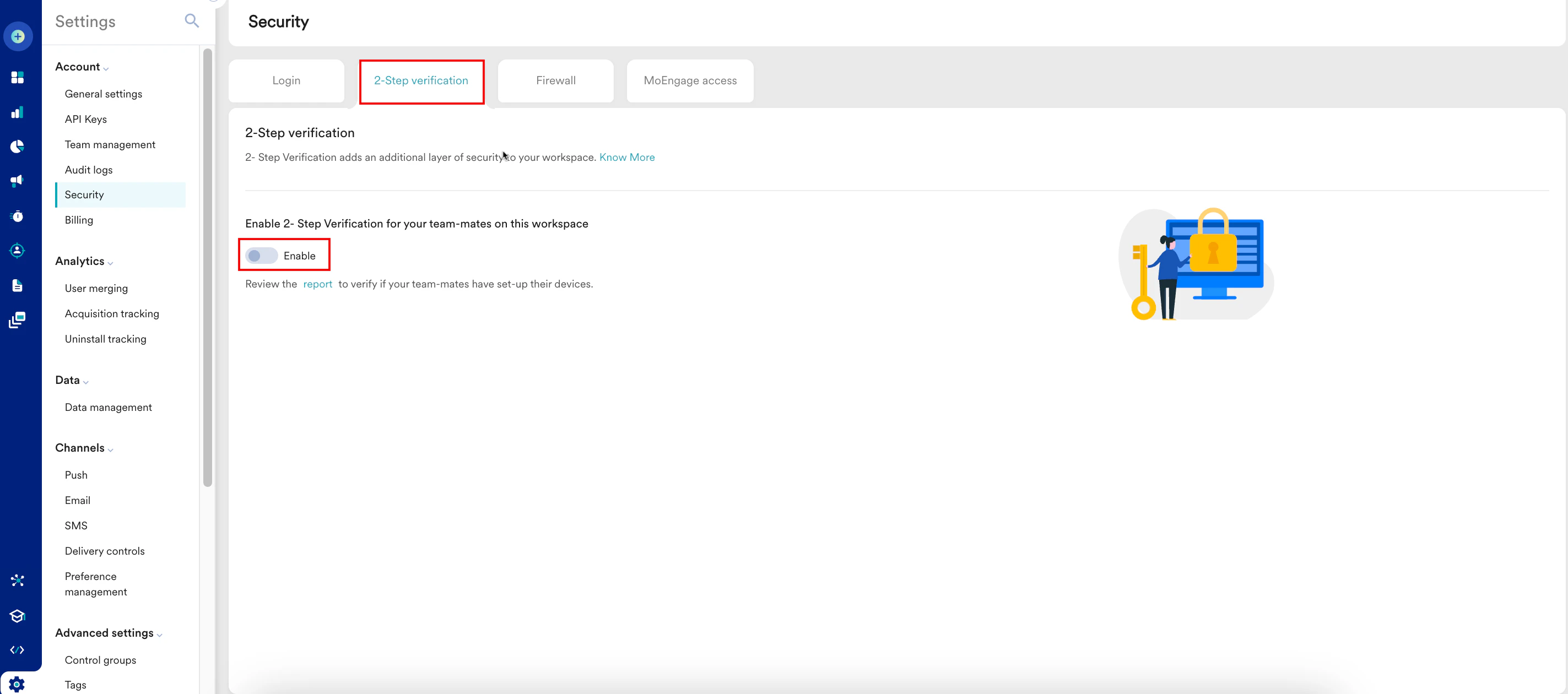 \
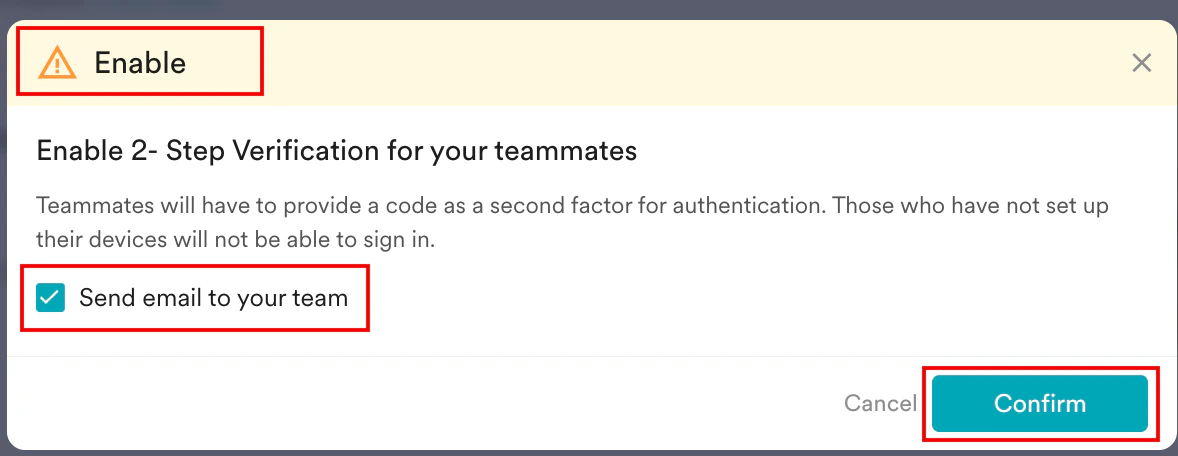
The Enable pop-up window appears, prompting you to review the instructions carefully
4. Select the **Send email to your team** check box.
5. Click **Confirm**.
\
The Enable pop-up window appears, prompting you to review the instructions carefully
4. Select the **Send email to your team** check box.
5. Click **Confirm**.
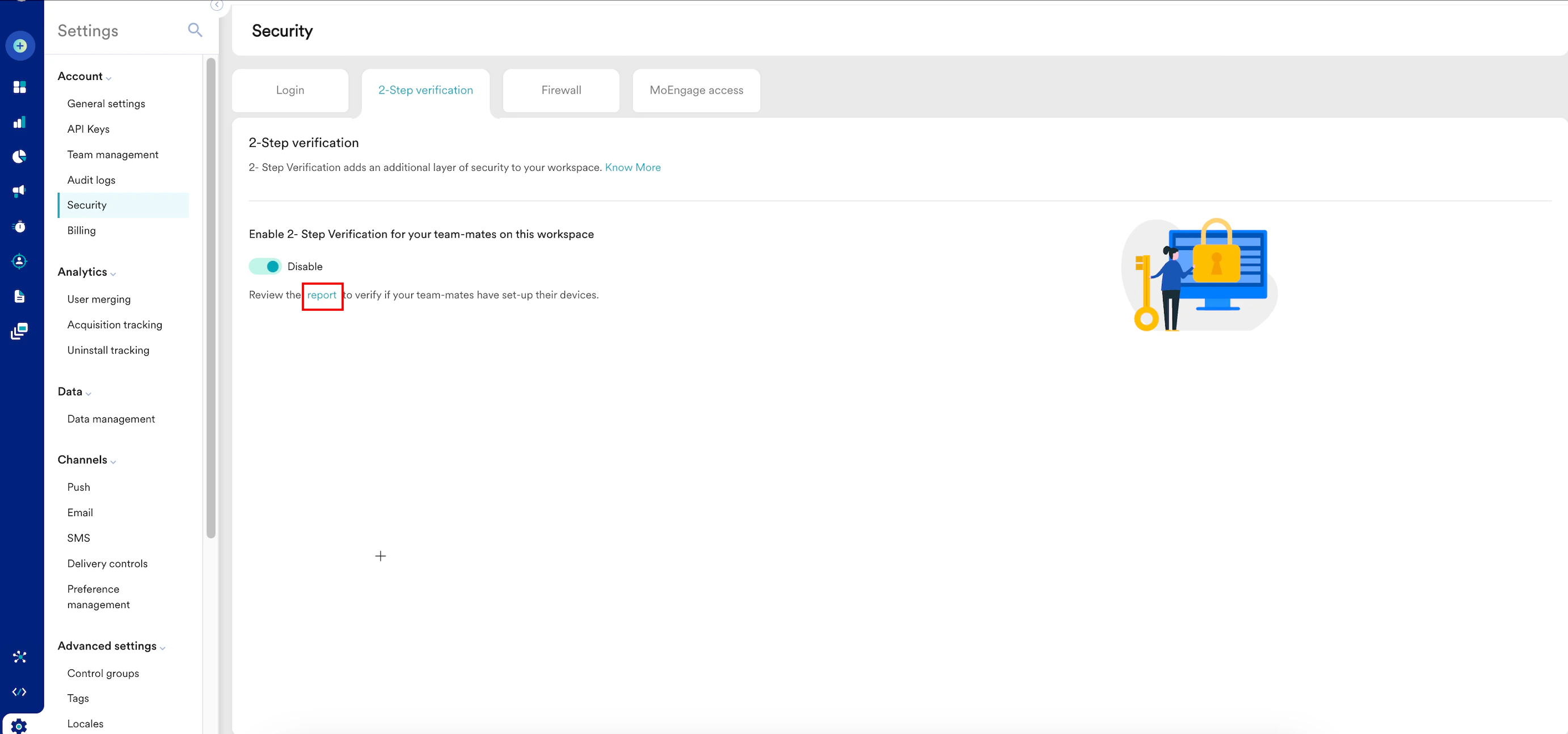
 The 2-step verification is now successfully enabled for all users in the current workspace
6. You can also click the **report**link below the **Disable** toggle to verify if your teammates have set up their devices. You can also download a CSV file that lists the status of 2-step verification for all team members' accounts.
The 2-step verification is now successfully enabled for all users in the current workspace
6. You can also click the **report**link below the **Disable** toggle to verify if your teammates have set up their devices. You can also download a CSV file that lists the status of 2-step verification for all team members' accounts.
 After you enable 2-step verification for your workspace, all users will be automatically logged out of the MoEngage dashboard. When they log in to the MoEngage dashboard again, they must set up 2-step verification on their device. For more information, refer to [Set Up 2-Step Verification on Your Device](/user-guide/getting-started/initial-setup/set-up-2-step-verification-on-your-device).
# FAQs
**Q. I am receiving the following code "The code you entered is invalid. Ensure the system time on your authenticator device matches the time on your login device and try again."**
**A.** Please ensure that both devices have the same system time.
For a permanent resolution, install the Authenticator Extension on the same device you are using to log in to MoEngage. You can download and install it [here](https://chromewebstore.google.com/detail/authenticator/bhghoamapcdpbohphigoooaddinpkbai).
This will align the system times and prevent invalid codes in the future. If the issue persists, [contact support](/user-guide/contact-support) for further assistance.
After you enable 2-step verification for your workspace, all users will be automatically logged out of the MoEngage dashboard. When they log in to the MoEngage dashboard again, they must set up 2-step verification on their device. For more information, refer to [Set Up 2-Step Verification on Your Device](/user-guide/getting-started/initial-setup/set-up-2-step-verification-on-your-device).
# FAQs
**Q. I am receiving the following code "The code you entered is invalid. Ensure the system time on your authenticator device matches the time on your login device and try again."**
**A.** Please ensure that both devices have the same system time.
For a permanent resolution, install the Authenticator Extension on the same device you are using to log in to MoEngage. You can download and install it [here](https://chromewebstore.google.com/detail/authenticator/bhghoamapcdpbohphigoooaddinpkbai).
This will align the system times and prevent invalid codes in the future. If the issue persists, [contact support](/user-guide/contact-support) for further assistance.