> ## Documentation Index
> Fetch the complete documentation index at: https://moengage-user-guide.mintlify.site/llms.txt
> Use this file to discover all available pages before exploring further.
# Set Up the Login Method
Perform the following steps to set up the login method for your workspace:
1. On the left navigation menu in the MoEngage dashboard, click **Settings**> **Account** > **Security**. 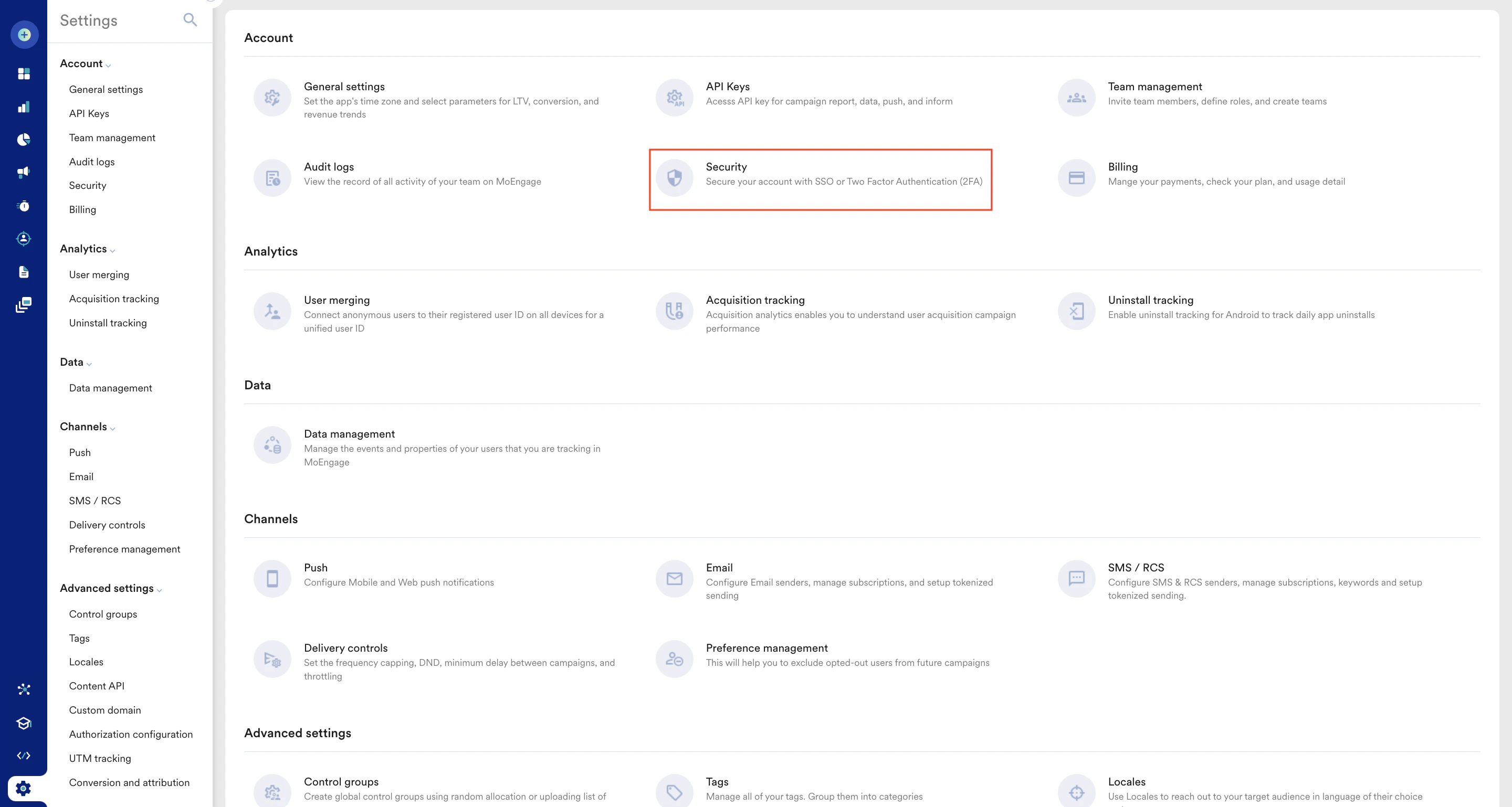 2. On the Security page, you are on the **Login** tab by default.
3. Select a login method from the following options:
* [Password or Google sign in](/user-guide/settings/account/security/overview)
* [Google Sign In only](/user-guide/settings/account/security/overview)
* [Single Sign On (SSO) only](/user-guide/settings/account/security/overview)
**
2. On the Security page, you are on the **Login** tab by default.
3. Select a login method from the following options:
* [Password or Google sign in](/user-guide/settings/account/security/overview)
* [Google Sign In only](/user-guide/settings/account/security/overview)
* [Single Sign On (SSO) only](/user-guide/settings/account/security/overview)
** **
## Password or Google sign in
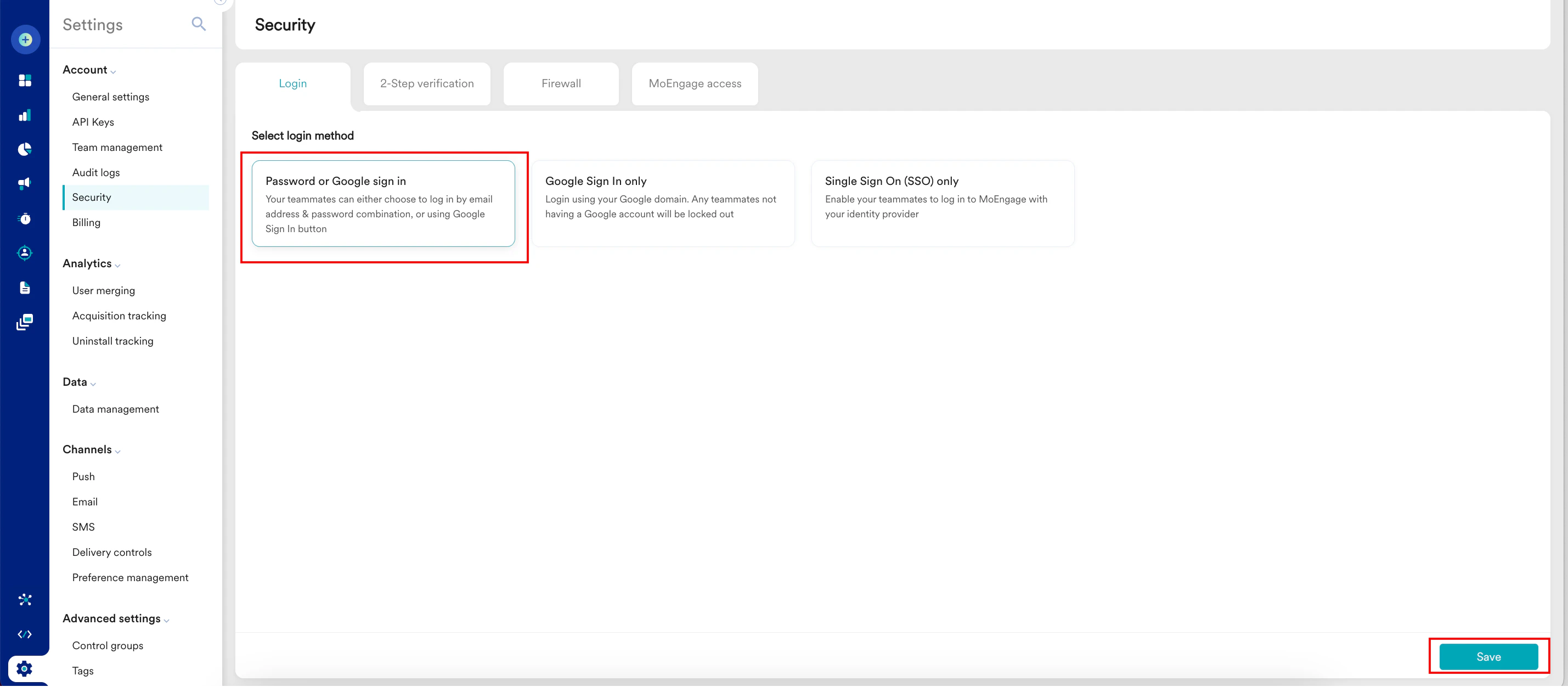
This is the default option. MoEngage allows your team members to log in to the MoEngage account (workspace) using the email address and password combination or using the **Sign in with Google** button. If you selected any other option and reverted to the **Password or Google sign in** option, click **Save**.
**
## Password or Google sign in
This is the default option. MoEngage allows your team members to log in to the MoEngage account (workspace) using the email address and password combination or using the **Sign in with Google** button. If you selected any other option and reverted to the **Password or Google sign in** option, click **Save**.
 ## Google Sign In only
This option limits access to the MoEngage account using Google Sign In only. When you select this option, your team members can no longer access MoEngage using only the email address and password combination. If you want to set up this method, perform the following steps:
1. On the **Login** tab, click **Google Sign In only**.
2. Click **Save**.
## Google Sign In only
This option limits access to the MoEngage account using Google Sign In only. When you select this option, your team members can no longer access MoEngage using only the email address and password combination. If you want to set up this method, perform the following steps:
1. On the **Login** tab, click **Google Sign In only**.
2. Click **Save**. 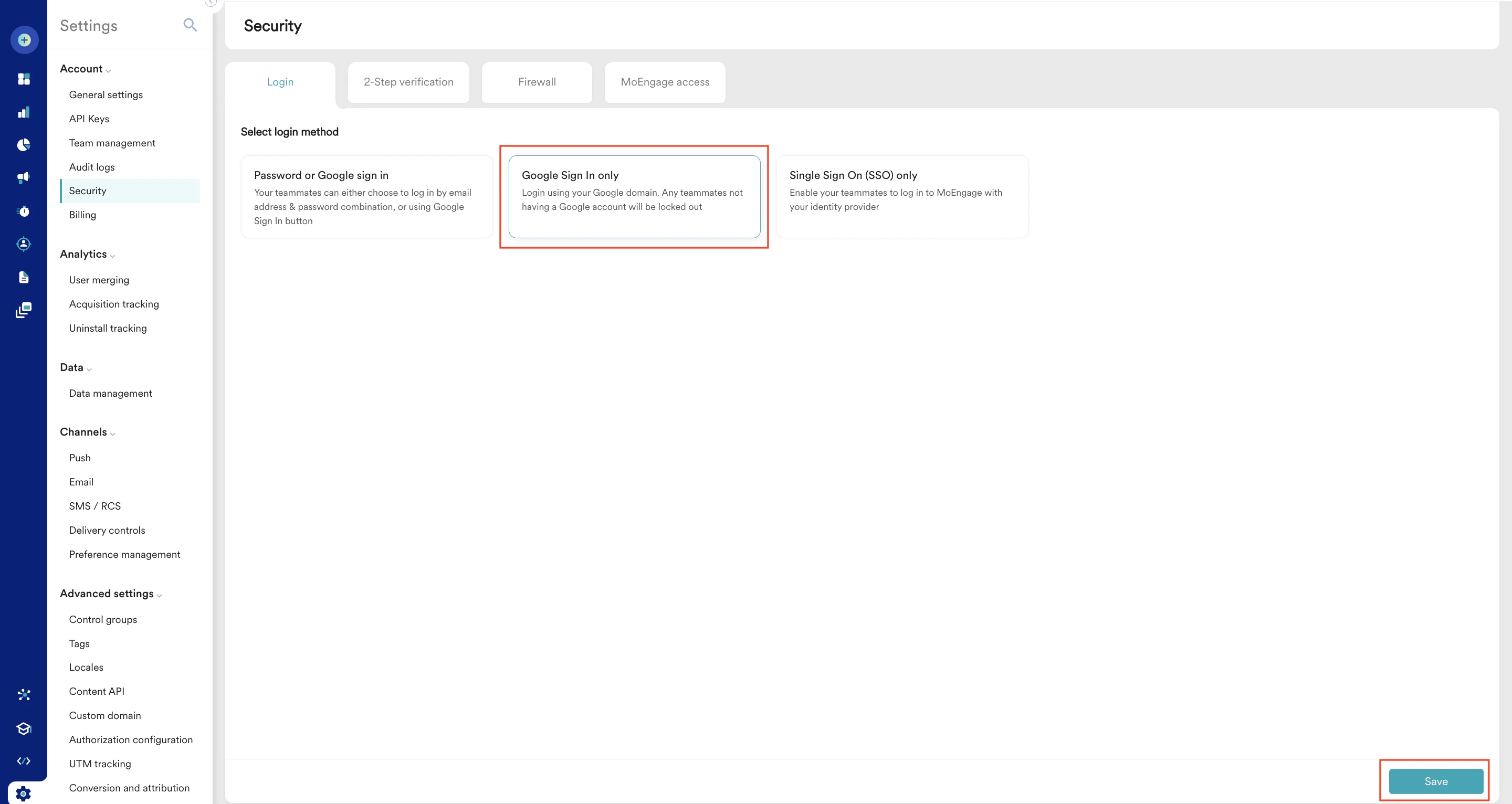 \
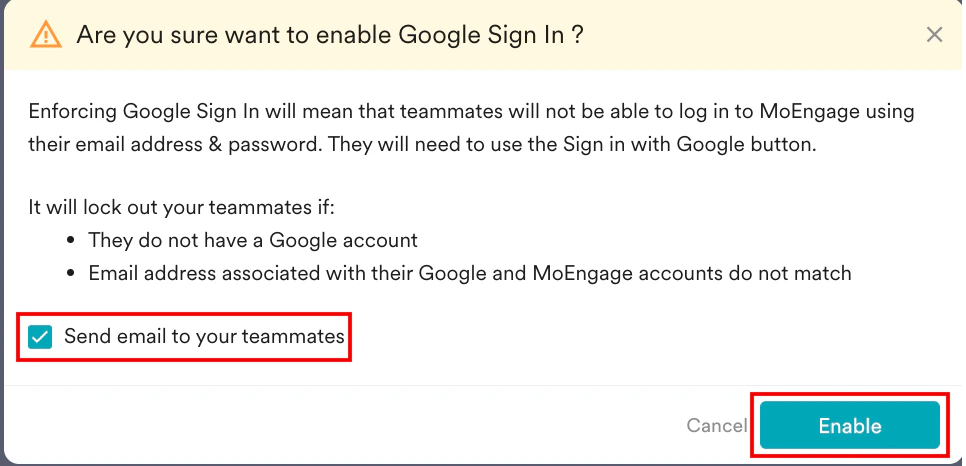
The **Are you sure want to enable Google Sign In ?** pop-up window will appear, prompting you to review the instructions carefully.
3. Select the **Send email to your teammates** check box.
4. Click **Enable**.
\
The **Are you sure want to enable Google Sign In ?** pop-up window will appear, prompting you to review the instructions carefully.
3. Select the **Send email to your teammates** check box.
4. Click **Enable**.
 You have successfully enabled the **Google Sign In only** method. Your teammates must log in using their Google account by clicking the **Sign in with Google** button.
Any users who do not have a Google account, such as your external stakeholders, will be logged out.
## Single Sign On (SSO) only
This option allows you to enforce Single Sign-On (SSO) for your organization on MoEngage. When you select this option, your team members will use your configured SSO provider to log in to the MoEngage account. They can no longer access MoEngage using the email address and password combination or using the **Sign in with Google** button.
If you want to set up this method, perform the following steps:
1. On the **Login** tab, click **Single Sign On (SSO)only**.
2. Click **Configure SSO**.\
You have successfully enabled the **Google Sign In only** method. Your teammates must log in using their Google account by clicking the **Sign in with Google** button.
Any users who do not have a Google account, such as your external stakeholders, will be logged out.
## Single Sign On (SSO) only
This option allows you to enforce Single Sign-On (SSO) for your organization on MoEngage. When you select this option, your team members will use your configured SSO provider to log in to the MoEngage account. They can no longer access MoEngage using the email address and password combination or using the **Sign in with Google** button.
If you want to set up this method, perform the following steps:
1. On the **Login** tab, click **Single Sign On (SSO)only**.
2. Click **Configure SSO**.\
 To proceed with the next steps, refer to [Single Sign-On (SSO)](/user-guide/settings/account/security/single-sign-on-sso).