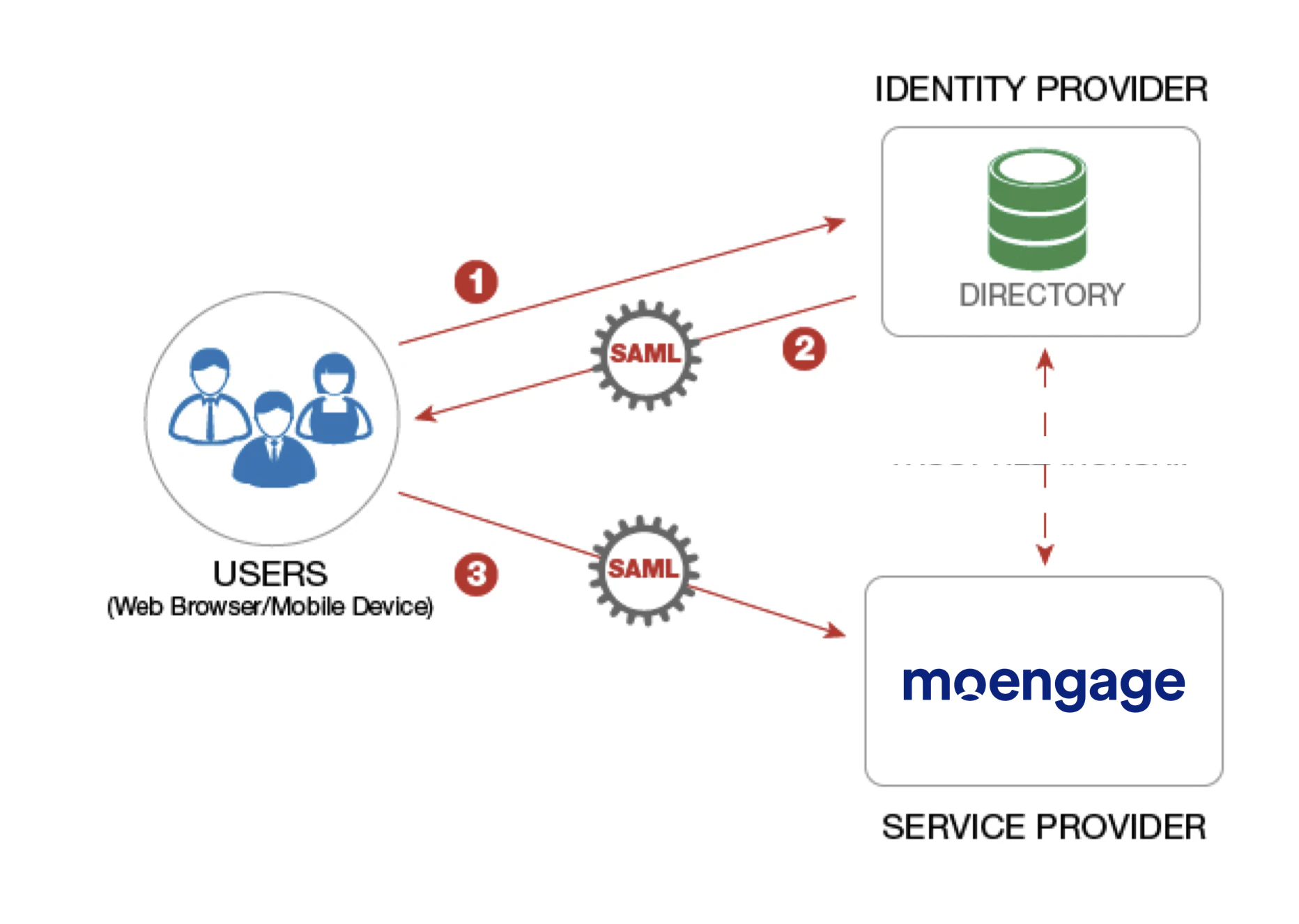
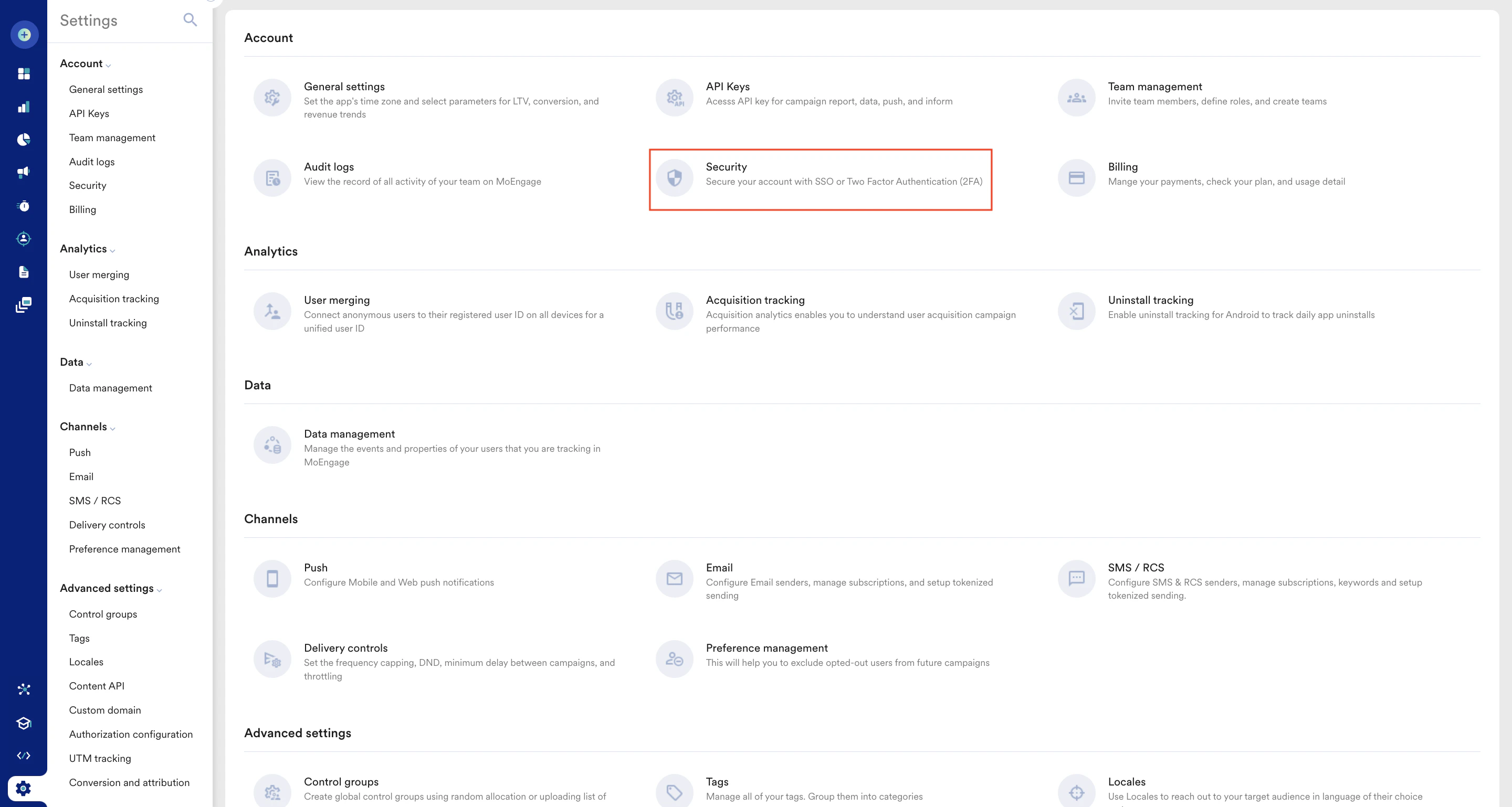
 2. On the Security page, click the **Login** tab.
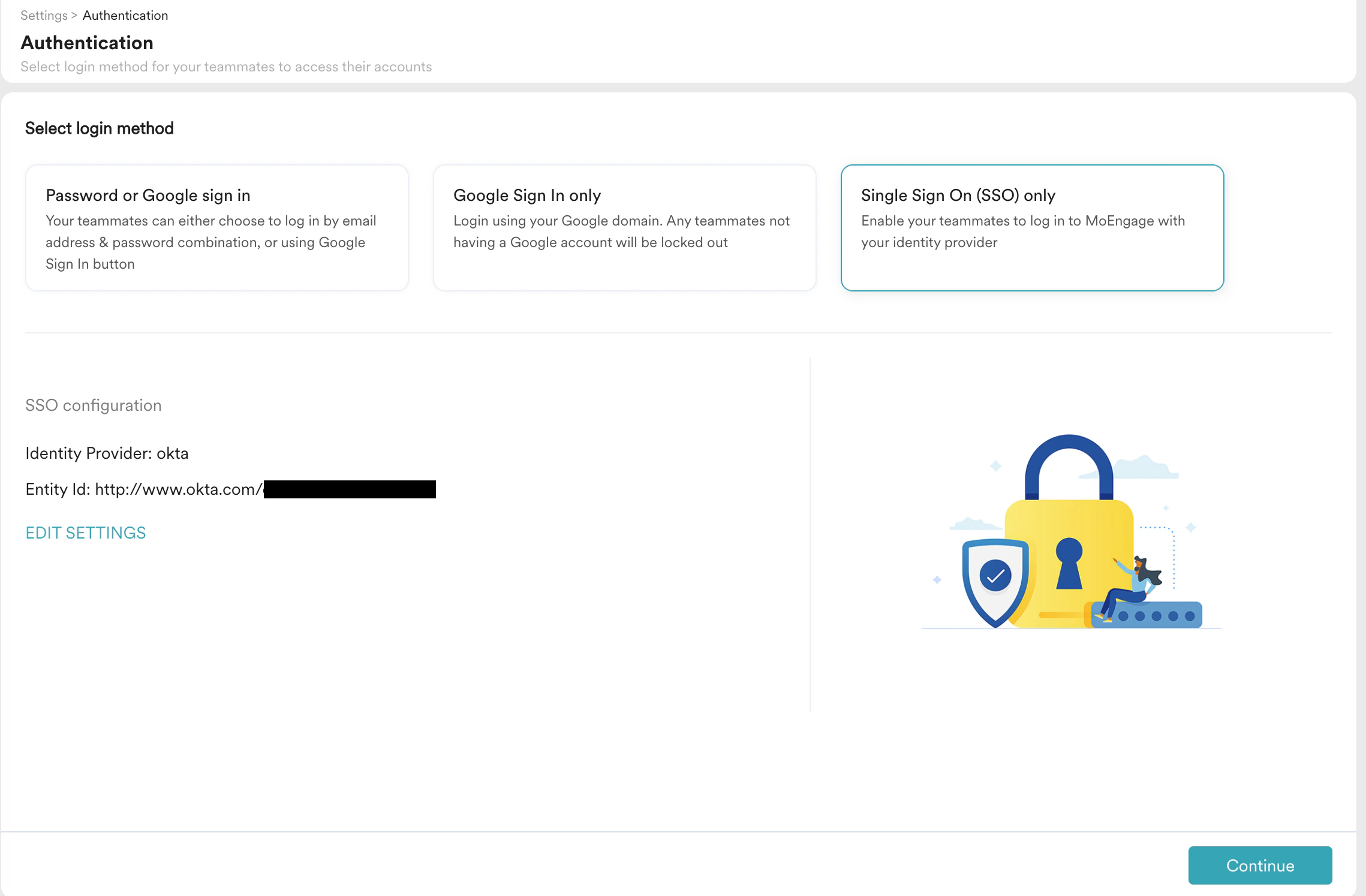
3. Click **Single Sign On (SSO) only**.
4. Under **Single sign on**, click **Configure SSO**.
2. On the Security page, click the **Login** tab.
3. Click **Single Sign On (SSO) only**.
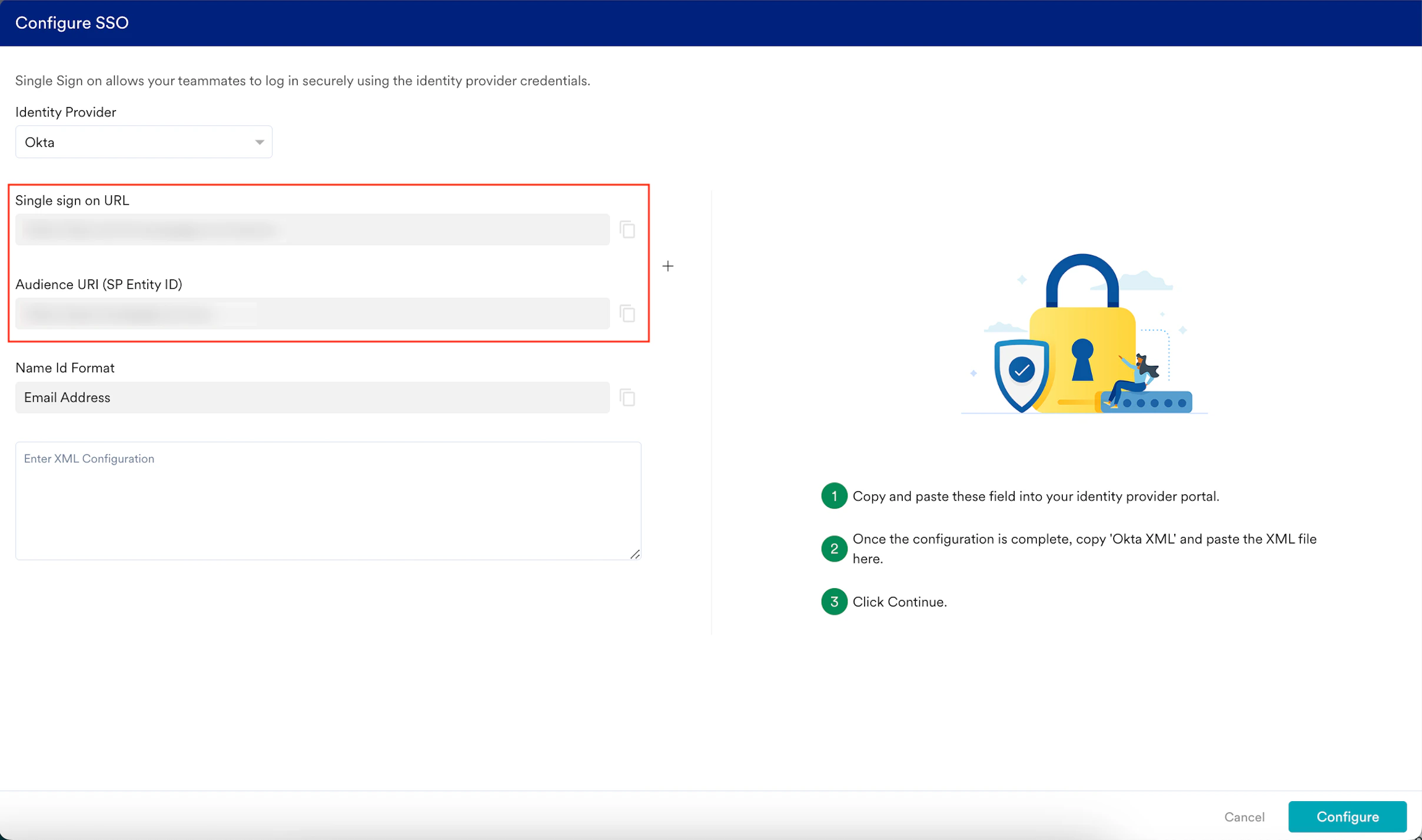
4. Under **Single sign on**, click **Configure SSO**.  The **Configure SSO** dialog box appears.
5. In the **Identity Provider** list, select your identity provider.
The **Configure SSO** dialog box appears.
5. In the **Identity Provider** list, select your identity provider.  Now, you must switch to that specific IdP admin console to configure the SSO settings and ensure the SSO integration between MoEngage and the selected IdP functions as intended.
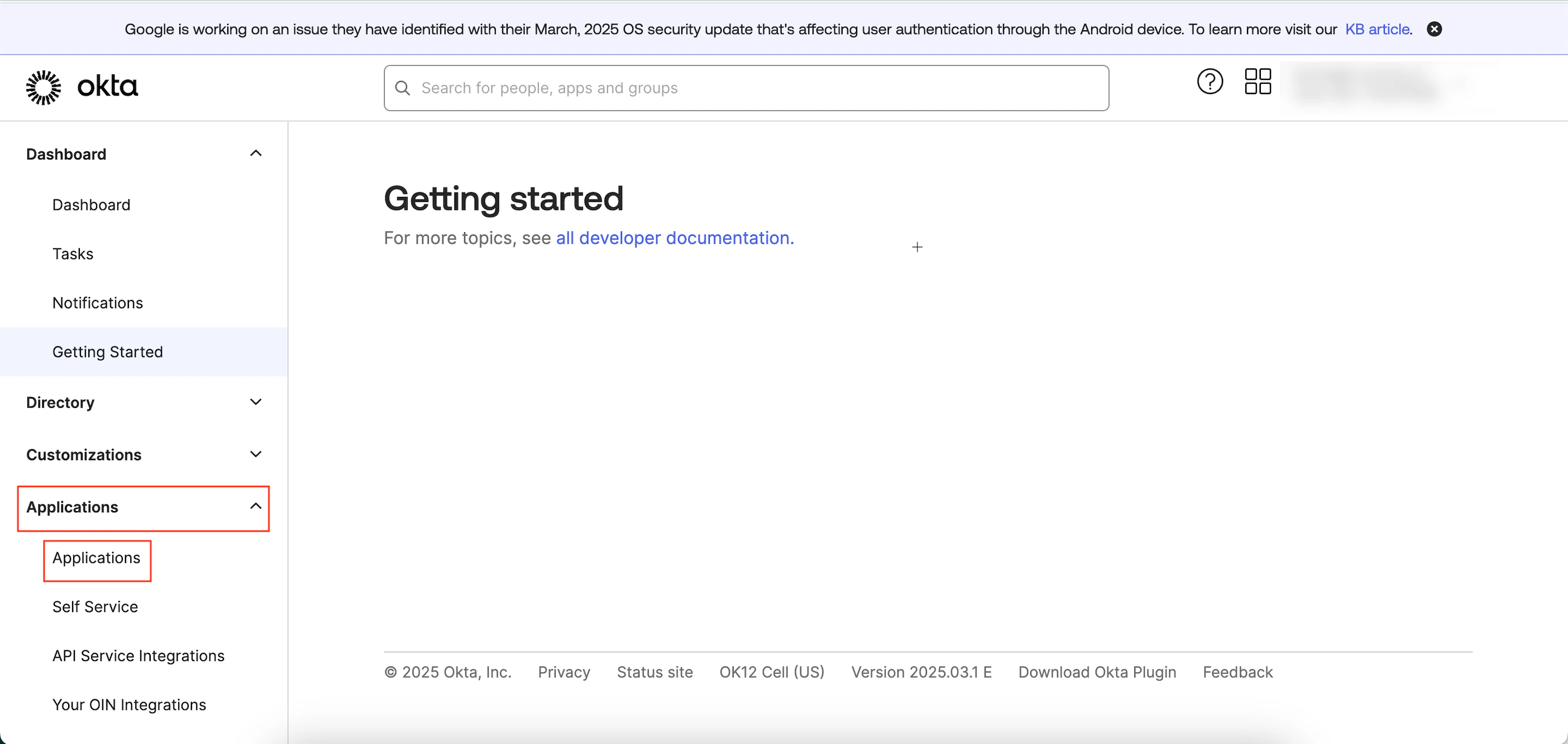 3. On the **Applications** page, click **Create App Integration**.
  \
The Create a new app integration pop-up window appears.
4. Click the **SAML 2.0** option and then click **Next**.
\
The Create a new app integration pop-up window appears.
4. Click the **SAML 2.0** option and then click **Next**.  The Create SAML integration page appears. You are taken to the first step, **General Settings**, to define your app.
 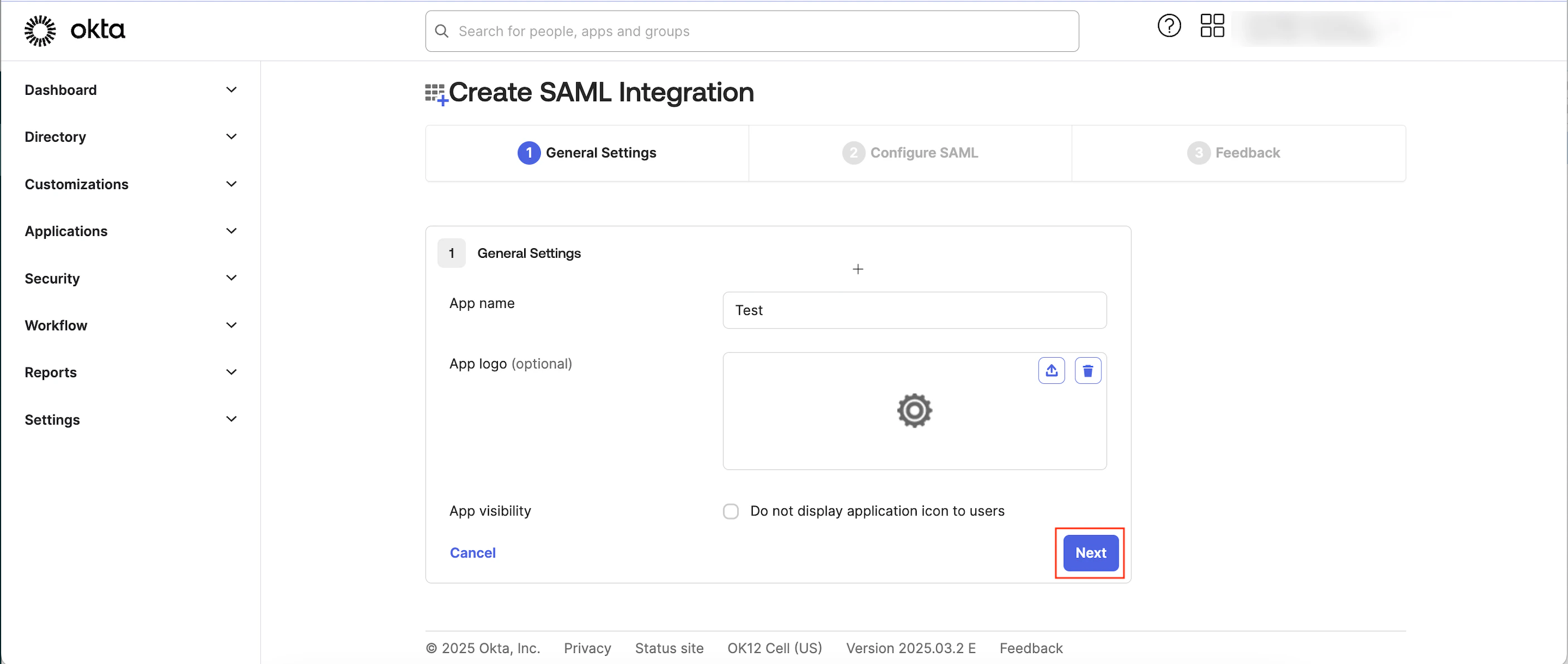 5. Enter the following details:
| Field | Required | Description |
| -------------- | -------- | ---------------------------------------------------------------------------------------------------------------------------------------------- |
| App name | Yes | Type your app name. |
| App logo | Optional | Upload an image file (typically PNG, JPG, or GIF) to serve as your application icon.
5. Enter the following details:
| Field | Required | Description |
| -------------- | -------- | ---------------------------------------------------------------------------------------------------------------------------------------------- |
| App name | Yes | Type your app name. |
| App logo | Optional | Upload an image file (typically PNG, JPG, or GIF) to serve as your application icon. **Note**: The image file must be smaller than 1 MB. | | App visibility | Optional | Select the **Do not display application icon to users** check box adjacent to **App Visibility** to hide the application icon from the users. | 6. Click **Next.** You will move to the second step, **Configure SAML**, to define the SAML settings. 7. On the **Configure SSO** dialog box in the MoEngage dashboard, copy the **Single sign-on URL** and **Audience URI (SP Entity ID)**.
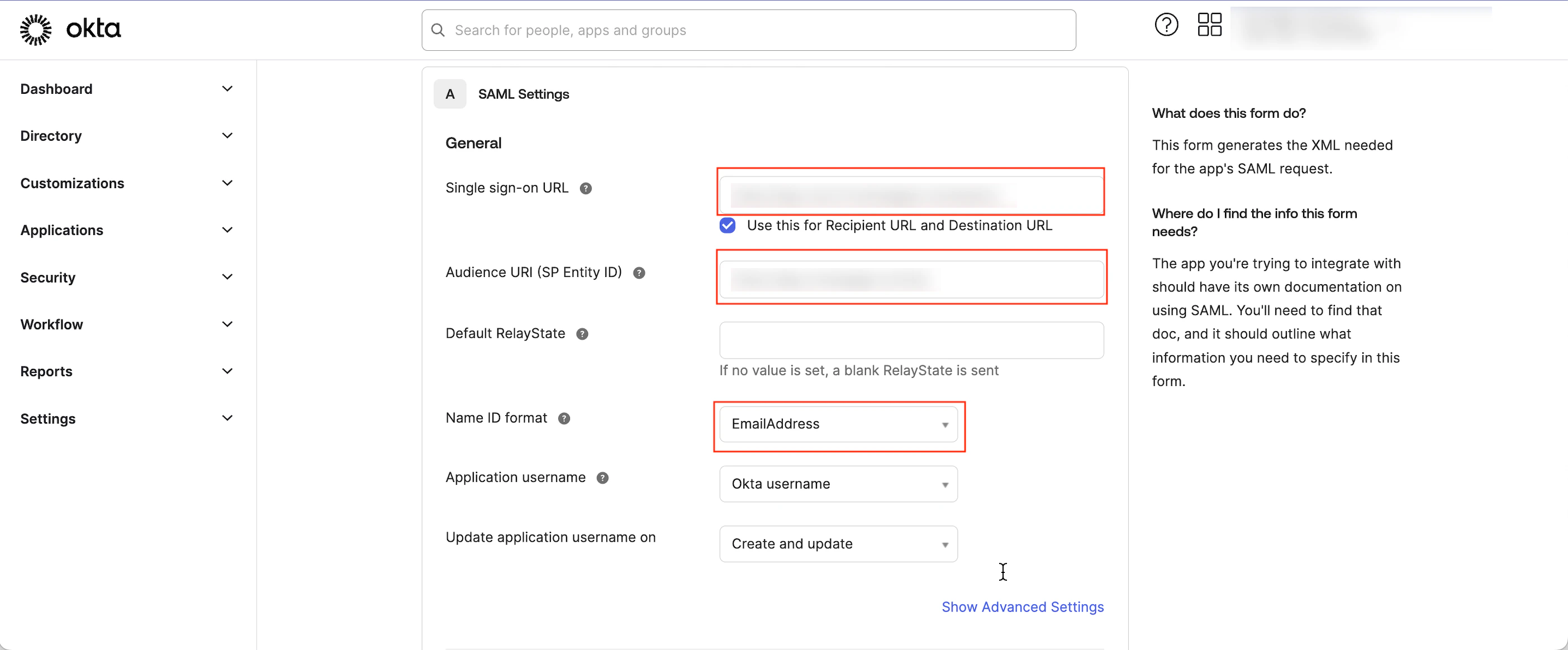
 8. Under **SAML Settings**, enter the following details:
| Field | Required | Description |
| ---------------------------------------------------------------------------------------------------------------------------------------------------------------------------------------------------------------------------------------------------------------------------------------------------------------------------------------------------------------------------------------------------------------------------------------------------------------------------------------------------------------------------------------------------------------------------------------------------------------------------------------------------------------------------------------------------------------------------------------------------------------------------------------------------------------------------------------------------------------------------------------------------------------------------------------------------------------------------------------------------------------------------------------------------------------------------------------------------------------------------------------------------------------------------------------------------------------------------------------------------------------------------------------------------------------------------------------------------------------------------------------------------------------------------------------------- | -------- | ------------------------------------------------------------------------------------------------------------------------------------------------------------------------------------------------------------------------------------------------------------------------------------ |
| Single Sign-On URL | Yes | This URL receives the SAML assertion (the authentication response) from Okta to MoEngage. Paste the URL copied from the MoEngage dashboard. |
| Audience URI (SP Entity ID) | Yes | This URL informs Okta about the specific application (MoEngage) for which the authentication assertion is intended. Paste the URI copied from the MoEngage dashboard.
8. Under **SAML Settings**, enter the following details:
| Field | Required | Description |
| ---------------------------------------------------------------------------------------------------------------------------------------------------------------------------------------------------------------------------------------------------------------------------------------------------------------------------------------------------------------------------------------------------------------------------------------------------------------------------------------------------------------------------------------------------------------------------------------------------------------------------------------------------------------------------------------------------------------------------------------------------------------------------------------------------------------------------------------------------------------------------------------------------------------------------------------------------------------------------------------------------------------------------------------------------------------------------------------------------------------------------------------------------------------------------------------------------------------------------------------------------------------------------------------------------------------------------------------------------------------------------------------------------------------------------------------------- | -------- | ------------------------------------------------------------------------------------------------------------------------------------------------------------------------------------------------------------------------------------------------------------------------------------ |
| Single Sign-On URL | Yes | This URL receives the SAML assertion (the authentication response) from Okta to MoEngage. Paste the URL copied from the MoEngage dashboard. |
| Audience URI (SP Entity ID) | Yes | This URL informs Okta about the specific application (MoEngage) for which the authentication assertion is intended. Paste the URI copied from the MoEngage dashboard. **Note**: In this box, you can add multiple entity IDs from different workspaces, separated by commas. | | Name ID format | Yes | Select *EmailAddress*. | |
 | | |
9. Scroll to the end of the page and click **Next**. You are taken to the third step, **Feedback**.
10. Select the **This is an internal app that we have created** check box adjacent to the **App type**.
| | |
9. Scroll to the end of the page and click **Next**. You are taken to the third step, **Feedback**.
10. Select the **This is an internal app that we have created** check box adjacent to the **App type**. 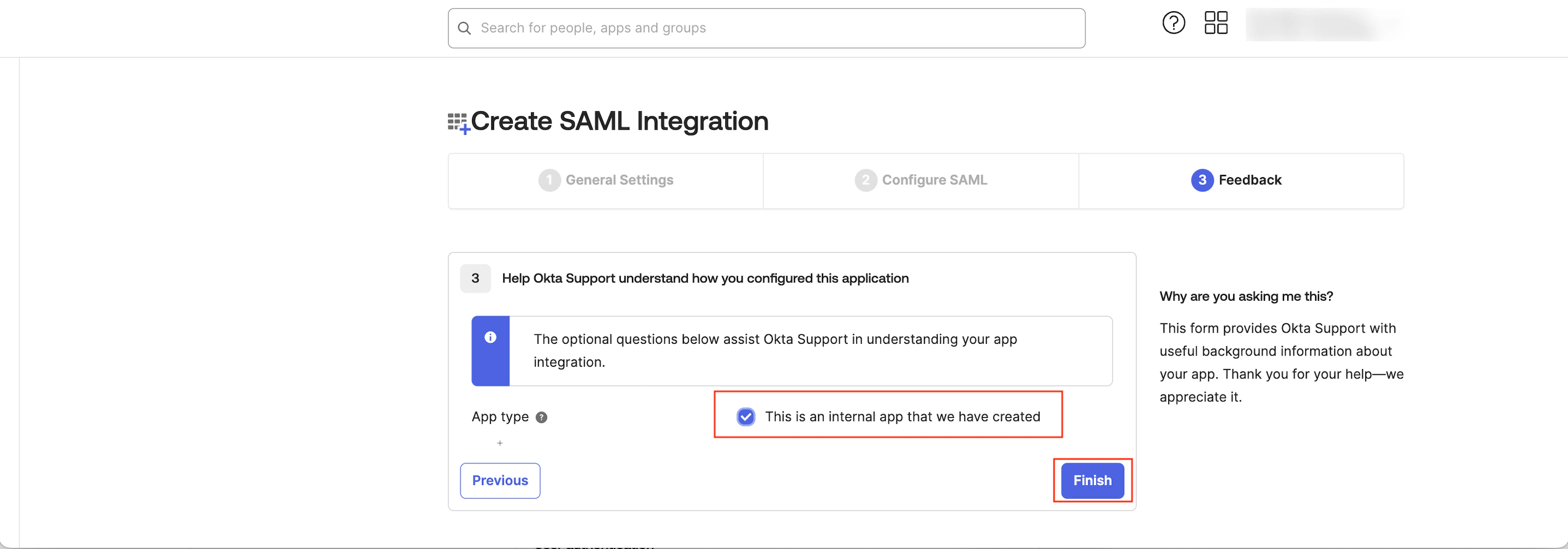 11. Click **Finish**. You must now generate the **SAML Signing Certificates** to connect your app to Okta.
12. By default, you are on the **Sign On** tab. Scroll to the end of the page, and under **SAML Signing Certificates**, find the **Status** marked as *Active* to download the certificate.
13. Click the **Actions** arrow in the **Actions** column.
14. Click **Download certificate**.
11. Click **Finish**. You must now generate the **SAML Signing Certificates** to connect your app to Okta.
12. By default, you are on the **Sign On** tab. Scroll to the end of the page, and under **SAML Signing Certificates**, find the **Status** marked as *Active* to download the certificate.
13. Click the **Actions** arrow in the **Actions** column.
14. Click **Download certificate**.  The metadata will be downloaded in an XML file.
15. Upload the downloaded XML file in the **Enter XML Configuration** box on the **Configure SSO** dialog box of the MoEngage dashboard.
16. By default, the **Update the same config for Test Environment** check box is selected. When it is selected, the configuration is applied to both the test and live environments. Clear the check box if you want the configuration to be applied only to the live environment.
17. Click **Configure**.
The metadata will be downloaded in an XML file.
15. Upload the downloaded XML file in the **Enter XML Configuration** box on the **Configure SSO** dialog box of the MoEngage dashboard.
16. By default, the **Update the same config for Test Environment** check box is selected. When it is selected, the configuration is applied to both the test and live environments. Clear the check box if you want the configuration to be applied only to the live environment.
17. Click **Configure**.  The Alert pop-up window will appear, prompting you to review the instructions properly.
18. Select the **Send email to the users of this workspace** check box to notify all users about your workspace's Single Sign-On (SSO) enablement.
19. Click **Done**.
The Alert pop-up window will appear, prompting you to review the instructions properly.
18. Select the **Send email to the users of this workspace** check box to notify all users about your workspace's Single Sign-On (SSO) enablement.
19. Click **Done**.  The SSO configuration is now successfully completed. You can see the Okta SSO on the **Login** tab.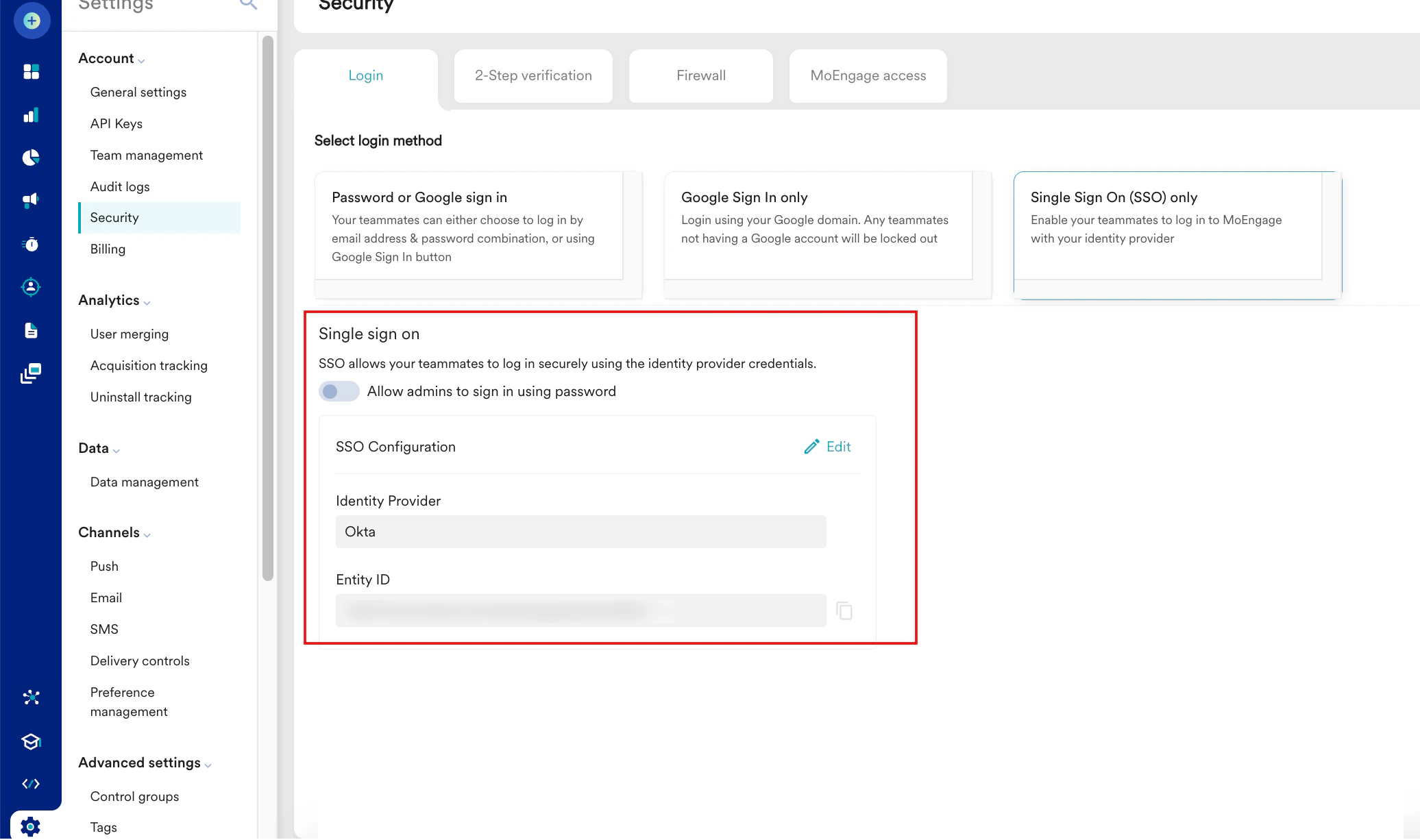
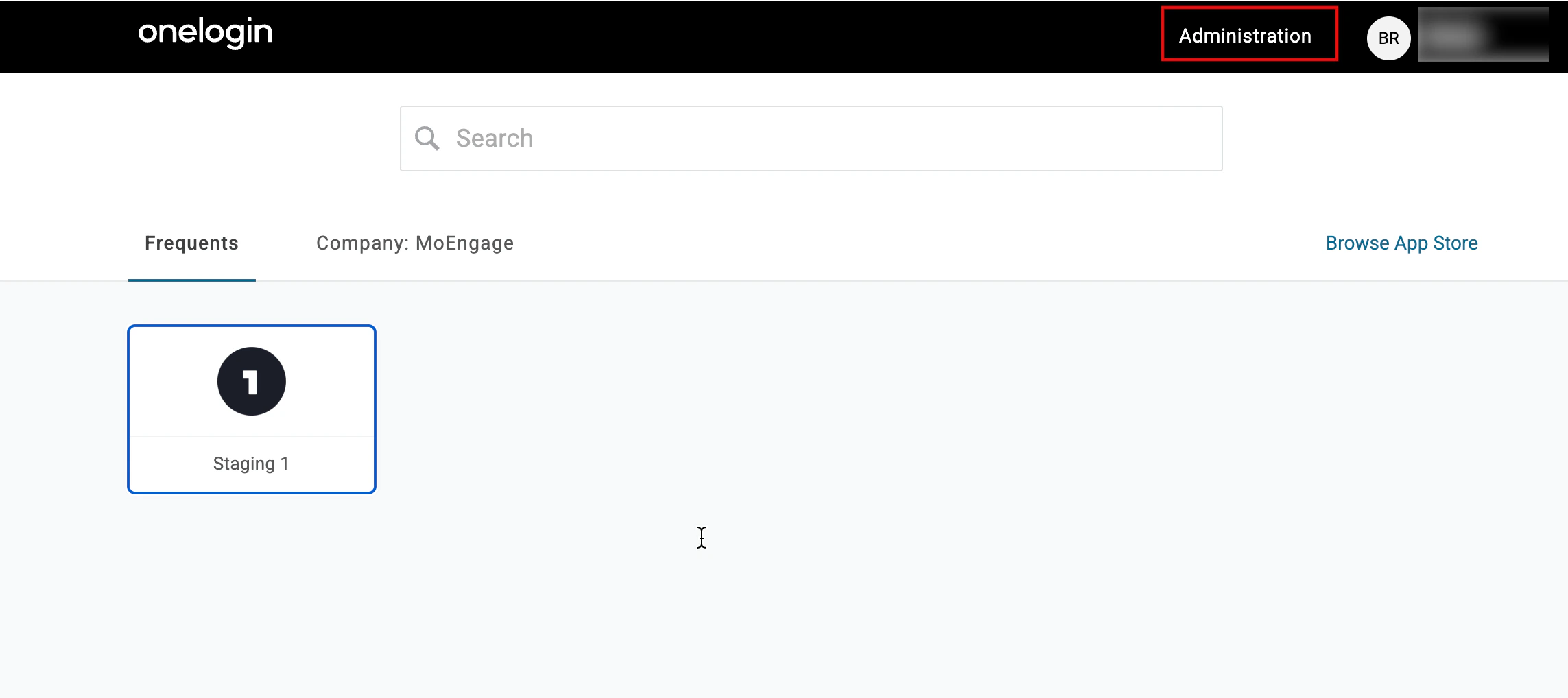 3. Click **Applications** > **Applications**.
 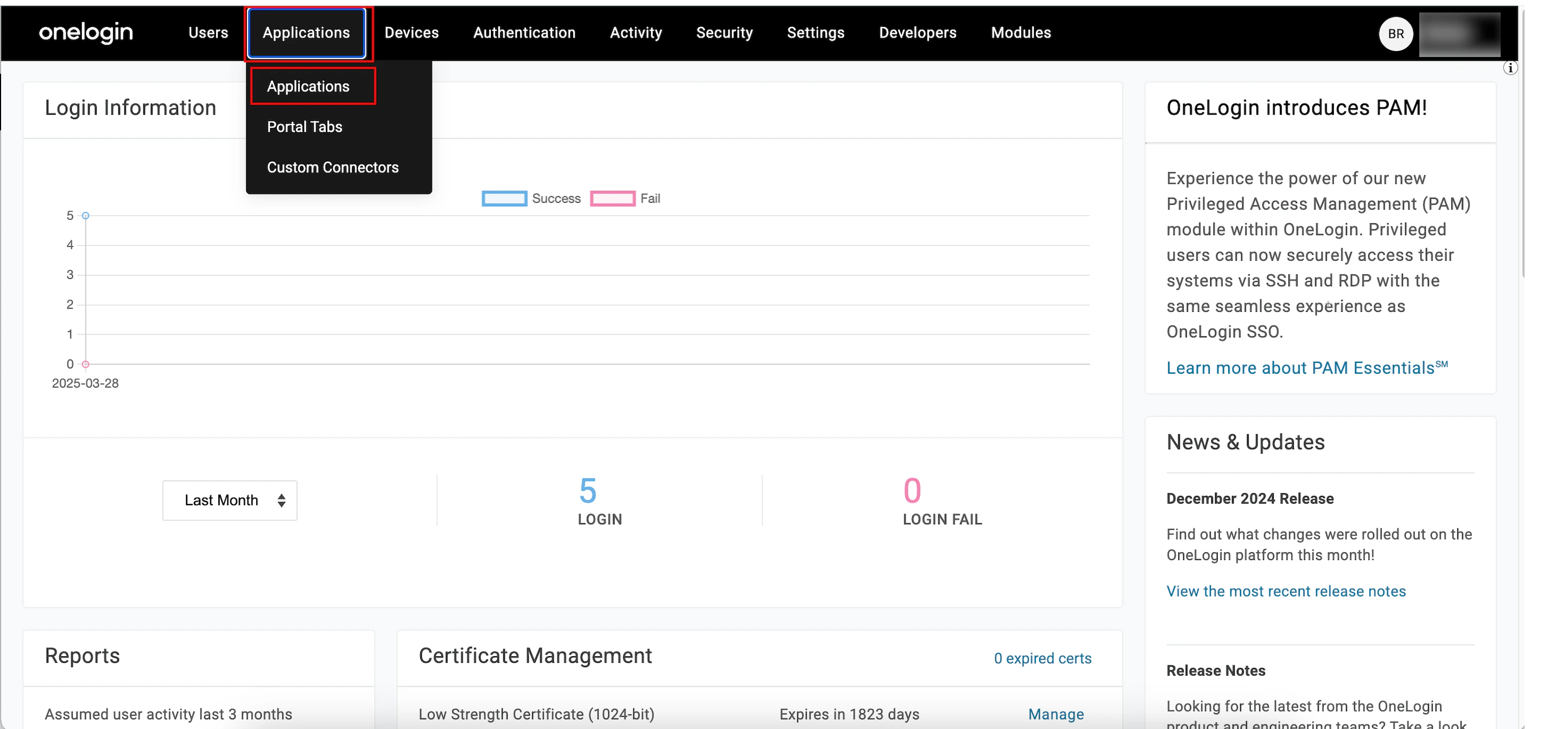 4. On the Application page, click **Add app**.
  The Find Applications page appears.
5. In the **Search** box, type SAML, scroll through the page, and click **SAML Test Connector (IdP)**.
The Find Applications page appears.
5. In the **Search** box, type SAML, scroll through the page, and click **SAML Test Connector (IdP)**.  The Add SAML Test Connector (IdP) page appears.
6. In the **Display Name** box, type the SAML name being tested. (Optional)
7. Click **Save**.
The Add SAML Test Connector (IdP) page appears.
6. In the **Display Name** box, type the SAML name being tested. (Optional)
7. Click **Save**.  Your SAML is now successfully added, and the SAML Test Connector (IdP) page appears.
8. Click **Configuration** on the left navigation menu.
Your SAML is now successfully added, and the SAML Test Connector (IdP) page appears.
8. Click **Configuration** on the left navigation menu. 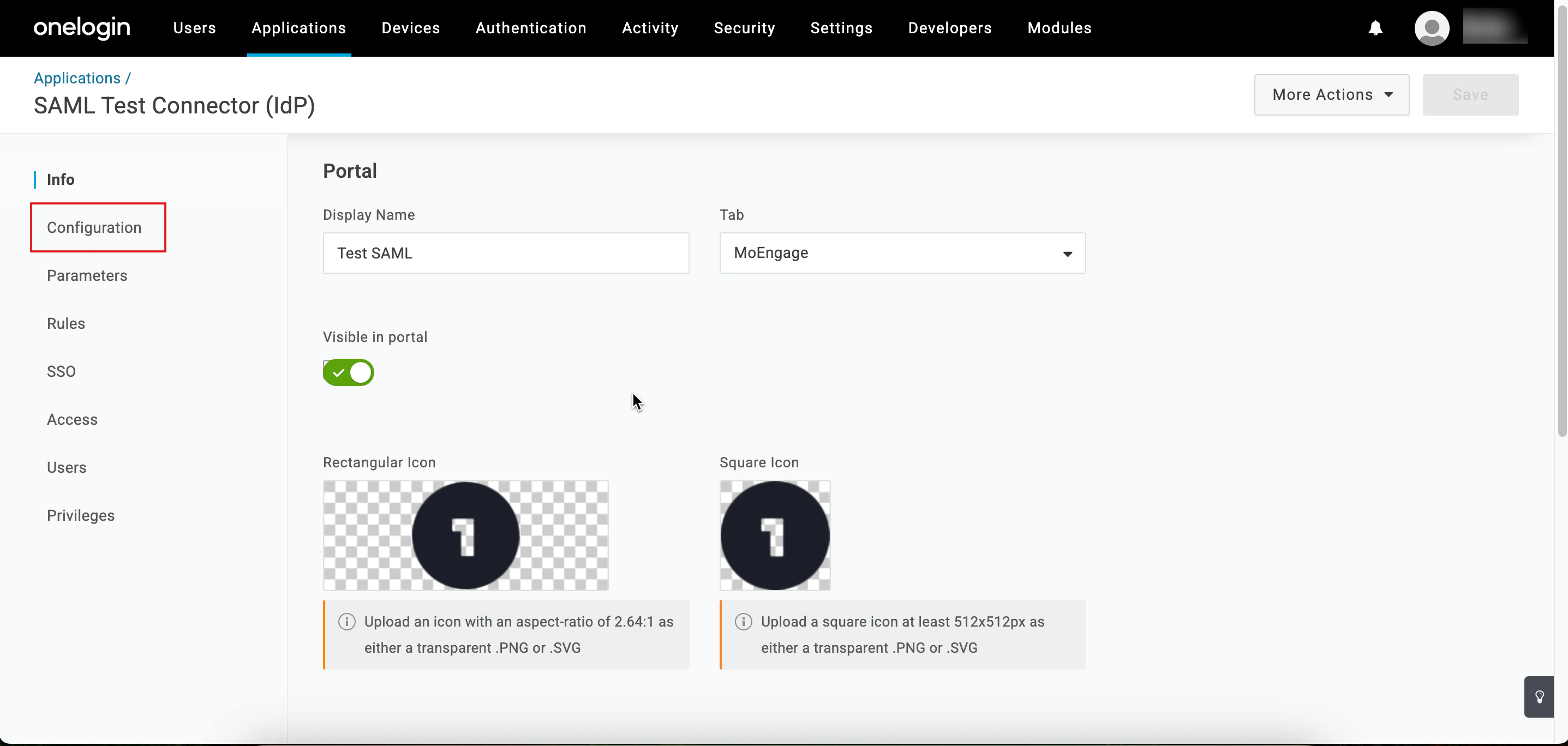 9. On the **Configure SSO** dialog box in the MoEngage dashboard, copy the **Audience, ACS (Consumer) URL Validator**, and **Single Logout Url**.
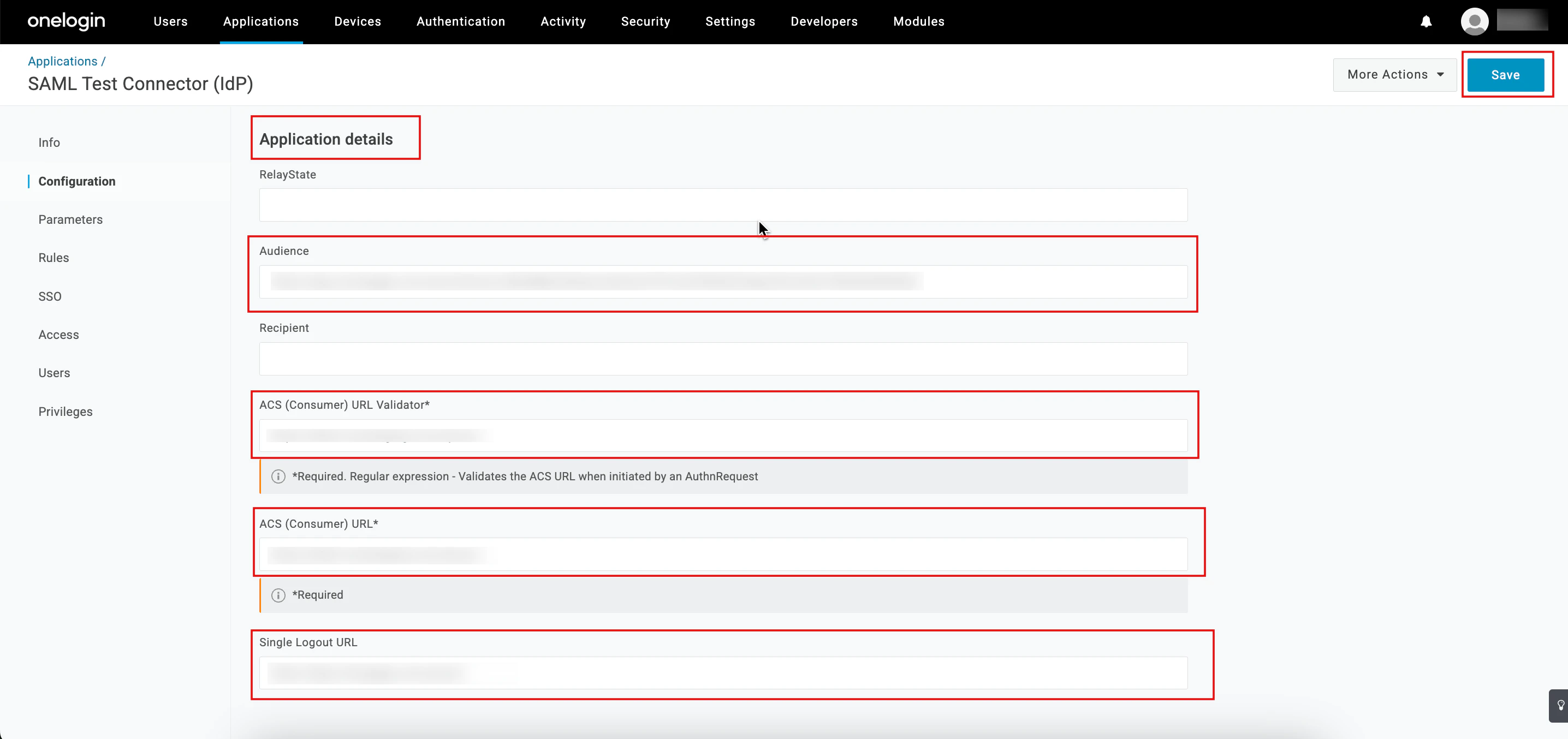
 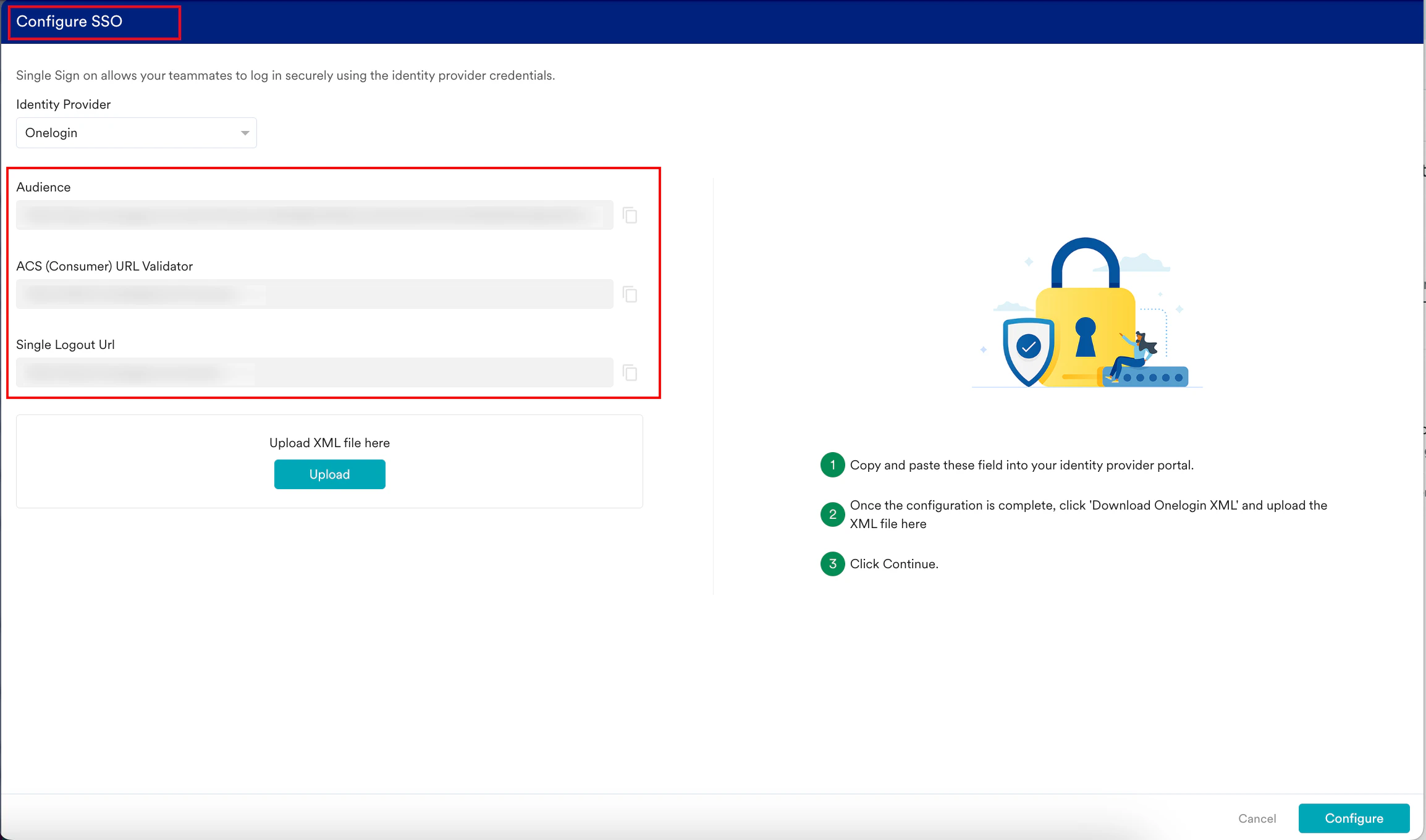 10. In the **Application details** section, enter the following details:
| Field | Required | Description |
| --------------------------------------------------------------------------------------------------------------------------------------------------------------------------------------------------------------------------------------------------------------------------------------------------------------------------------------------------------------------------------------------------------------------------------------------------------------------------------------------------------------------------------------------------------------------------------------------------------------------------------------------------------------------------------------------------------------------------------------------------------------------------------------------------------------------------------------------------------------------------------------------------------------------------------------------------------------------------------------------------------------------------------------------------------------------------------------------------------------------------------------------------------------------------------------------------------------------------------------------------------------------------------------------------------------------------------------------------------------------------------------------------------------------------------------- | -------- | ------------------------------------------------------------------------------------------------------------------------------------------------------------------------------------------------------------------------ |
| Audience | Yes | This URL specifies the intended recipient of the SAML assertion. Paste the audience copied from the MoEngage dashboard. |
| ACS (Consumer) URL Validator | Yes | This URL adds an additional security to ensure MoEngage only accepts SAML assertions. Paste the URL validator copied from the MoEngage dashboard. |
| ACS (Consumer) URL | Yes | This URL receives and processes the SAML authentication data for MoEngage from Onelogin. **Note**: Paste the **ACS (Consumer) URL Validator** you copied from the MoEngage dashboard in the **ACS (Consumer) URL** box. |
| Single Logout URL | Yes | This URL allows for single logout functionality. |
|
10. In the **Application details** section, enter the following details:
| Field | Required | Description |
| --------------------------------------------------------------------------------------------------------------------------------------------------------------------------------------------------------------------------------------------------------------------------------------------------------------------------------------------------------------------------------------------------------------------------------------------------------------------------------------------------------------------------------------------------------------------------------------------------------------------------------------------------------------------------------------------------------------------------------------------------------------------------------------------------------------------------------------------------------------------------------------------------------------------------------------------------------------------------------------------------------------------------------------------------------------------------------------------------------------------------------------------------------------------------------------------------------------------------------------------------------------------------------------------------------------------------------------------------------------------------------------------------------------------------------------- | -------- | ------------------------------------------------------------------------------------------------------------------------------------------------------------------------------------------------------------------------ |
| Audience | Yes | This URL specifies the intended recipient of the SAML assertion. Paste the audience copied from the MoEngage dashboard. |
| ACS (Consumer) URL Validator | Yes | This URL adds an additional security to ensure MoEngage only accepts SAML assertions. Paste the URL validator copied from the MoEngage dashboard. |
| ACS (Consumer) URL | Yes | This URL receives and processes the SAML authentication data for MoEngage from Onelogin. **Note**: Paste the **ACS (Consumer) URL Validator** you copied from the MoEngage dashboard in the **ACS (Consumer) URL** box. |
| Single Logout URL | Yes | This URL allows for single logout functionality. |
|  | | |
11. Click **Save**. Your SAML configuration is now successfully updated.
| | |
11. Click **Save**. Your SAML configuration is now successfully updated. 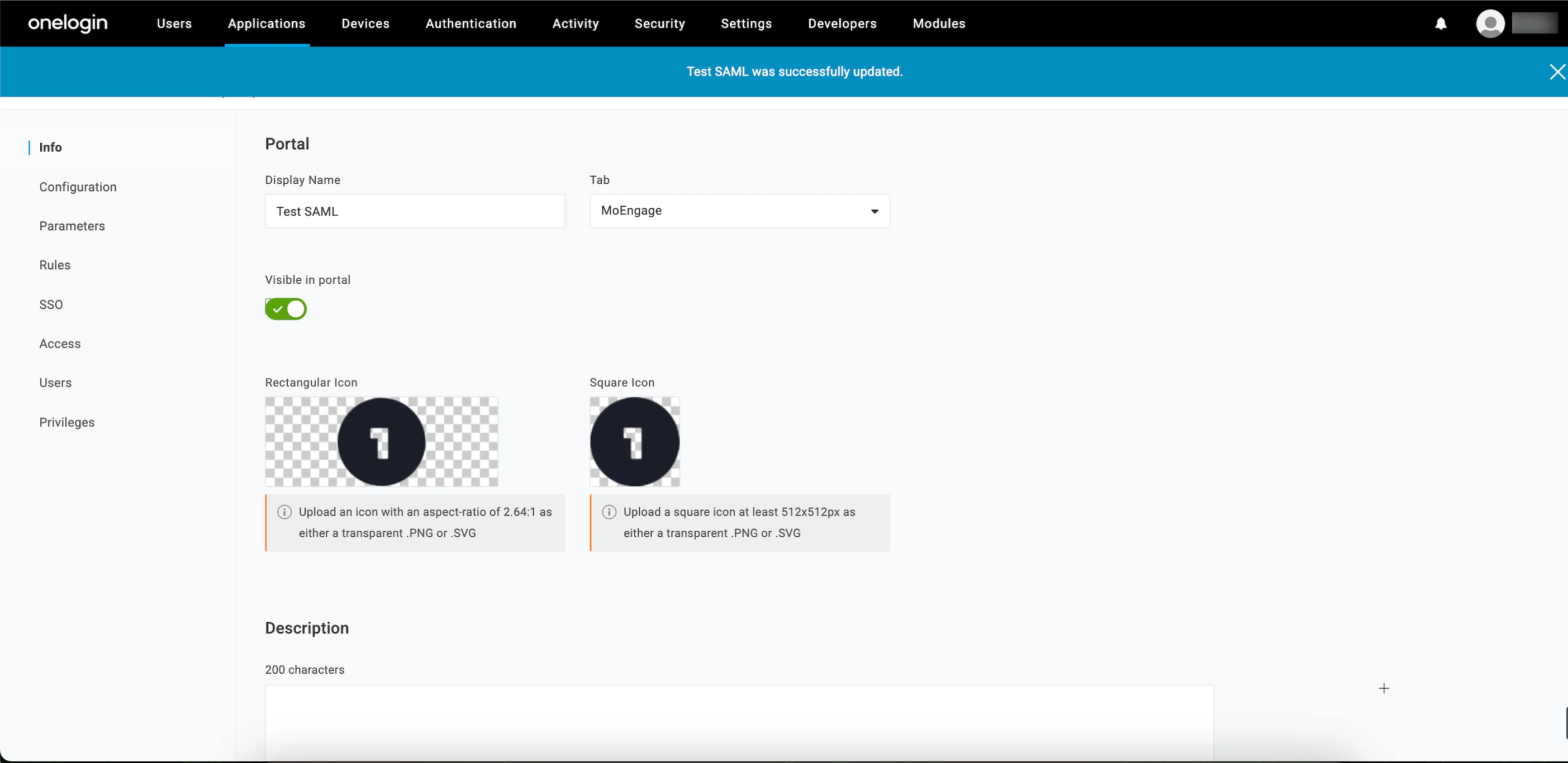 12. In the upper-right corner, click the **More Actions** arrow and select **SAML Metadata**.
 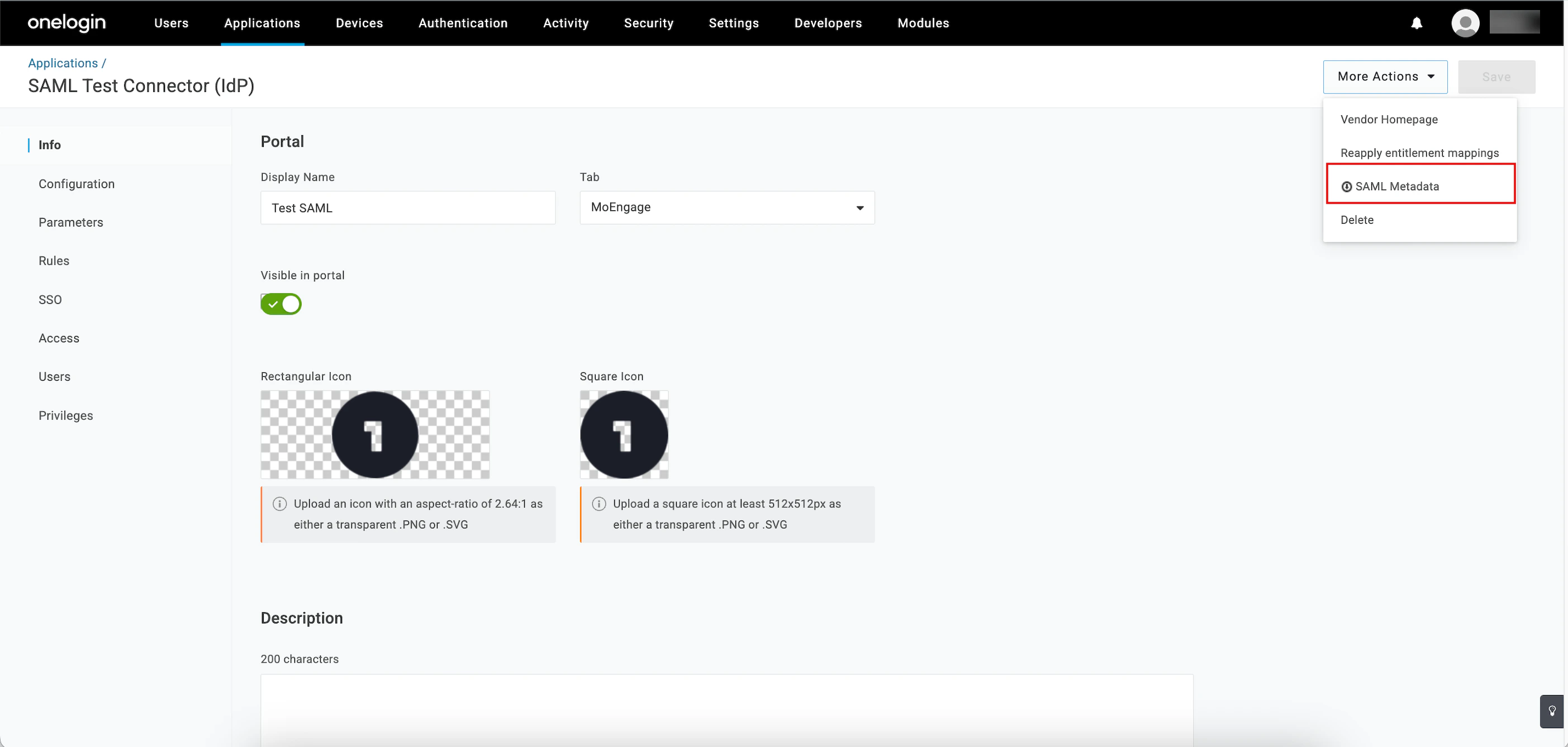 \
The metadata will be downloaded in an XML file.
13. Click **Upload** to upload the downloaded XML file on the **Configure SSO** dialog box in the MoEngage dashboard.
14. By default, the **Update the same config for Test Environment** check box is selected. When it is selected, the configuration is applied to both the test and live environments. Clear the check box if you want the configuration to be applied only to the live environment.
15. Click **Configure**.
\
The metadata will be downloaded in an XML file.
13. Click **Upload** to upload the downloaded XML file on the **Configure SSO** dialog box in the MoEngage dashboard.
14. By default, the **Update the same config for Test Environment** check box is selected. When it is selected, the configuration is applied to both the test and live environments. Clear the check box if you want the configuration to be applied only to the live environment.
15. Click **Configure**.  The Alert pop-up window will appear, prompting you to review the instructions properly.
16. Select the **Send email to the users of this workspace** check box to notify all users about your workspace's Single Sign-On (SSO) enablement.
17. Click **Done**. The SSO configuration is now successfully completed. You can see Onelogin SSO on the **Login** tab.
The Alert pop-up window will appear, prompting you to review the instructions properly.
16. Select the **Send email to the users of this workspace** check box to notify all users about your workspace's Single Sign-On (SSO) enablement.
17. Click **Done**. The SSO configuration is now successfully completed. You can see Onelogin SSO on the **Login** tab. 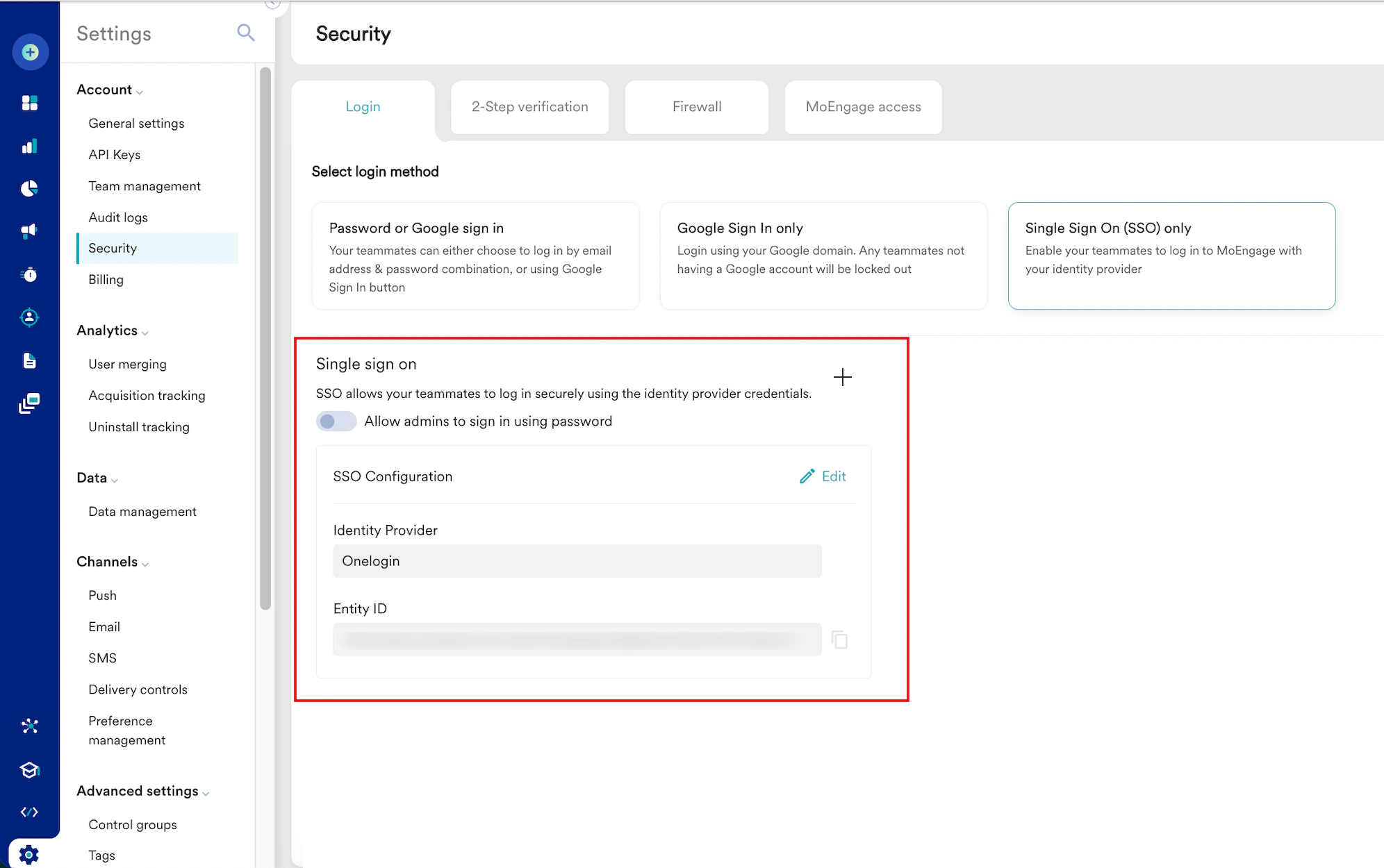
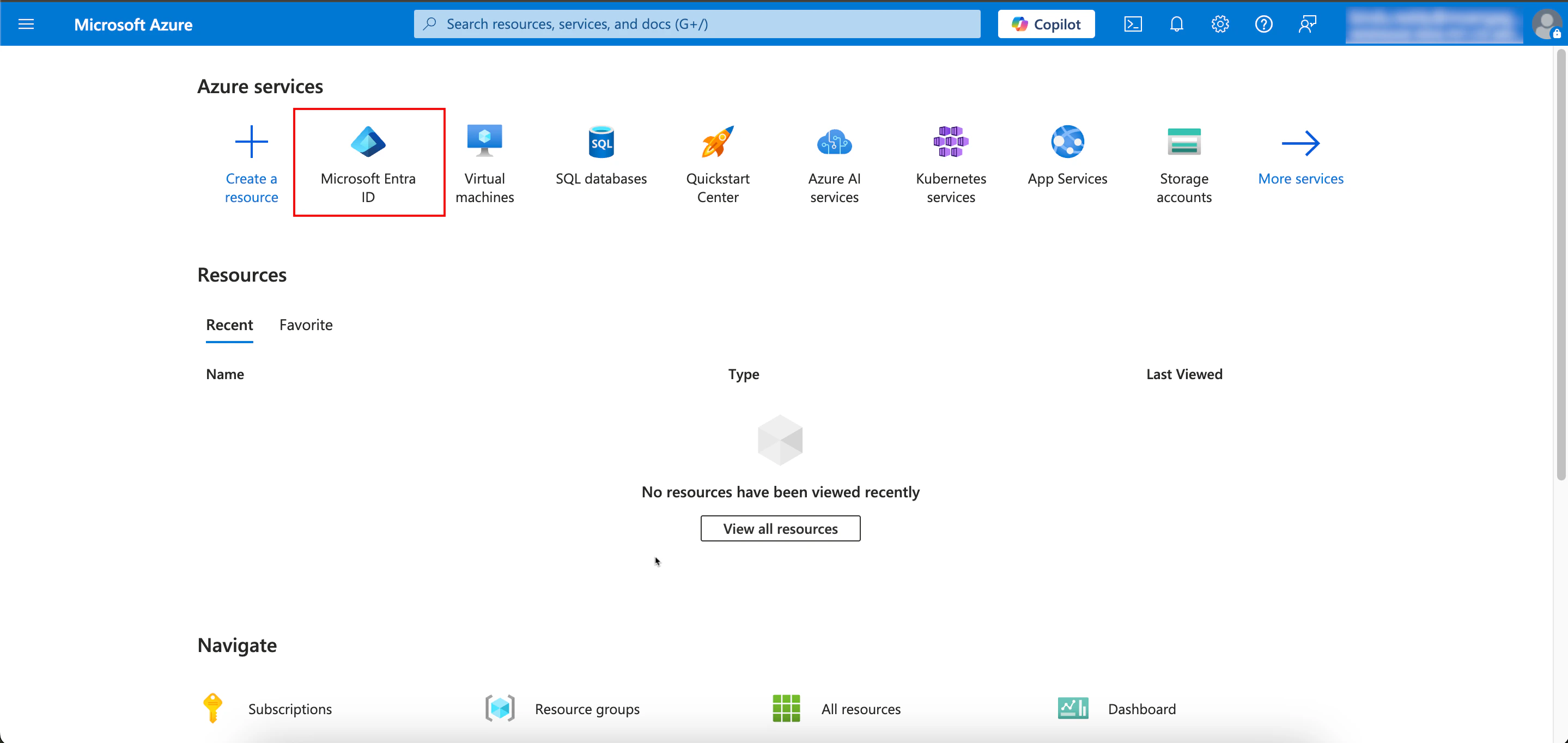 3. On the Overview page, go to the left navigation menu and click **Manage** > **Enterprise** **applications**.
 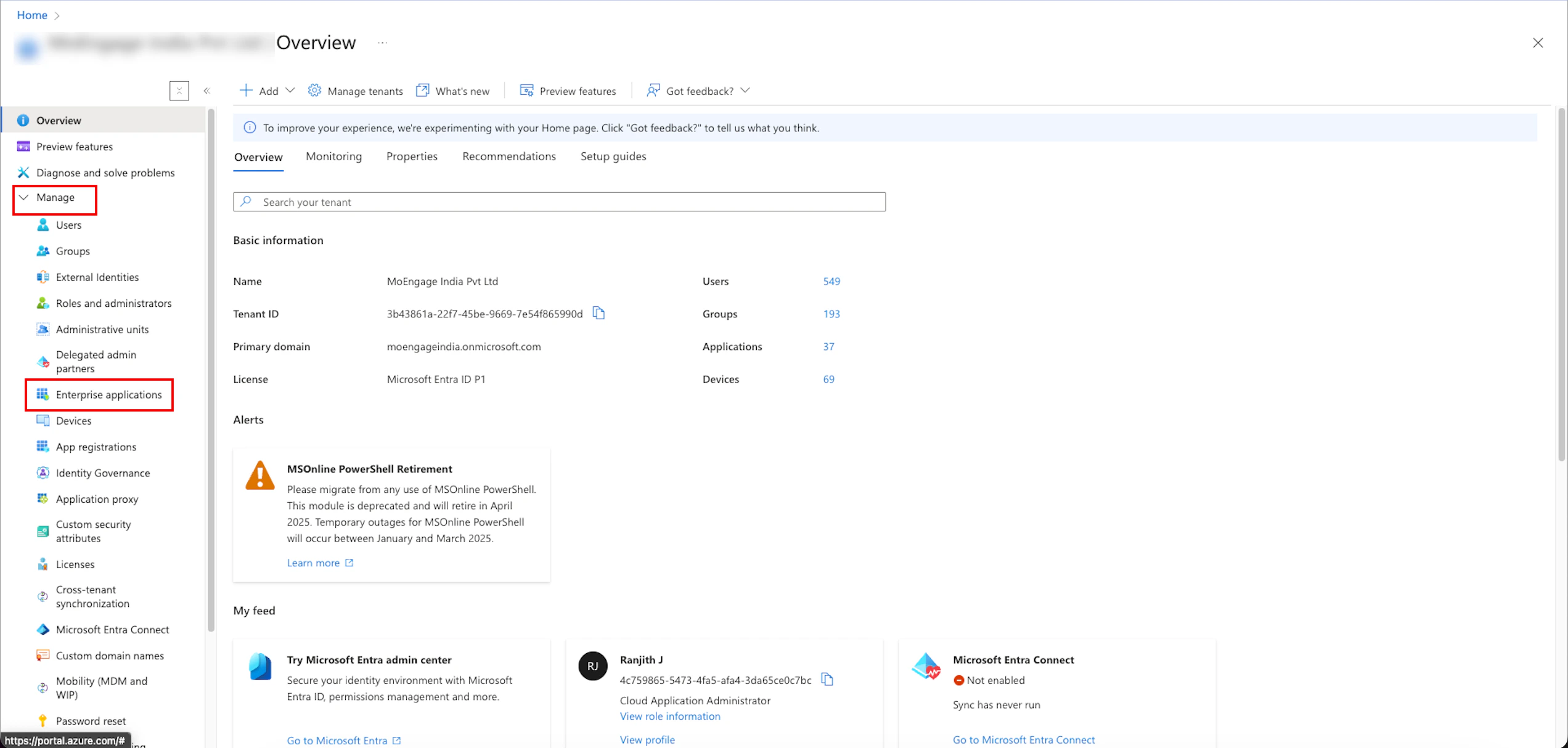 4. On the Enterprise applications | All applications page, click **+ New application**.
  5. On the Browse Microsoft Entra Gallery page, in the search box, type **SAML Toolkit.**
6. Click the **Microsoft Entra SAML Toolkit** tile and create the application.
5. On the Browse Microsoft Entra Gallery page, in the search box, type **SAML Toolkit.**
6. Click the **Microsoft Entra SAML Toolkit** tile and create the application.  The created application is listed on the **Enterprise applications**| **All applications** page.
7. In the **Search by application name or object ID** box, type the name of the application that you created and select the application.
The created application is listed on the **Enterprise applications**| **All applications** page.
7. In the **Search by application name or object ID** box, type the name of the application that you created and select the application. 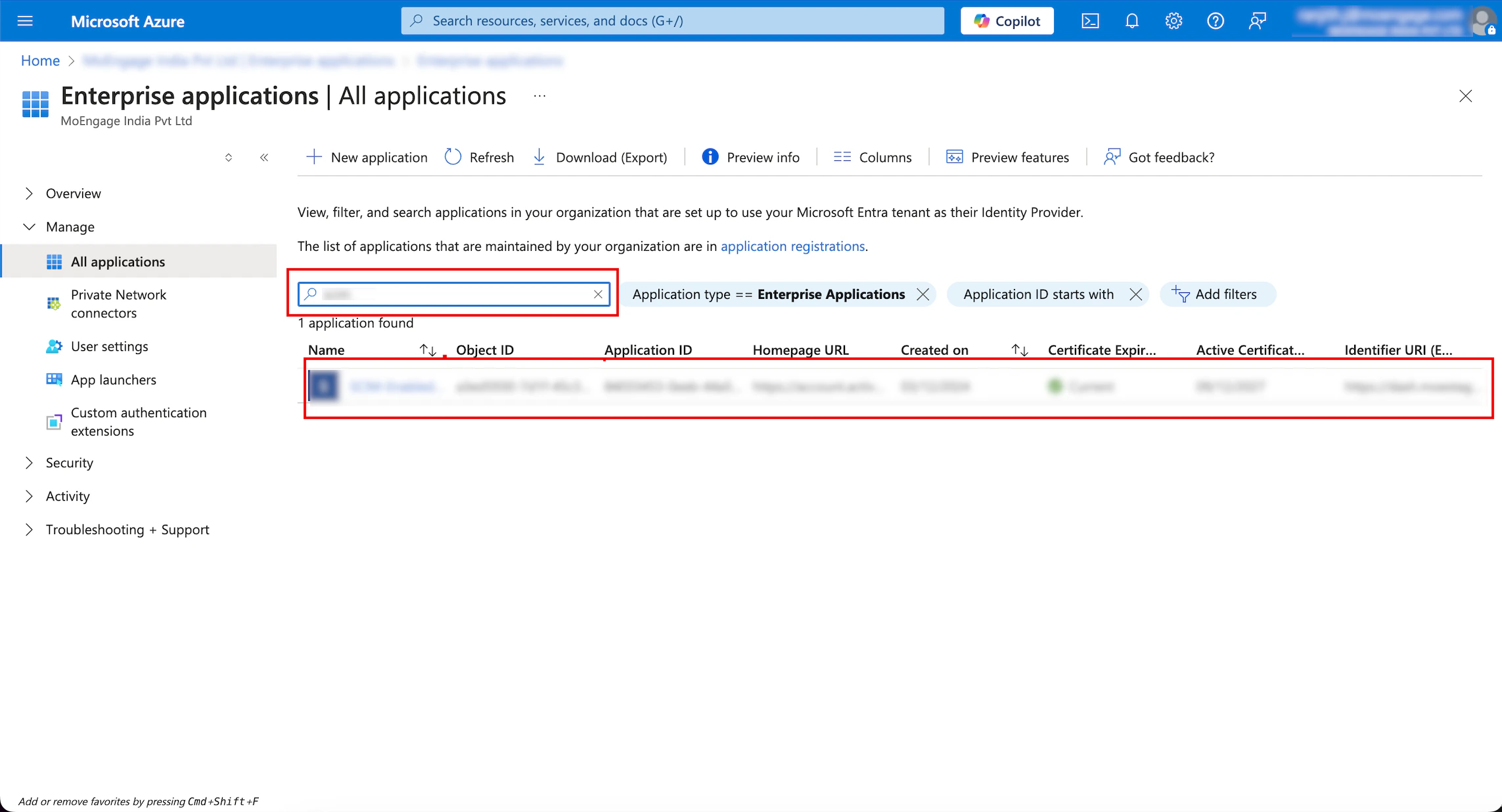 \
Your created application appears.
\
Your created application appears.  Now, you must configure SSO for the application you created.
8. On your opened application page, go to the left navigation menu and click **Manage** > **Single sign-on**.
Now, you must configure SSO for the application you created.
8. On your opened application page, go to the left navigation menu and click **Manage** > **Single sign-on**.  The SAML-based Sign-On configuration page for your created application appears.
 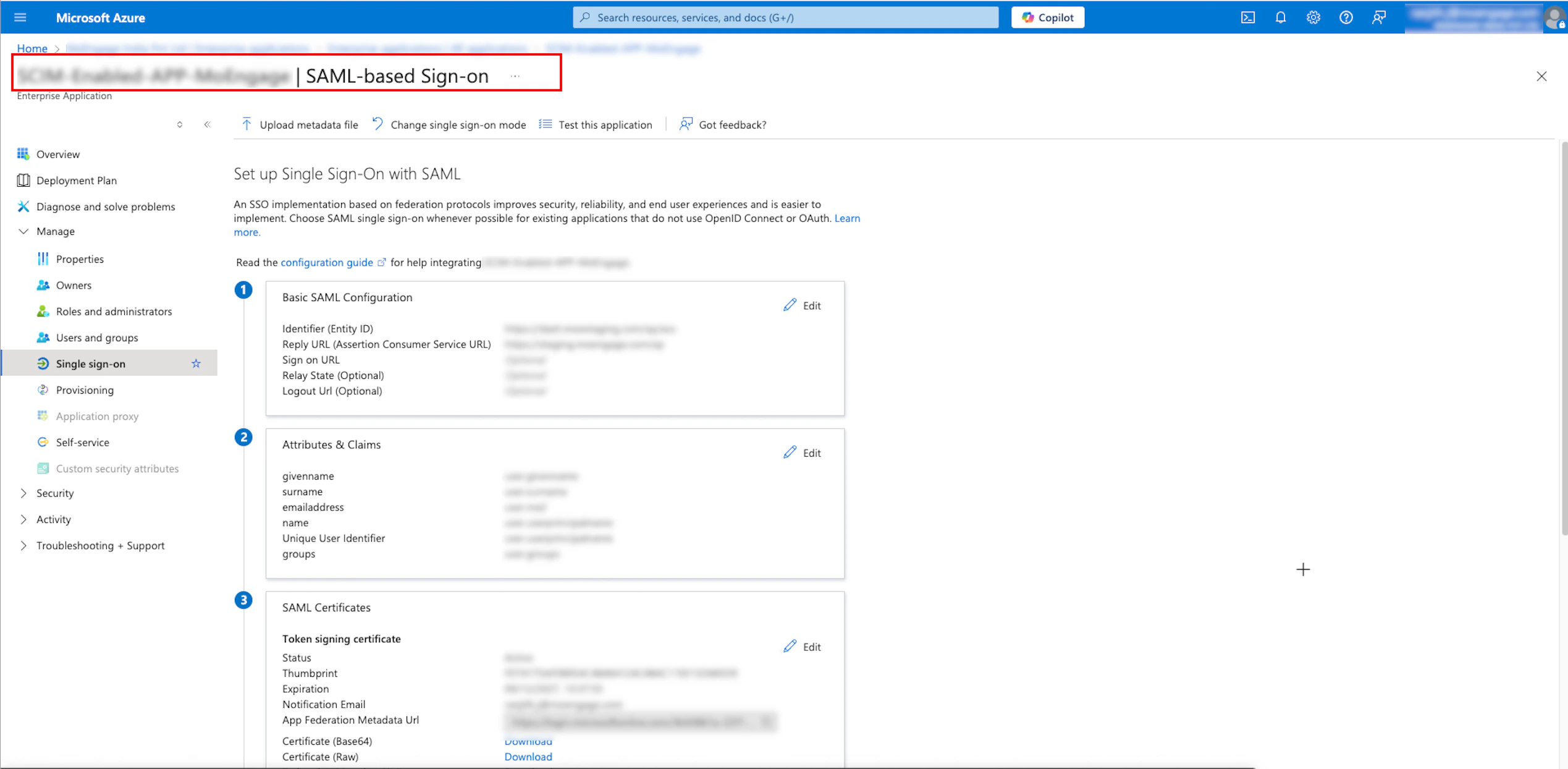 9. Move to the first step, **Basic SAML Configuration**, to define your metadata.
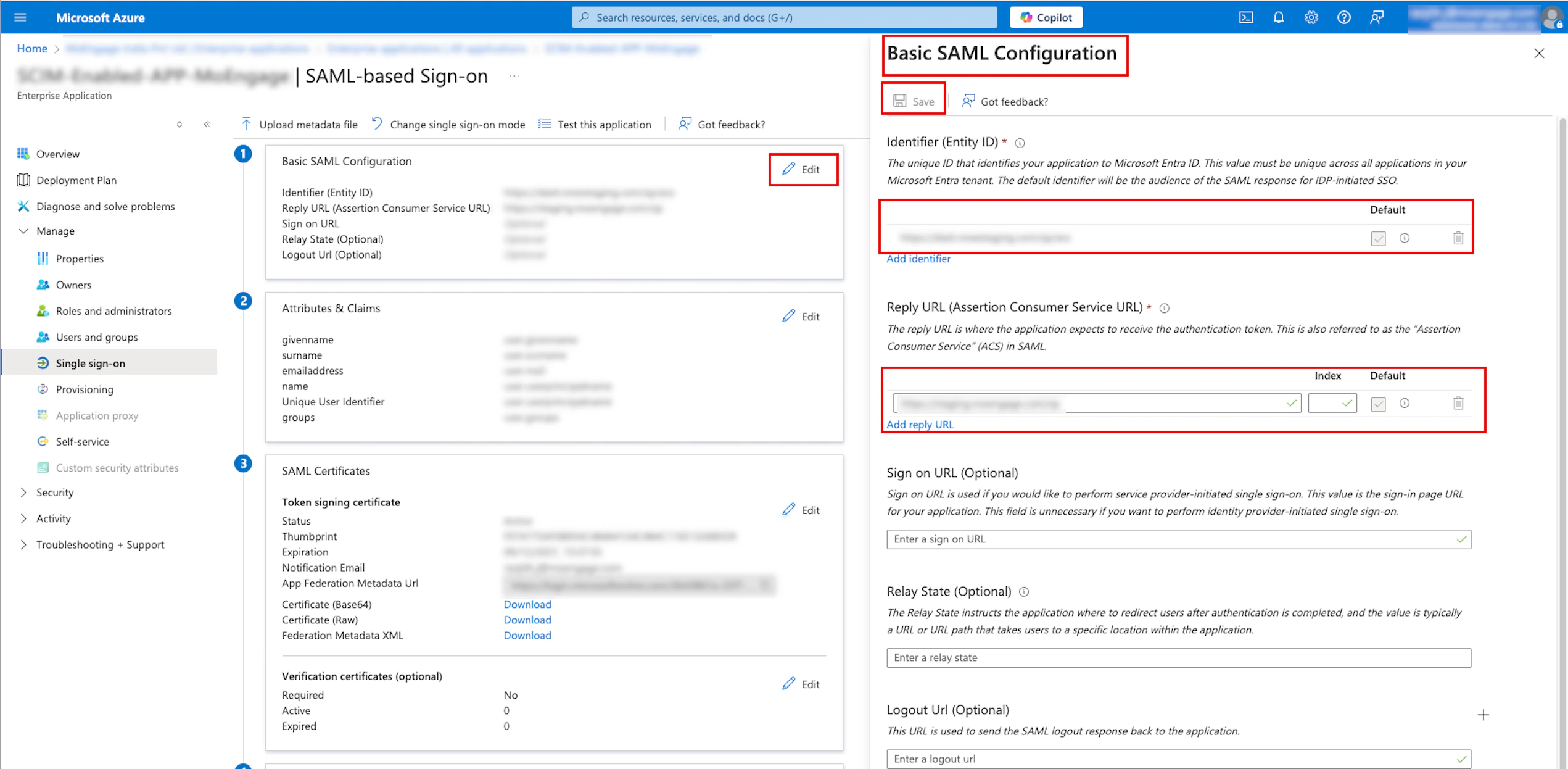
10. In the **Basic SAML Configuration** section, click **Edit** in the upper-right corner. The **Basic SAML Configuration** pane appears on the right side.
9. Move to the first step, **Basic SAML Configuration**, to define your metadata.
10. In the **Basic SAML Configuration** section, click **Edit** in the upper-right corner. The **Basic SAML Configuration** pane appears on the right side. 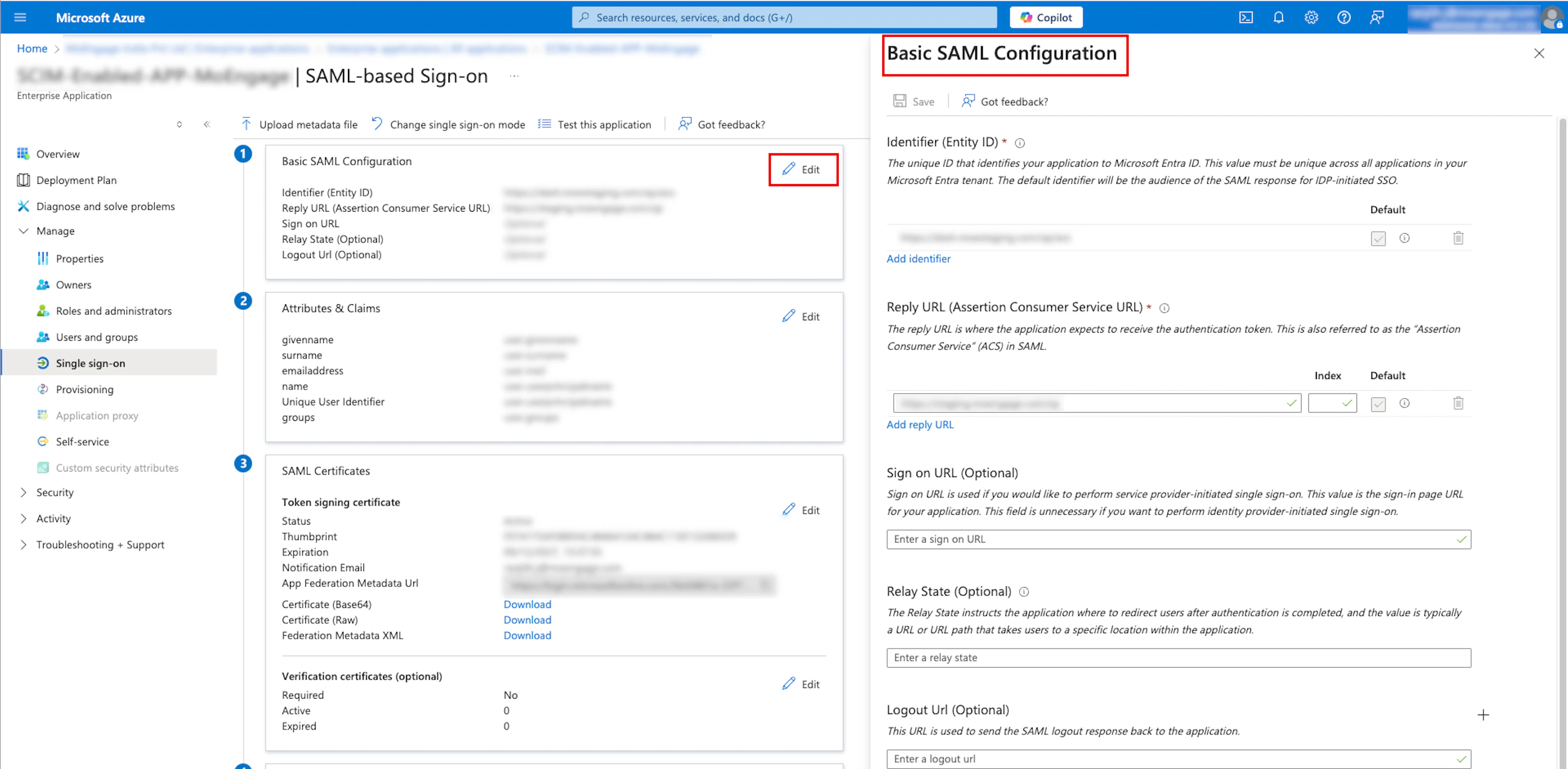 11. On the **Configure SSO** dialog box in the MoEngage dashboard, copy the **Identifier (Entity ID)** and the **Reply URL (Assertion Consumer Service URL)**. **Note**: Copying the **Sign on URL** is optional and generally not recommended.
 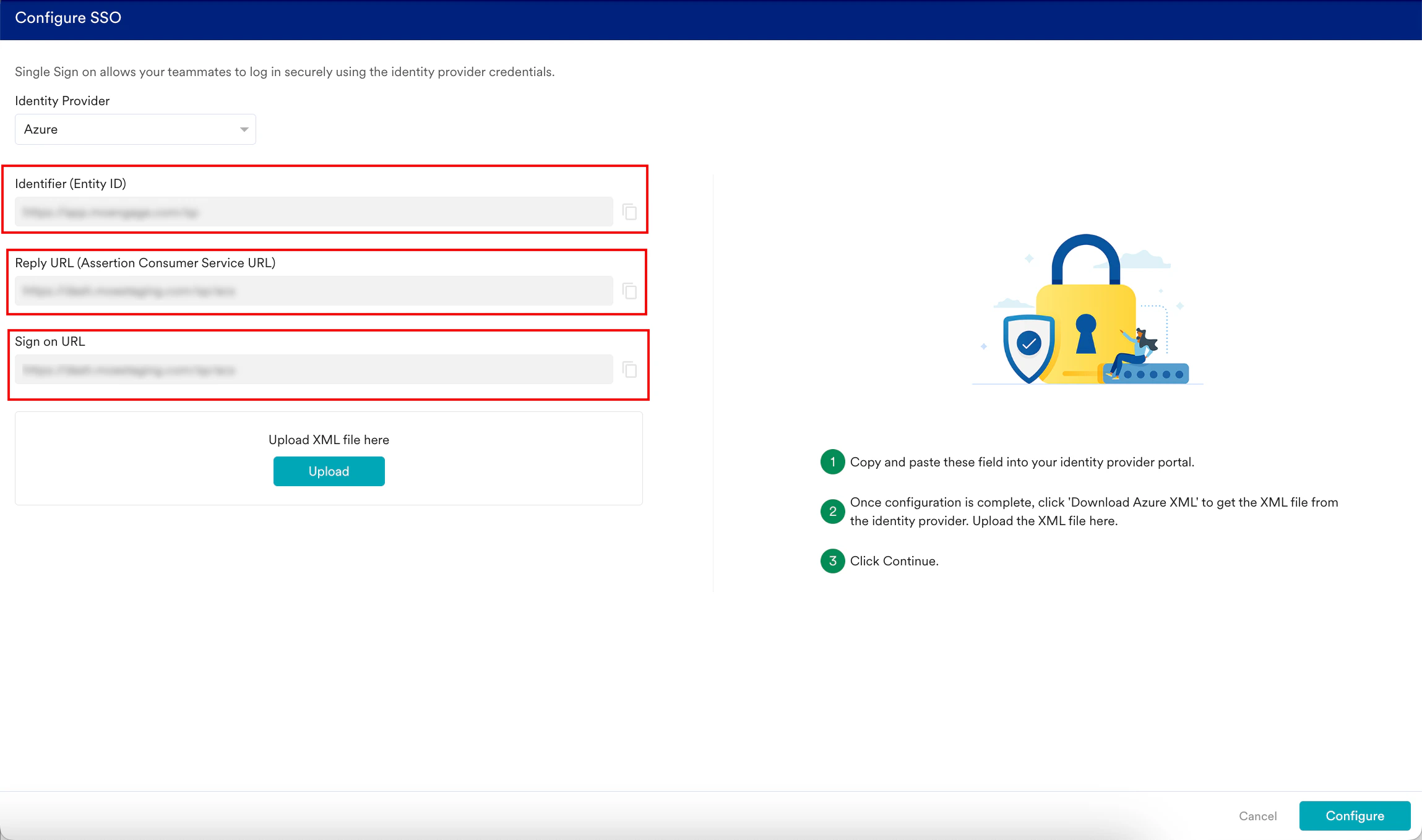 12. In the **Basic SAML Configuration section**, enter the following details:
| Field | Required | Description |
| --------------------------------------------------------------------------------------------------------------------------------------------------------------------------------------------------------------------------------------------------------------------------------------------------------------------------------------------------------------------------------------------------------------------------------------------------------------------------------------------------------------------------------------------------------------------------------------------------------------------------------------------------------------------------------------------------------------------------------------------------------------------------------------------------------------------------------------------------------------------------------------------------------------------------------------------------------------------------------------------------------------------------------------------------------------------------------------------------------------------------------------------------------------------------------------------------------------------------------------------------------------------------------------------------------------------------------------------------------------------------------------------------------------------------------------- | --------------------------------------- | -------------------------------------------------------------------------------------------------------------------------------------------------------------- |
| Identifier (Entity ID) | Yes | This URL allows MoEngage to verify authentication requests from Azure, ensuring secure and seamless logins. Paste the ID copied from the MoEngage dashboard. |
| Reply URL (Assertion Consumer Service URL) | Yes | This URL receives and processes the SAML authentication data for MoEngage from Azure. Paste the reply URL copied from the MoEngage dashboard. |
| Sign on URL | Optional and generally not recommended. | This URL is the entry point from Azure that triggers the SAML SSO process to access MoEngage.
12. In the **Basic SAML Configuration section**, enter the following details:
| Field | Required | Description |
| --------------------------------------------------------------------------------------------------------------------------------------------------------------------------------------------------------------------------------------------------------------------------------------------------------------------------------------------------------------------------------------------------------------------------------------------------------------------------------------------------------------------------------------------------------------------------------------------------------------------------------------------------------------------------------------------------------------------------------------------------------------------------------------------------------------------------------------------------------------------------------------------------------------------------------------------------------------------------------------------------------------------------------------------------------------------------------------------------------------------------------------------------------------------------------------------------------------------------------------------------------------------------------------------------------------------------------------------------------------------------------------------------------------------------------------- | --------------------------------------- | -------------------------------------------------------------------------------------------------------------------------------------------------------------- |
| Identifier (Entity ID) | Yes | This URL allows MoEngage to verify authentication requests from Azure, ensuring secure and seamless logins. Paste the ID copied from the MoEngage dashboard. |
| Reply URL (Assertion Consumer Service URL) | Yes | This URL receives and processes the SAML authentication data for MoEngage from Azure. Paste the reply URL copied from the MoEngage dashboard. |
| Sign on URL | Optional and generally not recommended. | This URL is the entry point from Azure that triggers the SAML SSO process to access MoEngage. Paste the sign-on URL copied from the MoEngage dashboard. | |
 | | |
13. Click **Save**.
14. Your SSO configuration has been successfully saved. To download the XML file, move to the third step, **SAML Certificates**.
15. In the **SAMLCertificates** section, click **Download** adjacent to the **Federation Metadata XML**.
| | |
13. Click **Save**.
14. Your SSO configuration has been successfully saved. To download the XML file, move to the third step, **SAML Certificates**.
15. In the **SAMLCertificates** section, click **Download** adjacent to the **Federation Metadata XML**.  The metadata will be downloaded in an XML file.
16. Click **Upload**to upload the downloaded XML file on the **Configure SSO** dialog box in the MoEngage dashboard.
17. By default, the **Update the same config for Test Environment** check box is selected. When it is selected, the configuration is applied to both the test and live environments. Clear the check box if you want the configuration to be applied only to the live environment.
18. Click **Configure**.\
The metadata will be downloaded in an XML file.
16. Click **Upload**to upload the downloaded XML file on the **Configure SSO** dialog box in the MoEngage dashboard.
17. By default, the **Update the same config for Test Environment** check box is selected. When it is selected, the configuration is applied to both the test and live environments. Clear the check box if you want the configuration to be applied only to the live environment.
18. Click **Configure**.\
 The Alert pop-up window will appear, prompting you to review the instructions properly.
19. Select the **Send email to the users of this workspace** check box to notify all users about your workspace's Single Sign-On (SSO) enablement.
20. Click **Done**. The SSO configuration is now successfully completed. You can see the Azure SSO on the **Login** tab.
The Alert pop-up window will appear, prompting you to review the instructions properly.
19. Select the **Send email to the users of this workspace** check box to notify all users about your workspace's Single Sign-On (SSO) enablement.
20. Click **Done**. The SSO configuration is now successfully completed. You can see the Azure SSO on the **Login** tab. 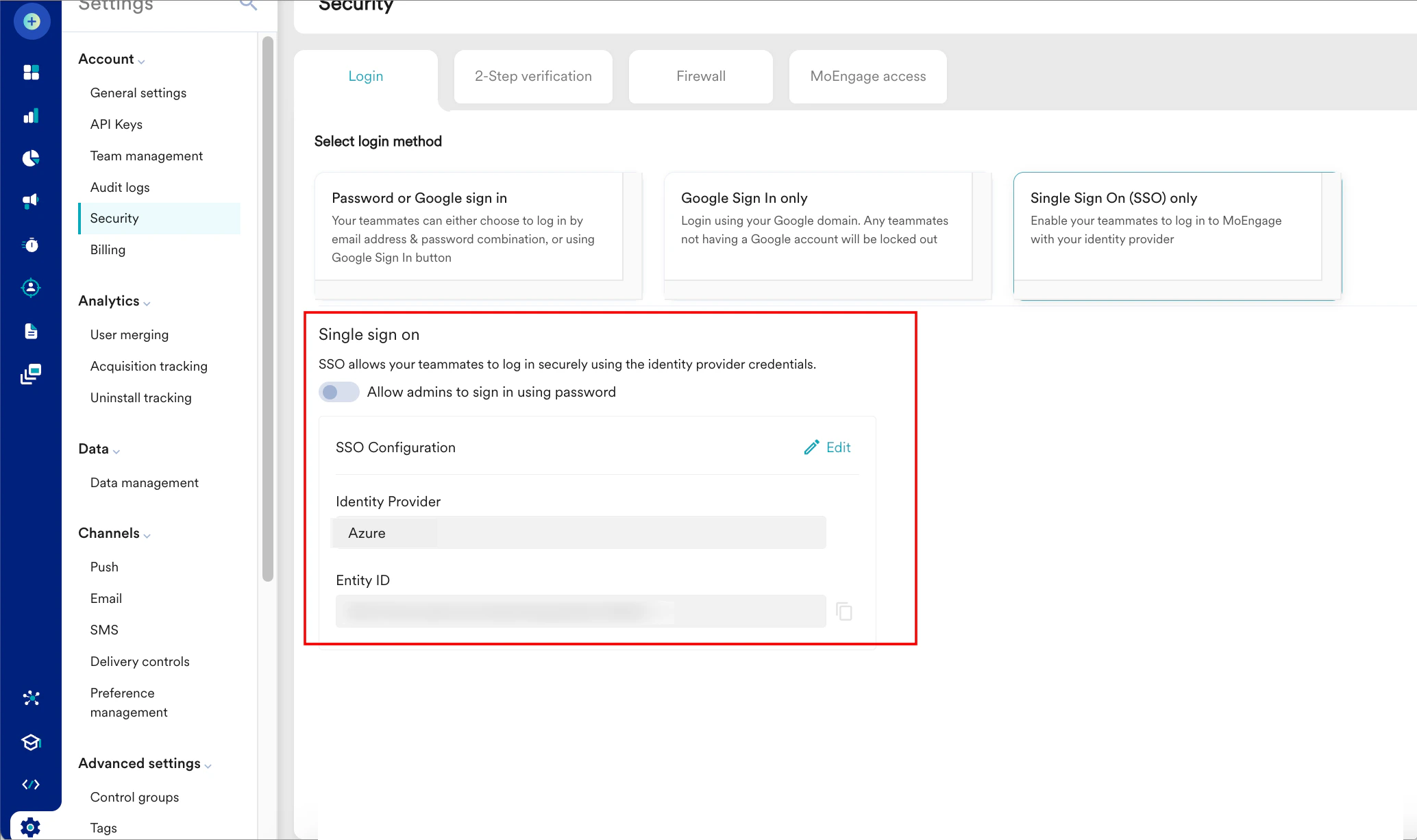
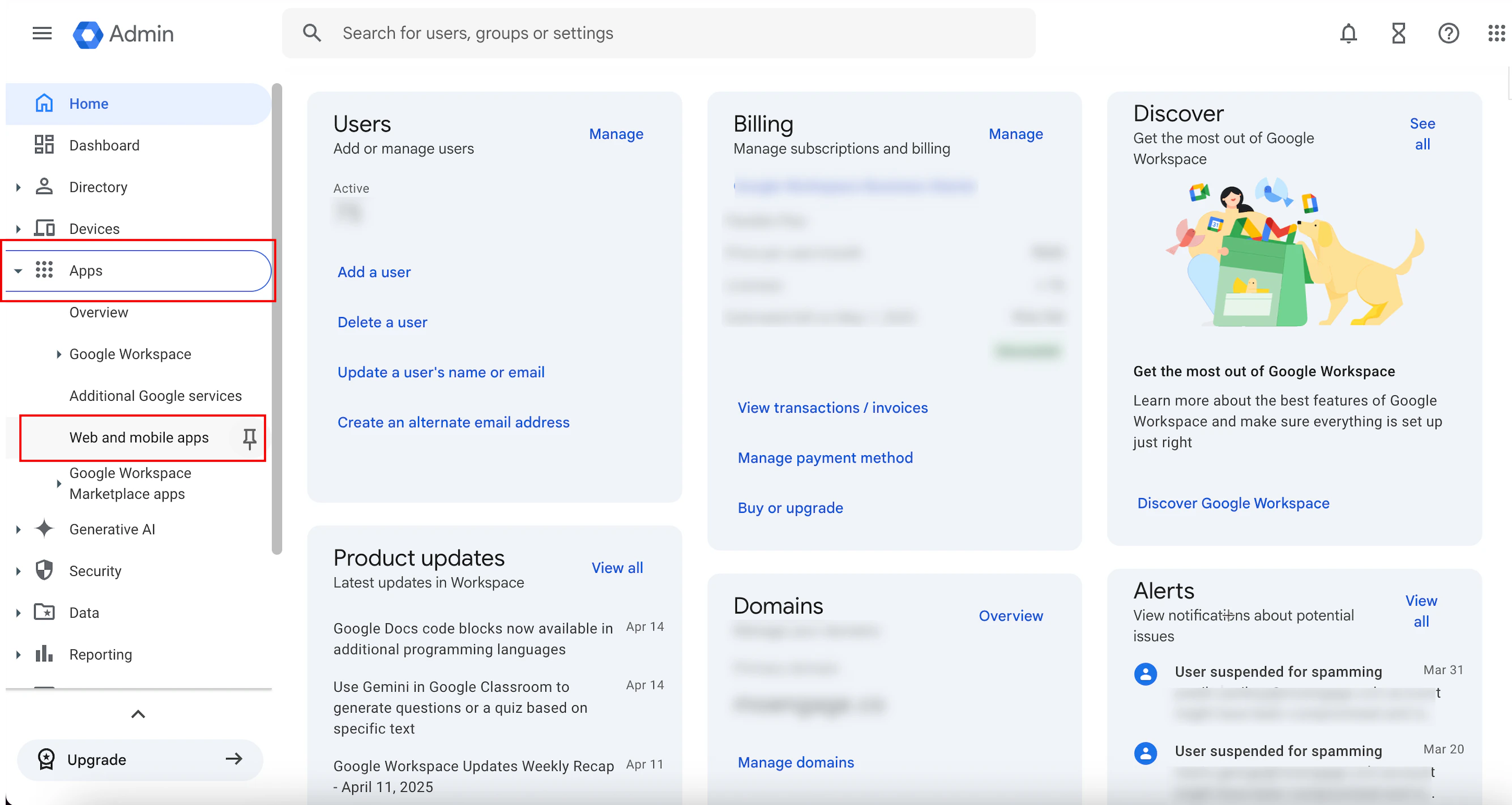 3. Click the **Add app** arrow and click **Add custom SAML** **app**.
  You are taken to the first step, **App details**, to define your app.
4. On the **App details** page, enter the following details:
| Field | Required | Description |
| ----------- | -------- | ----------------------------------------------------------------------------------------------------------------------------------------------- |
| App name | Yes | Name of your SAML application. |
| Description | Yes | Description of your SAML application configuration. |
| Upload logo | optional | Upload an image file (typically PNG, JPG, or GIF) to serve as your application icon.
You are taken to the first step, **App details**, to define your app.
4. On the **App details** page, enter the following details:
| Field | Required | Description |
| ----------- | -------- | ----------------------------------------------------------------------------------------------------------------------------------------------- |
| App name | Yes | Name of your SAML application. |
| Description | Yes | Description of your SAML application configuration. |
| Upload logo | optional | Upload an image file (typically PNG, JPG, or GIF) to serve as your application icon. **Note**: The image file must be smaller than 4 MB. |
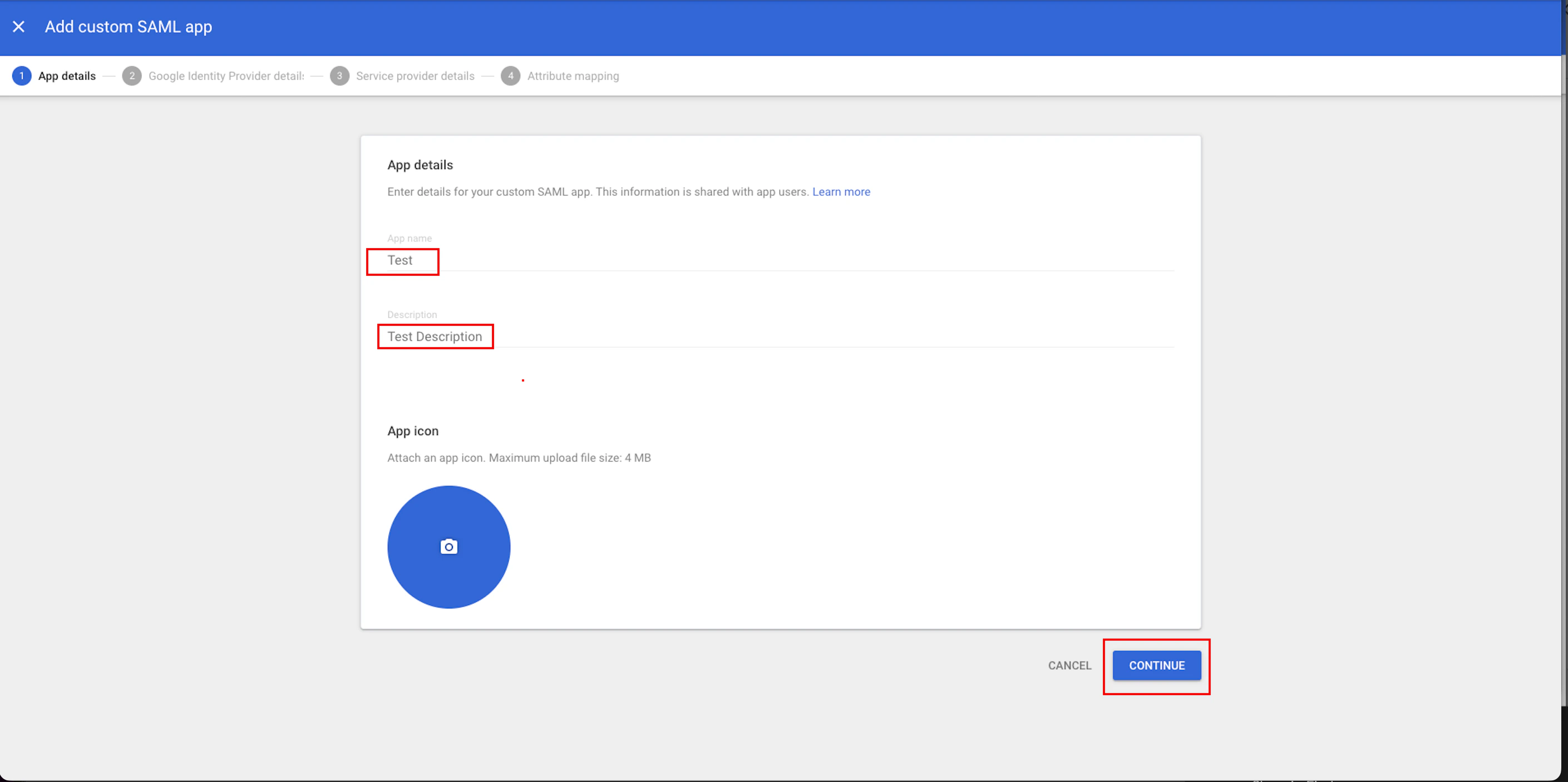 5. Click **Continue**. You are taken to the second step, **Google Identity Provider details**.
6. Under **Option 1: Download IdP metadata**, click **Download Metadata**.\
The metadata will be downloaded in an XML file.
7. Click **Continue**.
5. Click **Continue**. You are taken to the second step, **Google Identity Provider details**.
6. Under **Option 1: Download IdP metadata**, click **Download Metadata**.\
The metadata will be downloaded in an XML file.
7. Click **Continue**.  You are taken to the third step, **Service provider details**.
8. On the **Configure SSO** dialog box in the MoEngage dashboard, copy the **ACS URL** and **Entity ID**.
You are taken to the third step, **Service provider details**.
8. On the **Configure SSO** dialog box in the MoEngage dashboard, copy the **ACS URL** and **Entity ID**. 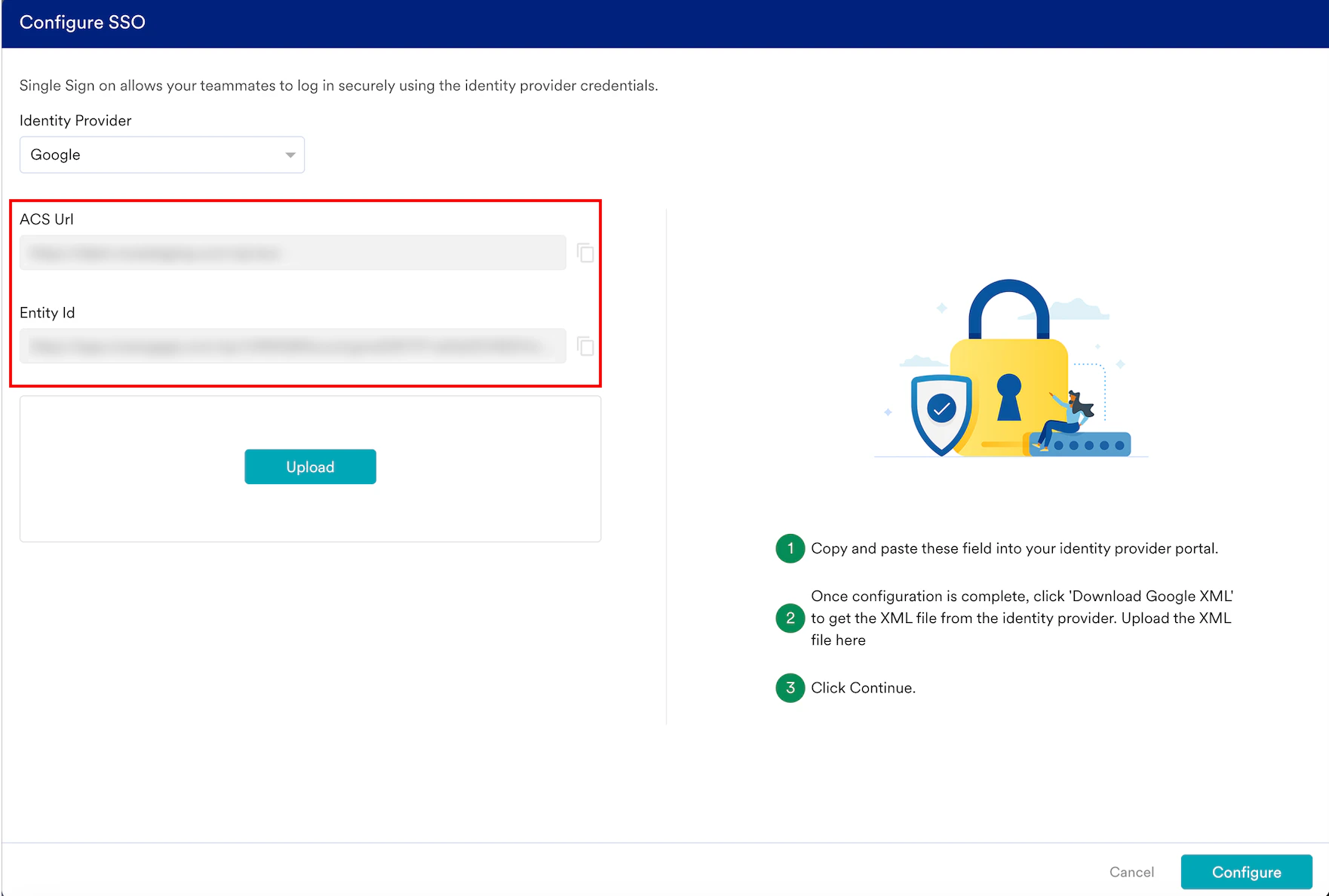 9. On the **Service provider details** page, enter the following details:
| Field | Required | Description |
| --------- | -------- | ----------------------------------------------------------------------------------------------------------------------------------------------- |
| ACS URL | Yes | This URL receives and processes the SAML authentication data for MoEngage from Google Admin. Paste the URL copied from the MoEngage dashboard. |
| Entity ID | Yes | A unique identifier for your application. Paste the ID copied from the MoEngage dashboard. |
| Start URL | Optional | Leave this blank. |
10. Select the **Signed response** check box to sign the entire SAML response, which includes the assertion and other protocol-related information.
11. In the **Name ID format** list, select *Email*.
12. Click **Continue**.
9. On the **Service provider details** page, enter the following details:
| Field | Required | Description |
| --------- | -------- | ----------------------------------------------------------------------------------------------------------------------------------------------- |
| ACS URL | Yes | This URL receives and processes the SAML authentication data for MoEngage from Google Admin. Paste the URL copied from the MoEngage dashboard. |
| Entity ID | Yes | A unique identifier for your application. Paste the ID copied from the MoEngage dashboard. |
| Start URL | Optional | Leave this blank. |
10. Select the **Signed response** check box to sign the entire SAML response, which includes the assertion and other protocol-related information.
11. In the **Name ID format** list, select *Email*.
12. Click **Continue**.  You are taken to the fourth step, **Attribute mapping**. Here, you can map optional user attributes (for example, first name, last name, and email address).
13. Click **Finish**.
You are taken to the fourth step, **Attribute mapping**. Here, you can map optional user attributes (for example, first name, last name, and email address).
13. Click **Finish**.  Your SAML settings are updated.
14. On the **Configure SSO** dialog box in the MoEngage dashboard, click **Upload** to upload the XML file that you downloaded in step 6.
15. By default, the **Update the same config for Test Environment** check box is selected. When it is selected, the configuration is applied to both the test and live environments. Clear the check box if you want the configuration to be applied only to the live environment.
16. Click **Configure**.
Your SAML settings are updated.
14. On the **Configure SSO** dialog box in the MoEngage dashboard, click **Upload** to upload the XML file that you downloaded in step 6.
15. By default, the **Update the same config for Test Environment** check box is selected. When it is selected, the configuration is applied to both the test and live environments. Clear the check box if you want the configuration to be applied only to the live environment.
16. Click **Configure**.  The Alert pop-up window will appear, prompting you to review the instructions properly.
17. Select the **Send email to the users of this workspace** check box to notify all users about your workspace's Single Sign-On (SSO) enablement.
18. Click **Done**. The SSO configuration is now successfully completed. You can see Google SSO on the **Login** tab.
The Alert pop-up window will appear, prompting you to review the instructions properly.
17. Select the **Send email to the users of this workspace** check box to notify all users about your workspace's Single Sign-On (SSO) enablement.
18. Click **Done**. The SSO configuration is now successfully completed. You can see Google SSO on the **Login** tab. 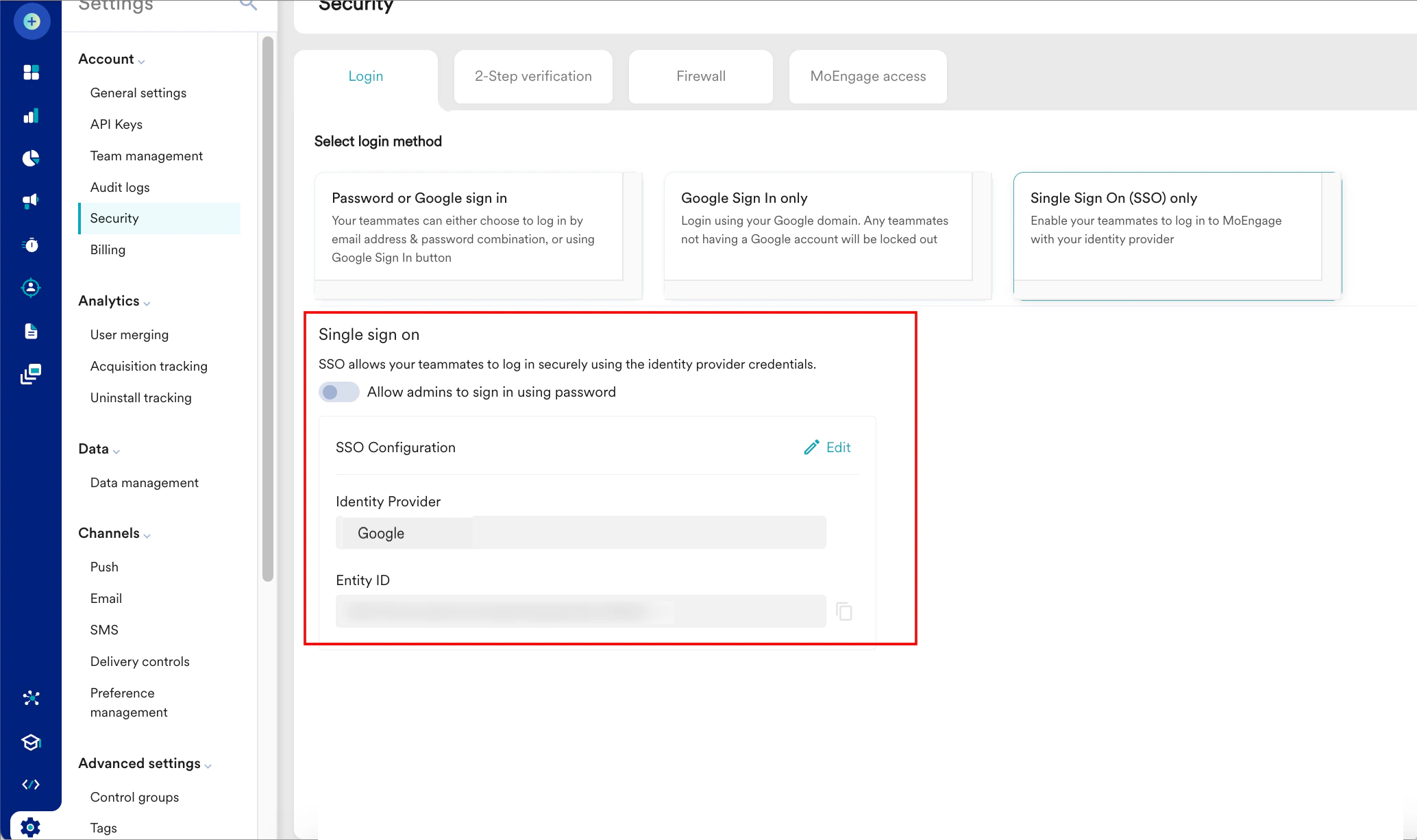
 The Alert pop-up window will appear, prompting you to review the instructions properly.
7. Select the **Send email to the users of this workspace** check box.
8. Click **Done**. The SSO configuration is now successfully completed.
The Alert pop-up window will appear, prompting you to review the instructions properly.
7. Select the **Send email to the users of this workspace** check box.
8. Click **Done**. The SSO configuration is now successfully completed. 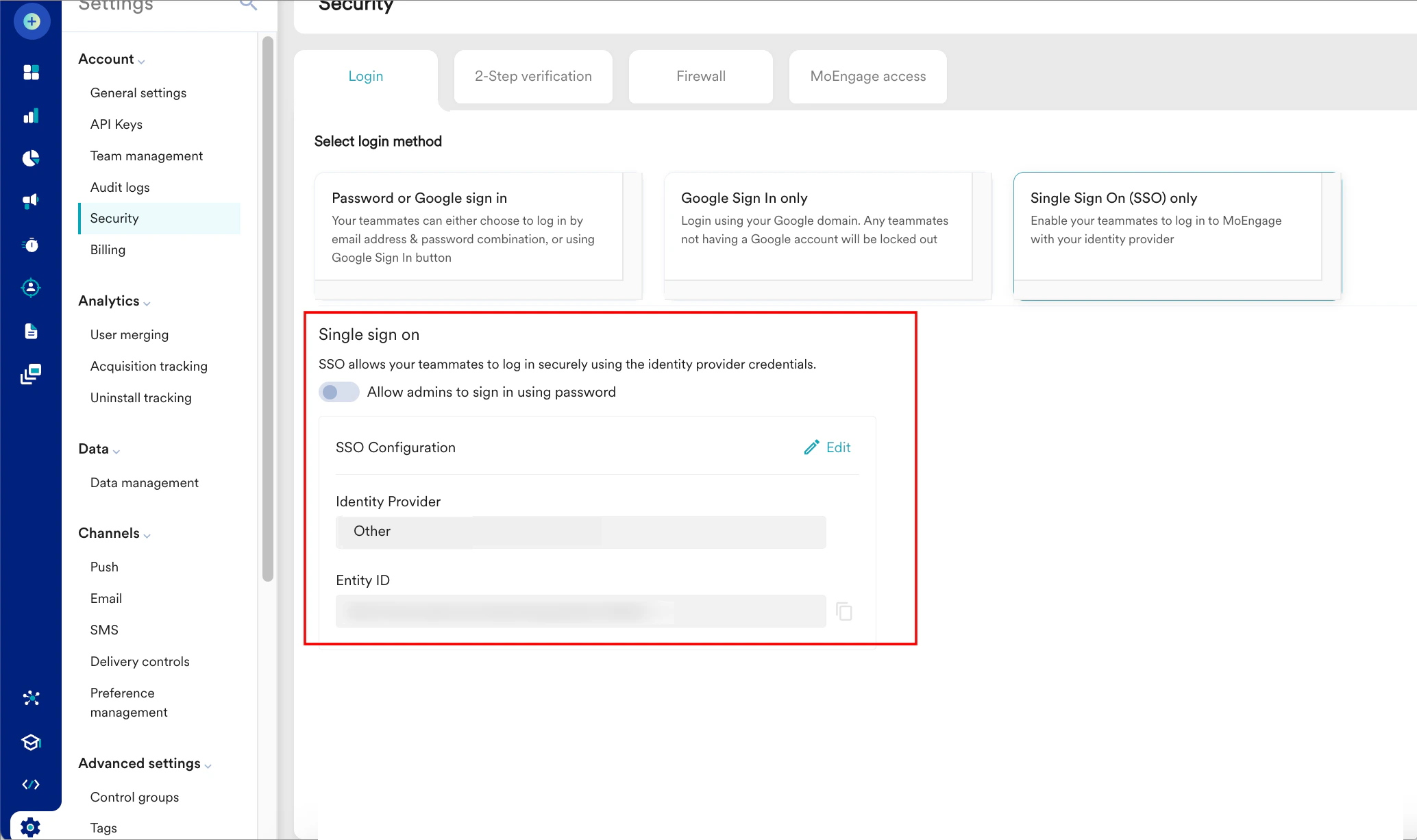
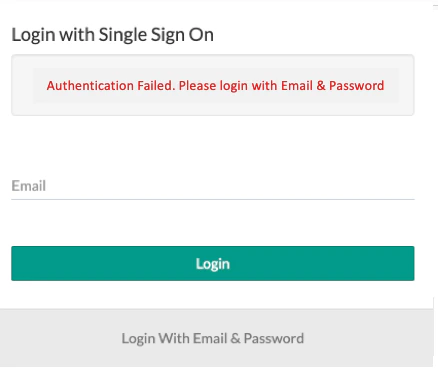 ***Authentication Failed***
This generally happens when the SAML authentication with the Identity Provider fails. Please contact your identity provider for details.
***Persistent Error***
MoEngage supports the admin login using an email id - password combination. The Admin can go back to the Single Sign On screen (Go to settings > Security Settings) and disable SSO.
***Authentication Failed***
This generally happens when the SAML authentication with the Identity Provider fails. Please contact your identity provider for details.
***Persistent Error***
MoEngage supports the admin login using an email id - password combination. The Admin can go back to the Single Sign On screen (Go to settings > Security Settings) and disable SSO.
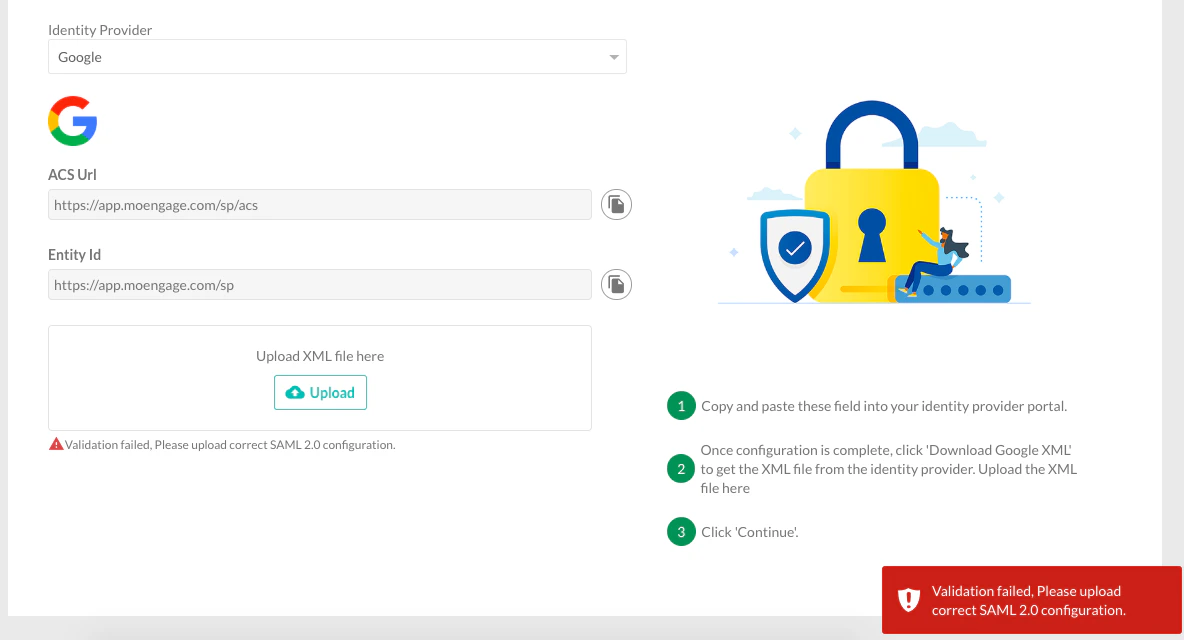 This generally happens when the uploaded XML file is invalid. Try again with the correct XML file. If the issue persists, check with your identity provider.