> ## Documentation Index
> Fetch the complete documentation index at: https://moengage-user-guide.mintlify.site/llms.txt
> Use this file to discover all available pages before exploring further.
# Manage Tags
Perform the following steps to manage all your tags and categories:
1. Navigate to **Settings > Advanced Settings > Tags**.\\
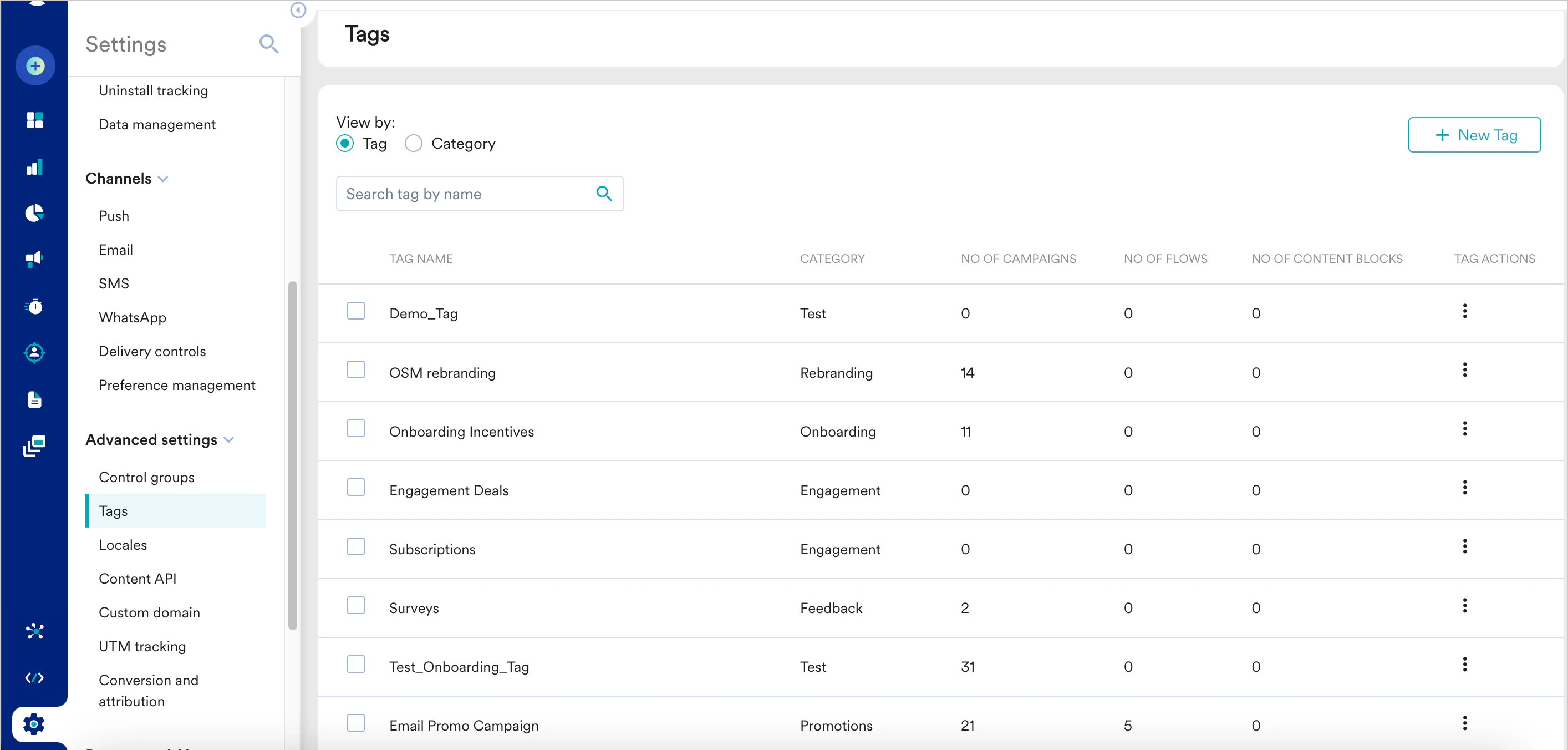 2. Under **View by**, click **Tag** or **Category** to view all the tags listed individually or grouped by their categories.
* **Tag**: When you select this option, each tag contains information about the number of campaigns, flows, and content blocks in which it is used. You can search for a tag by its name, edit it, or delete it.
* **Category**: When you select this option, you can search for a category by its name, edit it, or delete it.
The following actions are supported on tags:
### Create a Tag
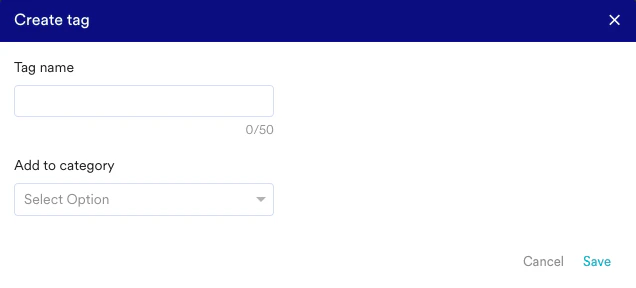
1. Click **+ New Tag** to create a new tag.
2. Enter the tag name and category.
2. Under **View by**, click **Tag** or **Category** to view all the tags listed individually or grouped by their categories.
* **Tag**: When you select this option, each tag contains information about the number of campaigns, flows, and content blocks in which it is used. You can search for a tag by its name, edit it, or delete it.
* **Category**: When you select this option, you can search for a category by its name, edit it, or delete it.
The following actions are supported on tags:
### Create a Tag
1. Click **+ New Tag** to create a new tag.
2. Enter the tag name and category.
 Note: The tags will be moved to Uncategorized if the category is empty.
### Edit/Delete a Tag
You are only allowed to edit the tag name or change tag categories. Click on the action button in the tag row. You can choose to edit/delete tags.
Note: The tags will be moved to Uncategorized if the category is empty.
### Edit/Delete a Tag
You are only allowed to edit the tag name or change tag categories. Click on the action button in the tag row. You can choose to edit/delete tags.  Note: Default tags cannot be modified.
### Edit/Delete Multiple Tags
1. Select all the tags that you want to update.
2. You can choose to edit/delete selected tags on the top row.
Note: Default tags cannot be modified.
### Edit/Delete Multiple Tags
1. Select all the tags that you want to update.
2. You can choose to edit/delete selected tags on the top row.
 ### Edit/Delete a Category
You are only allowed to edit the category's name. Click on the action button in the category row. You can choose to edit/delete a category.
If there are tags present in the category being deleted, you will have two options:
* Delete tags along with the category.
### Edit/Delete a Category
You are only allowed to edit the category's name. Click on the action button in the category row. You can choose to edit/delete a category.
If there are tags present in the category being deleted, you will have two options:
* Delete tags along with the category.
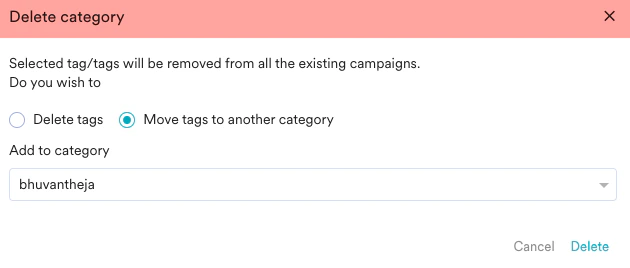
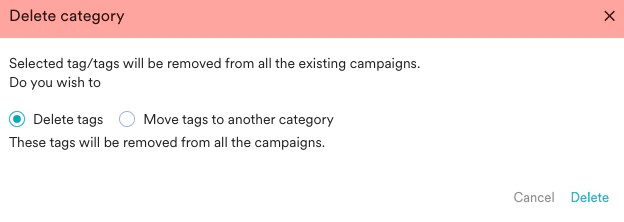 * Move the tags to a different category.