> ## Documentation Index
> Fetch the complete documentation index at: https://moengage-user-guide.mintlify.site/llms.txt
> Use this file to discover all available pages before exploring further.
# How to Reduce Card Application Abandonment
# Introduction
Card applications can often be lengthy and need users to submit details that are not readily available to them. This is one of the most common yet difficult situations to handle for marketers especially with the current short span of attention of the digital users. We can set up Flows aimed at bringing the customers back to the site and nudging them to complete the application. This can help in higher conversion rates and thus help us avoid losing new users and revenue.
In this article, we will create a Flow campaign to nudge users to complete their card application through the following steps:
* Identify exit intent from the customer and show a message on the website prompting them not to drop off or generate a lead.
* Send follow-up message(s) through SMS after 1 hour of dropping off from the application process.
* Analyze how many users submitted the form successfully through this flow.
# Expected Result
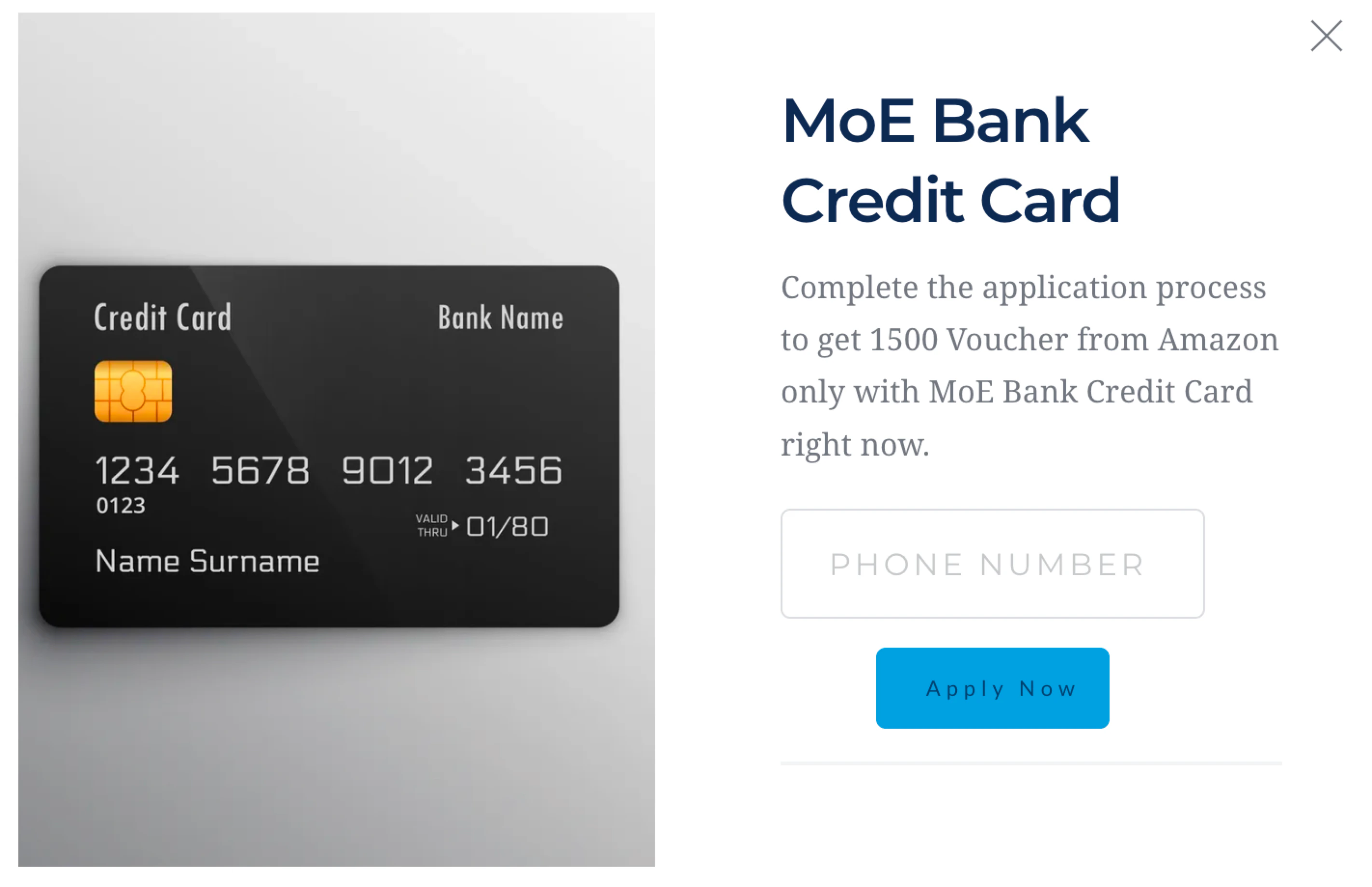
Users who try to exit without completing the card application process will see a website pop-up:
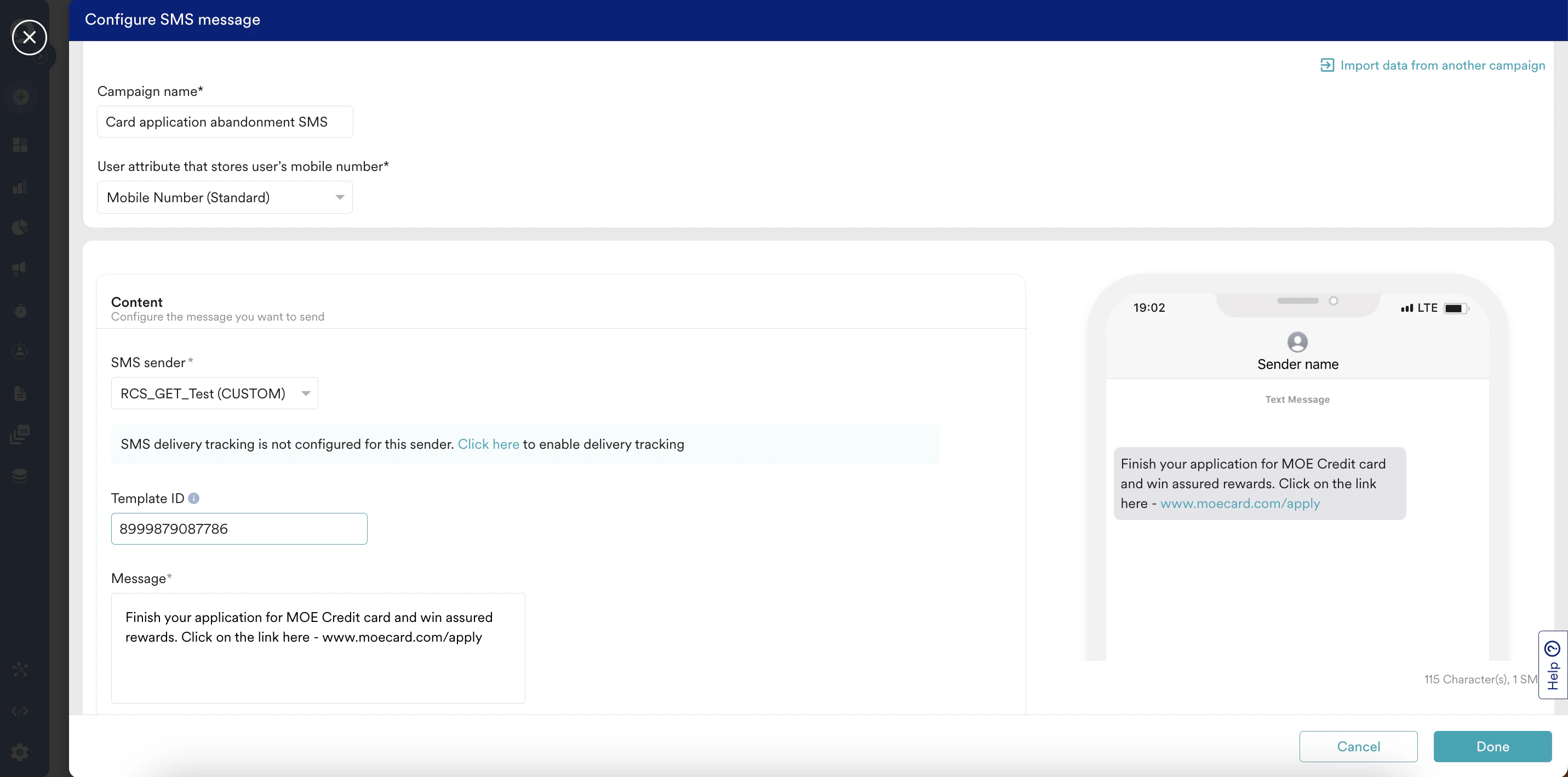
 Users who drop off from the application process will see an SMS notification:
 * Event to track the action of a user starting the application for the credit card and related information such as the platform, applied card name, annual renewal fee, joining fee. In this example, we will name the event as “BFSI-applicationFormStarted”. To understand how to track events, refer to the [Developers Guide](/developer-guide/introduction).
* Event to track the action of a user completing the application and related information such as the platform, applied card name, annual renewal fee, joining fee. In this example, we will name the event as “BFSI-applicationFormSubmitted”. To understand how to track events, refer to the [Developers Guide](/developer-guide/introduction).
* Settings for one or more channels such as Push, Email, SMS, or WhatsApp.
# Step 1: General Setup
1. Navigate to **Engage** > **Flows** and click **+ Create Flow** or navigate to the sidebar, click **+ Create new**, and then click **Flow**.
2. Click **+ Start with a blank canvas** to move to the first step “Details and goals”.
3. Enter the following details:
* **Flow name**: Enter "CreditCard Application Abandonment".
* **Flow tags**: Select a tag for your flow.
4. **Under the Conversion goal section, f**rom the **Event name** drop-down list, select "BFSI-applicationFormSubmitted". This is your primary conversion goal, which triggers when a user submits the application form.
* Event to track the action of a user starting the application for the credit card and related information such as the platform, applied card name, annual renewal fee, joining fee. In this example, we will name the event as “BFSI-applicationFormStarted”. To understand how to track events, refer to the [Developers Guide](/developer-guide/introduction).
* Event to track the action of a user completing the application and related information such as the platform, applied card name, annual renewal fee, joining fee. In this example, we will name the event as “BFSI-applicationFormSubmitted”. To understand how to track events, refer to the [Developers Guide](/developer-guide/introduction).
* Settings for one or more channels such as Push, Email, SMS, or WhatsApp.
# Step 1: General Setup
1. Navigate to **Engage** > **Flows** and click **+ Create Flow** or navigate to the sidebar, click **+ Create new**, and then click **Flow**.
2. Click **+ Start with a blank canvas** to move to the first step “Details and goals”.
3. Enter the following details:
* **Flow name**: Enter "CreditCard Application Abandonment".
* **Flow tags**: Select a tag for your flow.
4. **Under the Conversion goal section, f**rom the **Event name** drop-down list, select "BFSI-applicationFormSubmitted". This is your primary conversion goal, which triggers when a user submits the application form.
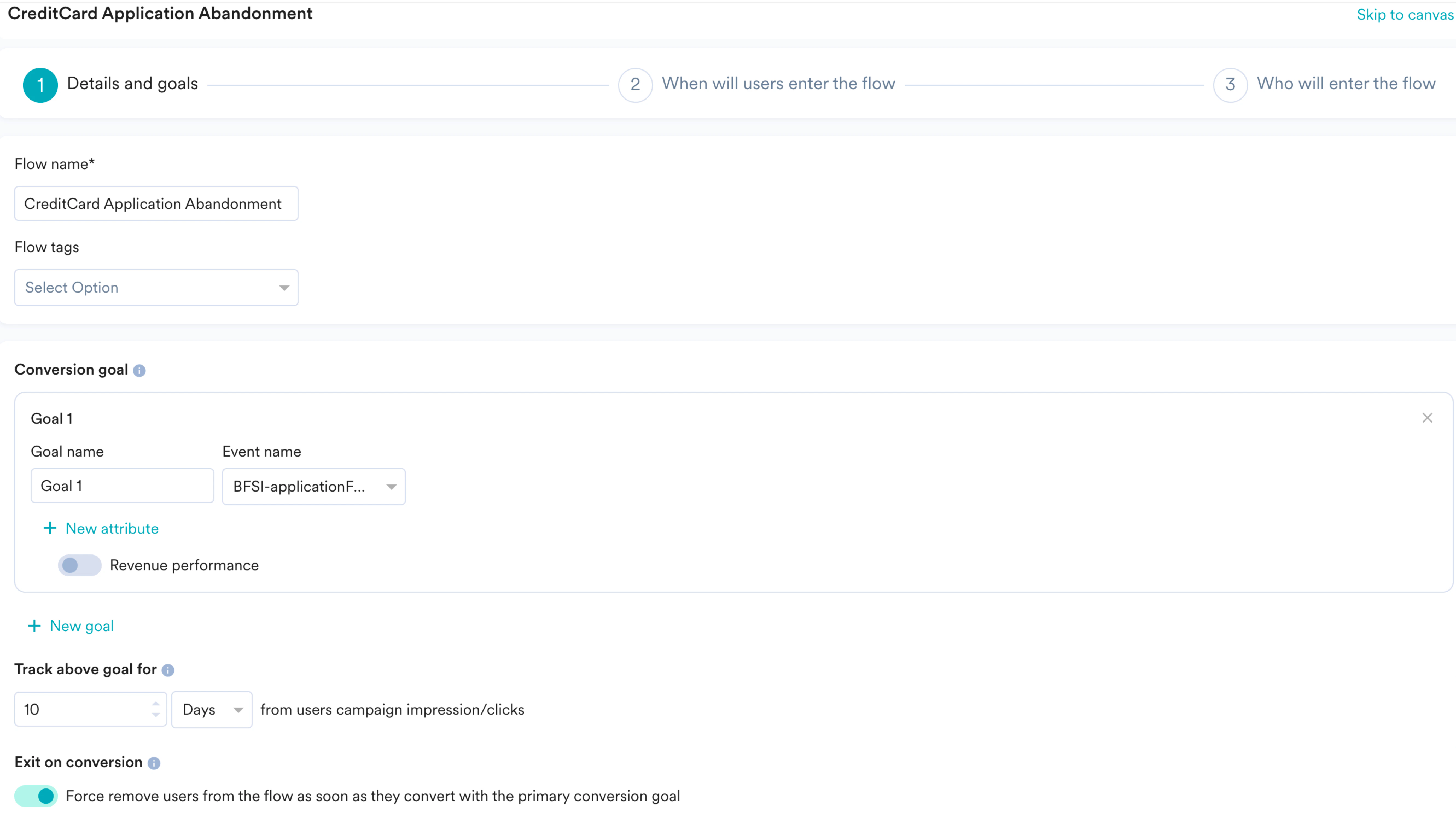 5. Turn the **Exit on conversion** toggle on to exit users who convert by doing the event “BFSI-applicationFormSubmitted”.
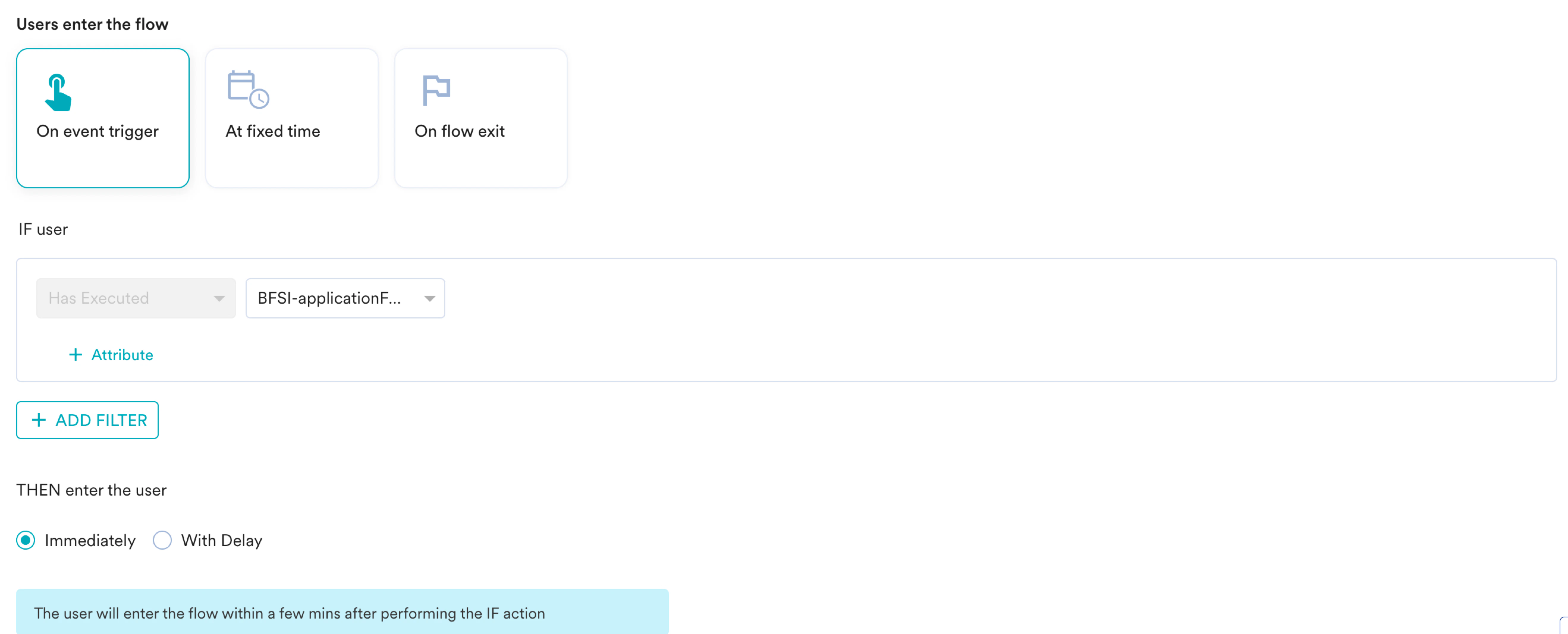
6. Click **Next** to move the second step “When will users enter the flow”. This step helps you define when to allow the user by mentioning the trigger conditions.
7. In the **Users enter the flow** section, select **On event trigger**.
8. From the drop-down list in the **IF user** section, select the “BFSI-applicationFormStarted” event that gets triggered when a user starts the application process for the credit card.
9. In the **THEN enter the user** section, select the **Immediately** option.
5. Turn the **Exit on conversion** toggle on to exit users who convert by doing the event “BFSI-applicationFormSubmitted”.
6. Click **Next** to move the second step “When will users enter the flow”. This step helps you define when to allow the user by mentioning the trigger conditions.
7. In the **Users enter the flow** section, select **On event trigger**.
8. From the drop-down list in the **IF user** section, select the “BFSI-applicationFormStarted” event that gets triggered when a user starts the application process for the credit card.
9. In the **THEN enter the user** section, select the **Immediately** option.
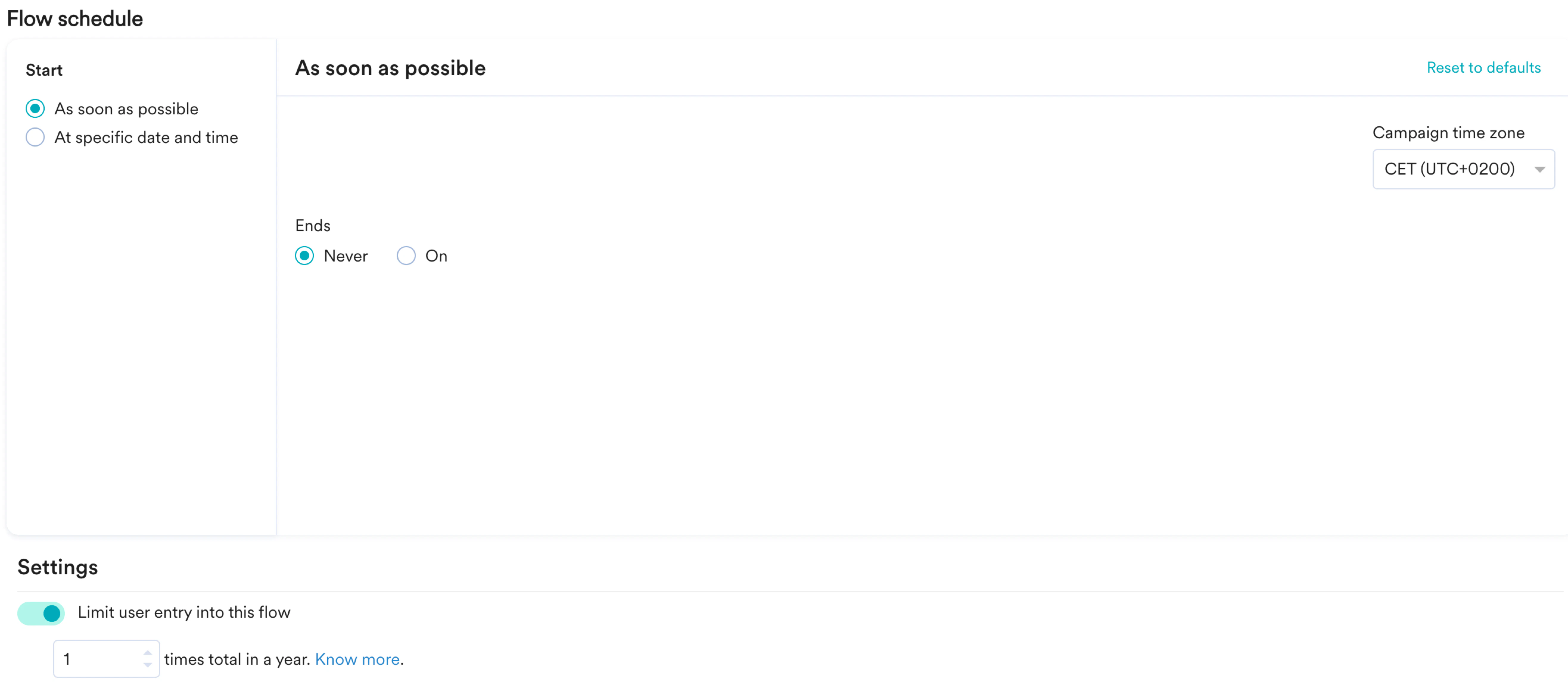
 10. In the **Flow Schedule** section, keep the default values. By default, the flow will start “As soon as possible” and will never end. Define a start time and an end time to the flow if required.
11. Turn the **Limit user entry into this flow** toggle on to define the maximum time a user can enter the flow. We can set this limit as 2 for this example.
Users are highly likely to match the Card Application Abandonment flow’s entry rules more often and thus might enter the flow too many times. Defining such limits helps you control users from re-entering the flow repeatedly and thus avoid spamming them too much, which in turn provides a better user experience.
10. In the **Flow Schedule** section, keep the default values. By default, the flow will start “As soon as possible” and will never end. Define a start time and an end time to the flow if required.
11. Turn the **Limit user entry into this flow** toggle on to define the maximum time a user can enter the flow. We can set this limit as 2 for this example.
Users are highly likely to match the Card Application Abandonment flow’s entry rules more often and thus might enter the flow too many times. Defining such limits helps you control users from re-entering the flow repeatedly and thus avoid spamming them too much, which in turn provides a better user experience.
 12. Click **Next** to move to the third step “Who will enter the flow”. This is where you select the target audience and control groups for your Flow.
13. In the **Audience** section, select **All users**because we want to send communications to all the users who started application for the card and have not submitted it.
12. Click **Next** to move to the third step “Who will enter the flow”. This is where you select the target audience and control groups for your Flow.
13. In the **Audience** section, select **All users**because we want to send communications to all the users who started application for the card and have not submitted it.
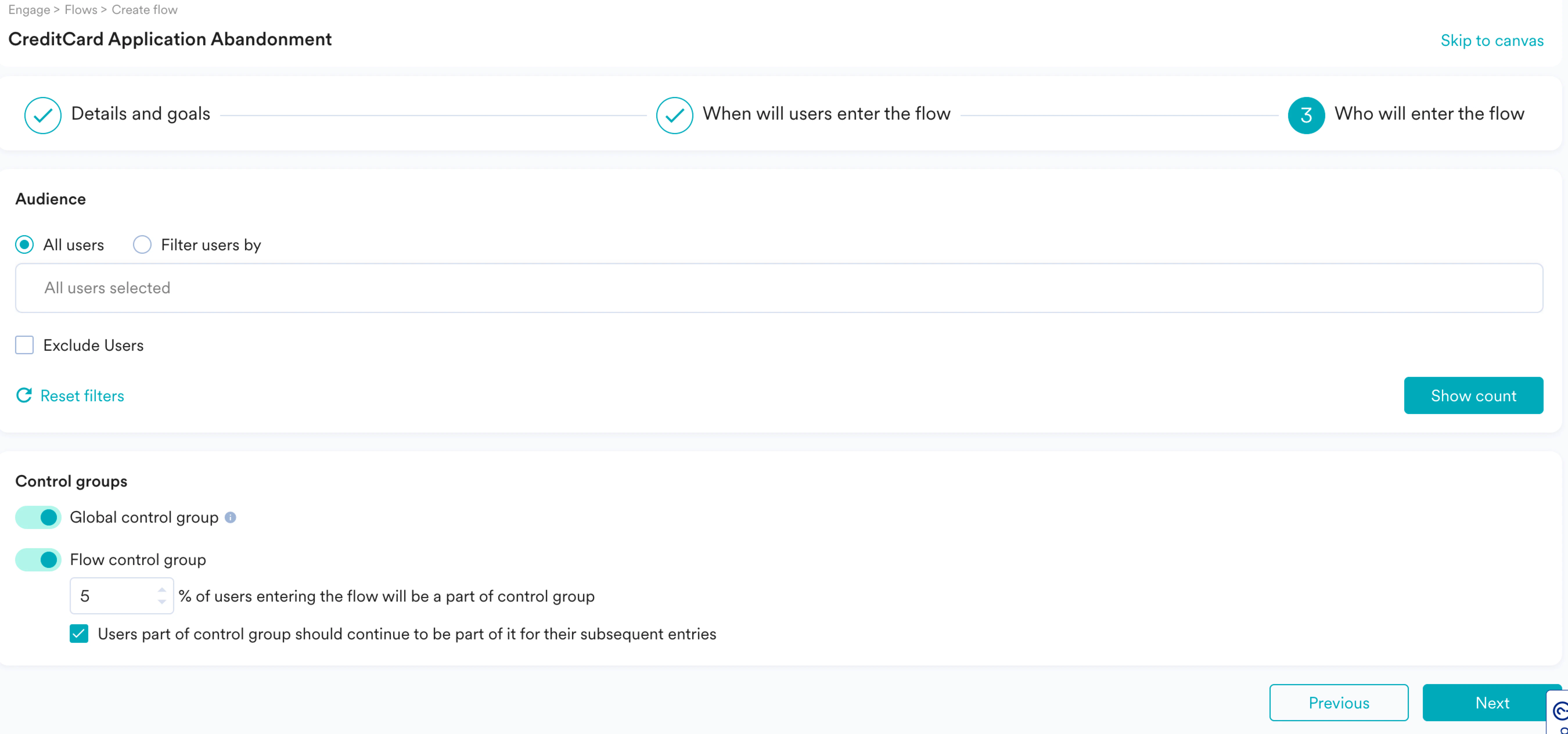 14. Click **Next** to move to the canvas section.
Now that we have competed the general setup, let us define the Flow structure that we want the user to move through.
# Step 2: Exit Intent Flow
In this step, we will show a pop-up to our users to continue with the form application to get necessary benefits from the card. We also nudge them to leave their phone number with us if they decide to abandon the application. The following image shows a sample of the nudge shown to the customer through the exit intent flow:
Let us perform the following steps to achieve this use case:
1. Click the **+** icon. A drawer is displayed from where you can choose an action campaign from the range of options under **Actions** including Push, Email, SMS, or WhatsApp to send a message. You can also display a banner on the On-site or In-app channel, or use Facebook or Google remarketing.
2. For our scenario, select the **On-site** option first because you can predict the exit intent of the user through this and show a pop-up in close to real time. For more information, refer to [Exit Intent Technology](/user-guide/campaigns-and-channels/on-site-message/create/exit-intent-technology).
14. Click **Next** to move to the canvas section.
Now that we have competed the general setup, let us define the Flow structure that we want the user to move through.
# Step 2: Exit Intent Flow
In this step, we will show a pop-up to our users to continue with the form application to get necessary benefits from the card. We also nudge them to leave their phone number with us if they decide to abandon the application. The following image shows a sample of the nudge shown to the customer through the exit intent flow:
Let us perform the following steps to achieve this use case:
1. Click the **+** icon. A drawer is displayed from where you can choose an action campaign from the range of options under **Actions** including Push, Email, SMS, or WhatsApp to send a message. You can also display a banner on the On-site or In-app channel, or use Facebook or Google remarketing.
2. For our scenario, select the **On-site** option first because you can predict the exit intent of the user through this and show a pop-up in close to real time. For more information, refer to [Exit Intent Technology](/user-guide/campaigns-and-channels/on-site-message/create/exit-intent-technology).
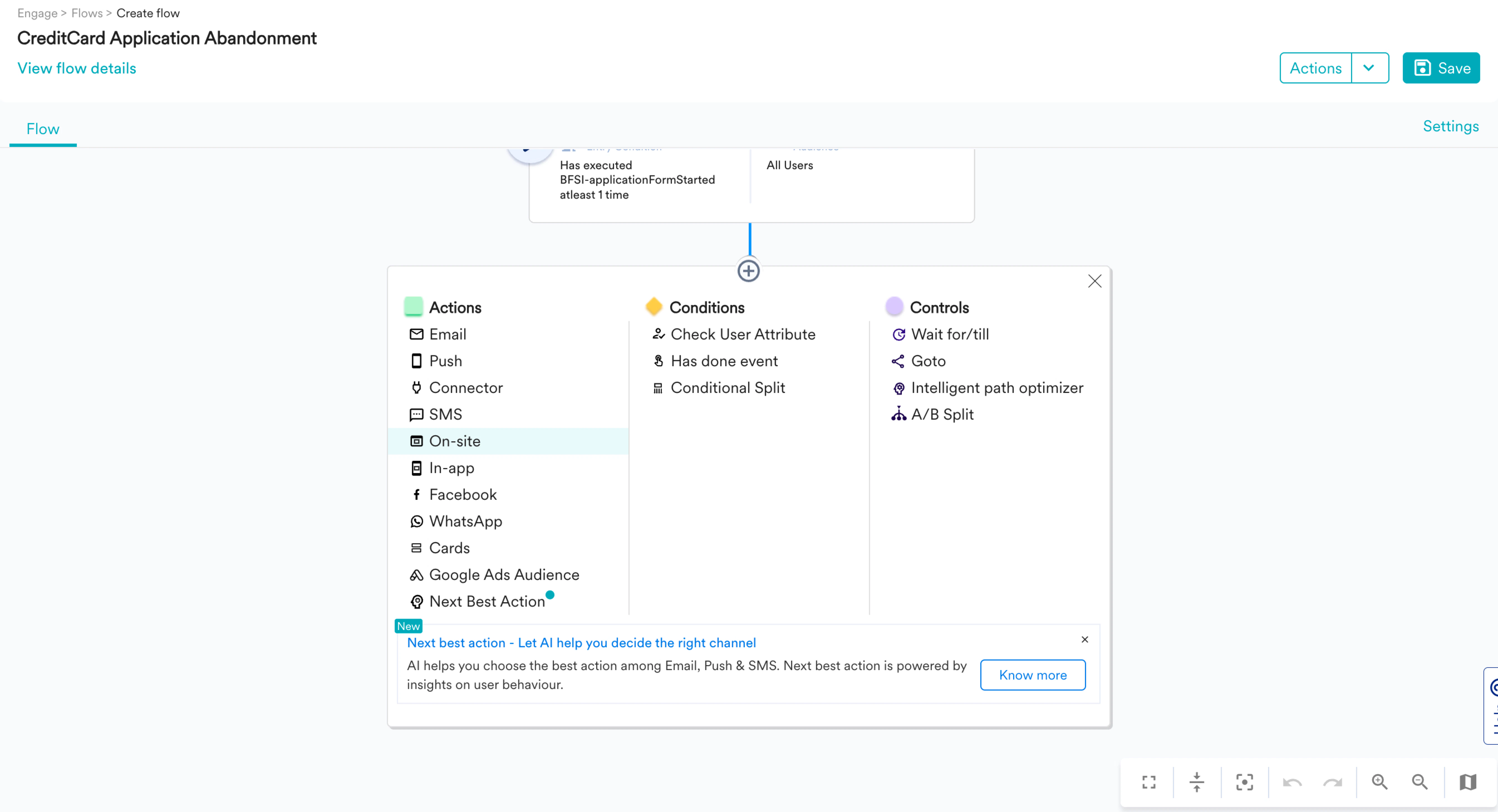 3. Hover your mouse on the On-site action and click the edit icon to start defining the stage:
1. In the **Trigger criteria** section, select **On Exit Intent**.
3. Hover your mouse on the On-site action and click the edit icon to start defining the stage:
1. In the **Trigger criteria** section, select **On Exit Intent**.
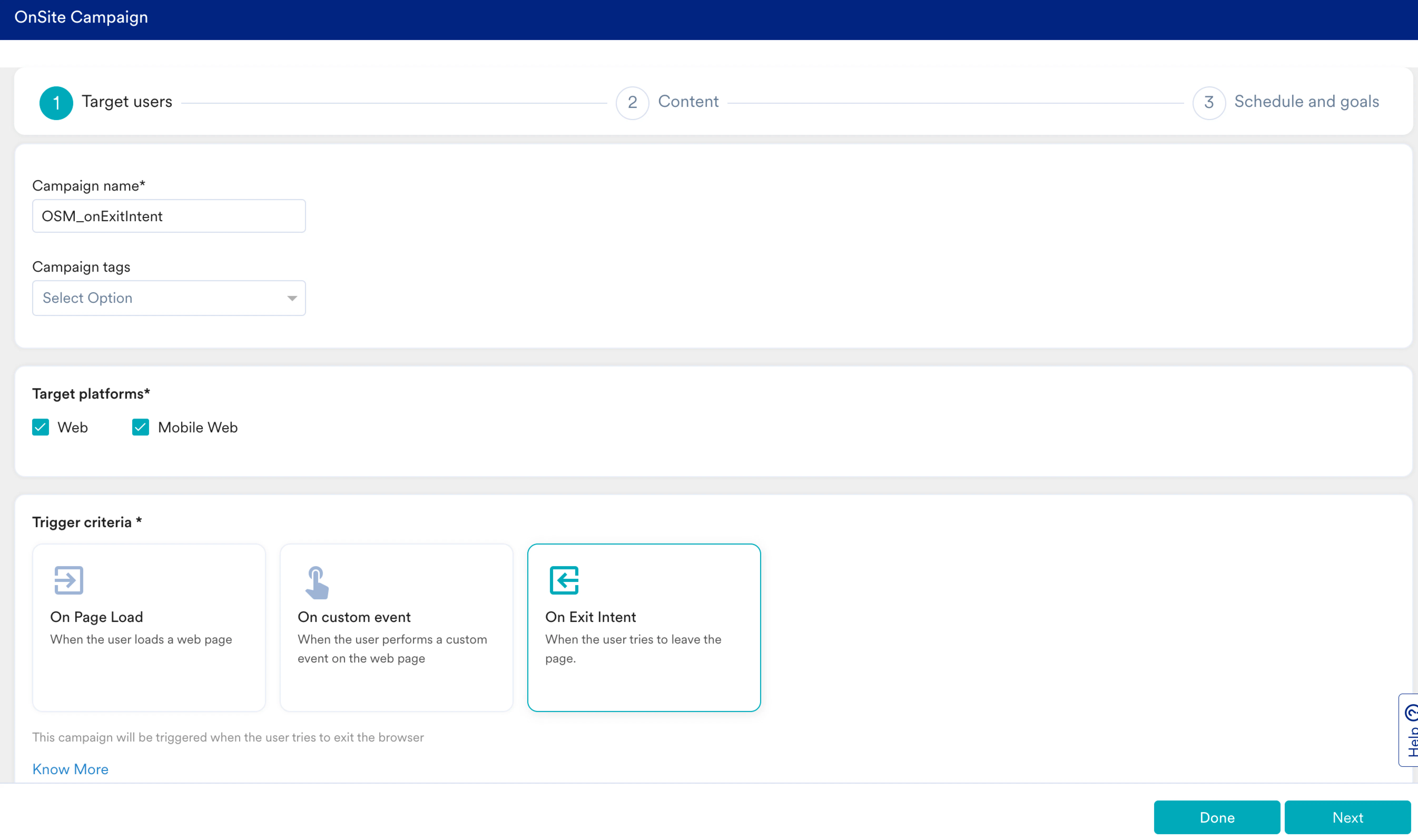 2. In the **Target audience** section, select **All users**because we want to nudge all the users who are trying to abandon the card application to finish it.
3. Select your template from the next step and enter the details based on your offerings and make sure to intrigue the user from leaving and making them continue their application process.
4. Executing this step properly is important because the user has not yet provided any contact information for you to reach out to them. So make sure to collect their contact information such as phone number so that you can always use this as a lead through your sales team if the user leaves after the same.\
For more information on saving the value from the user through the OSM, refer to [Lead Generation](/user-guide/campaigns-and-channels/on-site-message/create/osm-templates#lead-generation).
Now that we have defined the exit intent flow, let us add an SMS stage in the Flow to follow up with users.
# Step 3: Send Follow-Up Messages
In this step, let us send follow-up messages to the users who did not finish the card application and left their phone number from our exit intent campaign. We will send follow-up message(s) through SMS after 1 hour of dropping off from the application process.
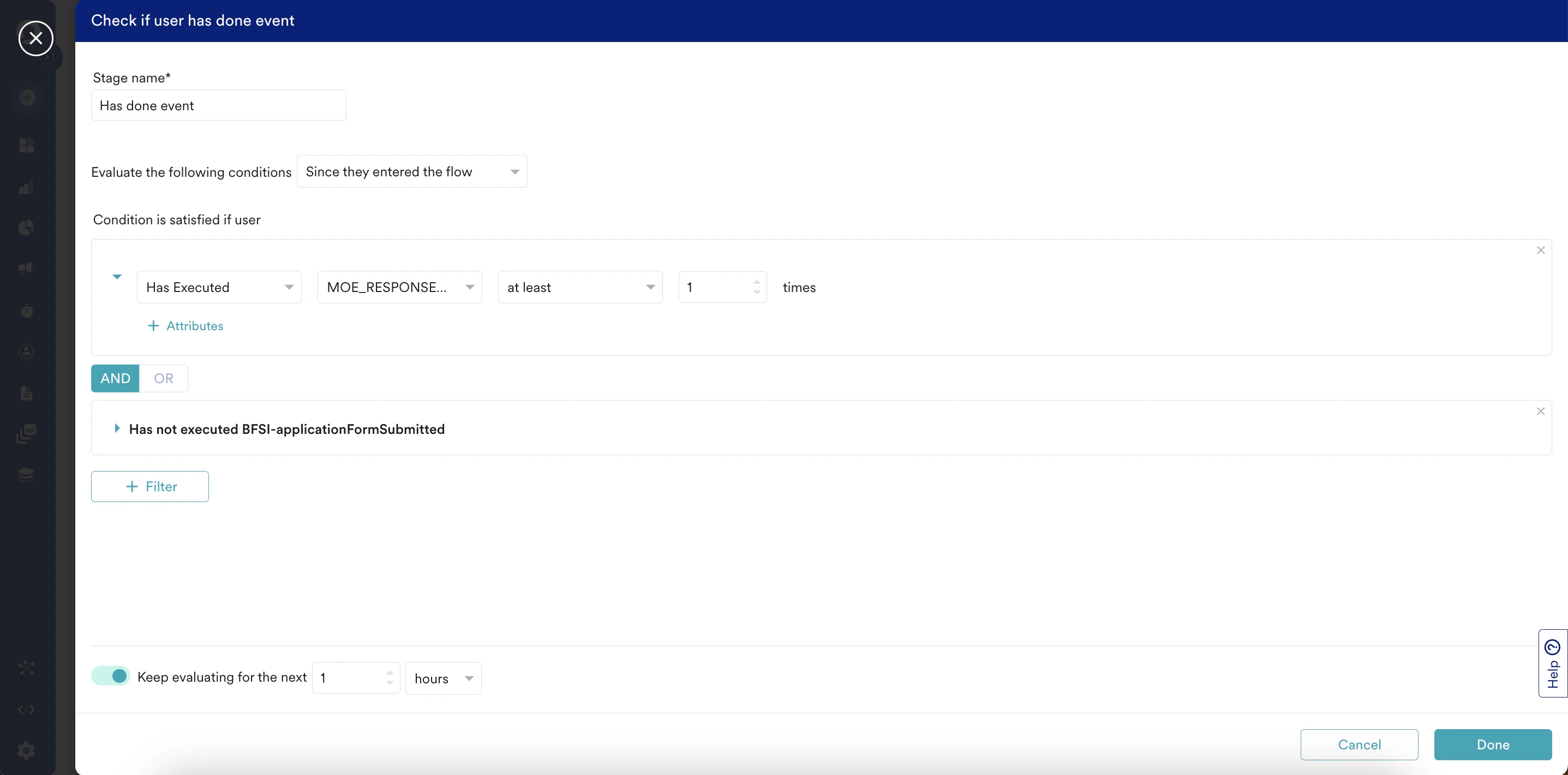
1. Add a **Has Done Event** stage to check if the user has submitted the lead generation form through the "MOE\_RESPONSE\_SUBMITTED" event and has not completed the card application.
2. Turn the **Keep Evaluating for the next** toggle on to define the maximum time to wait for the user to execute the event. In this example, we keep the wait time a 1 hour.
2. In the **Target audience** section, select **All users**because we want to nudge all the users who are trying to abandon the card application to finish it.
3. Select your template from the next step and enter the details based on your offerings and make sure to intrigue the user from leaving and making them continue their application process.
4. Executing this step properly is important because the user has not yet provided any contact information for you to reach out to them. So make sure to collect their contact information such as phone number so that you can always use this as a lead through your sales team if the user leaves after the same.\
For more information on saving the value from the user through the OSM, refer to [Lead Generation](/user-guide/campaigns-and-channels/on-site-message/create/osm-templates#lead-generation).
Now that we have defined the exit intent flow, let us add an SMS stage in the Flow to follow up with users.
# Step 3: Send Follow-Up Messages
In this step, let us send follow-up messages to the users who did not finish the card application and left their phone number from our exit intent campaign. We will send follow-up message(s) through SMS after 1 hour of dropping off from the application process.
1. Add a **Has Done Event** stage to check if the user has submitted the lead generation form through the "MOE\_RESPONSE\_SUBMITTED" event and has not completed the card application.
2. Turn the **Keep Evaluating for the next** toggle on to define the maximum time to wait for the user to execute the event. In this example, we keep the wait time a 1 hour.
 3. We need not edit the "No" branch because we cannot retarget the users who have not submitted their contact details.
4. In the "Yes" branch, click the **+** icon and add an SMS stage.
All countries have different rules regarding how to collect consent to send SMS to users. Please make sure you collect the phone numbers in a manner compliant with your country.
5. Configure the SMS message:
1. Campaign name: Enter "Card application abandonment SMS".
2. SMS Sender: Select an SMS sender.
3. Message: Enter a message to nudge users to complete their application.
4. Click **Done**.
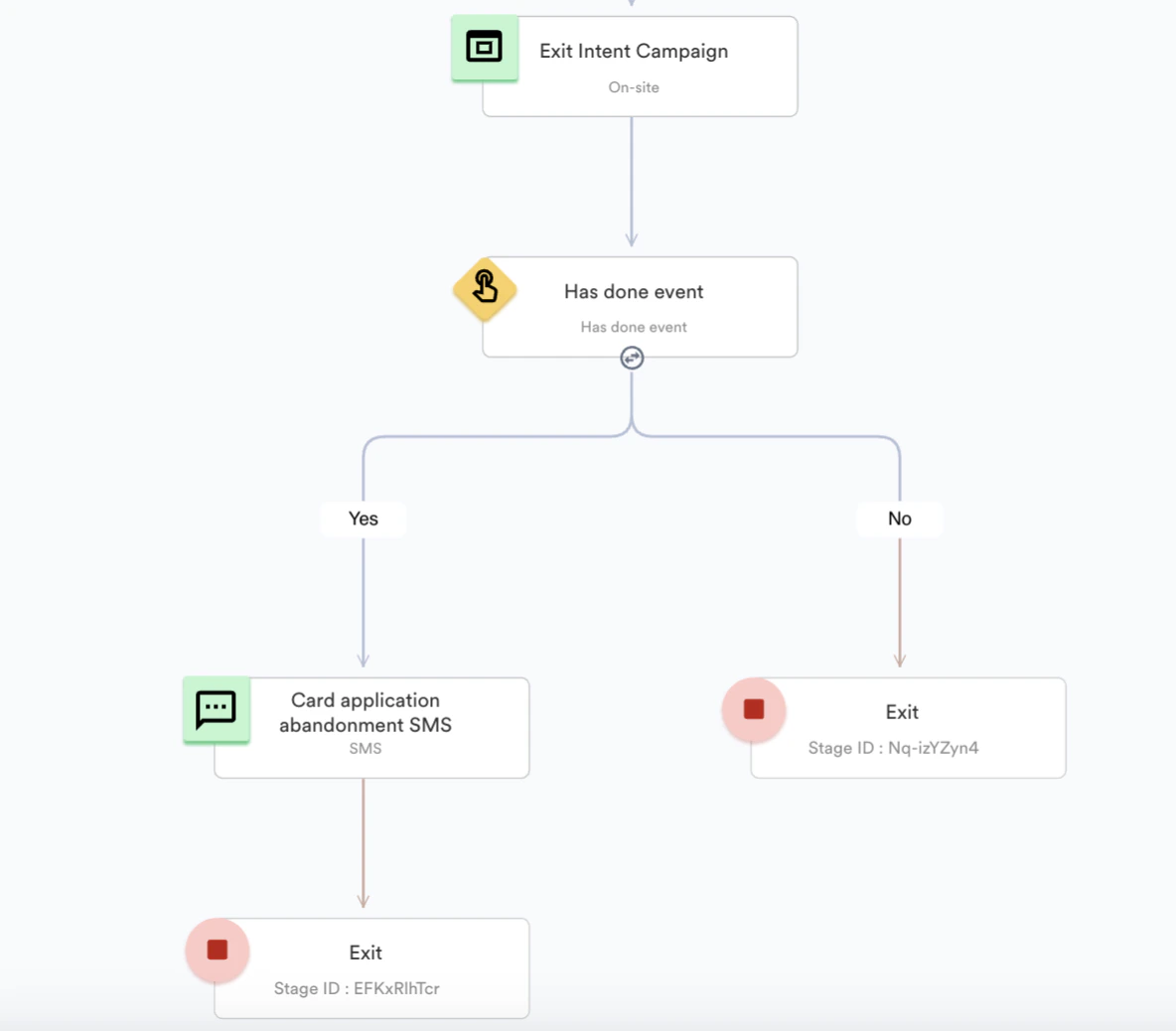
6. At this point, your flow looks similar to the following image:
3. We need not edit the "No" branch because we cannot retarget the users who have not submitted their contact details.
4. In the "Yes" branch, click the **+** icon and add an SMS stage.
All countries have different rules regarding how to collect consent to send SMS to users. Please make sure you collect the phone numbers in a manner compliant with your country.
5. Configure the SMS message:
1. Campaign name: Enter "Card application abandonment SMS".
2. SMS Sender: Select an SMS sender.
3. Message: Enter a message to nudge users to complete their application.
4. Click **Done**.
6. At this point, your flow looks similar to the following image:
 7. Click **Publish**.
# Conclusion
In this use case, we created a Flow that helps us nudge users not to leave card application half-way and send SMS to users who left the application without submitting.
* Now that we have published the Flow, we can [analyze](/user-guide/flows-cross-channel-messaging/analyze-flows/analyze-a-flow) how well our campaign is performing.
* We can understand how many users came back to the card application because of our campaign. Create a segmentation on the “User Entered Flow” event by mentioning the “Flow ID”. For more information, refer to [Users who have entered/exited the Flow](/user-guide/flows-cross-channel-messaging/analyze-flows/tracking-users-in-flows).
* We can also understand how many users actually converted because of our campaign. Create a segmentation on the “Flow Trip Conversion” event by mentioning the “Flow ID”. For more information, refer to [Conversion Tracking and Attribution in Flows](/user-guide/flows-cross-channel-messaging/analyze-flows/conversion-attribution-in-flows).
7. Click **Publish**.
# Conclusion
In this use case, we created a Flow that helps us nudge users not to leave card application half-way and send SMS to users who left the application without submitting.
* Now that we have published the Flow, we can [analyze](/user-guide/flows-cross-channel-messaging/analyze-flows/analyze-a-flow) how well our campaign is performing.
* We can understand how many users came back to the card application because of our campaign. Create a segmentation on the “User Entered Flow” event by mentioning the “Flow ID”. For more information, refer to [Users who have entered/exited the Flow](/user-guide/flows-cross-channel-messaging/analyze-flows/tracking-users-in-flows).
* We can also understand how many users actually converted because of our campaign. Create a segmentation on the “Flow Trip Conversion” event by mentioning the “Flow ID”. For more information, refer to [Conversion Tracking and Attribution in Flows](/user-guide/flows-cross-channel-messaging/analyze-flows/conversion-attribution-in-flows).