

This feature enables you to improve business efficiency, establish automated notifications, foster better customer engagement across WhatsApp, and help enhance brand trust.
Use cases
- Launching new products? Use the carousel WhatsApp template to showcase the exclusive collection.
- Got a limited-time offer? Set a timer with the Limited Time Offer WhatsApp template, and let customers grab their deal before it’s over.
Add Templates to MoEngage
Ensure that you have access to all the approved WhatsApp templates before adding templates to MoEngage. You can access the templates from the BSP Dashboards.
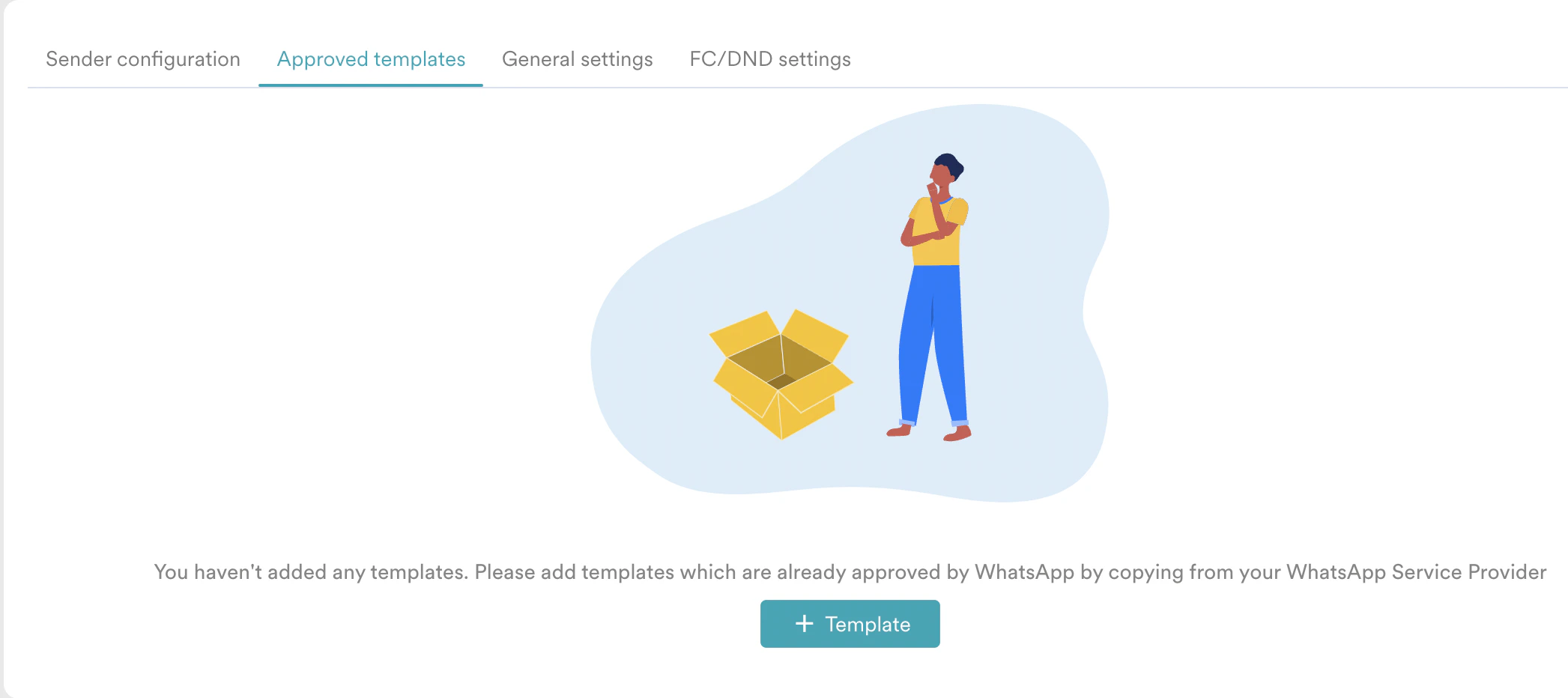
MoEngage does not validate your templates when you save them. Hence, please ensure they match exactly to your whitelisted templates, or else your campaign may fail because of template mismatch.
-
Navigate to Settings > WhatsApp > + Template.

-
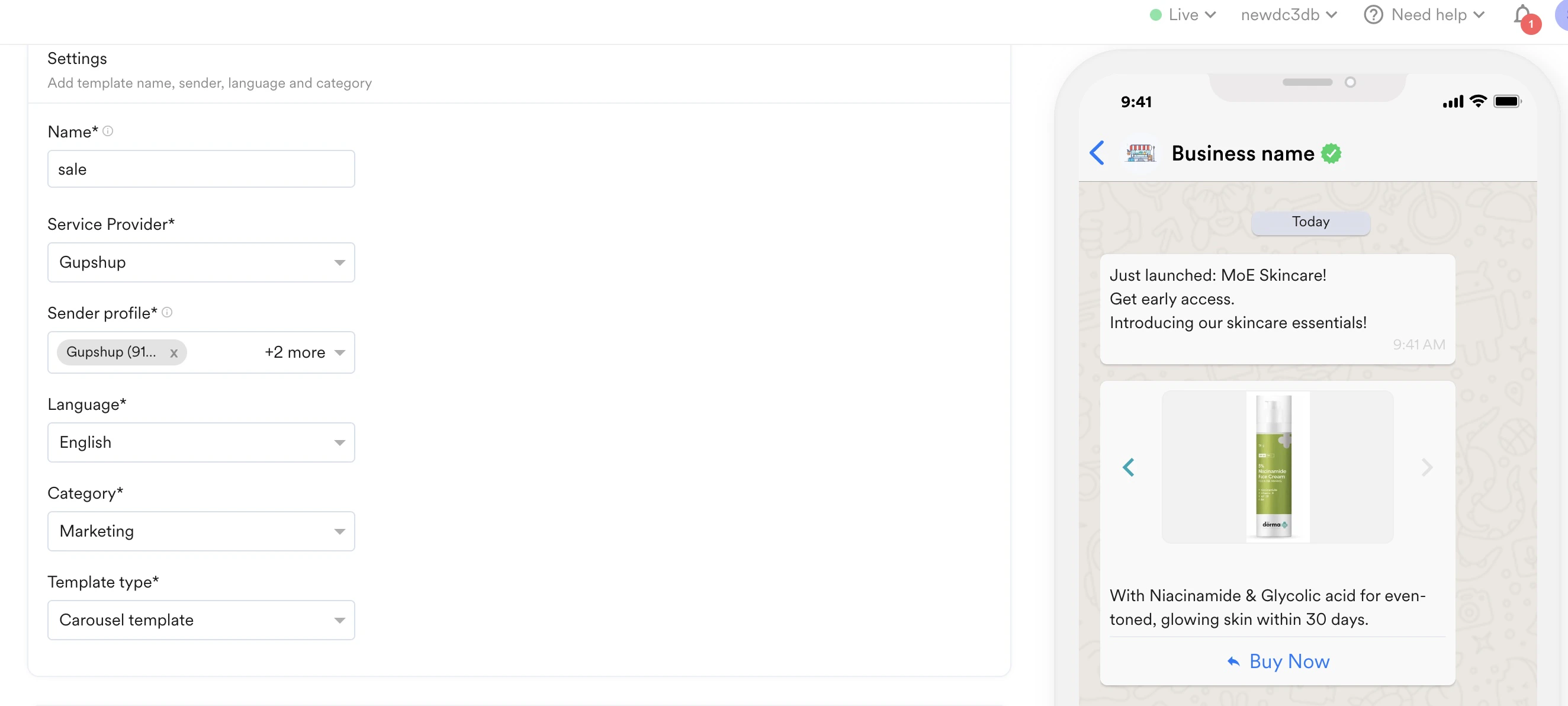
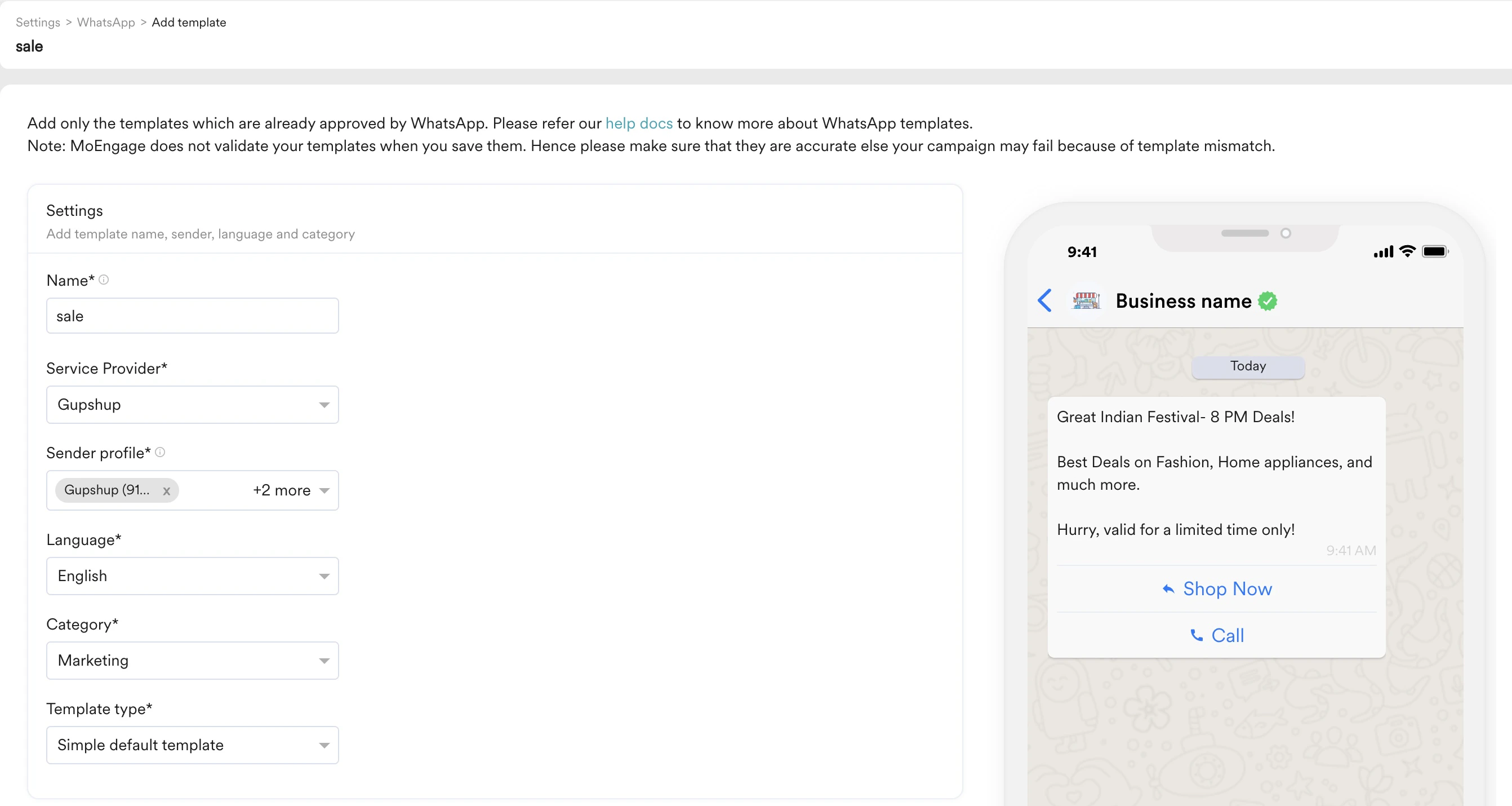
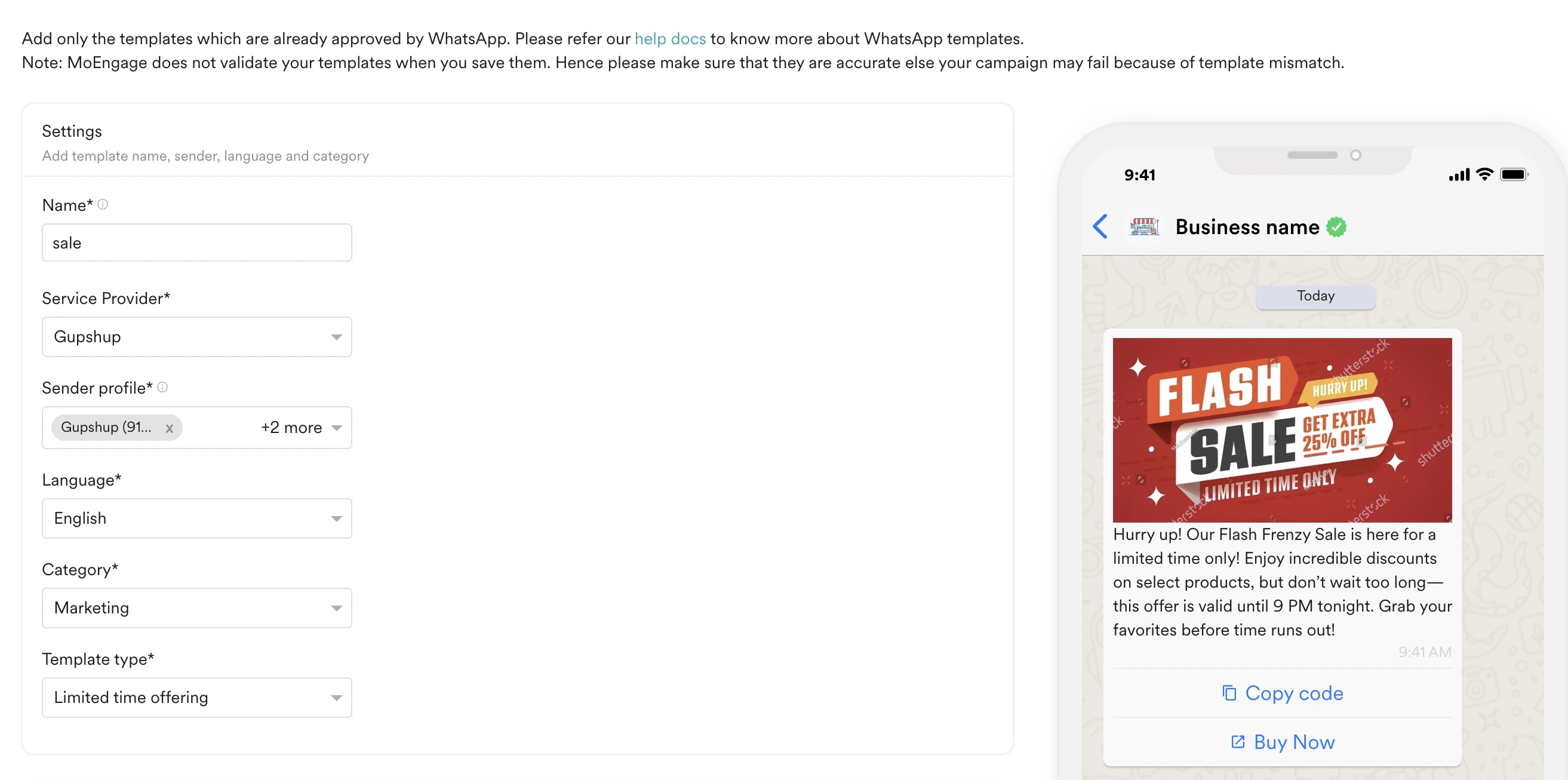
On the Templates page, in the settings section, fill in the fields as suggested below.
 The following options are available in the settings section.
- You can view the Template Type field when the Category field is set as Marketing.
- The Carousel, Limited Time Offer, Coupon Code WhatsApp templates, and up to 10 buttons are supported only for GupShup , Karix & Infobip.
-
On the Templates page, in the Content section, fill in the fields as suggested below.
- Carousel Template
- Simple Default Template
- Limited Time Offer Template

Headers
Headers are optional and can be of the following types:- Text (up to 60 characters, can include 1 placeholder)
- Image
- Video
- Document
- Location The non-text header can be static or dynamic. They can use a fixed image or document link or personalized image/document for every user. Dynamic fields will be available for configuration at the time of campaign creation. For more information, refer to Image Personalization.
 Here are supported media types, media formats, and file sizes that MoEngage supports:
- Once configured, select Save in the lower-right corner of the screen.
Template Management
To manage all your WhatsApp Templates, go to MoEngage Dashboard -> Settings -> WhatsApp -> Approved Templates. Once a template is added, you can manage your templates depending on if they are in use or not by a campaign.Sync Templates from Vendors to MoEngage
MoEngage enables you to sync templates from configured partners to the MoEngage platform. Syncing templates will automatically retrieve all updated templates from the partner portals since the last updated time. To sync templates:- Go to MoEngage Dashboard > Settings > WhatsApp > Approved templates.
- Click Sync Template in the top right of the Approved templates tab.
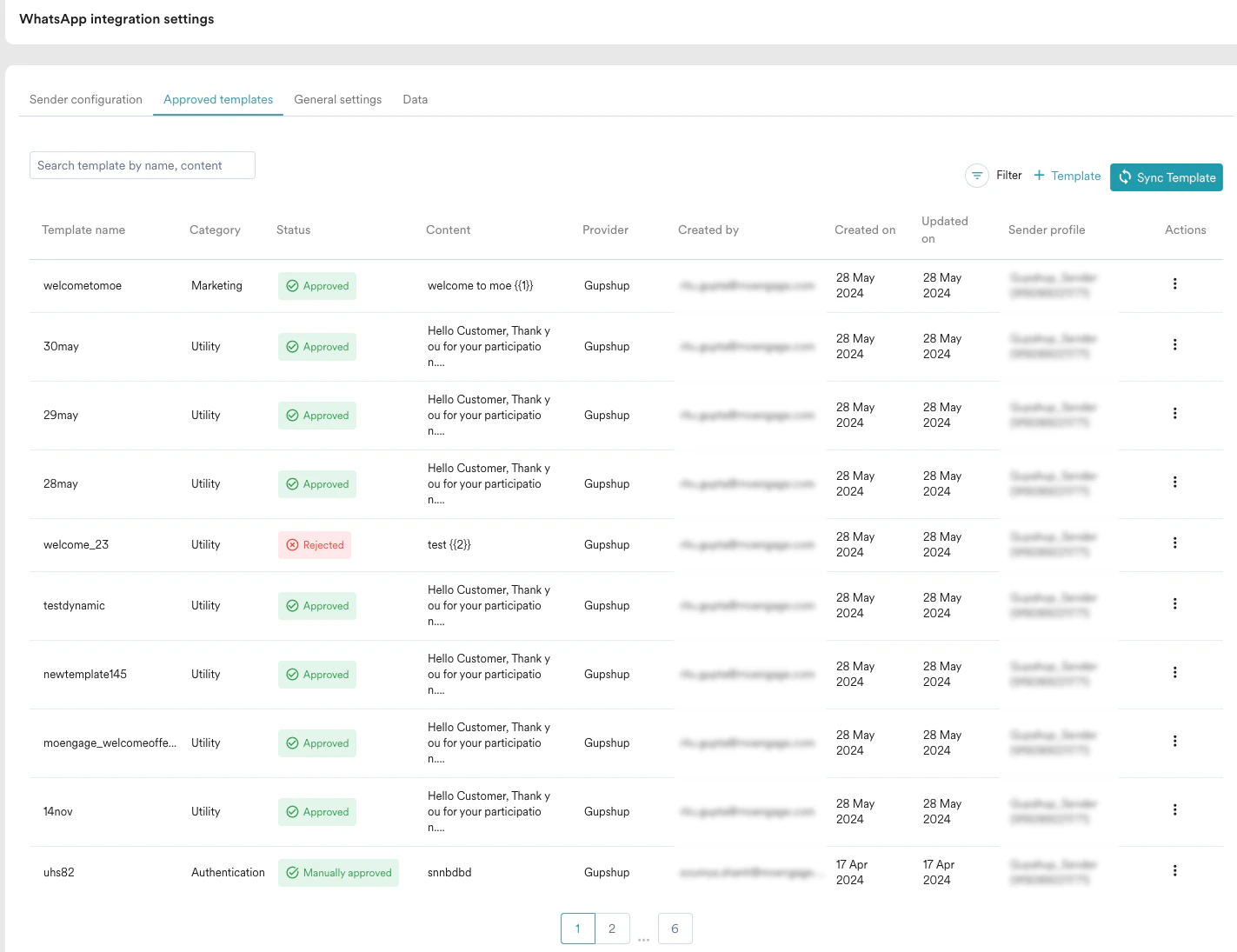
- Sync successful: All templates from connectors are synced to MoEngage successfully. You can see the summary of successful changes and also view the templates based on last updated time.
- Sync failure: Templates sync from connectors to MoEngage failed. You can see the reasons for unsuccessful sync.
- Mixed sync results: Templates sync from connectors to MoEngage is partially successful. For templates that are synced successfully, you can see the summary of successful changes; for templates that failed to sync, you can see the reasons for failures.
- Currently, you can sync templates from Gupshup and Karix. It might take up to 15 mins to complete the sync.
- For every sync, it will be synced for templates updated in the last 2 days.