

Enable PII Data Encryption
You can enable data encryption for all user and event attributes, except for a list of reserved, non-encryptable attributes. For more information, refer to the list of reserved attributes for which data encryption is not supported.- To enable PII encryption, contact your MoEngage Customer Success Manager (CSM) or the Support team.
- Make sure you mark the attribute as “encrypted” using test values before sending the majority of the data, or the actual data. It is important to note that any data received after the attribute is marked as encrypted will itself be encrypted during storage, while the data received before it will remain unchanged.
- Attributes marked as encrypted once cannot be decrypted or unmasked.
- Users with Admin roles can see the attributes in their encrypted form. However, users with other roles cannot view or download them, as these attributes are not displayed on the User Profile, Reporting, Analytics, and Segmentation pages.
- After encryption is enabled, it may take up to 15 minutes for the new settings to reflect.
- You can export an encrypted attribute in reports only if you have admin access. The attribute is exported in its encrypted format. Decrypted data cannot be exported from the MoEngage dashboard.
Encrypt the User Attributes
Perform the following steps to encrypt user attributes: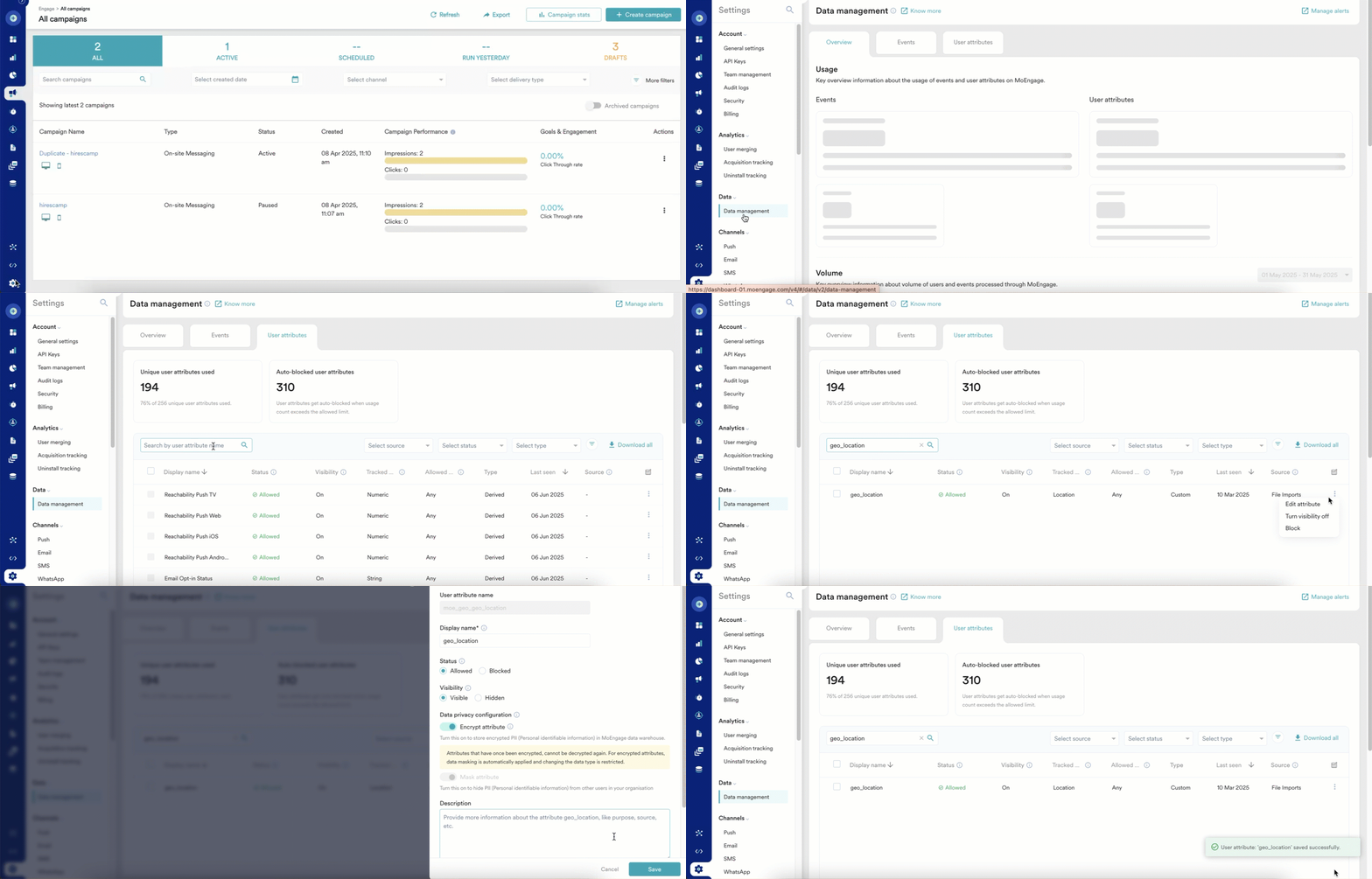
- On the left navigation menu of the MoEngage dashboard, click Settings > Data management.
- On the Data management page, click the User attributes tab.
- Search for the desired user attribute and click the ellipsis icon against that attribute.
- Click Edit attribute.
- On the Edit attribute details side drawer, turn on the Encrypt attribute toggle. This toggle automatically enables the Mask attribute toggle, which means that when you encrypt a user attribute, MoEngage automatically masks that attribute as well.
- Click Save and Continue.
Encrypt the Event Attributes
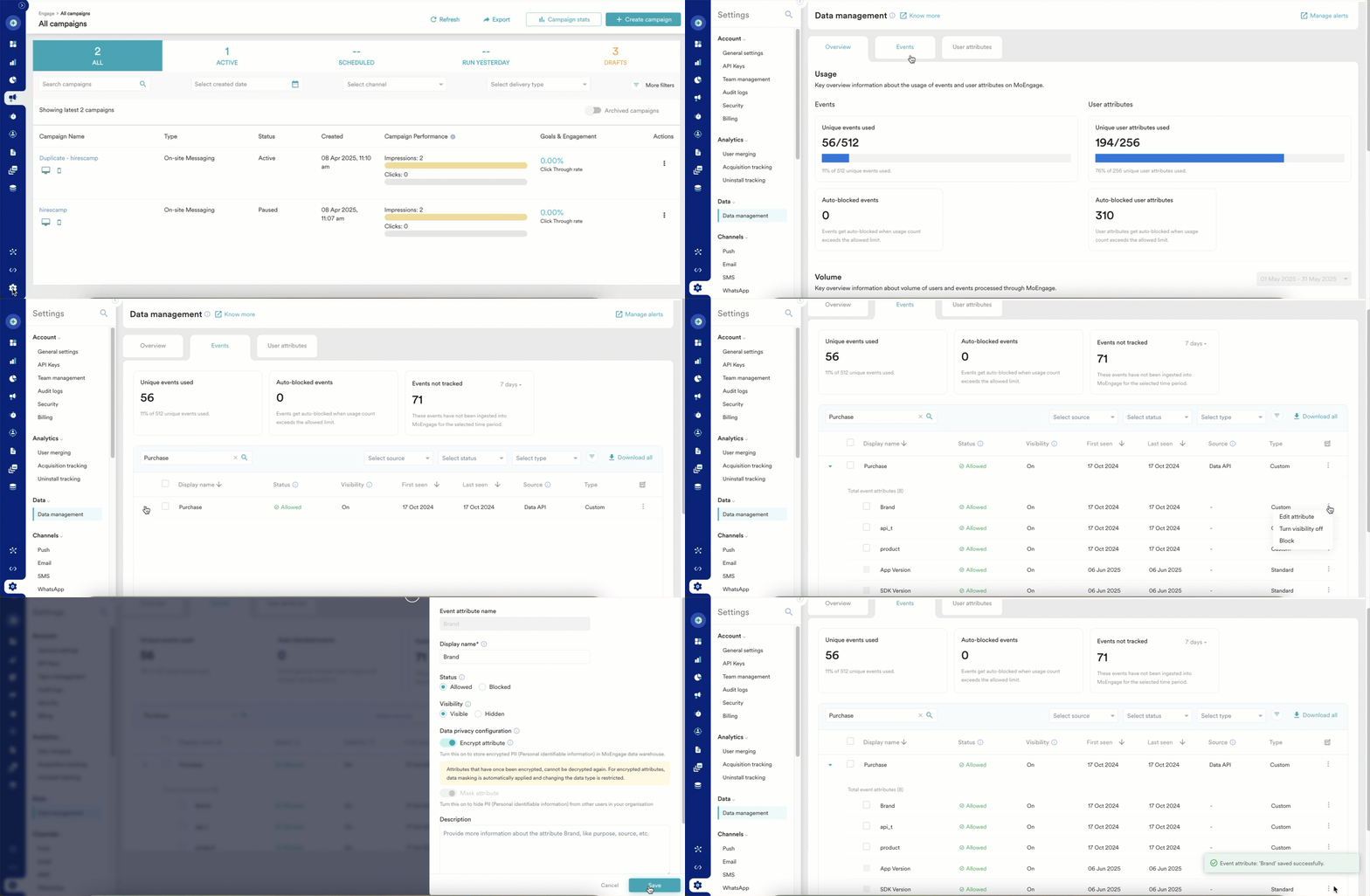
- On the left navigation menu of the MoEngage dashboard, click Settings > Data management.
- On the Data management page, click the Event attributes tab.
- Search for the desired event attribute and click the ellipsis icon against that attribute.
- Click Edit attribute.
- On the Edit attribute details side drawer, turn on the Encrypt attribute toggle. Turning on this toggle automatically enables the Mask attribute toggle, which means that when you encrypt a user attribute, MoEngage automatically masks that attribute as well.
- Click Save and Continue.
View Encrypted User and Event Attributes
After you encrypt user or event attributes, users in your workspace can view them on the following pages, tabs, and dialog boxes of the MoEngage UI, depending on their assigned roles and permissions. If they have the permission to view these attributes, they can see the encrypted values of the attributes. Otherwise, these appear as Private and --- (masked).User Search Box
You can view encrypted user or event attributes on the Create Segment page. Search for a user in the Search user by ID, Email, Mobile No, or MoEngage ID search box. Accessibility to encrypted attributes depends on your assigned role. If you have the permission to view these attributes, you can see the encrypted values of the attributes. Otherwise, these appear as Private or --- (masked).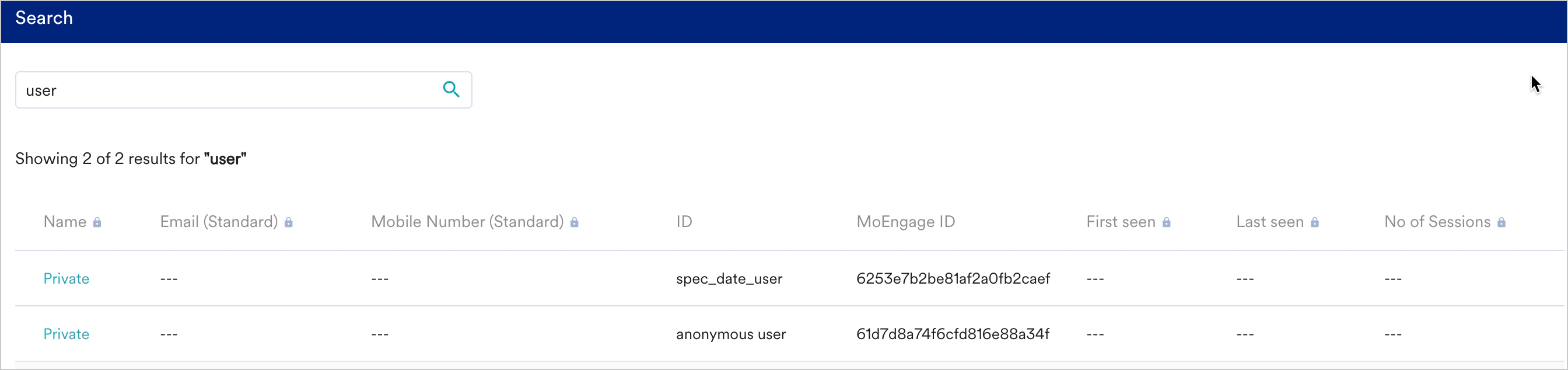
User Profile Page
You can view the encrypted attributes on the User info and Activity info tabs of the User Profile page.User Info Tab
Perform the following steps to view the encrypted attributes on the User Info tab:- Click Show count while creating a segment on the Create Segment page, and expand the Query results.
- On the Sample users section, select the desired user to view their user profile.
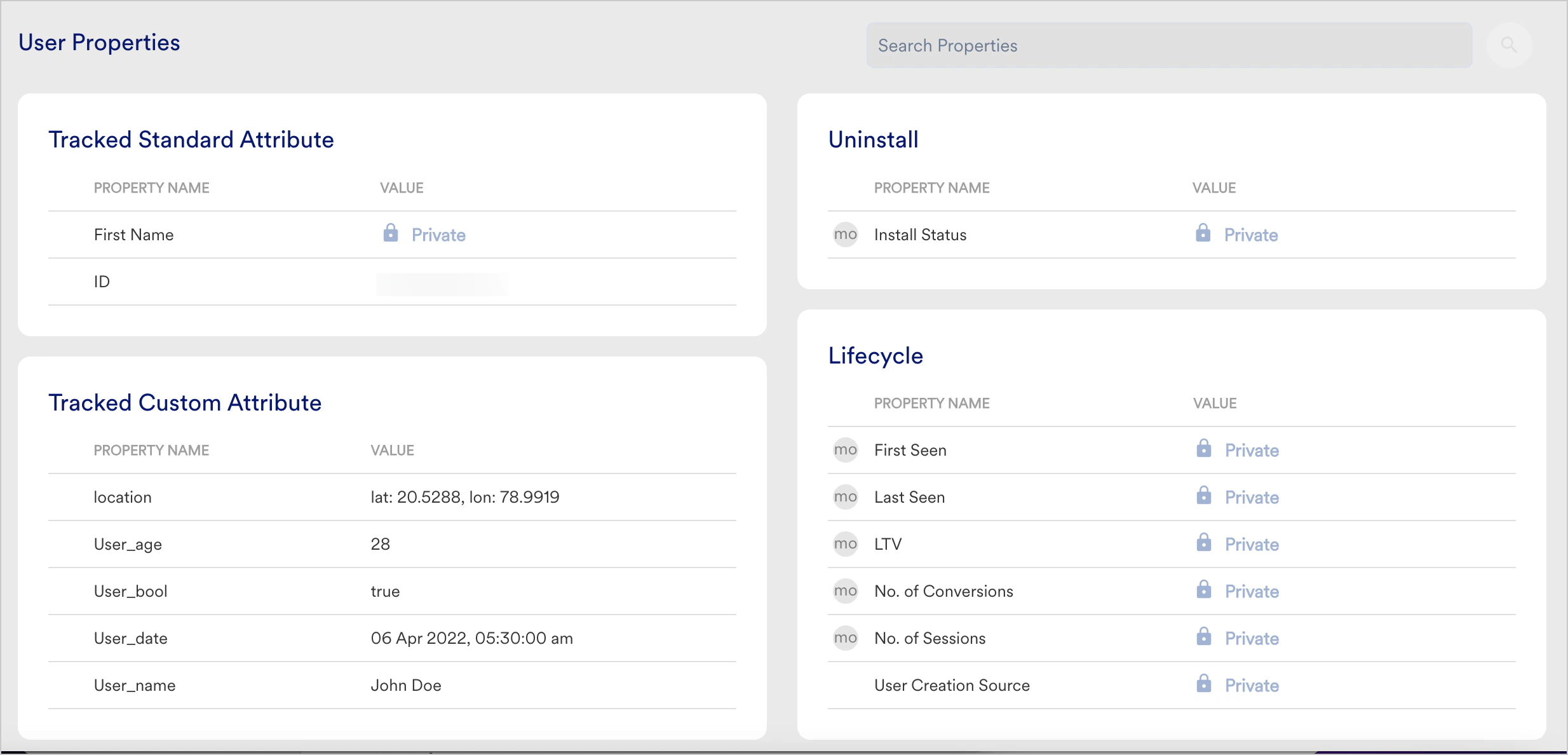
- On the User Profile, click the User info tab, and then click User Properties.
Accessibility to the encrypted attribute depends on your assigned role. If you have the permission to view these attributes, you can see the encrypted values of the attributes. Otherwise, these appear as Private.
Activity Info Tab
Perform the following steps to view the encrypted attributes on the Activity Info tab:- Click Show count while creating a segment on the Create Segment page, and expand the Query results.
- On the Sample users section, select the desired user to view their user profile.
- On the User Profile, click the Activity info tab.
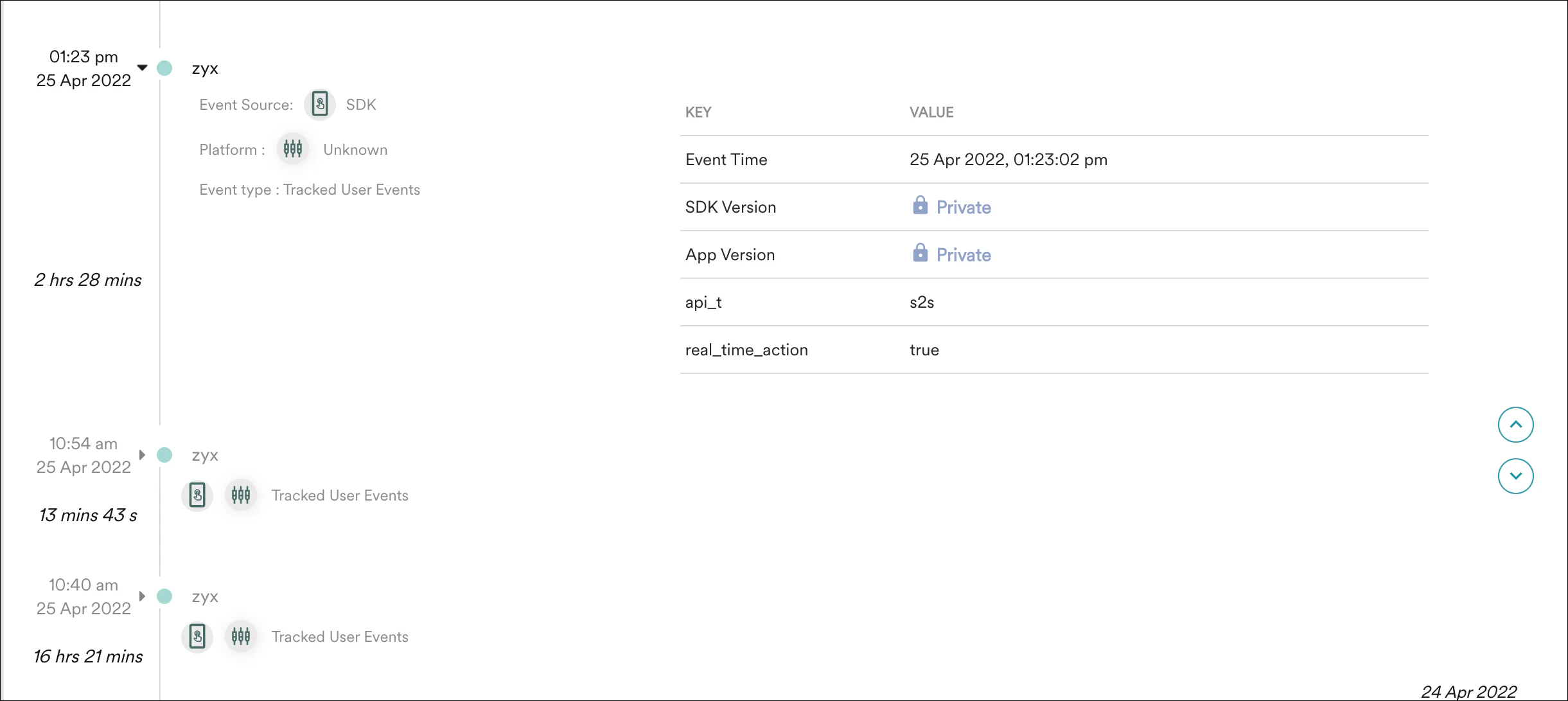
Recent Events
You can view the recent events of test users and their masked PII by navigating to Test & Debug > Test users from the left navigation menu of the MoEngage UI. Accessibility to encrypted attributes depends on your assigned role. If you have the permission to view these attributes, you can see the encrypted values of the attributes. Otherwise, these appear as Private.
Test Users
You can view the list of test users and their masked PII by navigating to Test & Debug > Test users from the left navigation menu of the MoEngage UI. Accessibility to encrypted attributes depends on your assigned role. If you have the permission to view these attributes, you can see the encrypted values of the attributes. Otherwise, these appear as Private and --- (masked).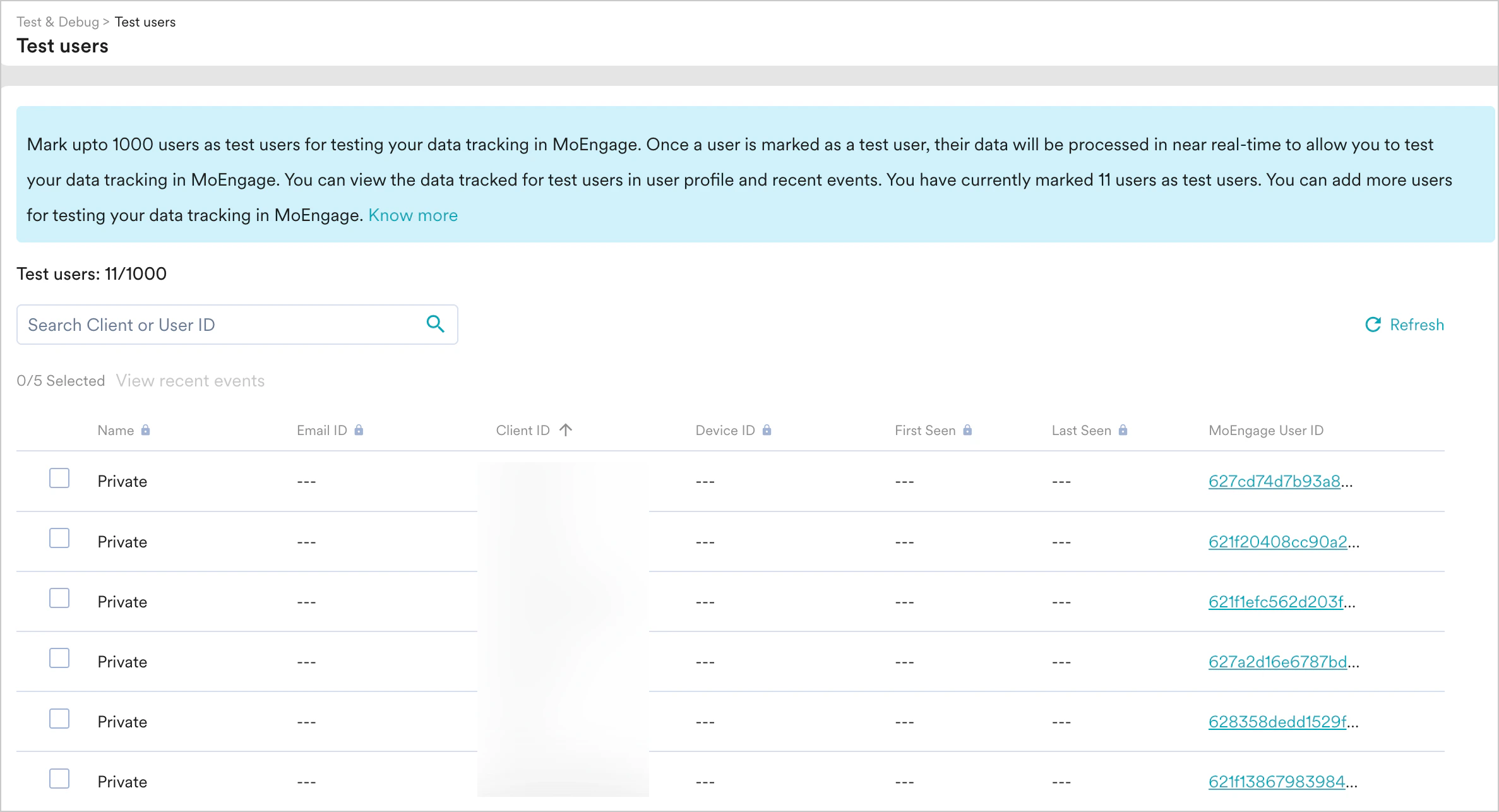
Value Suggestions
Visibility of encrypted value suggestions on the Segmentation and Analytics page depends on your role. For roles lacking encryption access, these suggestions are disabled. However, roles with encryption permissions can see the encrypted values behind the encrypted suggestions.Segmentation Filters
Create Segment
When creating segments, MoEngage supports filtering PII encrypted attributes using only two operators: exists and does not exist.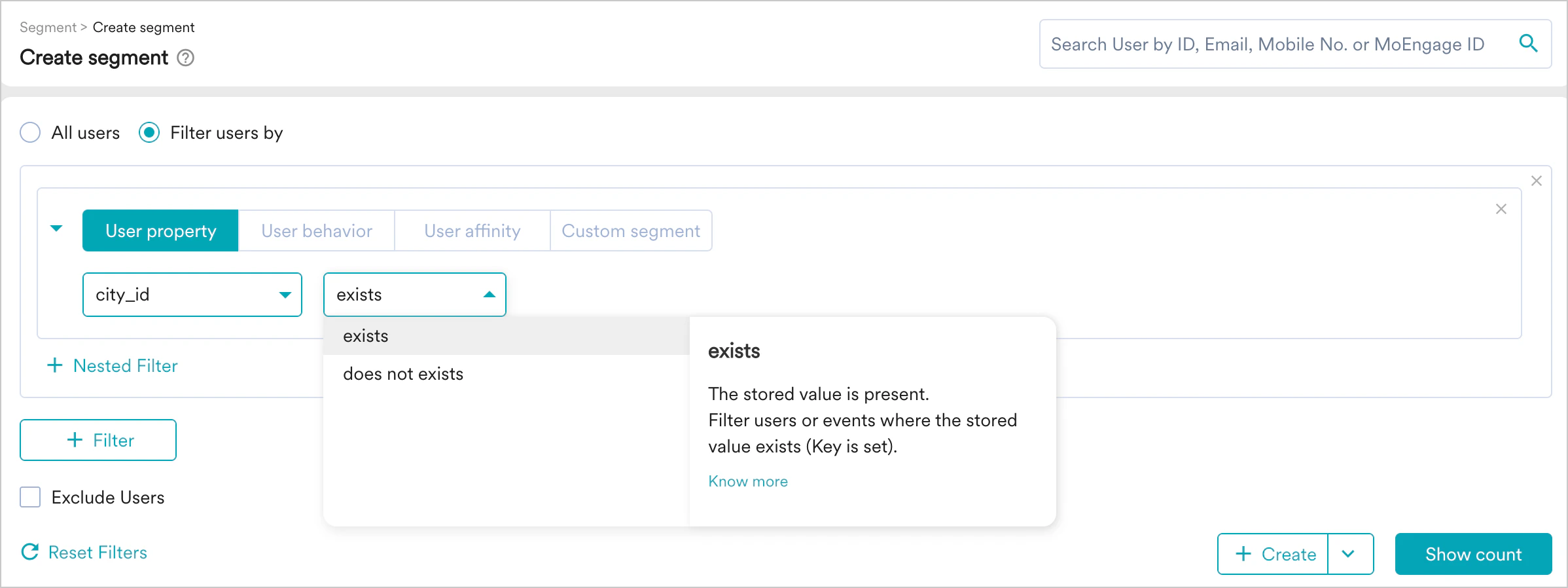
Create Campaign
When creating campaigns, MoEngage supports filtering PII encrypted attributes using only two operators: exists and does not exist.
Supported Channels
Non-Dashboard Functionality
PII-encrypted data is available for Open Analytics, S3 Exports, and MoEngage Streams, and data is not decrypted before use/export. These features are not available by default, require manual enablement, and will be enabled on request. You can provide your team access to these features per your security and data needs.List of Attributes Not Supported for Encryption
User Attributes
- Reachability Push Android (moe_rsp_android)
- Reachability Push iOS (moe_rsp_ios)
- Reachability Push Web (moe_rsp_web)
- Reachability Push (moe_rsu)
- Spam
- Unsubscribe
- Push Preference Changed iOS
- SMS Subscription Status
- Install Status
- Push Opt In Status (iOS)
- MoEngage ID
- moe_dtzo - User Time Zone offset
- All of Lifecycle category attributes
- All of Uninstall category attributes
Event Attributes
- source
- appVersion
- SDKversion
- Platform
- Parent Campaign Id (moe_c_pid)
- Parent Flow Id (moe_f_pid)
- Parent Flow Name (moe_f_pname)
- Campaign Content Type (moe_campaign_content_type)
- Locale Id (moe_locale_id)
- Locale Name (moe_locale_name)
- Variation Key (moe_variation_id)
- Campaign Tags (moe_campaign_tags)
- BTS (moe_bts_type)
- Control Group (moe_control_group_type)
- Readable Campaign Id (moe_campaign_id)
- Campaign Name (moe_campaign_name)
- Campaign Type (moe_campaign_type)
- Delivery Type (moe_delivery_type)
FAQs
How is PII Encryption different from PII Masking?
How is PII Encryption different from PII Masking?
PII masking simply masks the values on the MoEngage dashboard UI and does not encrypt the values during storage.
Can I mask an attribute but not encrypt it?
Can I mask an attribute but not encrypt it?
Yes. For more information, refer to PII Masking.