

Sending a campaign in the recipient’s time zone
To send the campaign in the recipient’s time zone: While scheduling a general campaign, you can choose to send in the recipient’s time zone by selecting the radio button for “Send in user time zone”. If the difference between your current time and your scheduled time is less than 24 hours, a few time zones would have passed. For those time zones you can decide to :- Not send any message to target users if the time zone has passed
- Send the message in the campaign’s default time zone i.e. EST for the example below.

- Available in outbound channels - Push, Email, SMS
- Available for scheduled (One Time and Periodic) campaigns

To check the sending status:
Once you have created the campaign, you can check the delivery status across time zones in the Time zone based delivery section of Campaign Analytics.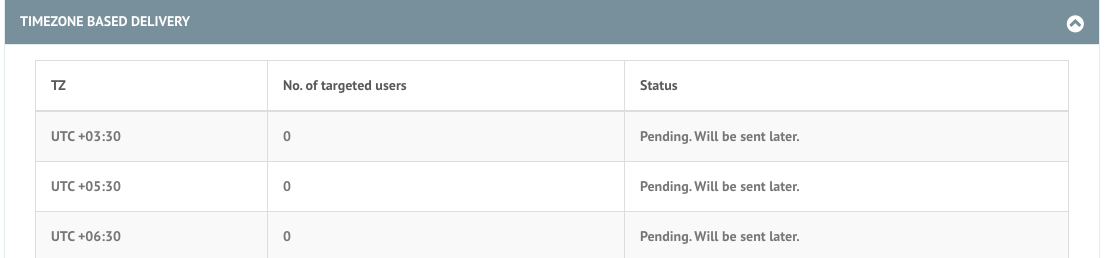 You should be able to see these statuses. Their meaning is as under:
- Not sent due to time lapse - Communication to users in this time zone has not been sent due to time lapse. The time lapse for a target time zone happens when the campaign is scheduled for a time that has already been passed in that target time while creating the campaign.
- Sent - Communication to users in this time zone has been sent completely.
- Sending - Communication to users in this time zone is being sent.
- Pending - Communication to users in this time zone will be sent as and when the scheduled time is clocked in the respective time zone.
To know how many users lie in the certain time zone:
You can check how many of your users are in a certain time zone via our Segmentation query e.g. you want to check how many of the users are in Indian Standard Time (IST) which is UTC + 5:30 i.e. 330 minutes ahead of UTC, you can try the below-mentioned filter.
How does this work?
The feature uses Offset time (saved under User Info as e.g. +330 for TZ 5 hours 30 minutes ahead UTC) with respect to the Universal Coordinated Time (UTC) reported by/calculated from your user’s device. We updateRecipient’s Time Zone as the last reported/calculated time zone of the user. There might be two cases here:- Recipient Time Zone Info is not available - Users for whom Time Zone Info is not available will receive the campaign in the time zone selected while the campaign is created. Check your application time zone at MoEngage Dashboard > Settings > General Settings.
- **Recipient Time Zone Info is available -**If time zone info is available for users, we will send them as and when the campaign scheduled time is clocked in their time zone.
- time has already passed in the recipient’s Time Zone - Depending on your choice either we won’t be sending the campaign to the users or send it in the campaign’s default time zone
- time is now - We will fetch the users fulfilling the segment criteria and start sending the campaign to the users at this timezone
- time will occur later in the recipient’s Time Zone - When the right time comes, we will identify the users fulfilling the segment criteria and we will send the campaign to these users in this time zone.