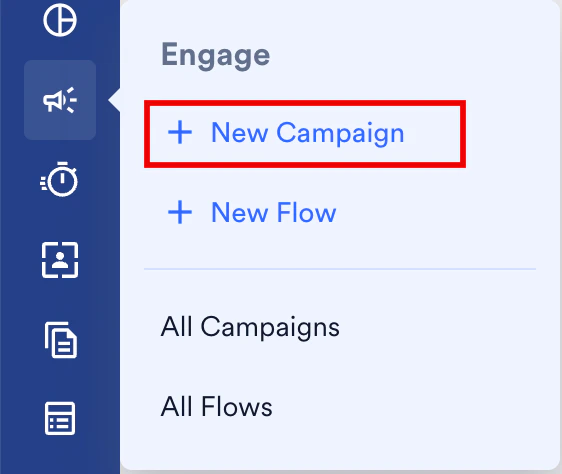
- On the sidebar menu in MoEngage, hover over the Engage menu item
 . The Engage menu appears.
 - Click + New Campaign.
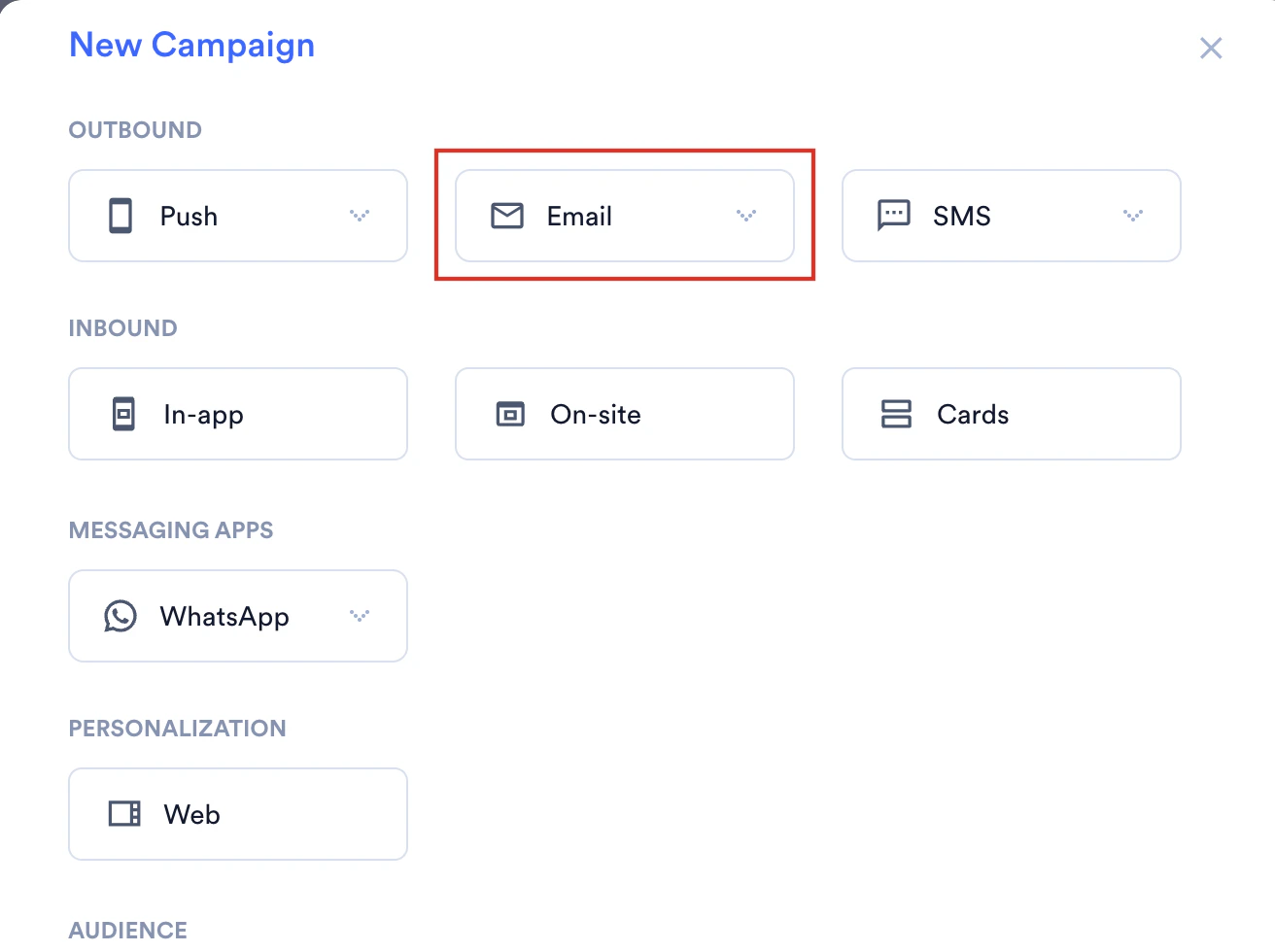
- On the New Campaign dialog box, under Outbound, click Email.
- Click one of the following campaign delivery types:
- One Time
- Periodic
- Event Triggered
- Business Event Triggered For more information about delivery types, refer to Delivery Types.
- The Email creation page is displayed.
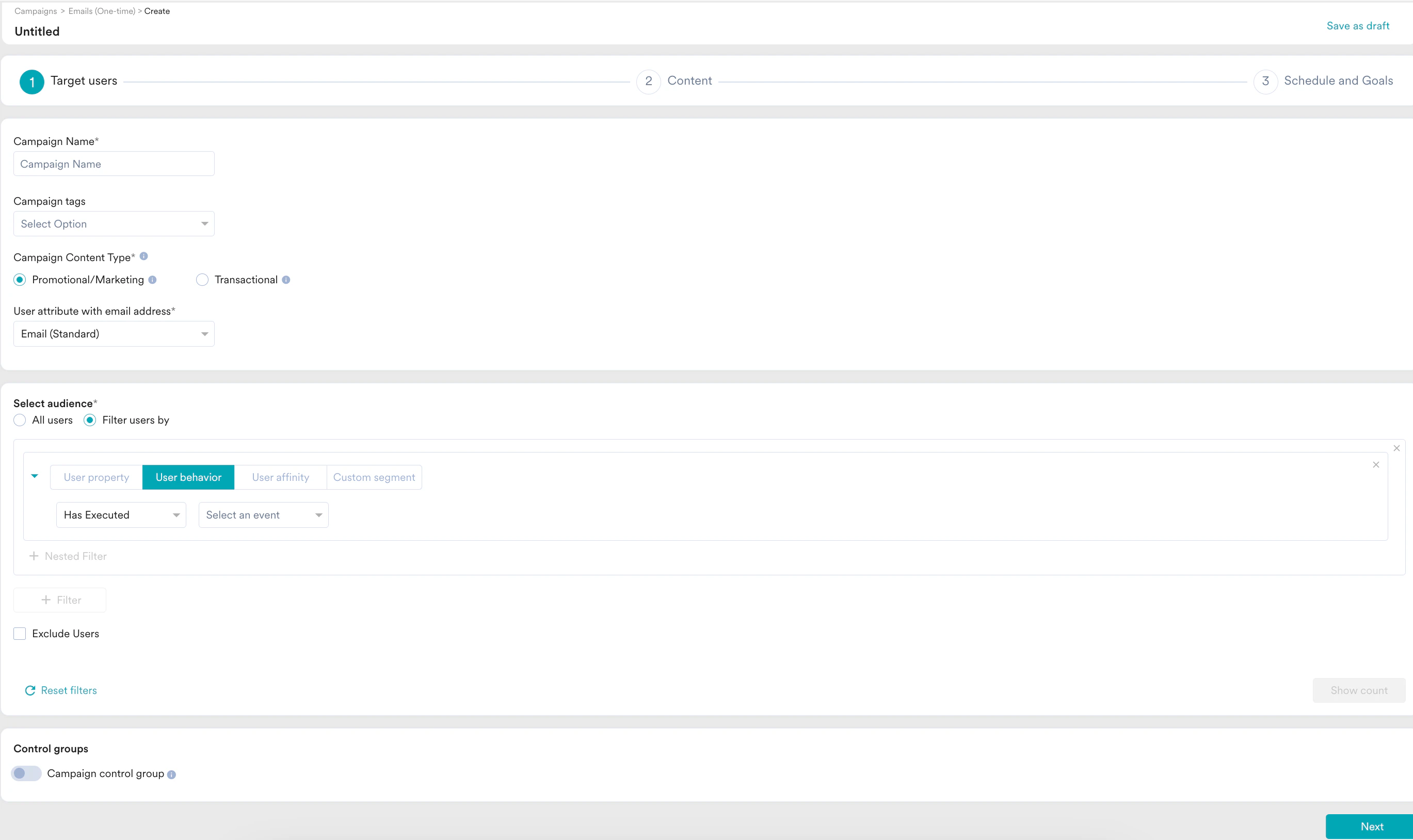
Steps to Create an Email Campaign
The following are the steps to create an Email campaign:- Target users: Define the target audience for the campaign.
- Content: Define the content of the Email campaign to be sent.
- Schedule and Goals: Define the campaign’s delivery schedule and goals.
Step 1: Target Users
This section contains the following:Campaign Details
The campaign details section contains the following fields:- Teams: If your organization has teams enabled, select a team in the drop-down list. For more information, refer to Teams in MoEngage.
- Campaign Name: Enter the name of the campaign to manage and identify the campaign. The campaign name must have at least five characters, and the limit is 256.
- Campaign tags: Campaign tags are used to provide context about the campaigns and describe the nature of the campaign or the campaign’s central theme. Select campaign tags from the drop-down list. You can select a maximum of five tags. For more information, refer to Campaign Tags.
- Campaign Content Type: There are two types of campaigns that you can send using MoEngage, and they are promotional and transactional. For more information, refer to Promotional Campaigns vs. Transactional Campaigns.
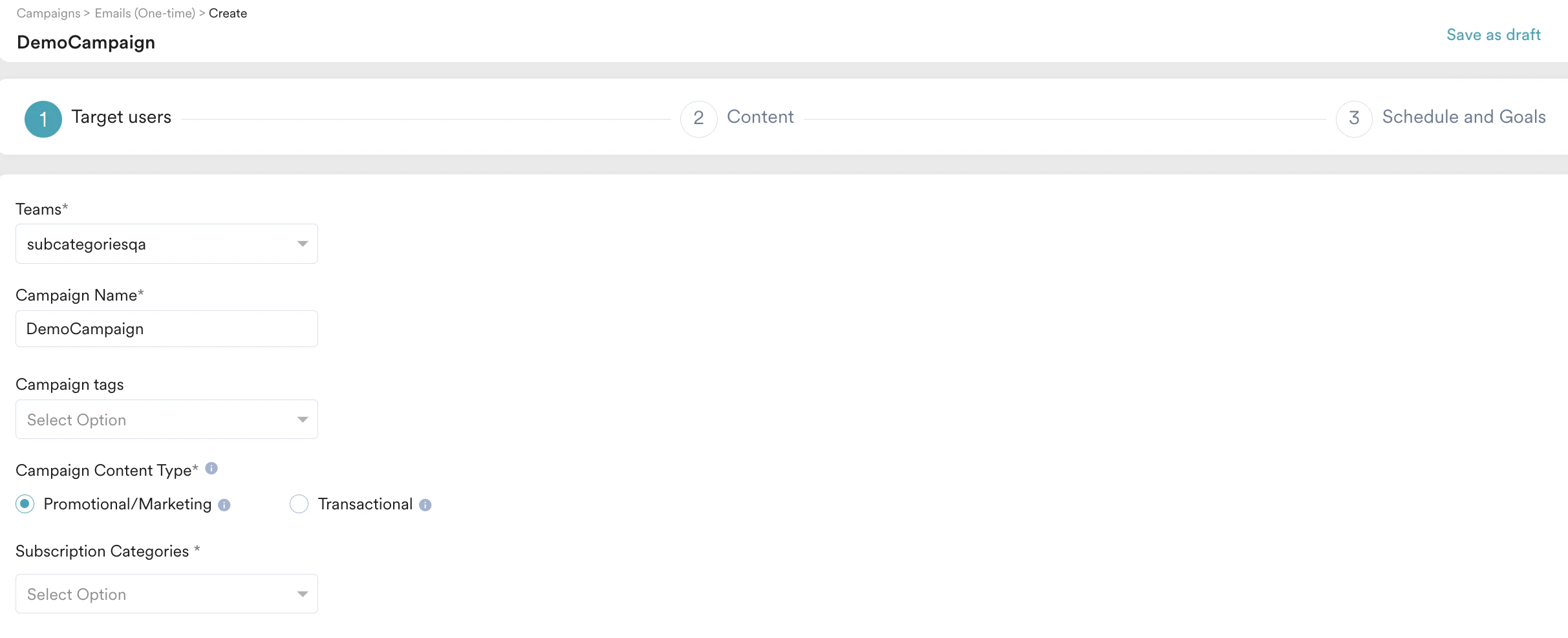
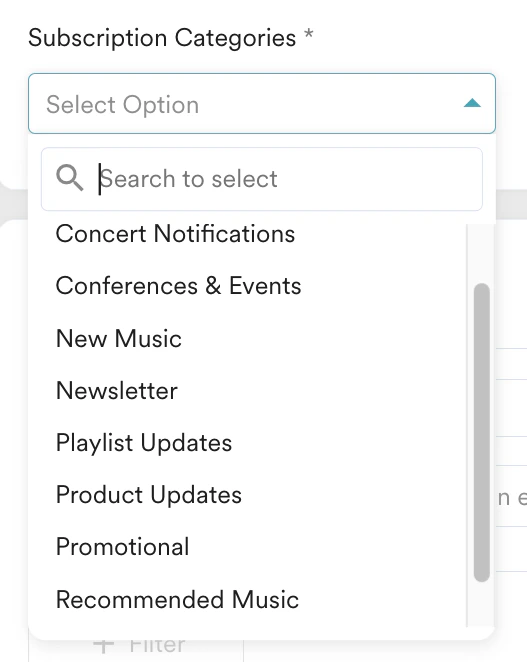
- Subscription Categories: Subscription categories are a means to help users choose the type of communication they receive from your brand. They can be configured in the Email Channel settings. For more information, refer to subscription categories.
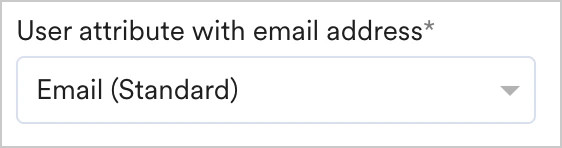
- User attribute with email address: This field indicates the user attribute that stores the email address. When configuring the email channel, the user attribute that stores the email address is configured in the General Settings. The attribute configured in the settings is selected in the User attribute with email address by default. You can override the same at the campaign level by selecting another attribute (from the dropdown)that contains the email address.
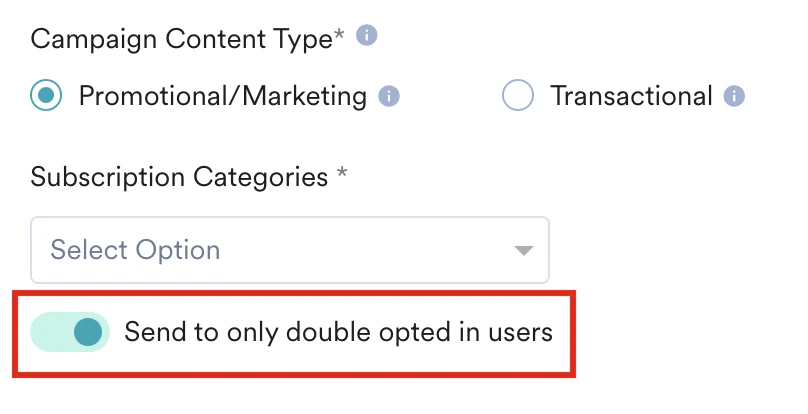
- If you selected the Double Opt-in method in the Subscription management > Opt-in management tab of your email settings, the Send to only double opted in users toggle appears while creating the email campaign and is turned on by default. Note that this toggle appears only when the Campaign Content type is Promotional/Marketing. For more information, refer to Opt-in management.
- When this toggle is on, MoEngage filters out previously unsubscribed users, hard-bounced users, and users whose opt-in status is not Double Opt-in. The campaign is then sent to the remaining group of users.
- When this toggle is off, you can send campaigns to every user regardless of their opt-in status. This means that even though the opt-in status attribute exists for every user, MoEngage ignores its value and filters out only previously unsubscribed and hard-bounced users. The campaign is then sent to the remaining group of users, considering unsubscription settings and subscription categories. \
Event Triggered Campaigns
Event Triggered Campaigns
Event-triggered campaigns allow you to send personalized messages triggered by different user action events. For example, you can remind users about the item they added to the cart but have not purchased. For more information on creating such campaigns, refer to Create an Event-Triggered Campaign.
If Portfolio is enabled for your workspace, you can create advanced event-triggered campaigns that are initiated by user actions in one project (brand) to send a message from another project (brand).
Business Event Triggered Campaigns
Business Event Triggered Campaigns
| For business event-triggered campaigns, you can select the business event to be mapped to the campaign using the Select business event dropdown. The dropdown contains all the business events created in your MoEngage account. | 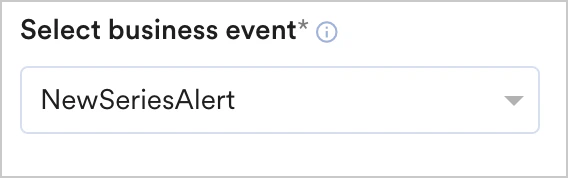 |
- segment by user property: you can map the user property to the business event attribute
- segment by user behavior: you can map the attribute of an event executed by the user to that of the business event attribute
- segment by user affinity: you can map the attribute of an event executed by the user to that of the business event attribute
- The data types of the user attribute or event attribute chosen should match with that of the business event attribute for segmentation to work.
- Show count is disabled for business event-triggered campaigns as business events are modeled to run on dynamic segmentation (based on the values with which the business event is triggered).
Select Audience
- All Users
- Filter by User Property
- Filter by User Behavior
- Filter by User Affinity
- Filter by Custom Segment
Select this filter option to send the campaign to all app users. When you use this option, you cannot add multiple filters.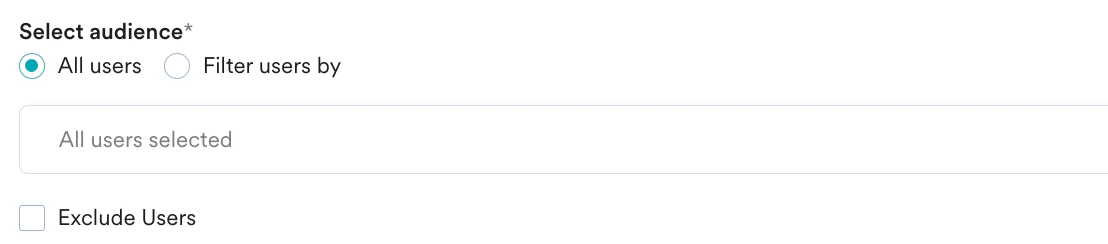




This is an add-on feature. Please contact your MoEngage CSM (customer success manager) or the Support team to enable it for your account.
- Create Multiple Filters: You can create and combine multiple user property rules, user activity rules, and custom segment rules to create a complex user segment using this option.
- Click + Filter.
- Click AND or OR.
- Select the attribute or event and define the filter conditions.
- Exclude Users: Select this checkbox to define the filter criteria for users to be excluded from the campaign. For more information, refer to Preference Management.
- Reset filters: Click this option to reset the segmentation filters.
- Show count: Click this button to display the total number of users who are currently in the configured segment.

Campaign Audience Limit
This feature empowers you to control campaign reach and expenditure by capping the number of users who receive it based on engagement metrics like sends, impressions, and conversions. It allows you to set total, daily, or instance-level limits to campaigns. For more information, refer to Campaign Audience Limit.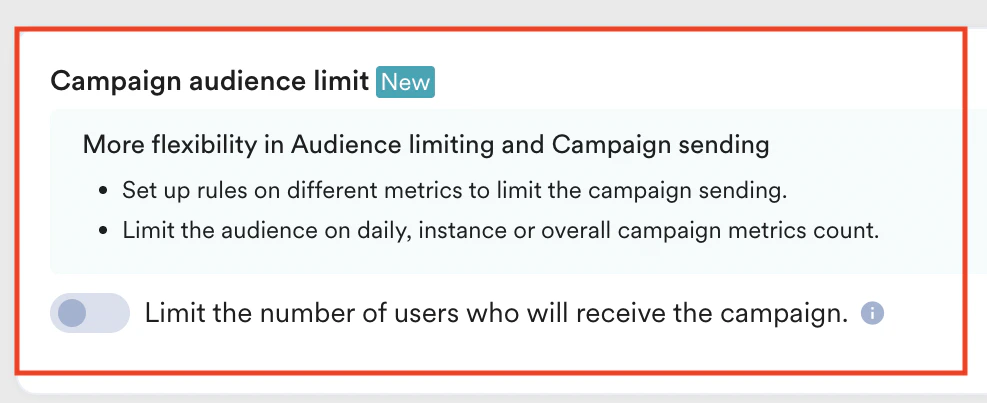
Control Groups
This section contains information about control groups for the campaign. Control Groups are enabled only for promotional campaigns. They are not applicable for transactional campaigns. You can enable the control groups to which you want to send the promotional campaign.In the Control groups section:
For more information, refer to Control Group. | 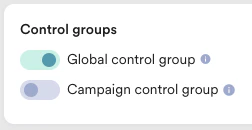 |
Step 2: Content
To create email content you can choose between Drag and drop editor (either blank or pre-built WYSIWYG templates), and Custom HTML editor where you can upload your templates in HTML format or previously saved templates under My s_aved templates_ after you have saved your created templates. You can also import custom templates and template groups. For more information, refer to Import and Use Template Groups in Email Content.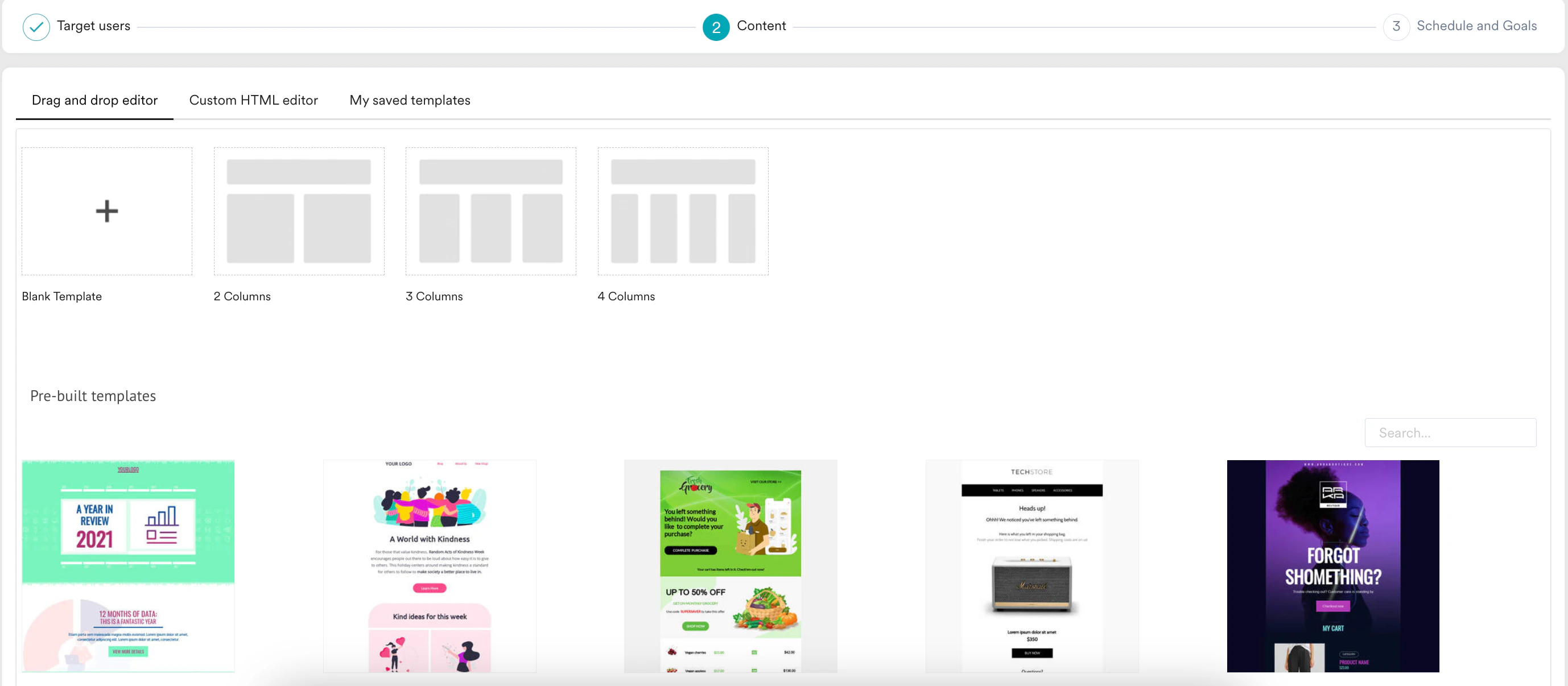
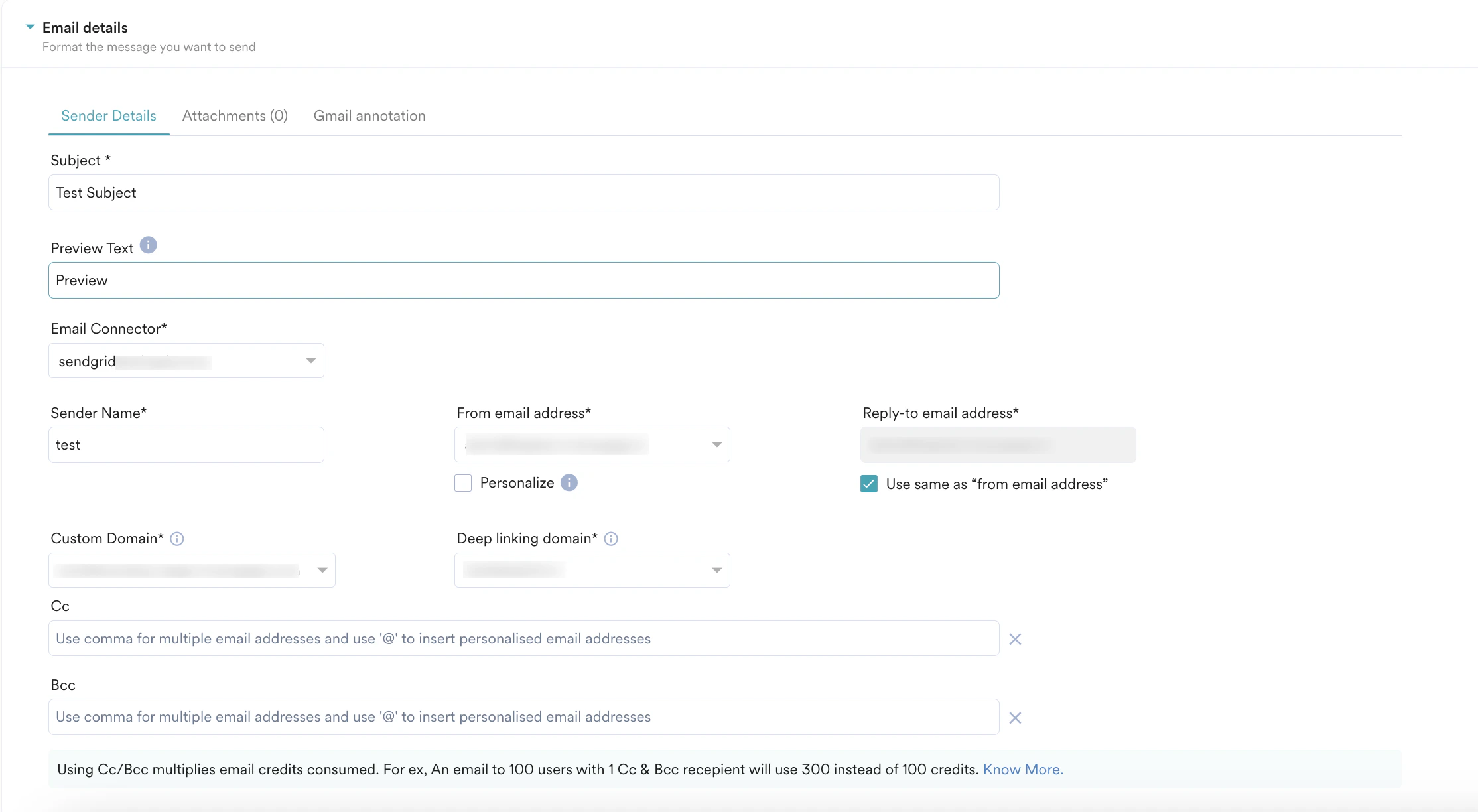
Sender Details
Personalization in Emails
You can personalize the following:- Email Subject: Personalizing the subject using the customer’s name or their topic of interest can help you get more opens and clicks. Choose the user attribute to personalize in the personalization editor.
- From email address
- Reply-to email address: When a customer, lead, or prospect replies to your email, the reply-to email address should be directed to the relationship manager or personnel handling them rather than to a static or generic email address. You can do so by personalizing the Reply-to email address. Select the user attribute that stores the email address of the relationship manager for the customer in the personalization editor.
- Sender Name: Personalizing your sender name helps you optimize your open rate, click-through rate, and conversions. For instance, the sender name could be your brand name or could be xyz from BrandName. Such sender names make your brand more personable and result in higher open rates.
- Email Content (including any URLs)
- CC and BCC
- Custom Domain: Customizing your domain increases open rates as the recipients are likely to trust and open an email coming from a familiar domain. For more information, refer Configure Custom Domain.
- Deep linking Domain: Deep linking your domain allows for a smoother and more direct user experience. Deep linking allows an app to be accessed and launched from a URL. For more information, refer to Configure Deeplinking Domain.
- The Sender Name should be less than 320 characters while using Amazon SES (as it supports only up to 320 characters). When the Sender Name exceeds this limit, Test Campaigns will result in a “Transaction failed: Address length is more than 320 characters long” error, and published campaigns that send out emails will experience SMTPDataError.
- The personalized Sender Name will be sent as plain text. For example, if a link gets added as part of personalization, the link will be treated and sent as text instead of being treated as a URL.
Attachments
You can attach one or more files as part of the message in the email campaigns. For more information, refer to Add File Attachments to Email.Gmail annotation
Gmail annotations help customers conveniently view and engage with your promotions from their inboxes. For more information, refer to Gmail Annotations.Preview Text
Preview text is the text that appears below the subject line in the inbox. Preview text can help you connect with your users and increase your open rate. If you do not specify the preview text, the email clients pull the first line of test from the email content and display the preview text in the inbox (this may not be as appealing to the user as you writing the purpose of your email succinctly). In the Sender details section, you can add the preview text in the Preview Text field. For example, if you were to add the following in the Sender Details: Subject - Let Your Summer Look Shine! Preview text - Summer Sale - Infuse freshness in your wardrobe with our latest offerings. The message would appear in the inbox as shown below.
From email address
Select a “from” email address from the drop-down. If you do not see any email addresses in the drop-down, it is likely that you have not added/verified “from” email addresses in email settings. While selecting a “from” email address, you can see the current reputation of each domain. For more information, refer to Domain Reputation.Other options
There are additional options to:- Personalize URLs & images
- Preview your template in different environments and devices
- Check for potential Spam Folder landing
- See Email Tips
- Preview the email for laptop/mobile
- Save the template being created
- To save a newly created template, you can click on the “Save Template” option under “Template actions” present on the right top of the email editor. You can give a unique name to the template and save the same. You can find this newly saved template in the “Saved Templates” section.
- While saving the updates to a template, you can choose to update the existing template version with the new edits made. Note that once the current template is updated, the previous versions cannot be restored.
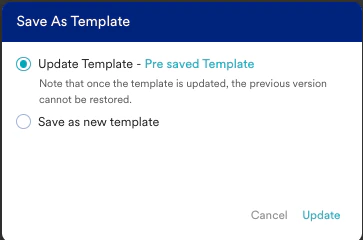
- Additionally, you can save the updates as a new template instead of updating the previous version. You can find this newly saved template in the Saved Templates section.
- You can change the email template and choose a new one by clicking Change Template.
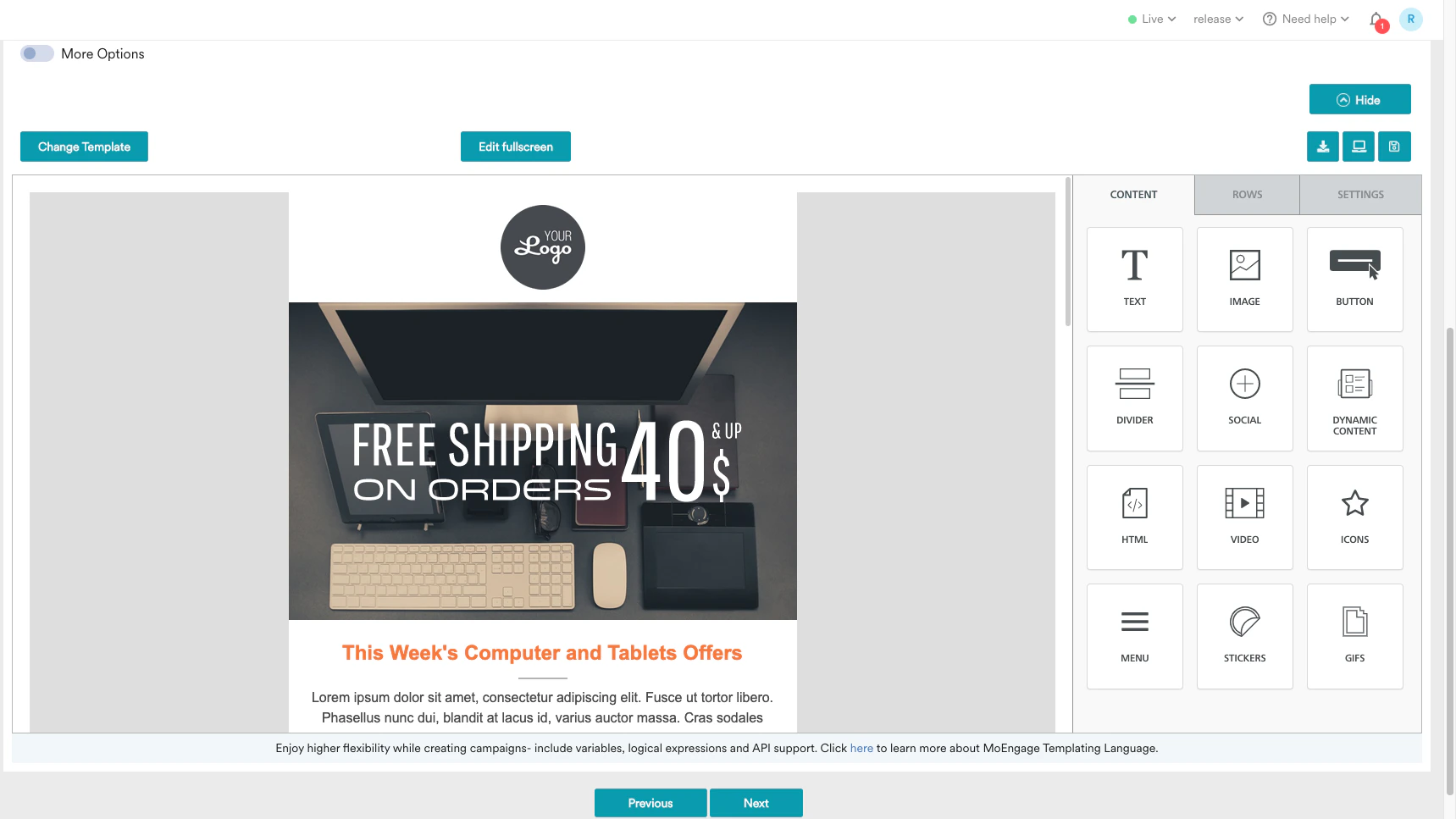
Use change templates to toggle between WYSIWYG and upload HTML. When you toggle the previously created email message is not retained or saved as a draft.
Adding UTM Parameters
Adding UTM Parameters
If the UTM parameters are enabled in the general settings, the UTM parameters toggle for the current email campaign is turned on. For more information, refer to Setting Up General UTM Parameters at Account Level.You can set UTM parameters for campaigns individually. The changes you make in the UTM parameters for a campaign override the general settings. The changes are applicable only to the specific campaign you are creating or editing, and they do not impact the general settings. For more information, refer to Adding UTM Parameters to Email.
Test Campaign (optional)
Test Campaign (optional)
Test campaigns are a crucial step for quality assurance before campaign launch. They allow you to proactively validate the email’s layout, confirm personalization accuracy across different user segments, and check all links and media. For more information, refer to Test Email Campaign.
Step 3: Schedule and Goals
This section contains the following:- Delivery Schedule: Choose when the campaign should be delivered to your users and the periodicity of delivery.
- Conversion Goals: Choose the conversion goals and revenue metrics to be tracked for the campaign.
- Delivery Controls: Choose the advanced delivery control options such as throttling, frequency capping, and expiration settings for the notification.
Delivery Schedule
One Time
One Time
- As soon as possible
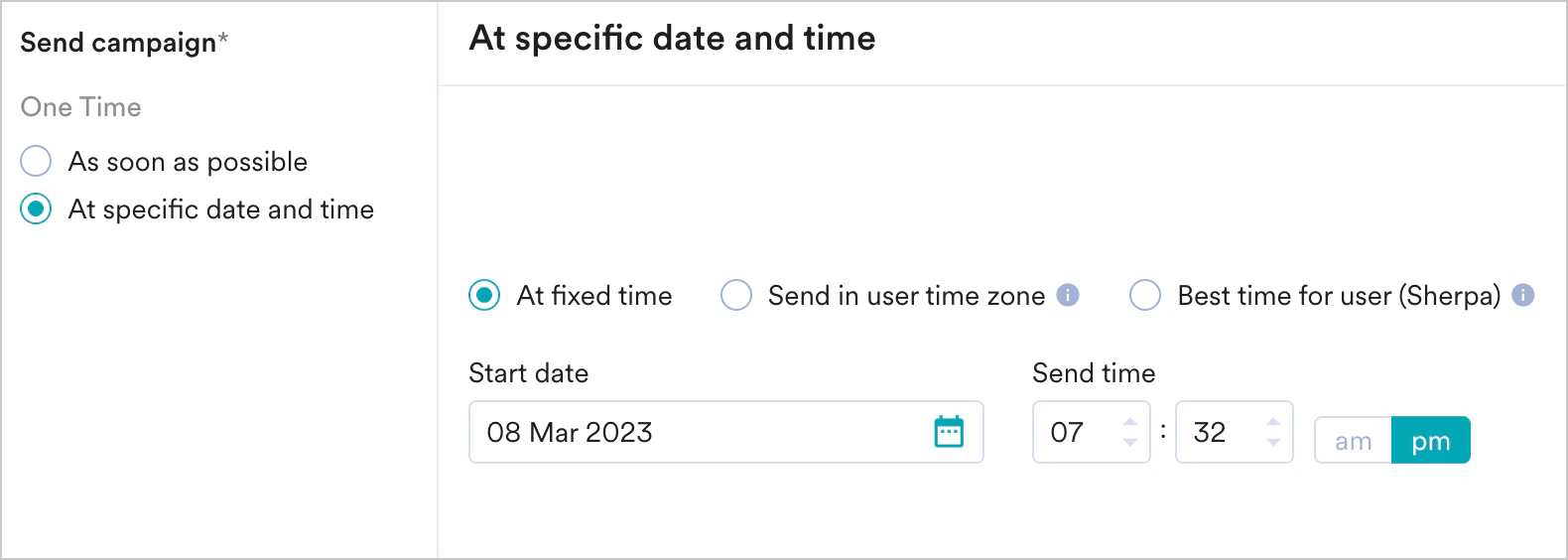
- At specific date and time
Send the campaign immediately to the target users.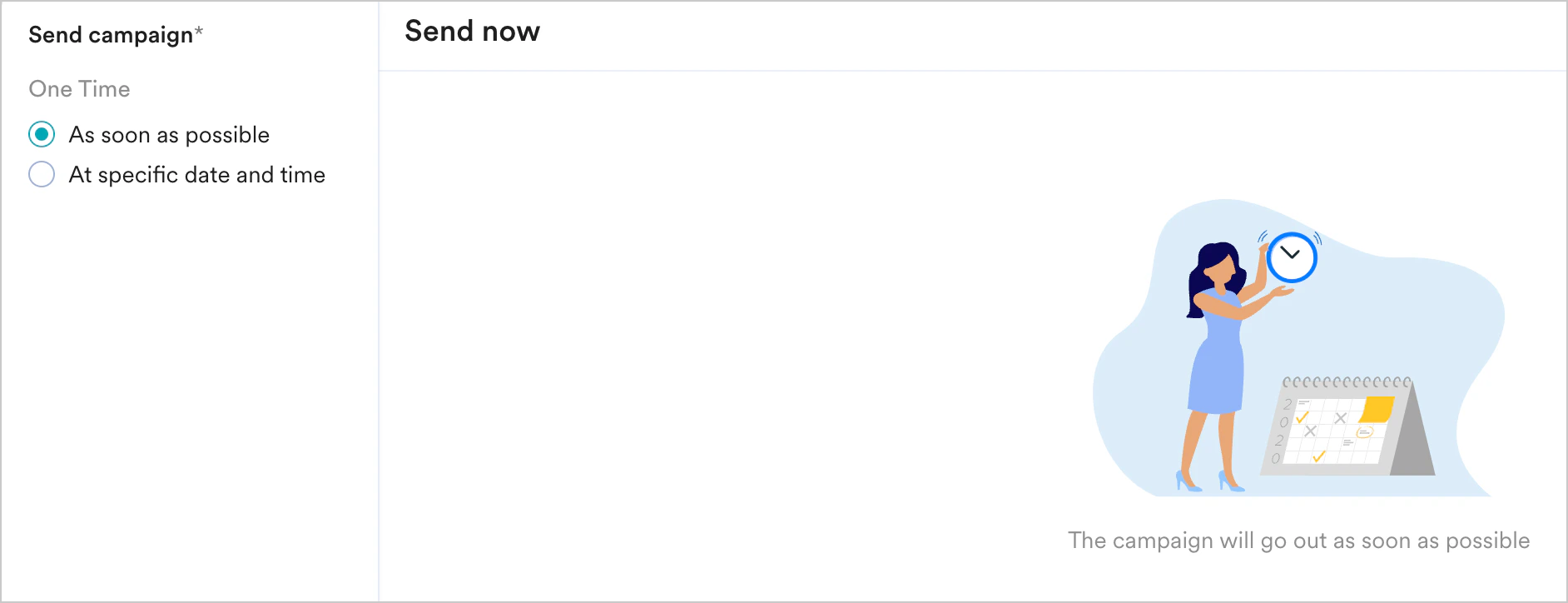
Periodic
Periodic
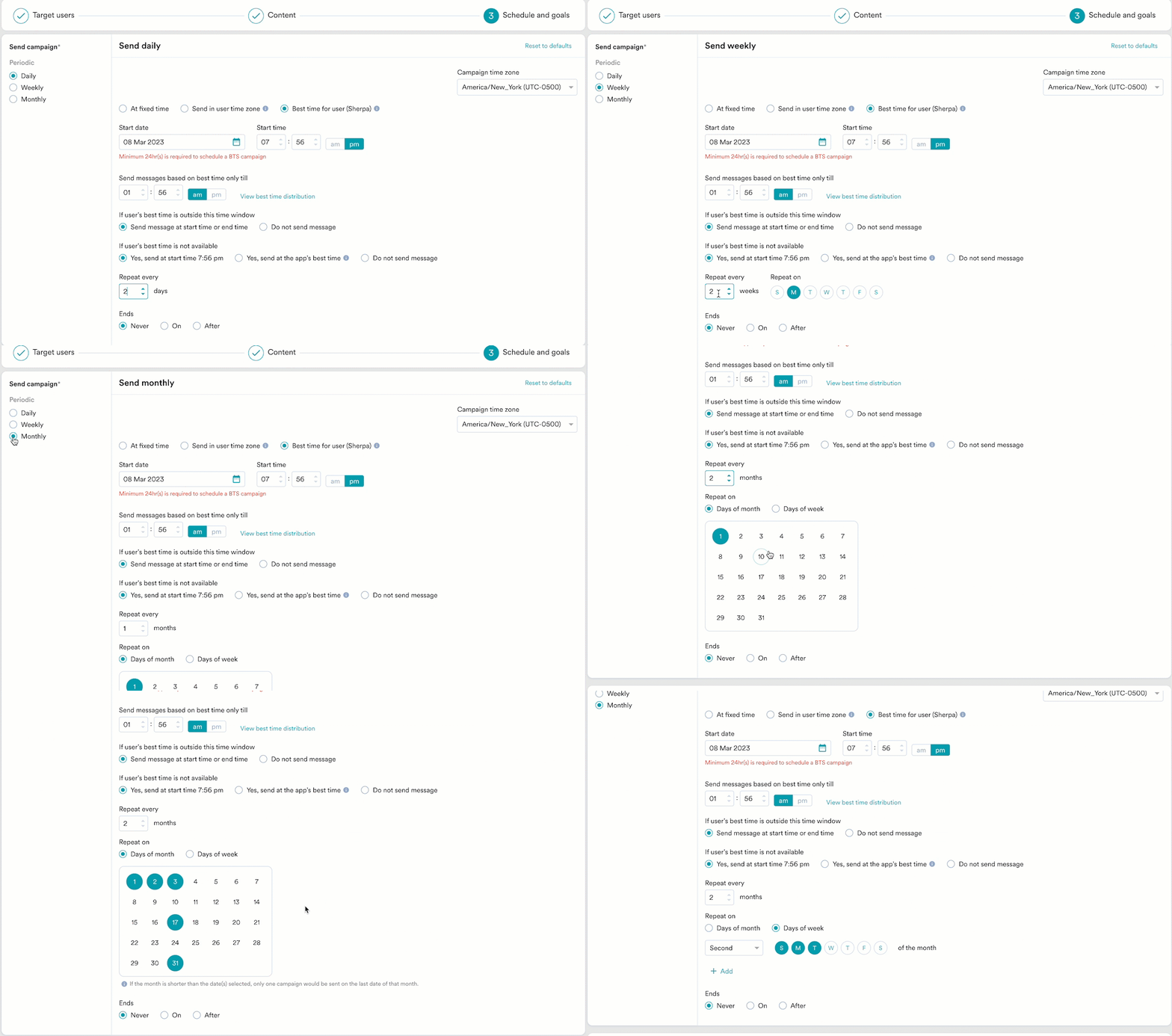
- At fixed time
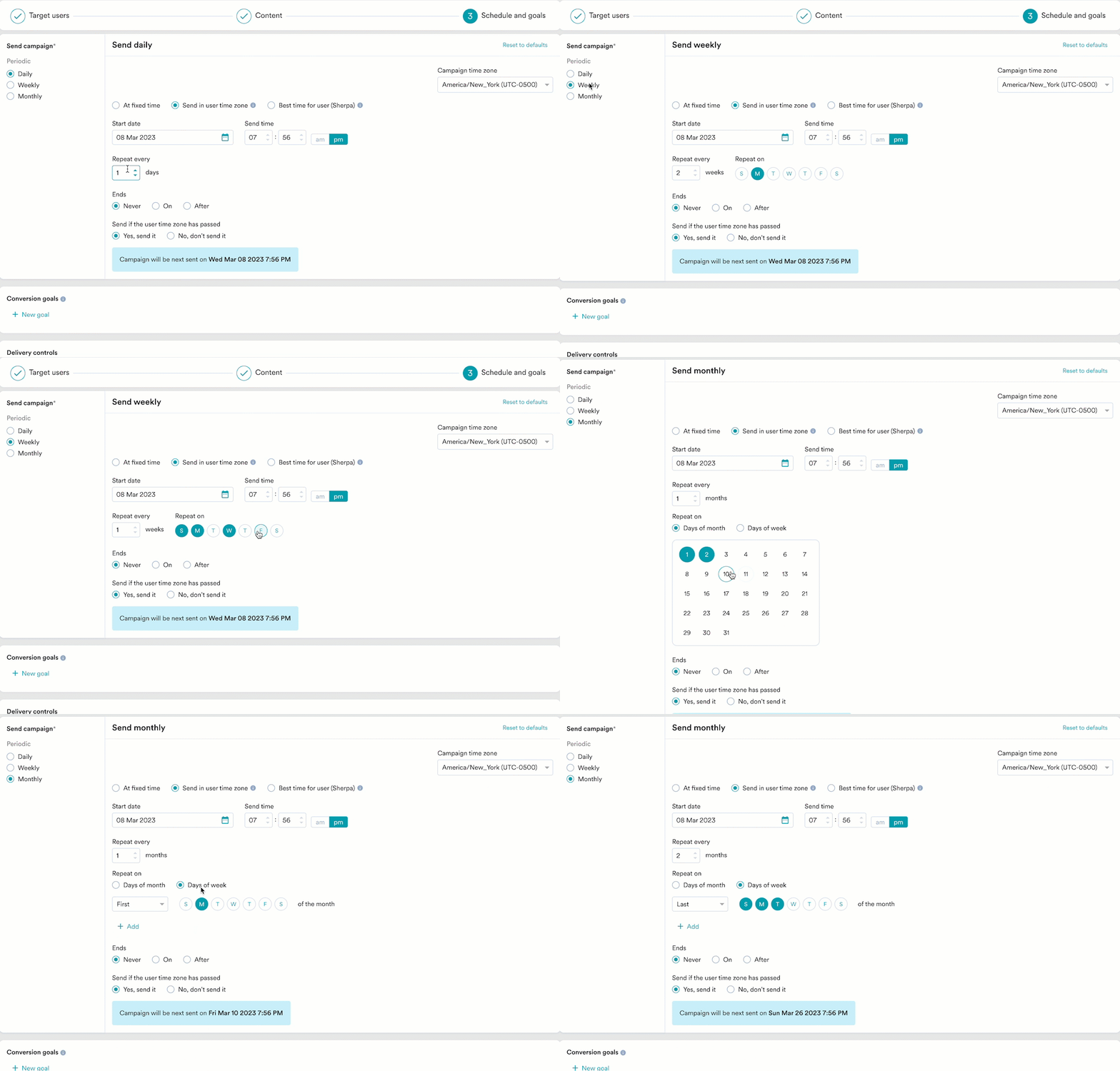
- Send in user time zone
- Best time for user (Merlin AI)
Choose this option to send the campaign on a specified date and time. The following fields are available in this section:
- Campaign time zone: The timezone in which the campaign should be sent.
- Start date: The date on which the campaign should be sent.
- Send time: The time at which the campaign should be sent. Select am or pm depending on the time of day.
-
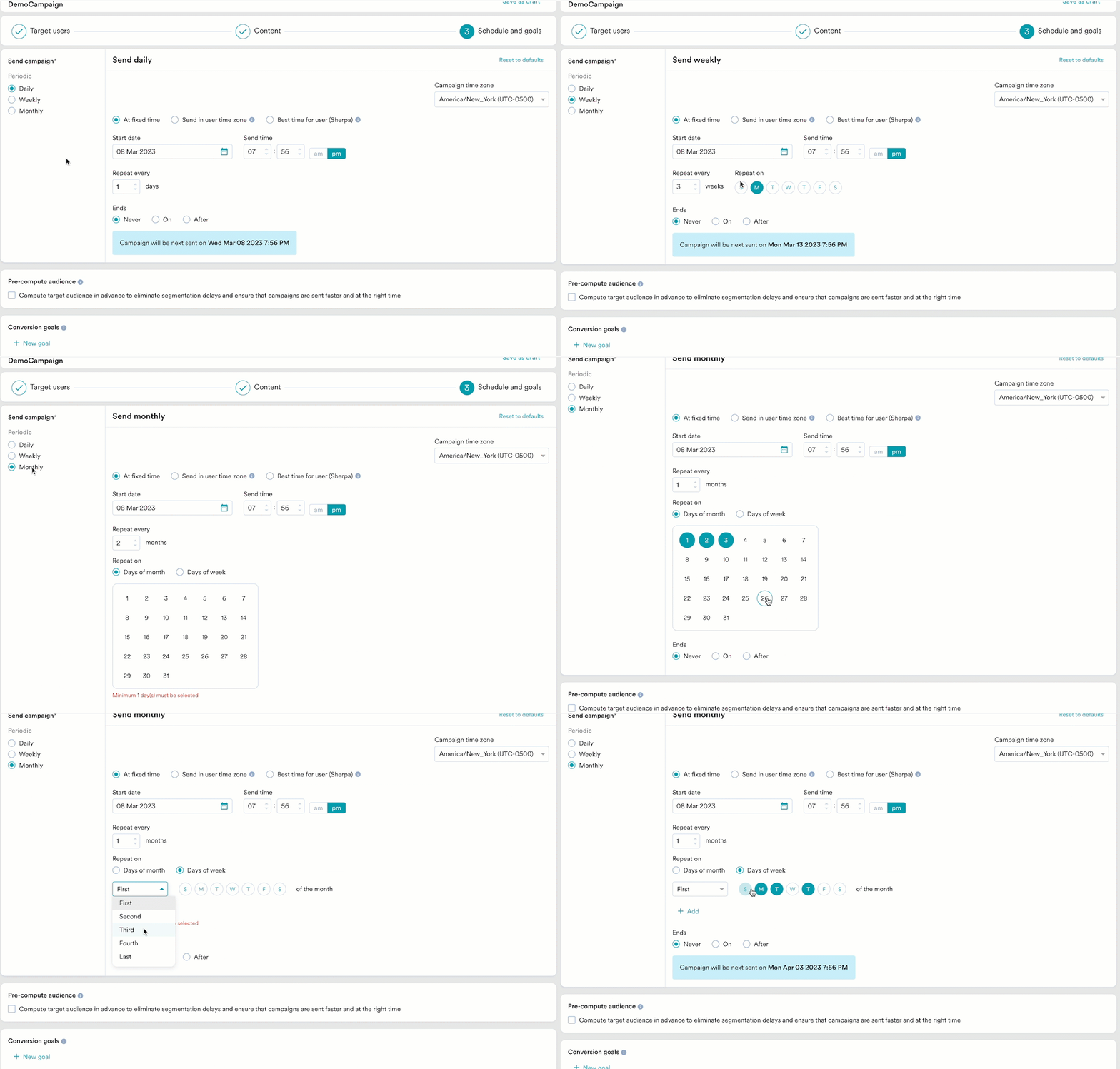
Periodic: The periodicity of the campaign. You have the following options: Daily, Weekly, and Monthly.
-
Ends: The date on which the campaign ends. The following options are available:
- Never: The campaign is scheduled to run daily.
- On: The campaign ends on the date specified in the End Date field.
- After: The campaign ends after the number of occurrences specified in the occurrences field.
Event Triggered
Event Triggered
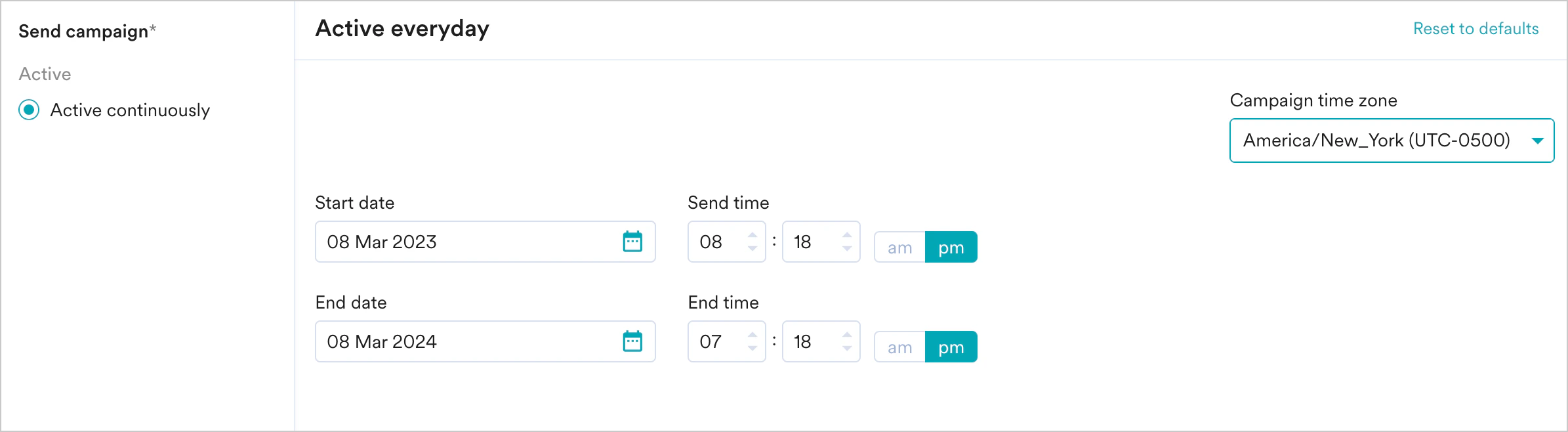
Click Active continuously under Send campaign and do the following:
When will event triggered campaigns be sent?The campaign will be sent only when:
- The event property/attribute being used to create these types of triggers (like the flight_time example) is in a valid date-time format. If it is not in a date-time format, the string should have data in one of the supported formats. If the selected attributes do not contain data in any of these formats, the campaign won’t be sent to your users.
- The date/time value from the attribute is greater than the time at which the trigger condition is fulfilled.
- The date/time value from the attribute is less than 30 Days + the time at which the trigger condition is fulfilled. For example, if your trigger condition is fulfilled at date D, your notification will be sent only when the attribute value is less than D+30.
-
The intelligent delay optimization (With Delay) does not work for campaigns sent on relative timing.
Business Event Triggered
Business Event Triggered
Click Active continuously under Send campaign and do the following:
When will business event-triggered campaigns be sent?The campaign will be sent only when:
- The data type(s) of the user attribute(s) or event attribute(s) mapped to the data type(s) of the business event’s attribute(s) match.
- The attribute(s) used in segmentation are passed in the trigger request for the business event.
-
The intelligent delay optimization (With Delay) does not work for campaigns sent on relative timing.
Conversion Goals
You can add conversion goals to track the business metrics for your campaigns. You can track a maximum of five conversion goals. You can choose any app event as a conversion goal activity and set more than one conversion goal. The first goal will be treated as a primary goal. For example, if you want to track the number of customers who have purchased an iPhone after your campaign was sent. (Event: Purchase event, Product: iPhone). Your conversion goal setup might be similar to the following image: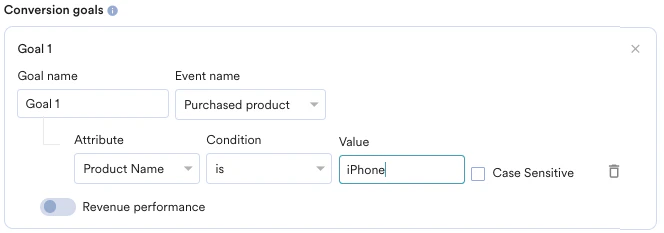
- How many users have viewed the product page?
- How many of them added that product to the cart?
- How many of them made a successful order?
Tracking Revenue Performance (Optional)
Tracking Revenue Performance (Optional)
| With MoEngage, you can track the revenue generated by your campaigns. For example, you can track the revenue generated by your product after sending a communication. To track revenue performance, enable the Revenue performance toggle for the conversion goal for which you want to track the revenue. In the example here, to track revenue for orderSuccessful events, you must enable the Revenue performance toggle. | 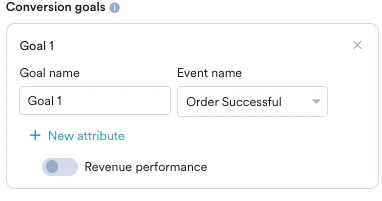 |
| After choosing the goal, you can select the numeric attribute that captures the order’s total monetary value. In this example, cartValue contains the total order value. You can choose the currency in which your monetary value is being reported. | 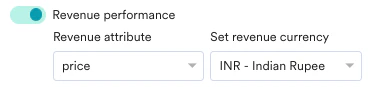 |
| Set Attribution window: You can set an attribution window (a time period or window that is calculated since the user has received/clicked the campaign, for which you want to attribute the conversion goals to a specific campaign.) By default, it is set for 36 hours while the maximum attribution window can be set up to 10 days. In the example below, the attribution window is set to 10 days. |  |
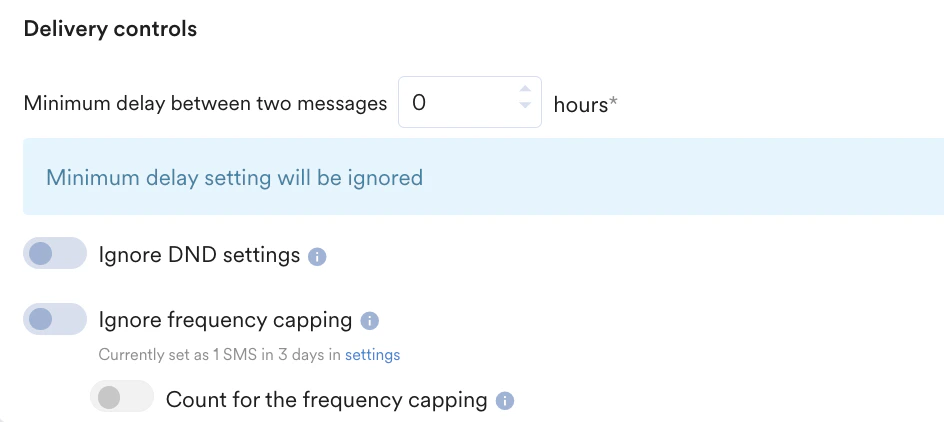
Delivery Controls
- Delivery Control for One Time, Periodic, and Business Event Triggered Campaigns
- Delivery Control for Event Triggered Campaigns
This section contains the following options:Frequency CappingThis feature helps control the number of MMS messages sent to a user in a day.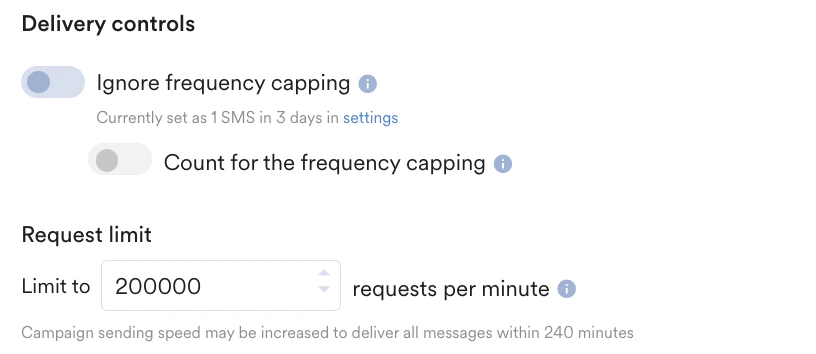
- Ignore frequency capping: Enable this toggle to ignore the frequency capping limit for this MMS campaign. Click Ignore frequency capping to ignore the capping for your MMS campaigns when you want to ignore the capping but want this campaign to be counted. For example, the frequency capping value is set to three. You have sent three campaigns today to a group of users. You realize that the MMS messages triggered by this campaign are urgent and should go on high priority, even though some customers have already received three campaigns. If you use the Ignore Frequency Cap, people who have already received 3 campaigns will receive this one as well. For more information, refer to Frequency Capping.
- Count for the frequency capping: Enable this toggle if you want this connector to be counted for the frequency capping limit. If you use Count for frequency capping, people who would have received 2 communications already and send this as well, their receipt count will become 3 after this campaign is sent.