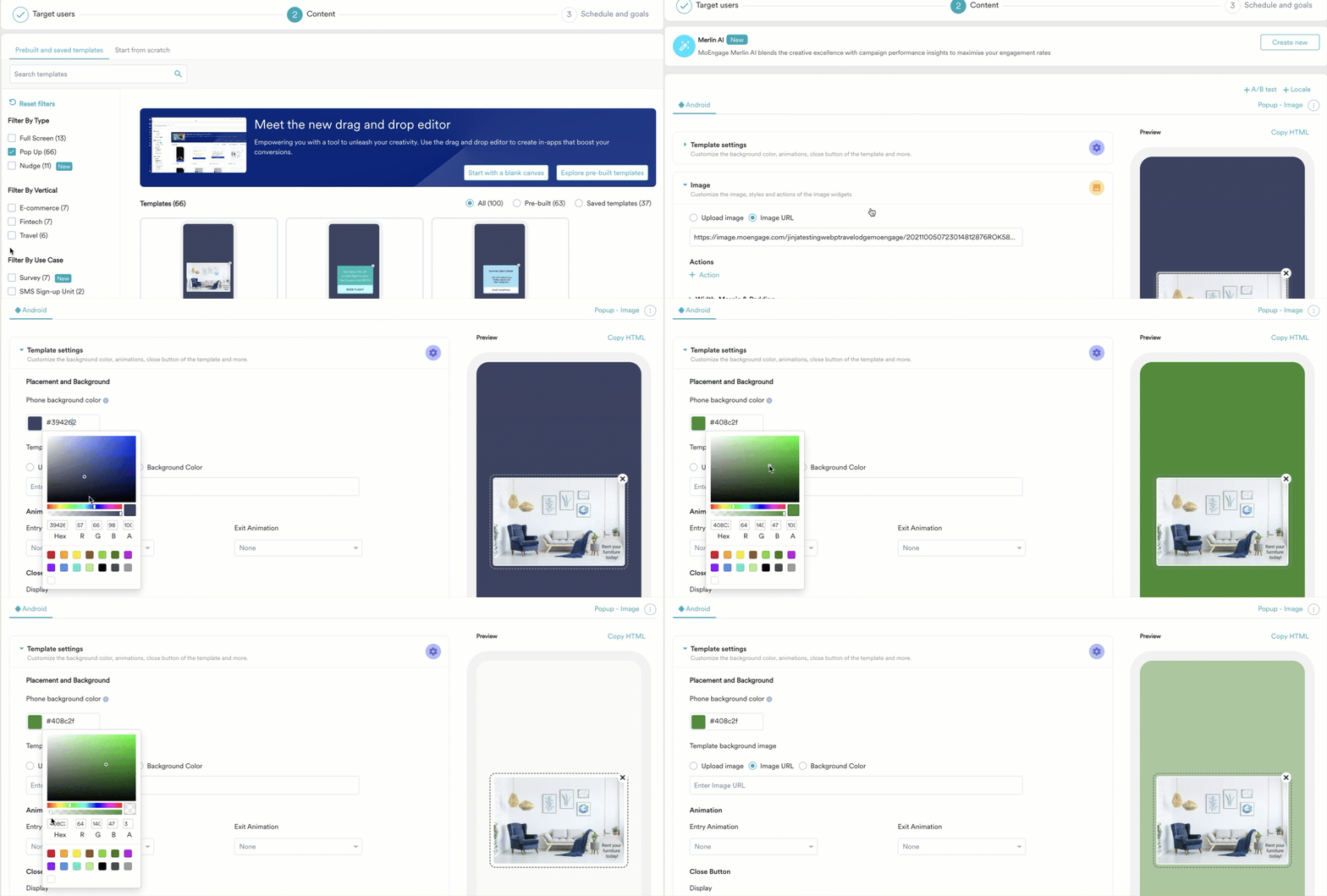
The color gradient contains an optional parameter to specify the background transparency of the templates between 0 (transparent) and 100 (opaque). A low opacity means high transparency, whereas a high opacity means low transparency. Perform the following steps to use the transparency parameter while customizing the selected template for In-app messages:Documentation Index
Fetch the complete documentation index at: https://moengage-user-guide.mintlify.app/llms.txt
Use this file to discover all available pages before exploring further.
- Go to Step 2 “Content” of the campaign creation process.
- Select the required template.
- In the Template settings section, under Placement and Background, select the Background Color option.
- Click the background color input field to view the color palette.
- Scroll the color gradient bar from left to right to select the background color.
- Scroll the opacity bar from left to right to customize the transparency between the template and the screen behind it.
- Click the verticle ellipsis, select Save template, or click Next to continue the campaign creation process.