

Overview
MoEngage provides no-code gamification templates for your In-App Messaging campaigns, including: These templates are fully customizable in an editor that does not require you to write code. You can create and launch these campaigns without needing an update to your app’s SDK.All gamification templates work with your existing MoEngage SDK integration. You can start creating and launching these campaigns immediately.
Spin the Wheel Template
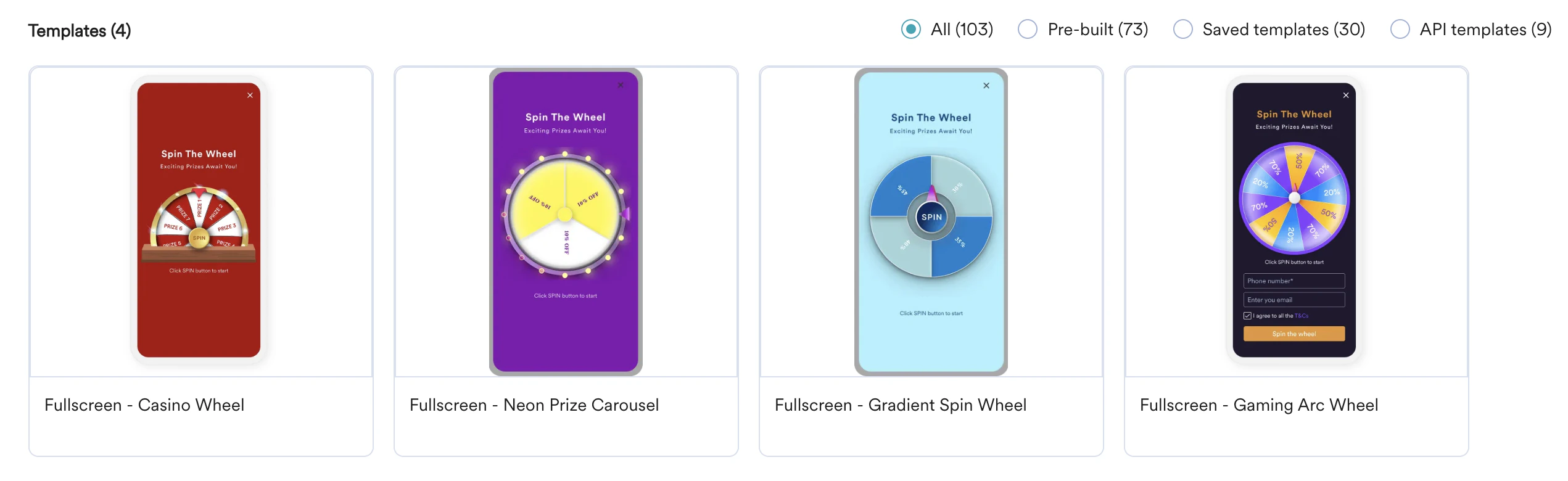
The Spin the Wheel template allows you to create an interactive prize wheel to engage and reward your users.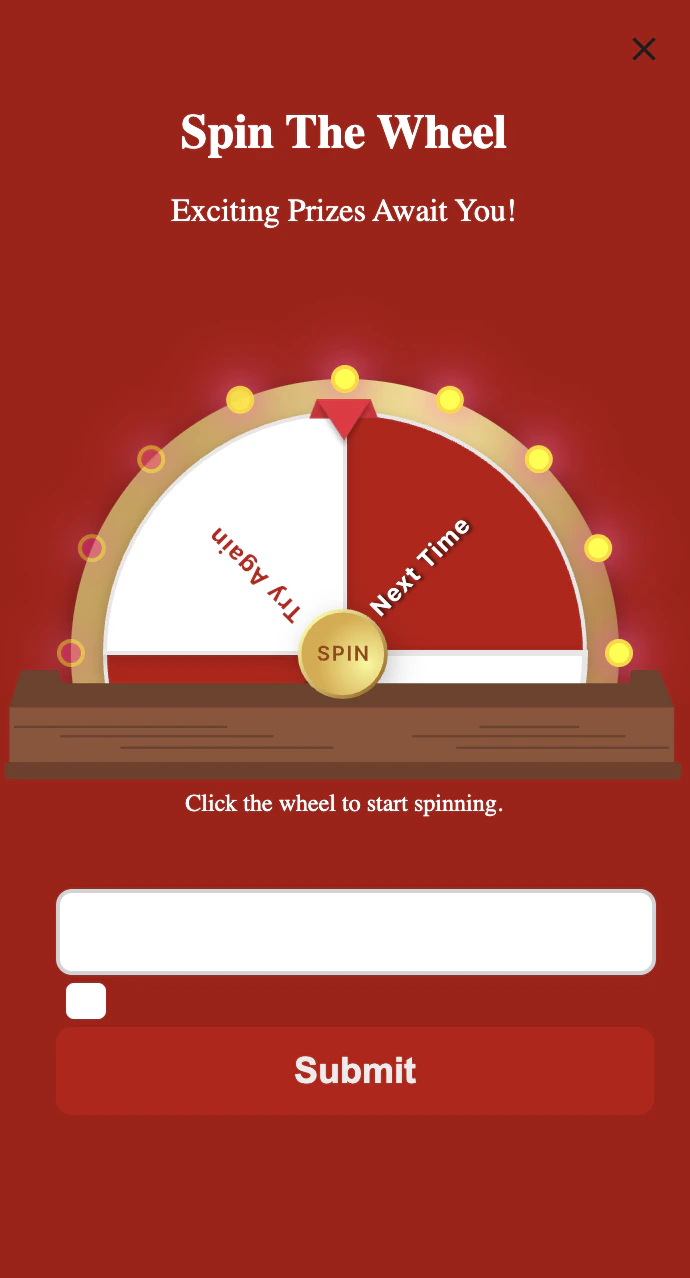
Use cases
- Distribute rewards: Offer users a chance to win discounts, special offers, or other rewards in an engaging way.
- Increase user engagement: Add an element of fun to your app to encourage repeat visits and longer session times.
- Generate leads: Require users to enter their email address or phone number for a chance to spin the wheel, helping you capture new leads.
Configure the Spin Wheel Tab
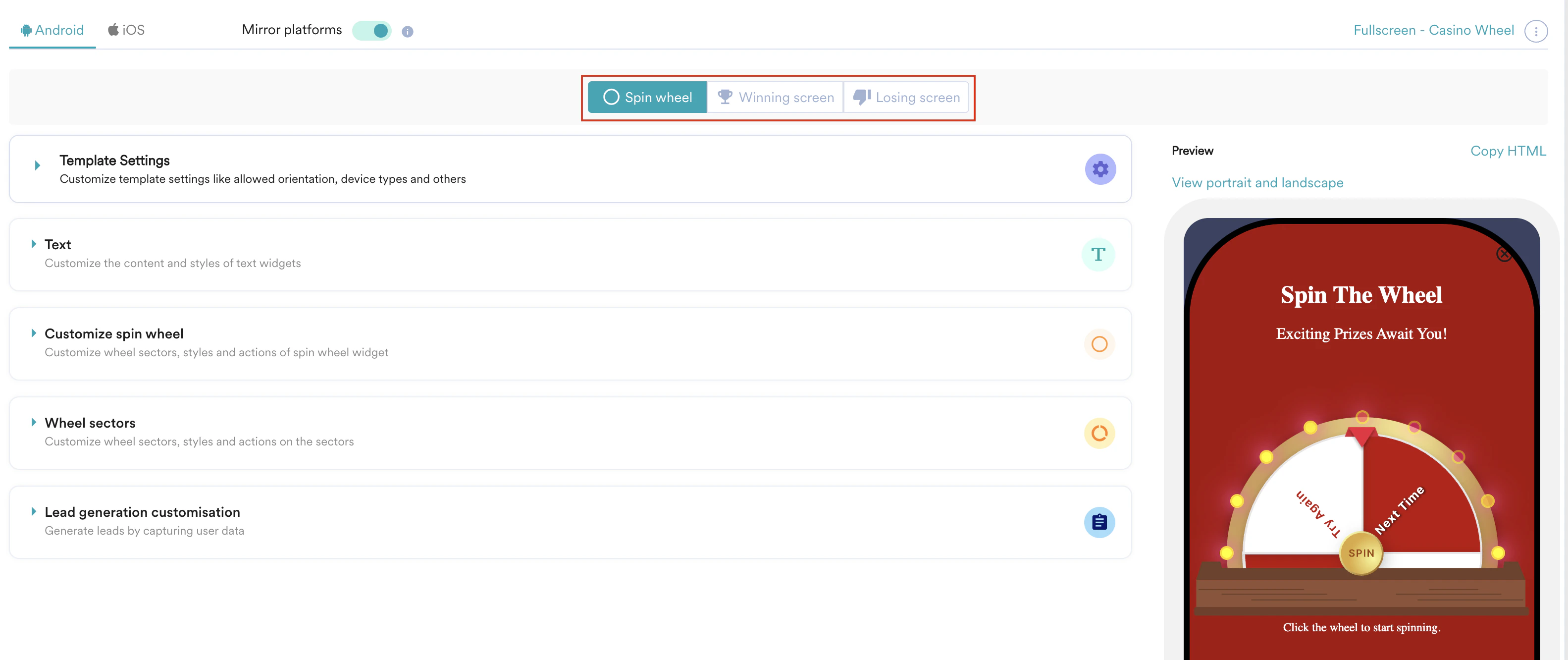
On the Spin wheel tab, you can customize the main appearance and behavior of the wheel itself.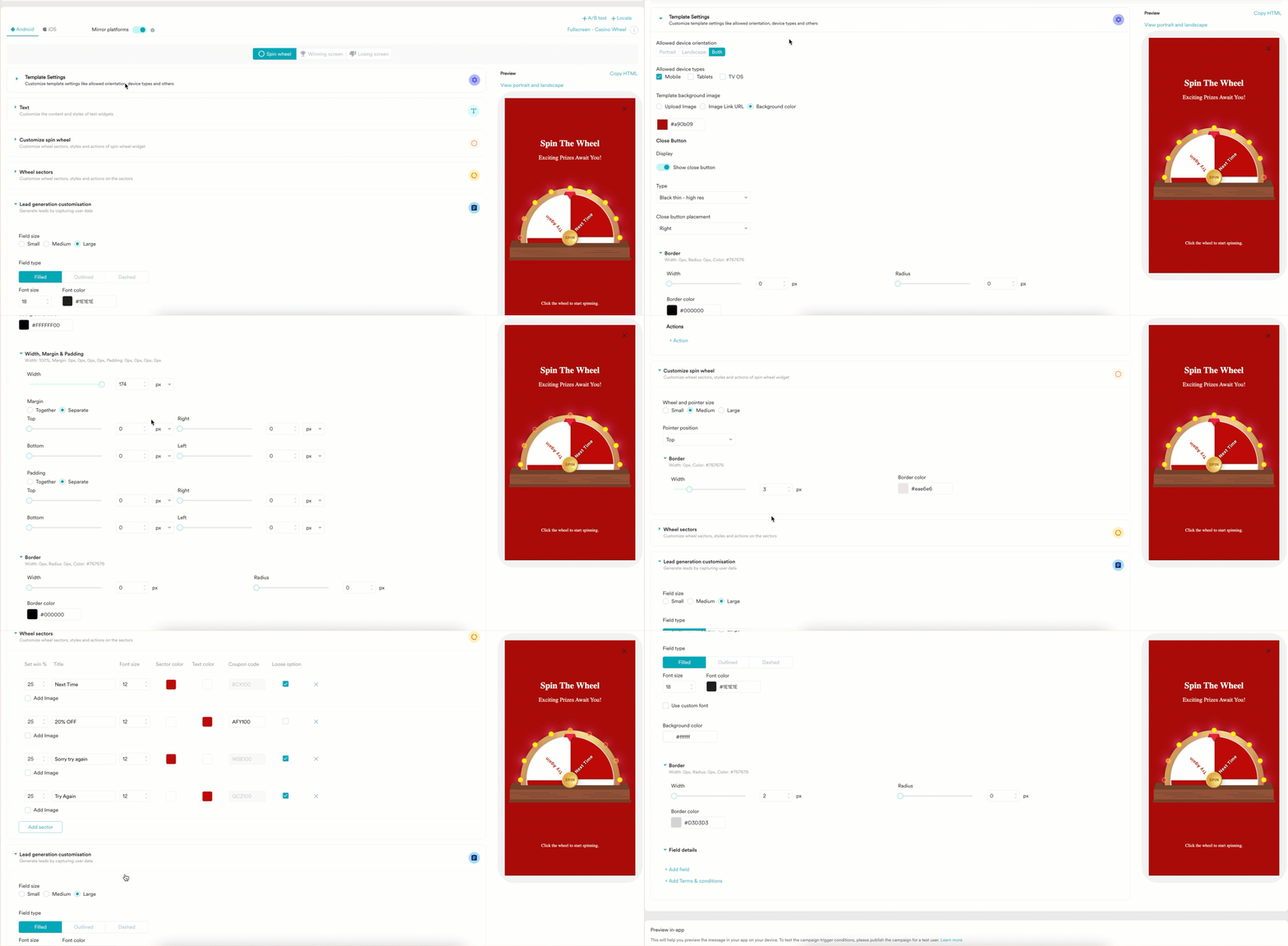
| Section | Customization options |
|---|---|
| Template Settings |
|
| Text | Customize the Heading and Subheading. For each, you can edit the text content, font size, color, alignment, width, margin, padding, and border. You can also add actions. |
| Customize spin wheel |
|
| Wheel sectors |
|
| Lead generation customisation |
|
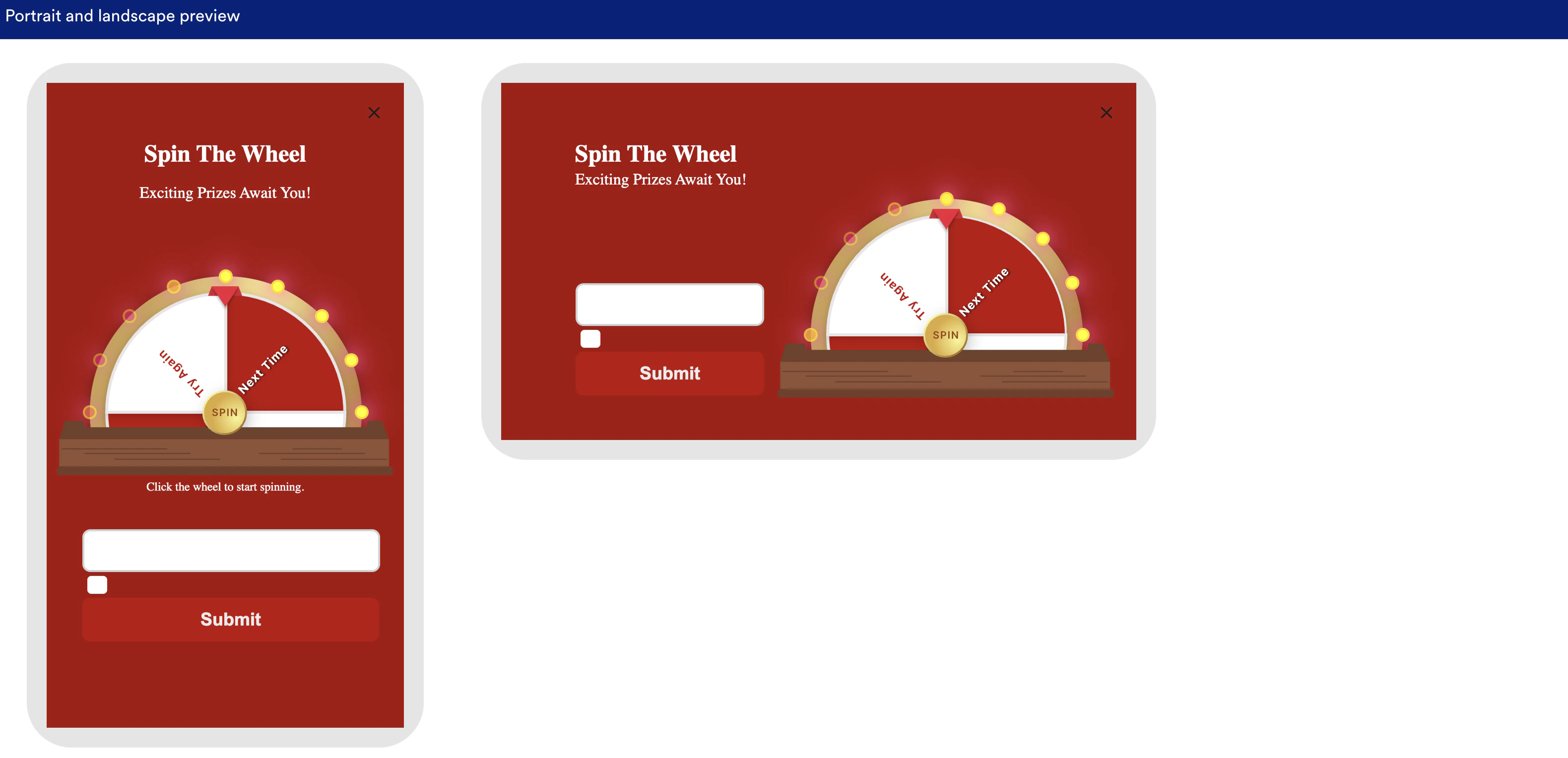
Configure the Winning Screen Tab
On the Winning screen tab, you can customize the screen that appears when a user wins a prize. This includes celebratory elements like confetti effects and the coupon code they have won.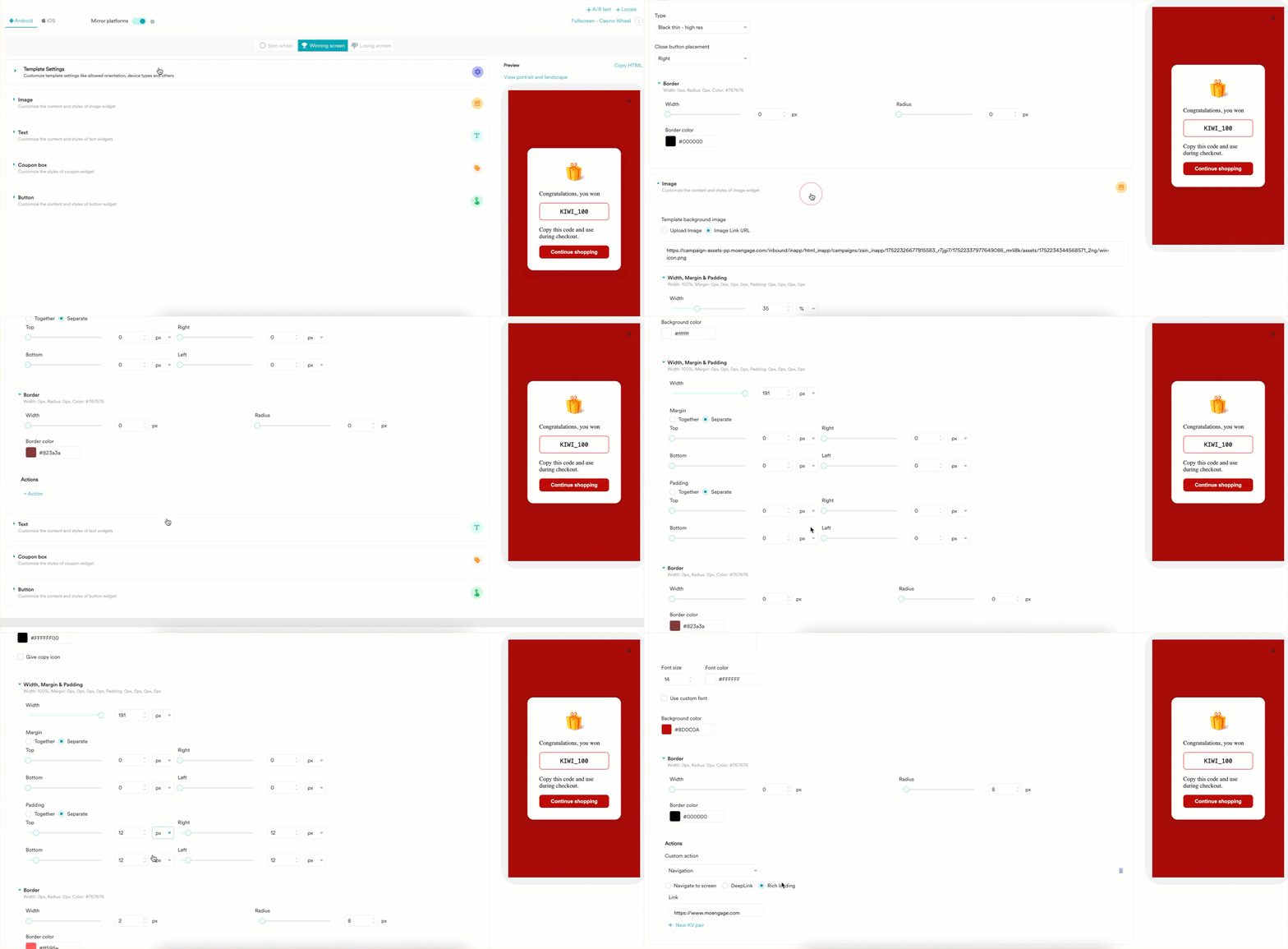
Configure the Losing Screen Tab
On the Losing screen tab, you can customize the screen for non-winning spins. You can configure a custom image and heading to display.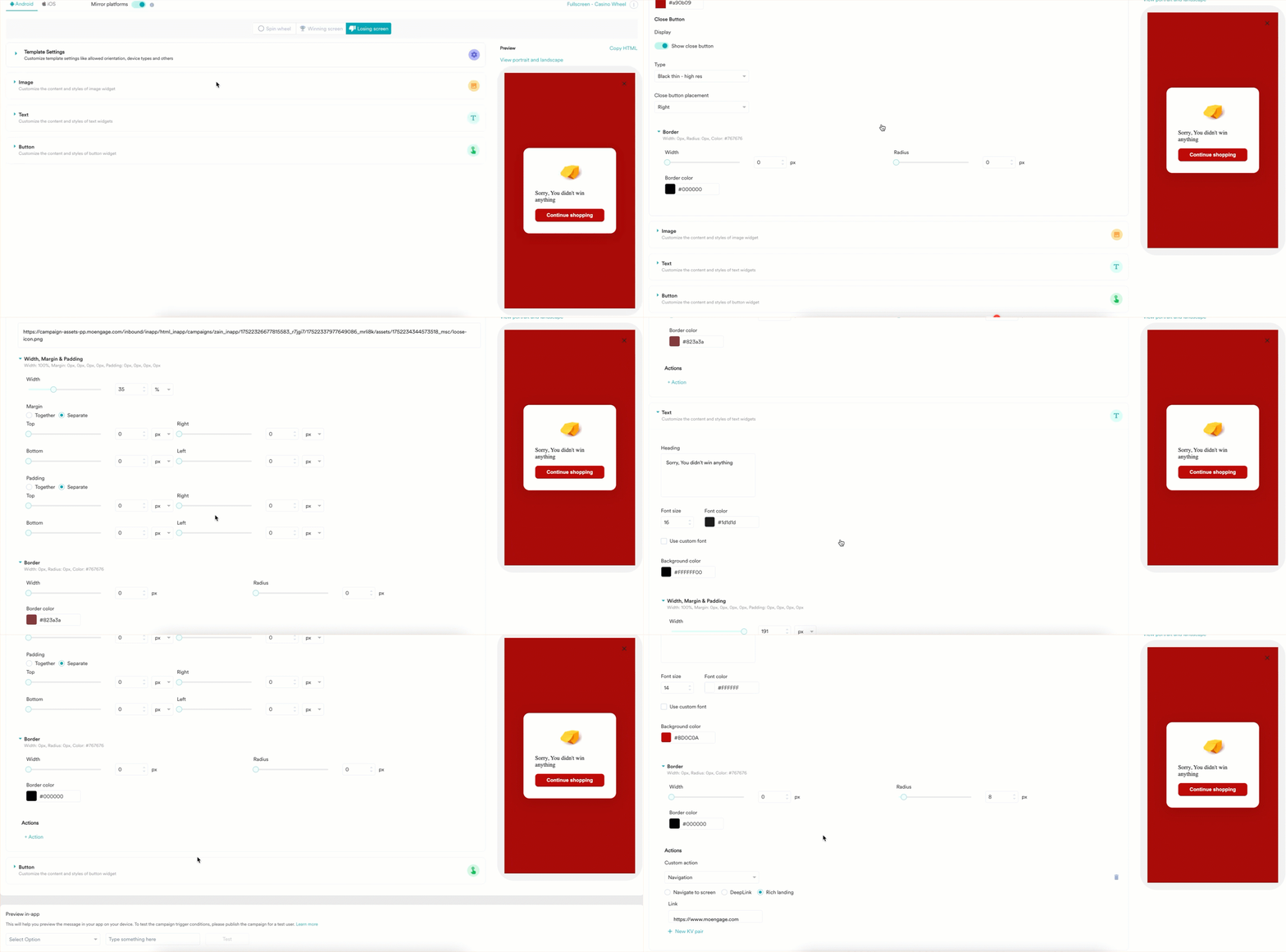
Tracking and Analytics
MoEngage automatically tracks key interactions to help you measure campaign performance:In-app shown: The number of times the spin the wheel pop-up was shown.In-app clicked: The number of times the Spin button was clicked.Response submitted: Aresponse_submittedevent is captured when the copy coupon code icon is clicked, which includes properties likesector_text,coupon_code,sector_weight, and any captured lead generation data.
Scratch Card Template
The Scratch Card template provides an interactive experience where users “scratch off” a surface to reveal a hidden message or offer.Use Cases
- Daily rewards: Encourage daily app opens by offering a new scratch card each day with a chance to win.
- Create excitement: Build anticipation for a product launch or sale by letting users “reveal” a special offer.
- Interactive promotions: Replace static pop-ups with a fun scratch-off experience to improve interaction rates.
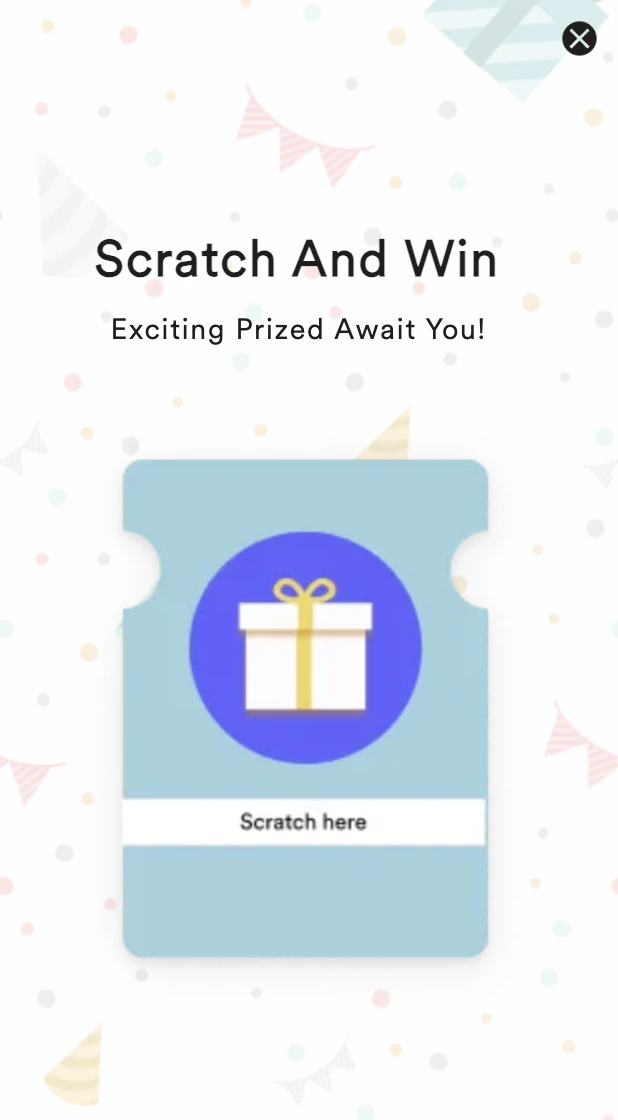
Configure the Scratch Card Tab
On the Scratch Card tab, you can customize the main appearance and behavior of the scratch card itself.| Section | Customization options |
|---|---|
| Template Settings | The options in this section are the same as the Template Settings for the Spin the Wheel template. |
| Scratch card Image |
|
| Scratch card coupon |
|
| Text | The options in this section are the same as the Text settings for the Spin the Wheel template. |
Configure the Winning screen tab
On the Winning screen tab, you can customize the screen that appears after a user scratches to reveal a winning prize. The settings in this section are the same as the Winning screen for the Spin the Wheel template.Configure the Losing Screen Tab
On the Losing screen tab, you can customize the screen that appears for a non-winning outcome. The settings in this section are the same as the Losing screen for the Spin the Wheel template.Countdown Timer Template
The Countdown Timer template helps create a sense of urgency for a promotion or event.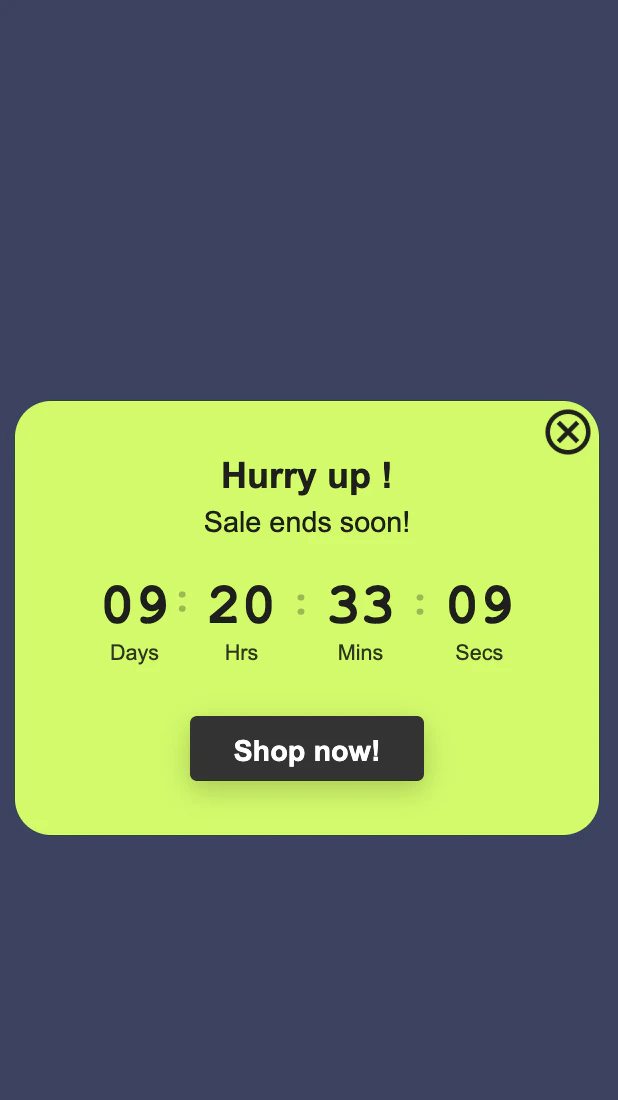
Use cases
- Flash sales: Drive immediate purchases by showing a timer counting down to the end of a limited-time sale.
- Event promotion: Build anticipation for a webinar, product launch, or in-app event by counting down to the start time.
- Holiday campaigns: Create urgency around holiday shopping deadlines, such as “Order by midnight for Christmas delivery.”
Configure the Timer Screen Tab
On the Timer screen tab, you can customize the appearance and behavior of the countdown timer.Frequently Asked Questions (FAQs)
How can I track which coupon a user wins?
How can I track which coupon a user wins?
The
response_submitted event, which is tracked when a user clicks the copy coupon code icon, contains the coupon_code that was assigned to the user. You can analyze this event in your campaign analytics to see the distribution of coupons. For Scratch Cards, you can set up a custom event to track wins.How can I prevent a user from seeing the Scratch Card again after they have won?
How can I prevent a user from seeing the Scratch Card again after they have won?
You can combine campaign-level frequency capping with segmentation. After a user wins, you can add a user attribute (for example, “scratch_card_winner = true”). You can then exclude users with this attribute from the campaign’s target segment to prevent them from seeing it again.
What happens when the Countdown Timer reaches zero?
What happens when the Countdown Timer reaches zero?
When the timer reaches zero, the in-app campaign will be dismissed automatically. Ensure your call-to-action is clear to encourage users to act before the time runs out.
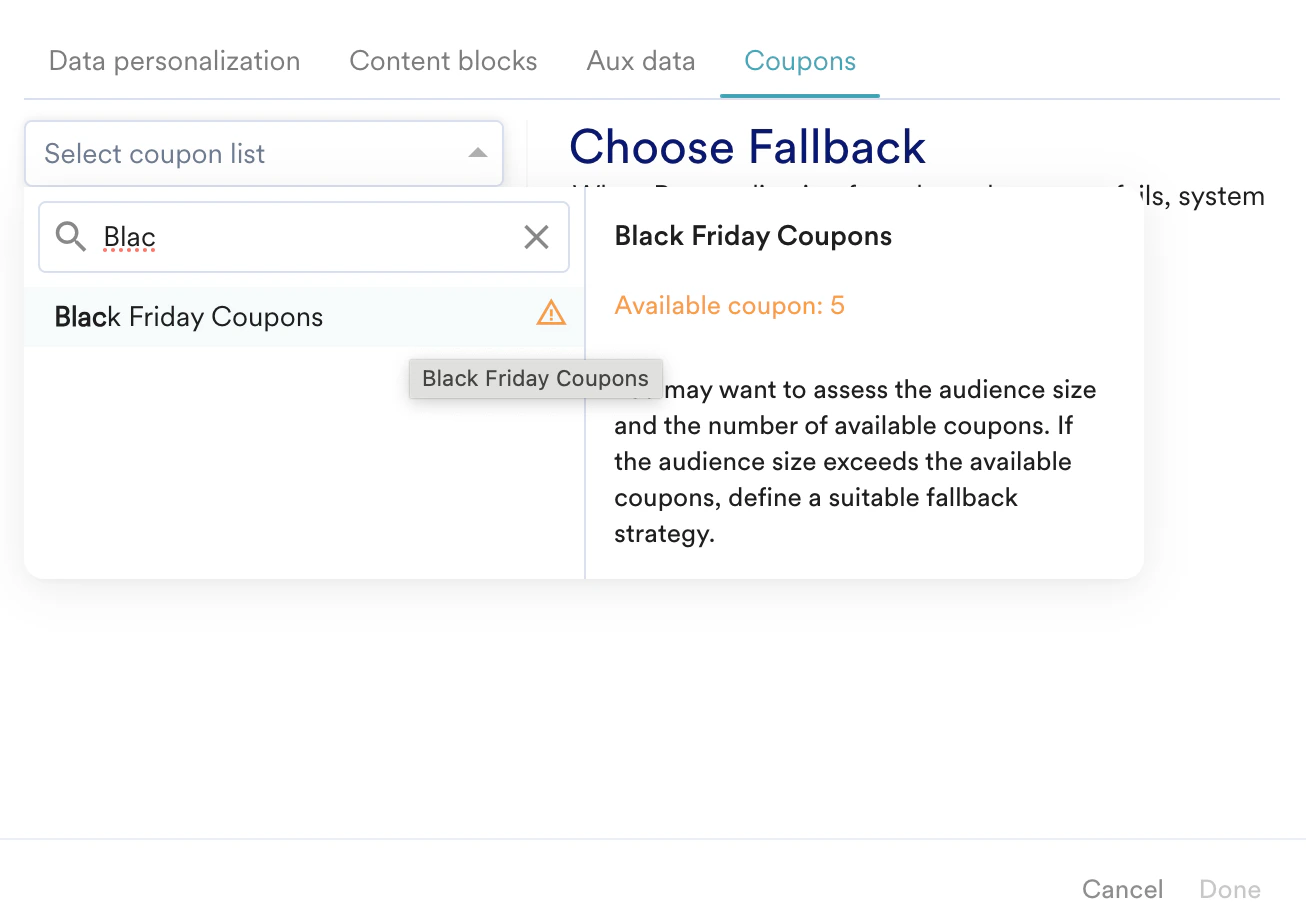
My campaign (Spin the Wheel/Scratch Card) used all my coupons, even with a low win rate. Why?
My campaign (Spin the Wheel/Scratch Card) used all my coupons, even with a low win rate. Why?
For In-App campaigns, a coupon code is “consumed” from your list every time the message is shown to a user (an impression), regardless of whether they win or lose.MoEngage pre-fetches a coupon for every user who sees the campaign, even if they end up landing on a “Losing” sector.Recommendation: To prevent running out of codes, ensure your coupon list has at least as many unique codes as the total number of impressions you expect the campaign to have. For example, if you have a segment of 200 users and you have configured your delivery controls to show the message 3 times per user, you will need at least 600 unique coupons (200 * 3), not just 200.
.
.