

Overview
Preference Management allows you to automatically exclude specific users from the campaigns.Use cases for Preference Management
- You do not want to send any campaigns (Event Triggered, Flows, General Campaigns) to the users who have opted out of Push notifications from a subscription page.
- You want to automatically block all Push notifications for users when they have requested to block push notifications by invoking one of the rights under GDPR.
- You want to blacklist a segment of users from all types of push notifications during certain situations like natural calamities in specific regions.
Setting Preferences
Navigate to Settings > Channels > Push > Preference Management.Push Preferences
To enable preference management in the new UI, you must enable the Exclude usersbutton. You can then proceed to define a criteria for the excluded users.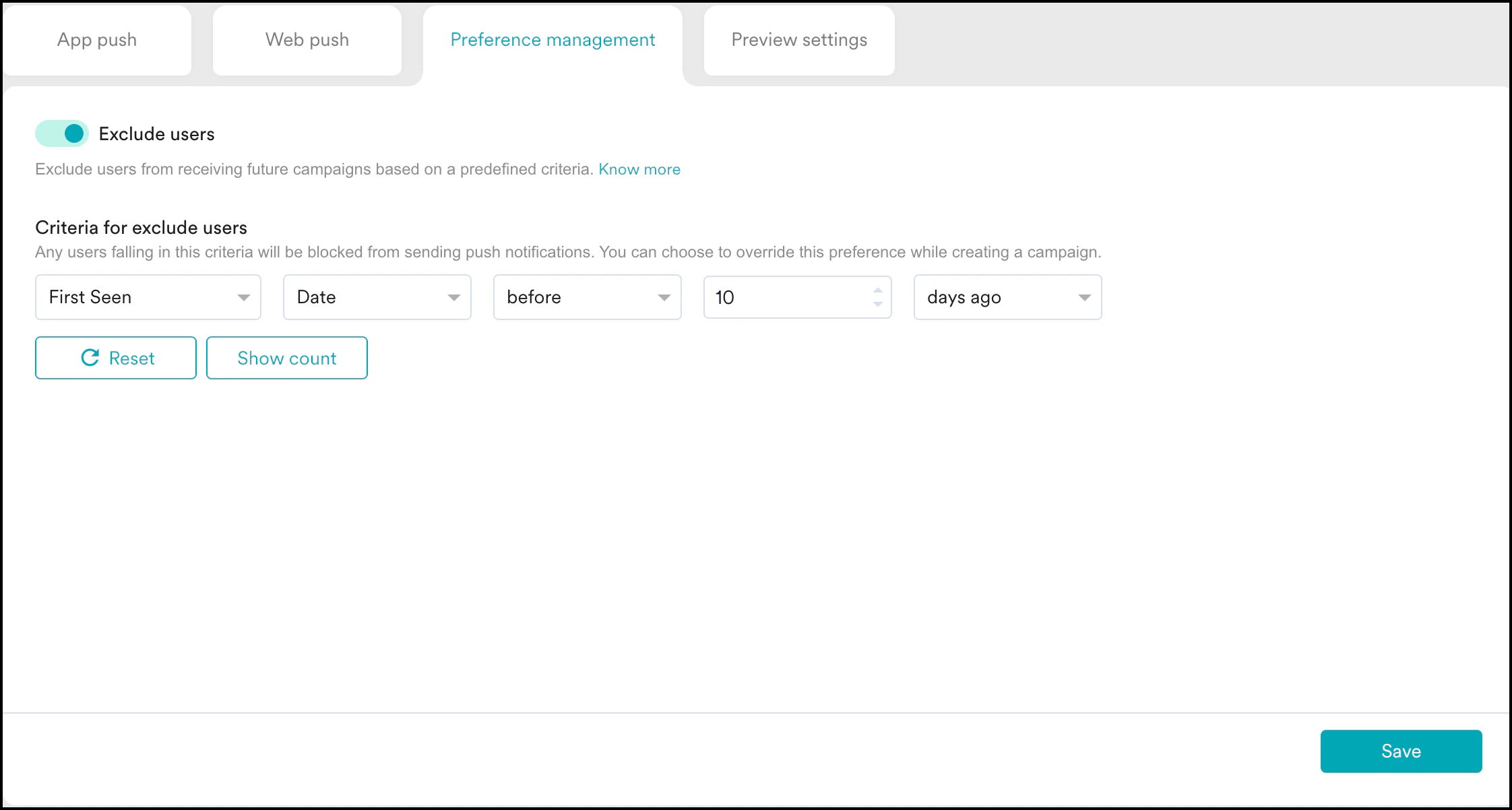
- Add a filter for the users you want to exclude in the Criteria for excluded users section. You can see the count of these users by clicking on Show Count.
- Click Save to save your configuration.
- You can also click Reset to reset the preference management criteria.
- Click Confirm to save your criteria.
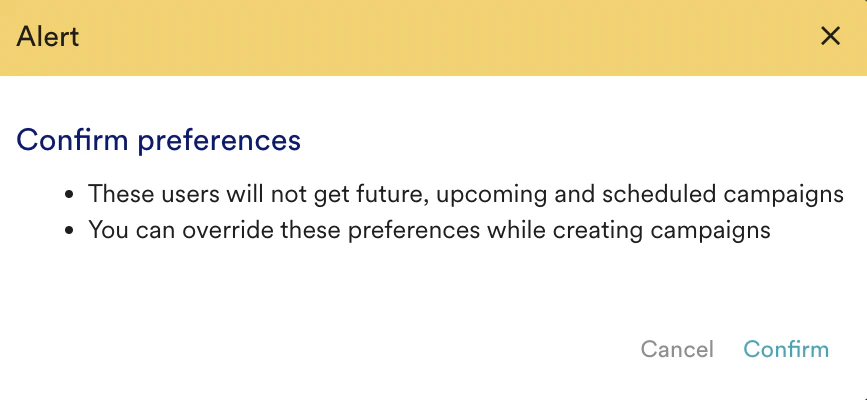
Override preferences while creating a campaign
You can include the opted-out users while creating a campaign by overriding the preferences as shown below. This is generally used for sending transactional messages.For Push Campaigns:
On the campaign creation screen, select the option “Send campaign to the users excluded in preferences”.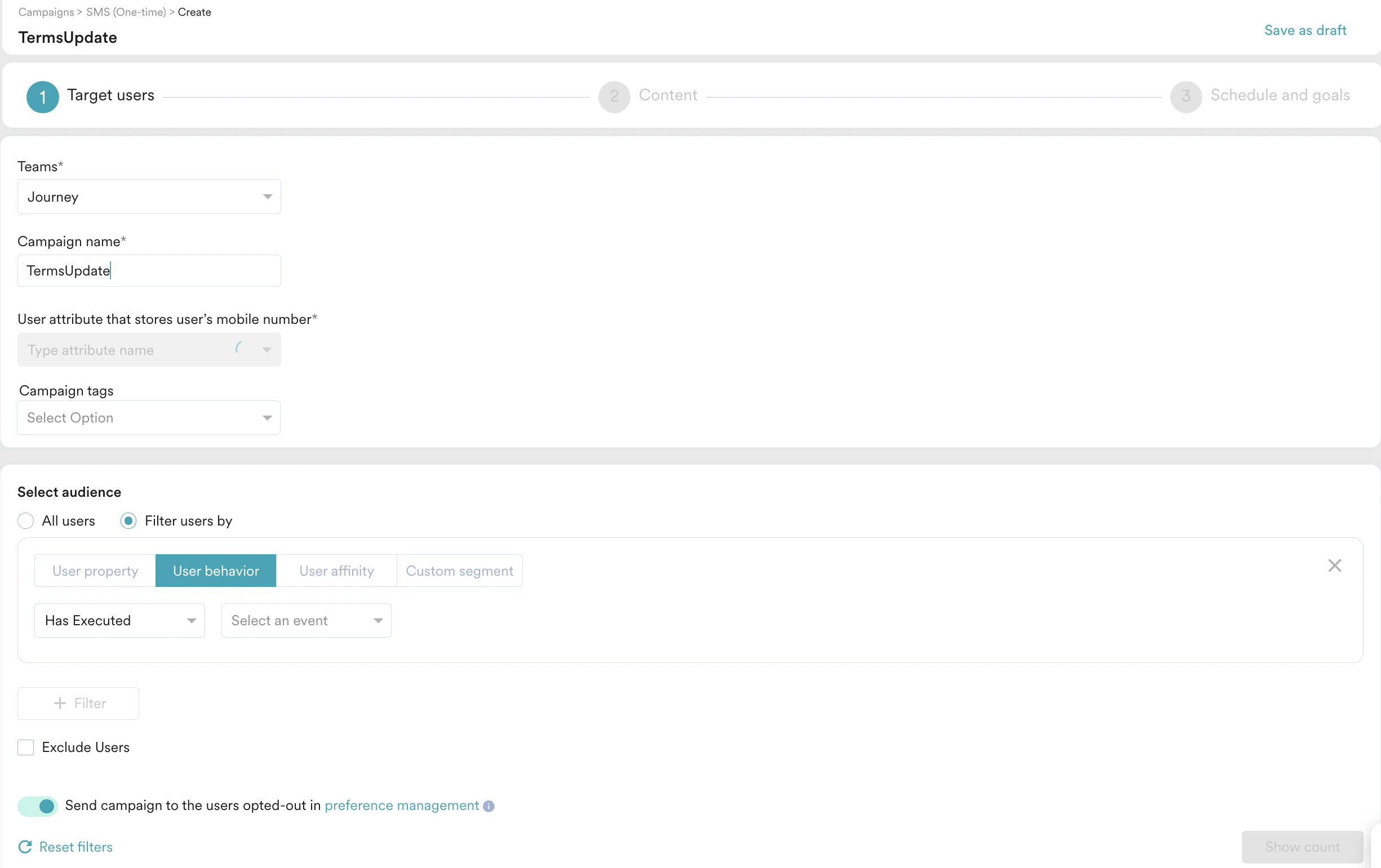
For Push Notifications in Flows:
- Go to Flows settings.
- For Push, select “Send campaigns to the users excluded in Push preferences”.