Project selection
If your portfolio has multiple projects, a dropdown appears under the Preview settings tab. Select the project you want to configure from the dropdown menu. The related settings (such as the App name, App icon) load automatically. For portfolios with a single project, all settings are applied to that project.Preview Settings do not affect real device output. The icons that you add here will only be shown to you on the device preview for push campaigns.
Android
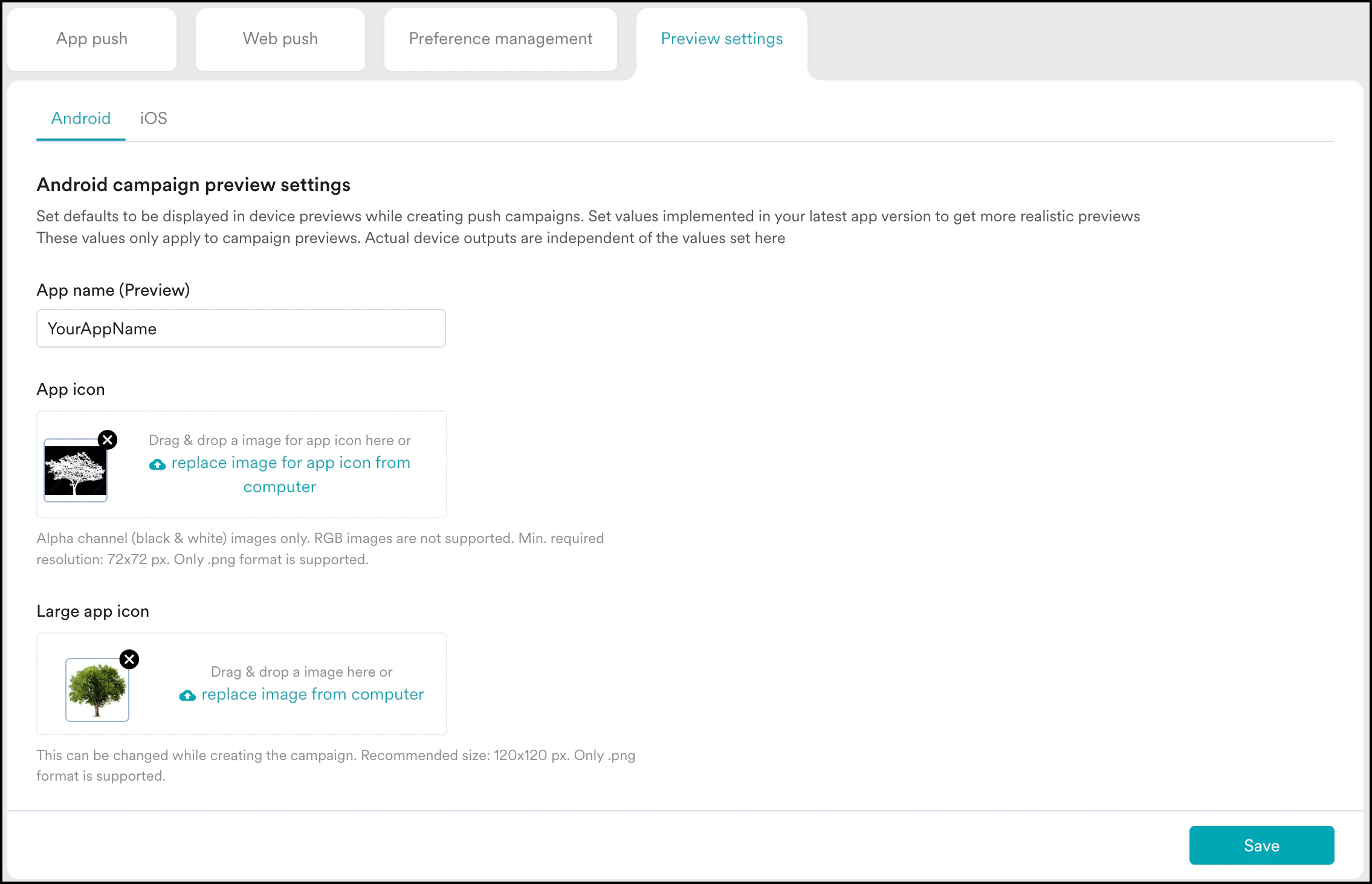
- App Name (preview): Enter the name of your app as seen on the device. The real app name is the one that appears on the Google Play console.
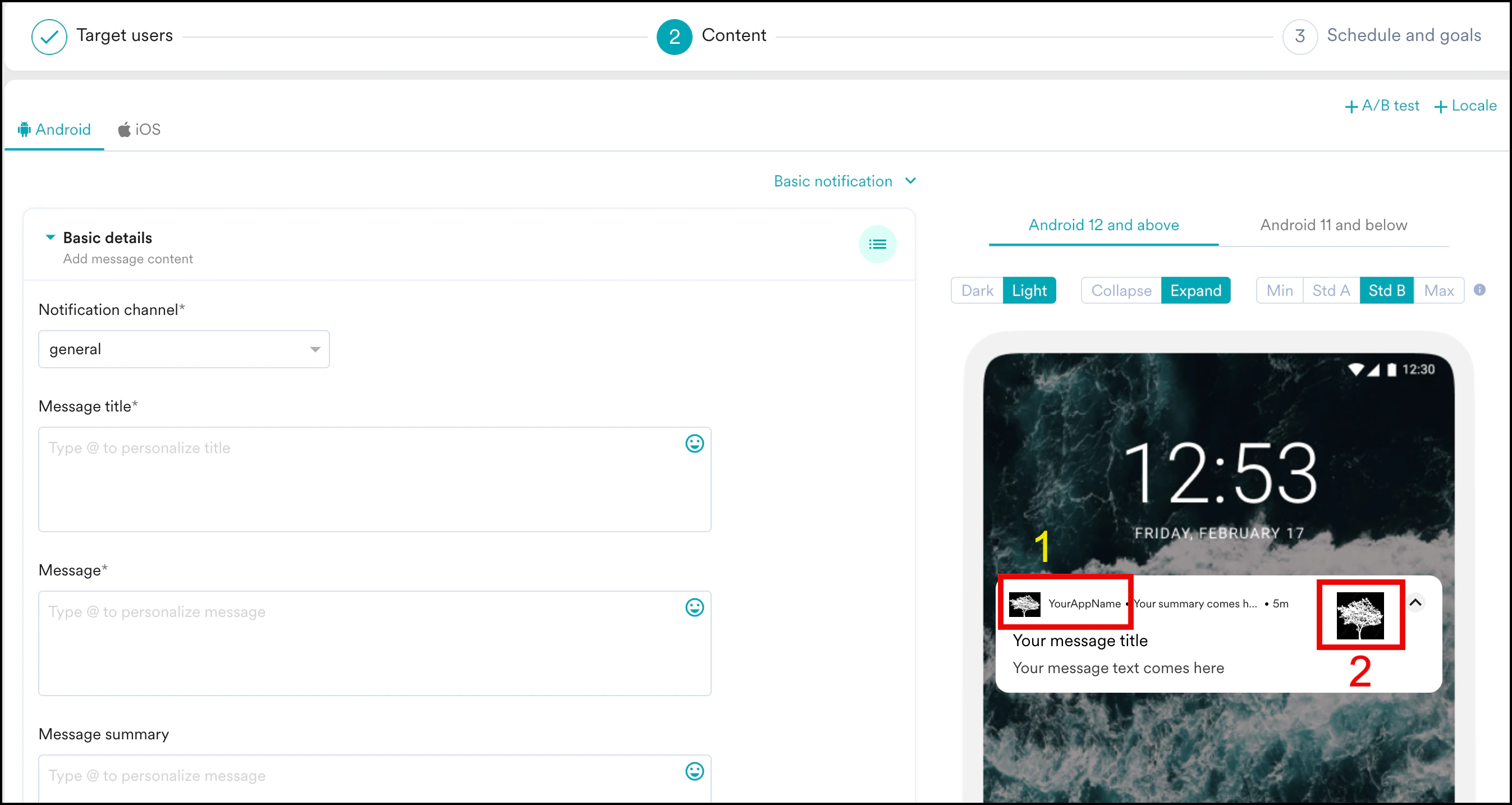
- App icon: You can upload your app icon by clicking on the upload box. The real app icon is set when you integrate your app with MoEngage Push. To know more, refer to Push Configuration.
- Only Alpha Channel images are supported.
- RGB images are not supported.
- Minimum required resolution: 72 x 72 px
- Only images with the format .png are supported.
- Large app icon: You can upload a large app icon by clicking on the upload box. The real Large app icon can be set while creating push campaigns.
- Recommended resolution: 120 x 120 px
- Only images with the format .png are supported.
Campaign Preview
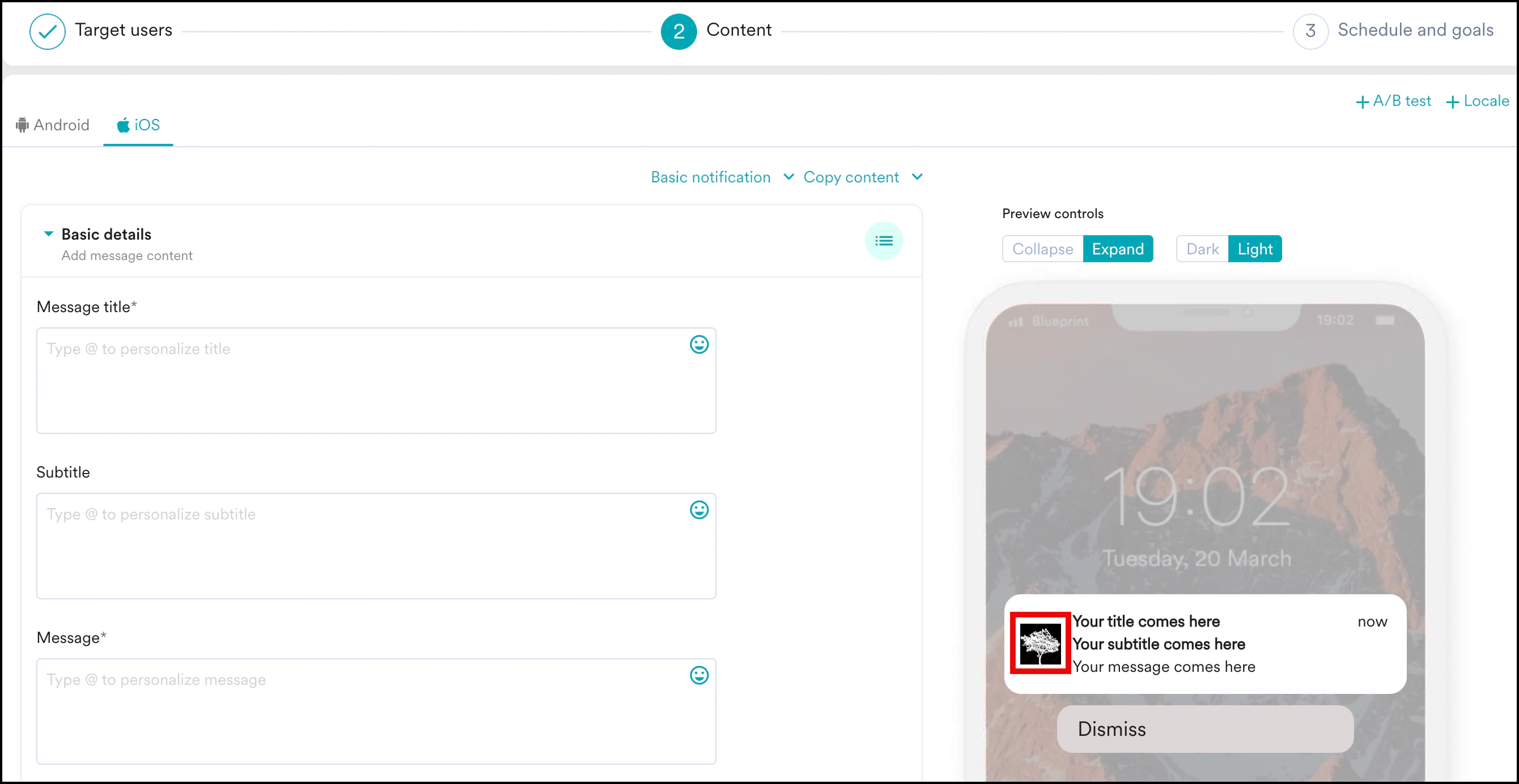
iOS
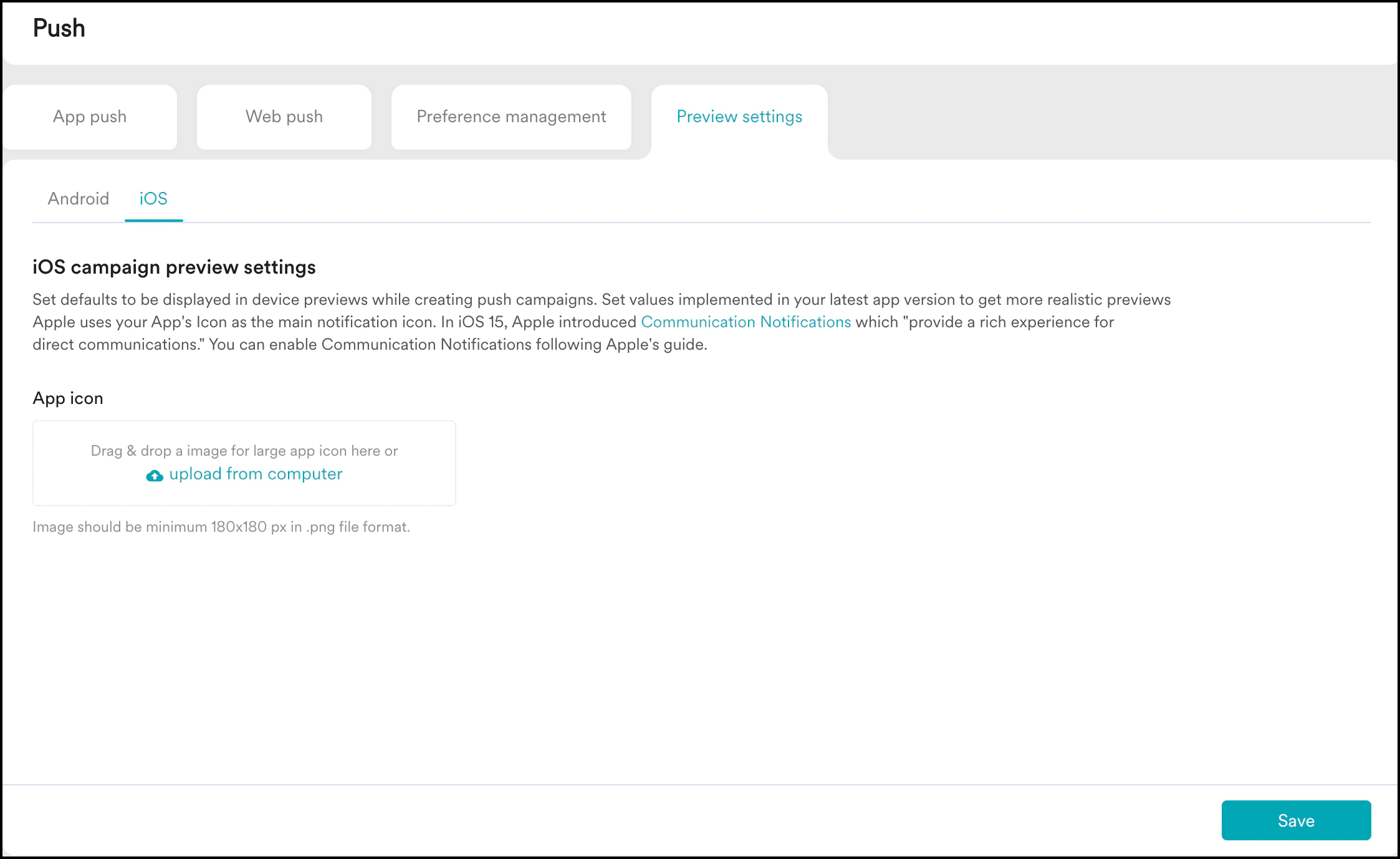
- Minimum resolution: 180 x 180 px
- Only images with the format .png are supported.
Campaign Preview