- Integrated sounds at the app level or channel level
- Campaign setup
- User device notification settings for the app
- User device conditions at the time of delivery
Android
In Android Oreo (8.0) and onwards, notification sounds are controlled by Notification Channels.Implementation
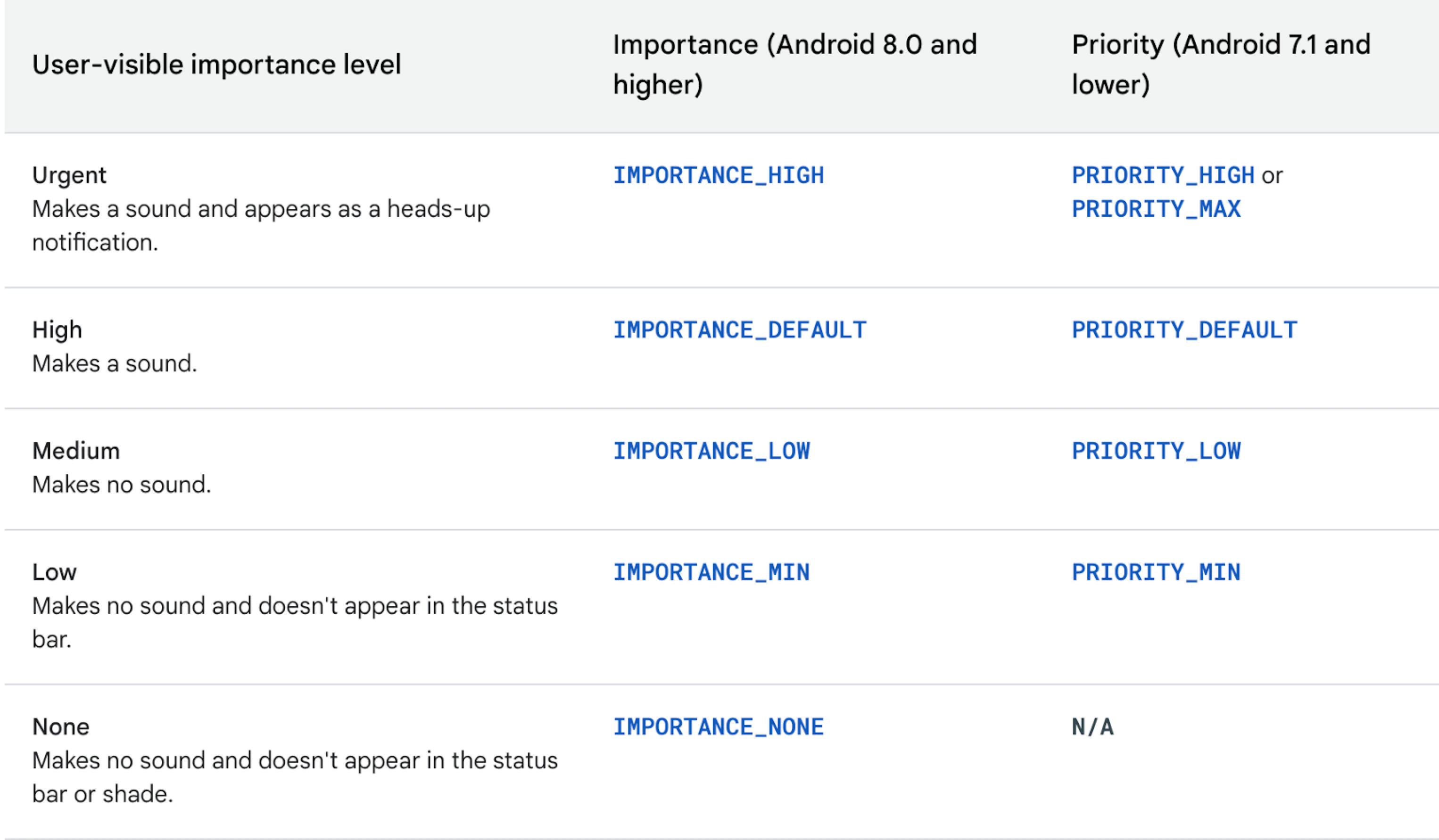
When you create a notification channel on your app, the sound of the notification channel depends on the following:- Sound you set for the channel. If no custom sound is set, the system will play the default notification sound defined by the app.
- Interruption level of the channel.
User-level device settings
The user can always override these settings at a device level:- By turning off sounds for all notifications from device volume settings.
- Inside the channel’s settings is an option for ‘Sound’. Users can tap on it and choose a different sound from the list, or select None if they don’t want any sound for that channel.
- By turning off push permissions for the channel.
Using in Campaigns
After adding your channels to the app, you can add notification channels to the MoEngage Dashboard. Notifications sent through these channels will follow the sound and importance configuration set for the respective channel.iOS
This section describes how notification sounds work on iOS.Implementation
In your app, you can define a custom sound to be played when a notification is delivered. This is typically a short audio file included in the app bundle. You can package the audio data in an aiff, wav, or caf file. Sound files must be less than 30 seconds in length. If the sound file is longer than 30 seconds, the system plays the default sound instead. For more information, refer to UNNotificationSound Apple documentation.User-level device settings
Regardless of the app’s implementation, users have control over the notification sounds through the Settings app on their device.- Users can go to Settings > Notifications, select the app, and under the Sounds setting, choose the notification sound for that app.
- If the device is on silent mode or Focus mode or if Do Not Disturb is enabled, the sound may not play depending on the interruption level of the notification.
Using in Campaigns
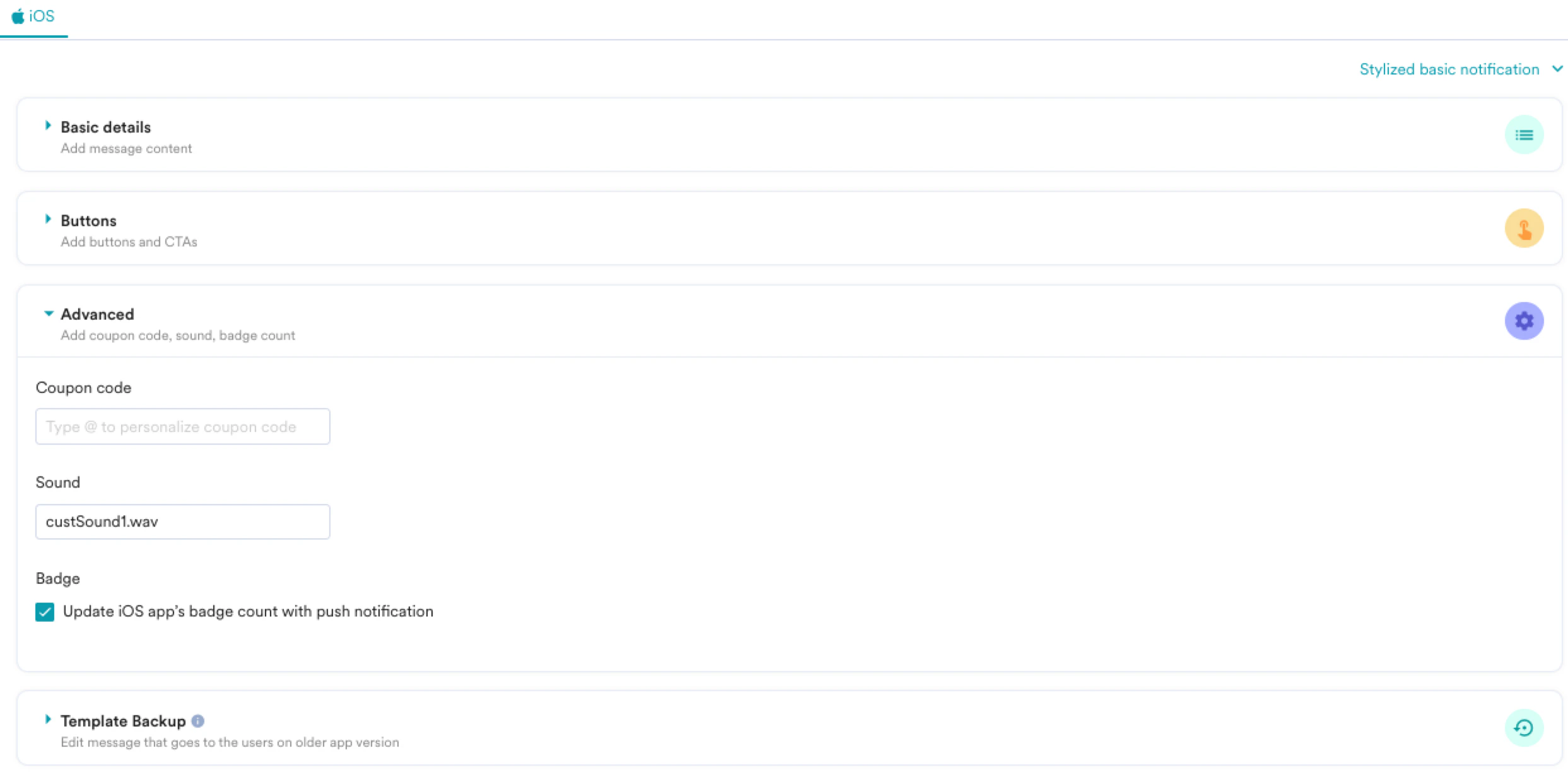
Notification Sound
When creating a push notification campaign for iOS, provide the sound filename in the Sound field as shown below: