Overview - Push Permission
Push notifications permission is an app-level permission that your app gets on a user’s device. This permission is required to display push notifications on users’ notification trays. If this permission is turned off, the notifications that you send will not be visible to the user; they will get delivered in the background to your app silently.How Does Push Permission Work?
Permission for Web push depends on the browser and the device’s operating system (OS). There are a few commonalities in the behavior of most of the browsers:- By default, the website cannot send notifications until the user grants permission.
- The user must grant permission to the website by:
- Accepting permission on a dialog box provided by the browser
- Enabling permission from the browser notification settings for the website
- If the user grants permission, the app can send notifications to the user.
- If the user does not grant permission, the app cannot send notifications to the user.
- The behavior of the dialog box differs depending on the browser.
Tracking Push Permissions
From September 9, 2024 onwards, you will be able to track Push permission for a user from the Reachability Push Web attribute.Tracking Push Permission Status at a User Level
This attribute will have the following values:- Unlike Android and iOS, web push notifications generate push tokens only when the user allows the browser to send push notifications.
- A user with the status ‘202—Not reachable due to opt-out’ has a device where they opted in first and then opted out while still having a valid push token.
- A new Web device, by default, has a reachability status of ‘404—Any user who is not reachable due to Push ID not found’.
Tracking Changes in Push Permission
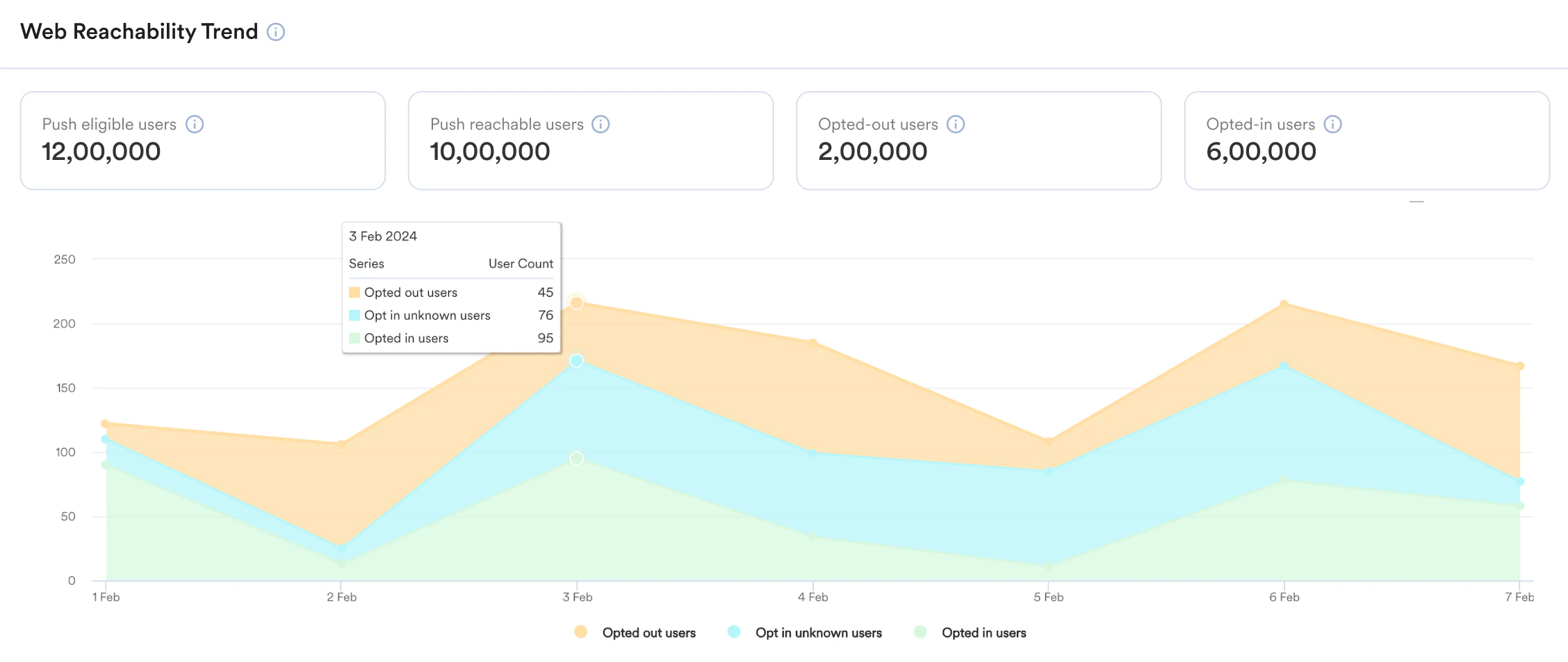
The following are the events for Web Push reachability:Track Push Permissions Trends Over Time
The Reachability Dashboard at MoEngage shows you the reachability trends of all users who opted in to receive your Push notifications and those who have not. You can access the Reachability Dashboard by navigating to Dashboards > Reachability.