

Overview
MoEngage allows customers to import users and events through files stored inside S3 Buckets.Types of Imports
MoEngage can import the following from your S3 buckets:- Registered Users: These are users who are already registered on MoEngage.
- Anonymous Users: These are users who are not yet registered on MoEngage.
- Events (Standard and User Defined): MoEngage can import standard events like Campaign Interaction Events as well as your own user-defined events.
- Auxiliary Data: These are users added on a temporary basis.
Preparing the files
Refer to the File Imports help doc to understand the supported file types, naming conventions, file structure, etc. Once you are ready with the files, you need to place them inside a folder on your S3 bucket.Folder Structure
Place all files into an Amazon S3 Folder. You can configure the folder path while setting up the import.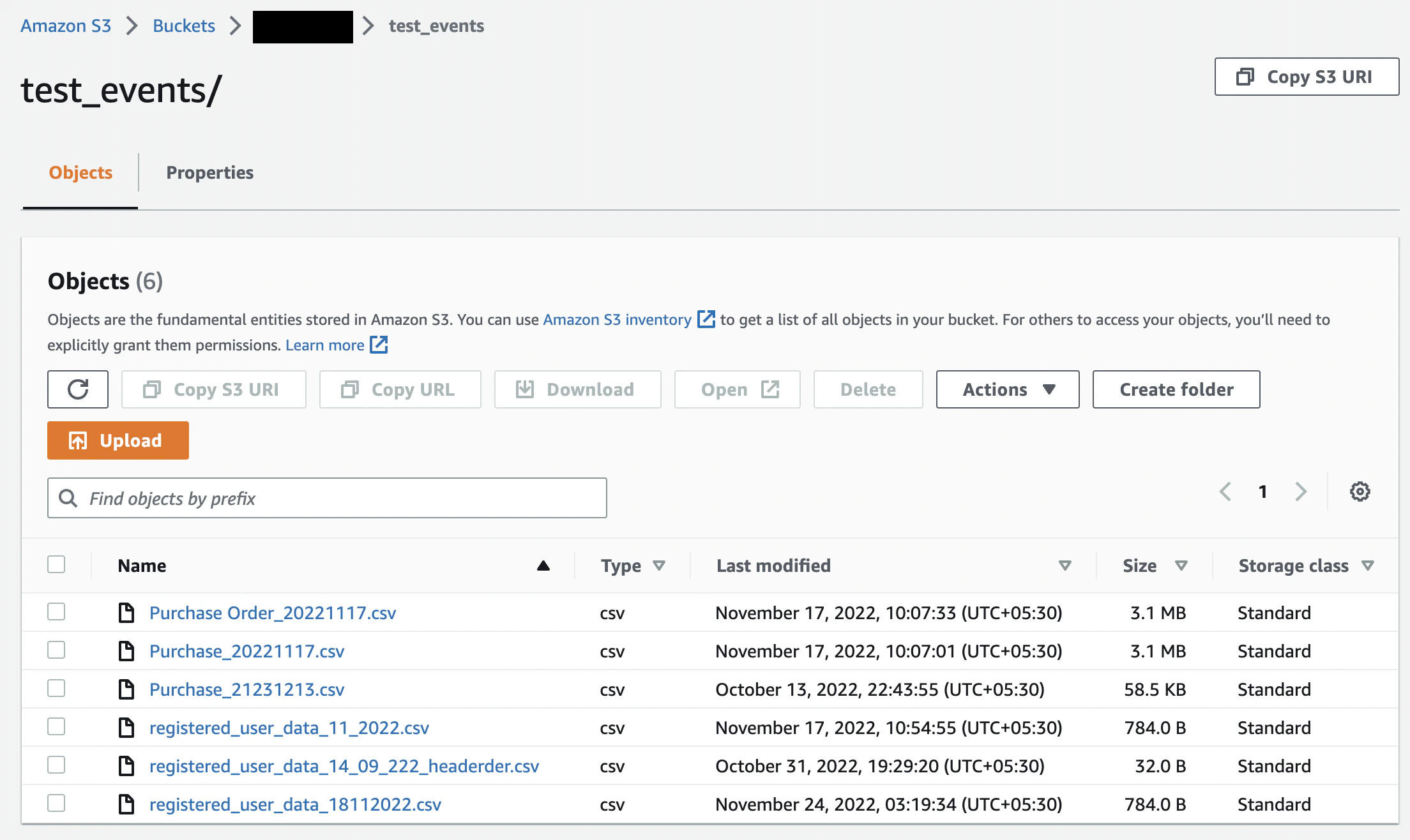
MoEngage will not look for files inside any sub-folders.
Required Access Permissions
You will need to create a new policy so that MoEngage can access your buckets and import files correctly. We request the following permissions:s3:Get*- This will grant us the permissions required to download your files.s3:List*- This will grant us the permissions required to view and list your files.
Create a new policy
Navigate to the Policies tab in the navigation bar and select “Get Started” then “Create Policy”. This will allow you to add permissions for your user. Select “Create Your Own Policy”. This will give limited permissions so we only can access the bucket that you specify. Input the code below when creating your own policy. Specify a “Policy Name” of your choice, and input the code below into the “Policy Document” section. Be sure to replace the<INSERTSID> with your Statement ID, <INSERTPOLICYID> with your Policy ID, and <INSERTBUCKETNAME> with your bucket name. Replace the Principal as well (make sure the access key ID and access secret key belongs to this user/account).
Set Up Imports from S3
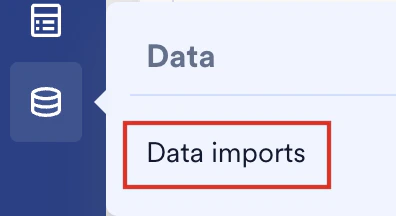
To set up the S3 imports, perform the following steps:- On the sidebar menu in MoEngage, hover over the Data menu item
 . The Data menu appears.
 - Click Data imports.
- On the Data imports page, click + Import and select Users or Events to create a new import.
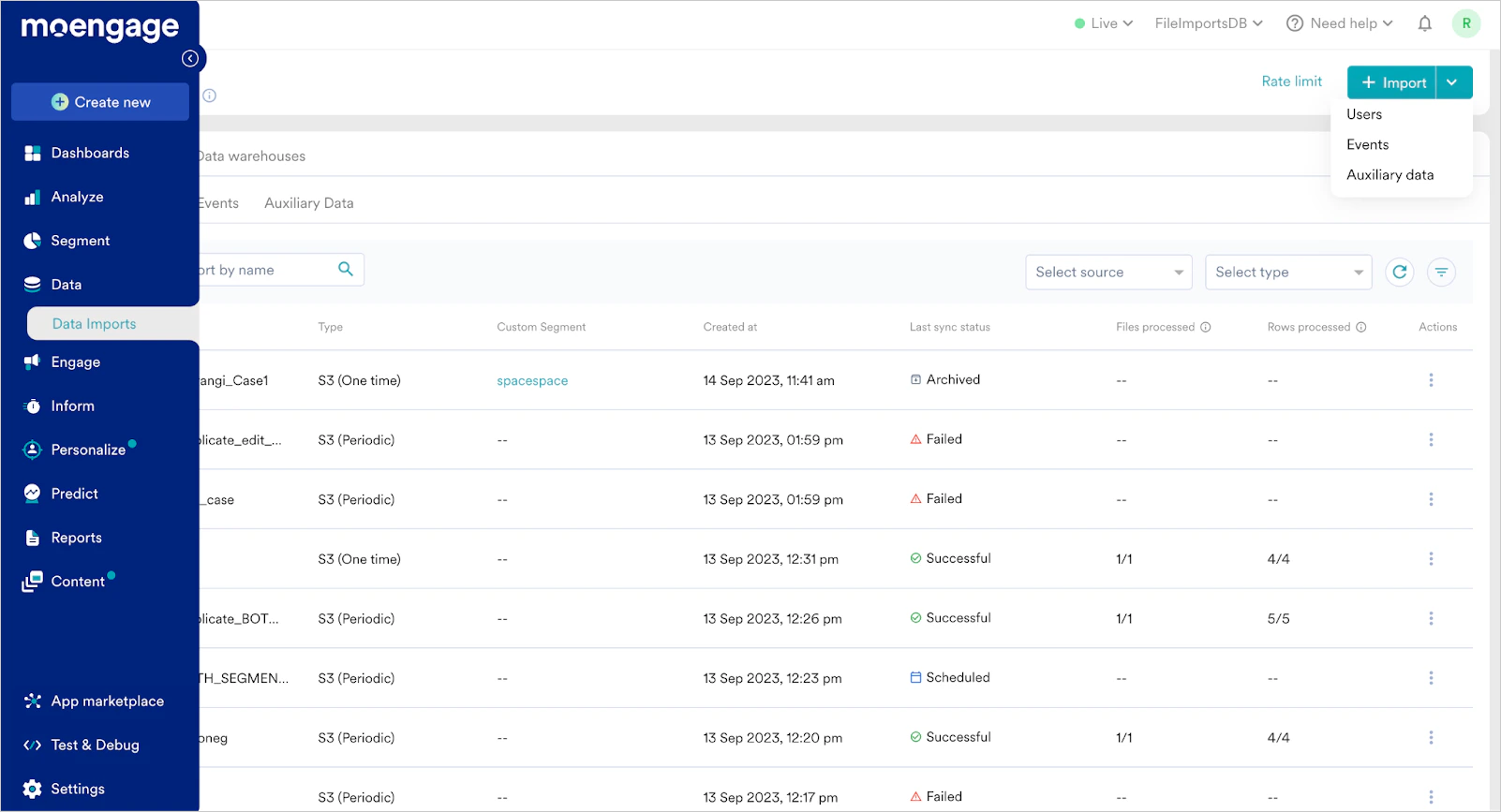
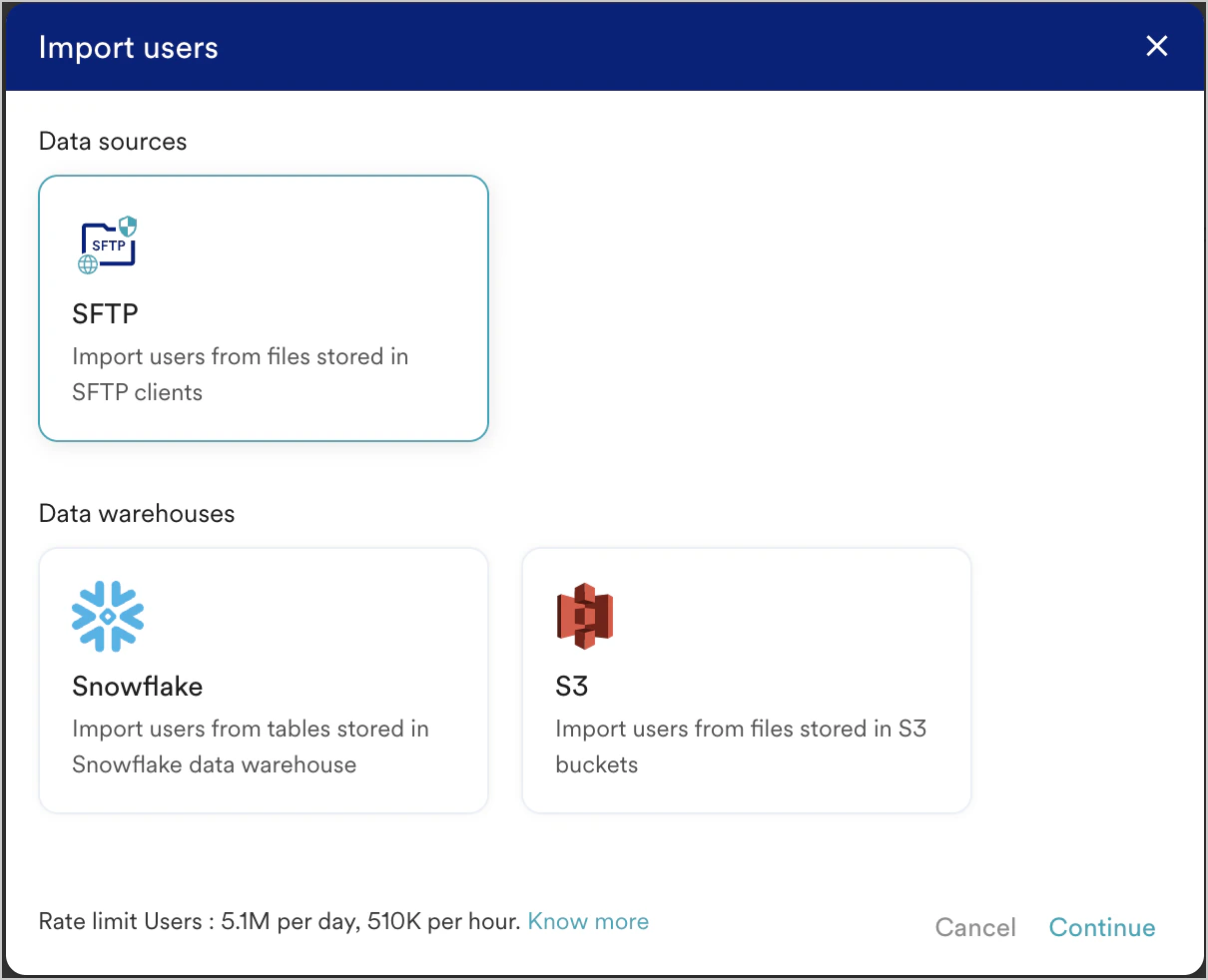
- Click S3 to create a new import for either Users (Registered/Anonymous can be picked in the next step) or Events.
Step 1: Configure your S3 credentials and file format
User Imports
You will now have the option to select whether you want to import Registered users or Anonymous users: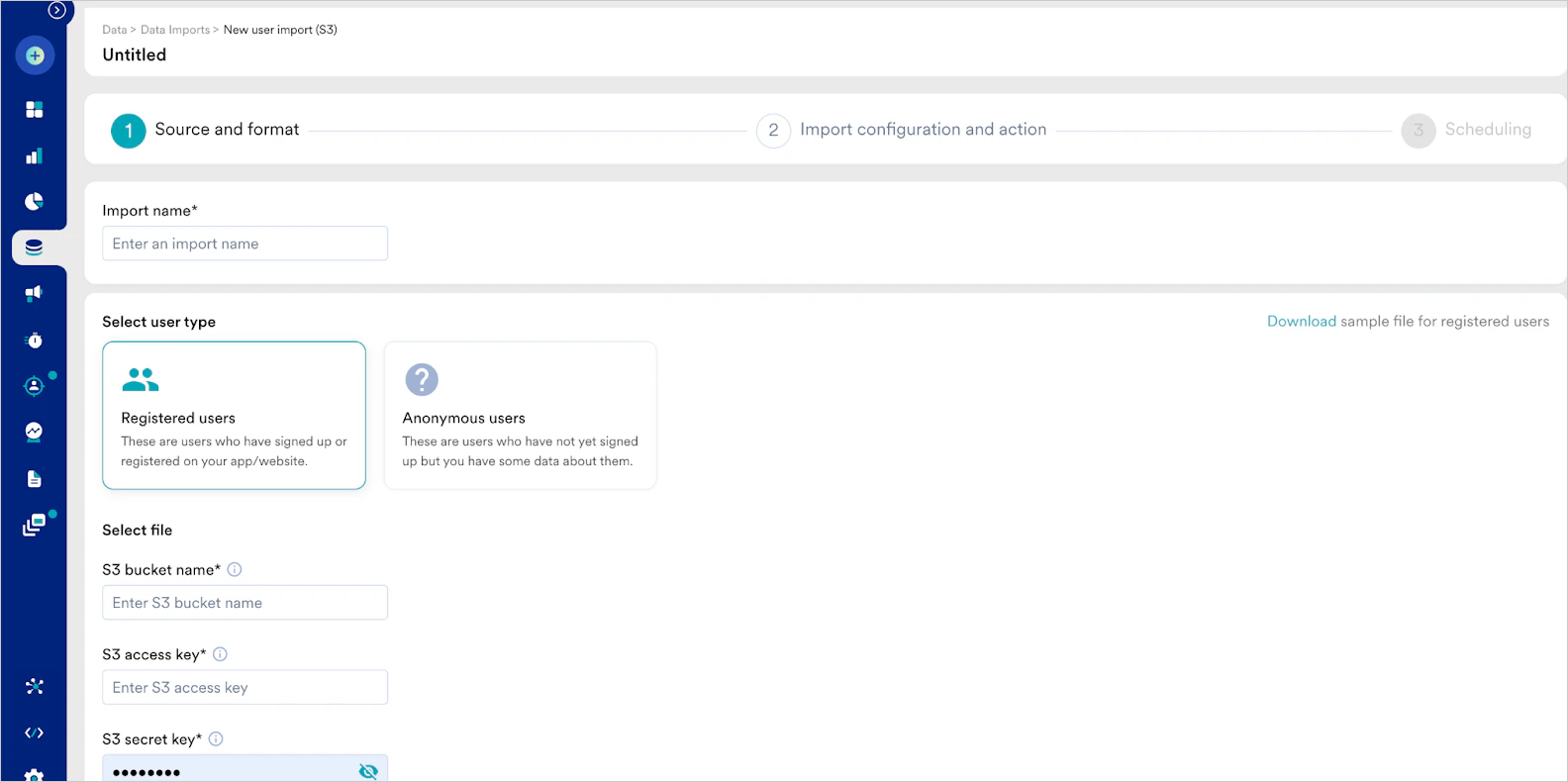
Event Imports
For Event imports, you will now have the option to select which event it is that you want to import: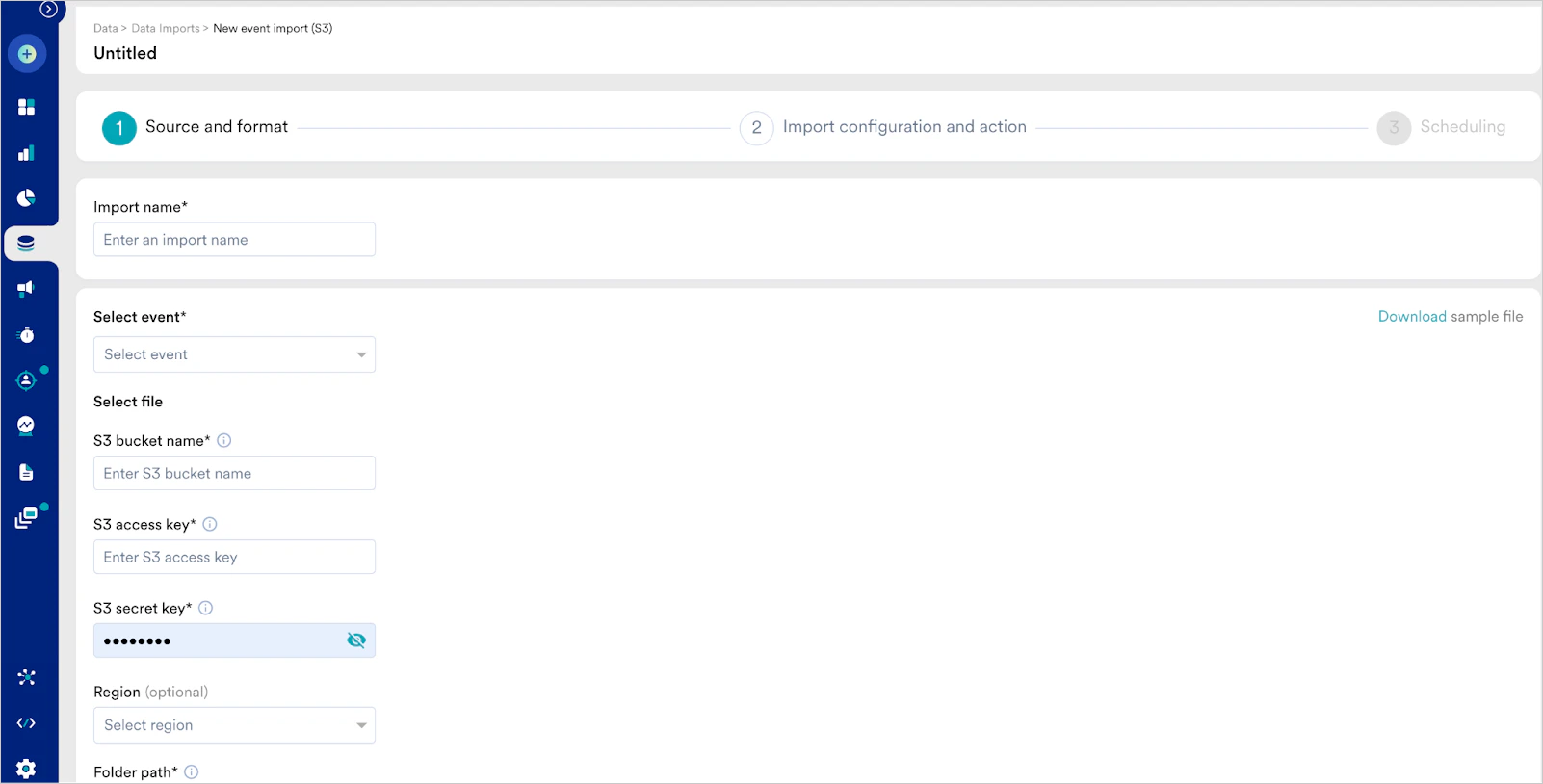
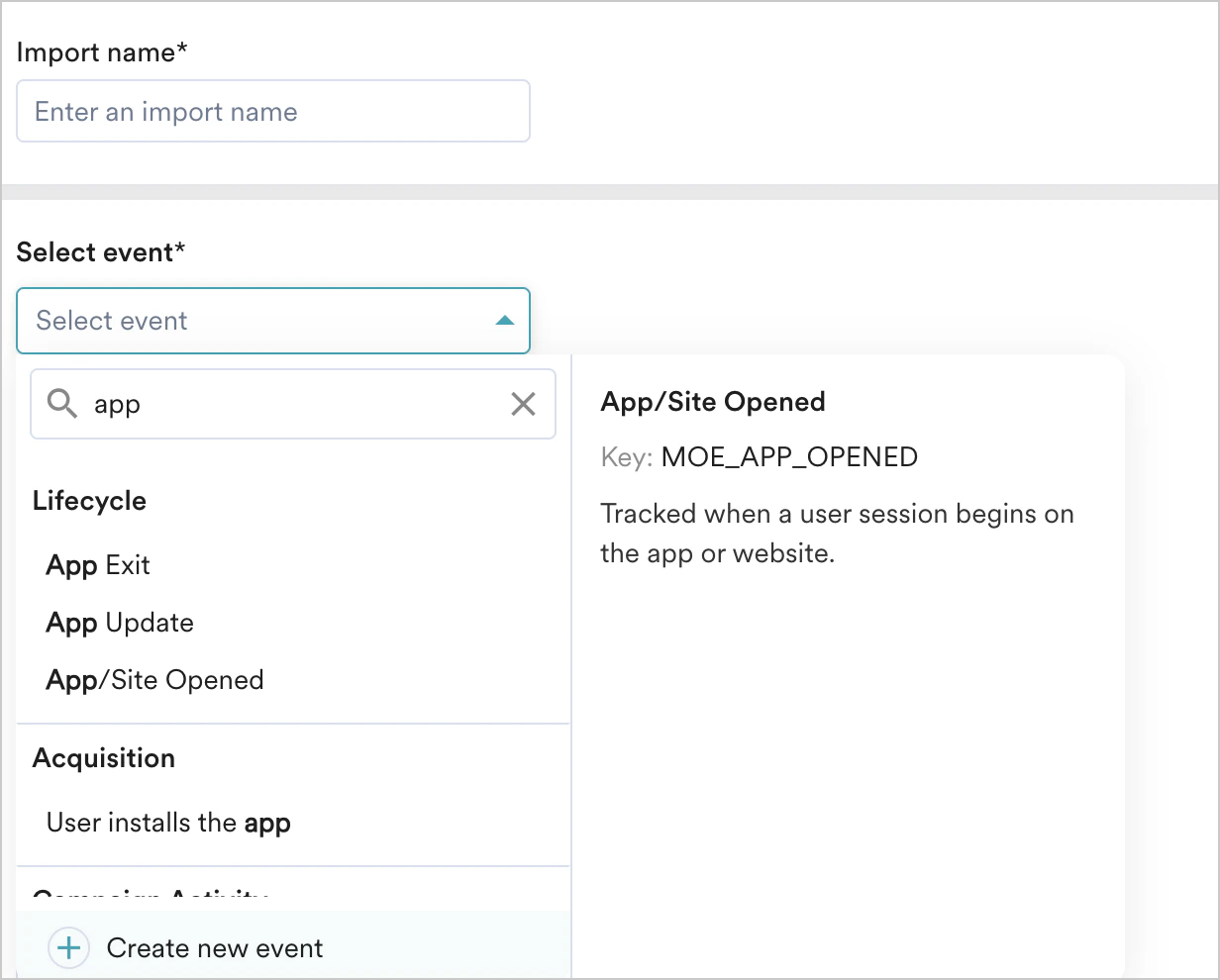
MOE_APP_OPENED, so the file names should begin with MOE_APP_OPENED. Refer to the Naming Conventions section for more information.
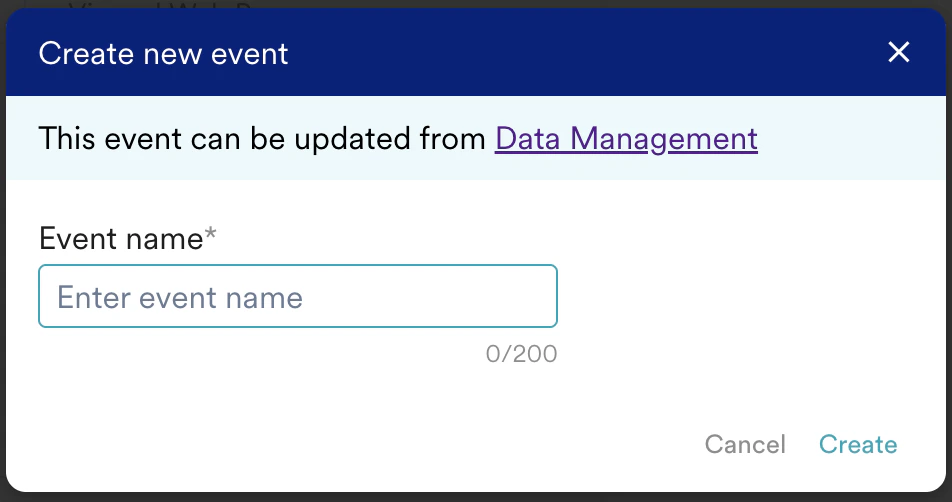
You can also create a new event by clicking on the ”+ Create event” option at the end of the dropdown.
Adding your S3 Credentials
In this first step, “Source and format”, you will also need to tell MoEngage how to connect to your S3 bucket and where to look for the files.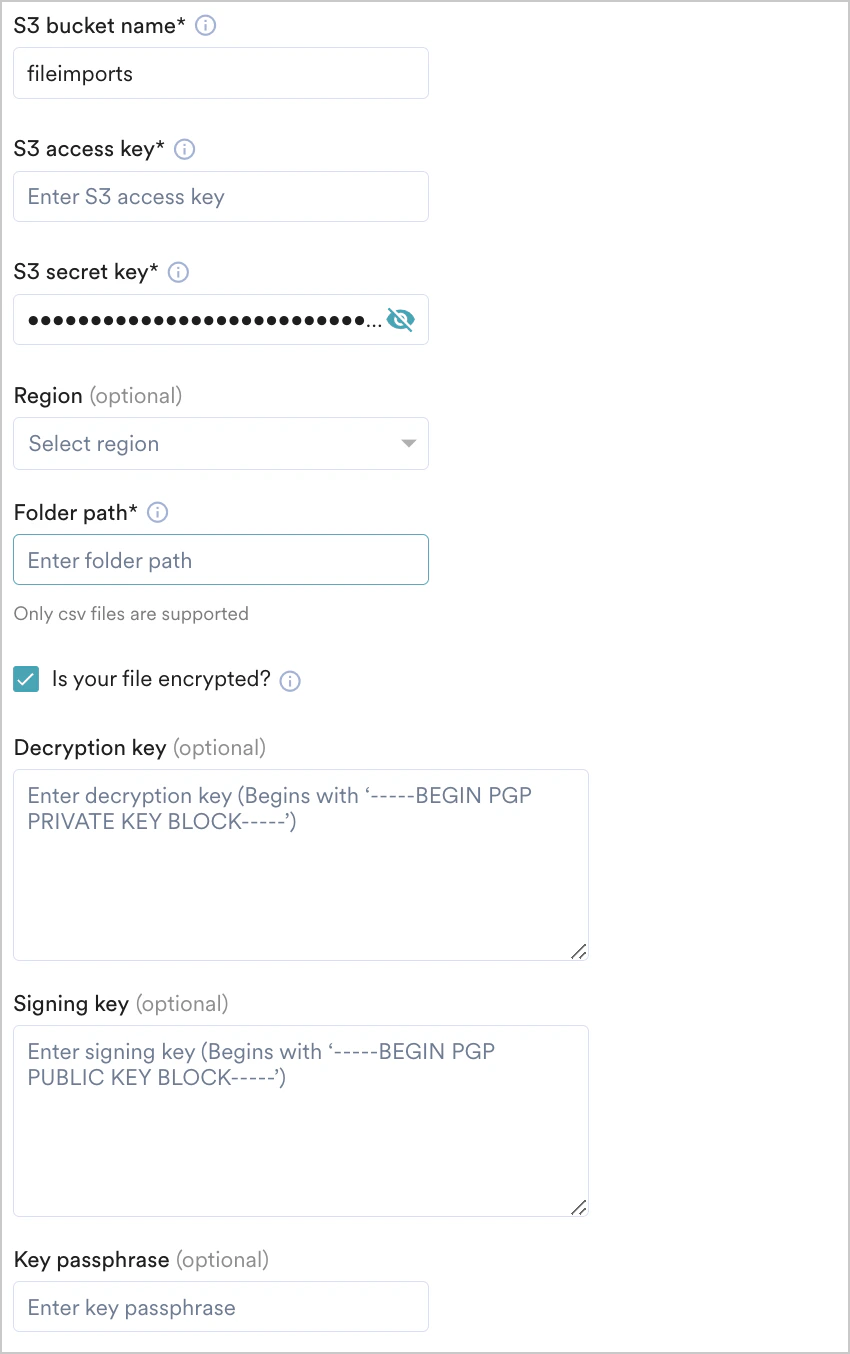
| Field | Description |
|---|---|
| S3 bucket name | This is the name of your S3 bucket. How to find this: In your AWS Console, go to Amazon S3. Click on your bucket from the list, and the name of the bucket is mentioned at the top. 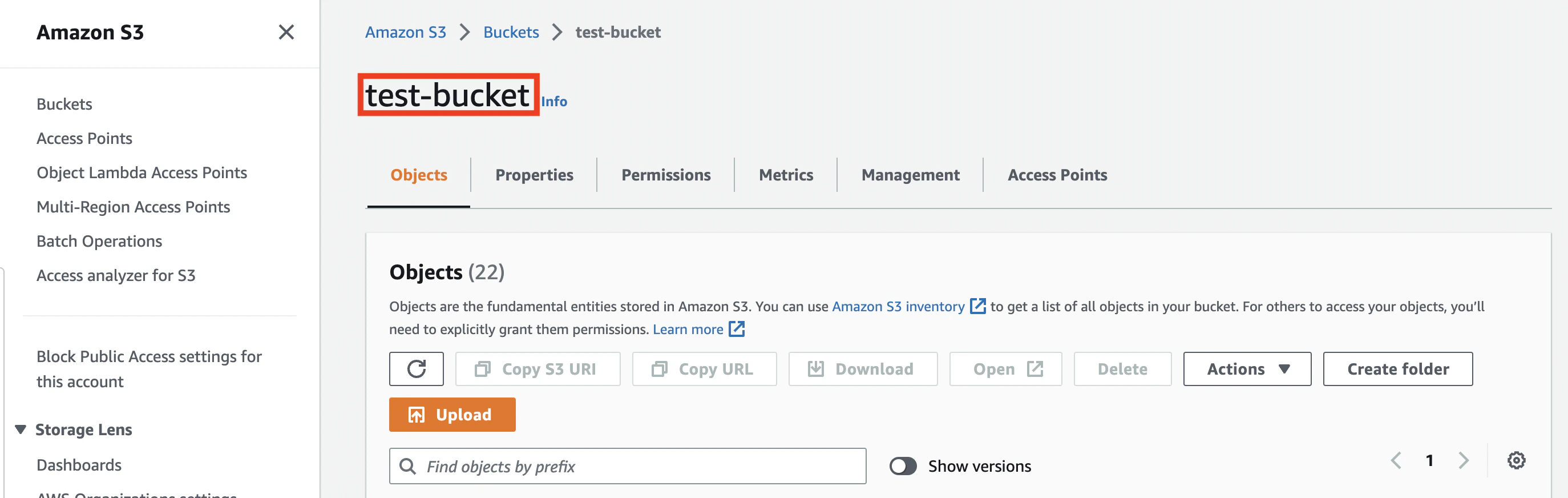 You can also find this in your bucket Properties tab. Look at your S3 ARN, the part after arn:aws:s3::: is your bucket name: 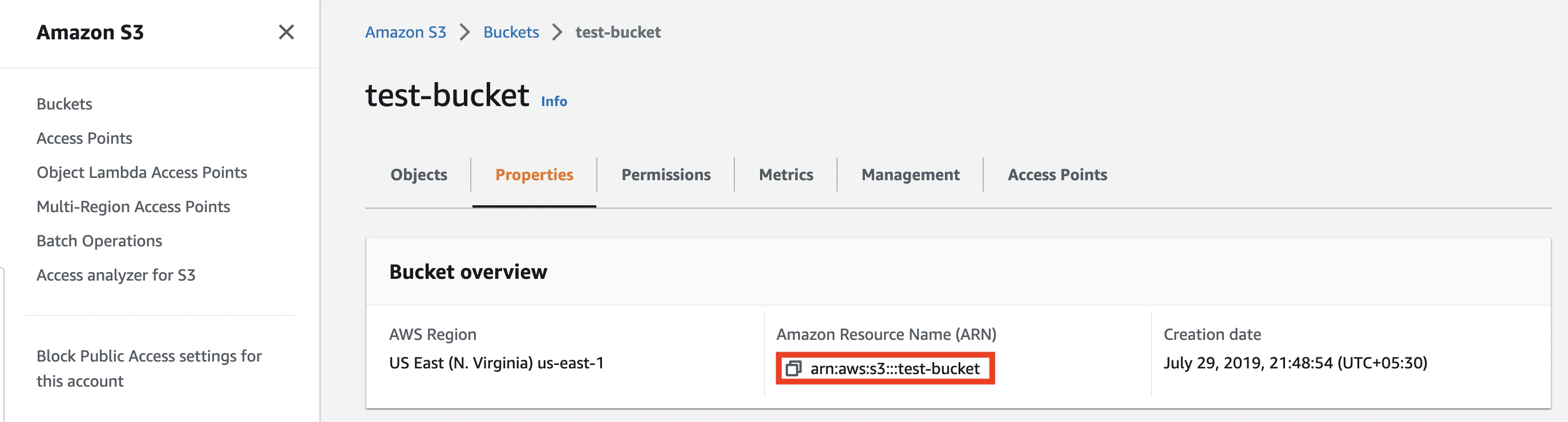 Example: users_to_import |
| S3 access key | This is the Access Key ID of the account with which you want MoEngage to connect to your bucket. You can either choose to provide the Access Key ID of an existing user (programmatic access or console access) or create a new user with Programmatic Access just for MoEngage. How to find this: n your AWS Console, go to IAM Console >> Users. You can manage your keys for each user here. For an existing user, under the “Security credentials” tab, scroll down to the “Access keys” section. Either copy an existing access key or create a new one (recommended). Enter the Access Key ID here.  Click here to know more. Example: 23478207027842073230762374023 |
| S3 secret key | AWS provides a pair of Access Key IDs and secret keys for each user. Enter the corresponding Secret Access Key for the Access Key ID of the account above. How to find this: Your Secret Access Key is provided when you make a new Access Key ID. Click here to know more. Example: wJa...lr/.../bPxRf...LEKEY |
| Region | Optionally, you can provide MoEngage with the region in which your bucket is hosted. How to find this: You can find the region of your bucket under the bucket’s Properties.  . .Click here to know more. Example: Asia Pacific (Mumbai)(ap-south-1) |
| Folder path | The path of the folder in which your files will be present. MoEngage does not look inside sub-folders. Do not include trailing slashes. Please note that we do not support root-folders at the moment so ensure that all your files are inside a folder. How to find this: From the list of objects in your S3 bucket, open the folder you to import from. In the Properties tab, look at the folder’s S3 URI. Your folder path is the part after s3://[your-bucket-name]/ excluding the trailing slash.  In the above example, your folder path is: my-dump/to_importExample:
|
| Is your file encrypted? | MoEngage supports importing encrypted files. We currently support PGP Encryption. For more information, refer to How Does MoEngage Handle PGP Encryption?(Link). If you are importing encrypted files, select the checkbox. |
| Decryption Key | If the Is your file encrypted checkbox is selected, MoEngage will ask for a Decryption Key. This is your Private PGP Key. You can generate the PGP keys by yourself or have MoEngage generate them. Example: -----BEGIN PGP PRIVATE KEY BLOCK----- xcMGBGVqq74BCADKpWRLSAdcTtDKpT+LCUCqDoZQ2dlgeBiXNovBVyTPlAOPQSqX bnNGs+U4RpHebjvTxaWCLDBGYOvtZbtv6WvPIF7lzXrIv+DcgLMBQp2b3t+ohRBi 41Ch8CZ04F2lxbVBo -----END PGP PRIVATE KEY BLOCK----- |
| Signing Key | If a signing key is also configured, the signing key public key needs to be entered in the Signing key section in the following format. Example: -----BEGIN PGP PUBLIC KEY BLOCK----- xqq74BCADKpWRLSAdcTtD45nl24KpT+LCUCqDoZQ2dlgeBiXNovBVyTPlAOPQSqX bnNGs+U4RpHebjvTxaWCLDBGYOvtZbtv6WvPIF7lzXrIv+DcgLMBQp2b3t+ohRBi 41Ch8CZ04F2lxboksCwnl31laEuQkk8MERlcthB9AiKvSEf6jihLcPSVVanrQUQN77UZf sFCynJXweqijZxtmUl9V1838sUVOoTzfmGwu7PzV99tAiOlxBjYF9SXIYY/GOoJN Zuz8uOaXWtFPmV536uQT -----END PGP PUBLIC KEY BLOCK----- |
| Key passphrase | Enter the passphrase that was generated along with the encryption key pair. |
Import Name
File configurations

_<date time format>.csv. Refer to the table provided earlier to see which DateTime formats we support. The info message below will update according to your chosen DateTime format so that you can easily cross-verify if your file names are as per expectations.
After you’ve configured your S3 Credentials and your file names format, MoEngage will try to connect to your S3 bucket and fetch the most recent file available with the specified format. Ensure you have at least one file available in the specified location otherwise, you will not be able to continue. Once you’re ready, click the “Fetch file” button to fetch a recent file.
If your S3 credentials and chosen file format are correct, then MoEngage will show you the preview of the top 5 rows from a recent file:
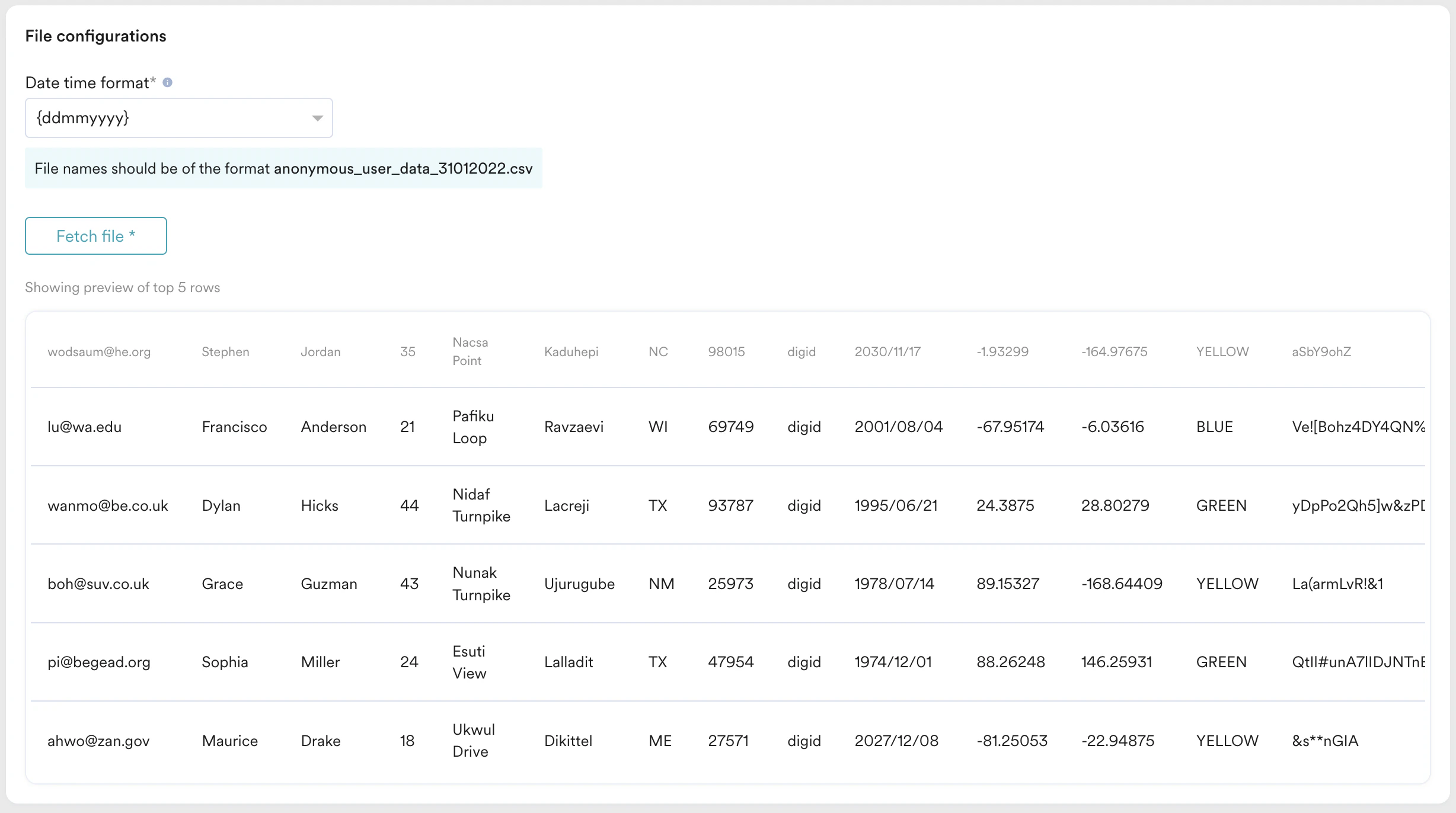
- Given S3 Access Key is not valid - This means that your S3 credentials are incorrect. Please enter the correct credentials and try to fetch the file again.
- Please check the folder path and try again - This means that either your folder path is incorrect or there are no CSV files present inside the given folder path.
- Found zero data rows in the file - This means that the file MoEngage fetched did not have any rows after the header row (the total row count of the file is 1). We expect at least 2 rows (1 header row + 1 data row) in the file since the first row is always treated as the header row. Learn more about the File Structure.
Step 2: Map your columns to MoEngage Attributes
In this step, you need to map the columns of your CSV files to the attributes present in MoEngage. All your columns will be shown one below the other: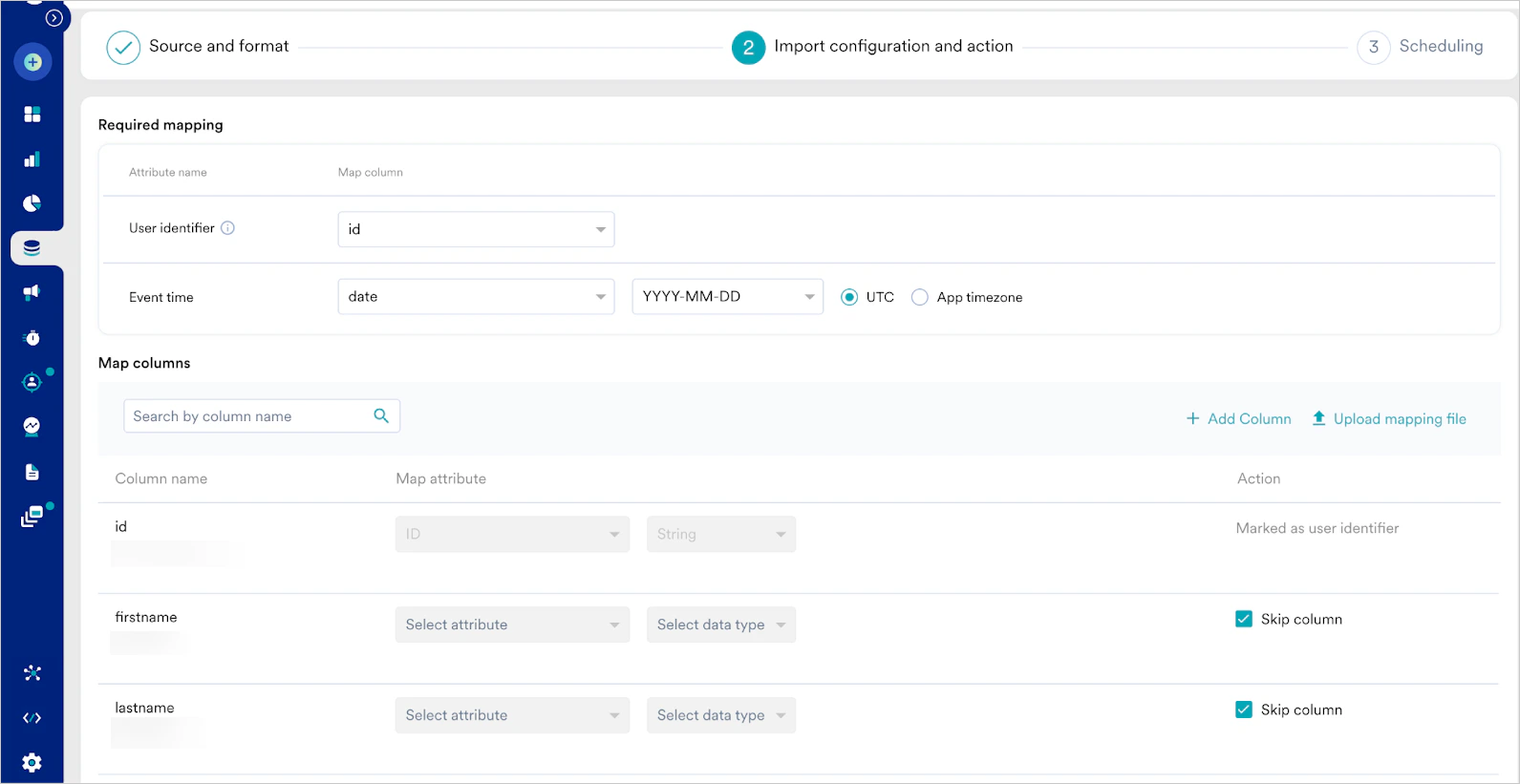
- Column name - This is the column name (picked from the first row of the fetched file in the previous step) to be mapped. Below the column name, we also show a sample value (picked from the second row of the fetched file in the previous step) for your reference.
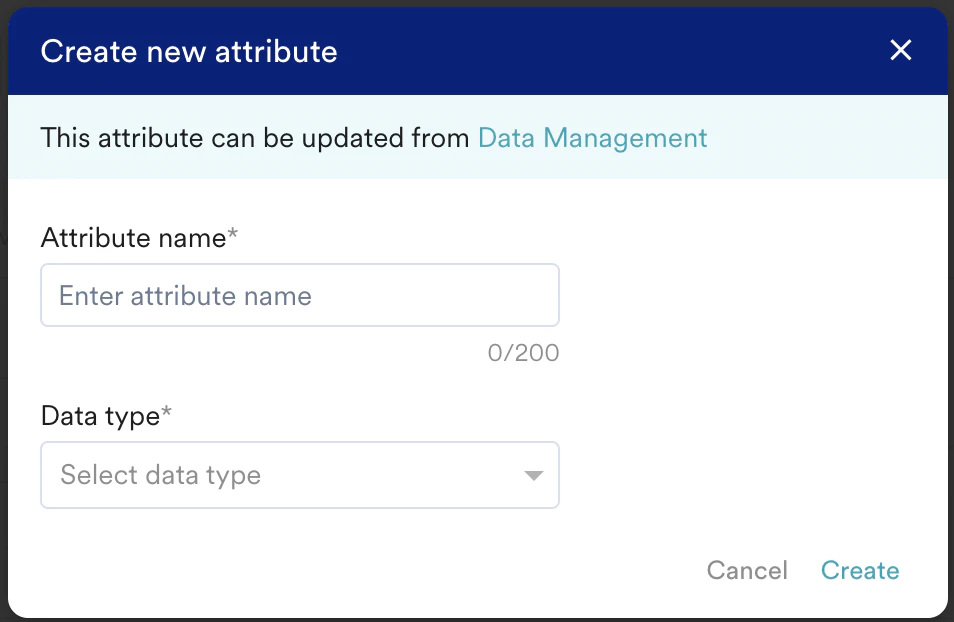
- Map attribute - You need to pick which MoEngage attribute you want to map the CSV column to. You can also choose to create a new attribute. Some attributes support ingestion from multiple data types, so you need to pick the data type of the column as well. For the “DateTime” columns, you also need to pick the format.
- More actions - You can optionally choose to skip the column. The skipped column will not be imported.
- User imports - You need to select the column having:
- Registered -
- User ID - Your file should mandatorily have a column that contains a unique user identifier (that identifies a user’s account in your system).
- Anonymous -
- Anonymous ID - You need to mark a column from your file (email, mobile number, etc.) as an identifier of these users.
- Registered -
- Event imports - You need to select the column having:
- User ID - This column will be used to match the users in MoEngage to your CSV files.
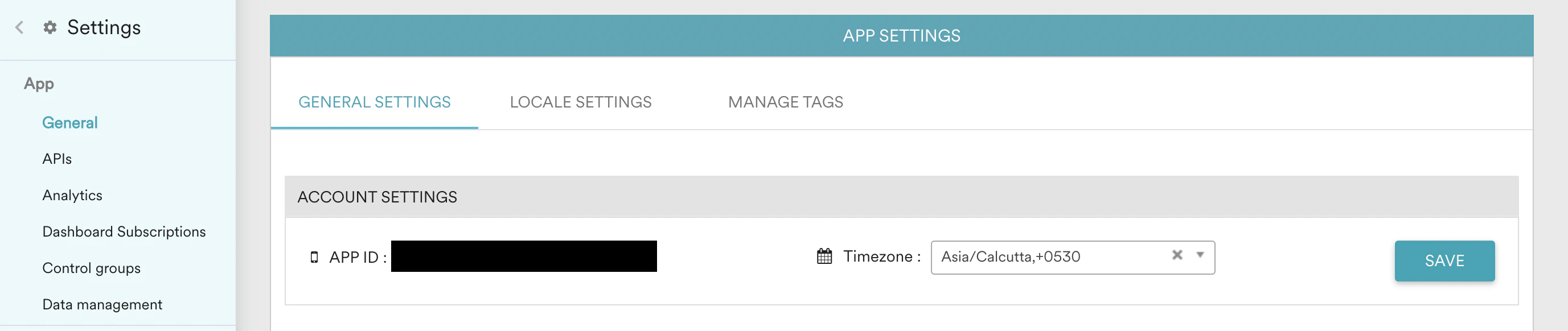
- Event Time - You need to map either Event Time (UTC) or Event Time (App Timezone). If you have chosen Event Time (UTC), then the “Event Time” of the imported event will be converted to the timezone chosen in your MoEngage Dashboard settings:

Adding Fields
You can also add fields directly from the dashboard by clicking on +Add Field. This will create a new field at the bottom of the list below where you can enter the attribute mapping manually.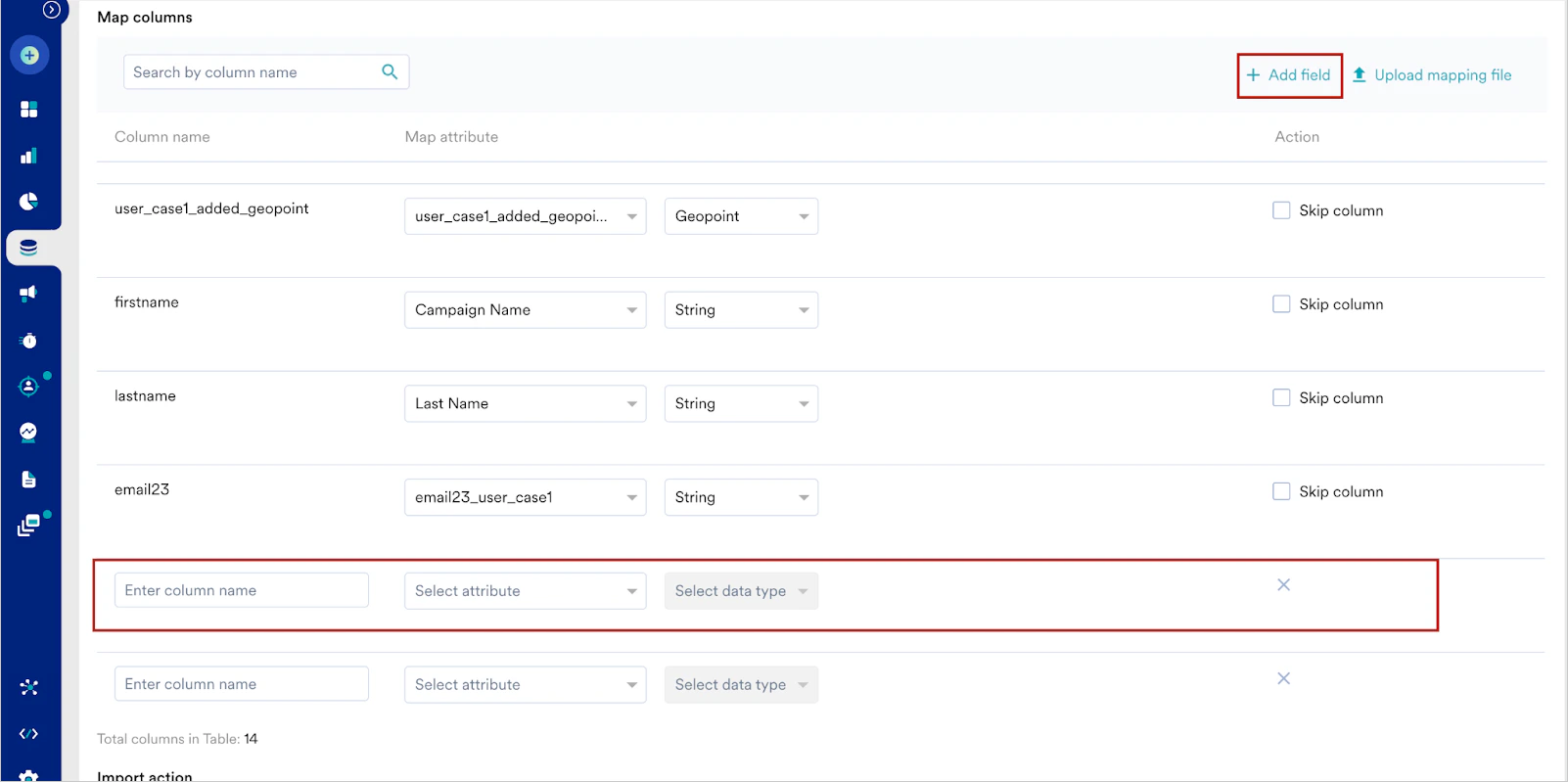
Manifest Files
Optionally, you can choose to auto-map these columns by uploading a manifest file. To upload a manifest file, click the “Upload mapping file” option on the top-right of the mapping table: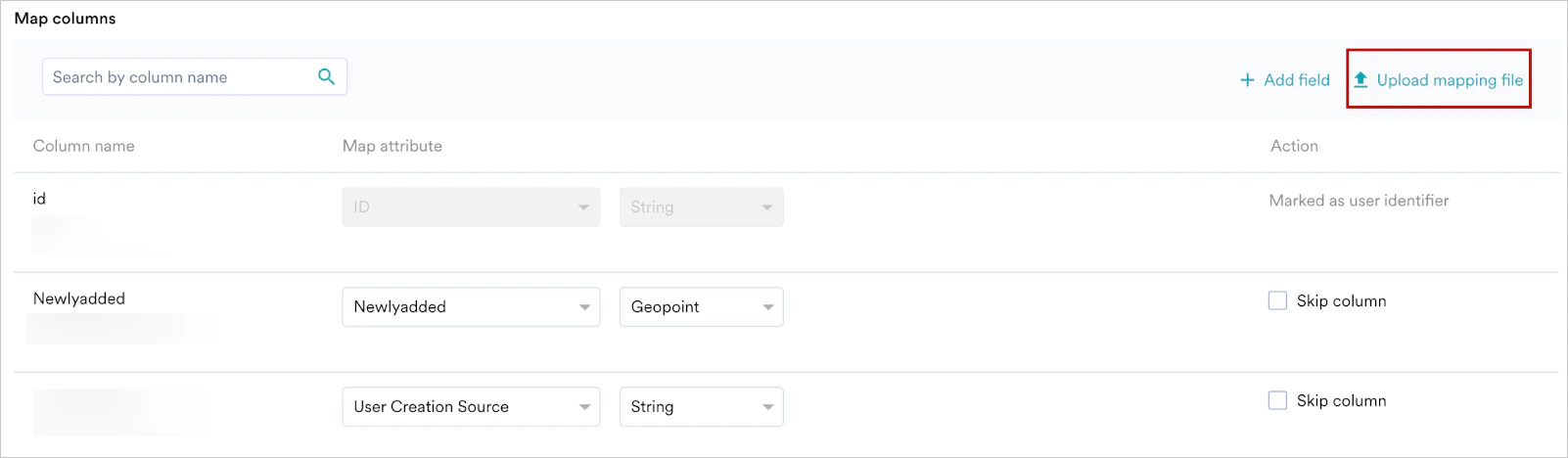
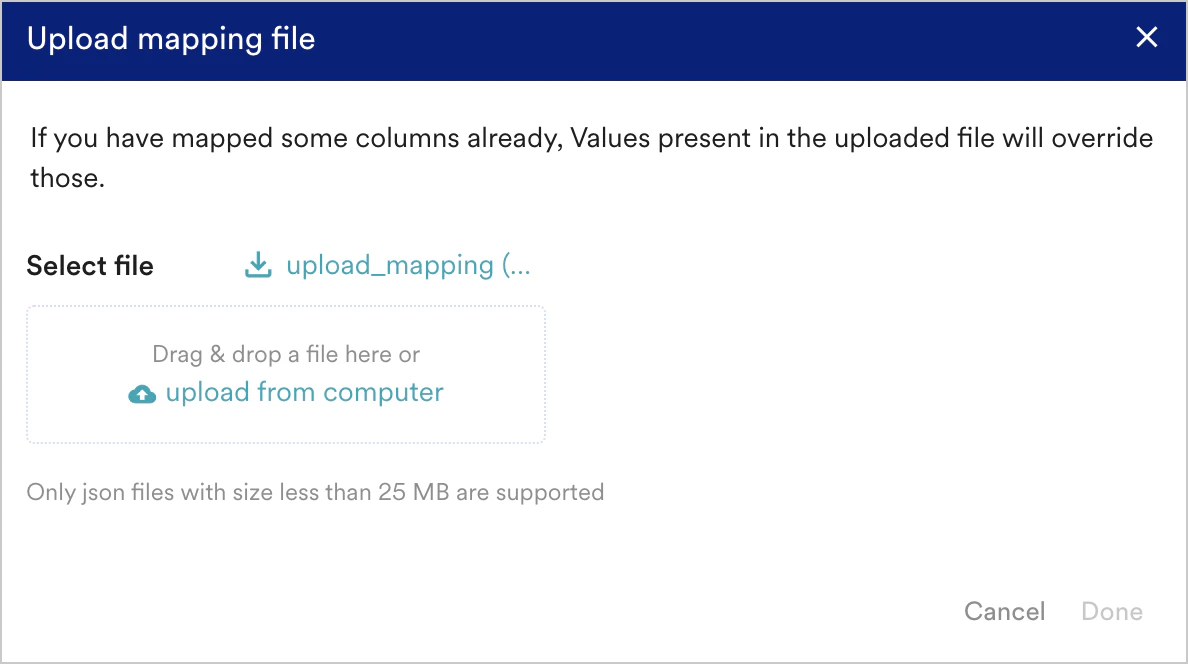
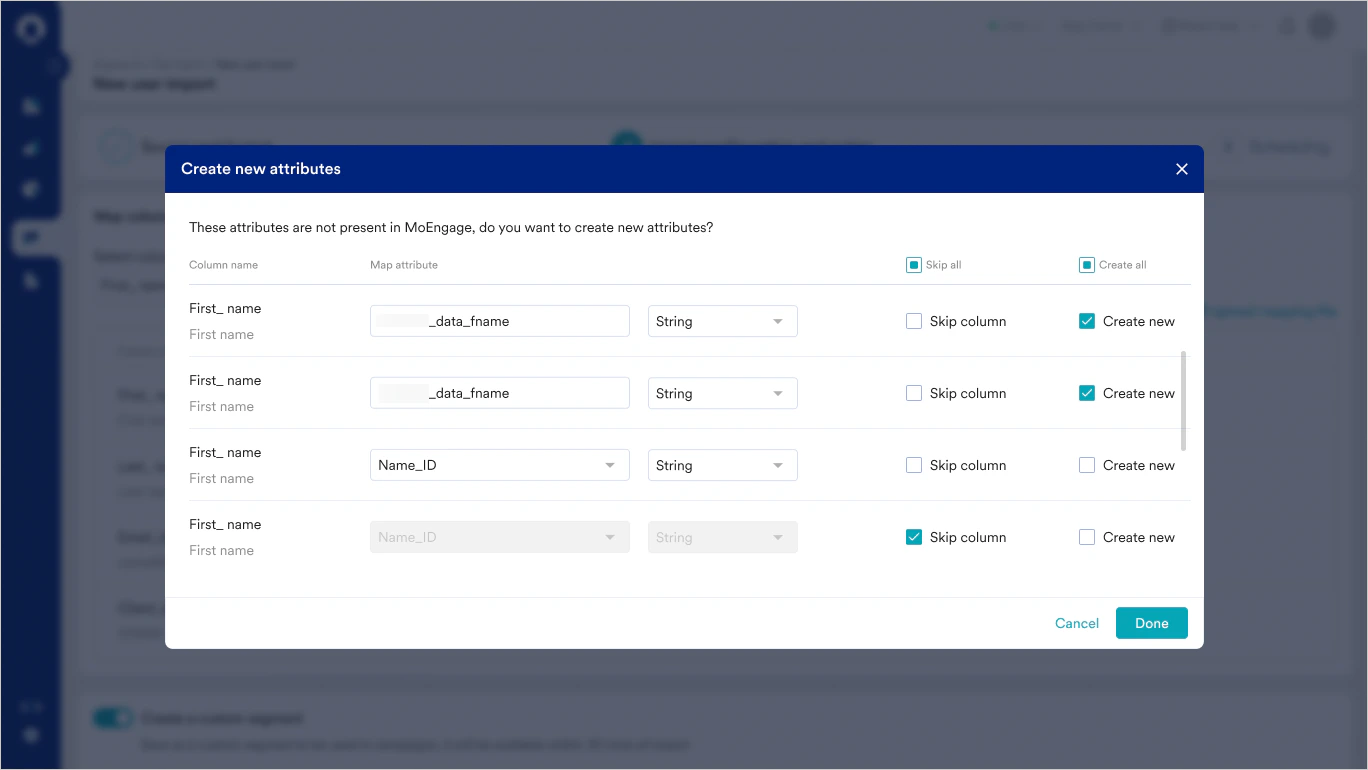
Sending Import Notifications
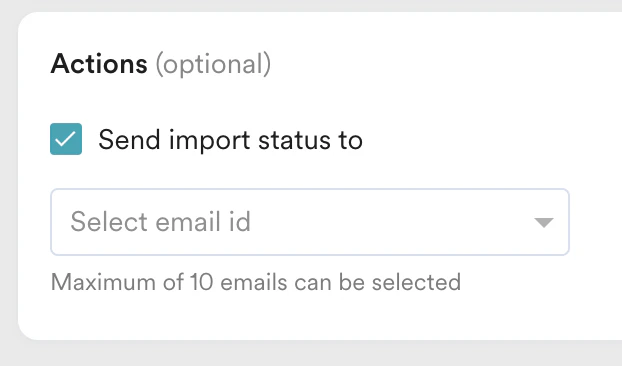
- An import was successful.
- An import failed, along with the possible cause of failure.
Step 3: Select the Import frequency
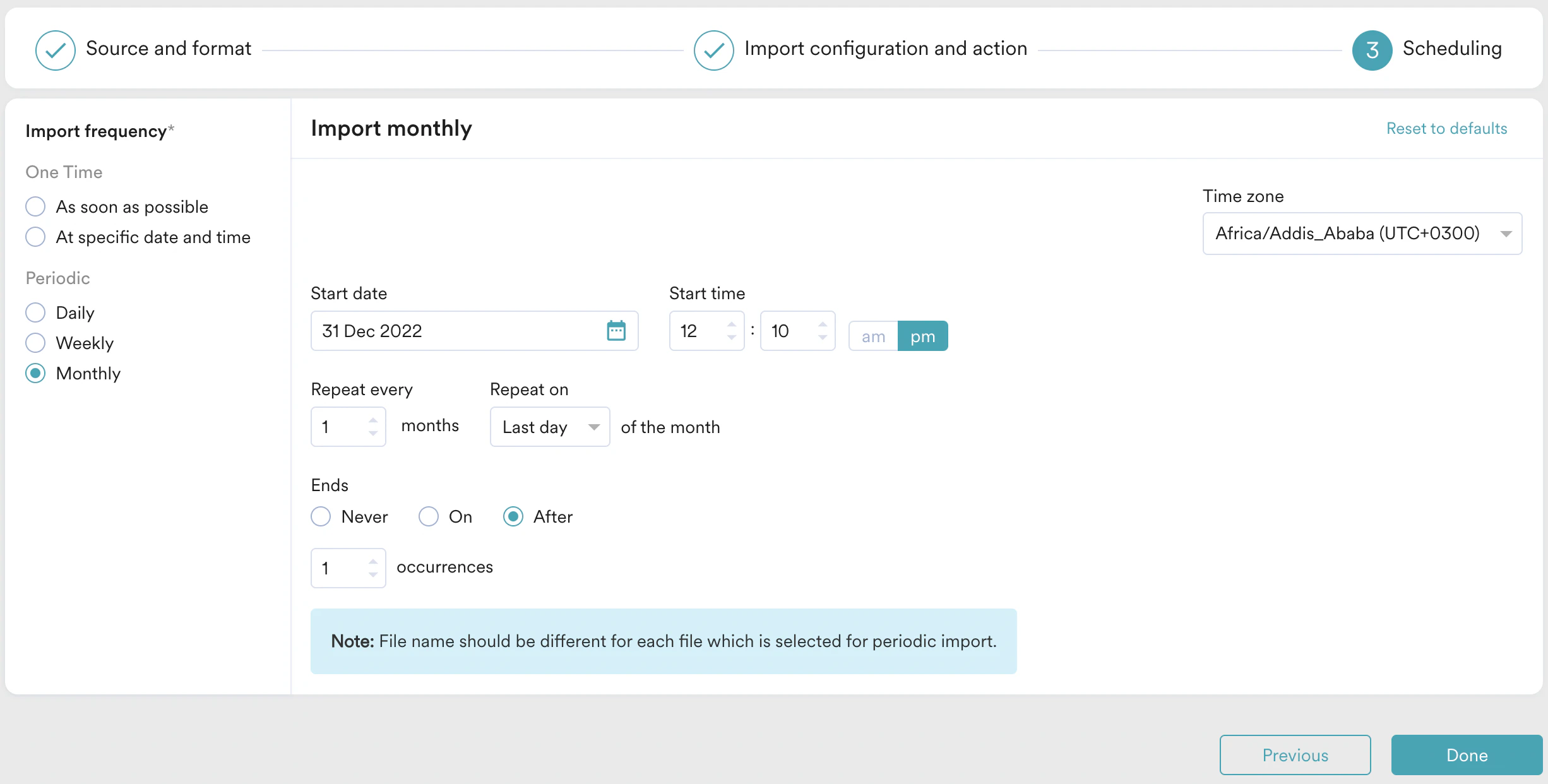
- One-Time Imports: You can either choose to run the import as soon as possible or at a later date and time (scheduled)
- Periodic: You can choose to run your imports hourly, daily, weekly, or monthly, or with intervals and advanced configurations.
Duplicate Imports
You can only configure one unique import at a time. An import is considered a duplicated import when all of these are the same:- Import Type - Users / Events
- Import Sub-Type - Event Name / Registered / Anonymous - If the event name is the same, or there already exists a registered/anonymous users import with the same S3 path and bucket name.
- S3 Folder Path
- Bucket Name
Frequently Asked Questions
My imports have failed. How do I check what went wrong?
My imports have failed. How do I check what went wrong?
Click the ellipsis on the right and click View to look up the Import details. Hover over the Failed Status to learn the reason.
What happens when there is an error in fetching the files from the S3/SFTP folder?
What happens when there is an error in fetching the files from the S3/SFTP folder?
By default, imports are not retried when there is a failure. You can, however, configure to receive an email alert upon failure.
What if a scheduled import adds the data into a recently archived segment?
What if a scheduled import adds the data into a recently archived segment?
In such cases, the new data will still be added to the archived segment. You can unarchive the segment as required.
How does MoEngage pick up new files in a periodic run?
How does MoEngage pick up new files in a periodic run?
In a scheduled run for a given workspace, MoEngage picks up all the new files identified in the S3/SFTP folder based on file name prefix and processes them. Data import in a given MoEngage workspace uniquely identifies these files with the combination of Folder location and File name.
Will a periodic Data import pick up an earlier processed file?
Will a periodic Data import pick up an earlier processed file?
No. A file once processed will not be processed again if the file name remains the same and in the same folder location. However if the same file is also placed in a different folder location, a new data import setup in MoEngage with the new folder location configured will pick up the file.
Can a CSV file contain both User and Event data?
Can a CSV file contain both User and Event data?
No. Data imports in your MoEngage workspace dashboard have to be setup separately for User data and Event data, hence the files should either contain User attribute data or Event data.
Can an import be stopped while it's running?
Can an import be stopped while it's running?
Once an import process starts, it can’t be stopped midway. This is because the data goes through several steps, and interrupting it could lead to incomplete or inconsistent results. It’s best to let the current import finish.
How can I stop future runs of a scheduled import?
How can I stop future runs of a scheduled import?
Yes, you can stop future scheduled imports from running automatically. To do this, find the import schedule and select the “Archive” option from the Actions menu on the Data Imports dashboard. This will prevent it from running on its next scheduled time.
What should I do if an import seems stuck or is taking a long time?
What should I do if an import seems stuck or is taking a long time?
If an import appears to be stuck or is taking longer than usual, it’s best to wait. The system has checks in place to handle these situations automatically and will retry if necessary. Manually starting the same import again while it’s still processing can cause conflicts and may prevent the original import from completing successfully.