

Wait for/till
The MoEngage system provides marketers the flexibility to configure the duration for which the user will wait in a specific stage in the flow before taking the next action. Marketers can choose specific time frames such as users moving to the next stage on weekends at specific time slots or on Mondays at specific time frames or choose a rolling time frame such as 30 minutes, 6 hours, 24 hours, and so on. Such flexibility in choosing time slots to move the users to the next stages helps marketers control the time of delivery of the campaigns thus ensuring better conversion rates and engagement. The following options are available: To configure wait time, do the following:- Click on the plus icon and do one of the following to add the ‘Wait for/till’ control.
- Move to the Conditions & controls tab and scroll down to the Control flow section. Then Click Wait for/till*.
 *
* - Search for “Wait for/till” in the search bar & select the resulting option.
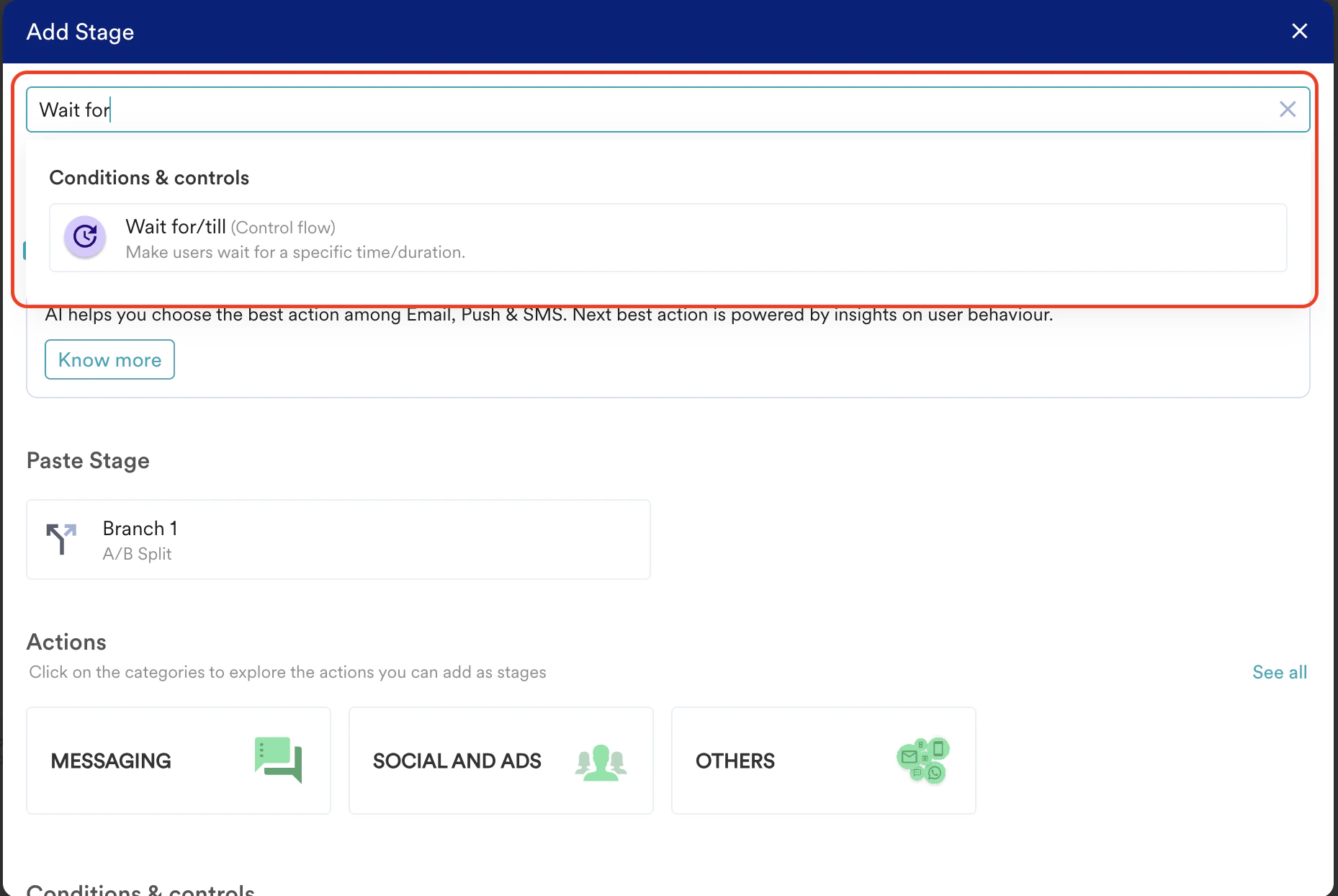
- Click Control Flow card in the All stages tab and then click Wait for/till.
 The five frequently used stages are displayed under the Frequently Used section on the All stages tab. The list of available stages changes dynamically based on your workspace. Click the required stage to add it to the flow.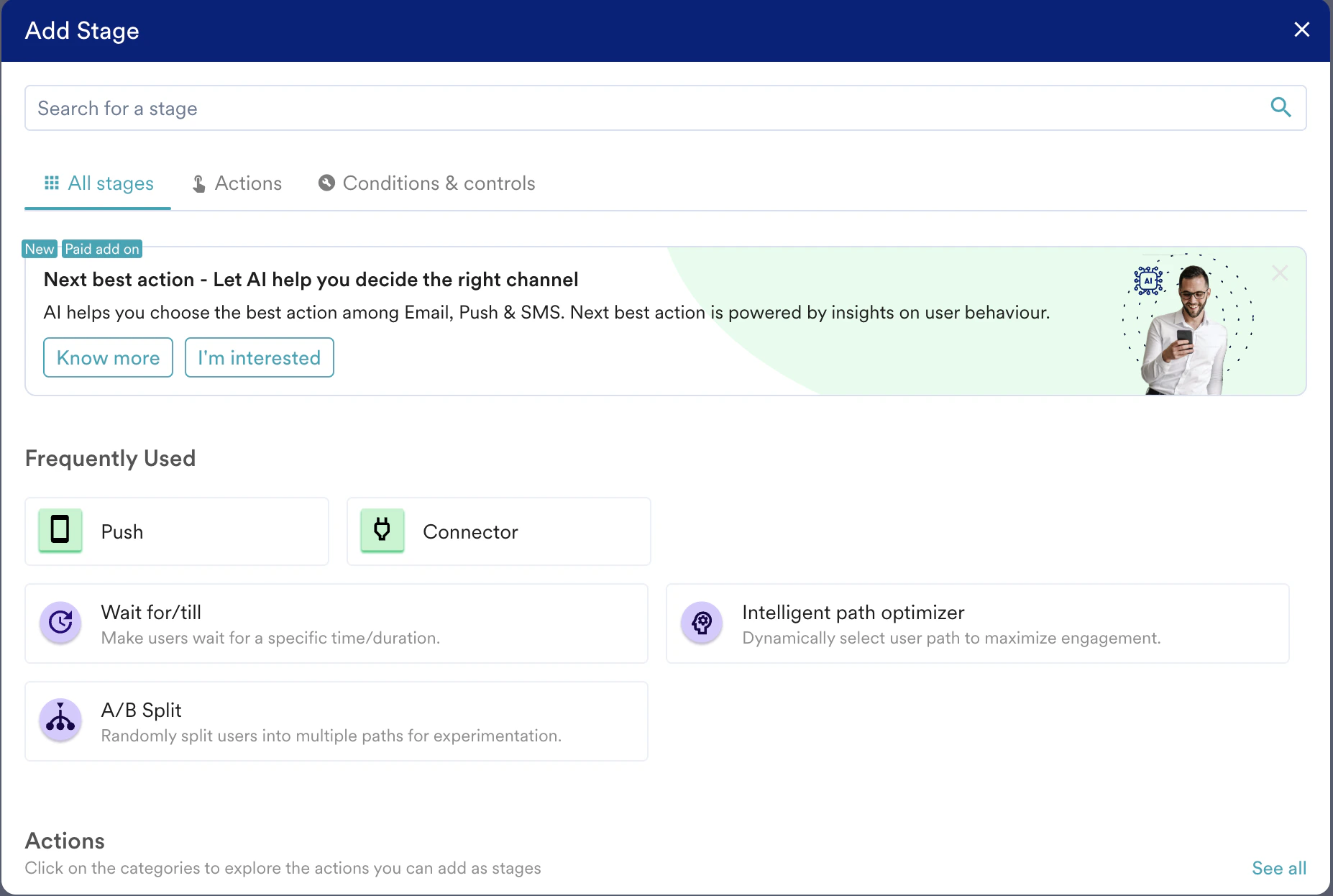
- Move to the Conditions & controls tab and scroll down to the Control flow section. Then Click Wait for/till*.
- Click Wait For/Till.
- Click the pen icon to edit the wait till/for time.
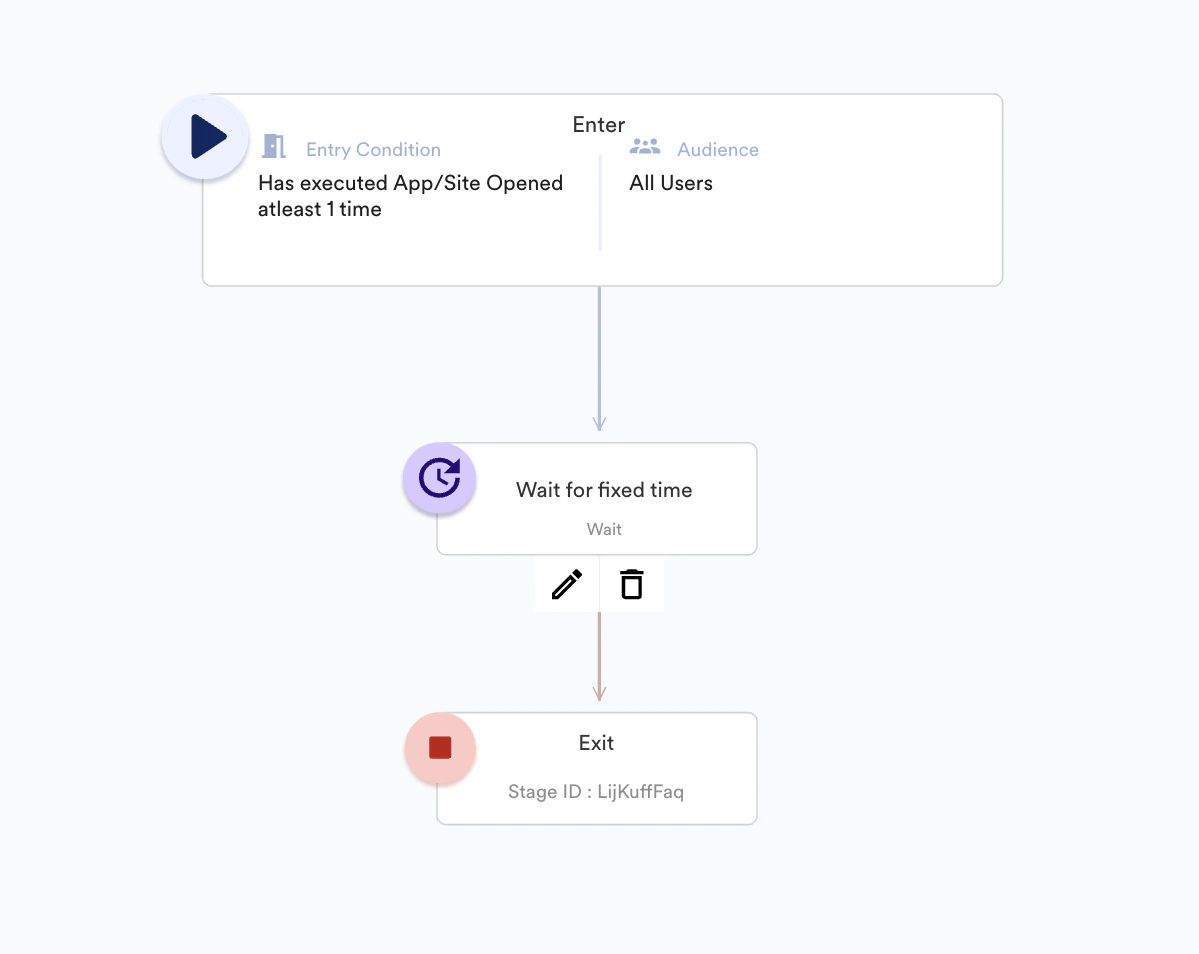
- The following screen pop-ups. Set the desired wait time using the options provided.
- Wait for a specific duration
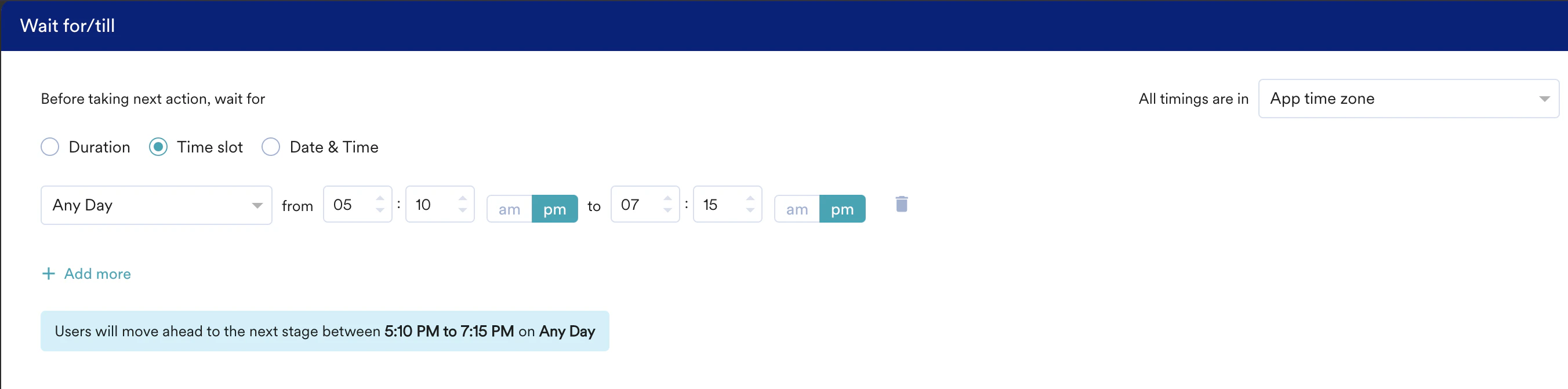
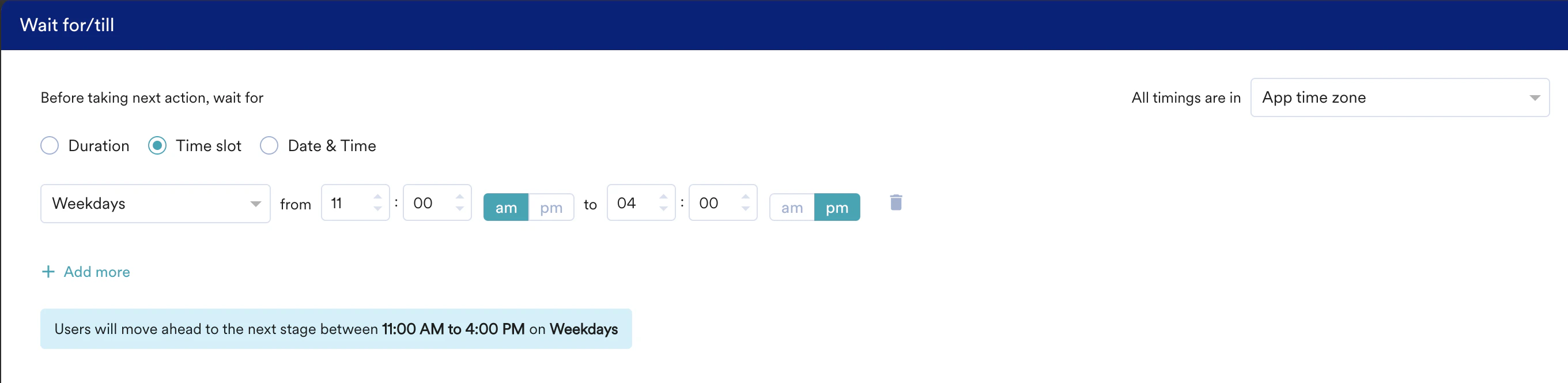
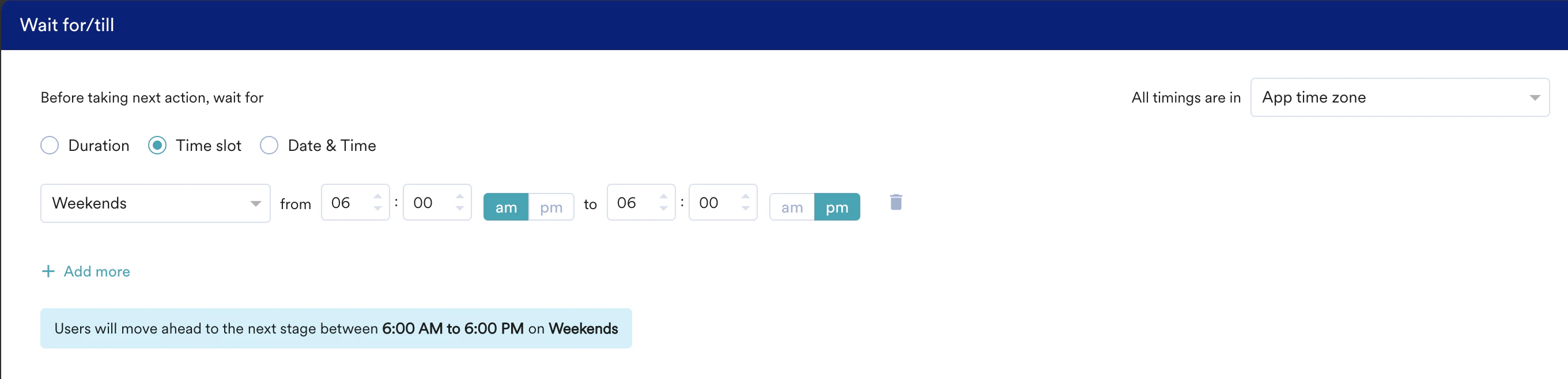
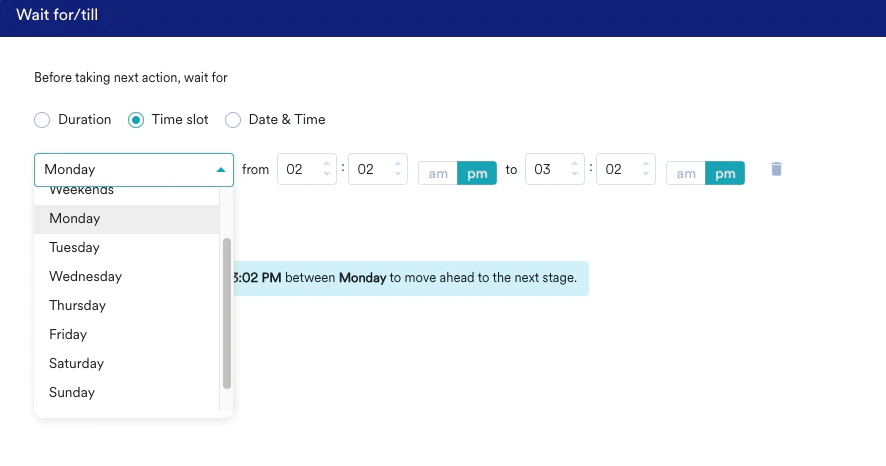
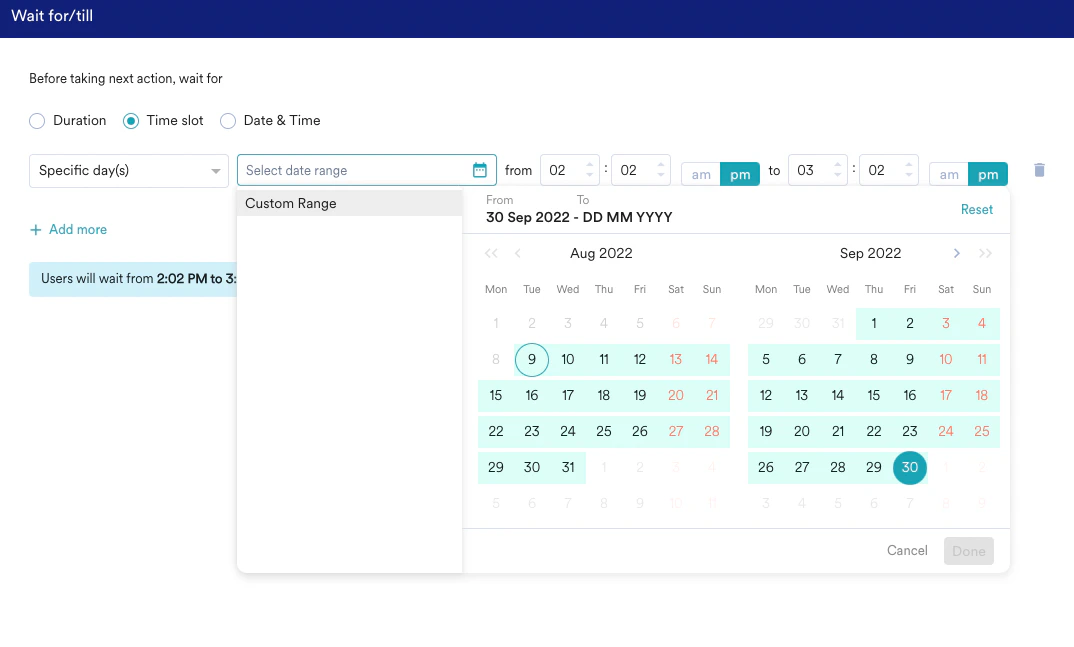
- Wait for a time slot
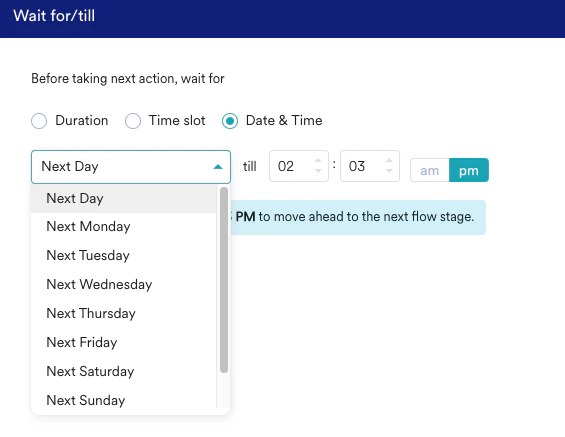
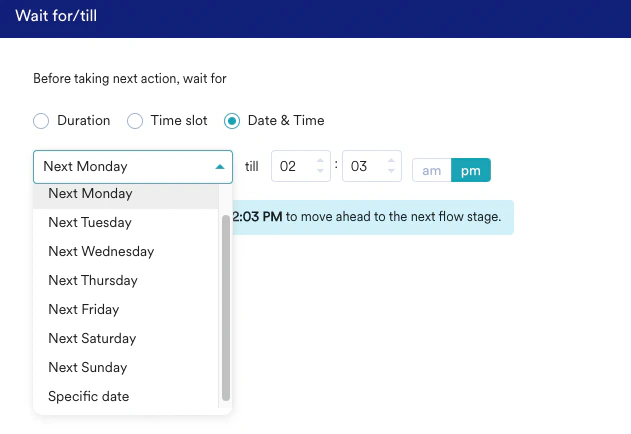
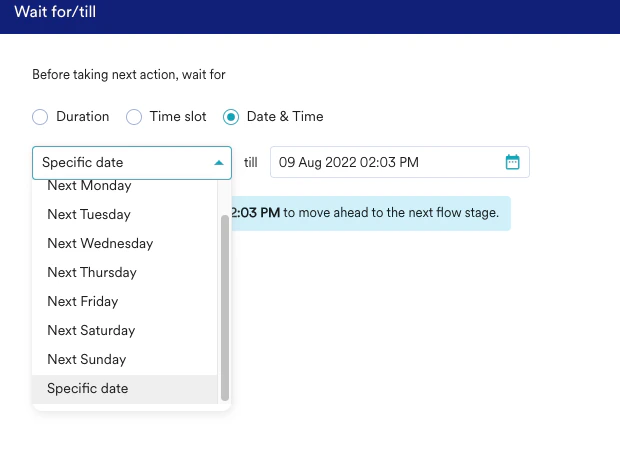
- Wait till a particular date and time
Duration
This option can be used to set the duration for which the user will wait in the flow before taking the next action or before moving to the next stage in the flow.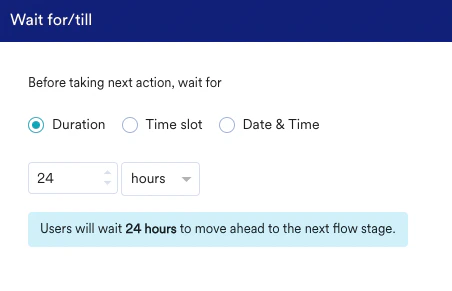
Only after the time interval elapses can the user move to the next stage of the flow.
This is useful in cases when marketers wish to provide some buffer time for the end user to react to the messages or notifications sent.
- Type or use the up and down arrows to set the wait time.
- Select minutes, hours, or days from the drop-down.
- Note: The minimum wait time is five minutes and the maximum wait time is 30 days.
Go To
Send your users to any existing stage in the same Flow using Go To. Adding the Go To stage will delete the flow branch below this stage.- Click the plus icon and do one of the following to add the Go to stage:
- Move to the Conditions & controls tab and scroll down to the Control flow section. Then Click Goto*.
 *
* - Search for “Goto” in the search bar & select the resulting option.
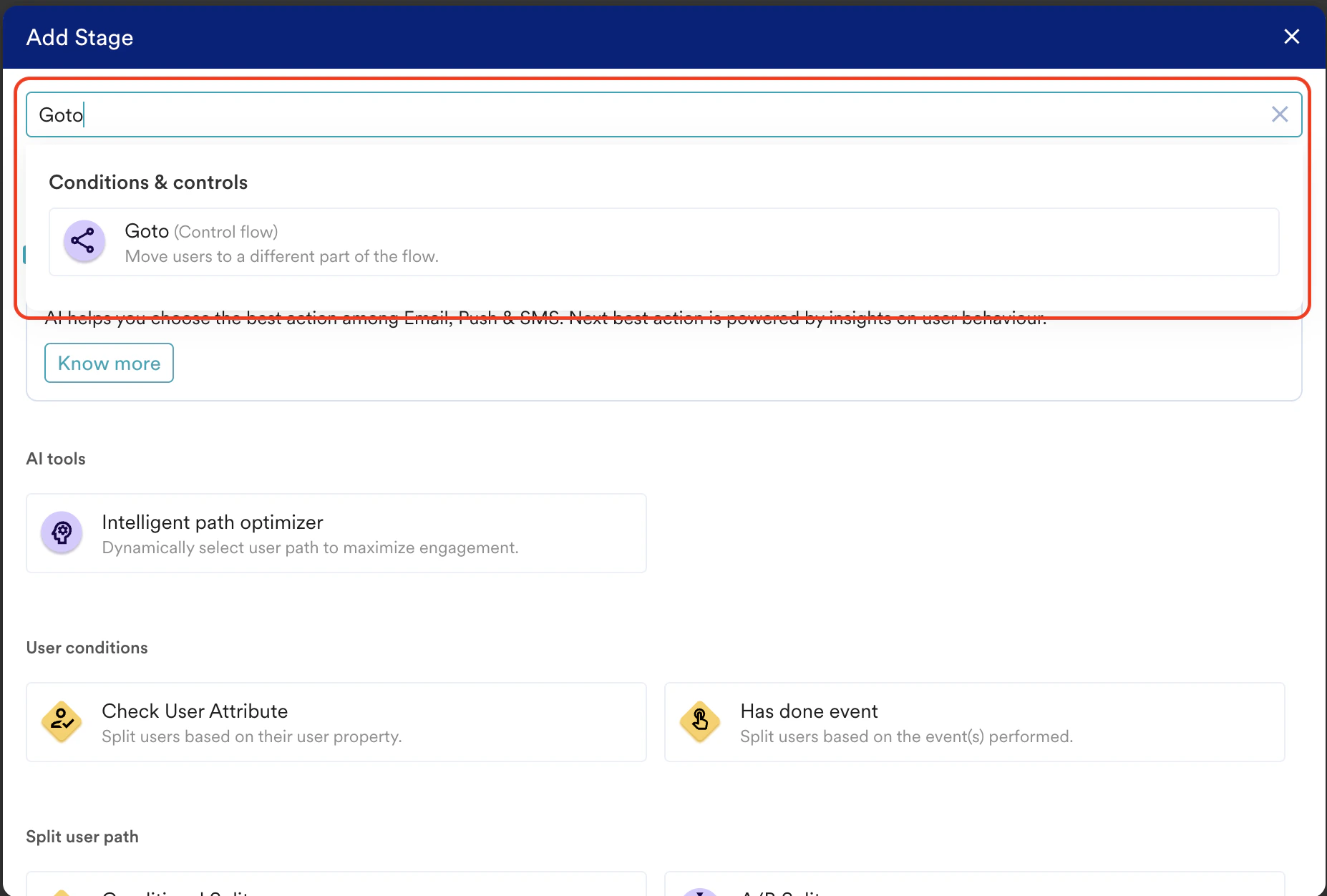
- Click the Control Flow card in the All stages tab and then click Goto.
 The five frequently used stages are displayed under the Frequently Used section on the All stages tab. The list of available stages changes dynamically based on your workspace. Click the required stage to add it to the flow.
- Move to the Conditions & controls tab and scroll down to the Control flow section. Then Click Goto*.
- Click Go To.
- Click the pen icon to edit.
- Search and select the destination stage on the Goto page.
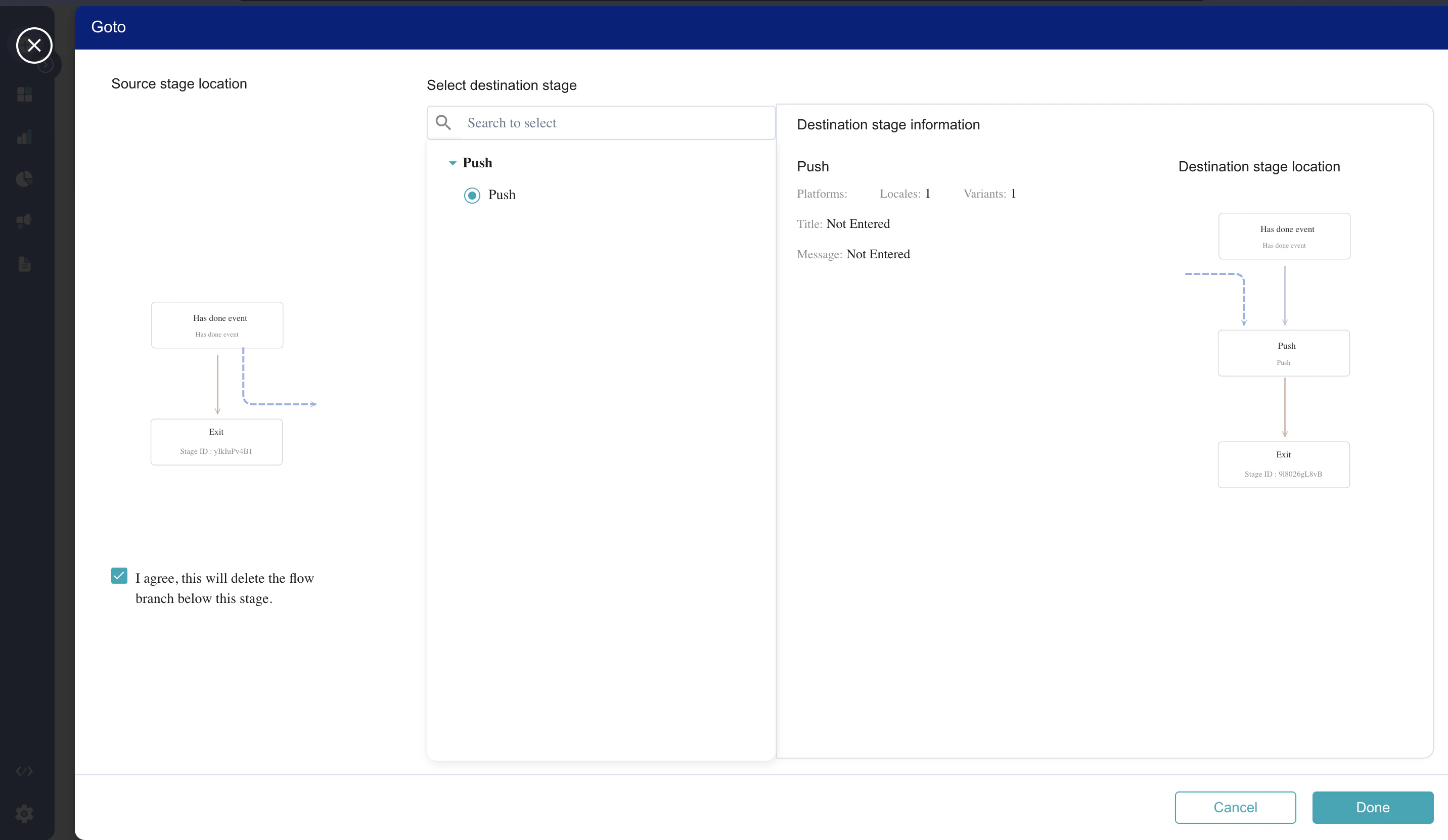
- Click Done to add the action or click Cancel to cancel the action.