

Overview
The Integration Validation feature simplifies the integration of the MoEngage Android SDK with your intended application by providing an interface to validate Android SDK feature implementations directly via the MoEngage dashboard.Developers often encounter challenges in implementing Android SDK features due to complex steps or misinterpretations of requirements. For instance, while configuring push notifications, they might overlook a few critical settings, such as rich notifications.
This feature enables developers and marketers to test and validate implementations independently, ensuring accuracy and reducing dependency on support teams. It enhances the integration process, minimizes errors, and ensures seamless marketing communications and user engagement.
Scope
The integration validation feature helps validate the following features:- Data Tracking
- Push Notifications
- Push Templates
- In-App Messaging
- Cards
- Push
- Location Triggered Push
- Push Notification Centre
- Push Amplification
- HMS Push
- Data
- Custom attribute: Validation of the name, syntax, and data type of attribute names and their values is outside the scope.
- Custom events: Validation of the name, syntax, and data type of the event names, event attribute names, and their values is outside the scope.
Register a Device for Integration Validation
Perform the following steps to register your device for integration validation:- In the left navigation menu on the MoEngage dashboard, click Test & Debug, and then click Integration validation.
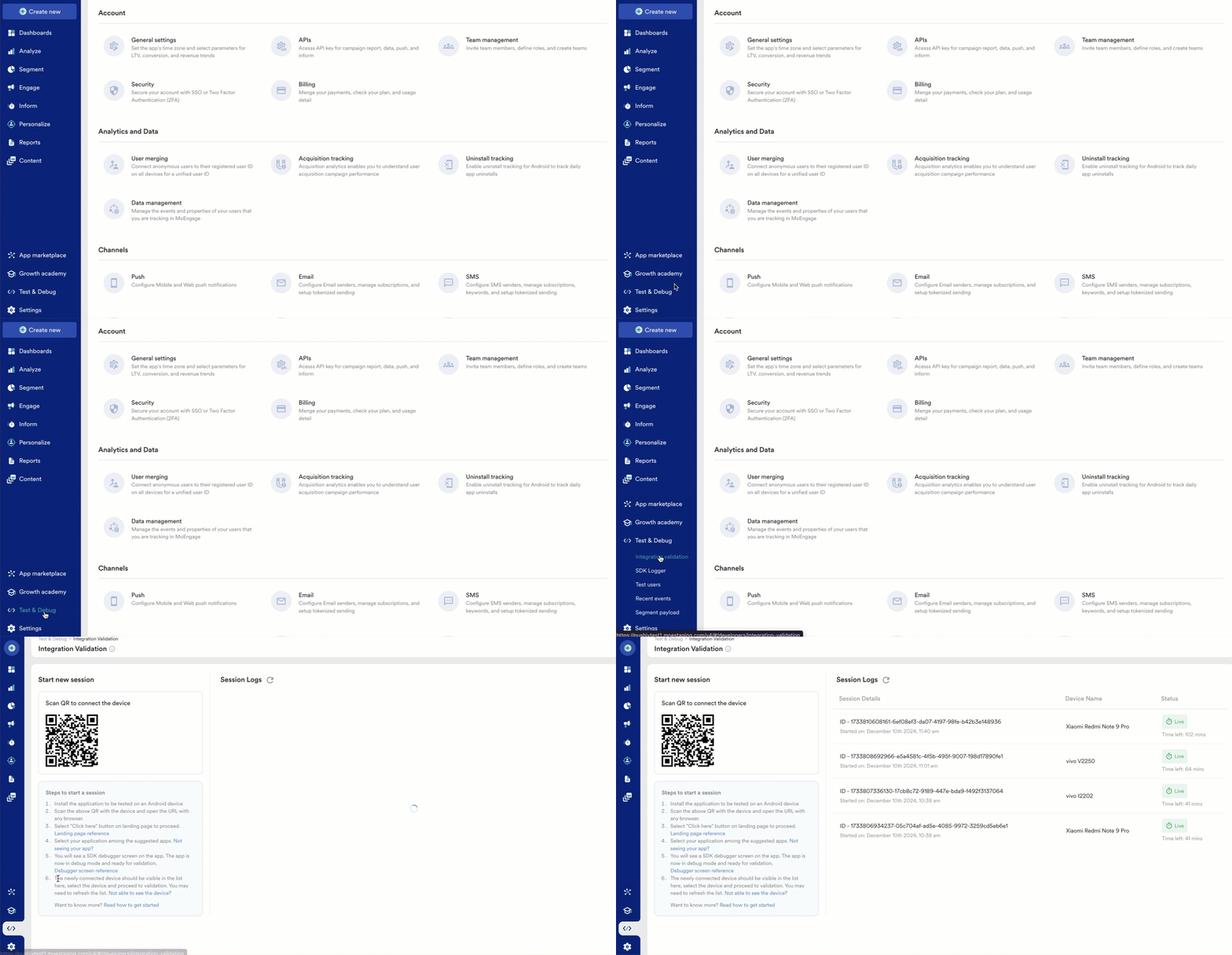
- On the Integration Validation page, scan the QR code using any QR reader app on your mobile device to register your device.
- Select Click here on the landing page to proceed and you can select your application from the suggested apps.
- To see your preferred application, ensure it has the correct SDK version, that is, versions including and above 13.4.00.
- The MoEngage system displays the system Debugger page, and the app is in debugger mode and ready to be validated.
Debugger Mode Error Paths
Following are the reasons you are unable to see the system Debugger page on your preferred app:- You have scanned the wrong dashboard.
- You have scanned the test environment of the dashboard.
- You have set an incorrect app ID or data center (DC). For more information, see here.
- After you register your device, the MoEngage system loads the Session Logs on the MoEngage dashboard.
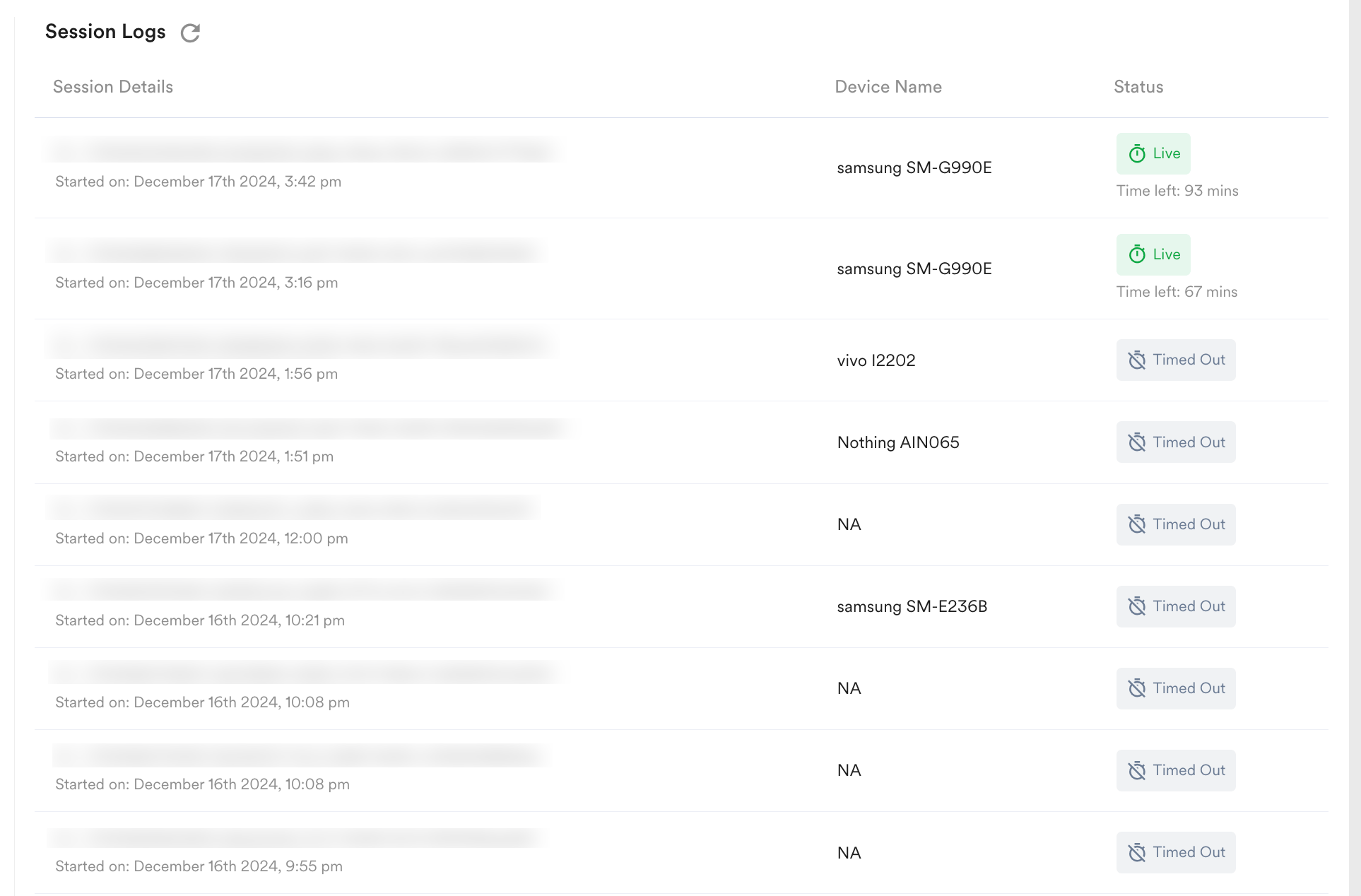
- You can open your intended app and refresh the session logs by clicking the refresh icon . Here, you can view the information associated with your session. The SDK Logger feature allows you to view the raw data associated with the sessions. For more information, see here.
 If you have just installed the application, the MoEngage system requires a buffer period of approximately 5 minutes to retrieve user device details.
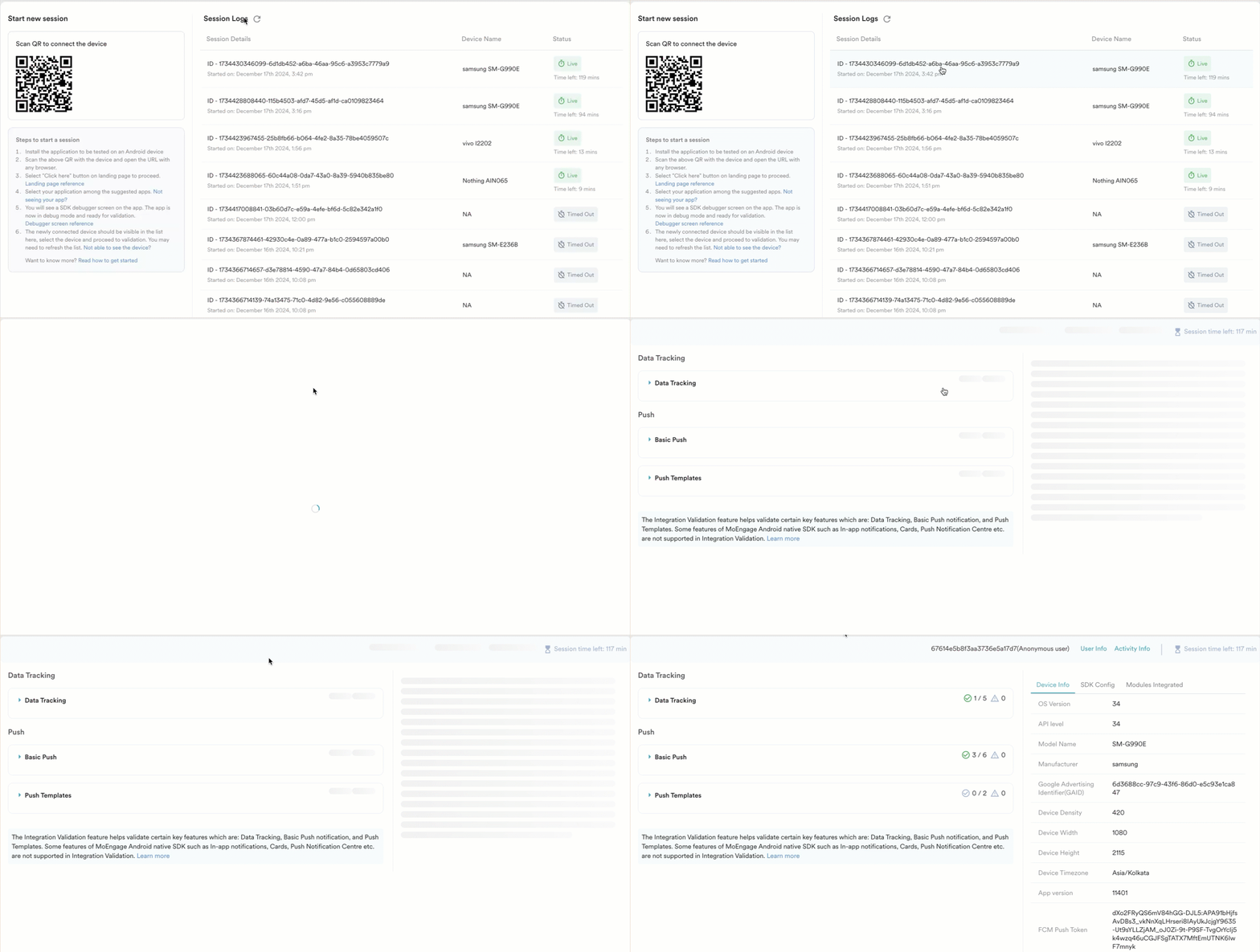
 - You can click the relevant session to open the associated session page.
Integration Validation Session
- On the session page, you can view the user details associated with the live session by clicking User Info. This redirects you to the User Profile page.
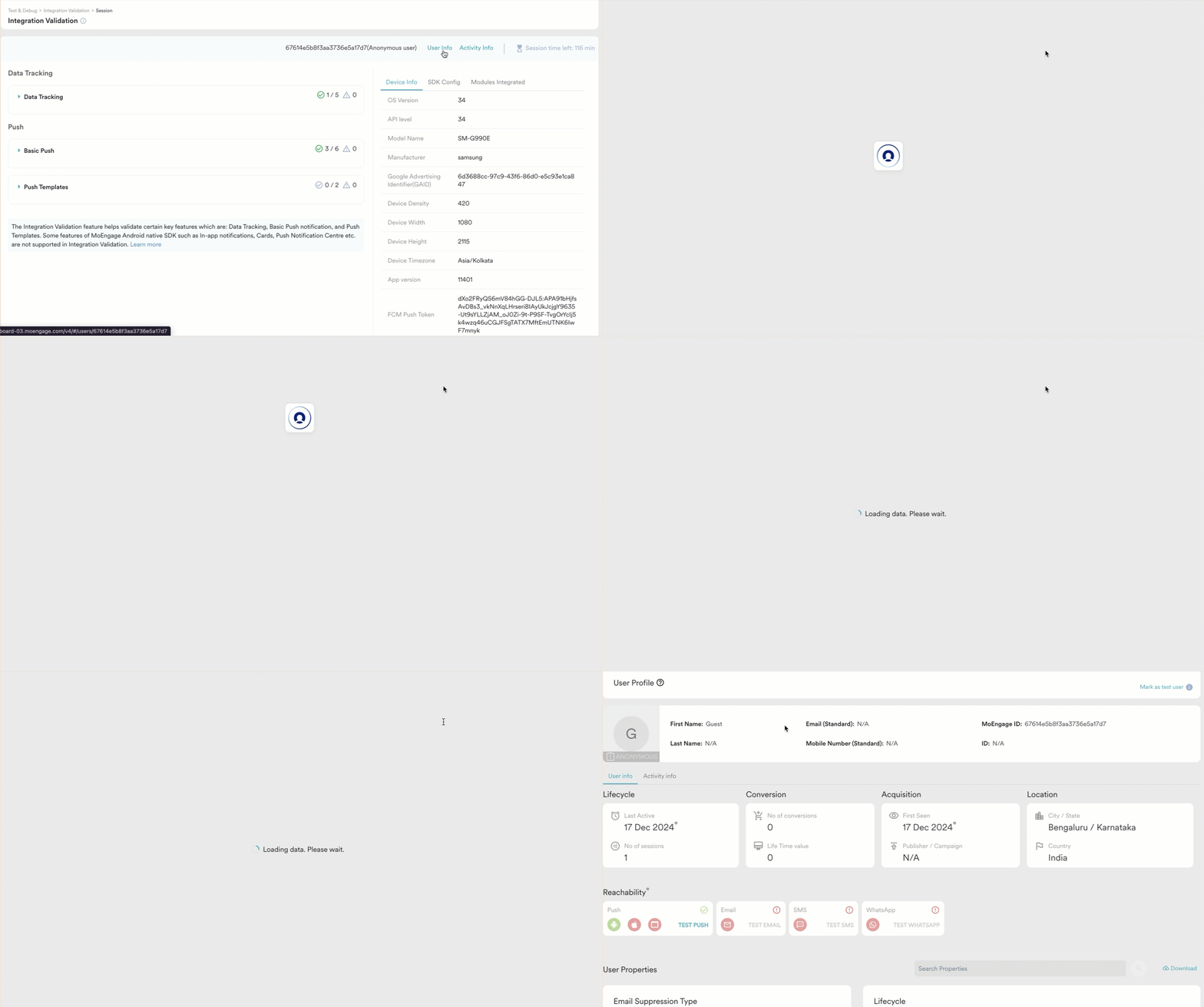
- Click Activity Info to get a detailed overview of all events the current user has performed.
 The User Info and Activity Info tabs provide details about the current session user, not the dashboard user.
 - On the session page, you will get the following information:
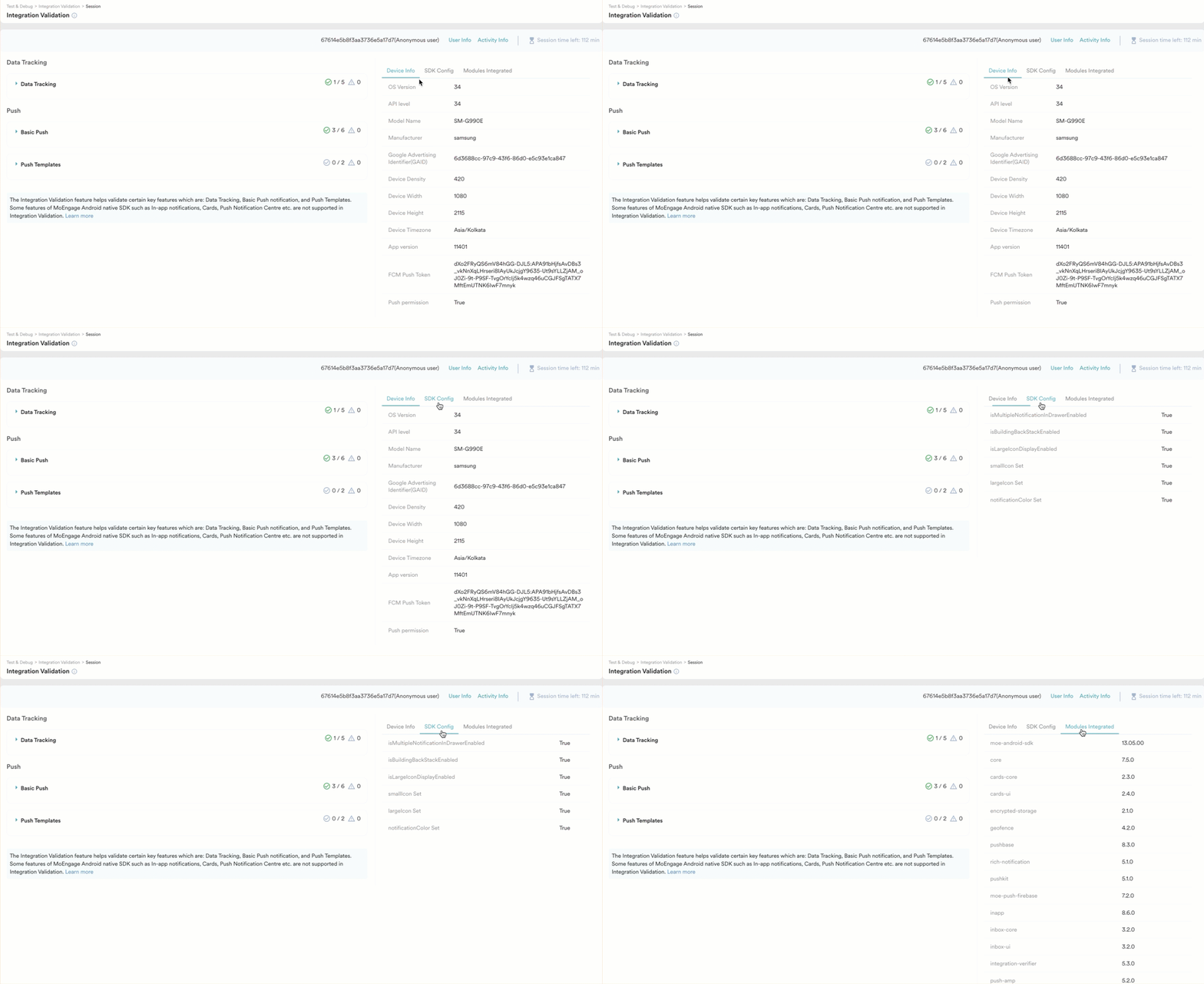
- Device Info
- SDK Config
- Modules Integrated
Validation Steps
The Not Received status might be due to insufficient log generation. In such cases, try performing the action again or switching the app between background and foreground modes. If the status remains Not Received, it indicates a validation failure. Refer to the step-specific error paths for resolution.
Data Tracking
Data Tracking consists of five validation steps where you can validate the custom attribute and custom events in your intended app. To validate data tracking, expand the Data tracking drop-down list and do the following:Custom Attribute
Custom Attribute helps you verify the tracking of custom attributes, such as confirming your preferred language, address, and membership status. Custom Attribute also ensures that the MoEngage system captures user-defined data points accurately. To validate the custom attribute, perform the following steps:- Open the intended app and set a custom attribute on the app.
- After you have setup the custom attribute, click Yes, I performed the action.
There is a 60-second waiting period, where the MoEngage system verifies the action in the backend. - After the verification is completed, the status changes from Not Validated to Validated.
- If there’s any error in the implementation, the status changes from Not Validated to Not Received. In that case, the following errors might have occurred.
Custom Attribute validation Error Paths
Custom Event
Custom Event helps you verify the tracking of user-defined interactions, such as button clicks or video plays, are recorded accurately. For example, Ensuring a Product Added to Cart event is tracked with the correct product ID. To validate the custom attribute, perform the following steps:- Open the intended app and set a custom event on the app.
- After you have setup the custom attribute, click Yes, I performed the action.
There is a 60-second waiting period, where the MoEngage system verifies the action in the backend. - After the verification is completed, the status changes from Not Validated to Validated.
- If there is any error in the implementation, the status changes from Not Validated to Not Received. In that case, the following errors might have occurred:
Custom Event Validation Error Paths
GAID Tracking
GAID Tracking helps ensure the unique advertising identifier is captured and transmitted accurately for targeted advertising or analytics. GAID Tracking involves inspecting device logs and validating integrations with advertising platforms.The status is automatically displayed as Validated for GAID Tracking based on the device settings.
GAID Tracking Validation Error Paths
Login
Login helps ensure user authentication events are accurately recorded in logs or analytics systems. Login includes validating event triggers, user data, and session creation. To validate the login, perform the following steps:- Login to the intended app.
- After you have logged in, click Yes, I performed the action.
There is a 60-second waiting period, where the MoEngage system verifies the action in the backend. - After the verification is completed, the status changes from Not Validated to Validated.
- If there is any error in the implementation, the status changes from Not Validated to Not Received. In that case, the following errors might have occurred.
Login Validation Error Paths
Logout
Logout helps ensure that user sign-out events are logged correctly and sessions are invalidated. Logout involves testing log entries, session cleanup, and API responses. To validate the logout, perform the following steps:- Log out of the intended app.
- After you have logged out, click Yes, I performed the action.
There is a 60-second waiting period, where the MoEngage system verifies the action in the backend. - After verification is completed, the status changes from Not Validated to Validated.
- If there is any error in the implementation, the status changes from Not Validated to Not Received. In that case, the following errors might have occurred.
Logout Validation Error Paths
Push
Push consists of two sections:- Basic Push
- Push Templates
Basic Push
Basic Push consists of six validation steps where you can validate the configuration of small app icon, large app icon, push permission, and notification in various app states. To validate Push, expand the Basic Push drop-down list and do the following:Small App Icon
Small app icon helps you verify that the small app icon is displayed correctly within the notification area across various devices. For example, small app icon ensures that the icon appears crisp, aligns with branding guidelines, and scales appropriately without distortion.The status is automatically displayed as Validated for small app icon based on the device configurations.
Small App Icon Validation Error Paths
Large App Icon
Large app icon helps you verify that the large app icon is displayed as intended when the notification is expanded. For example, ensuring the icon enhances the notification’s visual appeal while maintaining clarity and adhering to size requirements.The status is automatically displayed as Validated for large app icon based on the device configurations.
Large App Icon Validation Error Paths
Push Permission
Push permission helps you verify that the app requests push notification permissions from the user in a seamless and user-friendly manner. For example, ensuring the permission prompt is triggered appropriately and aligns with the app’s flow. To validate the push permission, perform the following steps:- Open the app and perform the action to trigger the notification runtime permission and accept the request.
- After you have accepted the request, click Yes, I performed the action.
There is a 60-second waiting period, where the MoEngage system verifies the action in the backend. - After the verification is completed, the status changes from Not Validated to Validated.
- If there is any error in the implementation, the status changes from Not Validated to Not Received. In that case, the following errors might have occurred.
Push Permission Validation Error Paths
Test Push with App in Foreground
Test push with app in foreground helps you verify that push notifications are received and rendered properly when the app is open and in use. For example, ensure notifications do not disrupt user activity while displaying them subtly but noticeably. To validate the push notification with the app in the foreground, perform the following steps:- Open the intended app in the foreground state.
- Click Send test push on the dashboard.
There is a 60-second waiting period, where the MoEngage system verifies the action in the backend. - Click Confirm app in foreground to validate the step if the app was in the foreground when the notification was received. If not, click Reset to start validating again.
- After the verification is completed, the status changes from Not Validated to Validated.
- If there’s an error in the implementation, the status changes from Not Validated to Not Received. In that case, the following errors might have occurred.
Test Push with the App in Foreground Validation Error Paths
Test Push with App in Background
Test push with app in background helps verify that push notifications are delivered and displayed correctly when the app runs in the background. For example, test push with app in background ensures that the notification appears in the notification center with accurate content and icons. To validate the push notification with the app in the foreground, perform the following steps:- Open the intended app in the background state.
- Click Send test push on the dashboard.
There is a 60-second waiting period, where the MoEngage system verifies the action in the backend. - Click Confirm app in background to validate the step if the app was in the background when the notification was received. If not, click Reset to start validating again.
- After the verification is completed, the status changes from Not Validated to Validated.
- If there is any error in the implementation, the status changes from Not Validated to Not Received. In that case, the following errors might have occurred.
Test Push with the App in Background Validation Error Paths
Test Push with App in Killed State
Test push with app in killed state helps you verify that push notifications are successfully delivered even when the app is closed or not running. For example, ensuring that the notification alerts the app correctly when interacted with, providing a seamless user experience. To validate the push with the app in the killed state, perform the following steps:- Kill the app by swiping it away from the open applications list on your device.
- Click Send test push on the dashboard.
There is a 60-second waiting period, where the MoEngage system verifies the action in the backend. - Click Confirm app in killed state to validate the step if the app was in the killed state when the notification was received. If not, click Reset to start validating again.
- After the verification is completed, the status changes from Not Validated to Validated.
- If there is any error in the implementation, the status changes from Not Validated to Not Received. In that case, the following errors might have occurred.
Test Push with the App in Killed State Validation Error Paths
Push Templates
Push Templates consists of two validation steps where you can validate the exact alarm permission and integration of the push template. To validate Push Templates, expand the dropdown and do the following:Test Push Templates
Test push templates helps you validate the structure and content of push notification templates before deployment. For example, Test push templates ensures that all required fields are correctly configured, reducing errors and improving the user engagement experience. To validate the push templates, perform the following steps:- If validated, click Send test push to initiate the notification.
- After the notification is sent, wait 60 seconds for interactions to be tracked.
- On receiving the notification in the app:
- If you see an image banner template, click Yes, notification has image banner to validate.
- If you see a basic template, click No, notification has basic template.
Test Push Templates Validation Error Paths
Timer Exact Alarm Permission Set or Not
Timer exact alarm permission validation helps you verify whether the timer’s exact alarm functionality is configured. For example, ensuring precise triggering of alarms in time-sensitive scenarios, enhancing user reliability and scheduling accuracy. To validate the Timer exact alarm permission, perform the following steps:- Integration status is automatically validated.
- If validated, click Send test push. The notification will be attempted.
- If successfully attempted, wait 60 seconds for interaction tracking.
- Check if the notification displays the Timer with the Progress Bar template:
- If yes, click Yes, notification has Timer with progress bar.
- If no, and the basic template is shown, click No, notification has basic template.