

- Channels for which the Alert has been configured along with information about the default and fallback channels if the channel order is sequential sending.
- Request Details:

Attributes
The following attributes need to be passed in the request: - Channel-level message previews

 If you created a push notification with Live Activity or Live Activity with Push Fallback as the message type, the following preview appears:
The Live Activity UI is managed and rendered entirely by the SDKs. Therefore, the preview displays the JSON payload sent to the device rather than the final visual output. For more information, refer to Transactional Live Activity.
If you created a push notification with Live Activity or Live Activity with Push Fallback as the message type, the following preview appears:
The Live Activity UI is managed and rendered entirely by the SDKs. Therefore, the preview displays the JSON payload sent to the device rather than the final visual output. For more information, refer to Transactional Live Activity.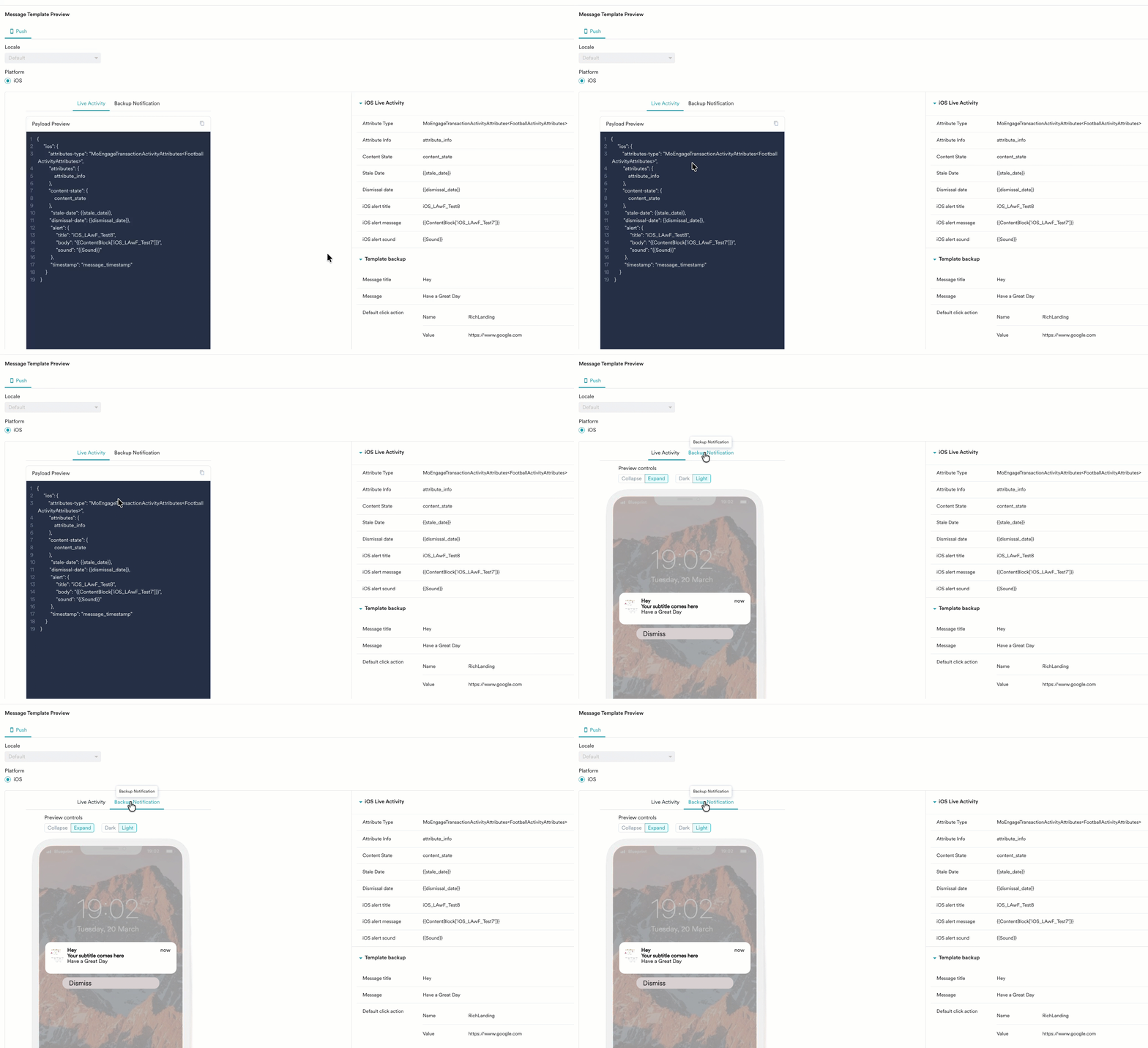
- The Alert ID or Reference ID mentioned above in the code snippets must be used while sending Live Alerts. In case you use the Test Alert ID that is available during Alert creation, the request will fail.
- The logs get populated instantaneously when an API request is received, and you can view them in the Alert Logs tab.