
Introduction

A config (or config file) defines each connector in the Connected Channel. While adding a new Connector or making changes to the existing ones, you must upload the config file to ensure the Connector is configured correctly.

Sample files

You can download these sample config files to get started:
File TypeDescription
Boilerplate CodeUse this file to get started for building your Connector.
Full Config FileThis file contains input types, requests, and responses.

Config Sections

A config file is divided into the following sections:
SectionKeyDetails
Basic Infobasic_infoIt contains basic connector details such as name, description, and type.
Input Variablesinput_variablesIt displays the input fields when you are using the connector. It allows you to set the following fields:
  • Data type: This contains Integer (Int), String, Boolean, JSON, Dropdown, and so on.
  • Visibility: This field appears during the campaign creation or integration in the App marketplace.
AuthenticationauthIt is the Authentication mechanism for your app that includes no auth and basic auth.
Request and ResponsemodulesIt constructs the API call that MoEngage makes to the app during campaign execution and provides an outline of the interpretation of the API responses by MoEngage.

File Format

The following is the file format of the config file: kkk
{
"basic_info": {
"name": "",
"description": "",
"type": "CHANNEL"
},
"input_variables": [{
"visibility_scope": "",
"key": "",
"event_export_key": "",
"name": "",
"required": "",
"type": "",
"encrypt": "",
"validations": [""]
}],
"auth": {
"auth_type": "",
"auth_info": "",
"alias": ""
},
"modules": [{
"name": "default",
"type": "REQUEST_RESPONSE",
"params": {
"request": {
"method": "",
"headers": {"": ""},
"url": "",
"url_params": {"": ""},
"body_type": "",
"body": ""
},
"response": [{
"body_type": "",
"datetime_format": "",
"evaluation_criteria": {},
"actions": []
}]
}
}]
}

Basic Info

In this section, you must define the name of your Connector and the use case it aims to solve.
KeyRequiredTypeDescription
nameYesStringIt is your Connector name. It is displayed when you create connections on the App marketplace.
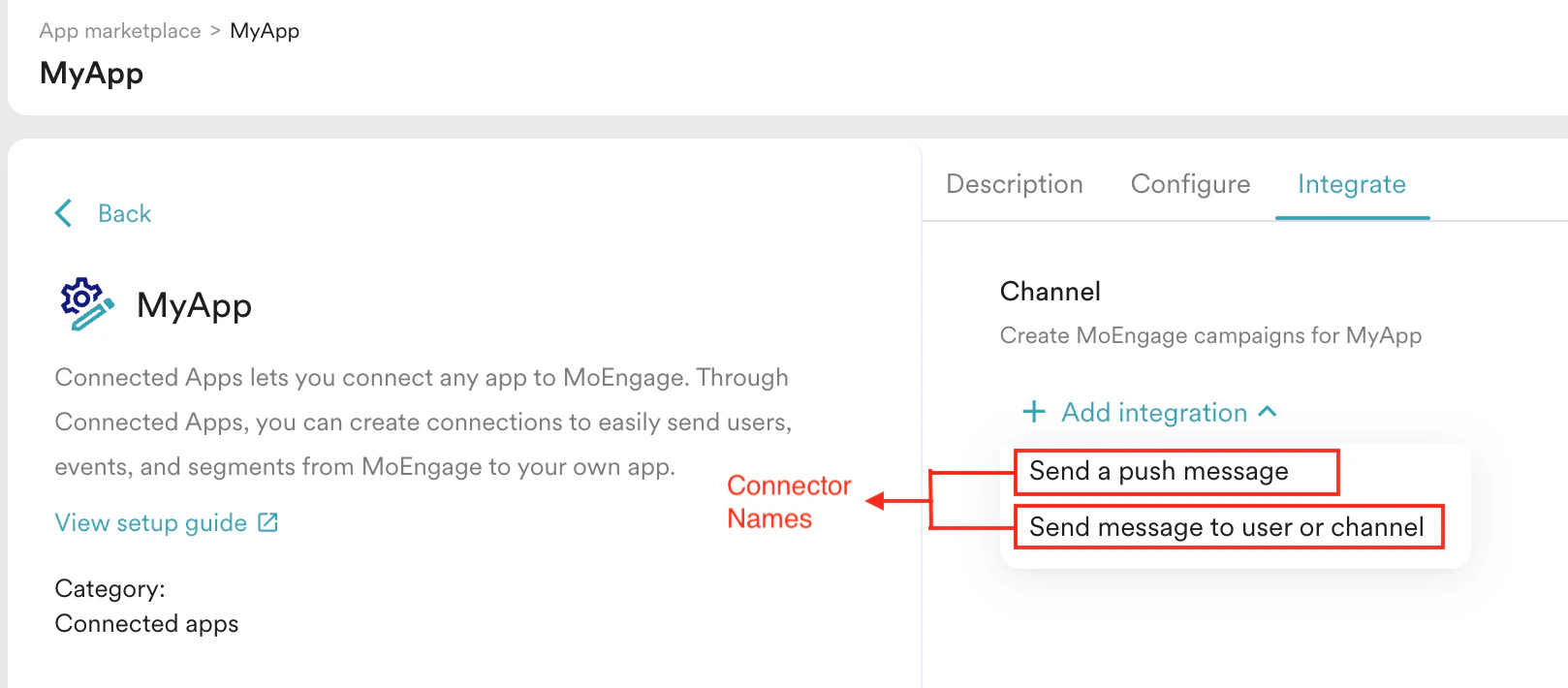
descriptionYesStringIt is a one-line description of the use case solved by your connector. For example, using this Connector, you can send text messages to your Telegram users via the Telegram Bot.
typeYesStringIt is your Connected Apps App type.

Input Variables

Input variables enable the rendering of input fields on the App marketplace. They facilitate the collection of required information necessary to successfully connect MoEngage to your app and effectively execute campaigns through it. To define an Input Variable, you must add the following to your input_variables section:
KeyRequiredTypeValid ValuesDescription
visibility_scopeYesString
  • app_marketplace
  • campaign
It is the location of your Input Variable or can be either of the following:
  • App marketplace
  • Campaign Creation (Step 2)
keyYesString
  • Only lowercase alphabets
  • No blank spaces
  • _ (Underscore), -(hyphen)
It is used to access the value of the input variable in the subsequent steps.
event_export_keyYesString
  • Only lowercase alphabets
  • No blank spaces
  • _ (Underscore), - (hyphen)
The key is sent while exporting your Events from MoEngage to other third-party apps, such as Data Warehouses.
nameYesStringOnly alphanumeric [0-9, a to z, A to Z], and_(Underscore),-(hyphen) and spacesIt is the label for your input variable.
requiredYesString
  • true
  • false
If the condition is true, this input is marked as mandatory on the UI.
typeYesString
  • text
  • number
  • bool
  • datetime
  • password
  • dropdown
  • radio
  • json
  • code
  • key_value
It determines what to display on the UI based on the excepted values.
validationsNoObjectRefer here for the validations.Use it when you want to restrict the values. You can add regex rules to add frontend validations.

Visibility Scope

The Input Variables are collected in the following places:
  • App Marketplace
  • Campaign Creation Form (Step 2)

App MarketPlace

Connections to your Channel App are added from the App marketplace, as shown below: In the App marketplace, you must collect fields that serve as authentication requirements or are common to all campaigns. These fields must be independent of campaign information. For example, collecting the Telegram Bot ID in the App marketplace is recommended. This allows you to execute multiple campaigns using the same Telegram Bot. On the other hand, collecting Telegram Chat IDs in the App marketplace is not recommended, as they are campaign-dependent and must be changed for each end-user.
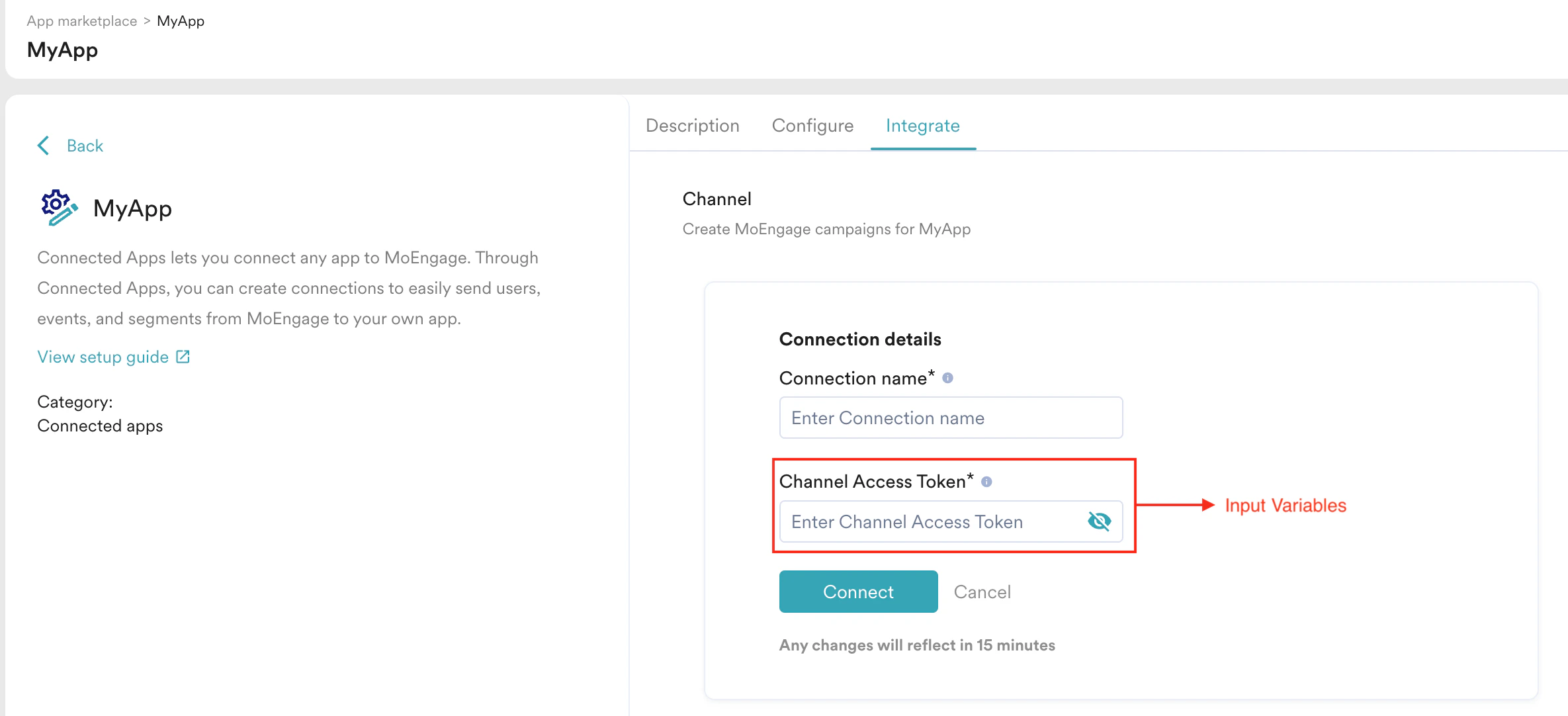
MoEngage displays the Connection name for each Connector in the App marketplace by default. This provides a visual identifier to distinguish the Connections.

Campaign Creation Form (Step 2)

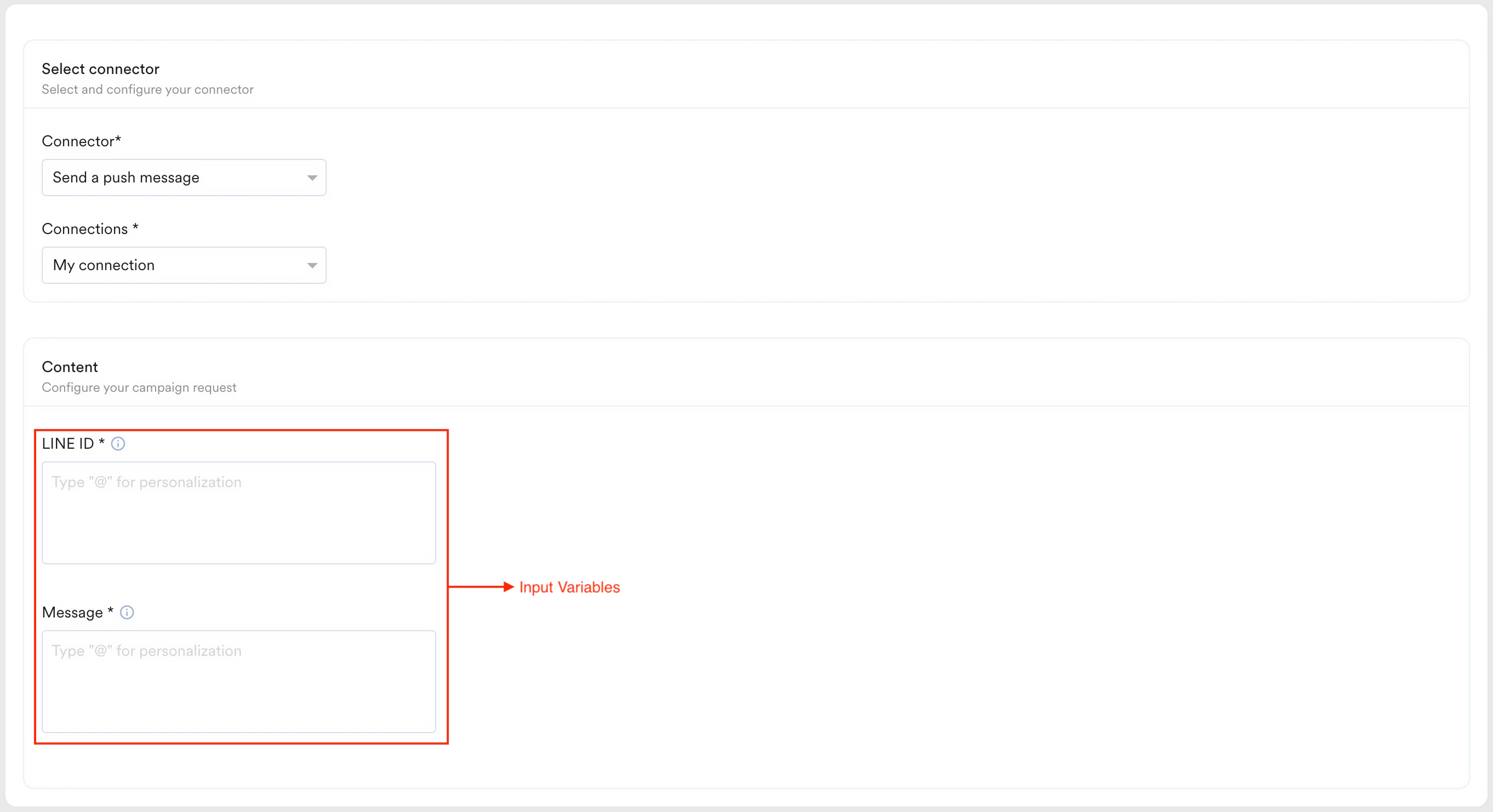
Connections to your Channel app are added from the campaign creation, as shown below:
Supported Input Types

All input types are available in the App marketplace and the campaign creation form (Step 2).
MoEngage currently supports the following input types:

Text

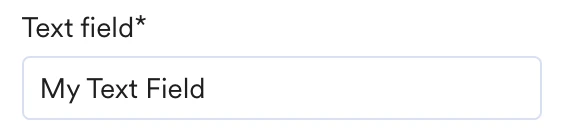
This input type allows users to enter any basic text or string value. It is displayed on the UI as a simple single-line text box, making it useful for soliciting short, free-text input, such as usernames or email addresses. To add a Text, follow the structure:
{
  "visibility_scope": "{{campaign or app_marketplace}}",
  "key": "{{key used in code}}",
  "event_export_key": "{{key used for events}}",
  "name": "display label",
  "required": {{true or false}},
  "type": "text",
  "validations": [{{array of validation rules if any}}]
}

Number

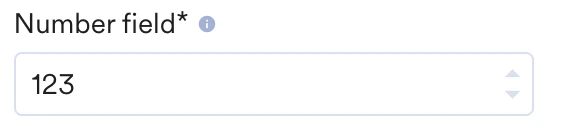
This input type is for numbers. It appears as a text box but only accepts numerical entries. Use it when collecting numeric values, such as age, ID, or quantity. To add a Number, follow the structure:
{
    "visibility_scope": "<campaign or app_marketplace>",
    "key": "<key used in code>",
    "event_export_key": "<key used for events>",
    "name": "<display label>",
    "required": <true or false>,
    "type": "number",
    "validations": [<array of validation rules if any>]
}
You can use validations to restrict the lower and upper bounds of the numeric input if required.

Boolean

This input type appears as a radio button and allows users to choose between two mandatory possibilities: True or False. It is used when you ask users to enable/disable a feature, agree/disagree, or make any binary choice. To add a Boolean, follow the structure:

{    "visibility_scope": "<campaign or app_marketplace>",
    "key": "<key used in code>",
    "event_export_key": "<key used for events>",
    "name": "<display label>",
    "required": <true or false>,
    "type": "bool"
}

DateTime

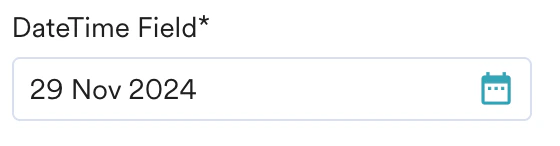
This input type is for date and time. It appears as a DateTime picker, allowing users to select a specific date and time. Use it when collecting data about a specific date or time, such as scheduling posts or reminders. To add a DateTime, follow the structure:
{
    "visibility_scope": "<campaign or app_marketplace>",
    "key": "<key used in code>",
    "event_export_key": "<key used for events>",
    "name": "<display label>",
    "required": <true or false>,
    "type": "datetime"
}

Password

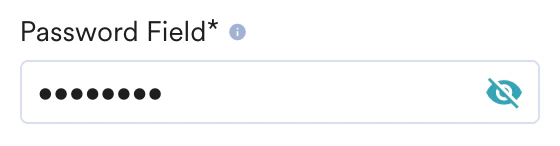
This input type is for password entry. It appears as a text box but masks user input for privacy. It must be used when requesting sensitive information from users, such as login addresses. To add a Password, follow the structure:
{
    "visibility_scope": "<campaign or app_marketplace>",
    "key": "<key used in code>",
    "event_export_key": "<key used for events>",
    "name": "<display label>",
    "required": <true or false>,
    "type": "password",
    "validations": [<array of validation rules if any>]
}
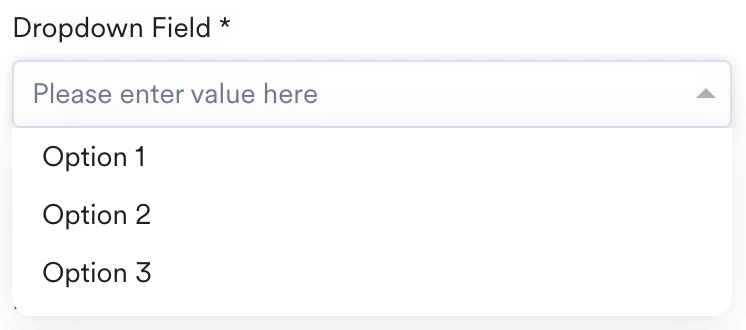
This input type allows users to choose multiple options in multi-select mode. It is recommended when you have a predetermined set of options and prefer to restrict input without allowing free-text entry. To add a Drop-down List, follow the structure:
{
    "visibility_scope": "<campaign or app_marketplace>",
    "key": "<key used in code>",
    "event_export_key": "<key used for events>",
    "name": "<display label>",
    "required": <true or false>,
    "type": "dropdown",    "allow_multiple": <true or false>, // If true, multiple options can be selected
    "options": [
        {
            "label": "Option 1", // This value will be shown on the UI
            "key": "key_1" // This will be the selected value passed
        },
        {
            "label": "Option 2",
            "key": "key_2"
        },
        {
            "label": "Option 3",
            "key": "key_3"
        }
    ]
}

Hash Maps

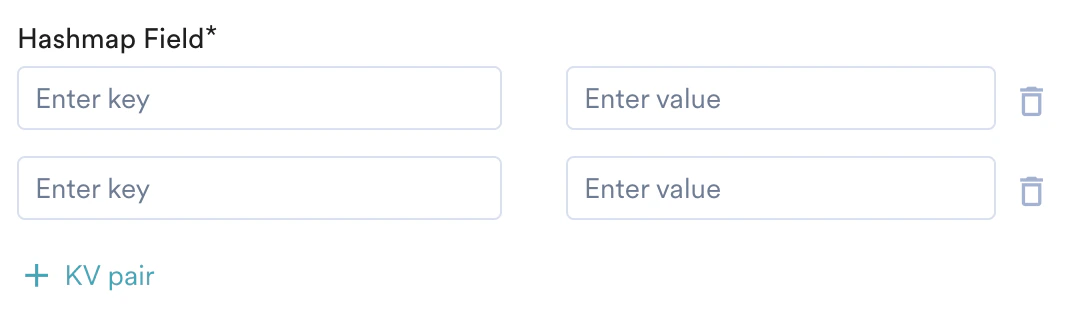
This input type is used for key-value pair inputs. It appears as two interconnected input boxes for key and value. Use this when you require key-value data, such as settings or configurations. Hashmap.png To add a Hasmap, follow the structure:
{
  "visibility_scope": "{{campaign or app_marketplace}}",
  "key": "{{key used in code}}",
  "event_export_key": "{{key used for events}}",
  "name": "display label",
  "required": {{true or false}},
  "type": "key_value"
}

Input Validations

When defining input types that support validation, such as Text and Password, it is necessary to establish predetermined rules for validating the values entered by the user on the UI. You can add validations with the following key inside your input variables:
"validations": [
    {
        "text": "Rule description",
        "regex": "<regex expression>"
    }
]
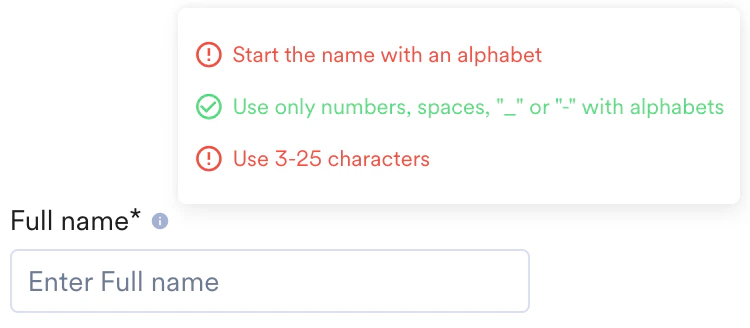
Here is an example of a Full Name field which has three individual rules:
"validations": [
    {
        "text": "Start the name with an alphabet",
        "regex": "^[A-Za-z]"
    },
    {
        "text": "Use only numbers, spaces, \"_\" or \"-\" with alphabets",
        "regex": "^[a-zA-Z0-9-_ ]*$"
    },
    {
        "text": "Use 3-25 characters",
        "regex": "^[a-zA-Z0-9 -_]{3,25}$"
    }
]
Each of these rules is shown to the user on the UI to guide them toward valid input:

Reference Input Variables

After collecting values for your Input Variables from the user, you can use them in the following sections:
  • Authentication
  • Request and Response
You can use the JINJA code to reference an input variable. This referencing mechanism is similar to personalization in MoEngage. For example, consider the following Input Variables:
  • From the App marketplace:
    Username: String
  • From the Campaign Creation Form (Step 2):
    Mobile Number: String
To reference these variables, use the following JINJA code:
{{AppMarketplaceForm["username"]}}
{{CampaignCreationForm["mobile_number"]}}
These Input Variables capture the user’s input, which can be used during authentication or included as part of the API request payload.

Authentication

In this section, you can define the authentication required for your App. MoEngage enables sending requests to your App, and the Connected Channels support the following built-in authentication types:
  • No Auth
  • Basic Auth
  • API Key Auth
  • OAuth2
KeyRequiredTypeDescription
auth_typeYesStringIt represents the type of authentication you want to use for the Connector. The valid options are
  • no_auth
  • basic_auth
  • oauth
auth_infoYesObjectIt represents the authentication details, which depend on the type of authentication you selected.
aliasYesStringNIL

No Auth

You can choose No Auth when your App does not need authentication or you have a custom implementation of standard authentication methods. If you select No Auth, MoEngage does not execute any pre-authentication operations on your requests. When using “No Auth,” choose No Auth as the app type. If necessary, you can include custom URL parameters or headers for your API.
"auth": {
    "auth_type": "no_auth",
    "auth_info": {},
    "alias": "valid_alias"
}
You must pass an empty object in the auth_info key, as no additional information is required for this app type.

Basic Auth

If your App supports Basic Auth, you can collect the username and password on the App marketplace and pass them as part of your Basic Auth Token for each request. To add Basic Auth, follow the structure:
"auth": {
    "auth_type": "basic_auth",
    "auth_info": {
        "username": "{{AppMarketplaceForm[\"account_id\"]}}",
        "password": "{{AppMarketplaceForm[\"account_key\"]}}"
    },
    "alias": "valid_alias"
}
In the example above, we refer to the values entered by the user on the App Marketplace form. MoEngage generates a Base64-encoded Basic Auth token and includes it in each request’s Authorization header. For example, if the Account ID is ABC123 and the Account Key is 123XYZ, you must pass the following header in each of our requests: Authorization: Basic QUJDMTIzOjEyM1hZWg==

OAuth2

If your App uses the OAuth2 framework for authorization, you can configure MoEngage to handle the entire flow, including obtaining user consent and managing access and refresh tokens.
MoEngage supports the following OAuth2 grant types:
  • Authorization Code
  • Refresh Token

Special Authentication Variables

MoEngage exposes a few special variables that can be referenced to support the OAuth2 mechanism within your App:
NameJINJA Reference CodeDescription
Redirect URI{{AppMarketplaceForm[\"redirect\_uri\"]}}The Redirect URI is used to redirect the user from your app’s consent page. This is dynamically calculated based on your user’s data center. For up-to-date authorized MoEngage URLs, refer to the table below.
State{{AppMarketplaceForm[\"state\"]}}An opaque, arbitrary alphanumeric string that MoEngage adds to the initial request. Your app must include this string when redirecting back to MoEngage.
Authorization Code{{AppMarketplaceForm[\"auth\_code\"]}}This is the authorization code that your app receives after obtaining the user’s consent.
Access Token{{AppMarketplaceForm[\"MOE\_ACCESS\_TOKEN\_DEFAULT\"]}}This is the Access Token that MoEngage will send in subsequent calls to authorize the user.
Refresh Token{{AppMarketplaceForm[\"refresh\_token\"]}}This is the Refresh Token used to renew the Access Token when it expires.
You can reference the above variables when setting up your OAuth2 calls and connector requests. .

Redirect URI

The Redirect URI will depend on which Data Center your app is added to: If you want to list your app in all the data centers, you must approve each of the Redirect URIs.

Set up OAuth for your App

To add OAuth2, follow the structure:
"auth": {
    "auth_type": "oauth",
    "auth_info": {
        "authorization_mapping": {
            "method": "GET",
            "headers": {
        	   "": ""
},
            "url": "",
            "url_params": {
                "response_type": "code",
                "client_id": "{{AppMarketplaceForm[\"client_id\"]}}",
                "redirect_uri": "{{AppMarketplaceForm[\"redirect_uri\"]}}",
                "state": "{{AppMarketplaceForm[\"state\"]}}",
                "scope": ""
            },
            "body_type": "JSON",
            "auth_code_mapping": "code"
        },
        "access_token_mapping": {
            "method": "POST",
            "headers": {
                "Content-Type": "application/x-www-form-urlencoded",
        	   "": ""
            },
            "url": "",
            "url_params": {
          "": ""
             },
            "body_type": "FORM",
            "body": "[{\"name\":\"grant_type\",\"value\":\"authorization_code\"},{\"name\":\"code\",\"value\":\"{{AppMarketplaceForm[\"auth_code\"]}}\"}, {\"name\":\"redirect_uri\",\"value\":\"{{AppMarketplaceForm[\"redirect_uri\"]}}\"}, {\"name\":\"client_id\",\"value\":\"{{AppMarketplaceForm[\"client_id\"]}}\"}, {\"name\":\"client_secret\",\"value\":\"{{AppMarketplaceForm[\"client_secret\"]}}\"}]",
            "response_mapping": {
                "access_token_mapping": "access_token",
                "access_token_expiry_mapping": "expires_in"
            },
            "access_token_expiry_time": 3600 // time in seconds
        },
        "refresh_token_mapping": {
            "method": "POST",
            "headers": {
                "Content-type": "application/x-www-form-urlencoded"
            },
            "url": "",
            "url_params": {},
            "body_type": "FORM",
            "body": "[{\"name\":\"grant_type\",\"value\":\"refresh_token\"},{\"name\":\"refresh_token\",\"value\":\"{{AppMarketplaceForm[\"refresh_token\"]}}\"}, {\"name\":\"client_id\",\"value\":\"{{AppMarketplaceForm[\"client_id\"]}}\"}, {\"name\":\"client_secret\",\"value\":\"{{AppMarketplaceForm[\"client_secret\"]}}\"}]",
            "response_mapping": {
                "refresh_token_mapping": "refresh_token",
                "refresh_token_expiry_mapping": null
            },
            "refresh_token_expiry_time": 36000 // time in seconds
        },
        "client_id": "{{AppMarketplaceForm[\"client_id\"]}}",
        "client_secret": "{{AppMarketplaceForm[\"client_secret\"]}}",
        "grant_type": [
            "refresh_token",
            "authorization_code"
        ]
    }
}
The auth module for OAuth2 must have the following keys:
KeyRequiredTypeValid ValuesDescription
authorization_mappingYesObjectFor more information, refer to the sections below for the Object mappings.Define your app’s authorization request for MoEngage to obtain the user’s consent.
access_token_mappingYesObjectFor more information, refer to the sections below for the Object mappings.Define the Access Token Request format for your app to collect a valid access token to be used in subsequent calls to MoEngage.
refresh_token_mappingYesObjectFor more information, refer to the sections below for the Object mappings.Define the Refresh Token Request format for your app with MoEngage to obtain a new valid access token, which will be used for subsequent calls when the previous access token is nearing expiry or has already expired.
client_idYesStringThis is the value of the Client ID. Input variable references are supported here.The Client ID of your app. If this is the customer’s app, you can collect this value through the App Marketplace input variables.
client_secretYesStringThis is the value of the Client Secret. Input variable references are supported here.The Client Secret of your app. If this is the customer’s app, you can collect this value through the App Marketplace input variables.
grant_typeYesArray of StringsThis is the list of Grant Types supported by the App:
  • authorization_code
  • refresh_token
The grant types supported by your app.
To allow MoEngage to get consent and tokens from your application, configure the parameters for the following requests:

Authorization Request

KeyRequiredTypeValid ValuesDescription
methodYesString
  • GET
  • POST
    Usually, this is a GET request.
The HTTP method for the authorization request.
headersYesObject{ "header_name": "header_value" }You can include key-value pairs of custom headers you want to pass in your authorization request. Input variable references are supported here.
urlYesStringValid URLs. If JINJA is used, it should be correctly formed.The consent URL where the user will be redirected to provide their consent. Input variable references are supported here.
url_paramsYesObject{ "url_param": "param_value" }
  • You can include key-value pairs of custom headers in your authorization request.
  • References to input variables are supported in this context.
  • If you don’t have any custom URL parameters to add, you can simply use an empty object.
body_typeYesStringThis should be JSON.The body type of the authorization request. For GET requests, leave this as JSON.
auth_code_mappingYesStringThe key from the identity provider’s response.The key that contains the authorization code in the URL parameters of the callback response from the authorization server.
Example 1:
URL: https://example-app.com/cb?code=AUTH_CODE_HERE&state=1234zyx ”auth_code_mapping”: “code”
Example 2:
URL: https://example-app.com/cb?my_custom_auth_code=AUTH_CODE_HERE&state=1234zyx ”auth_code_mapping”: “my_custom_auth_code”

Access Token Request

KeyRequiredTypeValid ValuesDescription
methodYesString
  • GET
  • POST
    Usually, this is a POST request.
The HTTP method for the access token request.
headersYesObject{ "header_name": "header_value" }
  • You can include key-value pairs of custom headers you want to pass in your access token request. Input variable references are supported here.
  • If you do not have any custom headers to add, you can make this an empty object.
urlYesString
  • Valid URLs.
  • If JINJA is used, it should be correctly formed.
The URL to fetch the access token. Input variable references are supported here.
url_paramsYesObject{ "url_param": "param_value" }
  • You can include key-value pairs of custom URL parameters that you want to pass in your access token request. Input variables’ references are supported here.
  • If you do not have any custom URL parameters to add, you can make this an empty object.
body_typeYesStringFORM (application/x-www-form-urlencoded) JSON (application/json) Usually, this should be FORM.The body type of the access token request.
bodyYesStringA stringified JSON array for FORM type or a valid stringified JSON for JSON type. A stringified JSON array of key-value pairs for the FORM type or a valid stringified JSON for the JSON type. Example for FORM type: Structure "[{\"name\":\"grant\_type\",\"value\":\"authorization\_code\"},{\"name\":\"code\",\"value\":\"{{AppMarketplaceForm[\"auth\_code\"]}}\"}, {\"name\":\"redirect\_uri\",\"value\":\"{{AppMarketplaceForm[\"redirect\_uri\"]}}\"}, {\"name\":\"client\_id\",\"value\":\"{{AppMarketplaceForm[\"client\_id\"]}}\"}, {\"name\":\"client\_secret\",\"value\":\"{{AppMarketplaceForm[\"client\_secret\"]}}\"}]" For the FORM type, you must pass an array of objects. Each object will have a name and a value key. Example for JSON type: Structure { "grant_type": "authorization_code", "code": "{{AppMarketplaceForm[\"auth\_code\"]}}", "redirect\_uri": "{{AppMarketplaceForm[\"redirect\_uri\"]}}", "client\_id": "{{AppMarketplaceForm[\"client\_id\"]}}", "client\_secret": "{{AppMarketplaceForm[\"client\_secret\"]}}" }The body of the request to fetch the access token. Input variable references are supported here.
response_mappingYesObjectAn Object containing the following keys: {"access_token_mapping": ""}{"access_token_expiry_mapping": ""}Defines how to map the keys in the API response to the access token and its expiry time. Defines how to map the keys in the API response to the access token and its expiry time. Example 1: Response: Structure { "expires_in": 3600, "token_type": "Bearer", "refresh_token": "", "access_token": "" } Mappings: Structure { "code": 200, "message": "success", "data": { "access_token": "", "advertiser_ids": [], "scope": "", "refresh_token": "", "refresh_token_expires_in": 15778800 }, "request_id": "" } Example 2: Response: Structure { "code": 200, "message": "success", "data": { "access_token": "", "advertiser_ids": [], "scope": "", "refresh_token": "", "refresh_token_expires_in": 15778800 }, "request_id": "" } Mappings: Structure "response_mapping": { "access_token_mapping": "data.access_token", "access_token_expiry_mapping": null }, "access_token_expiry_time": 15778800
access_token_expiry_timeYesNumberTime in seconds.A default expiry time for the access token in seconds. This is used as a fallback if the API response does not provide an expiry time. If you have provided a mapping for the access token expiry in the response_mapping section, you can leave this as: {"access_token_expiry_time": null}

Refresh Token Request

KeyRequiredTypeValid ValuesDescription
methodYesString
  • GET
  • POST
    Usually, this is a POST request.
The HTTP method for the refresh token request.
headersYesObject{ "header_name": "header_value" }
  • You can include key-value pairs of custom headers you want to pass in your refresh token request. Input variable references are supported here.
  • If you do not have any custom headers to add, you can make this an empty object.
urlYesStringValid URLs. If JINJA is used, it should be correctly formed.The URL to fetch the refresh token. Input variable references are supported here.
url_paramsYesObject{ "url_param": "param_value" }
  • You can include key-value pairs of custom URL parameters that you want to pass in your refresh token request. Input variables’ references are supported here.
  • If you do not have any custom URL parameters to add, you can make this an empty object.
body_typeYesStringFORM (application/x-www-form-urlencoded) JSON (application/json) Usually, this should be FORM.The body type of the refresh token request.
bodyYesStringA stringified JSON array for the FORM type or a valid stringified JSON for the JSON type. Example for the FORM type: JSON {{AppMarketplaceForm[\"MOE\_ACCESS\_TOKEN\_DEFAULT\"]}} JSON "[{\"name\":\"grant\_type\",\"value\":\"refresh\_token\"},{\"name\":\"code\",\"value\":\"{{AppMarketplaceForm[\"auth\_code\"]}}\"}, {\"name\":\"redirect\_uri\",\"value\":\"{{AppMarketplaceForm[\"redirect\_uri\"]}}\"}, {\"name\":\"client\_id\",\"value\":\"{{AppMarketplaceForm[\"client\_id\"]}}\"}, {\"name\":\"client\_secret\",\"value\":\"{{AppMarketplaceForm[\"client\_secret\"]}}\"}]" For the FORM type, you need to pass an array of objects. Each object will have a name and a value key. Example for JSON type: JSON { "grant\_type": "refresh\_token", "code": "{{AppMarketplaceForm[\"auth\_code\"]}}", "redirect\_uri": "{{AppMarketplaceForm[\"redirect\_uri\"]}}", "client\_id": "{{AppMarketplaceForm[\"client\_id\"]}}", "client\_secret": "{{AppMarketplaceForm[\"client\_secret\"]}}" }The body of the request to refresh the token. Input variable references are supported here.
response_mappingYesObjectObject with keys: {"refresh_token_mapping": ""}{"refresh_token_expiry_mapping": ""}Defines how to map the keys in the API response to the refresh token request and its expiry time. Example 1: Response: JSON { "expires_in": 3600, "token_type": "Bearer", "refresh_token": "", "refresh_token_expires_in": 21600 "access_token": "" } Mappings: JSON "response_mapping": { "refresh_token_mapping": "refresh_token", "refresh_token_expiry_mapping": "refresh_token_expires_in" } Example 2: Response: JSON { "code": 200, "message": "success", "data": { "access_token": "", "advertiser_ids": [], "scope": "", "refresh_token": "", "refresh_token_expires_in": 15778800 }, "request_id": "" } Mappings: JSON "response_mapping": { "refresh_token_mapping": "data.refresh_token", "refresh_token_expiry_mapping": "data.refresh_token_expires_in" }, "refresh_token_expiry_time": null
refresh_token_expiry_timeNoNumberTime in seconds.
  • A default expiry time for the refresh token in seconds. This is used as a fallback if the API response does not provide an expiry time.
  • If you have provided a mapping for the refresh token expiry in the response_mapping section, you can leave this as: {"refresh_token_expiry_mapping": null}

Request and Response

In this section, you must set up the API requests that MoEngage initiates for each campaign sent. After a request is made from MoEngage, you can set up how the Campaign Stats are calculated based on your API requests’ responses.
MoEngage does not support stats that might be asynchronous or driven by callbacks today.

Campaign Requests

MoEngage attempts to send API requests to your App each time a campaign is sent out.
For example, if a campaign is directed to 50 users, MoEngage makes 50 API requests for that campaign.
  • Frequency Capping or Do-Not-Disturb (DND)
  • Throttling
  • Bulk API requests
  • Multiple API requests (Chained API requests)
To configure a response, add this to your config:
"modules": [
  {
      "name": "default",
      "type": "REQUEST_RESPONSE",
      "params": {
          "request": {},
          "response": []
      }
  }
]

Request Format

The request format informs MoEngage about the request’s payload.
"request": {
    "method": "<HTTP method: GET, POST etc>",
    "headers": {
        "<header_name>": "<header_value>"
    },
    "url": "<API endpoint url>",
    "url_params": {
        "<url_param_name>": "<url_param_value>"
    },
    "body_type": "<body type: JSON, form data etc>",
    "body": "<body content>"
}
KeyRequiredTypeValid OptionsDescription
methodYesString
  • GET
  • POST
  • PUT
  • PATCH
  • DELETE
The method defines the request’s API.
headersYesObject{ "header_name": "header_value" }You can include key-value pairs of custom headers you want to pass in your API requests. Input variable references are supported here. If you do not have any custom headers to add, you can make this an empty object.
urlYesString
  • Valid URLs
  • If JINJA is used, it should be correctly formed
It is used to specify the complete endpoint of your API request. Input variable references are supported here.
url_paramsYesObject{ "url_param": "param_value" }You can include key-value pairs of custom headers that you want to pass in your API requests. Input variables’ references are supported here. If you do not have any custom URL parameters to add, you can make this an empty object.
body_typeYesStringJSONThe payload format.
bodyYesStringNILIt is the payload of your API request. Input variables’ references are supported here.

Response Handling

After making an API request, you can inform MoEngage how to interpret the response. You can also add multiple responses to your request by covering all your responses, such as successes and failures. A response consists of two parts:
  • Response conditions: Based on the response provided by your API, you can add conditions to its Status Code, Header Values, or even the body payload. When these conditions are fulfilled, you can perform actions in MoEngage.
  • Response actions: Actions are operations performed by MoEngage.

Use Cases

There are several use cases for response handling. The following are the types of tracking used for various use cases:
  • Stats tracking: This displays accurate Success and Failed stats for your campaigns.
  • Event tracking: These are trigger events that occur when certain conditions are fulfilled. They can help you to create other journeys for your users.

Add a Response

To add a response, follow the structure:
"response": [
    {
        "body_type": "<body type: JSON, STRING etc>",
        "datetime_format": "<datetime format if required>",
        "evaluation_criteria": {...} , // Specify your evaluation criteria for success or failure
        "actions": [...] // Actions to be taken based on evaluation
    }
]
KeyRequiredTypeValid OptionsDescription
body_typeYesStringJSONIt specifies the format of the response. Currently, MoEngage supports only JSON responses.
datetime_formatYesStringValid datetime formats.If your response returns at least one datetime value, it is recommended that you provide the format of the expected datetime value so that MoEngage can accurately parse it.
evaluation_criteriaYesObjectRefer to the following sections for the evaluation criteria.The evaluation criteria for the response are as follows:
  • If the conditions are satisfied, MoEngage performs the specified actions.
actionsYesObjectRefer to the following sections for the actions.The actions must be performed when the response conditions are fulfilled. The list of supported actions is included below.
data_typeYesStringFor Status codes: double
For Headers: string
For Body:
  • double
  • string
  • bool
  • datetime
  • object
    Refer here for a complete list of accepted values.
This defines the expected data type of the value.

Response Conditions

Here, you can include multiple conditions for each response, combining both AND and OR operators. If you have prior experience with MoEngage Segmentation, you can leverage that. The following is to add a new condition:
"evaluation_criteria": {
    "filters": [
        {
            "name": "response_code" or "response_body" or "response_headers",
            "data_type": "<data_type>",
            "operator": "<operator>",
            "value": "<value>",
            "negate": true/false,
            "case_sensitive": true/false
        }
    ],
    "filter_operator": "<operator>"
}
Each condition is called a Filter in MoEngage. The following conditions function similarly to our segmentation filters:
KeyRequiredTypeValid OptionsDescription
filter_operatorYesString
  • and
  • or
This defines how filters must be applied. It is the logical relation between filters.
filtersYesArrayAn array of Filter objectsThe specific conditions are defined using an array of filter objects.
nameYesString
  • response_code
  • response_headers
  • response_body
It defines which part of the response is to be checked. For example, values can be “response_code,” “response_body,” and so on.
data_typeYesStringFor Status codes: double
For Headers: string
For Body:
  • double
  • string
  • bool
  • datetime
    Refer here for a complete list of accepted values.
This defines the expected data type of the value.
operatorYesStringRefer here for a complete list of accepted values.It represents the operator to be used for comparison
valueRequired for all operators except ‘exists’
  • String
  • Number
  • Boolean
NILIt is a value to be used for comparison.
value1Required for operator ‘between’String Number BooleanNILIt is the second value to be used for comparison. In the case of between, it works as follows: value <= attribute_value <= value1
negateOptionalBoolean
  • true
  • false
This field is used to identify which current query is negative. The default value is false. For example, email != ‘test.moe.com’ In this example, the operator is ‘is,’ negate=true, and value=‘test@moe.com
case_sensitiveOptionalBoolean
  • true
  • false
This field indicates whether the string is case-sensitive. To add the case-sensitive condition, choose case_sensitive=true. Then, the default value is false.
Below is an example of evaluation criteria to check if the API’s Response Status Code is 200 and if it returns {"ok": true} in the payload:
"evaluation_criteria": {
  "filters": [
      {
          "name": "response_code",
          "data_type": "double",
          "operator": "is",
          "value": 200,
          "negate": false,
          "case_sensitive": false
      },
      {
          "name": "response_body",
          "data_type": "object",
          "filter_operator": "and",
          "filters": [
              {
                  "name": "ok",
                  "data_type": "bool",
                  "operator": "is",
                  "value": true,
                  "negate": false,
                  "case_sensitive": false
              }
          ]
      }
  ],
  "filter_operator": "and"
}
You are allowed to create conditions customized for your App. The accuracy of these conditions directly influences MoEngage’s ability to trigger events and display statistics effectively.

Response Actions

Here, you can have MoEngage perform actions based on the above-mentioned conditions. Currently, MoEngage supports the Create Event actions.

Create Event

These tracks use cases like Messages sent, Users synced, and so on. With this action, you can use MoEngage to trigger an event. Below is the structure to add an Event for your response:
"actions": [
    {
        "type": "CREATE_EVENT",
        "config": {
            "event": {
                "name": "Connected App Campaign Failed"
            },
            "attributes": [
                {
                    "key": "Attribute Name",
                    "value": "Attribute Value"
                }
            ]
        }
    }
]
To ensure accurate calculation of your Campaign Stats, specifically for Sent and Failed events, the following two events must be added as part of your Actions:
  • Connected App Campaign Sent
  • Connected App Campaign Failed
KeyRequiredTypeValid OptionsDescription
typeYesStringCREATE_EVENTIt represents the type of action you want to perform.
configYesObjectNILIt represents the required details of the action that you must perform.
eventYesObjectNILIt is the event that triggered this action.
event.nameYesStringNILIt is the name of your event.
event.attributesYesObject-ArrayNILAn array of different key-value pairs of attributes as part of your event.
event.attributes[].keyYesStringNILIt is the name of the event attribute. This can be a Display Name of the attribute.
event.attributes[].valueYesStringNILIt is the value of the event attribute. Input variables’ references are supported here.
MoEngage also includes the following default standard event attributes to facilitate better tracking for users.
Attribute NameDescription
App nameIt is the name of your Connected App.
Integration typeIt is the name of your Channel Connector.
Campaign nameIt represents the name of the campaign associated with this event.
Campaign IdIt is the ID of the campaign associated with this event.
Parent Campaign IDIt is tracked when a periodic campaign is run and represents the campaign ID of the parent periodic campaign. Child instances of this parent campaign are re-run on a recurring basis.
Version IdIt represents the Version Name to which the journey campaign belongs and is tracked during campaign execution.
Version NameIt represents the name of your campaign journey.
Campaign ChannelThe Campaign Channel is always Connected Apps.
Readable Campaign IdIt provides a readable Campaign ID for easy identification.
Campaign TypeIt represents the type of campaign to which the message belongs.
Delivery TypeIt represents the Delivery type (one-time, periodic, and so on of the campaign.
Campaign TagsIt represents the tags added to the campaign and is tracked in all campaign-related events.
Parent Flow IdIt represents the flow ID of the parent journey campaign and is tracked during the campaign’s execution.
Parent Flow NameIt represents the flow name of the parent journey campaign and is tracked when the journey campaign is run.

Upload the Config File

After you are ready with your configuration file, refer here to upload it to your Connected App on the App marketplace.