

Introduction
The Connected Apps platform enables you to integrate MoEngage with your existing marketing technology (MarTech) tools. This integration creates new MoEngage channels for sending and receiving data, which helps you streamline your campaigns and customer interactions.Step 1: Create a Connected App
To create a connected app:- On the left navigation menu in the MoEngage dashboard, click App marketplace.
-
On the App marketplace page, click + Create app.

-
On the Create app dialog box, enter the following details:
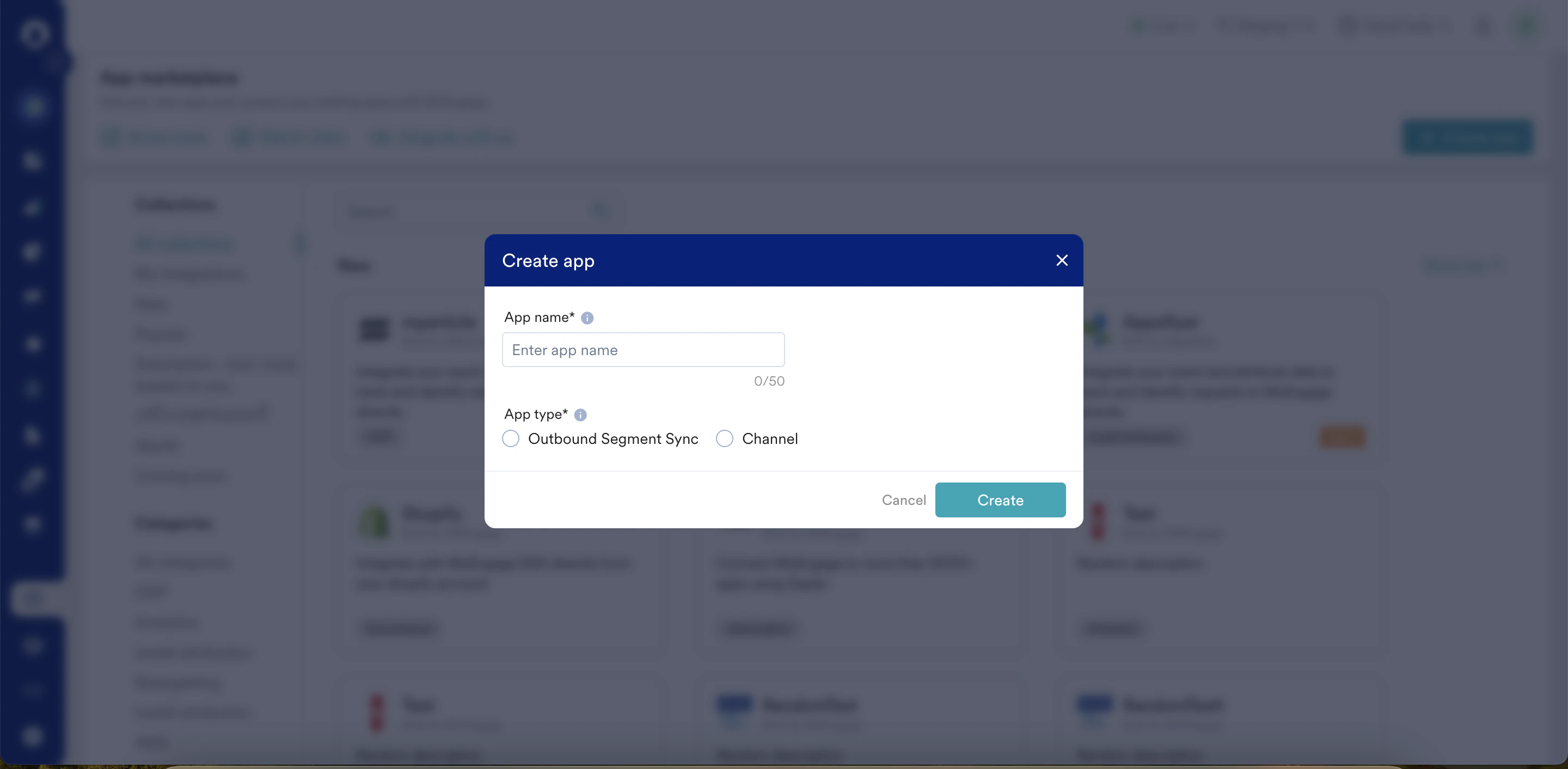
-
Click Create. This will add your connected app as a connected channel in MoEngage. You will then be directed to the connected app page.

Step 2: Add a Channel Connector
After creating a connected channel, you must define its use cases. These use cases help you define how MoEngage will run and analyze campaigns for the app. Refer to the following examples to understand the use cases:
After you define the use cases, add these connectors to your app.
Step 2.1: Create a Config File
Every connector needs a config to be used as a blueprint to instruct MoEngage to interact with the app. For more information on creating your config file for your connector, refer to the Channel Connector Config Guide.Step 2.2: Add a New Connector
After the config file is ready, perform the following steps to create a connector for your channel:- On the connected app page in App marketplace, click the Configure tab, and then click + Add configuration.
- In the Upload config section, upload the config file (.json) created in step 2.1. If the upload is successful, proceed to the next step.
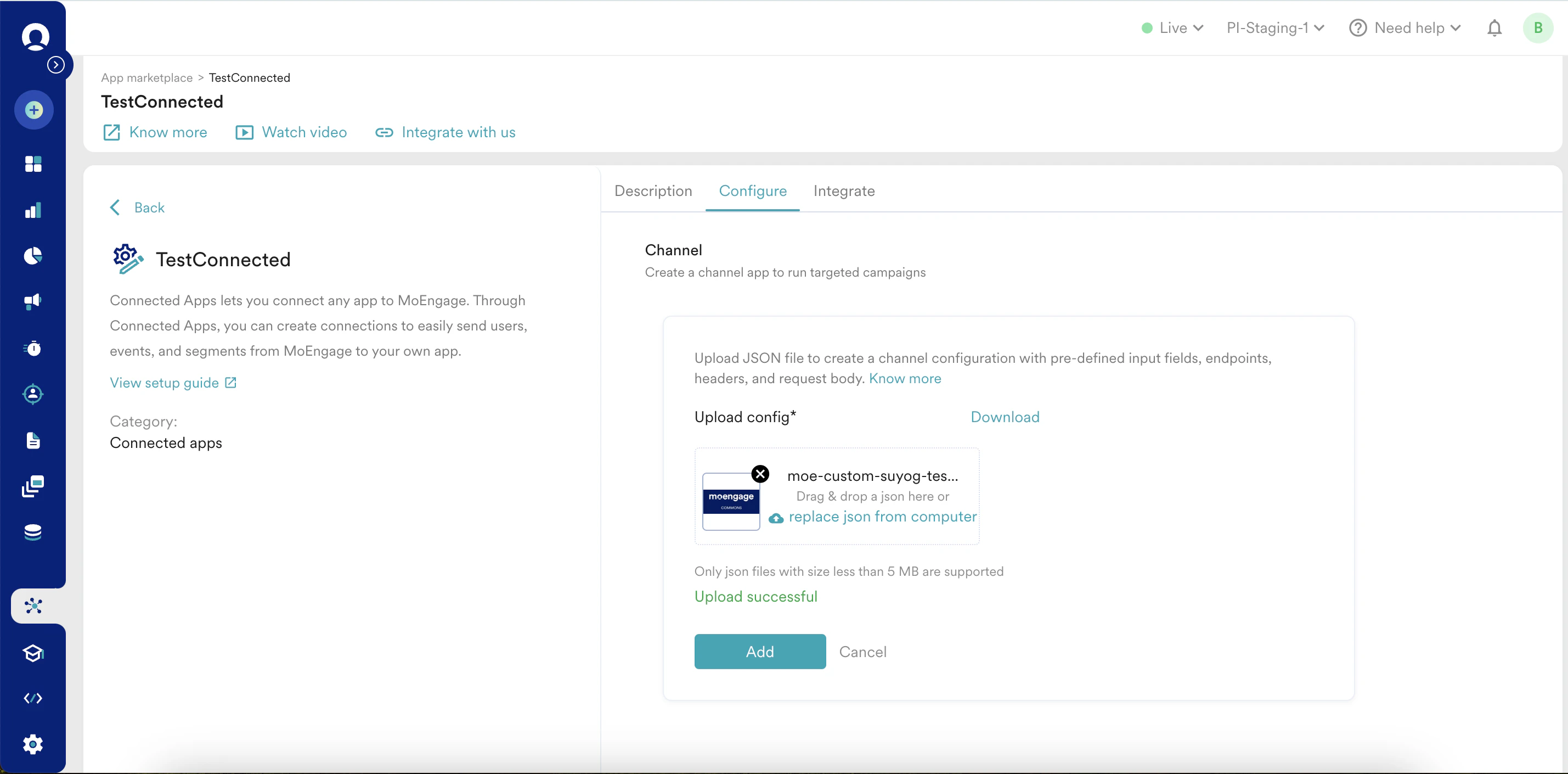
- Click Add.
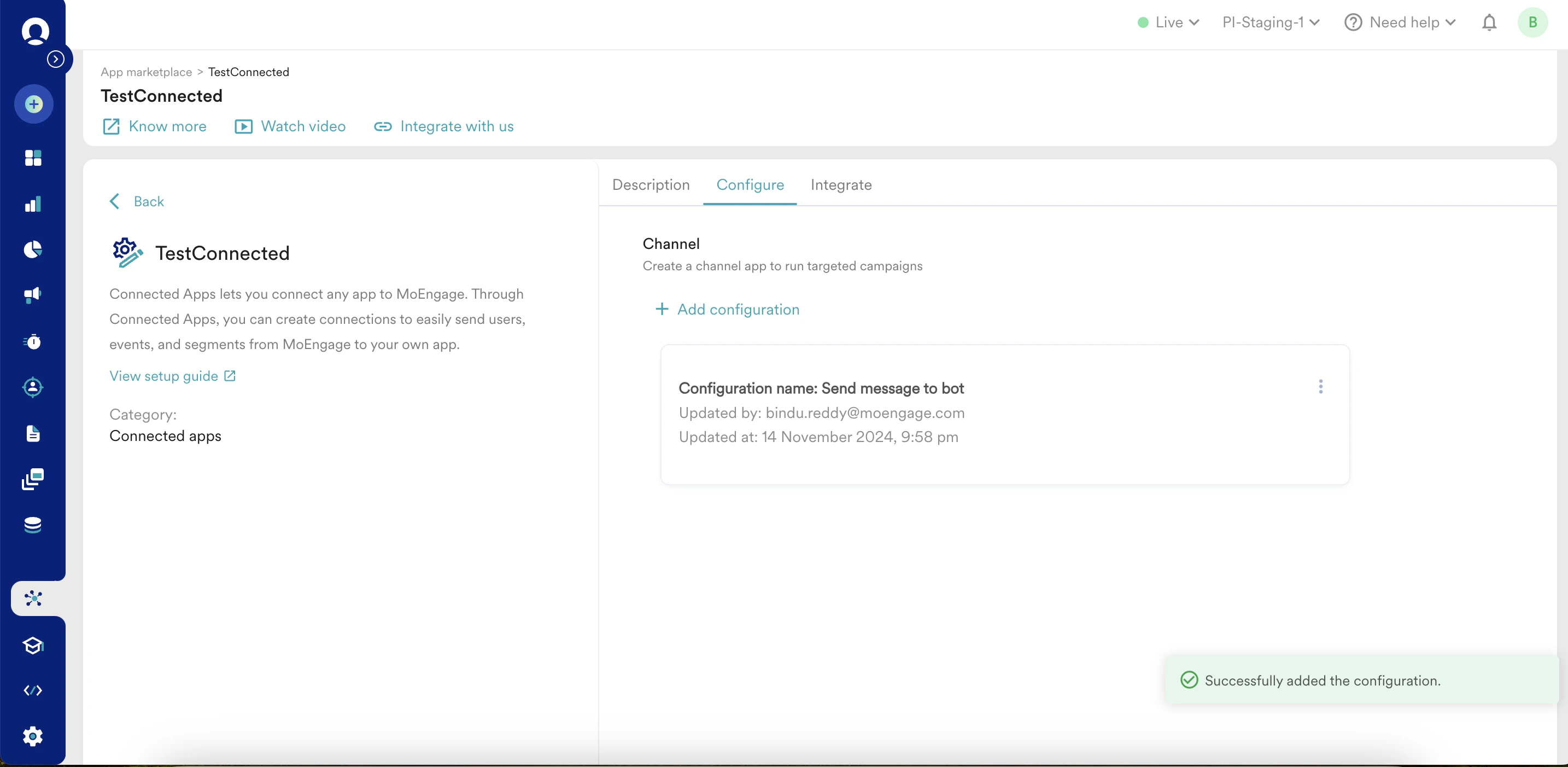
Click + Add configuration to add multiple connectors.
Edit the Connector Config
If there are any issues with the earlier config, replace it with a new file.- In the Upload config section, click the ellipse icon ( ).
- Click Edit.
- Click the cross icon.
- Repeat the steps mentioned in step 2.2 to add the new config.
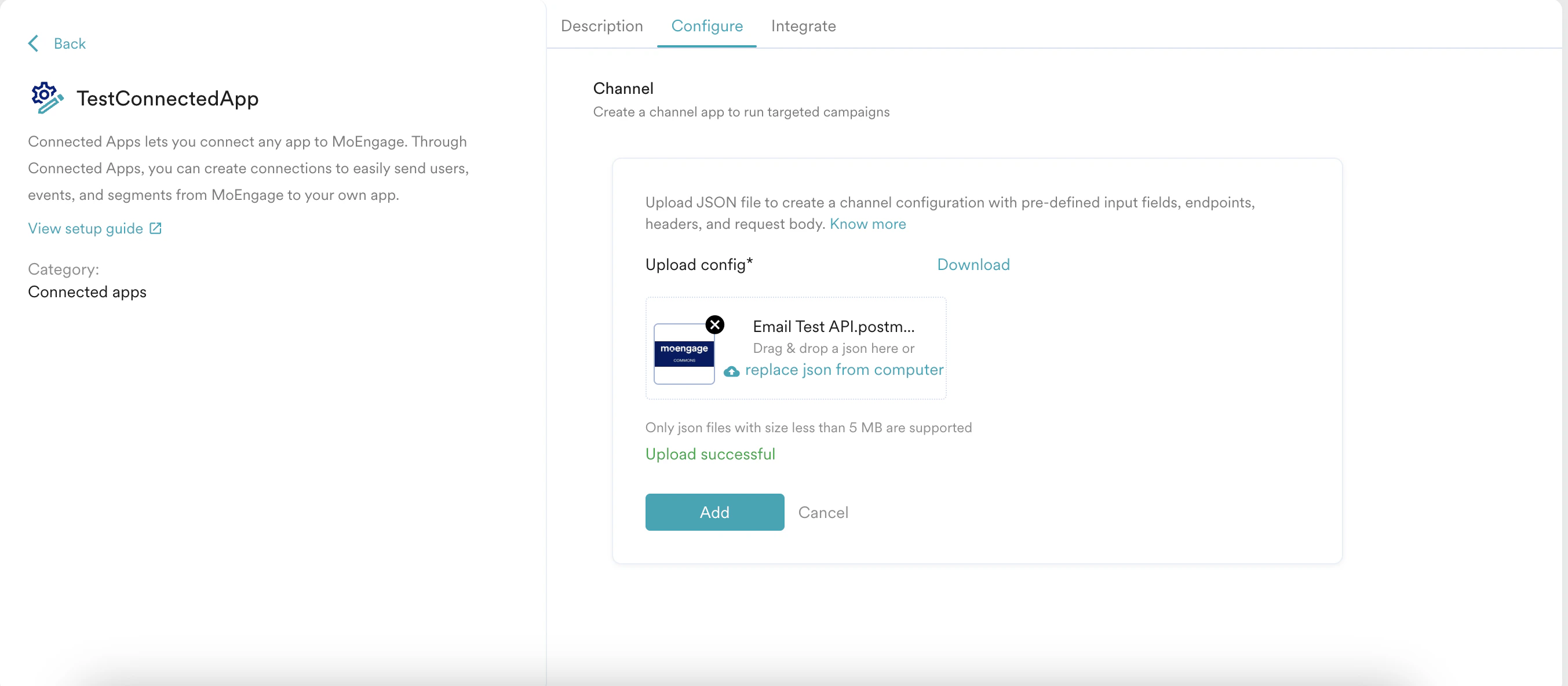
Step 3: Integrate a Connected Channel
After adding a channel connector to your app, you must integrate your connected channel with MoEngage to use in your campaigns.- On the connected app page in App marketplace, click the Integrate tab, and then click + Add integration.
-
In the Connection details section, enter the following details:
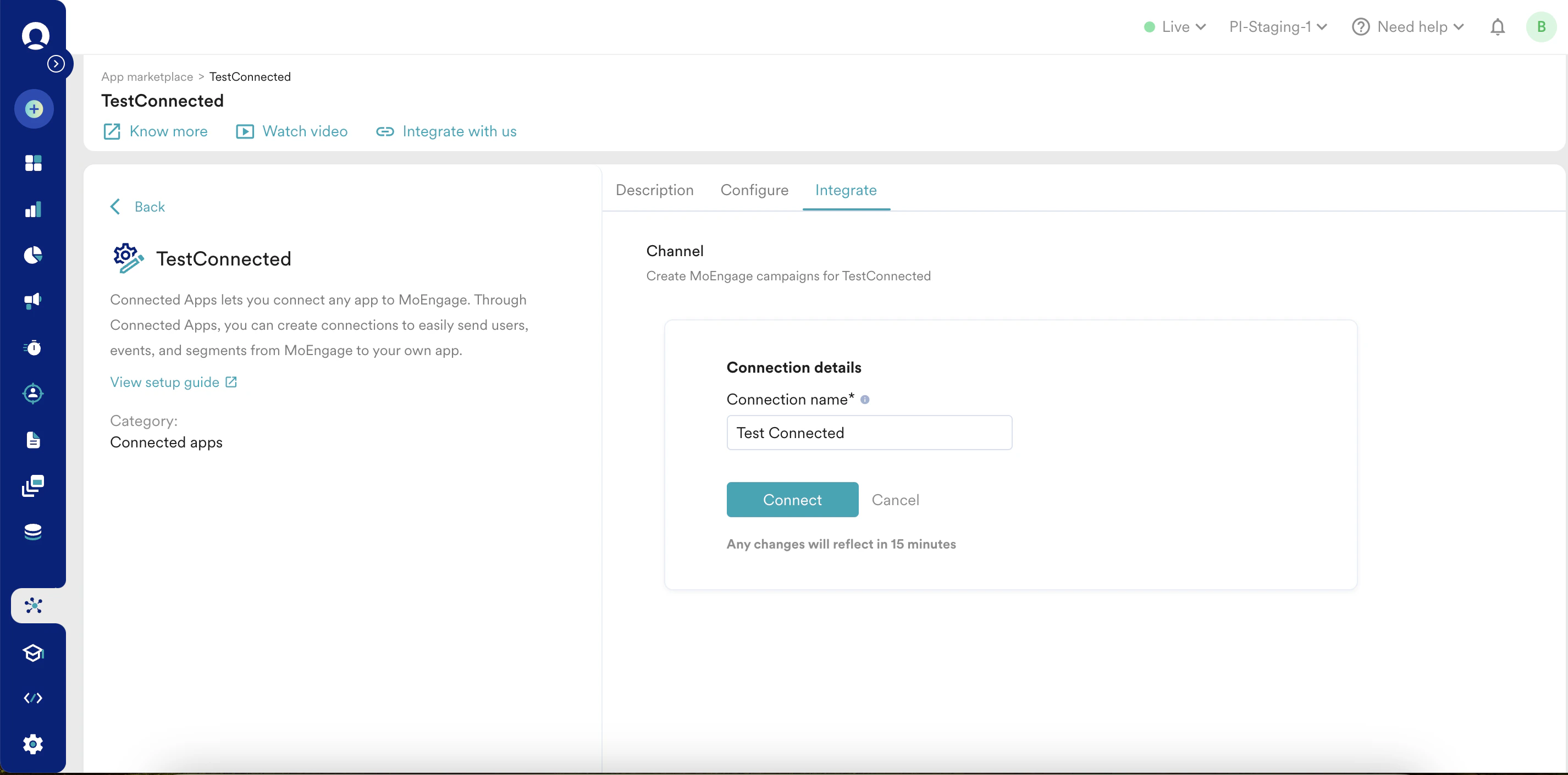
-
Click Connect. You have successfully integrated your channel app with MoEngage.

You can add multiple integrations by clicking + Add integration.