Overview
Understanding the performance of your WhatsApp campaigns is critical for optimizing their engagement and maximizing impact. WhatsApp analytics provide visibility into key performance metrics directly within your dashboards, enabling data-driven decision-making. You can analyze each WhatsApp campaign by navigating to Engage > Campaigns > Click the row that displays the information about the campaign for which you wish to see the analytics information. The following sections are available on the page that appears:- Campaign Details: contains information about the campaign and its status. For more information, refer to Campaign Details.
- Analytics: contains information about the various metrics that are tracked for the campaign and has the following sections:
- Click Analysis: provides a granular look at how users engaged with the specific links inside your message. For more information, refer to Click Analysis.
- Campaign Info: serves as a quick reference for the campaign’s configuration. For more information, refer to Campaign Info.
Campaign Details
This section contains the following information:- New view
- Old view
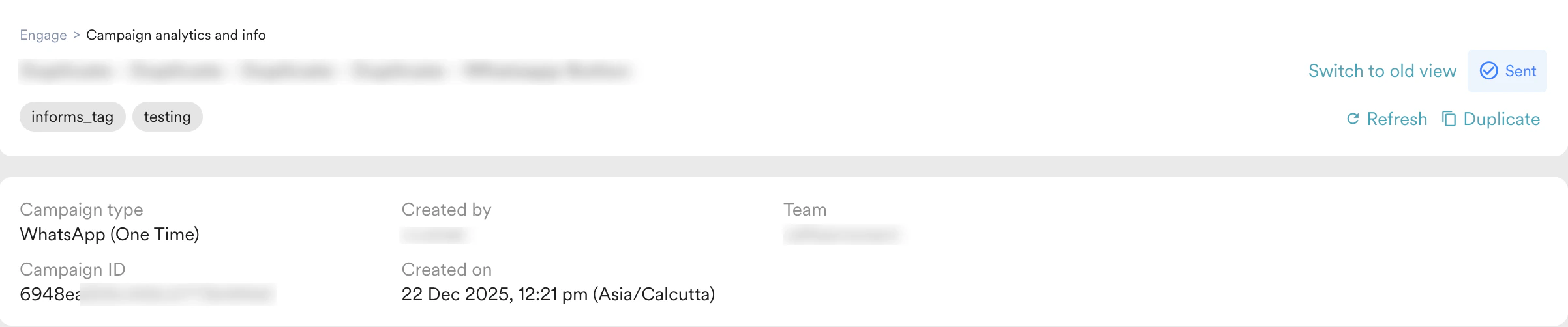

- Campaign ID
- Campaign creation and updation details
- Approver’s list/ Approved by/ Rejected by (if CAF is enabled)
- Campaign status: A campaign can have various statuses, including Active, Expired, Not Sent, Paused, Scheduled, Sending, Sent, and Stopped. If the Campaign Approval Workflow (CAF) is enabled, additional statuses such as Under Review and Rejected will also be available.
| Action | Description |
|---|---|
| Refresh | This action loads the page afresh with the campaign’s details as of the moment. |
| Edit | This action lets you edit the campaign. |
| Duplicate | This action lets you duplicate the campaign and opens the campaign editor page with all the details of the current campaign. ‘Duplicate -’ is appended to the duplicate campaign’s name. |
| Approve | This action lets you approve a campaign under review if CAF is enabled. This action is available only for users who are added to the list of reviewers for the campaign. For more information, refer to Campaign Approval Workflow. |
| Reject | This action lets you reject a campaign under review if CAF is enabled. This action is available only for users who are added to the list of reviewers for the campaign. For more information, refer to Campaign Approval Workflow. |
| Stop | This action is allowed when the campaign is in the ‘Sending’ state and lets you stop the campaign. |
Campaign Analytics
The analytics section contains the following information:Campaign Performance Stats
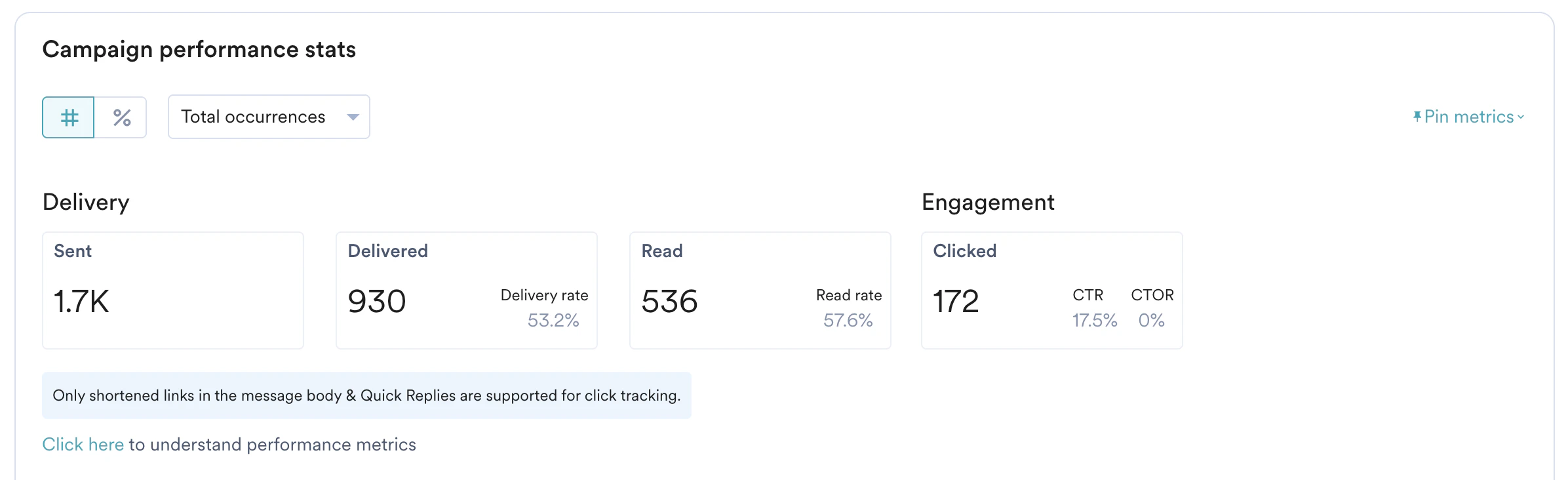
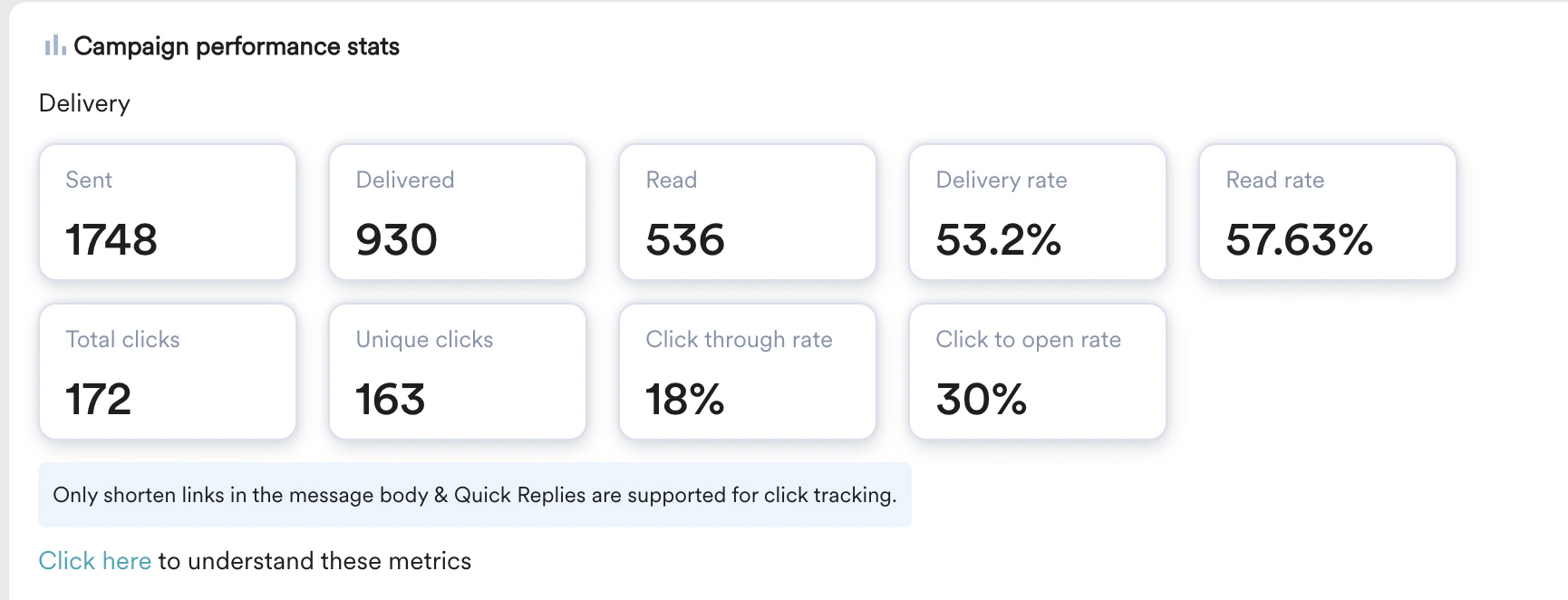
Understanding your WhatsApp campaign’s performance helps you measure effectiveness and optimize future outreach. This article explains the key metrics available in MoEngage to analyze and evaluate your WhatsApp campaigns, from message delivery to user conversion. You can monitor the following metrics related to the delivery of your WhatsApp campaign messages:- New view
- Old view
| Statistics | Description |
|---|---|
| Sent | The total number of message requests sent by MoEngage that are accepted by the WhatsApp Business Solution Providers (BSPs). |
| Delivered | The total number of users to whom the WhatsApp campaign message was delivered. |
| Read | The number of WhatsApp messages read by the users. If a user is becoming eligible twice for an event-triggered/periodic campaign and reads the message, the user would be counted twice. Note: The Read metric is captured only for users who have Read Receipt ON in their WhatsApp Settings. |
| Delivery rate | The delivery rate is calculated as the percentage of users for whom the message was delivered and a Delivery Receipt was received by MoEngage, out of Total Sent. A high delivery rate signifies a trusted sender and a clean contact list, ensuring your messages reach their audience. In contrast, a low rate suggests issues with sender trust, invalid phone numbers, or user opt-outs, requiring you to investigate and clean your contact lists. |
| Read rate | The read rate is the percentage of users who read the delivered WhatsApp campaign message. Calculated as Unique Users who read or viewed the WhatsApp campaign message/Users to whom the WhatsApp message was delivered. A high read rate indicates that your messages are relevant and your audience is engaged, while a low read rate may indicate poor message timing, irrelevant content, or a weak value proposition. |
| Total Clicks | Displays the number of times any button/link in a WhatsApp message was clicked by a user. For example, if a message has 2 links and user 1 clicks on both links and user 2 clicks on 1 link two times, the Total Clicks count would be 4. If a user is becoming eligible twice for an event-triggered/periodic campaign and gets the message and clicks, the user’s clicks are counted twice. |
| Unique Clicks | Displays unique buttons/links clicked by unique users on WhatsApp messages For example, if a message has 2 links and user 1 clicks on both links and user 2 clicks on 1 link, then the Unique Click count would be 3. If a user becomes eligible twice for an event-triggered/periodic campaign and gets the message and clicks, the user’s clicks are counted twice. |
| Click Through Rate | CTR or Click through rate is calculated as the percentage of Unique clicks out of unique delivered; Calculated as Unique Clicks/Delivered. A high CTR suggests that your message content and Call-to-Action (CTA) are compelling and well-placed, while a low CTR may indicate issues with the message copy, CTA clarity, or its placement. |
| Click through open rate | Click through open rate is calculated as the percentage of unique clicks over unique messages open/read by users; Calculated as Unique Clicks/Read |
Actions that can be performed in the stats section
The following actions are available only for the new view.
- Choose the number view or the percentage view to see the stats as numbers or percentage values.
- View the unique or total occurrences of stats by selecting Unique or Total in the dropdown at the top of the section.
- Pin metrics - you can pin the metrics you want to see using the Pin metrics dropdown at the top right corner. You can pin up to five metrics. The selected metric pins are available in the Pinned metrics section. Click _Show all metrics _to see all the metrics being tracked for the campaign and Hide unpinned metrics to see only the pinned metrics for the campaign.

Variation Performance
You can view the uplift percentage on the tabular view of Variation performance. For more information, refer to Uplift in Campaigns.- New view
- Old view
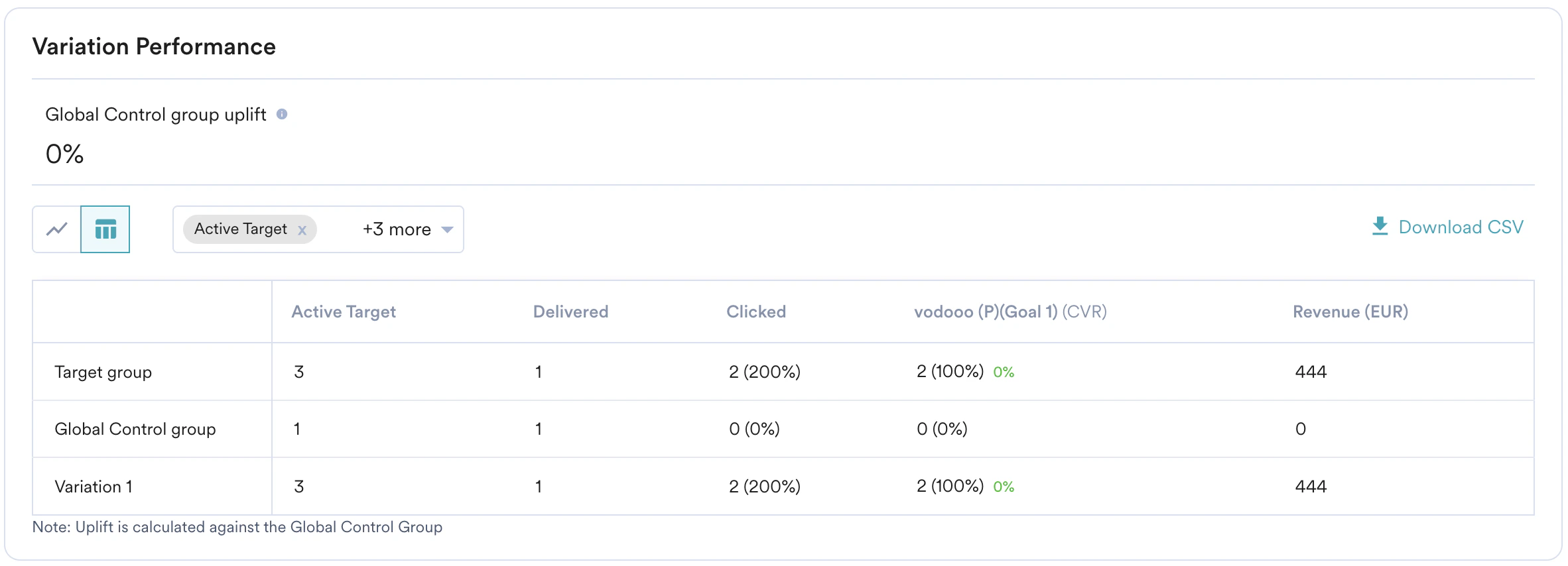
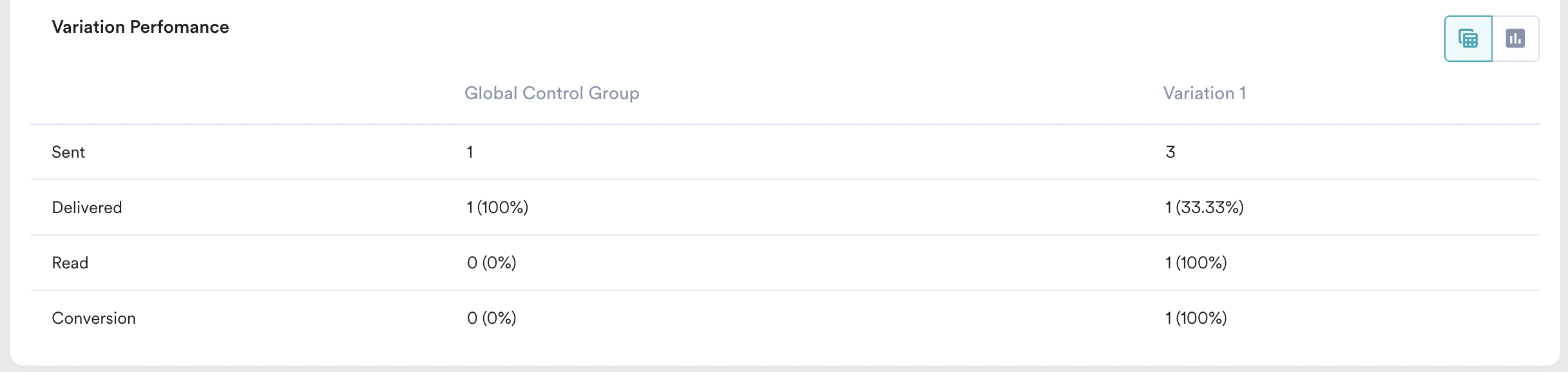
Conversion
The following statistics are provided for the conversions based on the goals set in the WhatsApp campaign:- New view
- Old view


| Statistics | Description |
|---|---|
| Conversions | Unique users who have executed primary conversion goal events within the attribution window from the time the user received the WhatsApp message. |
| Conversion Events | Conversion events are the total number of primary conversion goal events within the attribution window (configurable) from the time the user received the WhatsApp message. |
| Conversion Rate | Conversion rate or CVR is calculated as Conversions/ Delivered |
| Total Campaign Revenue | The aggregated Order value for the conversions attributed to the campaign |
| Average Order Value | Calculated as Total Campaign Revenue/Number of Conversion Events |
| Average Revenue per converter User | Indicates ARPU; Calculated as Total Campaign Revenue/Conversion |
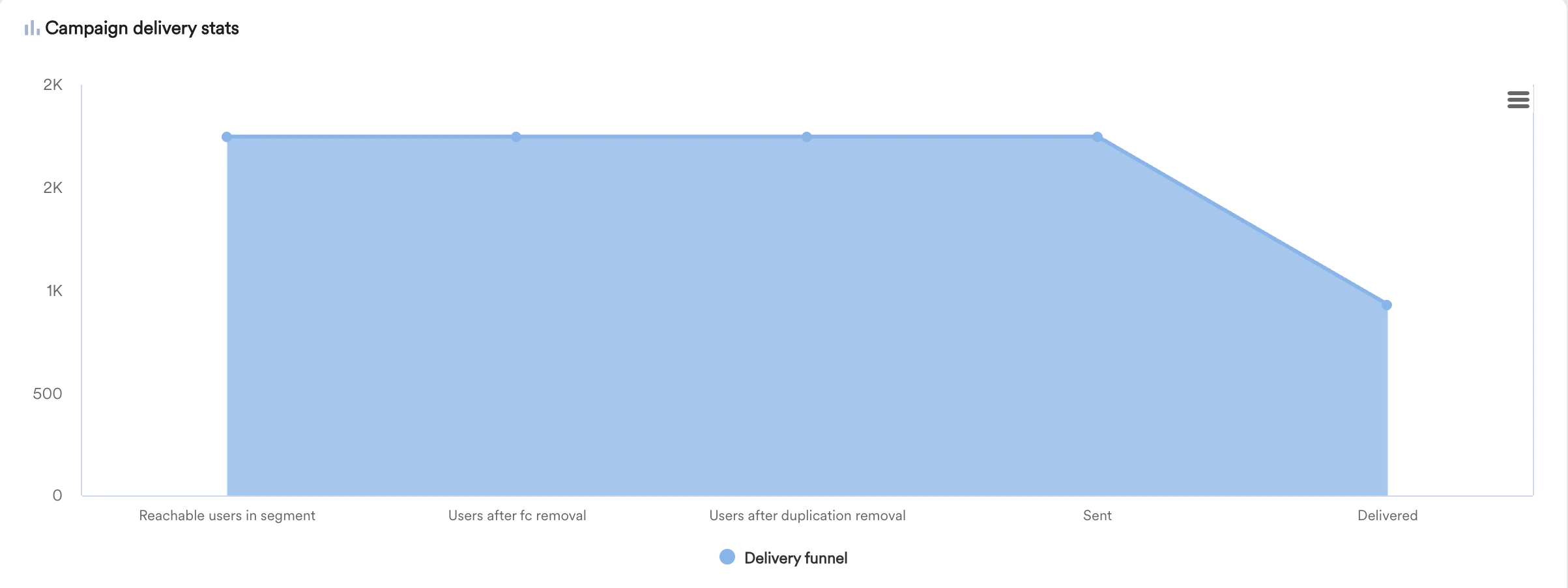
Campaign Delivery Stats
- New view
- Old view
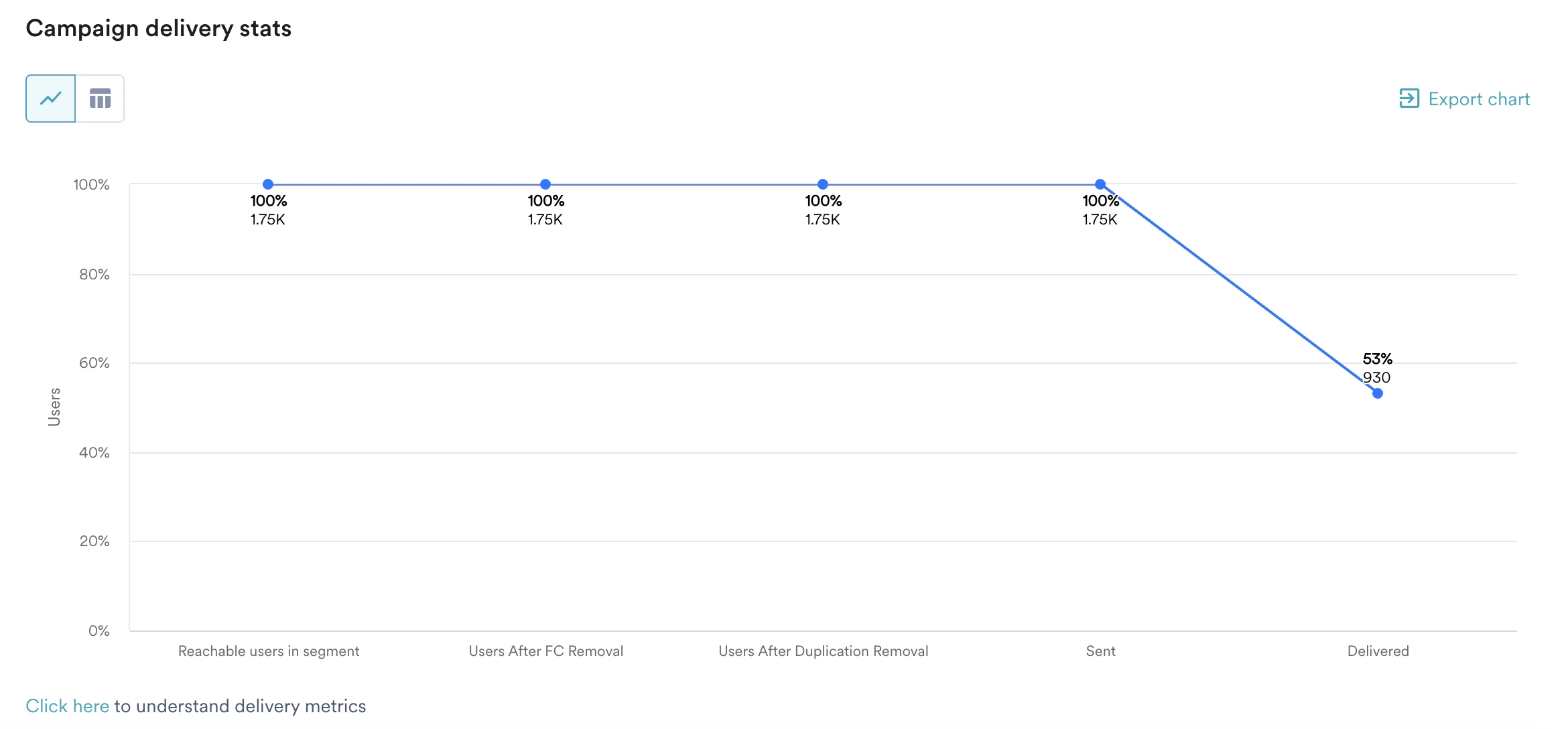
| Funnel Stage | What it represents |
|---|---|
| Reachable Users in Segment | Represents the total number of users that satisfy the campaign segmentation criteria (and Triggering criteria for Event-Triggered campaigns) |
| After FC Removal | Represents the number of users who meet the reachable users in segment condition and do not breach Frequency Capping (FC) criteria. |
| Users after duplication removal | Represents the number of unique users who remained after the removal of users with duplicate mobile numbers |
| Sent | Represents the number of users to whom the WhatsApp message was sent. |
| Delivered | Represents the number of users to whom the WhatsApp message was delivered. |
If users block/report the business account from their app, neither MoEngage nor the WhatsApp Service provider has any way to know this. In some cases, the messages might not be delivered to users because they have blocked your brand from sending them WhatsApp Messages.
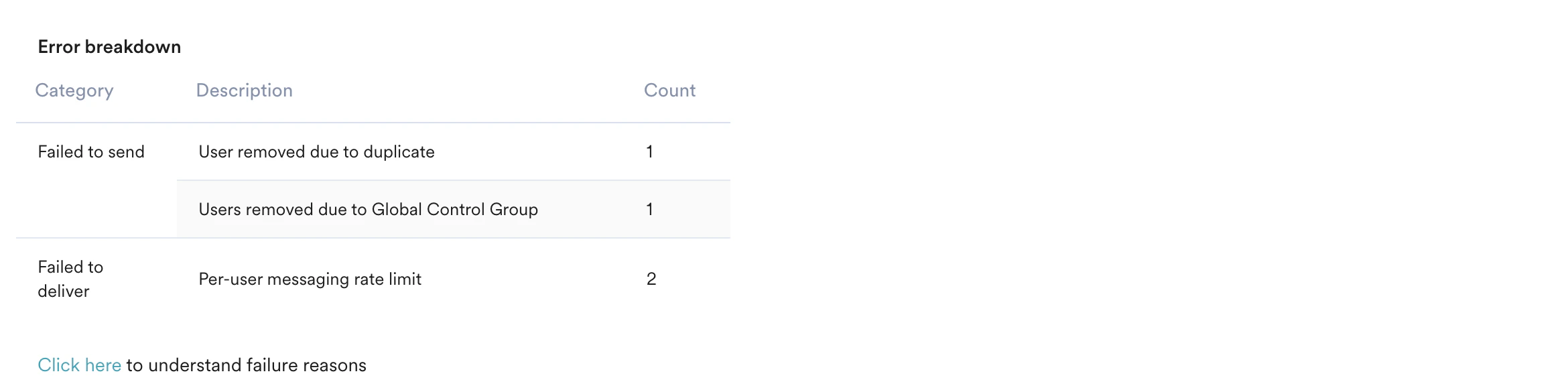
Error Breakdown
Displays the errors that occurred during the delivery of the WhatsApp campaign message. For more information, refer to Common errors for WhatsApp.- New view
- Old view
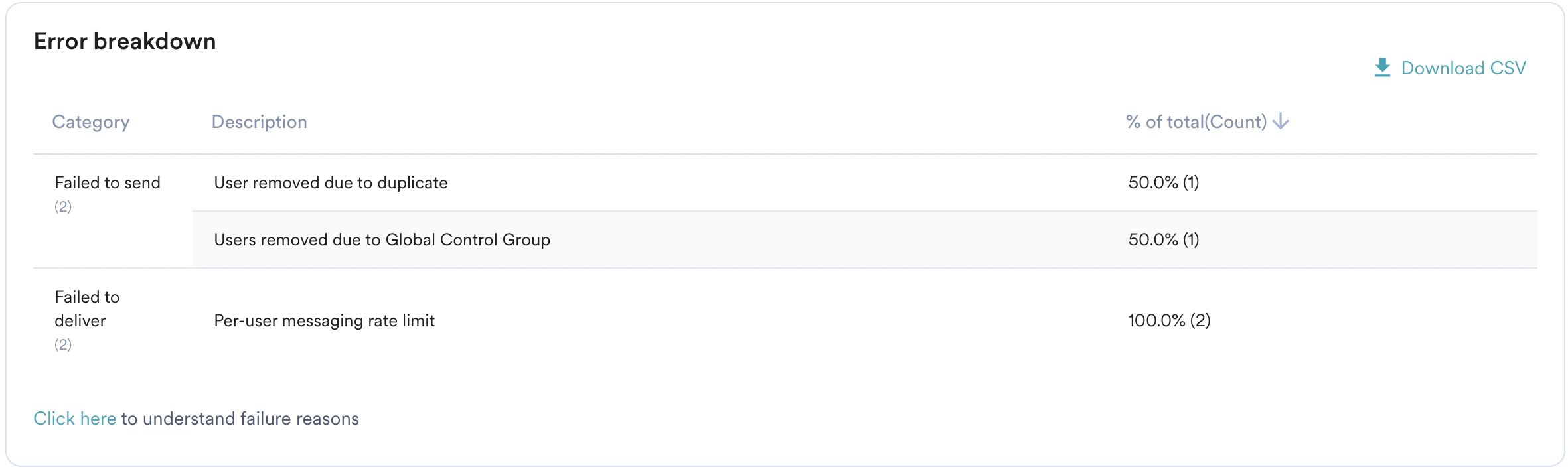
Click Analysis
The Click Analysis tab is available only when you switch to the new view.
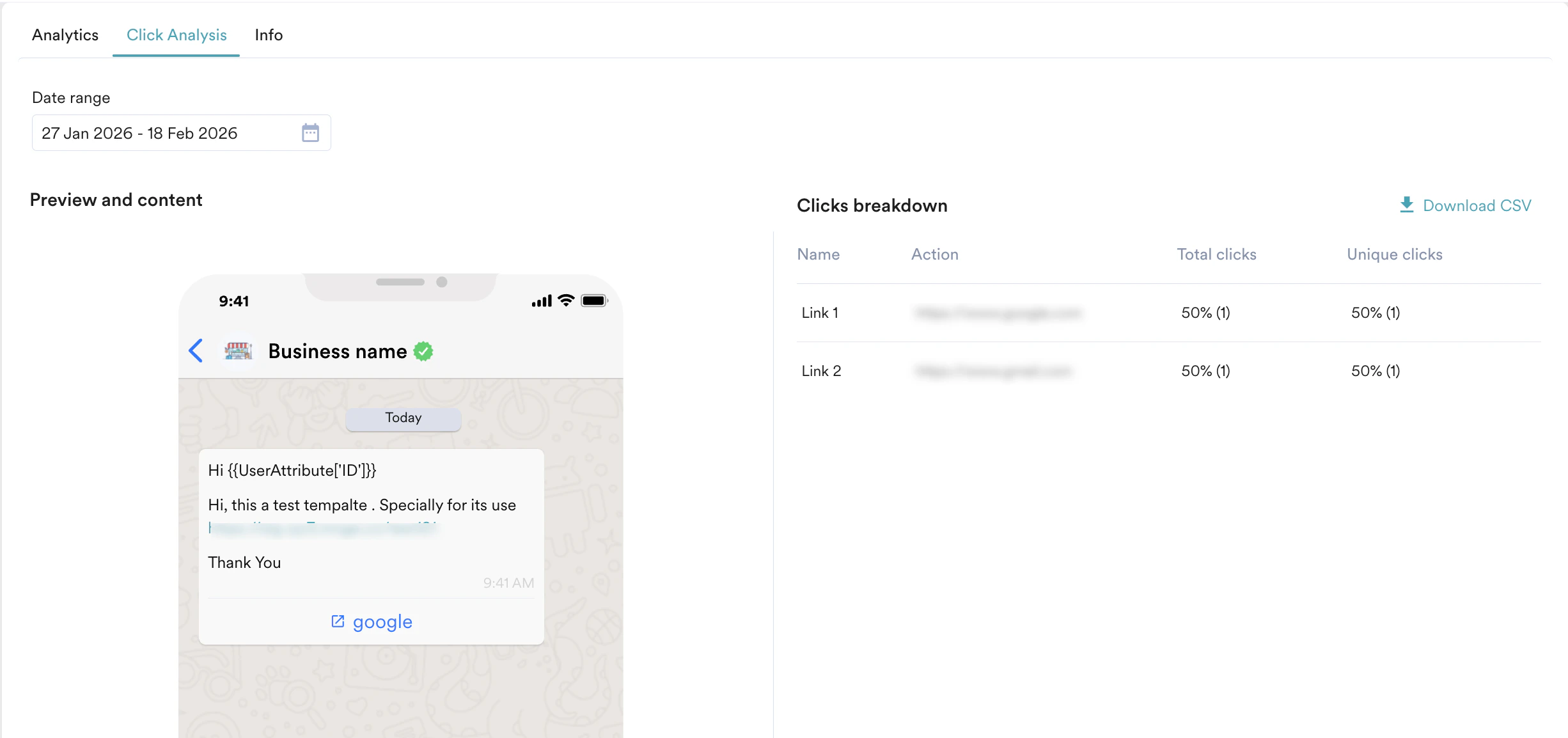
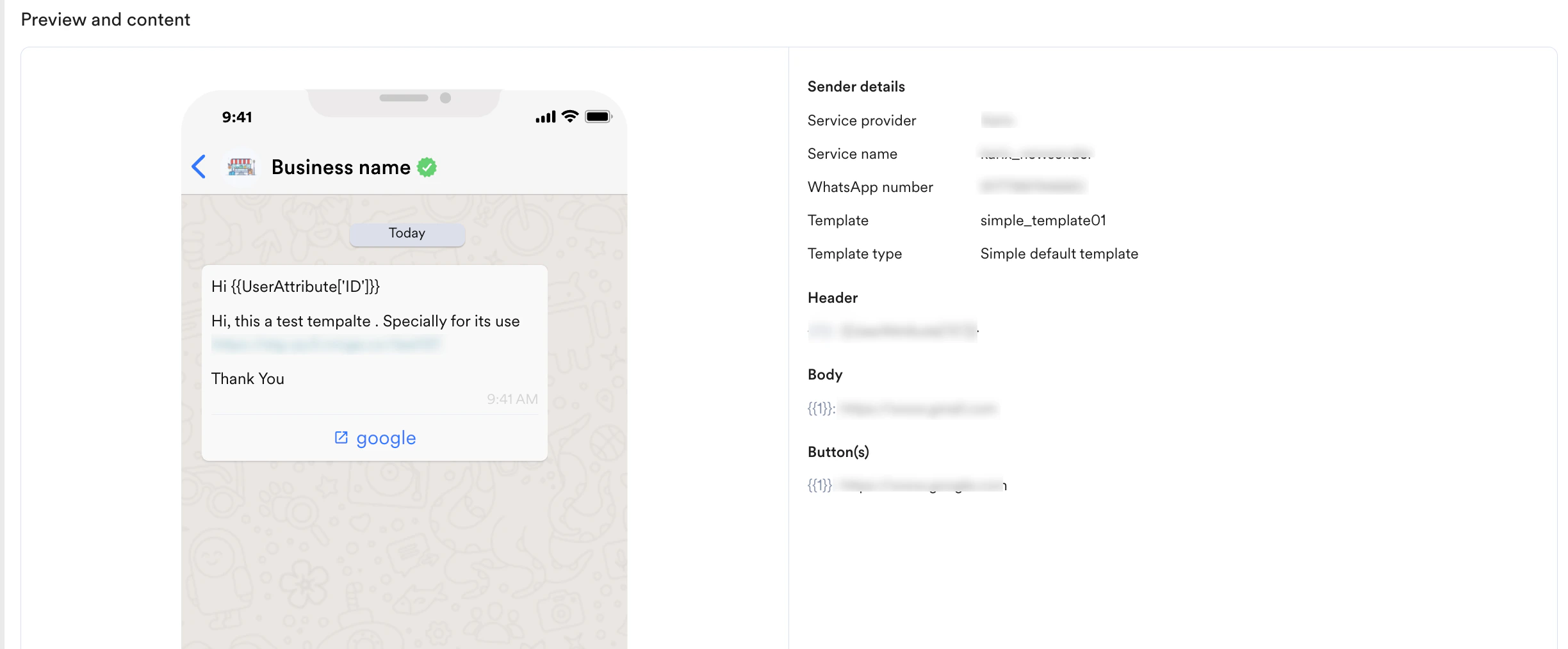
- Preview and content: Displays how your WhatsApp message is displayed to the users.
- Clicks breakdown: Provides a detailed performance report for every link included in the WhatsApp message. It displays the Name and Action (destination URL) of each link, alongside engagement metrics like Unique clicks and Total clicks. You can also export this data by clicking Download CSV.
Metric Description Unique clicks Displays unique buttons/links clicked by unique users on WhatsApp messages. For example, if a message has 2 links and user 1 clicks both links and user 2 clicks 1 link, the Unique Click count would be 3. If a user becomes eligible twice for an event-triggered/periodic campaign and gets the message and clicks, the user’s clicks are counted twice. Total clicks Displays the number of times any button/link in a WhatsApp message was clicked by a user. For example, if a message has 2 links and user 1 clicks both links and user 2 clicks 1 link two times, the Total Clicks count would be 4. If a user becomes eligible twice for an event-triggered/periodic campaign and gets the message and clicks, the user’s clicks are counted twice.
Campaign Info
The Campaign Info tab displays the details of your WhatsApp campaigns after they are published. You can view this information on the Info tab. Perform the following steps to access the Info tab:- On the left navigation menu in the MoEngage dashboard, click Engage, and then click Campaigns.
- On the All campaigns page, click the name of the campaign you want to view.
- On the Campaign info and analytics page, click the Info tab. The Info tab displays the following details:
- Timeline
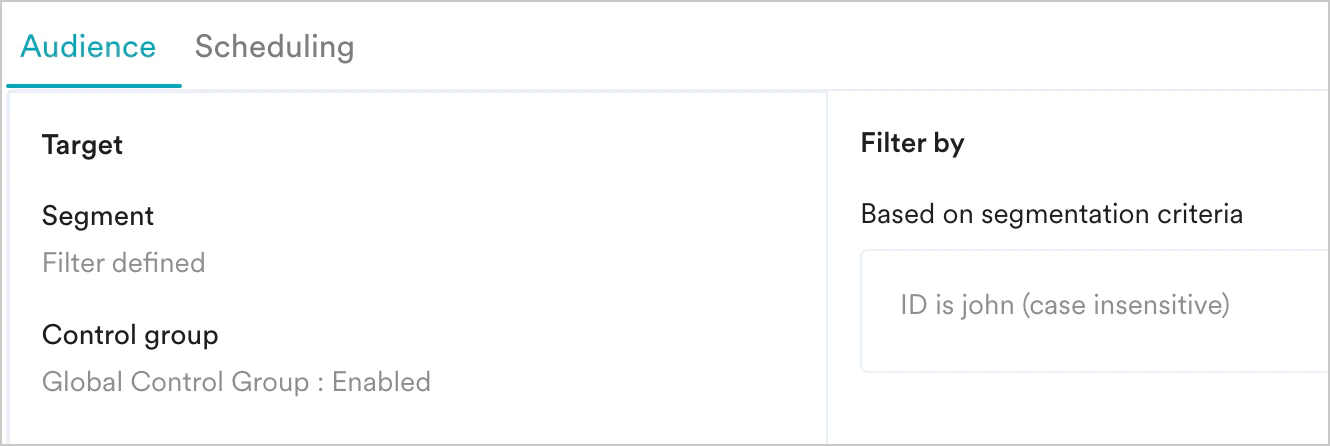
- Audience
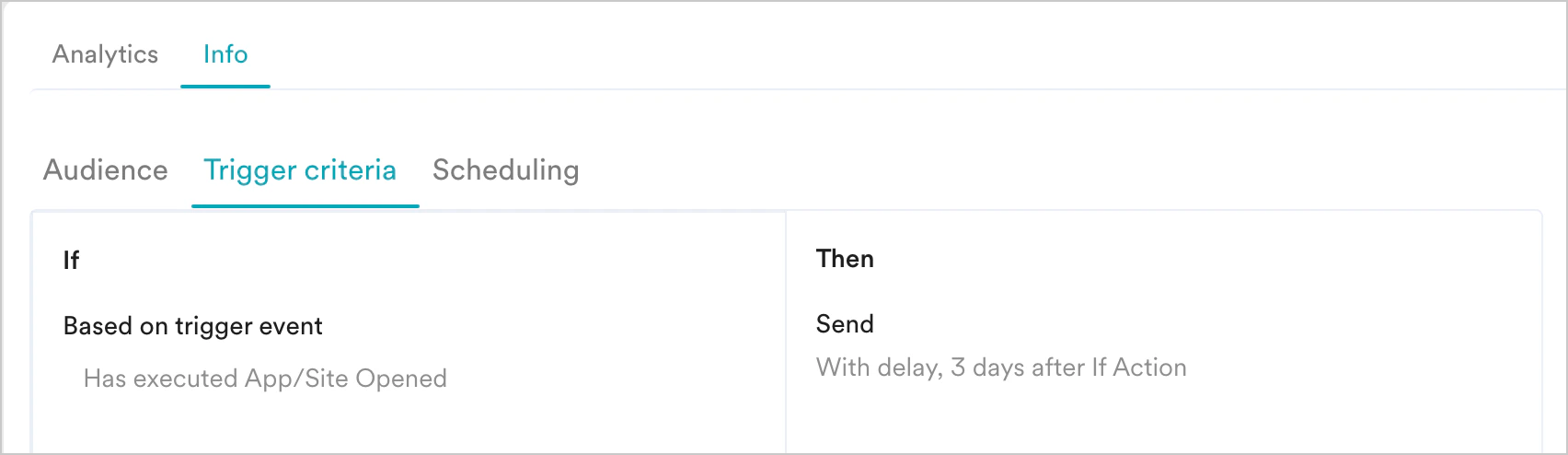
- Trigger criteria
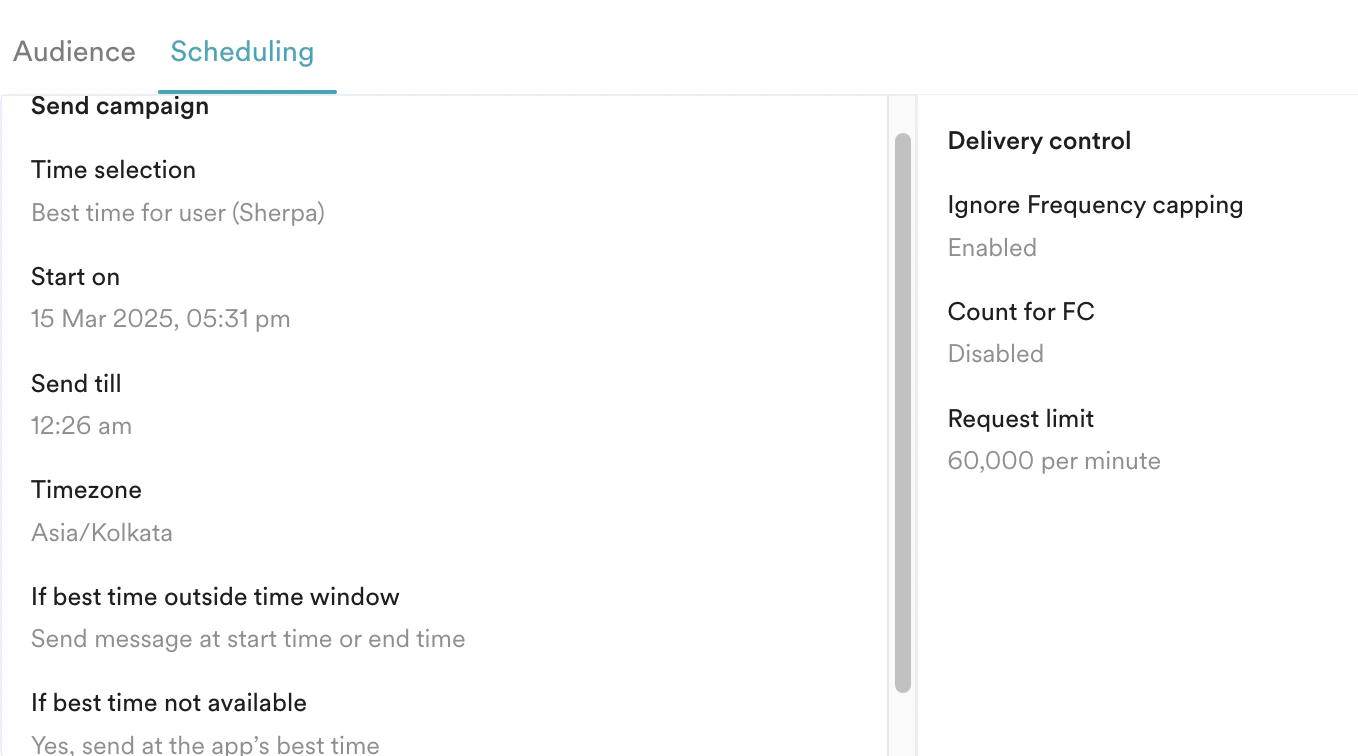
- Scheduling
- Conversion goals
- Preview and Content
This section is available for one-time and periodic campaigns. The timeline shows the different stages of a campaign’s publishing process and its current status. This provides complete transparency and insight into the lifecycle of your campaign. It allows you to monitor the campaign’s progress from audience selection to final delivery, which is essential for troubleshooting, optimization, and validating performance. Note that the time displayed is based on the App’s Timezone. This section contains information about the following:
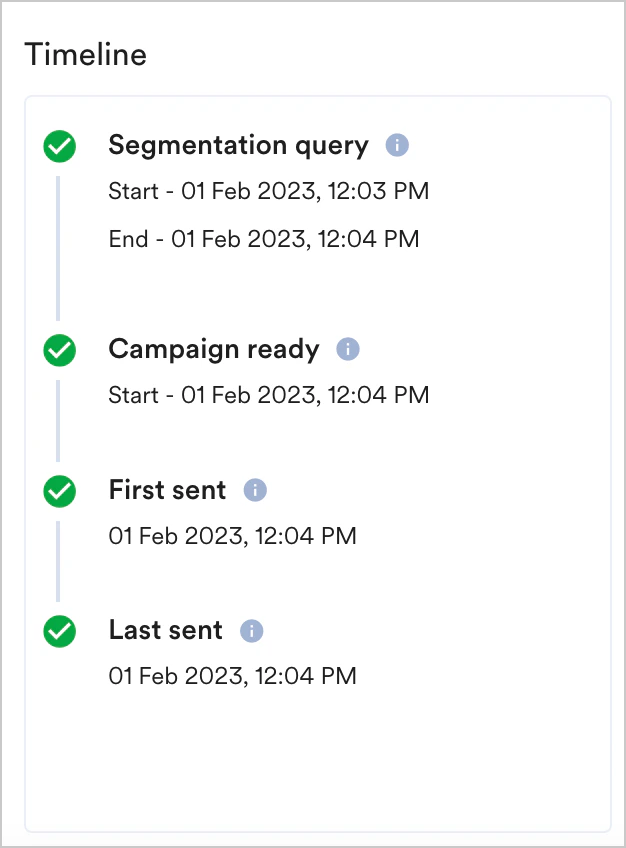
- Segmentation query: Contains information about when the segmentation query was started and completed.
- Campaign ready: Contains information about when the campaign was ready to be sent from MoEngage after internal processing. For ASAP campaigns, this is the campaign sending time.
- First sent: Contains information about when the first batch of messages was sent from MoEngage and when the first message was sent.
- Last sent: Contains information about when the last message was sent for the campaign.