

- Maintain consistency: Use the same headers, footers, or brand assets across all campaigns.
- Reuse assets: Create predefined assets for use across any channel or campaign type.
- Update at scale: Edit multiple campaigns simultaneously by updating the source content block.
Create a Content Block
To create a new content block:-
On the sidebar menu in MoEngage, hover over the Content menu item
 . The Content menu appears.
- Click Content Blocks. The Content blocks page appears.
- Click Create content block in the upper right corner. The content blocks page is displayed.
-
Enter the following details:

-
Click Publish.
You can also personalize content blocks. For more information, refer to Personalize Content Using Content Blocks.
Manage Content Blocks
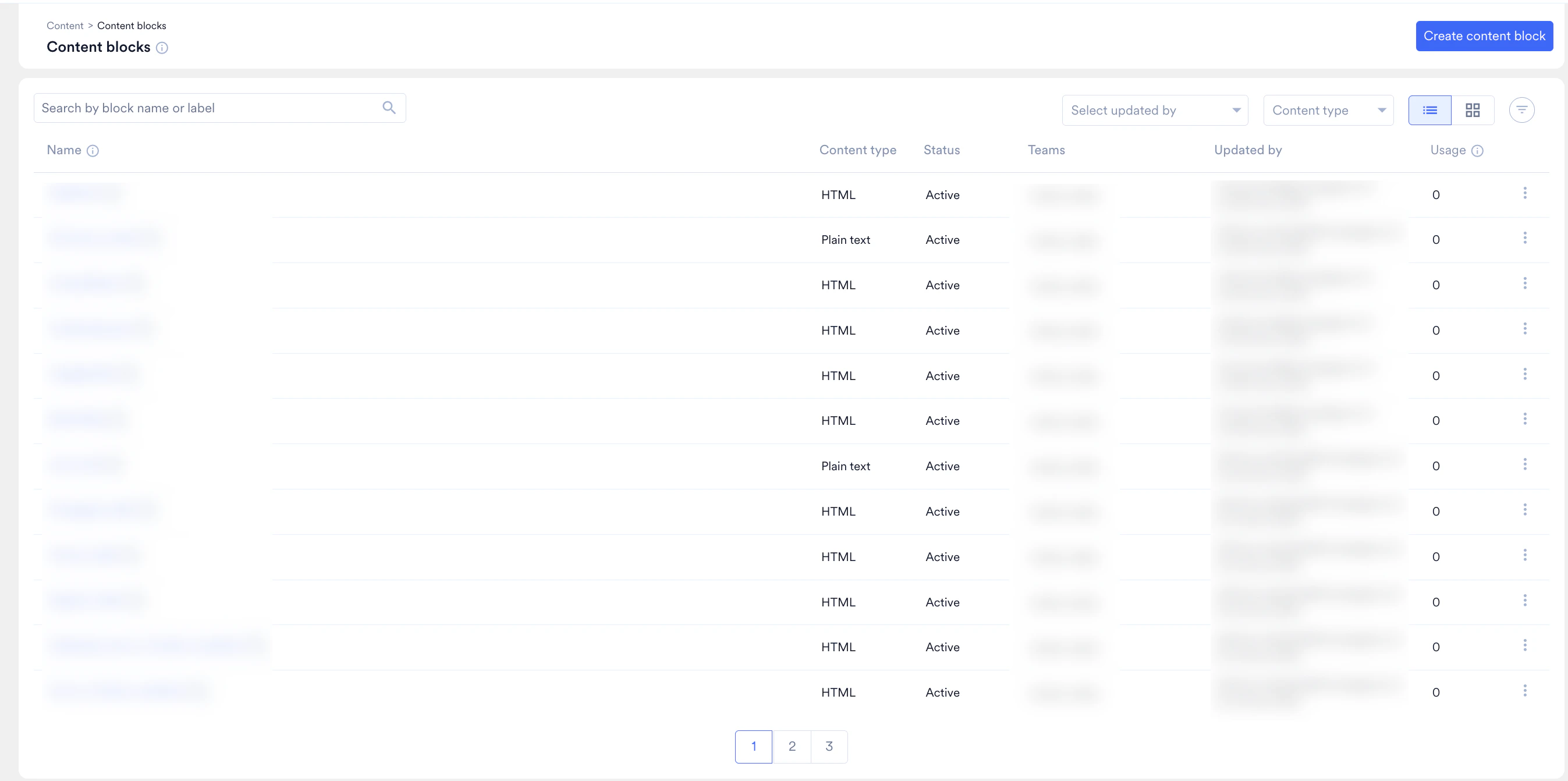
You can find content blocks using the following options:- Search by name or label: Locate blocks by name or label.
- Select updated by: Narrow results by the user who last updated the block.
- Content type: Narrow results by content type.
- Filter: Narrow results by Type, Teams, Status, Tags, or the user who last updated the block.
View a Content Block
To view a content block,- Click the three dots at the end of the row in the Content block listing and select View.
- Alternatively, click anywhere on the row to open the preview.
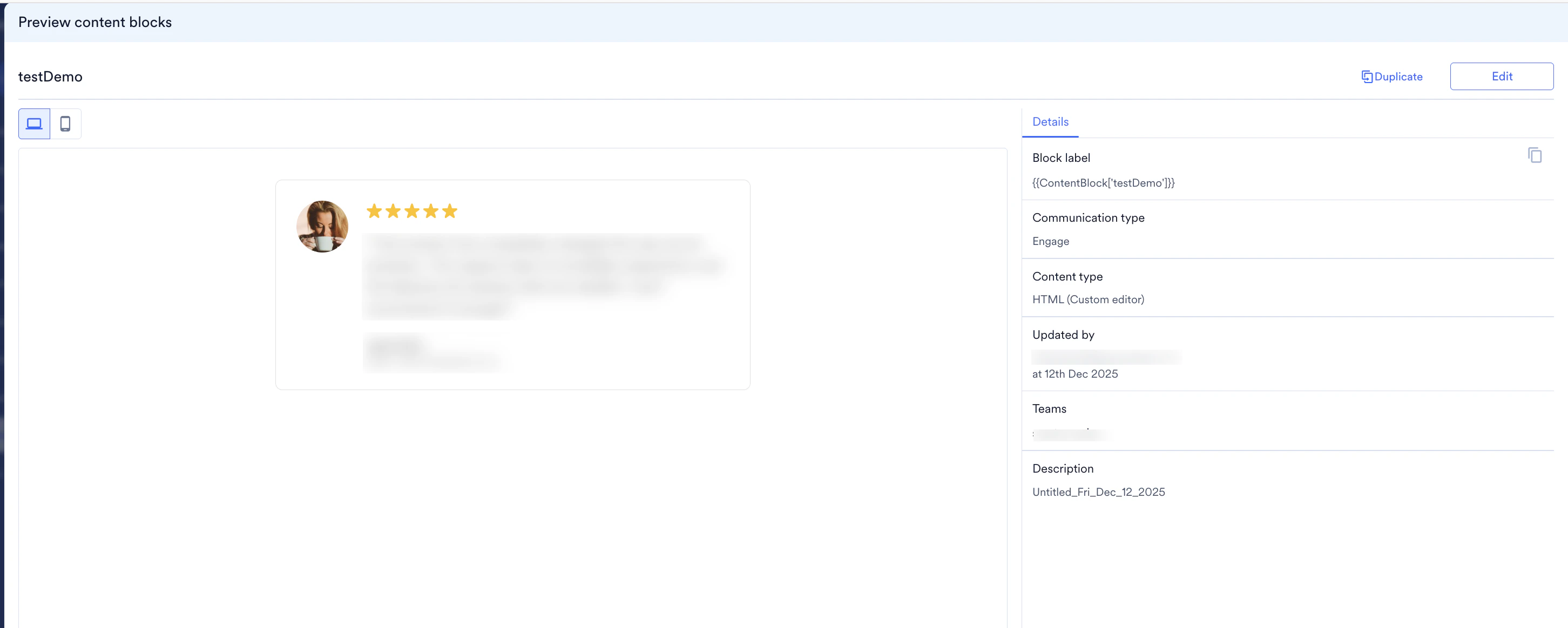
- Toggle between Web and Mobile views to see how the content renders on different devices.
- Access the Edit and Duplicate options directly from the preview screen.
- Details Tab displays the block’s metadata, including:
- Block label
- Communication type
- Content type
- Updated by
- Teams
- Description
- Content blocks tab shows the nested block name and type if this block is part of a larger content structure.
Edit a Content Block
To edit a content block,- Click the three dots at the end of the row in the Content block listing and select Edit. Alternatively, click anywhere on the row to open the preview and click the Edit option in the preview page.
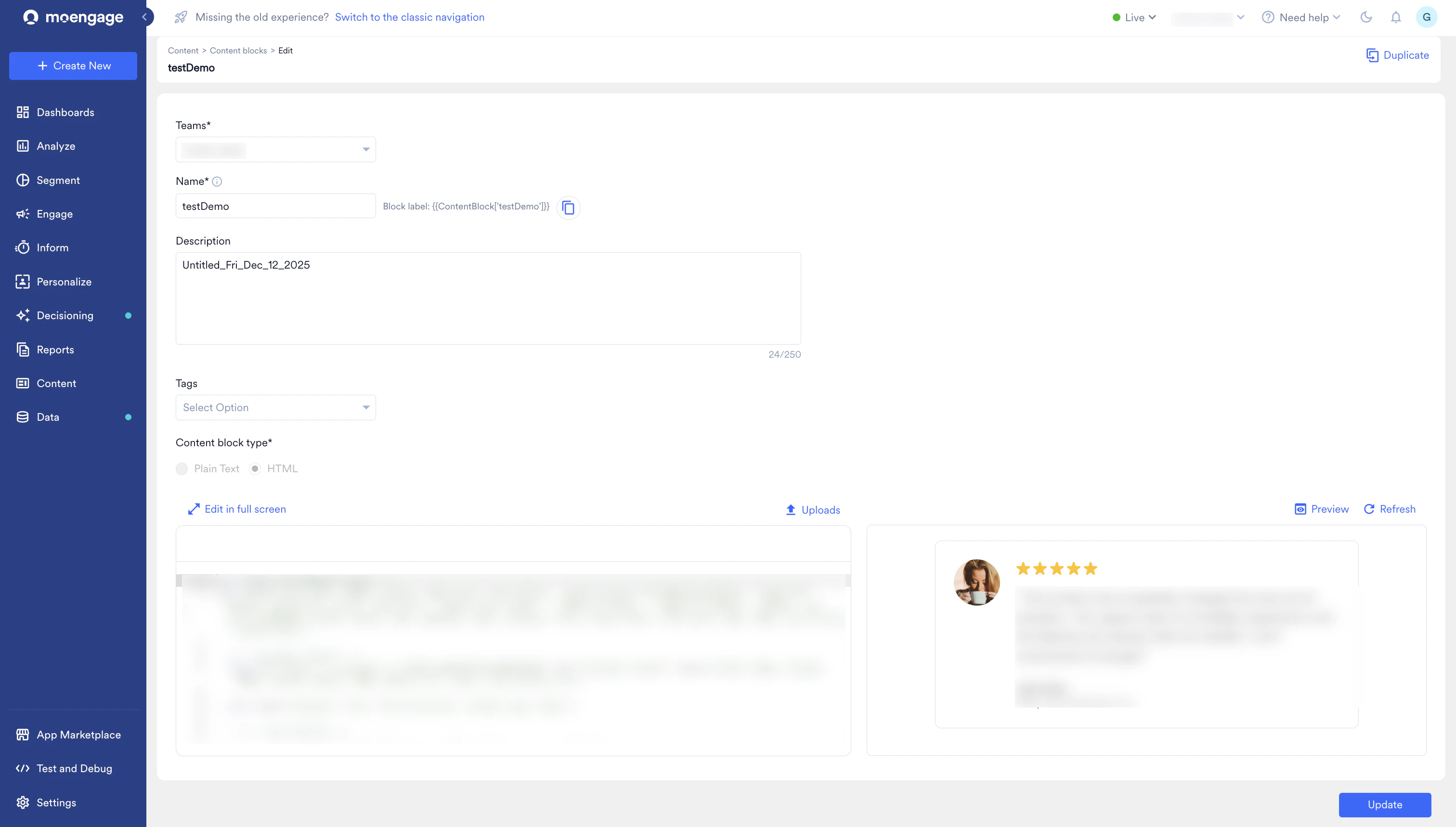
- In the Edit page, you can modify the Teams, Name, Description, Tags, and Content fields.
You cannot change the Communication type or Content block type after a block is created.
Duplicate Content Blocks
To duplicate content blocks,- Click the three dots at the end of the row in the Content block listing and select Duplicate.
- In the Duplicate page, click Publish.
Delete a Content Block
To delete content blocks,- Click the three dots at the end of the row in the Content block listing and select Delete.
- In the confirmation message that appears, click Delete.