

Overview
All user events and campaign events that have been received or generated by MoEngage can be exported using S3 Exports. The exported data can be analyzed further to glean insights into user behavior, preferences, and what have you.- Exports to S3 are part of the Streams add-on. Contact your dedicated MoEngage CSM (customer success manager) to enable them for your account.
- If your system requires IP whitelisting, refer here before setting up the S3 Integration for Data exports.
S3 Integration for Data Exports
S3 is a highly scalable storage system offered by Amazon Web Services. Integration with the S3 buckets will allow MoEngage to share periodic exports of required data in JSON format. To get started with S3 integration, follow the below steps:Step 1: Create S3 Bucket
Even if you have an S3 bucket already, we still recommend creating a new bucket specifically for MoEngage so you can limit permissions.- To create a bucket for your app, open the S3 console and follow the instructions to Sign in or Create an Account with AWS.
- Once signed in, select “S3” from the “Storage Content Delivery” category.
- Select “Create Bucket” on the next screen and you will be prompted to create your bucket and select a region.
Step 2: Create Policy
Navigate to the Policies tab in the navigation bar and select “Get Started” then “Create Policy”. This will allow you to add permissions for your user. Select “Create Your Own Policy”. This will give limited permissions so we only can access the bucket that you specify.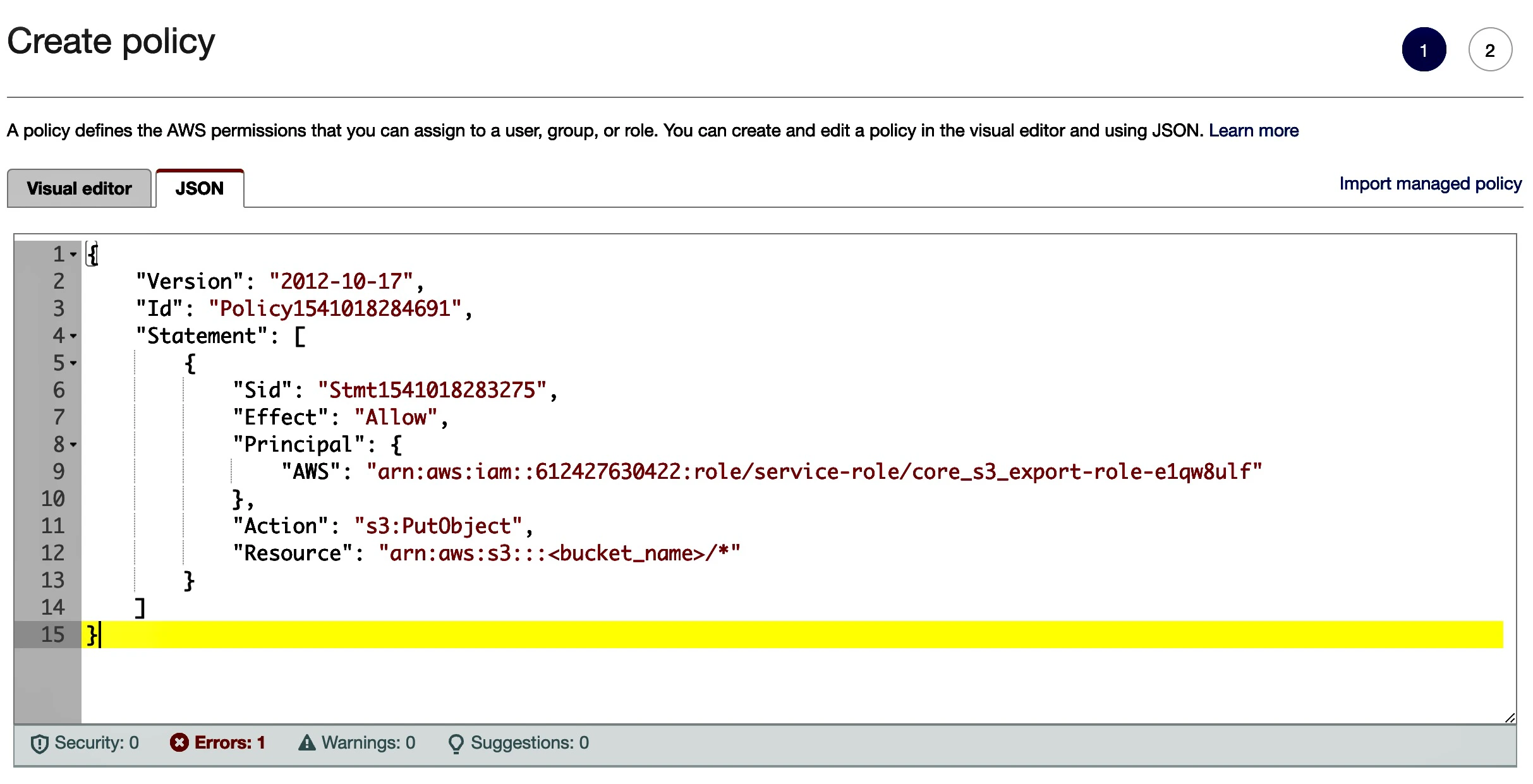
Step 3: Enable S3 Exports on the MoEngage App Marketplace
To create a new S3 Buckets connection, perform the following steps:- On the left navigation menu in the MoEngage dashboard, click App marketplace.
- On the App marketplace page, in the search bar, type Amazon S3.
- Click the Amazon S3tile.
- On the Amazon S3 page, click the Integrate tab, and then click + Add connection.
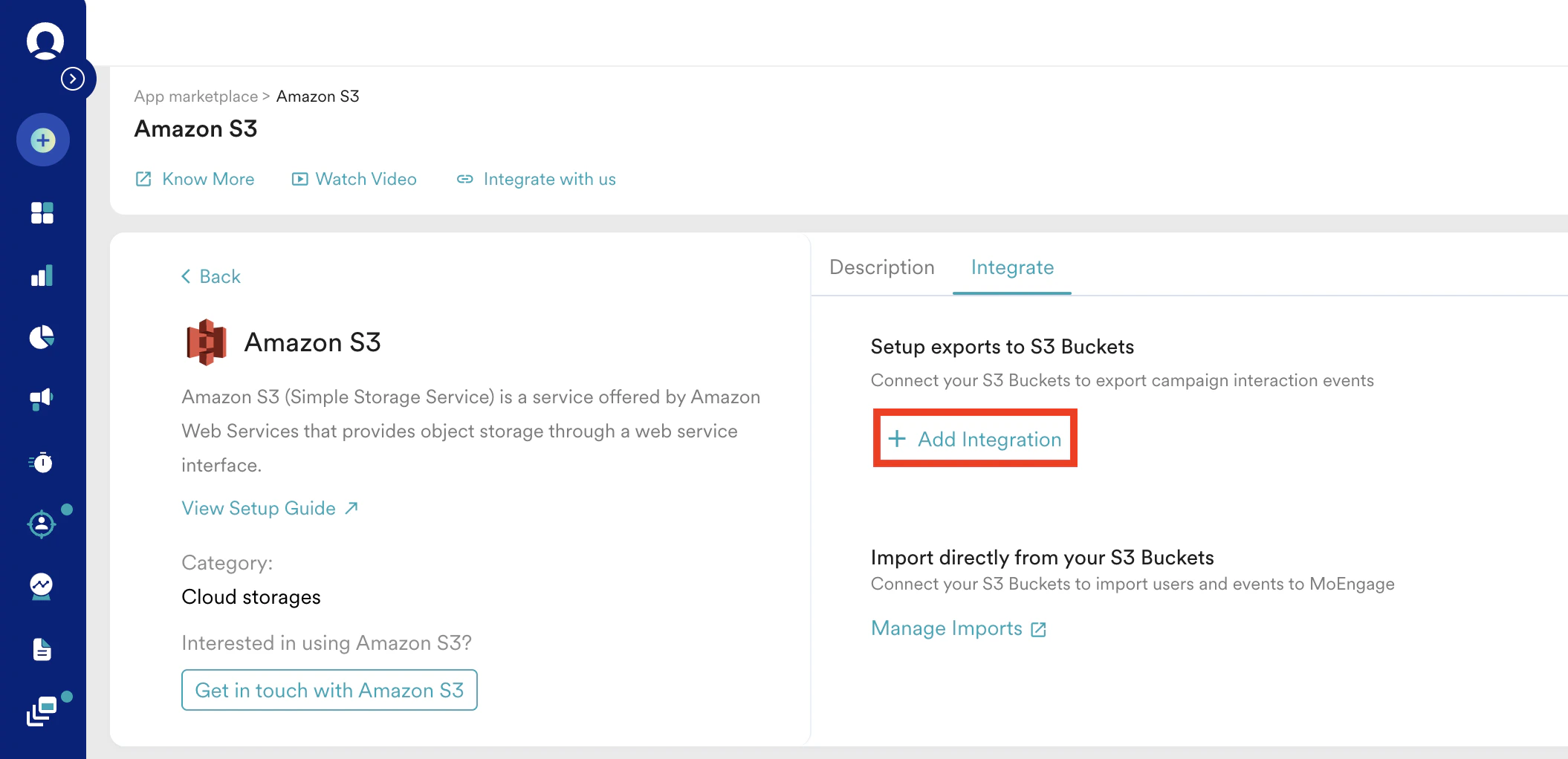
- Enter S3 bucket connection details.

Field Description Example Connection name This is the name of the connection. Enter a unique and identifiable name. My S3 Export Bucket name This is the name of your S3 bucket.
How do I find the bucket name?
In your AWS console, go to S3 and select your bucket from the list. The bucket’s name is mentioned at the top.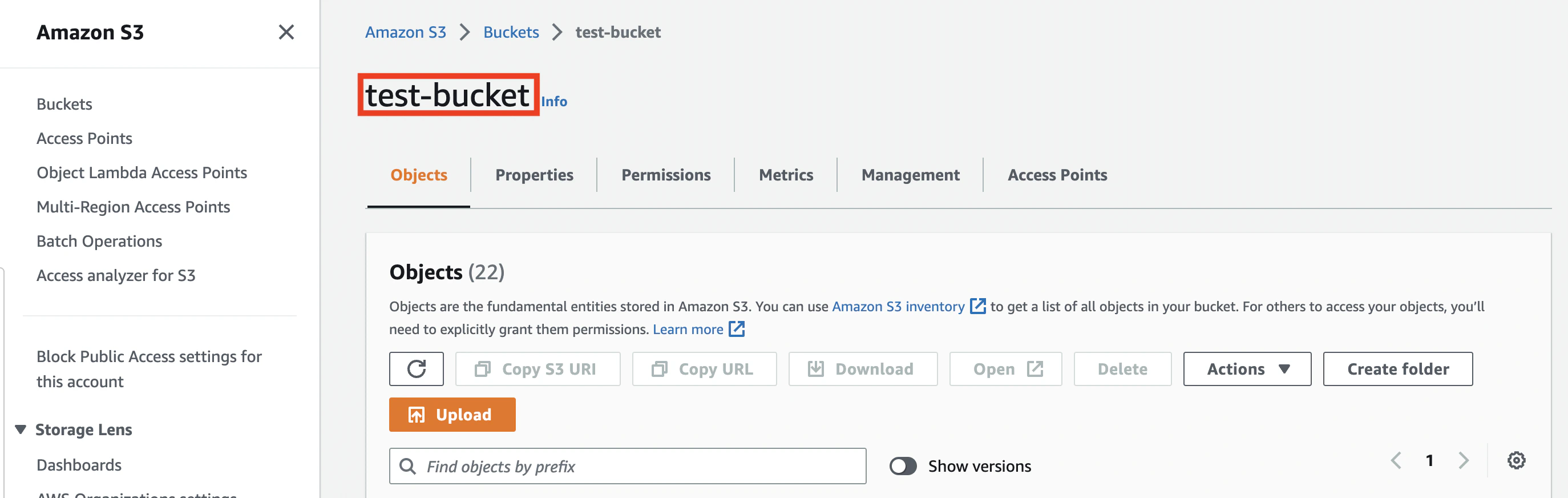
You can also find this in your bucket Properties tab. In your S3ARN, the part afterarn:aws:s3:::is your bucket name: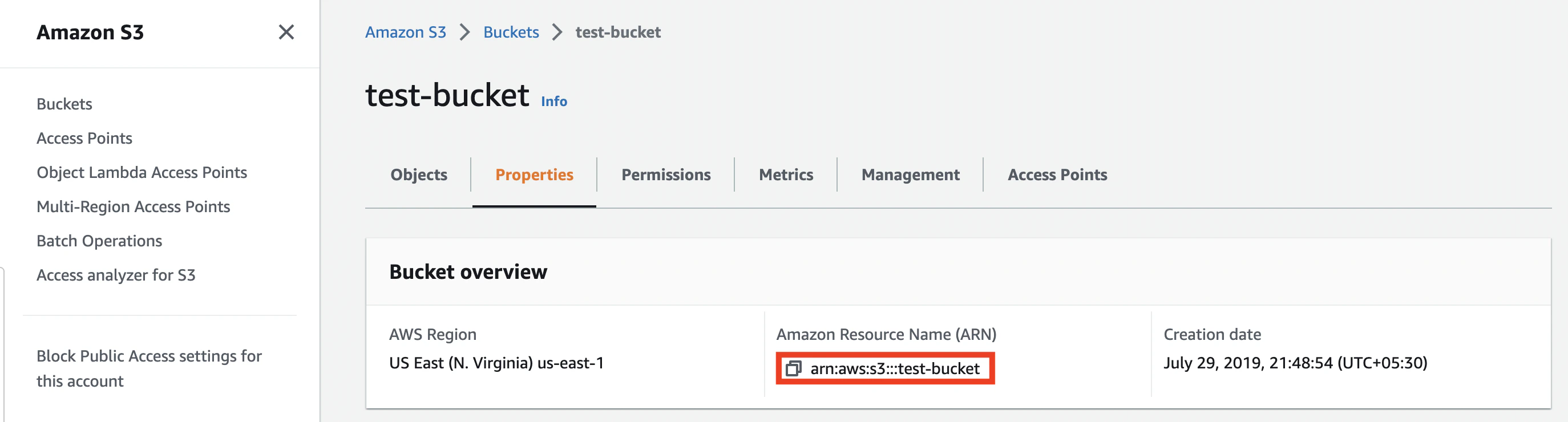
test-bucketFolder path This is the path of the folder in which your files are dumped. Do not begin or end with a slash. The final path of the dump is:
s3://<your-bucket-name>/[<folder_path>_]<connection_name>/export_day=<DD-MM-YYYY>/event_exports_<export_timestamp>.json.gz
The export timestamp is the EPOCH timestamp of when the file was generated in the UTC timezone.
Your final path is displayed on the UI for your confirmation.
How do I find the folder path?
From the list of objects in your S3 bucket, open the folder in which you want to dump the files. On the Properties tab, look at the folder’s S3 URI. Your folder path is the part after s3://[your-bucket-name]/ excluding the trailing slash.
In the example above, your folder path is my-dump/to_importmy_foldermy_folder/sub_folder
Bucket region This is the name of your S3 bucket.
How do I find the bucket region?
In your AWS Console, go to S3 and select your bucket from the list. The bucket’s name is mentioned at the top.
You can also find this in your bucket Properties tab. Look at your S3 ARN, the part after arn:aws:s3::: is your bucket name:Asia Pacific (Mumbai)(ap-south-1)Select events Select which events you want to export to your S3 buckets. You can choose to export All events (existing and new events coming into MoEngage in the future) or select events manually and export only those events. User properties You can select which user properties (user properties and device properties) you want to export with your events. Frequency Select how often you want to export these events. MoEngage offers three frequencies: - Every 15 minutes: MoEngage dumps files at 15-minute intervals.
- Daily: MoEngage dumps files at the end of each day, 00:00 UTC.
- Weekly: MoEngage dumps files every Monday at 00:00 UTC.
- ⚠️ Warning:
- MoEngage does not recommend frequently changing your export frequency, as this might result in data loss or duplication.
- Effective January 20, 2026, MoEngage is updating the S3 and SFTP export processes as part of upcoming enhancements.
- New export time: For daily and weekly exports, the file generation time will change from 00:00 UTC to 02:00 UTC.
- New file naming convention: The file naming format will change from using an epoch timestamp to a unique string. For more information, refer Data Export Format.
File Encryption MoEngage supports exporting encrypted files. Currently, it only supports PGP encryption. If you want to export encrypted files, turn the File Encryption toggle on. MoEngage will encrypt the GZIPPED file with the provided public key and append the extension of .gpg. After decrypting the file, unzip it to view the files exported. You can then view them normally. For example: event-exports_1735198203.json.gz.gpg Encrypt Key If the File Encryption toggle is turned on, you must enter your PGP Public Key in the Encrypt Key section. MoEngage will use this key to encrypt all files it exports, but you must handle the decryption mechanism at your end.
For example:
-----BEGIN PGP PUBLIC KEY BLOCK-----xqq74BCADKpWRLSAdcTtD45nl24KpT+LCUCqDoZQ2dlgeBiXNovBVyTPlAOPQSqX bnNGs+U4RpHebjvTxaWCLDBGYOvtZbtv6WvPIF7lzXrIv+DcgLMBQp2b3t+ohRBi 41Ch8CZ04F2lxboksCwnl31laEuQkk8MERlcthB9AiKvSEf6jihLcPSVVanrQUQN77UZf sFCynJXweqijZxtmUl9V1838sUVOoTzfmGwu7PzV99tAiOlxBjYF9SXIYY/GOoJN Zuz8uOaXWtFPmV536uQT
-----END PGP PUBLIC KEY BLOCK----- - Click Test Connect to test your details.
Events and attributes
With the MoEngage and S3 integration, you can export all events coming into MoEngage to your S3 buckets. By default, MoEngage tracks some standard events and user properties through its SDKs. You can read about our standard events and attributes here. You can also export any custom user-defined event you tracked in MoEngage.Data Export Format
- File Format: JSON
- Compression Type: GZip
- Export Frequency: Every 15 mins, daily, or weekly
- Sample Folder Path: s3://
<your-bucket-name>/[<folder_path>_]<connection_name>/export_day=<DD-MM-YYYY>/event_exports_<unique_string>.json.gz . The <unique_string> is a unique identifier generated for each export file.
The file naming convention change will be effective from December 25, 2025. The file naming format for exports is being updated from an epoch timestamp to a unique string. Ensure any data pipelines are configured to handle the new format.
- Current name (epoch timestamps):export_day=2025-10-28/event_exports_1761689701.json.gz
- New name (unique str): export_day=2025-10-28/event_exports_50492790da7cc2a0674fb51fa5046e3c.json.gz
Sample Export Data
JSONIntegrate AWS Key Management Service with Amazon S3
- Create an AWS Key Management Service (KMS) Customer Master Key (CMK) using the AWS Management Console, AWS CLI, or AWS SDKs. You can skip this step if your AWS KMS is already generated.
- Enable the AWS KMS key for use with S3 by adding permissions to the AWS KMS key policy. Here is an example key policy allowing the key to be used for S3 encryption: Code
- Configure the S3 bucket to use the AWS KMS key for encryption. You can do this while creating the bucket or modifying the bucket’s properties.
- Under the S3 Management Console, navigate to the bucket where we want to enable server-side encryption.
- Click the Properties tab and scroll down to the Default encryption section.
- Select the Server-side encryption with AWS Key Management Service keys (SSE-KMS) option for “Encryption” and select the AWS KMS key you created from the drop-down menu. Use only your KMS key’s AWS KMS ARN.
- Click Save to apply the encryption configuration to the bucket. Your S3 objects will be automatically encrypted using the AWS KMS key you integrated.
- We require the AWS KMS Key ARN, so kindly provide it to us. We must whitelist it from MoEngage’s end.
Why is whitelisting KMS key ARN necessary?
- The AWS Key Management Service (KMS) Key ARN (Amazon Resource Name) is required for whitelisting because it uniquely identifies the KMS key that you want to allow access to.
- When you whitelist a KMS key ARN, it means you are specifying that only authorized entities or services with access to that specific KMS key can perform encryption or decryption operations using the key.
- Whitelisting the KMS key ARN provides additional security by ensuring that only authorized resources can interact with the key. It helps prevent unauthorized access or usage of the key, reducing the risk of data breaches or malicious activities.
- By specifying the KMS key ARN in the whitelist, you have granular control over which resources can access and use the KMS key, improving the overall security of your key management and encryption processes.
Frequently Asked Questions
How soon will I start getting the data in my S3 bucket?
How soon will I start getting the data in my S3 bucket?
It typically takes up to 30 minutes for the automated data exports to be set up for your account and for you to start seeing data there.
Can I export additional events at a later time?
Can I export additional events at a later time?
Yes, if you need to export new events at a later time, you can always edit your configuration on the App Marketplace and get the new events added to your exports.
Can I change my old S3 Export's frequency as well?
Can I change my old S3 Export's frequency as well?
If you are already using S3 Exports and wish to change your frequency, you can go to the App Marketplace and edit your S3 Exports configuration. Please note that changing the frequency to either Daily or Weekly will result in your file path being changed permanently. The new file path will be shown on the UI for your confirmation. You will not be able to go back to the previous file path once you make the switch.
What happens when I change my export frequency?
What happens when I change my export frequency?
If you move from a more frequent export to a less frequent export, you will have temporary data duplication when you first make this change. If you move from a less frequent export to a more frequent export, there might be a rare possibility of data loss in case of high volume.
Can I export historical data using Automated Data Exports?
Can I export historical data using Automated Data Exports?
As of now, you cannot export data before configuring Automated data exports. Once configured, you will start seeing data for each event from the time you enabled your exports.
Is there any pricing involved for Automated Data Exports?
Is there any pricing involved for Automated Data Exports?
If your billing plan does not cover this already and you need to get this enabled at a later time, you would need to work with your Customer Success Manager to get this included in your billing plan. Based on the amount of data that MoEngage will place on your S3 bucket on a monthly basis, this could lead to additional charges.
Does Data Exports guarantee the latest user attributes?
Does Data Exports guarantee the latest user attributes?
No, Data Exports is primarily built to export your Events in near real-time and user attributes in MoEngage are updated asynchronously so it is currently not possible to guarantee the latest values of user attributes in the exports.