

- flow stage details
- entry and exit stats
- control groups
- delivery stats
- conversions
Steps to export campaigns
- Navigate to the concerned Flow from the All Flows page.
- Choose the version for which you wish to export the data in the version selector. The active version of the flow is selected by default.
- Click on “Export” beside “Duplicate” at the top.

- Follow the steps below to fill in the details in the popup and click export to get your report:
- Enter your E-mail ID. By default, the mail ID of the logged-in account gets filled.
- Choose the Report Type
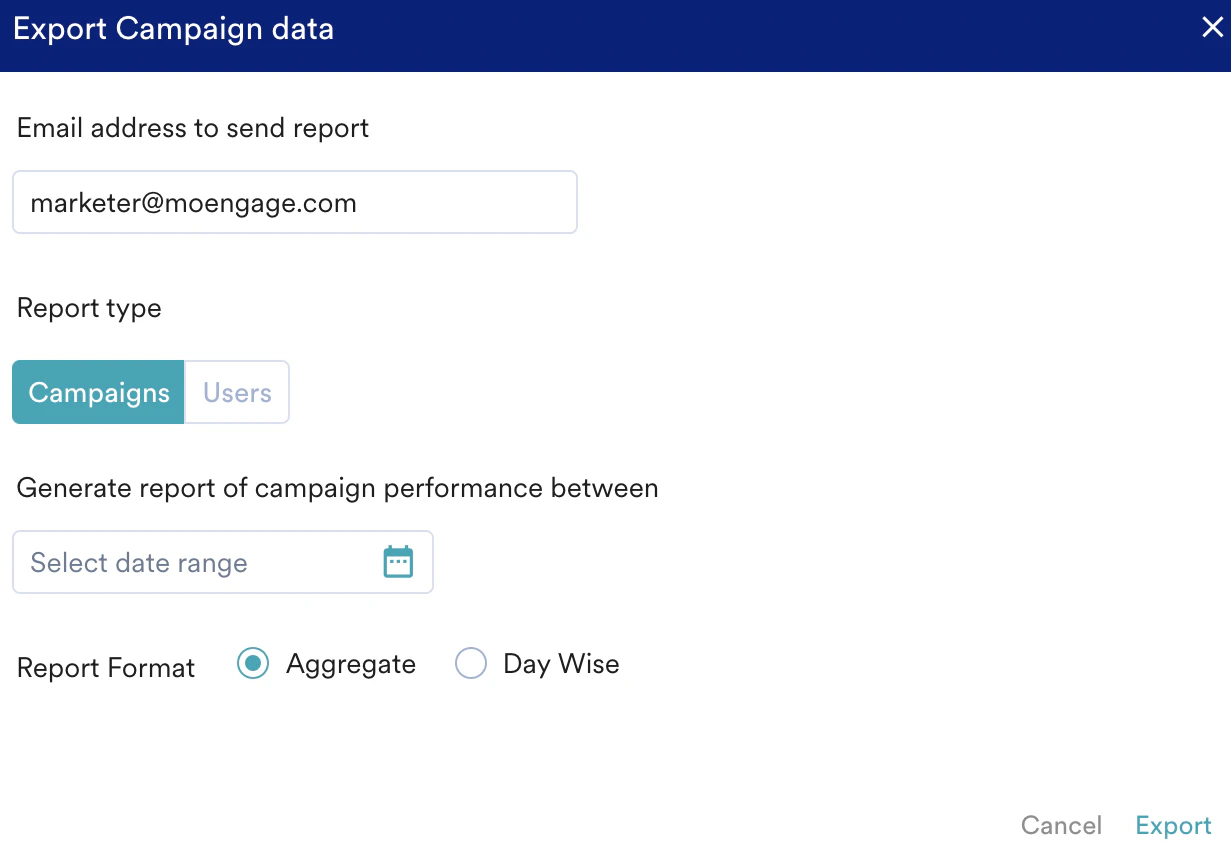
- Campaigns - This report helps check the performance of all the action campaigns for the chosen date/ date range. The numbers shown in the report are recorded within the selected time range irrespective of when those users entered the flow:
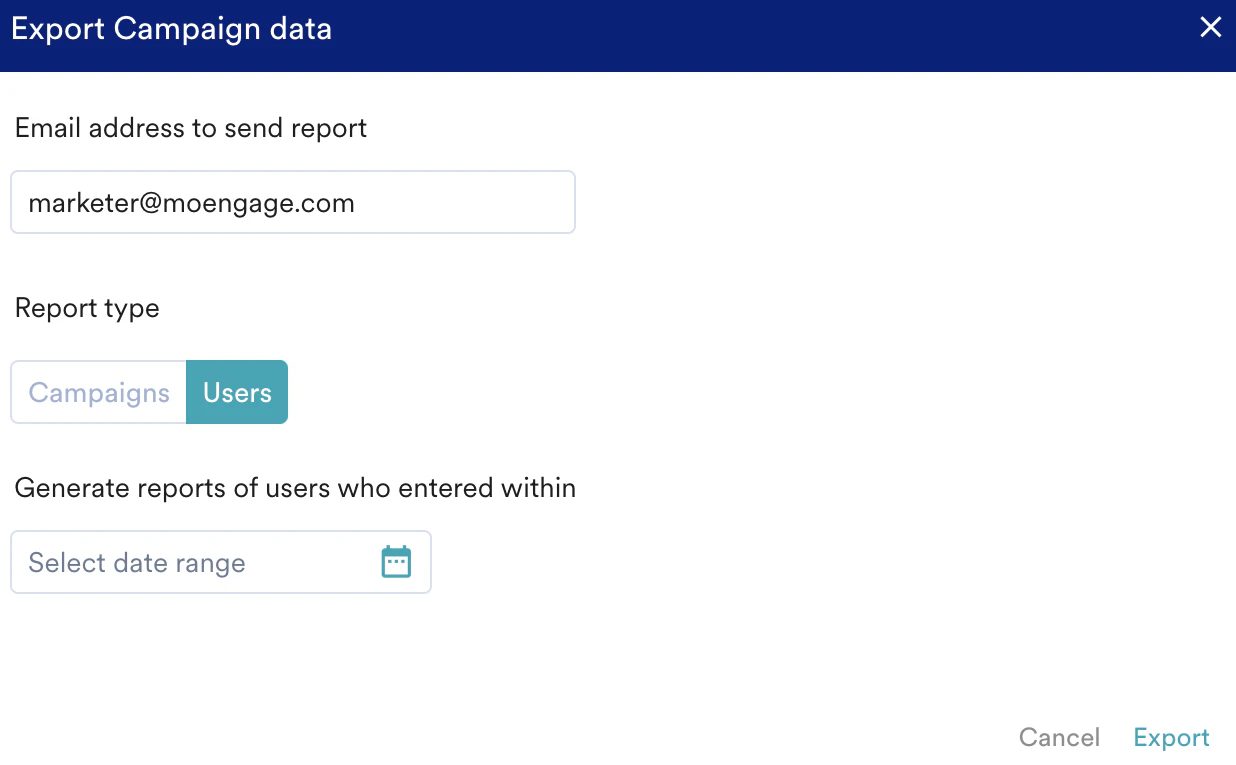
- Users- This report helps check all the stats related to users who have entered during the chosen date/ date range.
- Campaigns - This report helps check the performance of all the action campaigns for the chosen date/ date range. The numbers shown in the report are recorded within the selected time range irrespective of when those users entered the flow:
- Define the period for which the report has to be generated.
- In the case of Campaigns report type, you can either generate an Aggregate report or a day-wise report.
- The generated report will be mailed to the filled-in Email ID in the zip format.