

MoEngage currently supports Jinja version 3.1.
Variables
Variables can also be expressions, which evaluate a new variable. Anything inside double brackets is evaluated and inserted into the final content. Often a variable is a collection of attributes. In the MoEngage email template, these attributes can be accessed using a dot operator: Jinja- It is recommended to use the subscript notation when using Jinja.
- If the defined attribute that you are using contains spaces, you must use the subscript notation. For example:
Expressions
MoEngage supports basic expressions everywhere. Expressions can be used to create variables from other variables or expressions, such as by performing mathematical, logical, or other operations. To use Expressions or Statements, enclose them as follows: JinjaMoEngage Personalization Objects
MoEngage provides several special objects that you can use to personalize your templates with dynamic data.Product Set
Product Set refers to an array of product data associated with a user’s action, such as “Product Viewed” or “Added to Cart”. You can loop through this data to display product names, images, prices, and other attributes.Recommendation
Recommendation provides access to product recommendations generated for a specific user. This allows you to personalize campaigns with dynamically suggested items based on user behavior or collaborative filtering.Auxiliary Data
Auxiliary Data allows you to pass additional, contextual data at the time of sending a campaign, often through an API trigger. This is useful for including transactional details like order IDs, flight numbers, or any other information that is not stored as a user or event attribute.Content API
Content API enables you to fetch live, real-time data from external APIs directly within your template. This is powerful for including dynamic content that changes frequently, such as live sports scores, stock prices, weather updates, or real-time inventory levels.Literals
Literals are the simplest form of expression. Literals represent variables such as strings and numbers. The following literals exist:Math
MoEngage allows you to calculate with values. The following operators are supported:Comparisons
Logic
For if statements, filtering, and if expressions, it can be useful to combine multiple expressions:Expression Tests
Tests can be used to test a variable against a common expression. To test a variable or expression, add is and the name of the test after the variable. For example, to find out if a variable is defined, you can do “name is defined”, which will then return true or false depending on whether the name is defined in the current context of the template. Tests can also accept arguments. If the test only takes one argument, you can leave out the parentheses. For example, the following two expressions do the same thing: JinjaComments
To comment out part of a line in a template, use the comment syntax, which is by default set to{# ... #}. This is useful to comment out parts of the template for debugging or to add information for other template designers or yourself:
Jinja
Assignments
Inside code blocks, you can also assign values to variables. Assignments at the top level (outside of blocks, macros, or loops) are exported from the template like top-level macros and can be imported by other templates. Assignments use the set tag and can have multiple targets: JinjaConditional statements, loops
-
One can also use the custom variable with a loop; Tags control the logic of the template and can perform conditional statements, loops, macros, and so on.
Sample Loop
products %}<p>The products are not empty.</p>{% else %}
<p>The products are empty.</p>{% endif %}
Escaping
It is sometimes desirable (even necessary) to have MoEngage ignore parts it would otherwise handle as variables or blocks. For example, if, with the default syntax, you want to use{{ as a raw string in a template and not to start a variable, you must use a trick.
The easiest way to output a literal variable delimiter
Jinja
HTML Escaping
When generating HTML from templates, there is always a risk that a variable will include characters that affect the resulting HTML. It’s your responsibility to escape variables if needed. What to escape? If you have a variable that may include any of the following characters JinjaControl Structures
A control structure refers to all those things that control the flow of a program:- conditionals (that is, if/elif/else)
- for-loops
- macros and blocks
For
Loop over each item in a sequence. For example, to display a list of users provided in a variable called users: HTMLIf
In the simplest form, you can use it to test if a variable is defined, not empty, or not false: JinjaWorking with Default Values
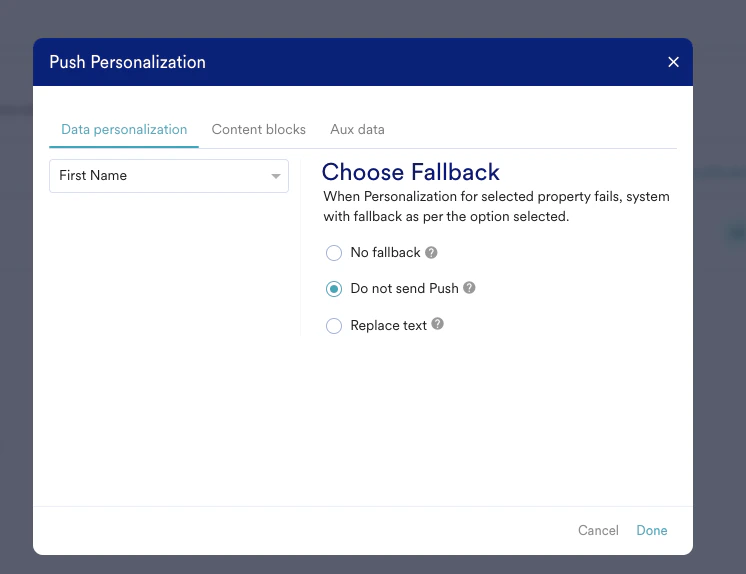
In the MoEngage email templates, when a message contains a null value, it will not be sent. Hence, we need to assign default fallback values to avoid such situations. In this example, if we don’t have the user’s location, this message would not be sent: Jinja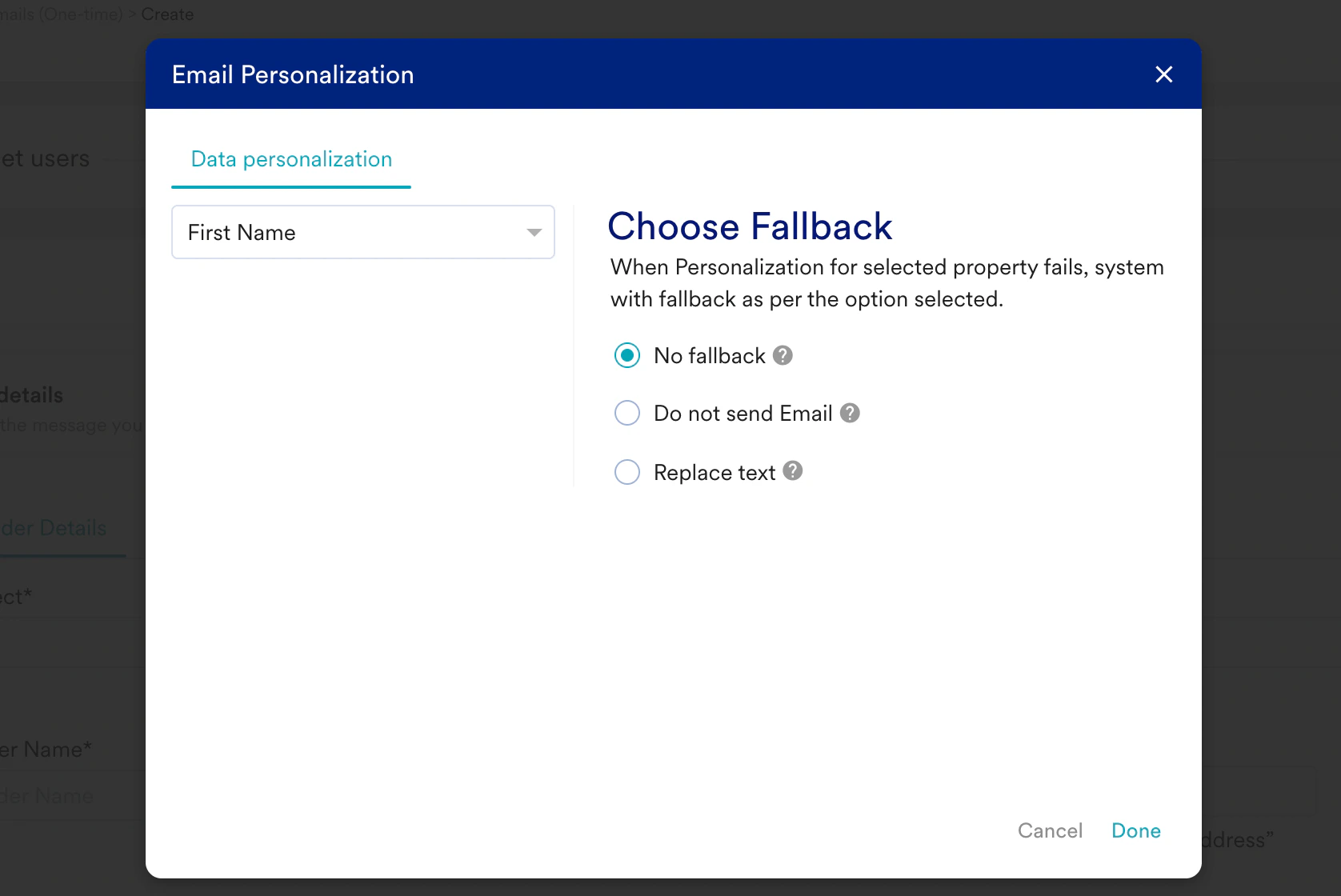
Custom JINJA Error Message
You can define custom error messages in your Jinja templates using theMOE\_NOT\_SEND tag. This feature allows you to specify a clear reason when a content personalization or delivery condition fails for a user.
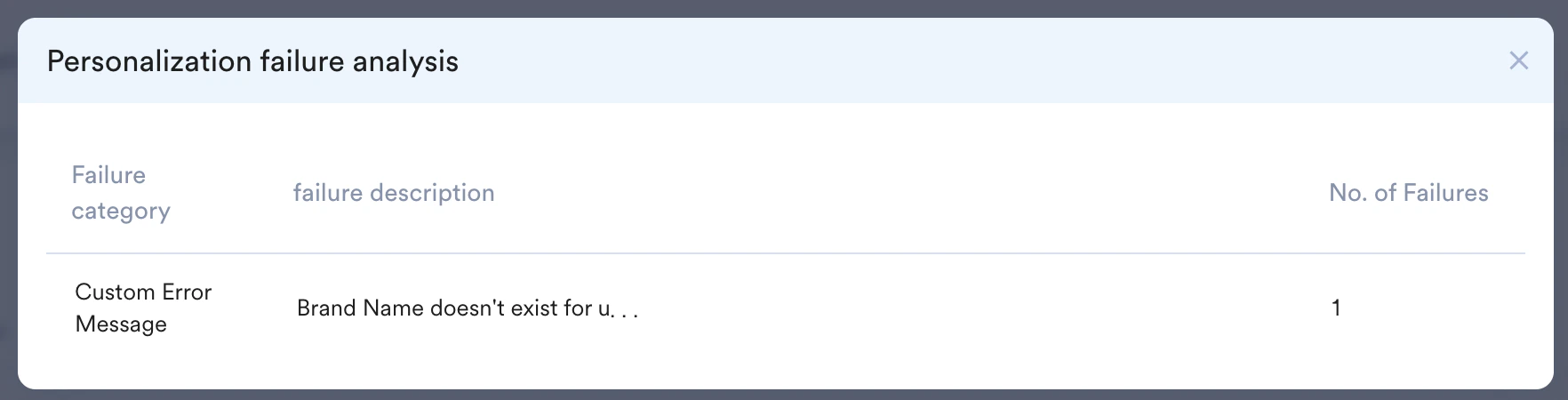
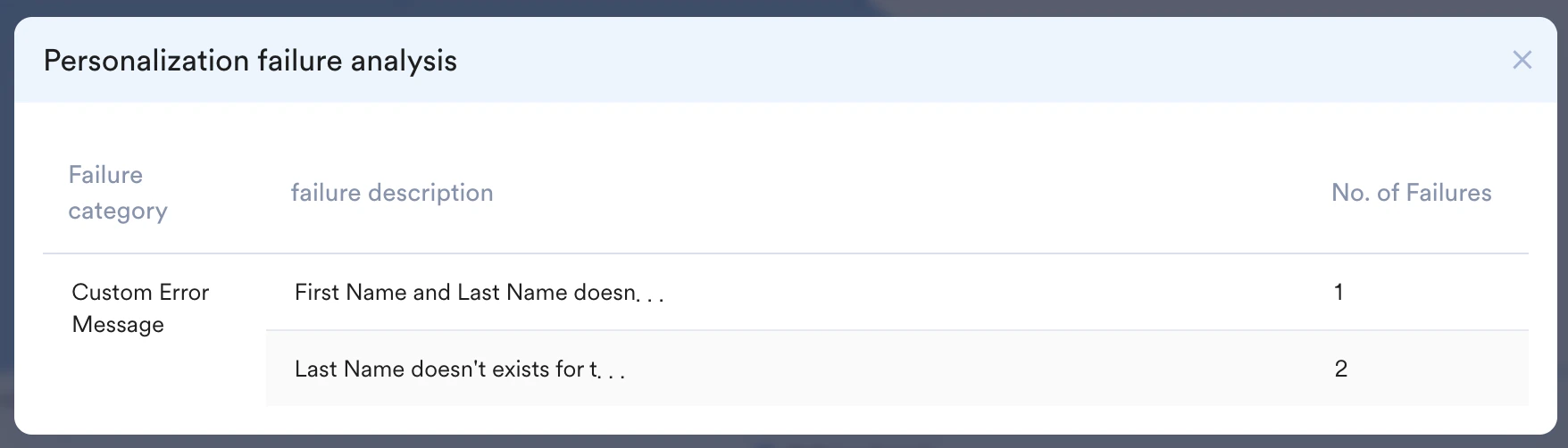
In the Error breakdown section of the campaign’s Analytics page, MoEngage tracks all users for whom the content personalization failed. The custom error message you defined, along with the count of users who triggered that specific error based on your campaign’s segmentation, is displayed here.
Example 1:
This example checks if the user’s brand attribute is Puma. If the brand attribute does not match, a custom error message is generated.
Jinja
- Success: If both names exist, the content is sent.
- Scenario 1: If the last name is missing, the Last Name doesn’t exist for usererror appears.
- Scenario 2: If the first name is missing, the First Name doesn’t exist for user error appears.
- Scenario 3: If both first and last names are missing, the Both First Name and Last Name doesn’t exist for user error appears.
Jinja Filters (Functions)
The following are a few of the global functions supported by Jinja:String Filters
Convert to Proper Case/ Title Case
This will allow you to convert a string to Title case. For example: Input: joHn doE Output: John Doe JinjaCapitalize First Letter
This will allow you to capitalize the first letter of each sentence in a string. For example: Input: joHn doE. his age is 20. Output: John doe. His age is 20. JinjaUpper Case
This will allow you to convert a string to uppercase. For example: Input: joHn doE Output: JOHN DOE JinjaLower Case
This will allow you to convert a string to lowercase. For example: Input: JoHn doE Output: john doe JinjaReplace a String
This will allow you to replace a part of a string with another string. For example, let’s replace “jo” in joHn with “ma”: Input: joHn doE Output: mahn doe JinjaCheck if a String Contains a Substring
This will allow you to check if a string contains a substring. For example: Input String: Click on me now! Input Substring: now Output: true block JinjaNumber Filters
Add +91
This will allow you to replace a part of add “+91” to a mobile number. For example: Input: 9991119991 Output: +919991119991 JinjaConsider 10 digits
This will allow you to consider only 10 digits of a mobile number. For example: Input: +919991119991 Output: 9991119991 JinjaInteger Filters
Bit Length of Data
Returns the number of bits necessary to represent an integer in binary, excluding the sign and leading zeros. JinjaConjugate of the Complex Number
Returns the conjugate of the complex number. Complex numbers are not supported, so int.conjugate() returns the number itself. JinjaFloat Filters
Identify whether the Float is a Finite Integer
Returns True if the float instance is finite with an integral value, and False otherwise. JinjaHexadecimal String
Returns float represented by a hexadecimal string. The string may have leading and trailing whitespace. JinjaConjugate of the Complex Number
Returns the conjugate of the complex number. Complex numbers are not supported, so float.conjugate() returns the number itself. JinjaList Filters
Occurrences of an Item
Returns the number of occurrences of the given item in the List. JinjaLowest Index in the List
Returns the lowest index in the List where the given item is found within the slice s[start:end]. Optional arguments start and end are interpreted as in slice notation. Similar to str.index().list.index() throws an error if index not within the List. Jinja
Remove Item at Index Position in the List
Returns the item at index position in List and also removes it from the List. If no index provided, returns and removes the last item in the list. list.pop() throws an error if index not within the List. JinjaMoEngage currently supports all other standard functions of Jinja. If you want to learn more about standard functions in Jinja, refer to List of Global Functions.
Custom Functions
Date Time Functions and Formatters
Date Formatter - Converts any given date to the format mentioned in toFormat. > Usage{{'14/10/2020'|dateFormatter('%m/%d/%Y')}}
Output: 10/14/2020
Date Difference - Returns the difference between 2 dates. Return values can be positive, zero, or negative.
> Usage>
{{'12/10/2020'|days('14/10/2020')}}
Output: 2
Today Function - Returns current date in the given format and timezone.
> Usage (For a MM/DD/YYYY in EST Timezone){{'%m/%d/%Y'|today('EST')}}
Output: 05/23/2024
Date and Time Formatter Function -
- Format date and time - Converts any given date to the mentioned format.
dateTimeFormatter(toFormat=‘%Y-%m-%d %H:%M:%S %p’)>
> Usage
{{ "2012-01-19 17:21:00 CST" |dateTimeFormatter(toFormat='%Y-%m-%d %H:%M:%S %p')}}
Output: 2012-01-19 05:21:00 PM
- Timezone Conversion - Displays date and time in the respective Timezone, and adds the defined number of minutes to the time.
dateTimeFormatter(tzOffset=-330) dateTimeFormatter(timeZone=‘Asia/Kolkata’)>
> Usage
{{ "2012-01-19 17:21:00 CST" |dateTimeFormatter(tzOffset=-330)}}>
{{ "2012-01-19 17:21:00 CST" |dateTimeFormatter(timeZone='Asia/Kolkata')}}
Output:
2012-01-19 11:51:00 AM2012-01-19 22:51:00 PM
- Within dateTimeFormatter filter, multiple methods can be used. For example, to display a user attribute in a particular format and user Timezone, the following code can be used.
{{UserAttribute['First Seen']|dateTimeFormatter(toFormat='%Y-%m-%d %H:%M', timeZone='Asia/Kolkata',tzOffset=UserAttribute['User Time Zone Offset (Mins)'])}} - If both the timeZone and tzOffset methods are used, tzOffset is given priority irrespective of the sequence. If the tzOffset value is not available or is -1000, the timeZone method will be used.
<https://strftime.org/>
Strikethrough Text
This will allow you to strikethrough the text. For example, you want to show the old price of a product in strikethrough. Input: Price USD 100 Output: Price USDContent Break
This will allow you to loop through a list of items and have precise control over the loop’s execution. You can use continue to skip over certain items that you don’t want to fully process, and you can use break to stop the entire loop prematurely once a specific condition is met. For example, to display recent articles on a homepage,continue can skip “draft” articles, and break can stop the list after the first “featured” article, preventing the page from becoming too long.
Jinja
- When “stop_value” is encountered, the {% break %} statement stops the loop, and “cherry” and “date” are not processed.
- When “continue_value” is encountered, the {% continue %} statement skips the rest of the code execution within the loop block for that specific iteration.
Encryption and Decryption
SHA 256 Encryption
Jinja now supports SHA 256 encryption in two ways: SHA256 with a Secret Key - Encrypts the string using SHA256 with the secret key > Usage (where 6ABC89W3XY9W is secret key){{UserEmail|convertToSHA256('6ABC89P3FXYW')}}>
> Example
> Say you want to encrypt User’s Email ID on MoEngage using SHA256
>
{%set UserEmail=UserAttribute['Email']%}{{UserEmail|convertToSHA256('6ABC89P3FXYW')}}
SHA256 without a Secret Key - Encrypts the string using SHA256
> Usage{{UserEmail|convertToSHA256NoSalt()}}>
> Example
> Say you want to encrypt User’s Email ID on MoEngage using SHA256
>
{%set UserEmail=UserAttribute['Email']%}{{UserEmail|convertToSHA256NoSalt()}}
Base64 Encoding
Encrypts the string using Base64 encoding. > Usage{{UserEmail|base64encode}}
Base64 Decoding
Encrypts the string using Base64 decoding. > Usage{{UserEmail|base64decode}}
URL Encoding
Encrypts the string using URL encoding. > Usage{{UserEmail|urlencode}}
URL Decoding
Encrypts the string using URL decoding. > Usage{{UserEmail|urldecode}}