Introduction
Gathering customer feedback is essential for improving satisfaction and loyalty. One way to achieve this is by displaying an HTML in-app message to collect Net Promoter Score (NPS) ratings using a slider. The target audience for this pop-up will be users who have recently ordered a product, allowing you to gather valuable insights into their experiences and satisfaction levels. In this article, we will create an In-app message designed to collect NPS ratings from product buyers. This will enable you to capture user feedback and better understand customer loyalty.Expected Result
Users who have ordered a product will see an NPS rating pop-up with a slider. This will allow them to rate their experience, providing the company with insights into customer satisfaction and areas for improvement.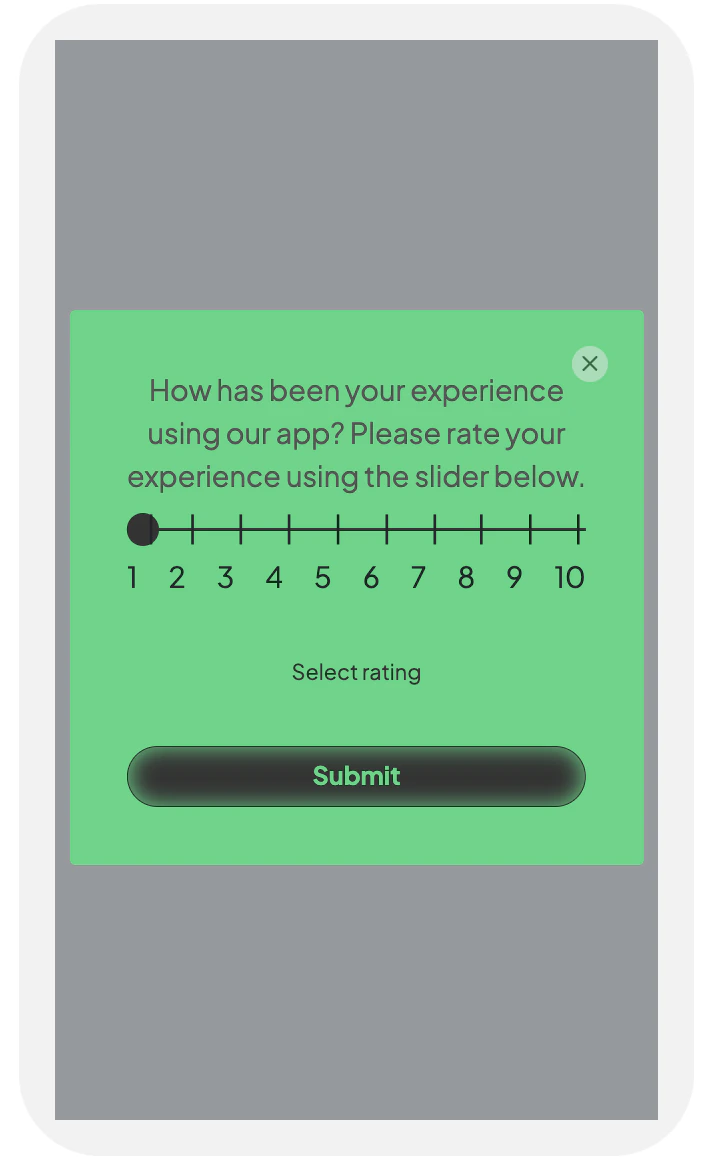
Create an In-App Campaign
In this section, let us create an in-app message designed to collect NPS ratings from product buyers.Step 1: Target users
- Navigate to the sidebar on the left and click Engage > Campaigns and click + Create campaign, or click + Create new> Campaign.
- Under Inbound, click In-app.
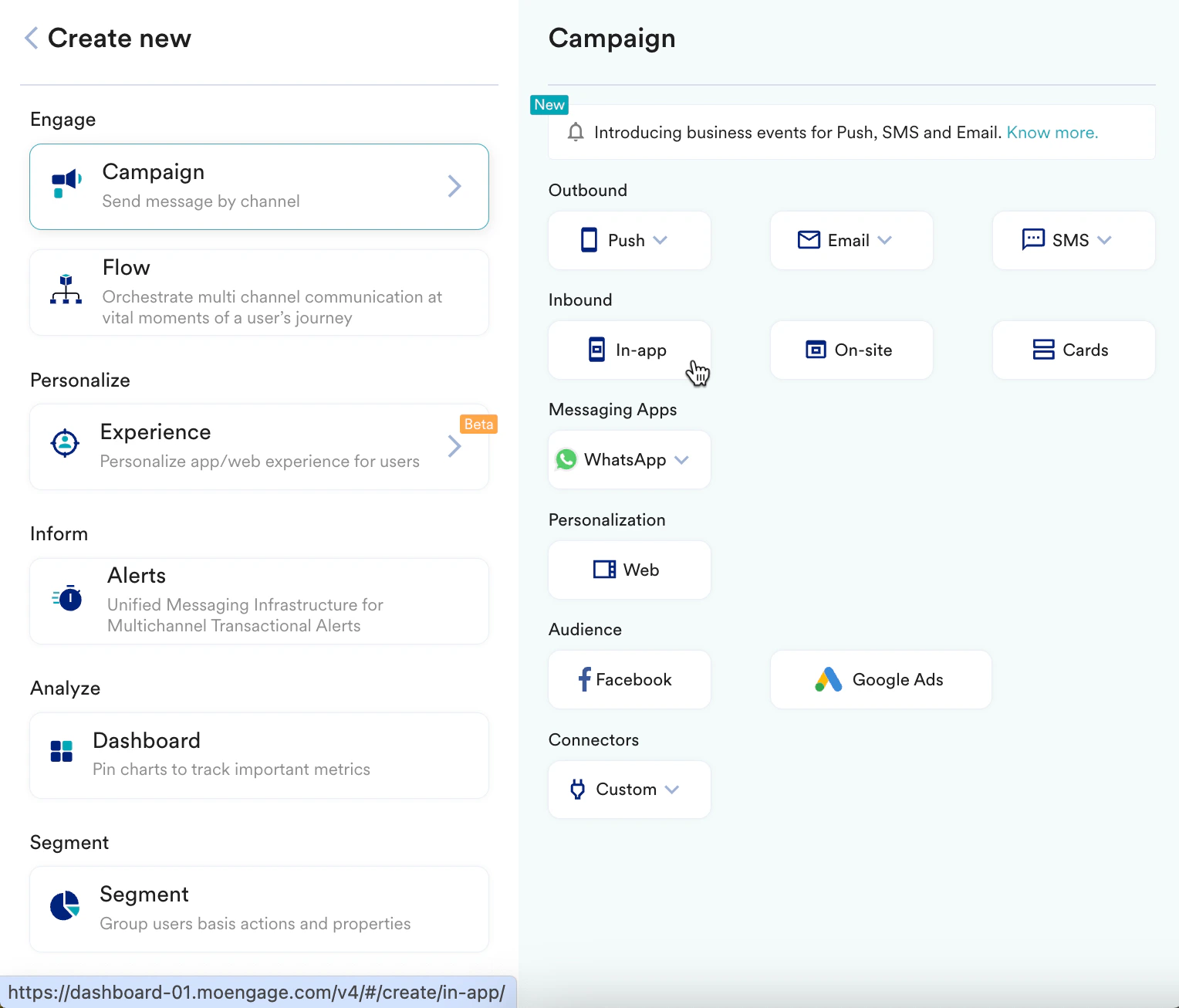
- Enter the following details:
- Campaign name: Enter a name for the campaign. For example, “NPS rating campaign.”
- Campaign tags: Select the relevant campaign tags.
- In the Target Platforms section, select iOS.
- In the Trigger Criteria section, select On custom eventand set the trigger to display the NPS rating pop-up after a user completes an order.
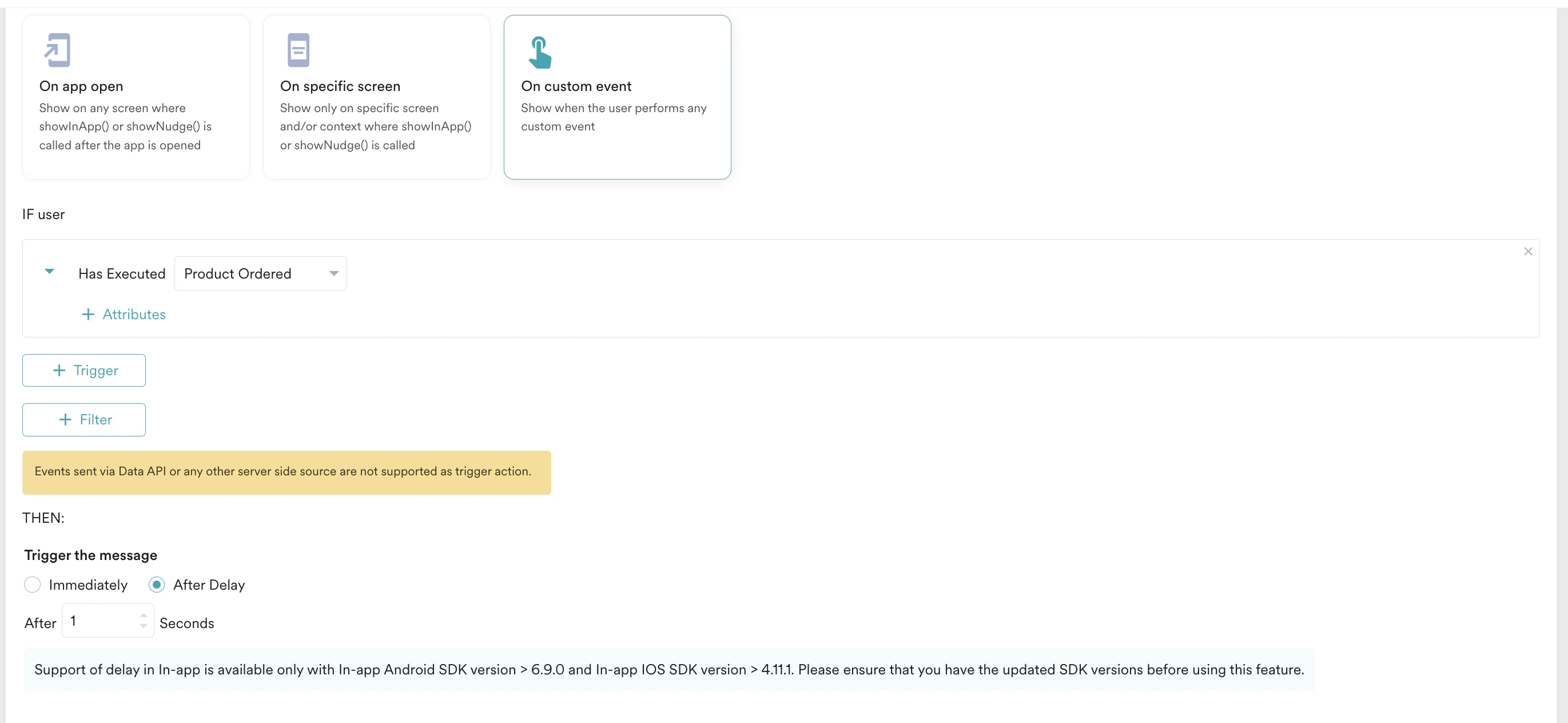
- In the Select trigger time section, select Immediately to send the message.
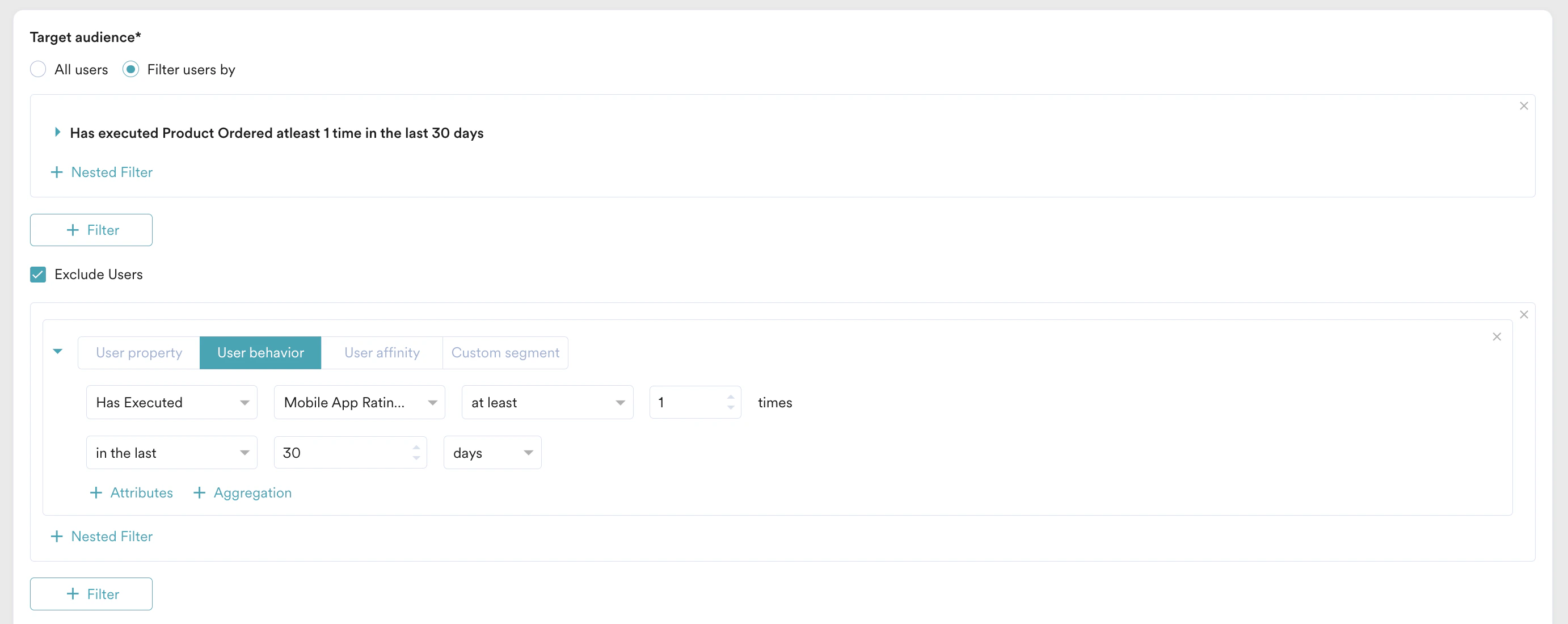
- In the Target audience section, select Filter users by to specifically target only those users users who have ordered a product within the last 30 days and exclude users who have already provided an NPS rating.
- Click Next to move to the second step, “Content,” where you can define the content that will go into your campaign.
Step 2: Content
MoEngage In-App campaign offers a variety of templates for all your use cases. It also provides the option to start from scratch.- Select the template you want to show the user. You can select any HTML in-app message template for designing the pop-up and customize it on the Template Settings page.
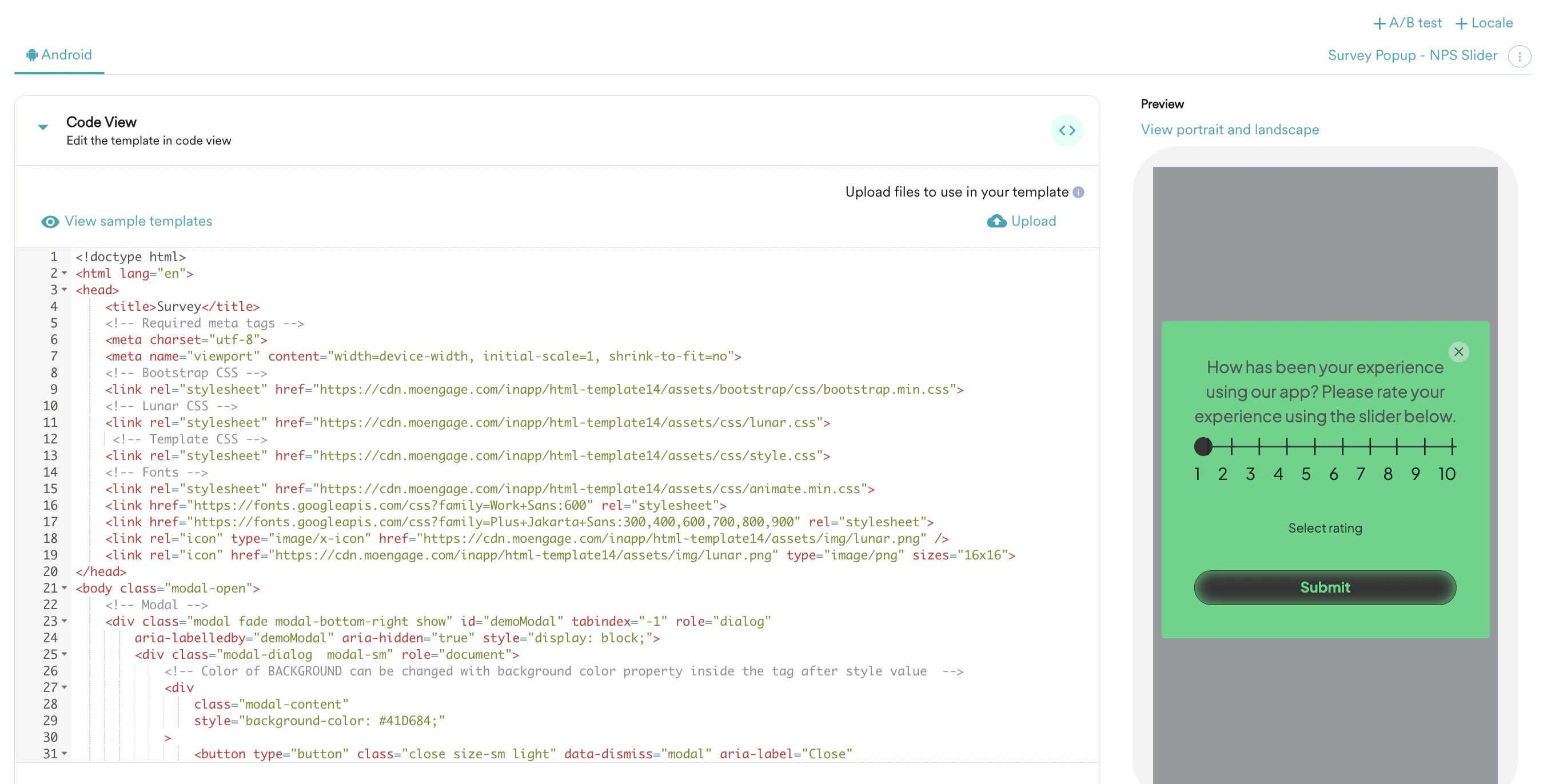
- Edit the NPS Rating pop-up:
- Select and open the NPS rating template.
- The code of the template will open up in the code editor.
- You can change the template according to your use case. For example, you can change the look and feel of the slider or add a highlighted option in a different color.
- Click Next to move to the third step, “Schedule and goals,” where you can define your campaign’s schedule and goals.
Step 3: Schedule and goals
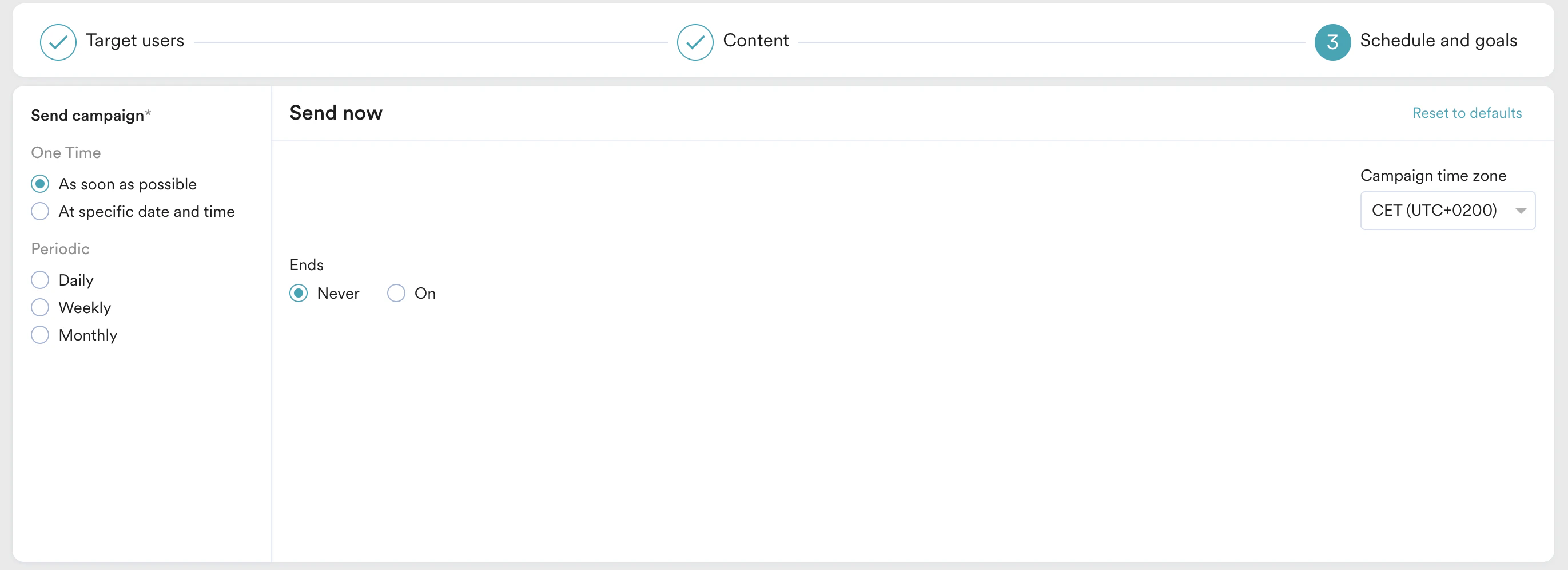
Here, you can select the campaign schedule, add the conversion goal, choose the campaign’s priority, and define custom delivery controls.- In the Send campaign section, define when you want to start and end your In-app campaign with the frequency and limits.
- In the Conversion Goals section, add conversion goals that you would like to track.
- In the Campaign priority section, assign a priority to this campaign. Assigning a priority helps you decide which In-App message to show to a user when they are eligible for more than one message at a specific time. For example, selecting Critical ensures that the users will always see this even when there are other campaigns for which they are eligible.
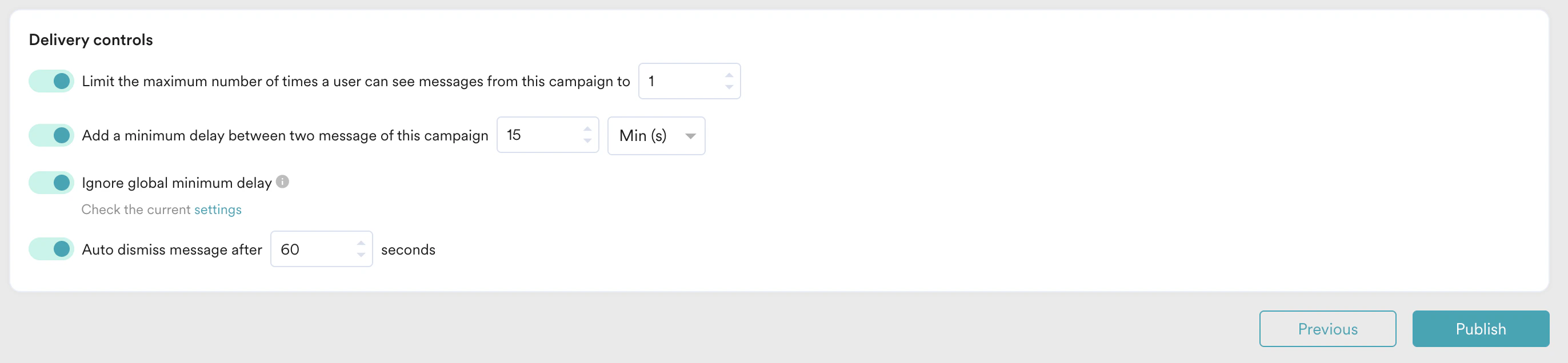
- In the Delivery Controls section, define the controls based on your requirements. For more information, refer to Create In-App Campaign.
- Click Publish.
Data Collection and Analysis
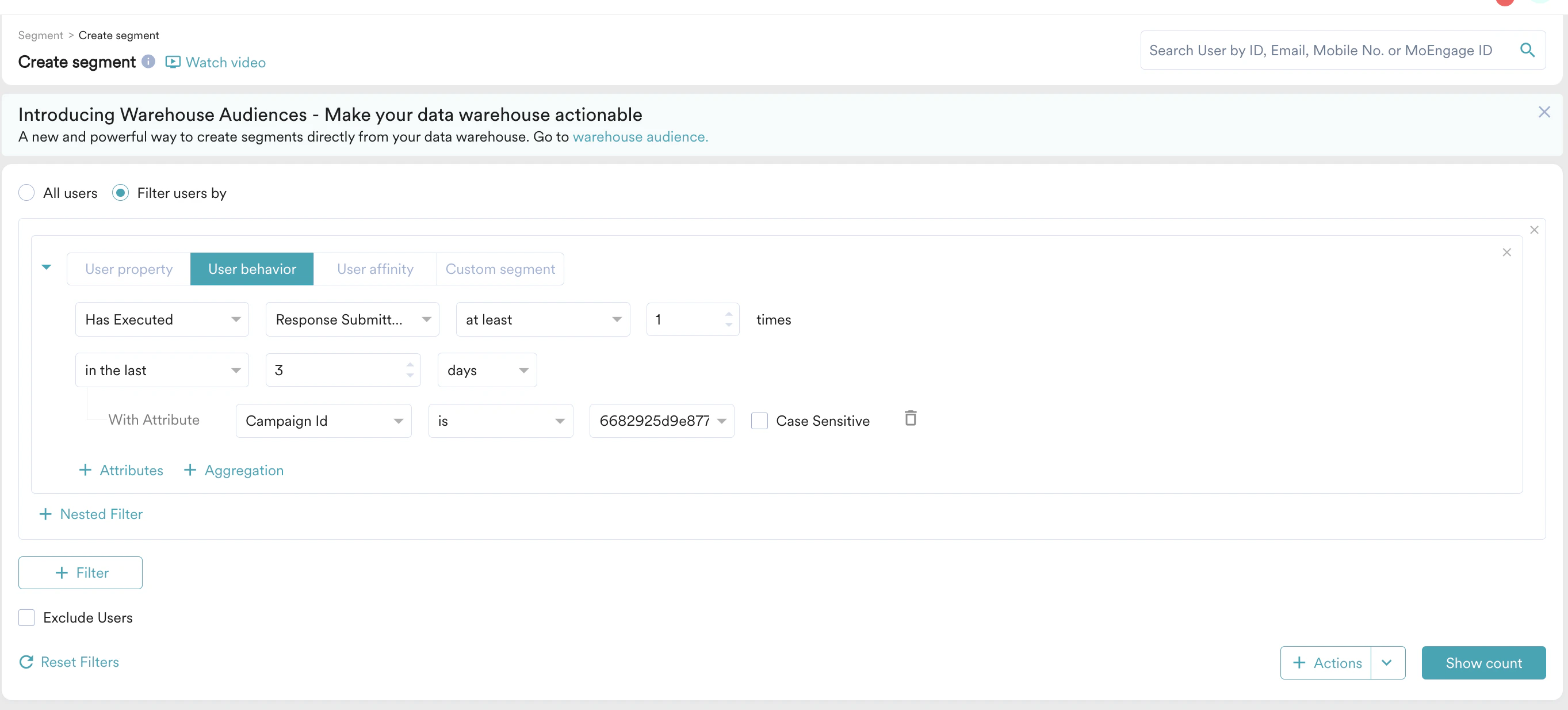
- To view the collected survey responses and users who submitted them, go to Segment > Create segment.
- Filter based on the “response submitted” event as shown below: