

Advantages of segmenting users who uninstall your app
- Identify root causes of uninstalls: By analyzing the behavior and characteristics of users who uninstall, you can understand why users leave. This enables you to identify and address issues like poor user experience, technical problems, or unmet expectations.
- Improve user experience: Understanding why users uninstall allows you to address usability issues, optimize onboarding, and enhance the overall app experience.
- Targeted retention efforts: Segmenting helps you focus on retaining specific user groups that are at risk of uninstalling, such as those who haven’t used the app recently or those who have encountered technical problems.
- Improve app quality: Identifying common reasons for uninstalls helps developers prioritize bug fixes, feature improvements, and overall app optimization.
- Understand user behavior: Segmenting helps you understand how users interact with your app before uninstalling, providing valuable insights into their needs and preferences.
- Send personalized communication: Segmented data allows you to personalize messages to engage users who are at risk of uninstalling.
Expected Result
You will get a segment of users who uninstalled your application and re-installed it in the last 10 days.\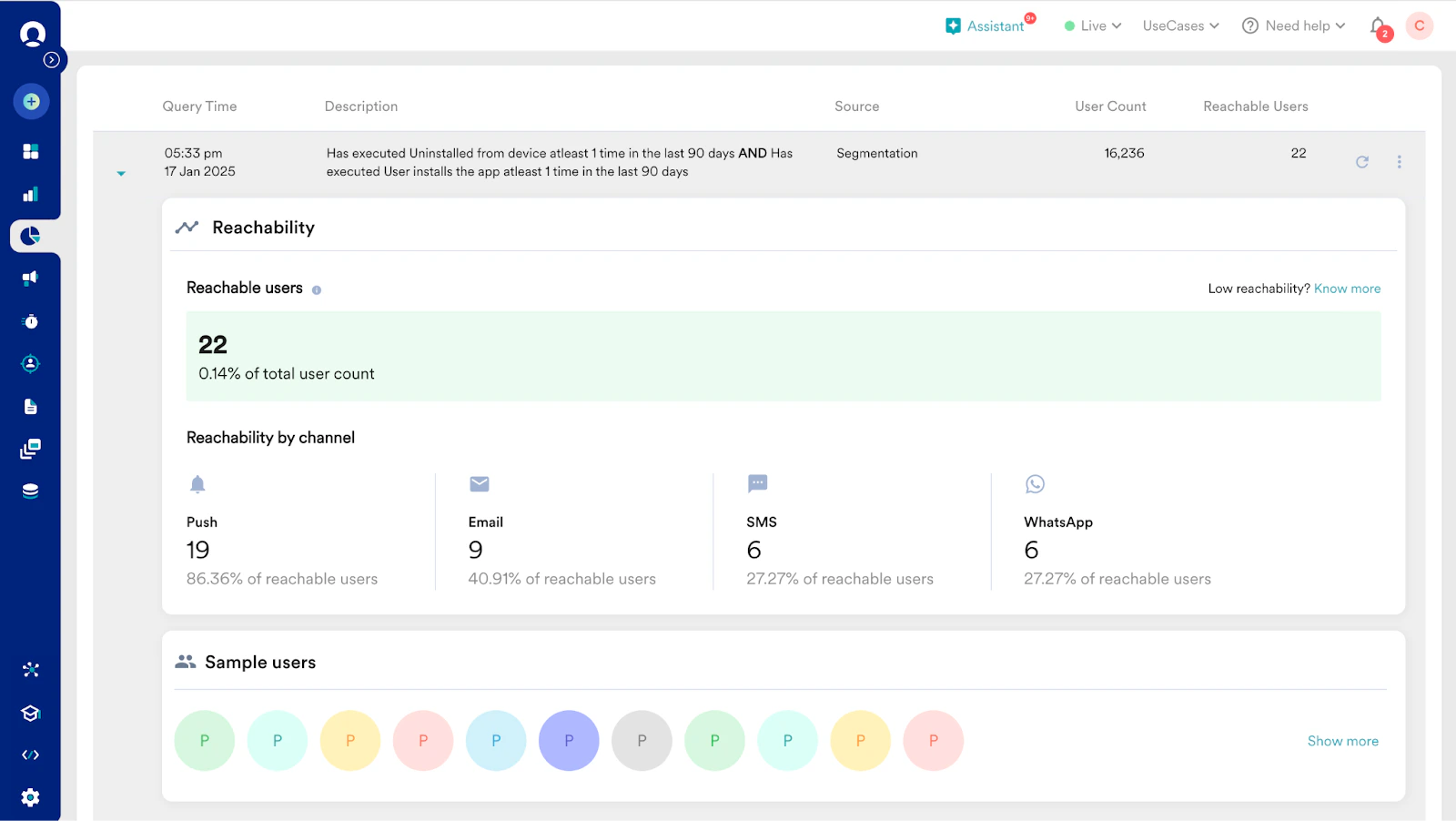
Create a Segment
- On the left navigation menu in the MoEngage dashboard, click Segments and then click Create segment.
- Click the Filter users by option, and then click the User behavior tab.
- Add the filter criteria to segment users who have executed the Uninstalled from device event at least once in the last 10 days, as shown in the image below:
 You must know your application’s data protection policy before adding a time frame. Data in some applications may not be available after 30 days, and it varies.
 - To get a deeper look into particular groups of users, you can select one or more attributes from the list to narrow the segment. These include:
- Days since last active: Represents the number of days between the last active and uninstall times.
- Days till last active: Represents the number of days between install and last active times.
- Click + Create.
- To identify users who uninstalled your application and have not reinstalled it again, you can add another filter on the User behavior tab that triggers the User installs the app event in the last 10 days. This excludes the users who reinstalled your application from the Uninstalled from device list.

- The date on which a user actually uninstalled your application on Android devices can be earlier than the date recorded in your data. This difference may occur due to the nature of the mechanism used to detect uninstalls.
- Uninstall tracking for iOS was deprecated on August 10, 2023, following the significant adoption of iOS 15 and 16 versions, which do not support tracking failed delivery attempts using silent push. However, failed delivery attempts of regular Push campaign messages will still appear as uninstalls for iOS devices.
Conclusion
With the segments created above, you can run an Email campaign targeting users who uninstalled your application in the last 10 days.You cannot send push notifications to users who uninstalled your application. The best way to reach them is via Email campaigns. To run an Email campaign, you must configure your user attributes with the email addresses of those uninstalled users.