Introduction
Last-viewed products are powerful tools for reaching out to potential customers and encouraging them to purchase them. By sending a WhatsApp message with a list of the products a user has recently viewed, you can remind them of their interest in the product and encourage them to take action, such as purchasing a product or completing a TV show or series.Expected Result
Users will have a smooth and engaging experience, leading to a better understanding of app features, increased user satisfaction, and higher retention rates. Specifically, users can easily navigate through the app to make their purchases and get a reminder of their last viewed products, offers, and sales, resulting in higher user satisfaction and more frequent app usage.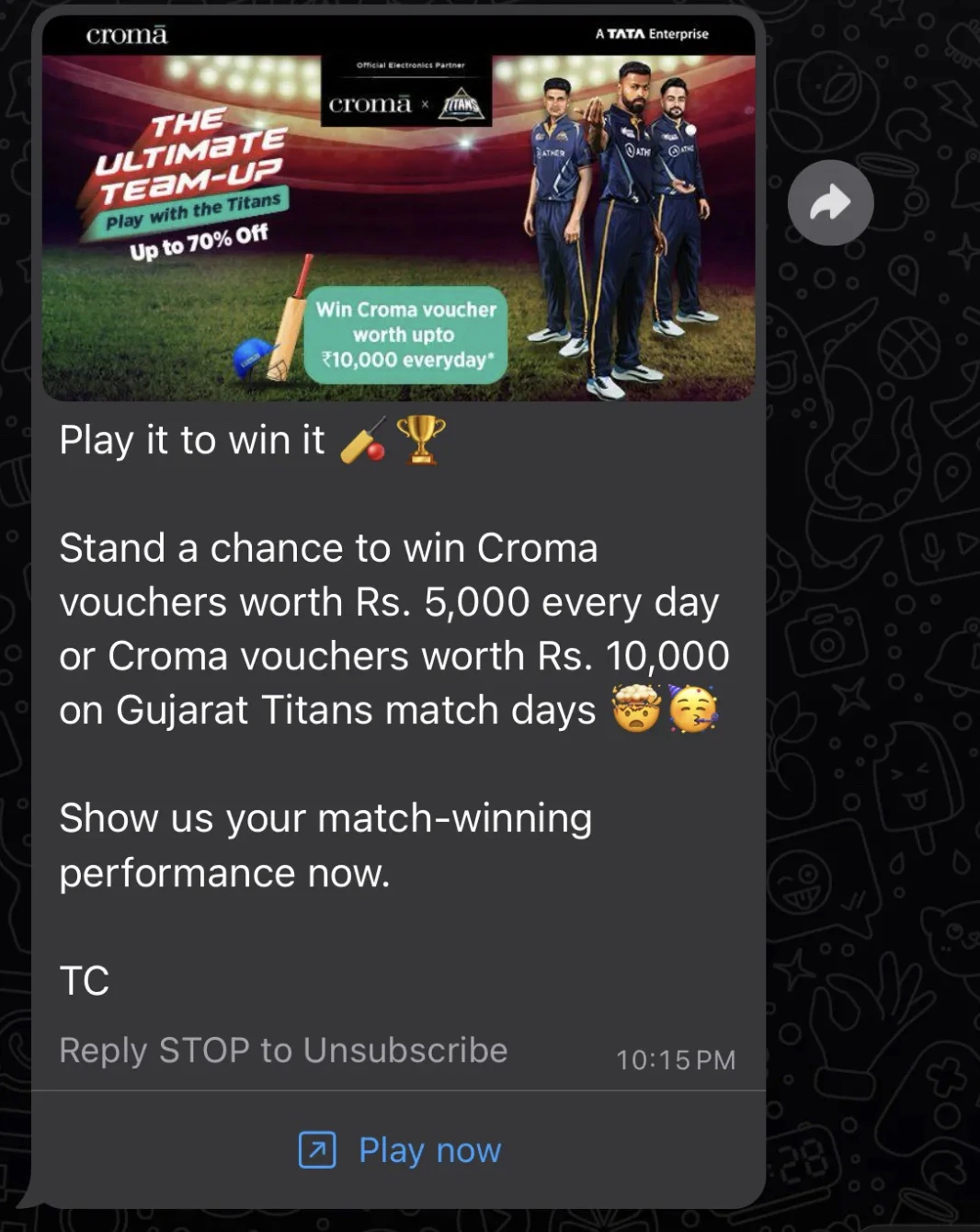
Create a WhatsApp Campaign
In this section, let’s create a WhatsApp campaign to reach out to potential customers and encourage them to make a purchase.Step 1: Target Users
- Navigate to the sidebar on the left and click Engage > Campaigns and click + Create campaign, or click + Create new> Campaign.
- Under Messaging Apps, click WhatsApp > Event Triggered.
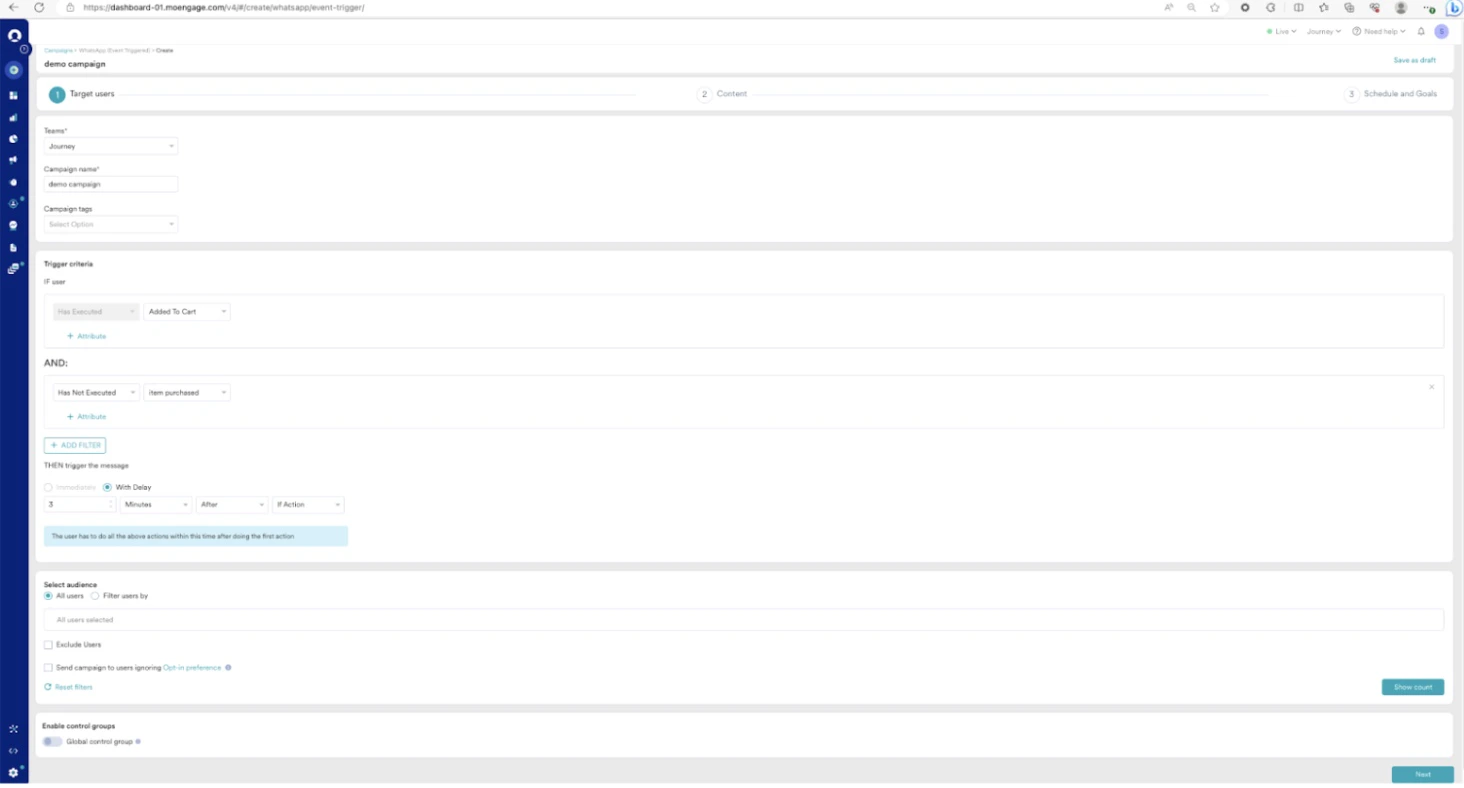
You are taken to the first step, “Target users,” of defining your campaign. - Enter the following details:
- Campaign name: Enter a name for the campaign. For example, “Last viewed products.”
- Campaign tags: Select the relevant campaign tags.
- Select the required Trigger Criteria and the Audience. One of the sample audiences can be users who added items to their cart in the last 3 days but didn’t place an order or users who started watching a TV show or a movie but didn’t complete it.
- Click Next to move to the second step, “Content,” where you can define the content for your campaign.
Step 2: Content
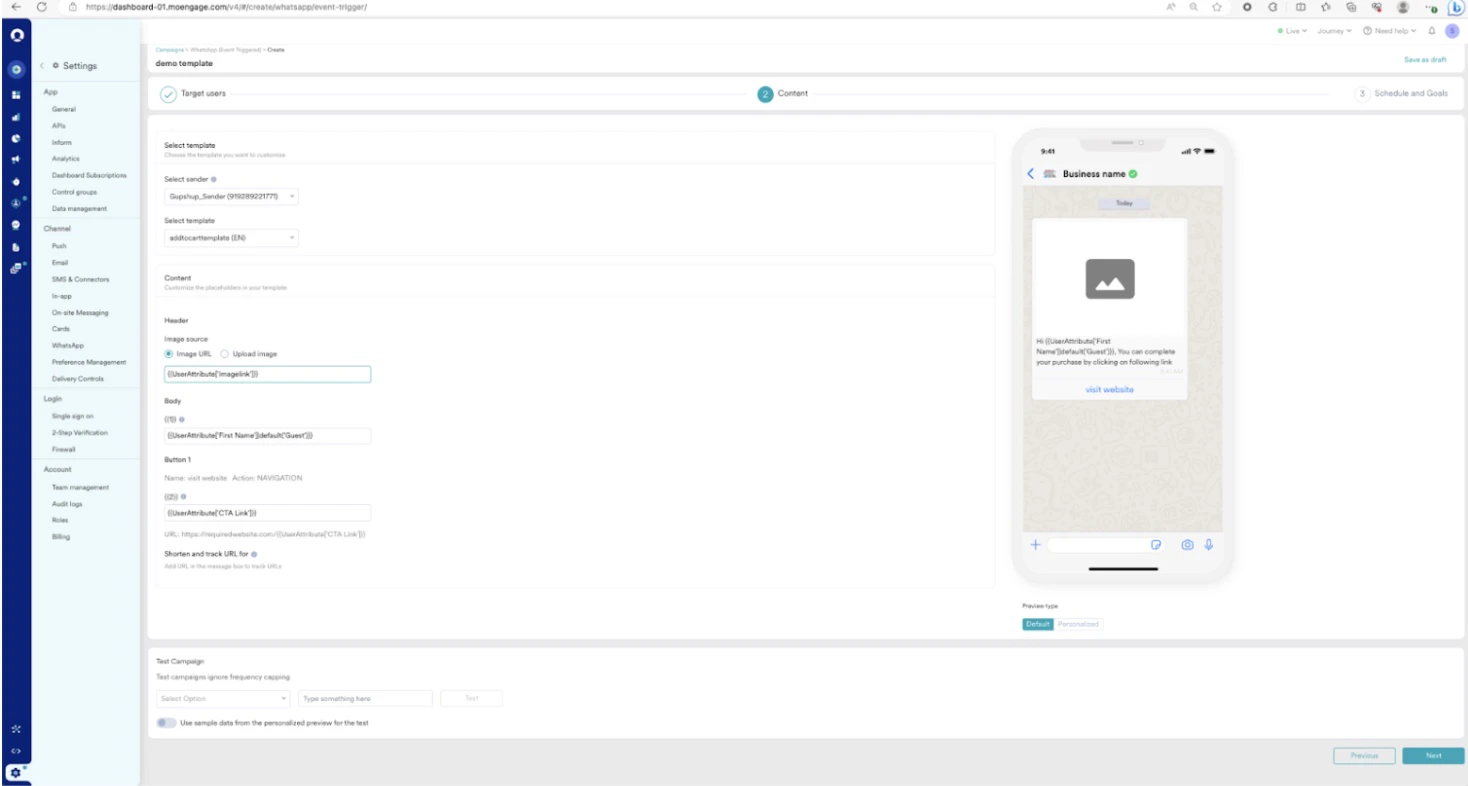
MoEngage WhatsApp campaign offers a variety of templates for all your use cases. It also provides the option to start from scratch.- Select the required sender.
- Select the required template, which contains the header as an image (and it is saved as a dynamic image while creating the template).
- For the Header, the following are the popular options for fetching the image.
- Pick the last viewed product using product sets.
- For each user profile, the user attribute with the last viewed product can be picked.
- Personalize the message body with customer attributes or event attributes such as name, location, and so on (if the template has variables).
- Use personalization with the dynamic navigation link to help customers land on relevant screens (if the template has a dynamic CTA link).
- Click Next to move to the third step, “Schedule and goals,” where you can define your campaign’s schedule and goals.
Step 3: Schedule and Goals
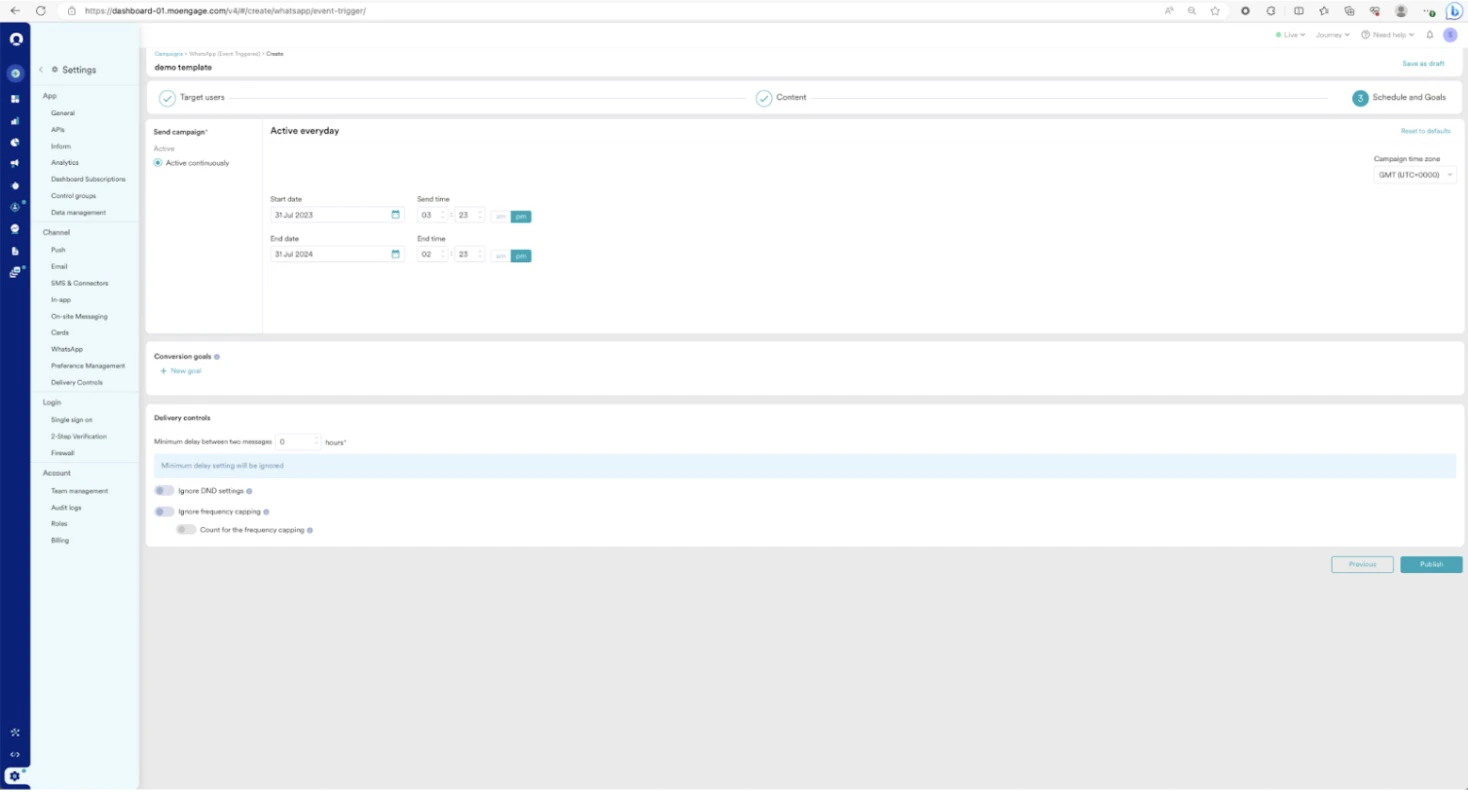
- Select the duration of the event-triggered campaign.
- Add a conversion goal to track the conversion (if required).
- Select the campaign’s priority and define custom delivery controls.
- Click Publish.