

Introduction
Understanding customer preferences is crucial in customizing product offerings and boosting user engagement. In this article, we will create a single-question survey using the drag-and-drop editor of MoEngage to collect customer preferences quickly. This survey will be easy to deploy and analyze, offering valuable insights to guide better decision-making. For this use case, we will gather feedback on food preferences by asking customers to choose between Asian and Continental cuisine.Expected Result
The goal is to quickly design and deploy a single-question survey to understand customer food preferences. The collected data will help refine menu strategies and improve customer engagement.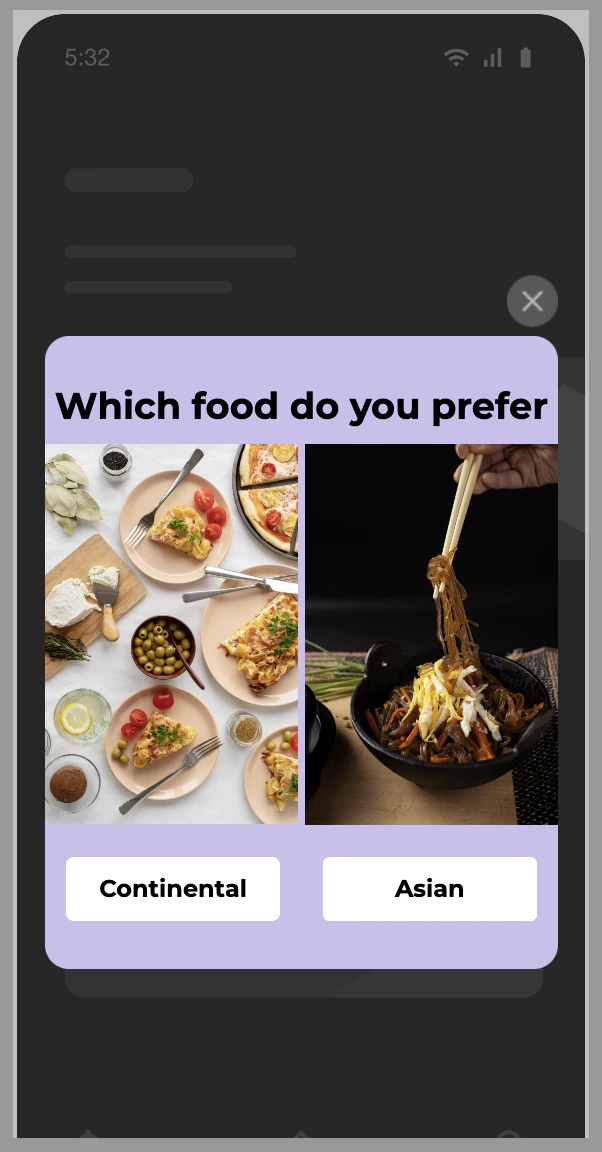
Create an In-App Campaign
In this section, let us create a single-question survey using the drag-and-drop editor of MoEngage to collect customer preferences quickly.Step 1: Target Users
- Navigate to the sidebar on the left and click Engage > Campaigns and click + Create campaign, or click + Create new> Campaign.
- Under Inbound, click In-app.
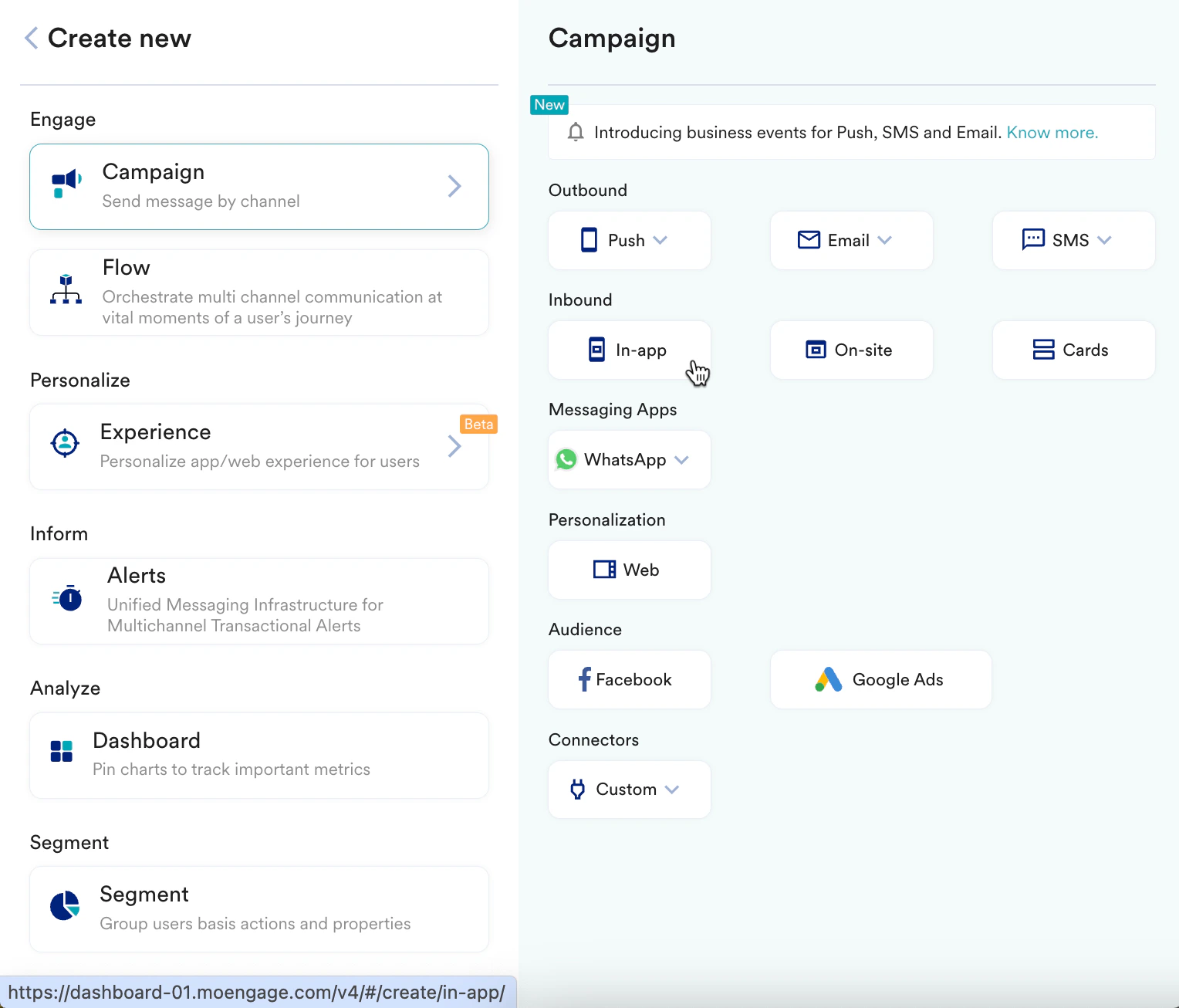 You are taken to the first step, “Target users,” of defining your campaign.
 - Enter the following details:
- Campaign name: Enter a name for the campaign. For example, “Single question survey campaign.”
- Campaign tags: Select the relevant campaign tags.
- In the Target Platforms section, select iOS.
- In the Trigger Criteria section, select On app open.
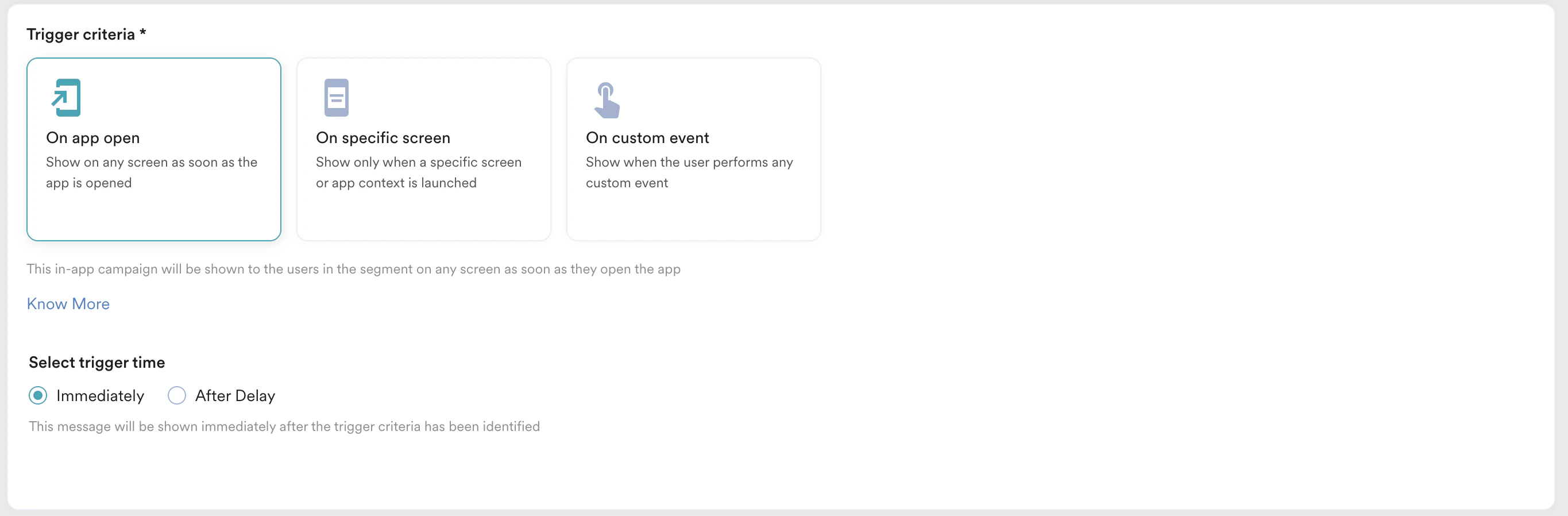
- In the Select trigger time section, select Immediately to send the message.
- In the Target audience section, select All users.
- Click Next to move to the second step, “Content,” where you can define the content that will go into your campaign.
Step 2: Content
MoEngage In-app campaign offers a variety of templates for all your use cases. It also provides the option to start from scratch.- Access the drag-and-drop editor and click Explore pre-built templates from the banner.
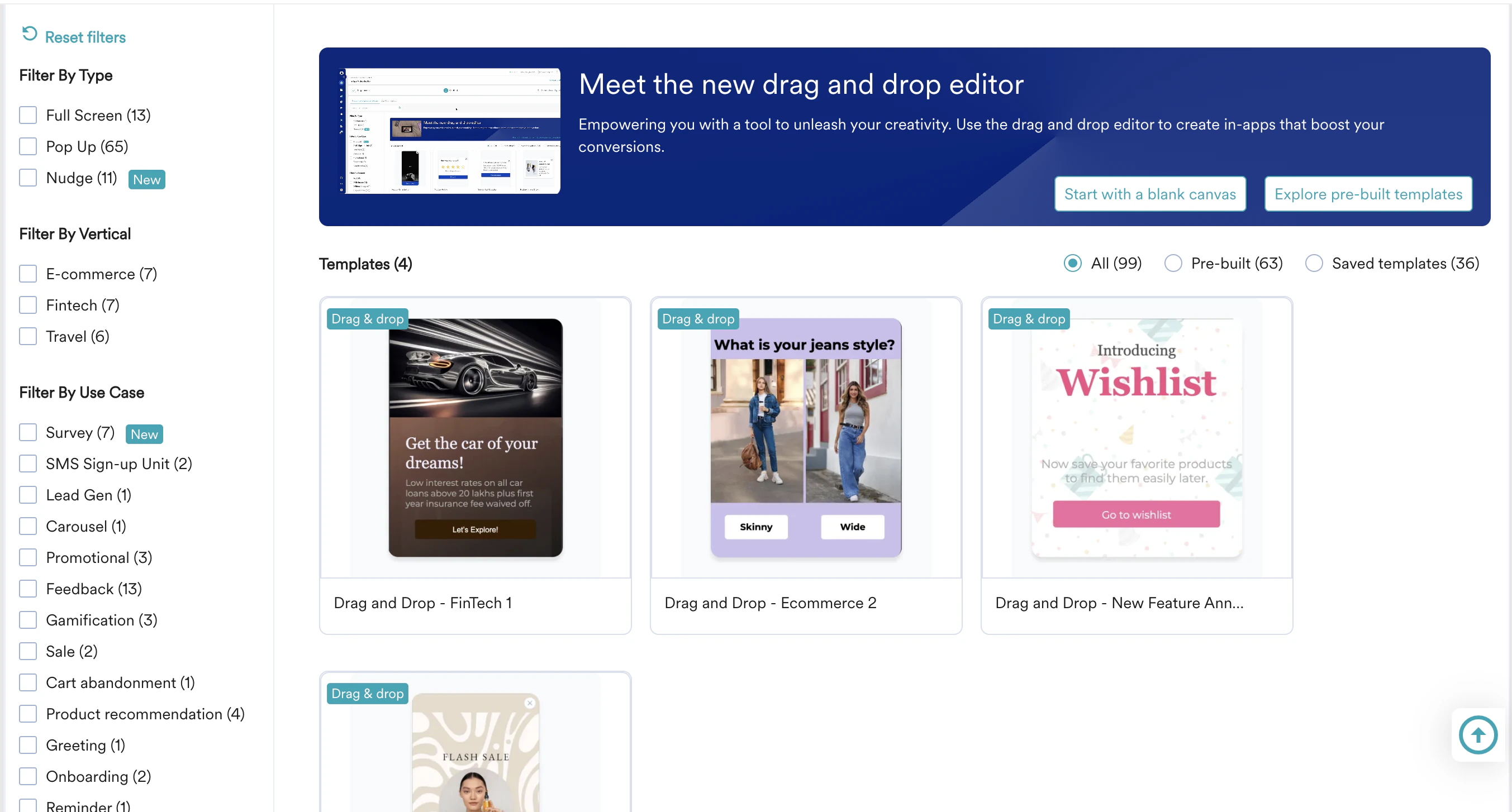
- Design the survey:
- Let’s select the Drag and Drop - E-commerce 2 template for our use case.
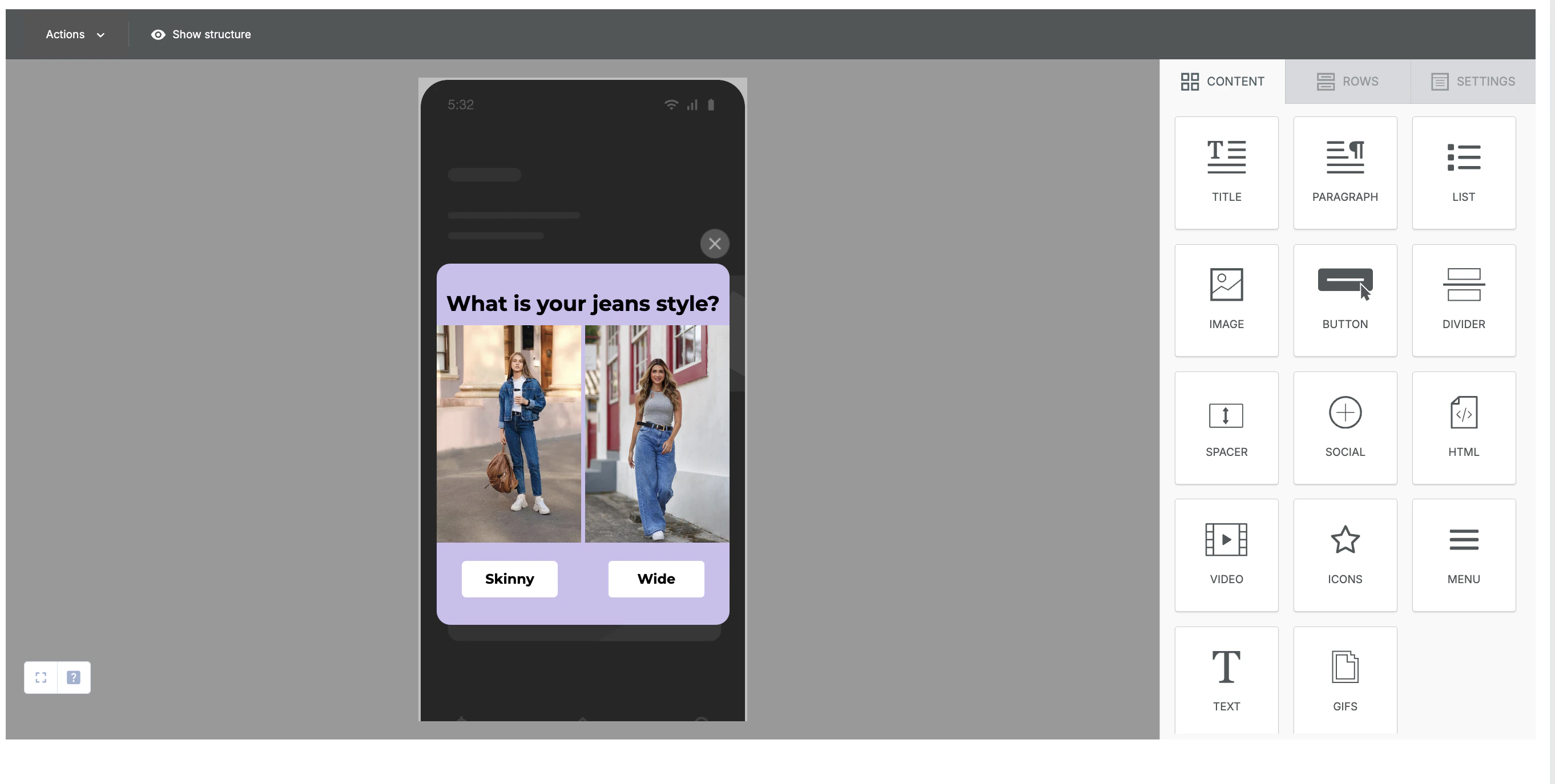
- Change the Title text to “Which food do you prefer?”
- Change the images to depict Asian and Continental food.
- Change the button names to Continental and Asian.
- Your template should look something like this:
- Let’s select the Drag and Drop - E-commerce 2 template for our use case.
- Track results:
- To track the number of times Continental or Asian buttons were clicked, you need to track a custom event whenever any of the buttons are clicked.
- To track the click, select the button and click + Add new attribute on the right panel.
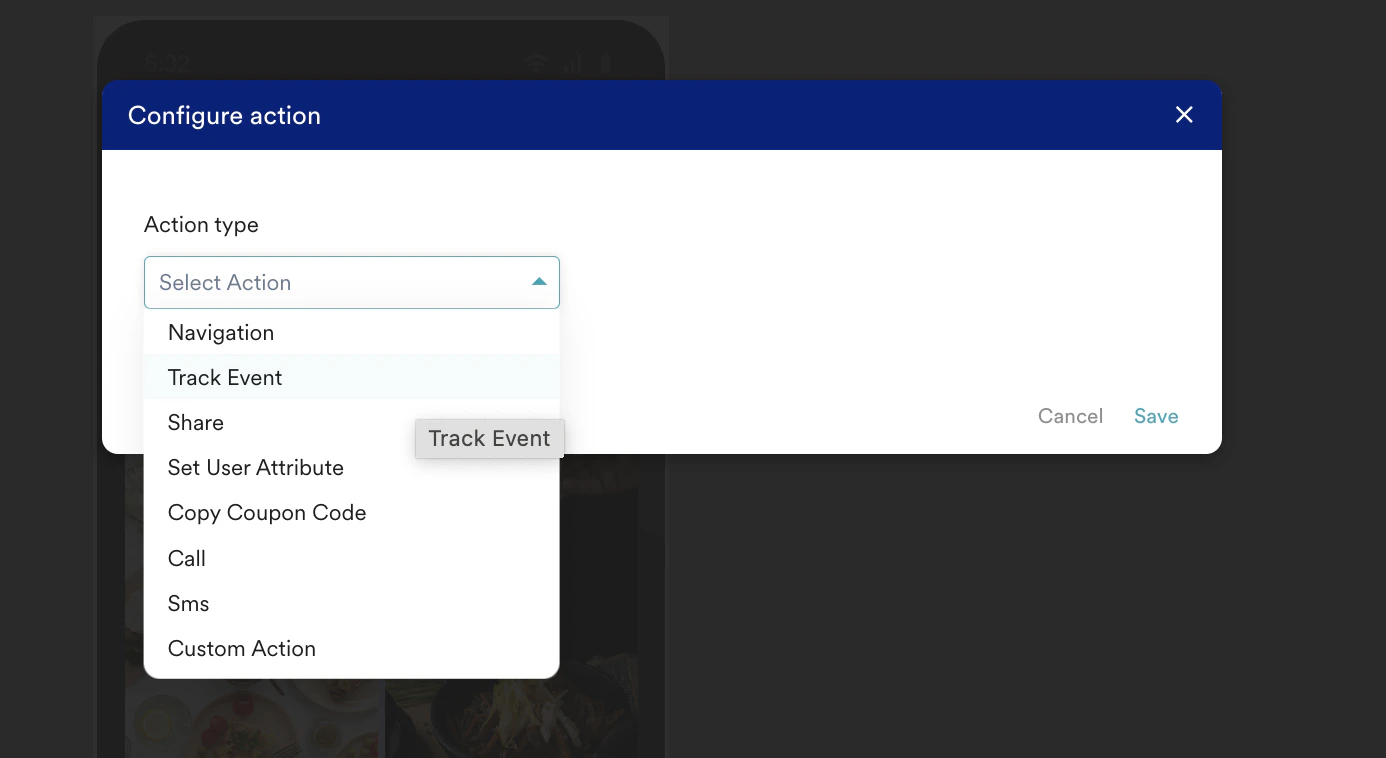
- Then click Search Attributes and select Track event from the Action type drop-down list.
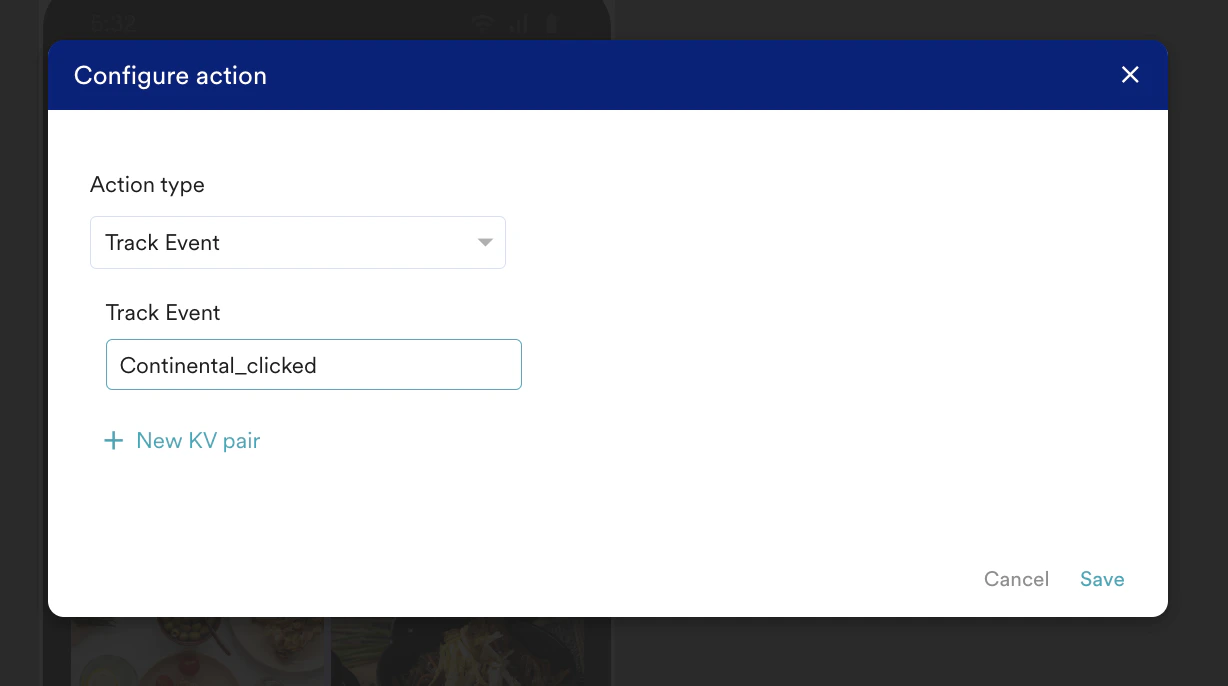
- In the Track Event field:
- For the Continental button, set the event as Continental_clicked.
- For the Asian button, set the event as Asian_clicked.
- Click Next to move to the third step, “Schedule and goals,” where you can define your campaign’s schedule and goals.
Step 3: Schedule and goals
Here, you can select the campaign schedule, add the conversion goal, choose the campaign’s priority, and define custom delivery controls.- In the Send campaign section, define the frequency and limits and when you want to start and end your In-app campaign.
- In the Conversion Goals section, add conversion goals that you would like to track.
- In the Campaign priority section, assign a priority to this campaign. Assigning a priority helps you decide which In-app message to show to a user when they are eligible for more than one message at a specific time. For example, selecting Critical ensures that the users will always see this even when there are other campaigns for which they are eligible.
- In the Delivery Controls section, define the controls based on your requirements. For more information, refer to Create In-App Campaign.
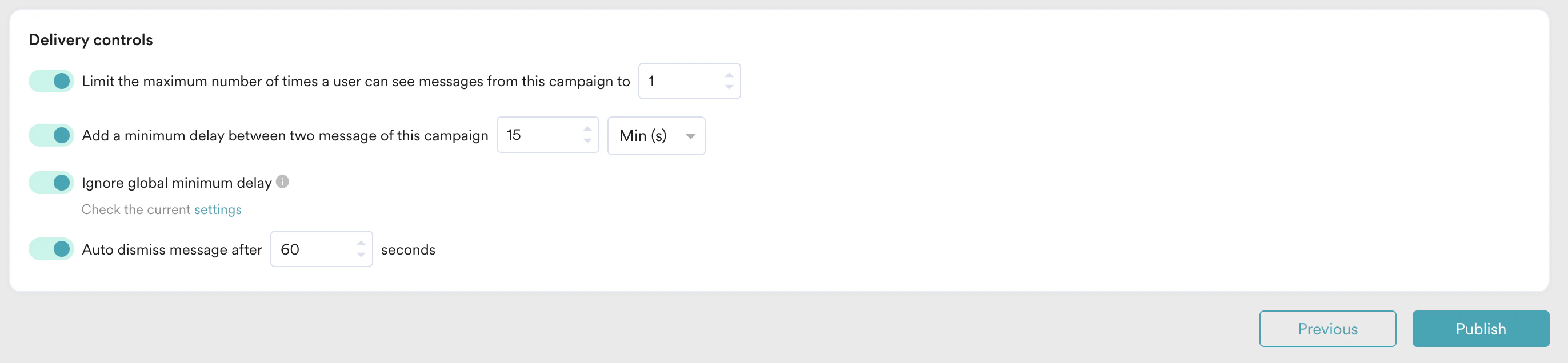
- Click Publish.
Analyze Results
- After the campaign is published, you can go to Segment > Create Segment.
- Add user behavior as Has executed and then select Continental_clicked or Asian_clicked.
- After the segmentation is done, you can download the results for the users who clicked them.
Generate Insights and Take Action
- Generate reports based on the survey data.
- Identify which type of food is preferred by the majority of customers.
- Use these insights to refine menu offerings, improve marketing strategies, and enhance the dining experience.