

Task or Objective to be achieved
To show unread/unclicked notifications in the InboxSteps to be carried out
- Make sure that the SDK Version is above 4.4.0, and confirm if you have implemented Notification Service Extension as mentioned here.
- Along with it make sure that the App Group IDs are set correctly for both the App Target and the Service Extension Target.
- First, select your App Target and select Capabilities do the changes as shown in the image below:
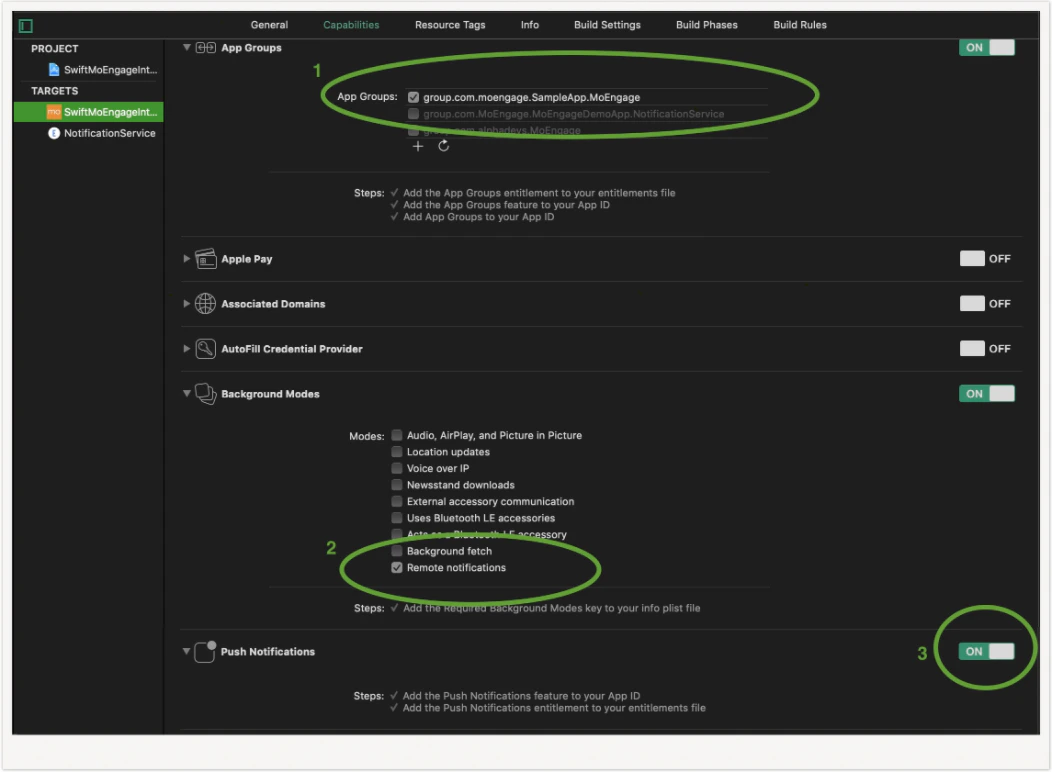
- Make sure you set the same app group id in the code as well. In this example, the app group id is ‘group.com.moengage.SampleApp.MoEngage’.
- Provide the App Group ID selected in the Capabilities tab by calling the setAppGroupID: method before initializing the SDK as shown below:
MoEngage.setAppGroupID(“group.com.moengage.SampleApp.MoEngage”) - Turn ON App Groups for your Notification Service Extension target and enable the same App group id selected for the App Target(In the above steps).
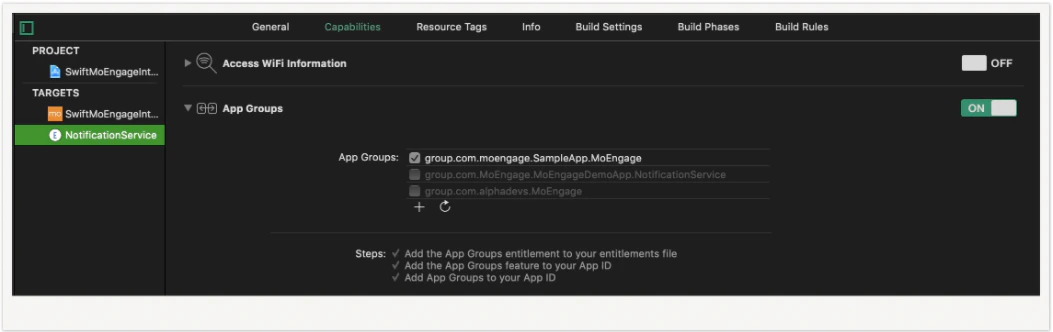
- In Notification Service Extension class: Set the App Group ID selected in the settings earlier using
setAppGroupID:method.
MORichNotification.setAppGroupID(“group.com.moengage.SampleApp.MoEngage”)
Solution and steps to verify the result
- Send out a push notification from MoEngage Dashboard to your test device.
- Without clicking on the notification / Without opening the notification, Launch your app and navigate to the Inbox screen.
- You should be able to view the unclicked/unread notification along with other notifications.